
How-to guides / Grow
How to make a points card instead of a stamp card
Make a new card that collects points when customers spend, and say how many points each dollar earns.
Takes about 8 minutes
Before you start
- Your account is on the Growth plan or a higher plan. Points are not on the Starter or Free plans. Your 60-day free trial includes them.
- A logo picture on your computer. It must be a JPG or PNG file, at least 114 by 50 pixels.
- You are making a new card. Do not change a stamp card that has customers on it. Leave it as it is.
The steps
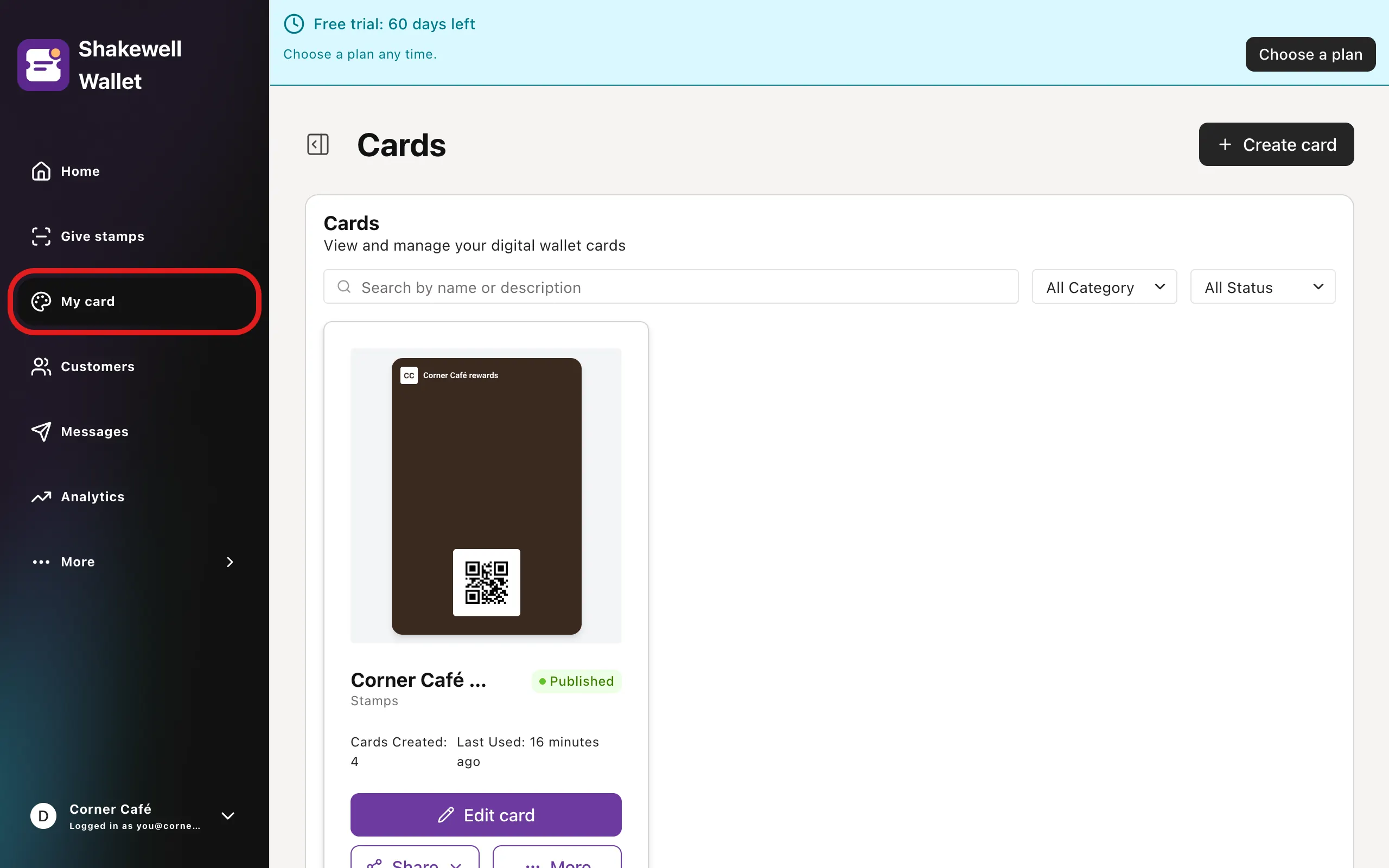
Step 1. On your computer, look at the menu on the left. Click My card.
You see your cards in a list.
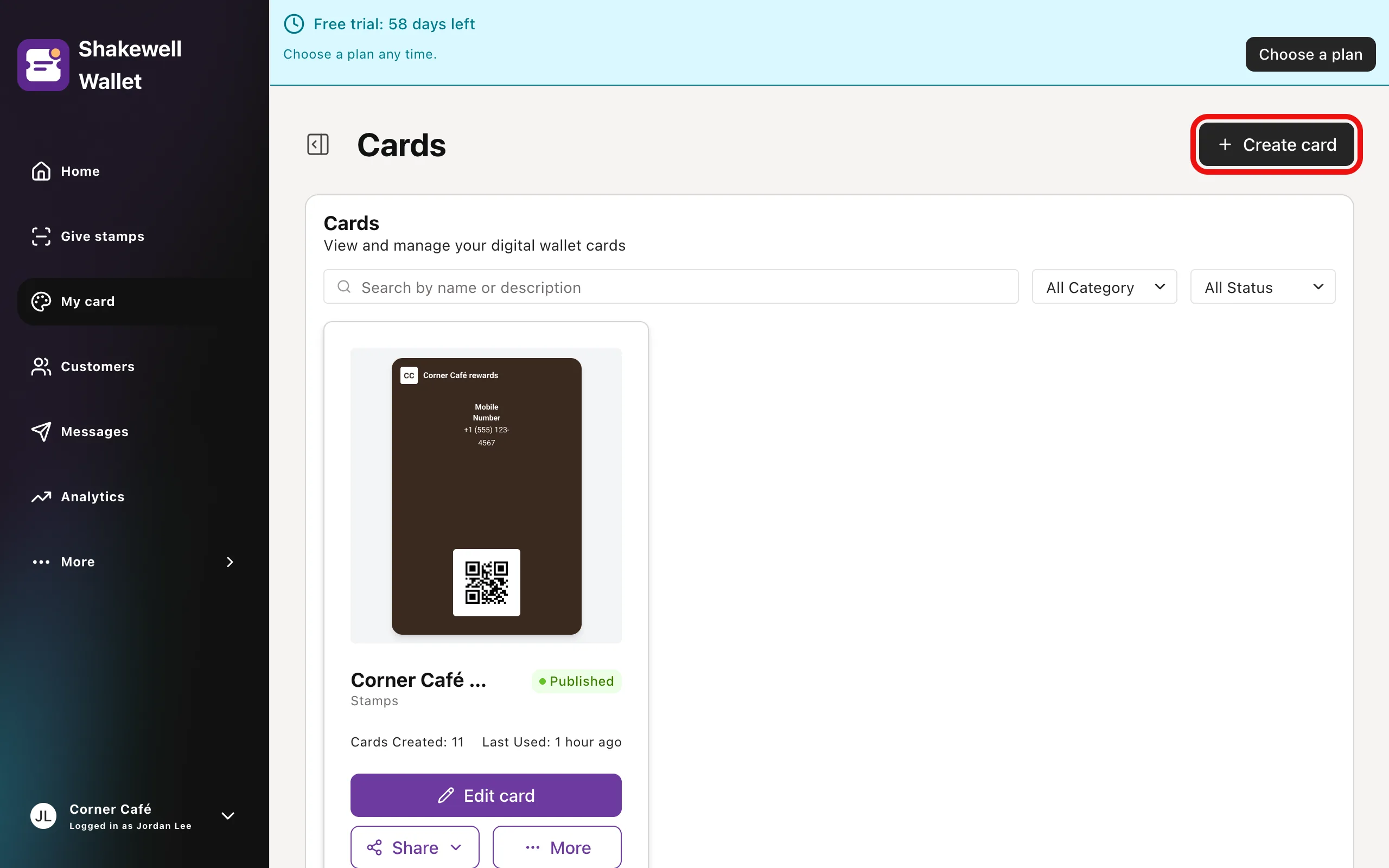
Step 2. At the top right, click the dark Create card button.
A page called Create card opens.
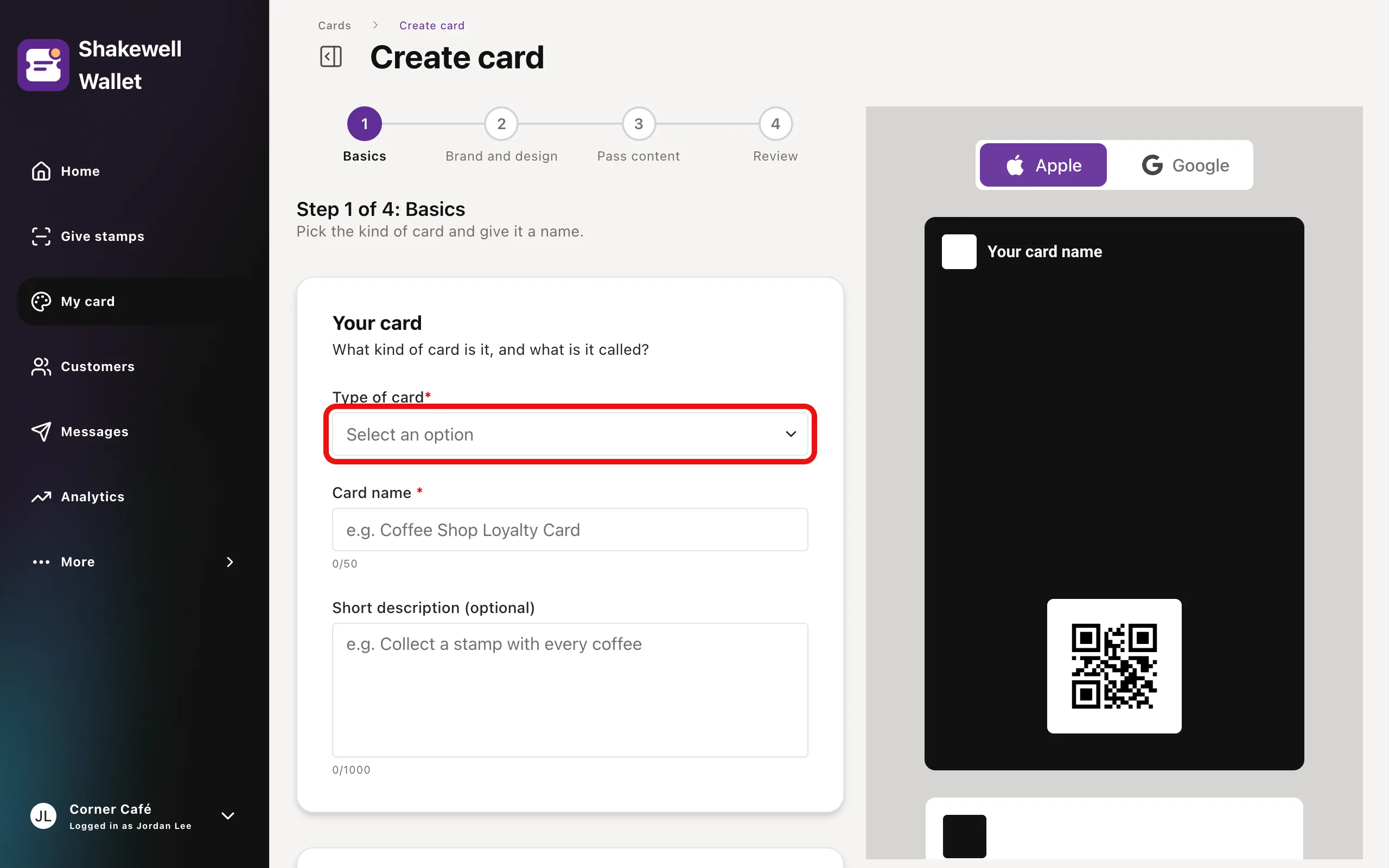
Step 3. Under Type of card, click the box that says Select an option.
A short list opens.
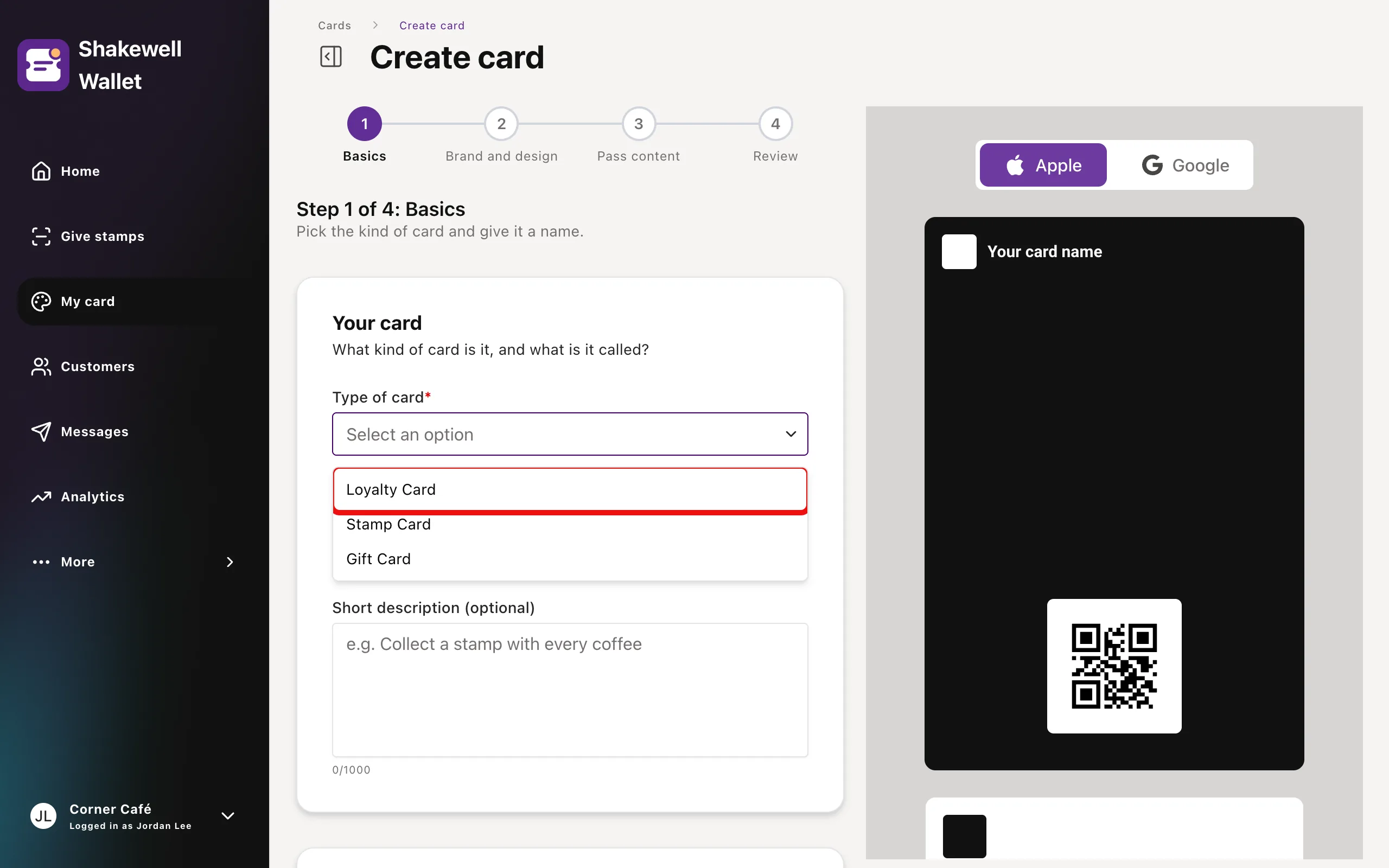
Step 4. Click Loyalty Card. This is the name the app uses for a points card.
A new box called Loyalty Program shows further down.
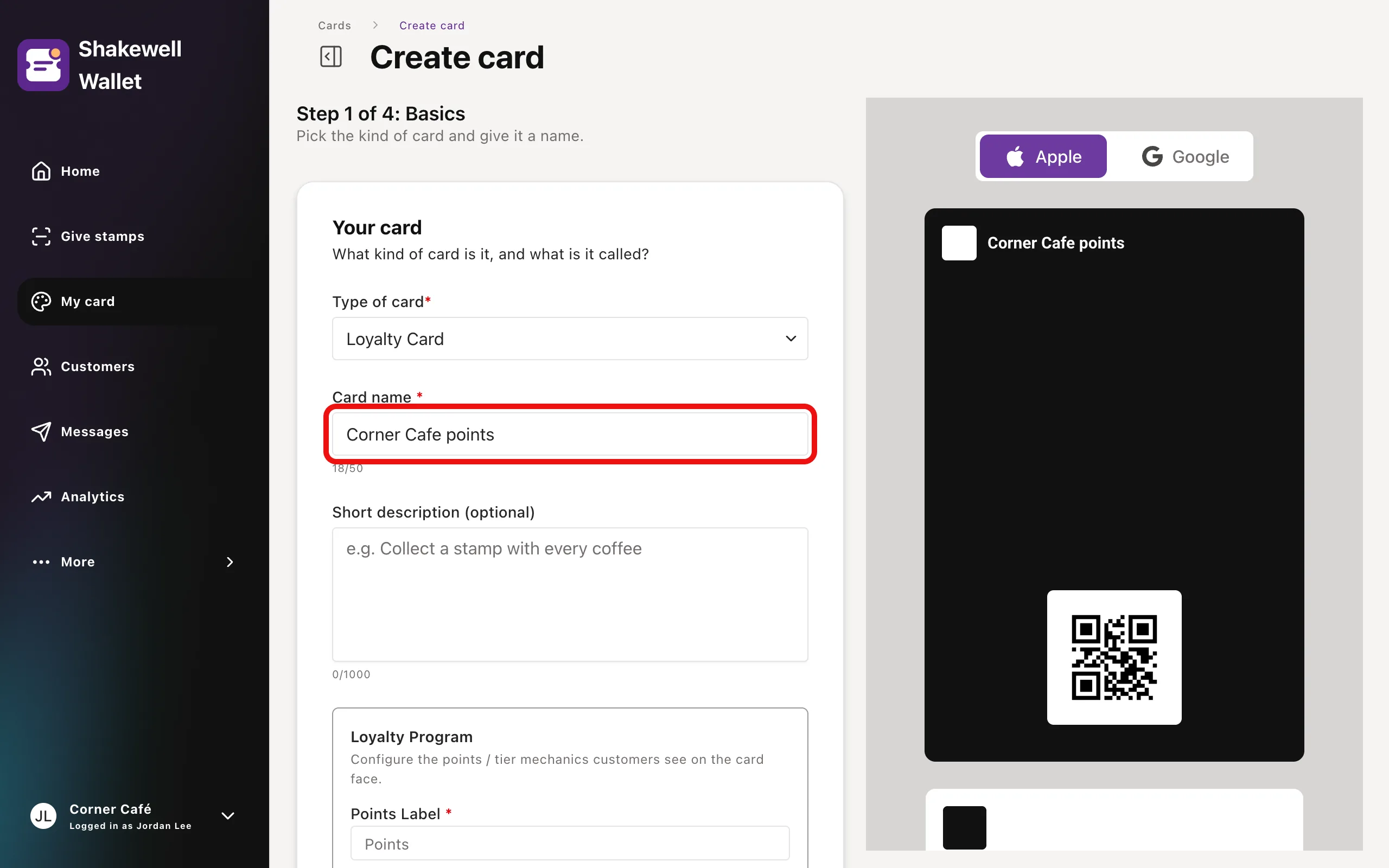
Step 5. Click the Card name box. Type a name for your card.
The name shows on the card picture on the right.
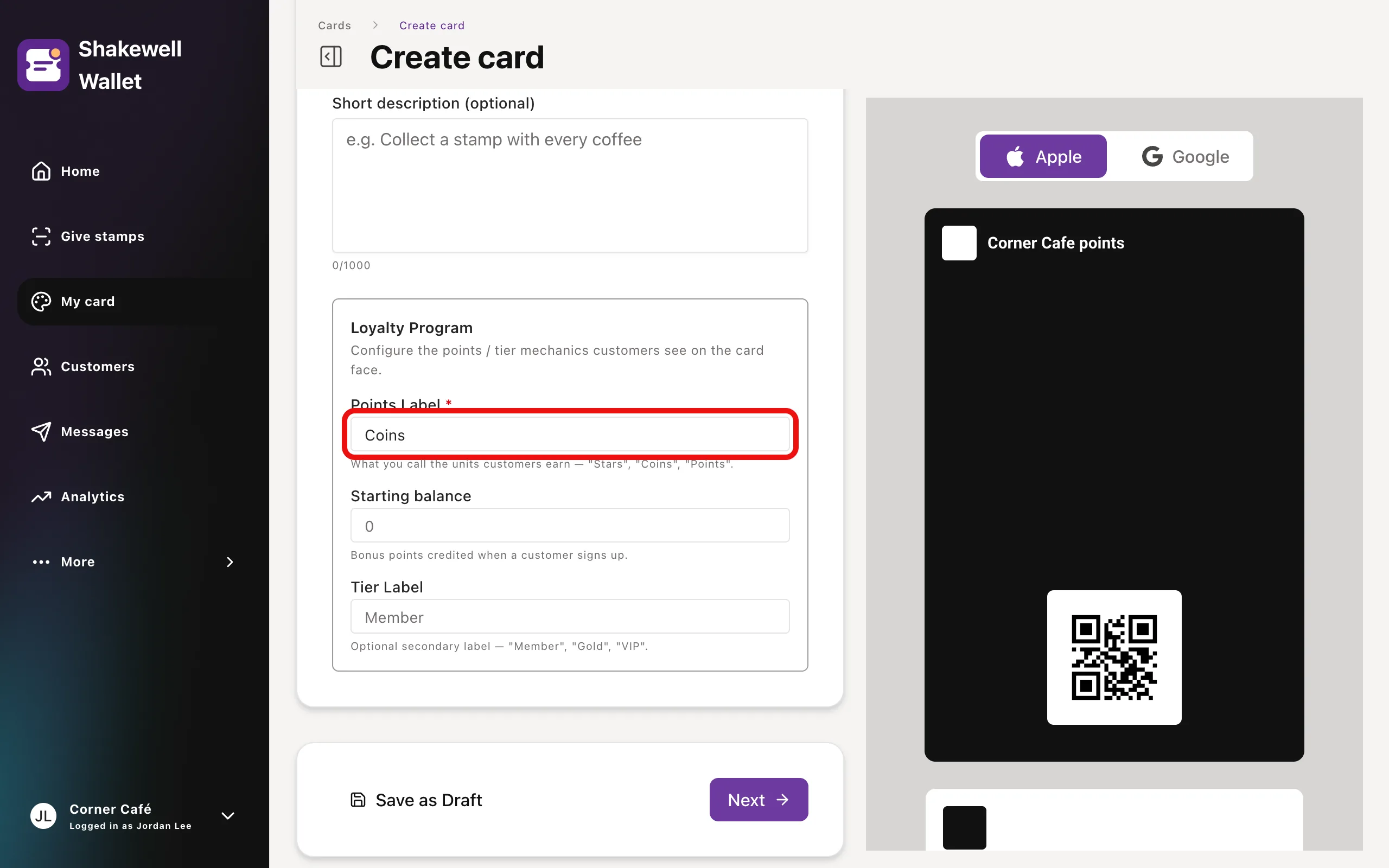
Step 6. Scroll down to the Loyalty Program box. Click the Points Label box. Type what you call your points, like Coins or Stars.
Customers will see this word on their card.
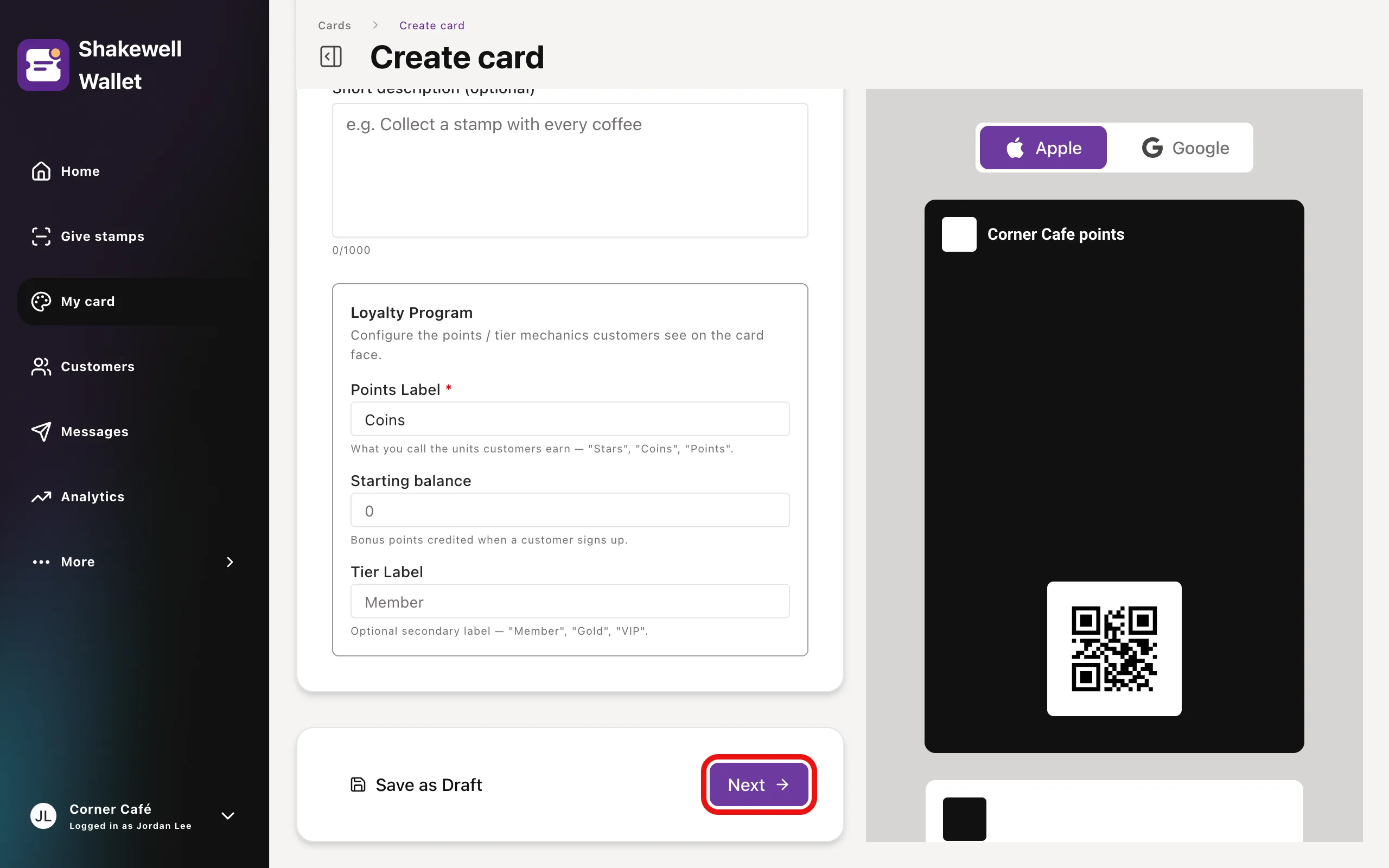
Step 7. Scroll down. Click the purple Next button.
Step 2 of 4 opens. It is called Brand and design.
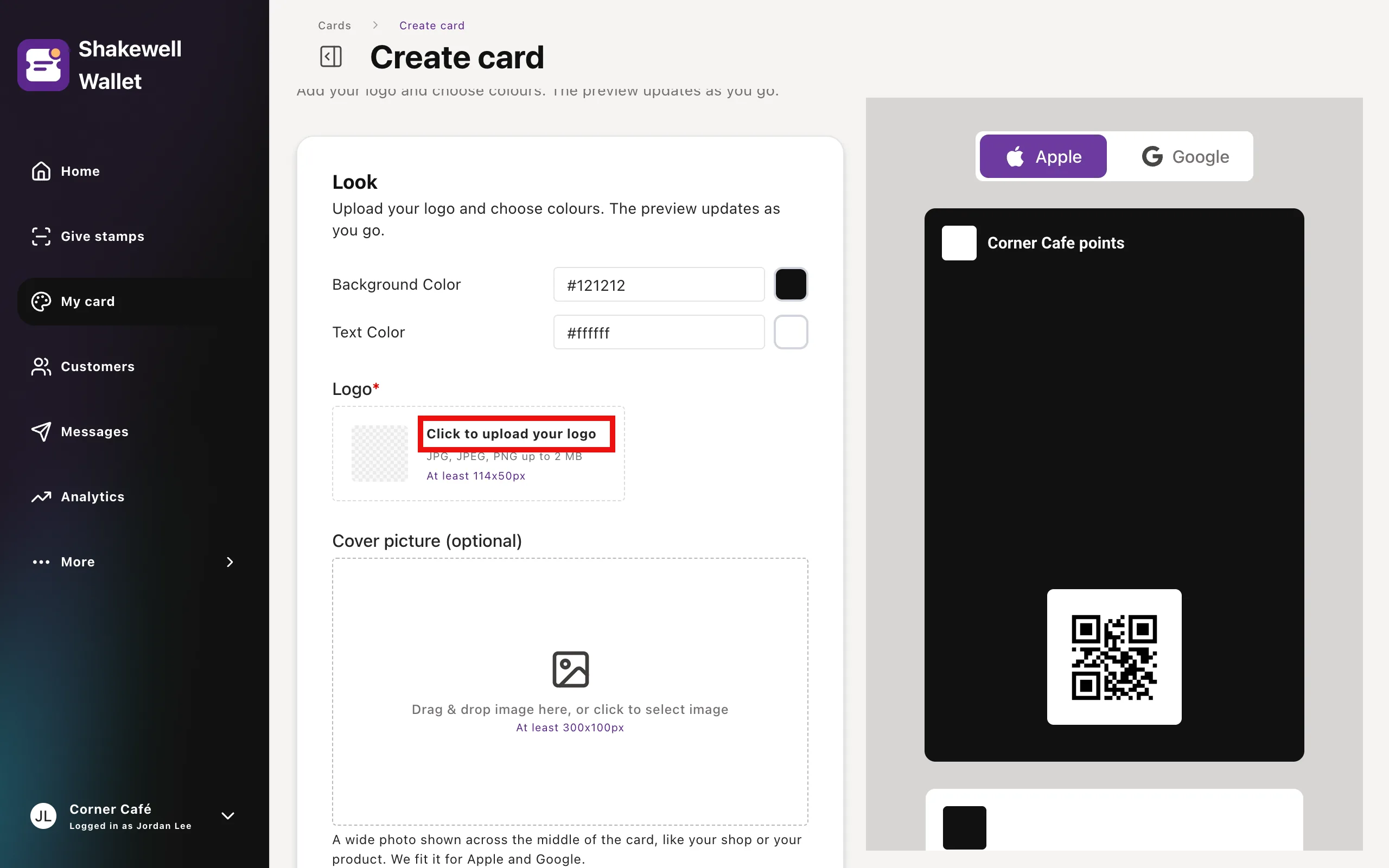
Step 8. Find the heading Logo. Click the words Click to upload your logo. Choose your logo picture from your computer.
Your logo shows on the card picture on the right.
Step 9. Scroll down. Click the purple Next button.
Step 3 of 4 opens. It is called Pass content.
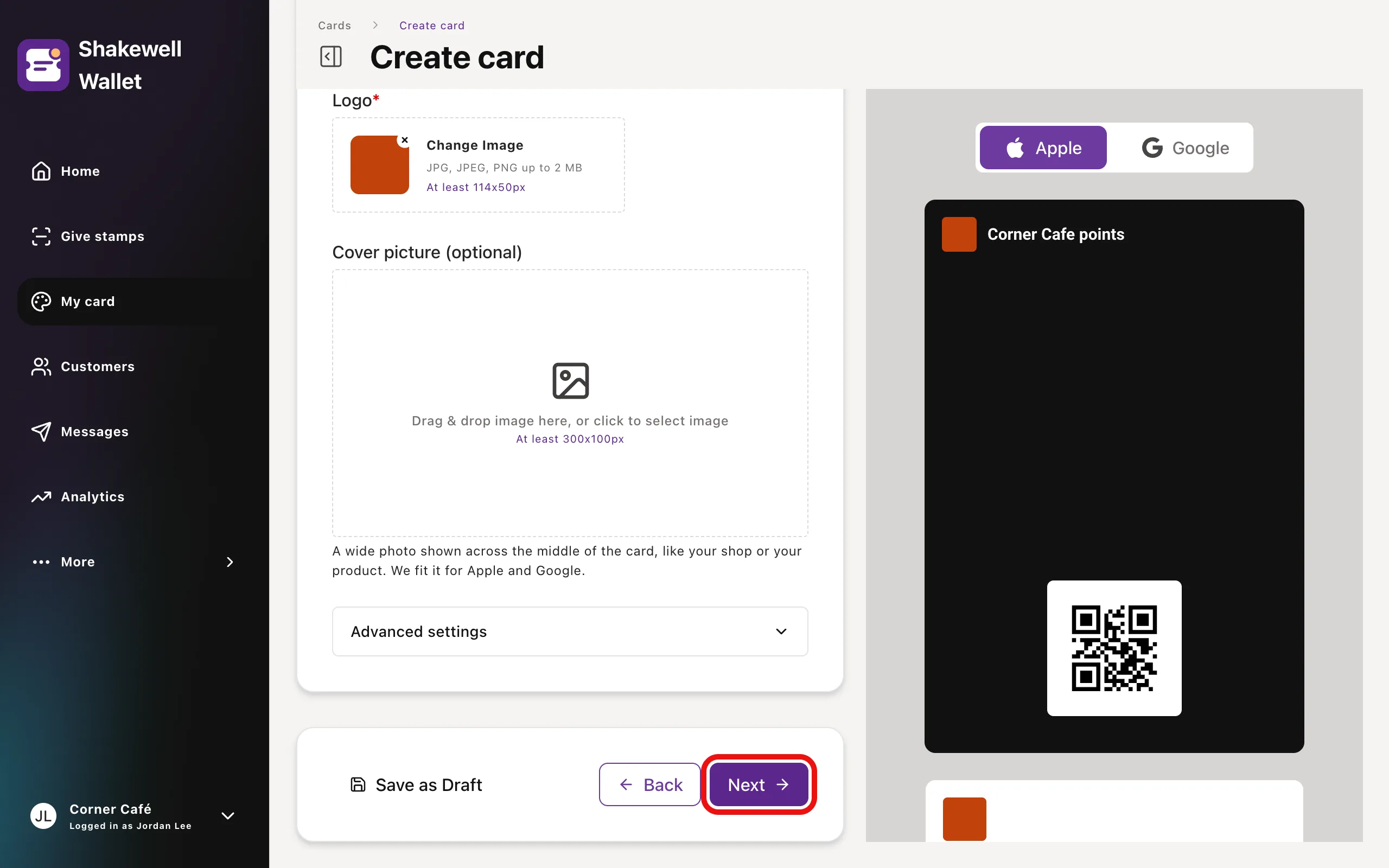
Step 10. Look at the questions we ask your customers. We ask for an email or a mobile number. Keep them as they are, and click the purple Next button.
Step 4 of 4 opens. It is called Review.
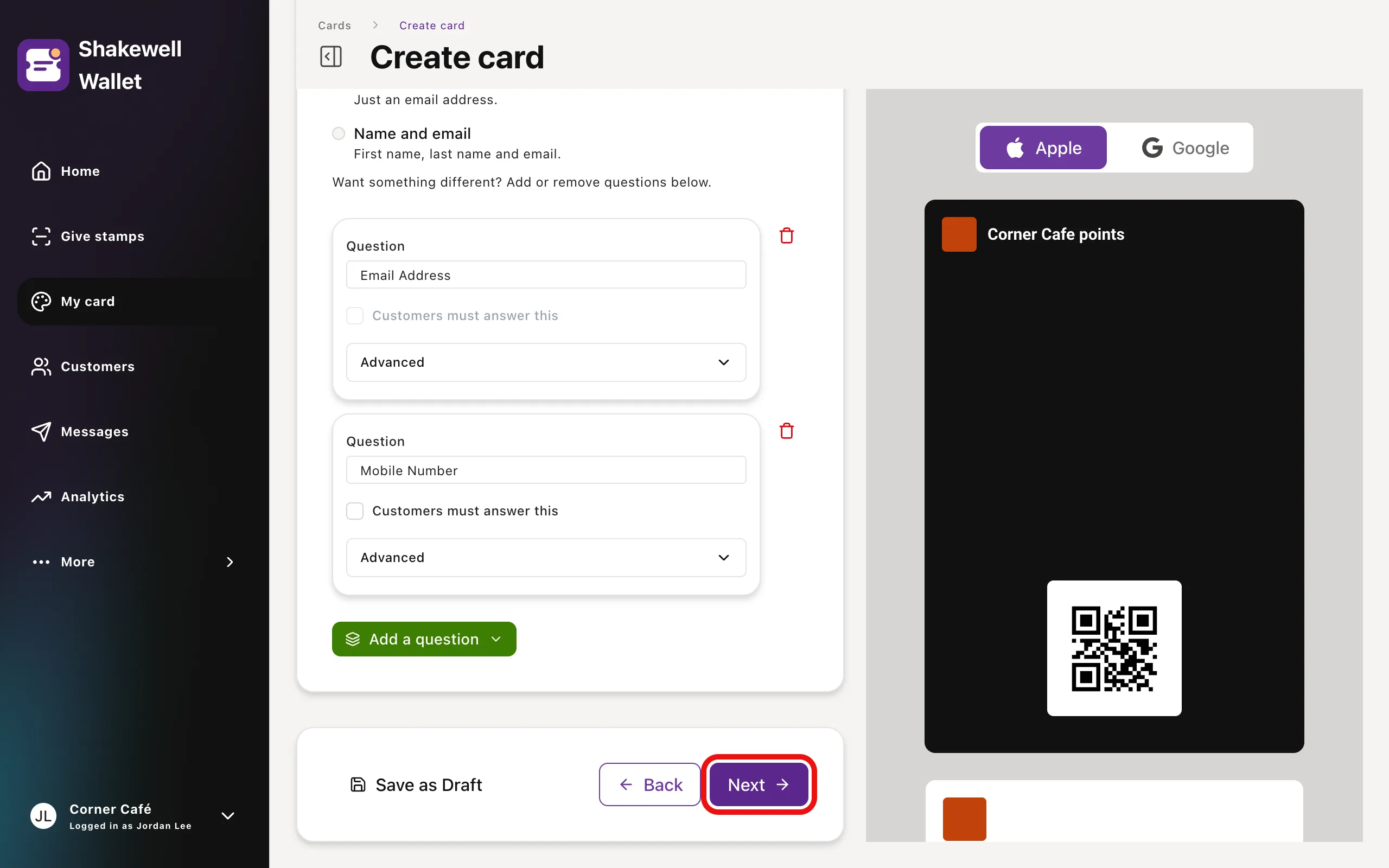
Step 11. Check the list. Click the purple Publish card button.
Wait a few seconds. The card is made and put live.
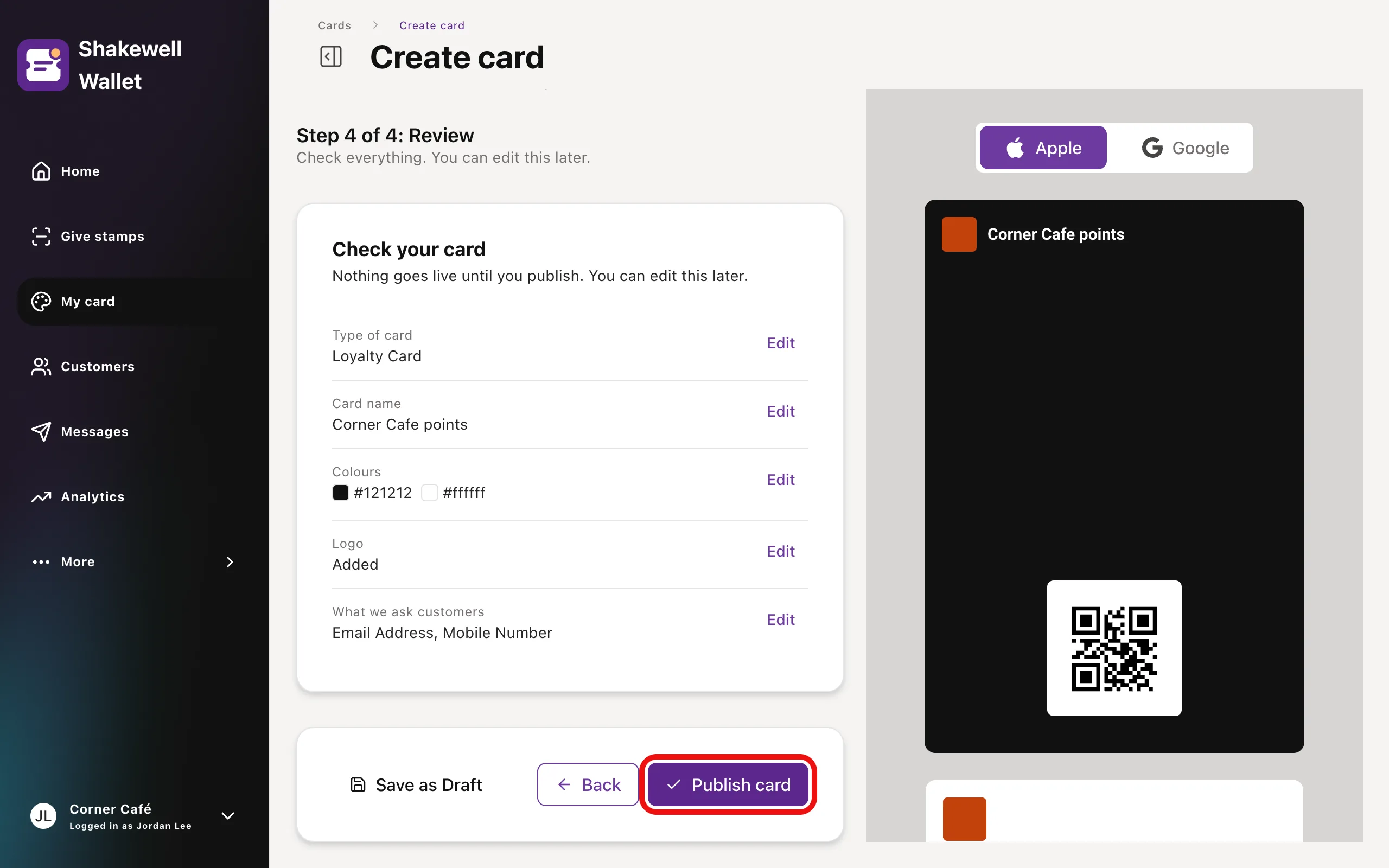
Step 12. Look at the top of the page. It says Your card is live.
Below it you see your sign-up link and a QR code. They are blurred here.
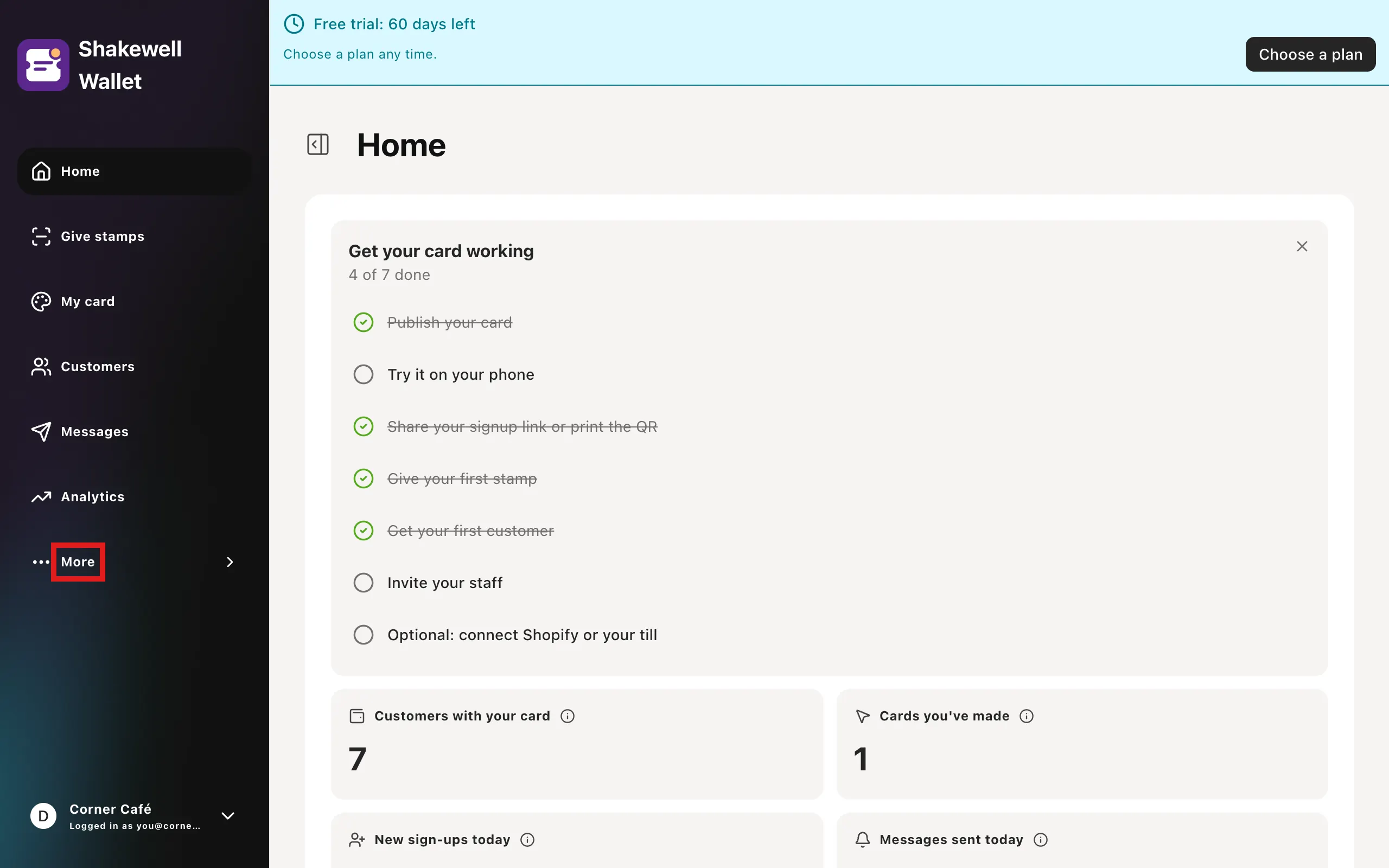
Step 13. Now say how many points a customer earns. In the left menu, click More.
A short list opens under it.
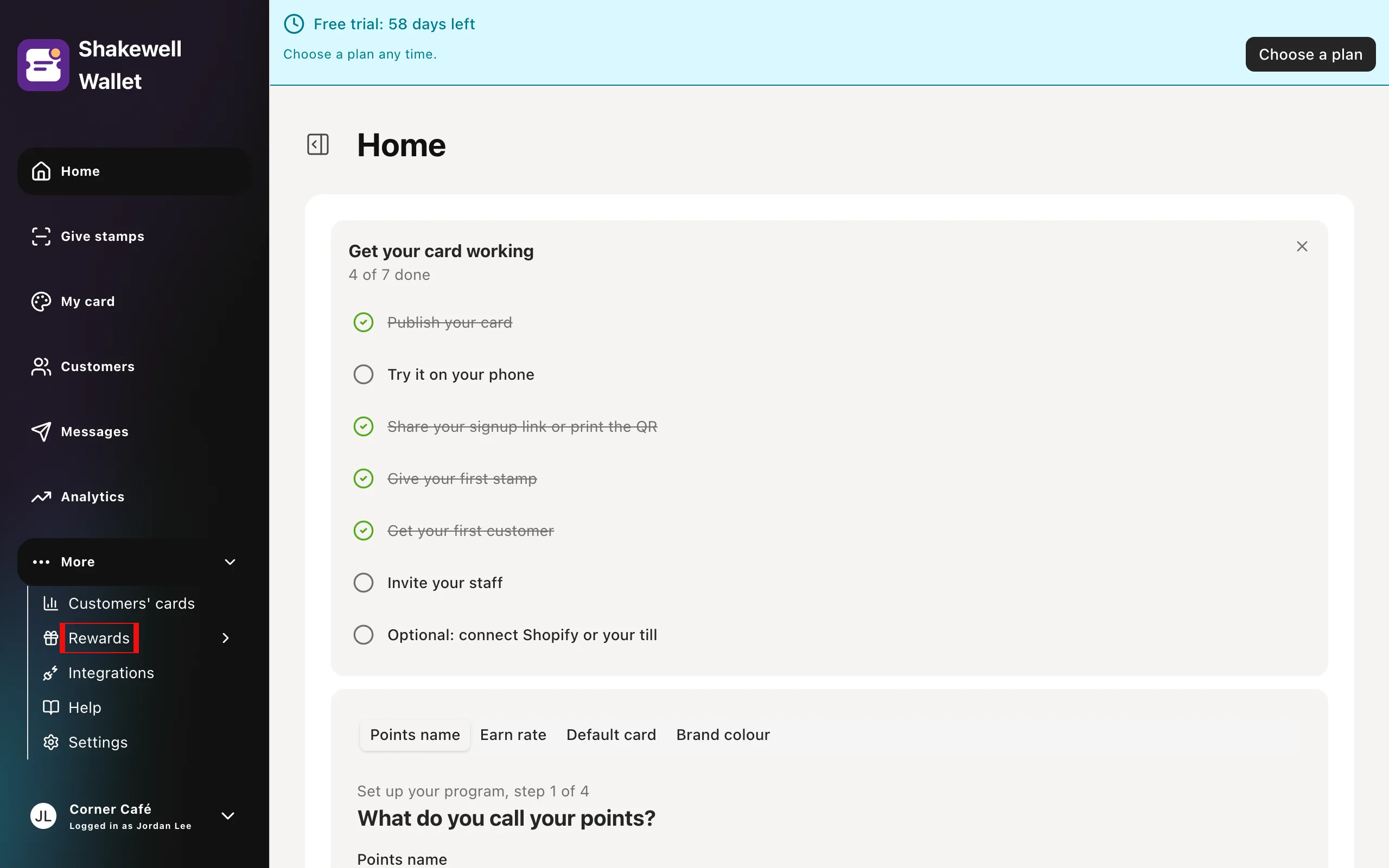
Step 14. In the short list, click Rewards.
More choices open under it.
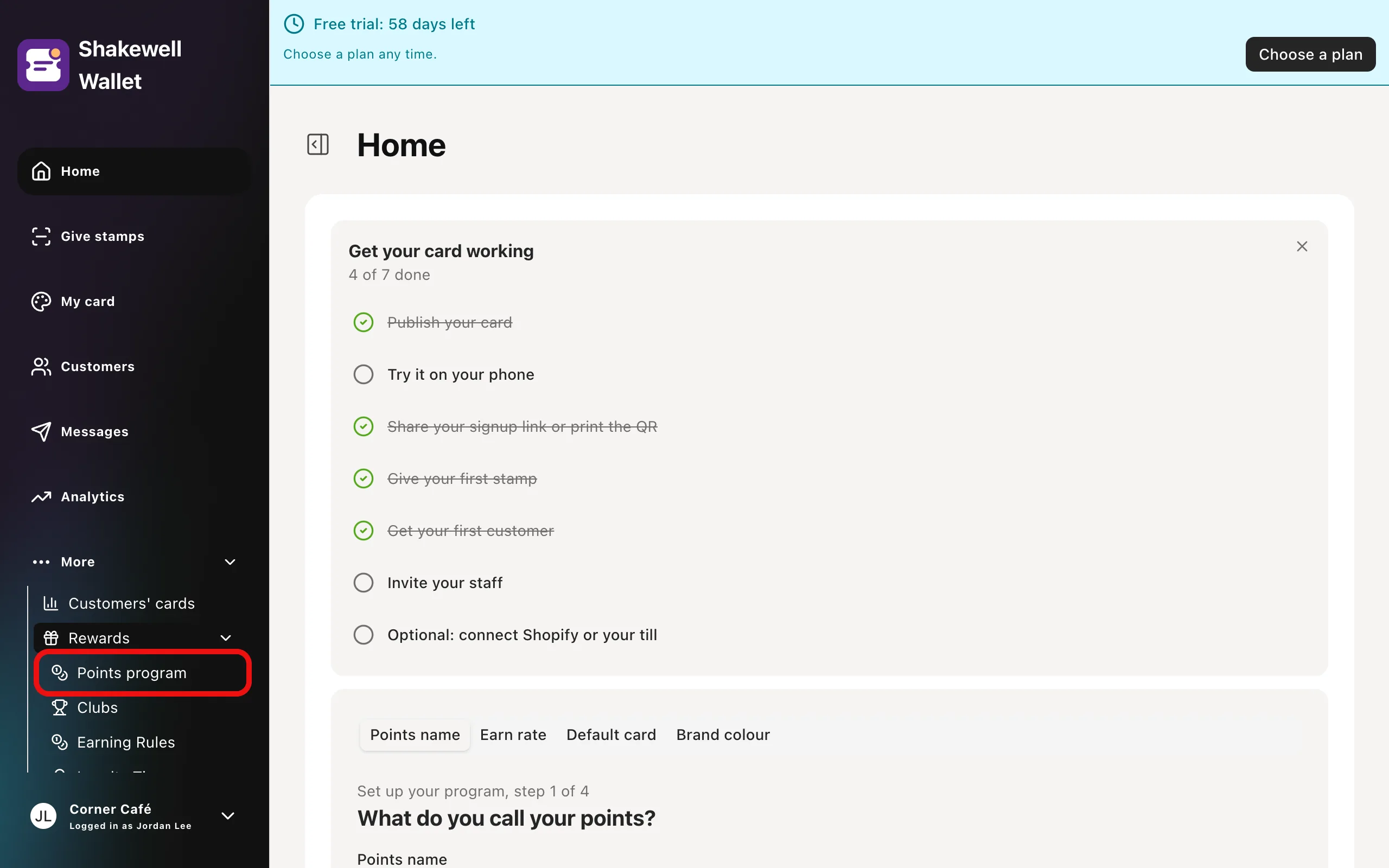
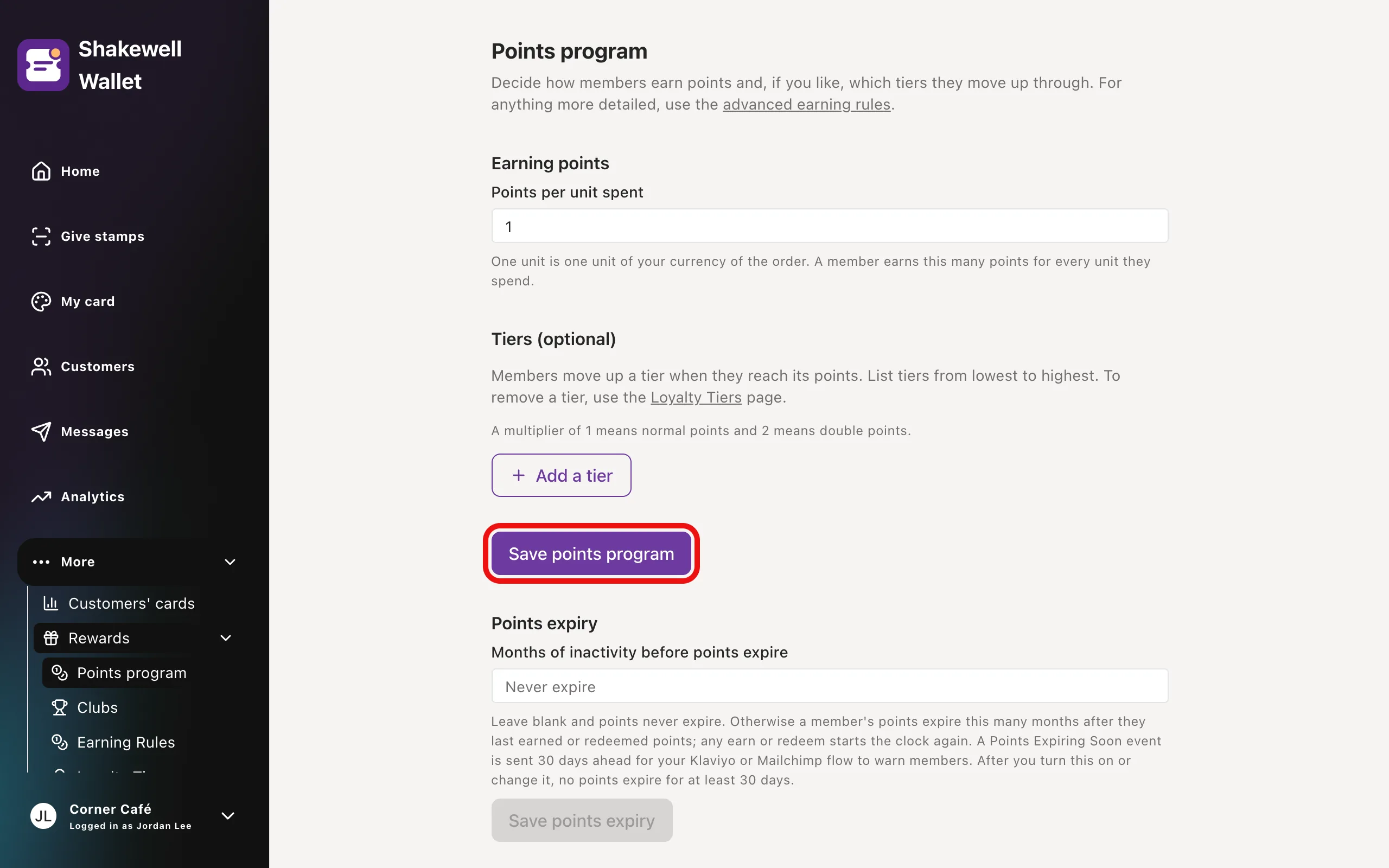
Step 15. Click Points program.
A page called Points program opens.
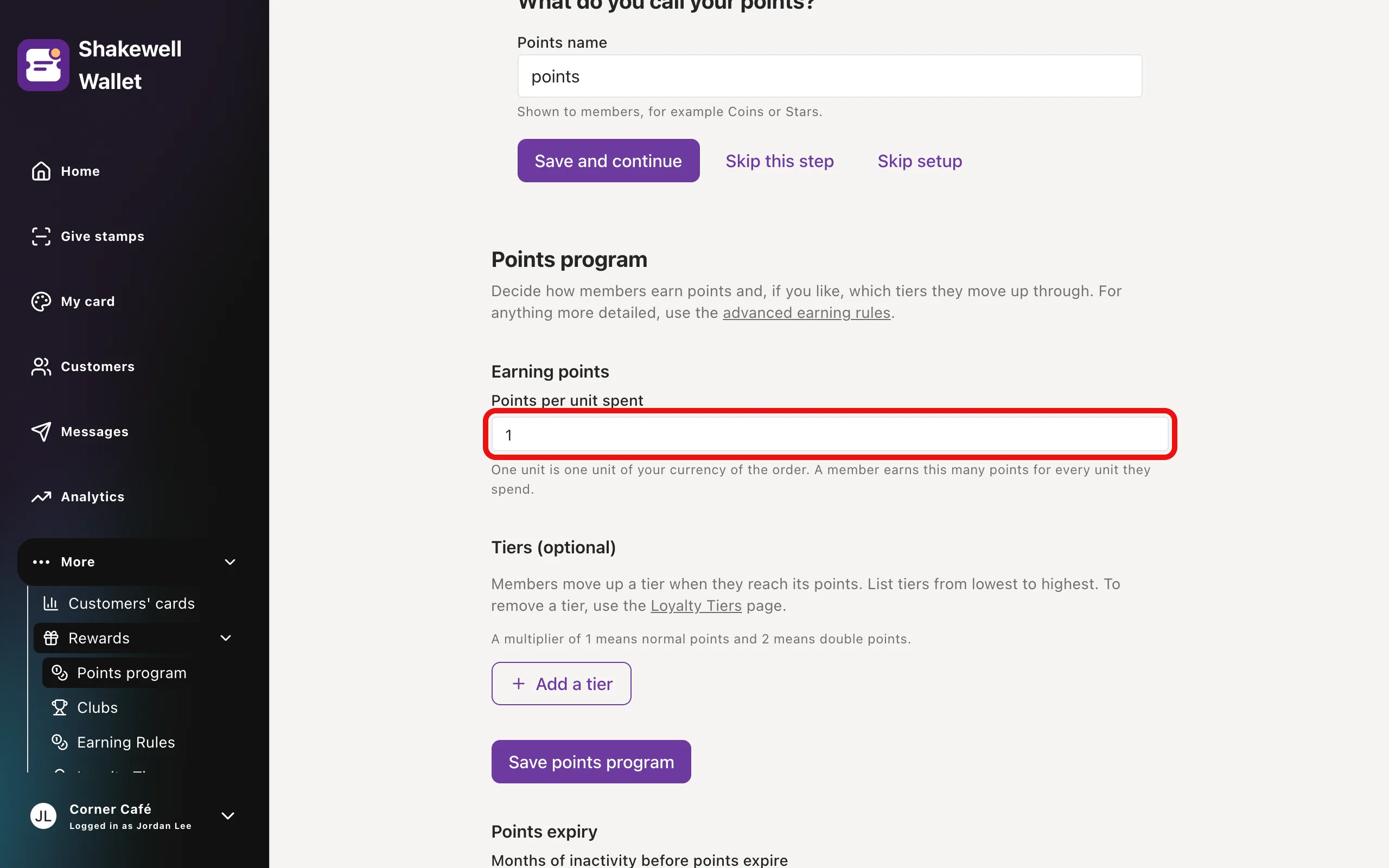
Step 16. Scroll down to Earning points. Click the Points per unit spent box. Type how many points a customer earns for each dollar they spend.
For example, type 1 to give one point for each dollar.
Step 17. Scroll down a little. Click the purple Save points program button.
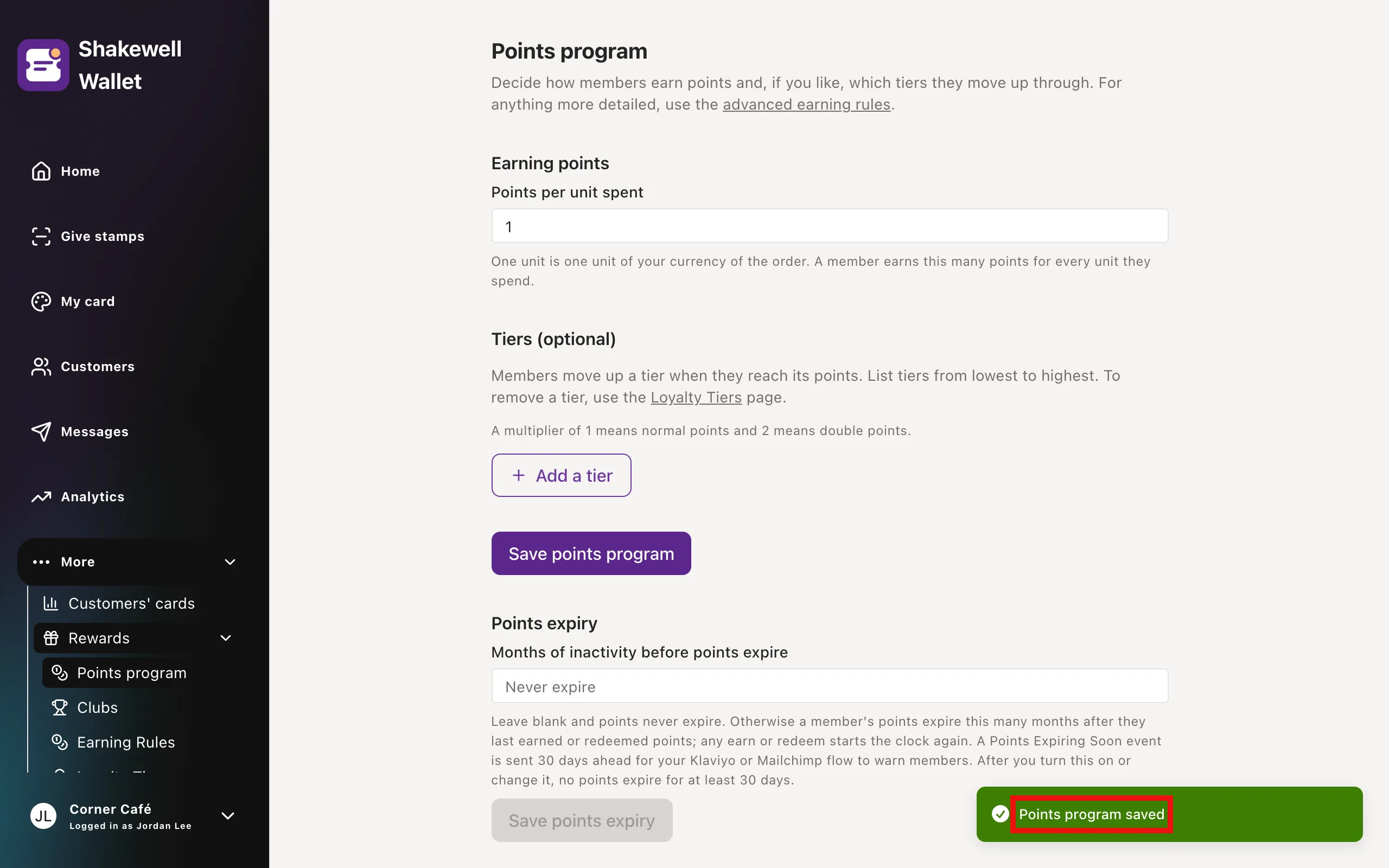
A green message pops up at the bottom right.
Step 18. Look at the green message. It says Points program saved.
You'll know it worked when
Your new card shows on the My card page, and the Points program page says Points program saved.
Good to know
- Customers earn points when they buy and your till or shop is connected. See How to connect Square, How to connect Shopify or How to connect Lightspeed.
- Your stamp card keeps working. Customers who already have it keep it.
- Starting balance and Tier label are extra boxes in the Loyalty Program box. You can leave them empty.
- Not on the Growth plan yet? See How to change your plan.
- The Points program page also shows a Set up your program box at the top. You can answer it or skip it.
Stuck?
That is fine. Contact us and we will help you. We reply within one business day.
These guides may help: