
How-to guides / Set up
How to print the QR poster for your counter
Print a poster with your card colours and a QR code, so customers can scan it and join.
Takes about 3 minutes
Before you start
- Your card is live. (See How to sign up and make your first card.)
- A printer, or a computer that can save a file as a PDF.
- Normal printer paper. The poster is made for A4 paper (the usual size of printer paper).
The steps
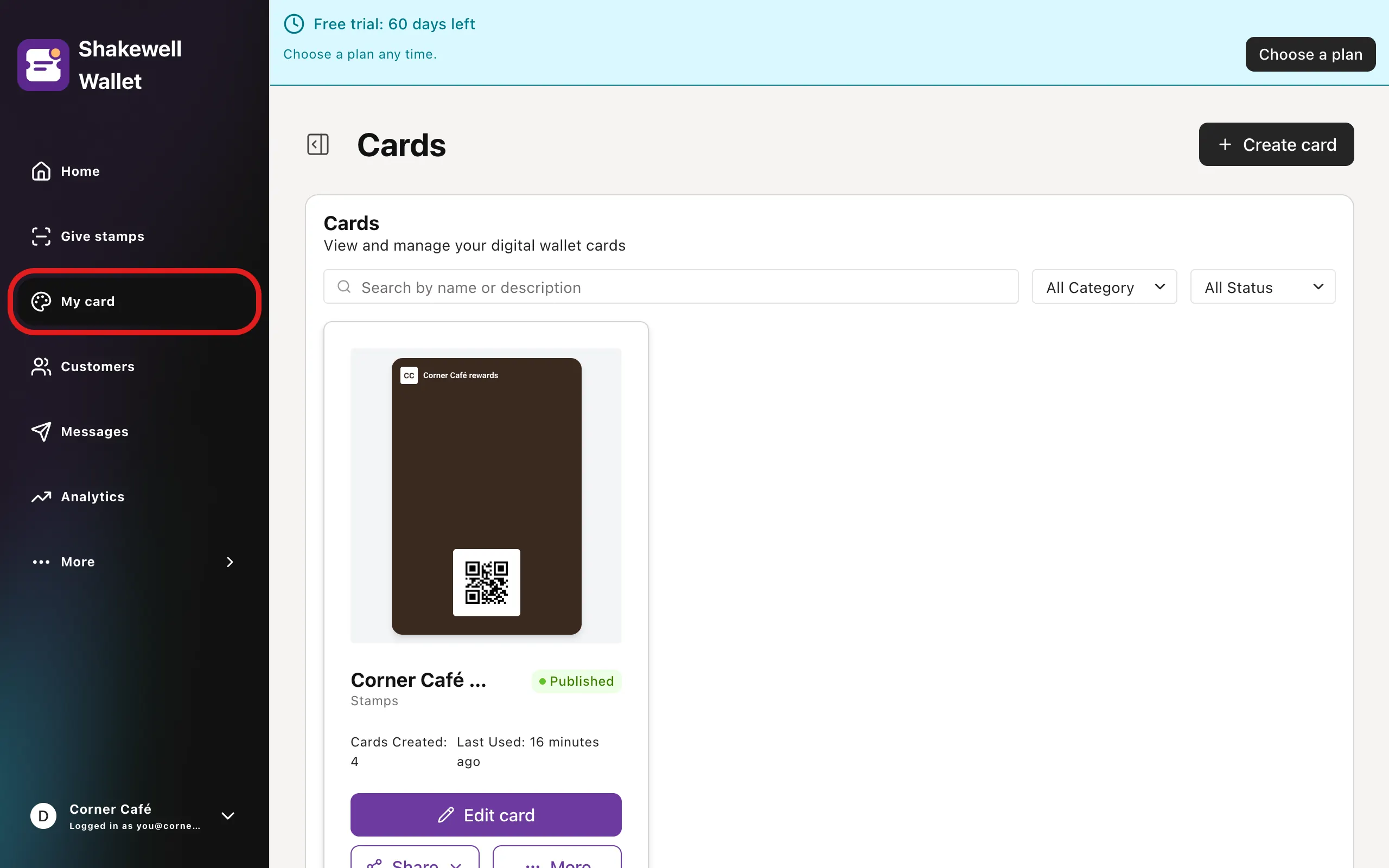
Step 1. On your computer, look at the menu on the left. Click My card.
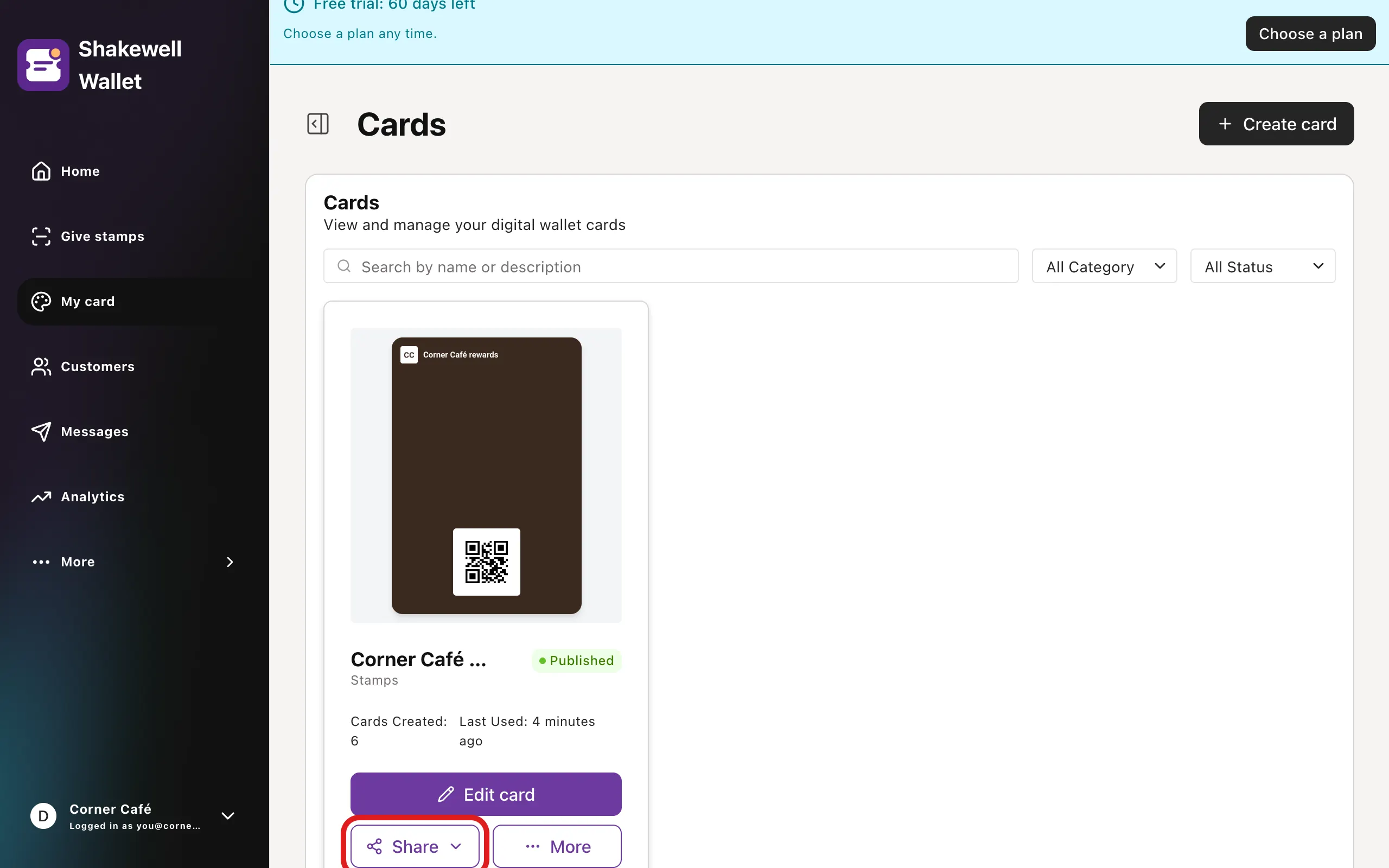
Step 2. Under your card, click the Share button.
A small menu opens.
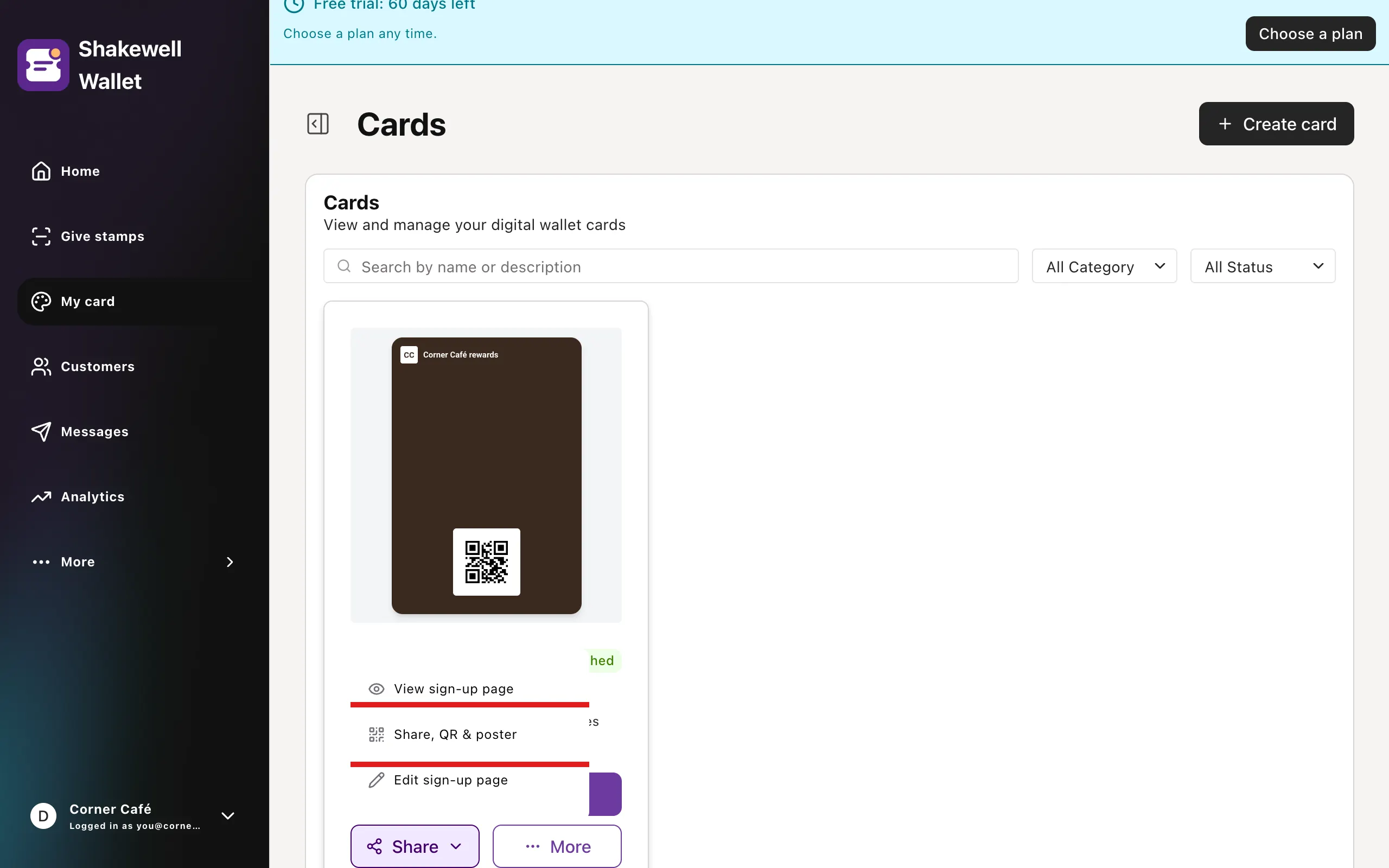
Step 3. In the small menu, click Share, QR & poster.
A page opens that says Your card is live.
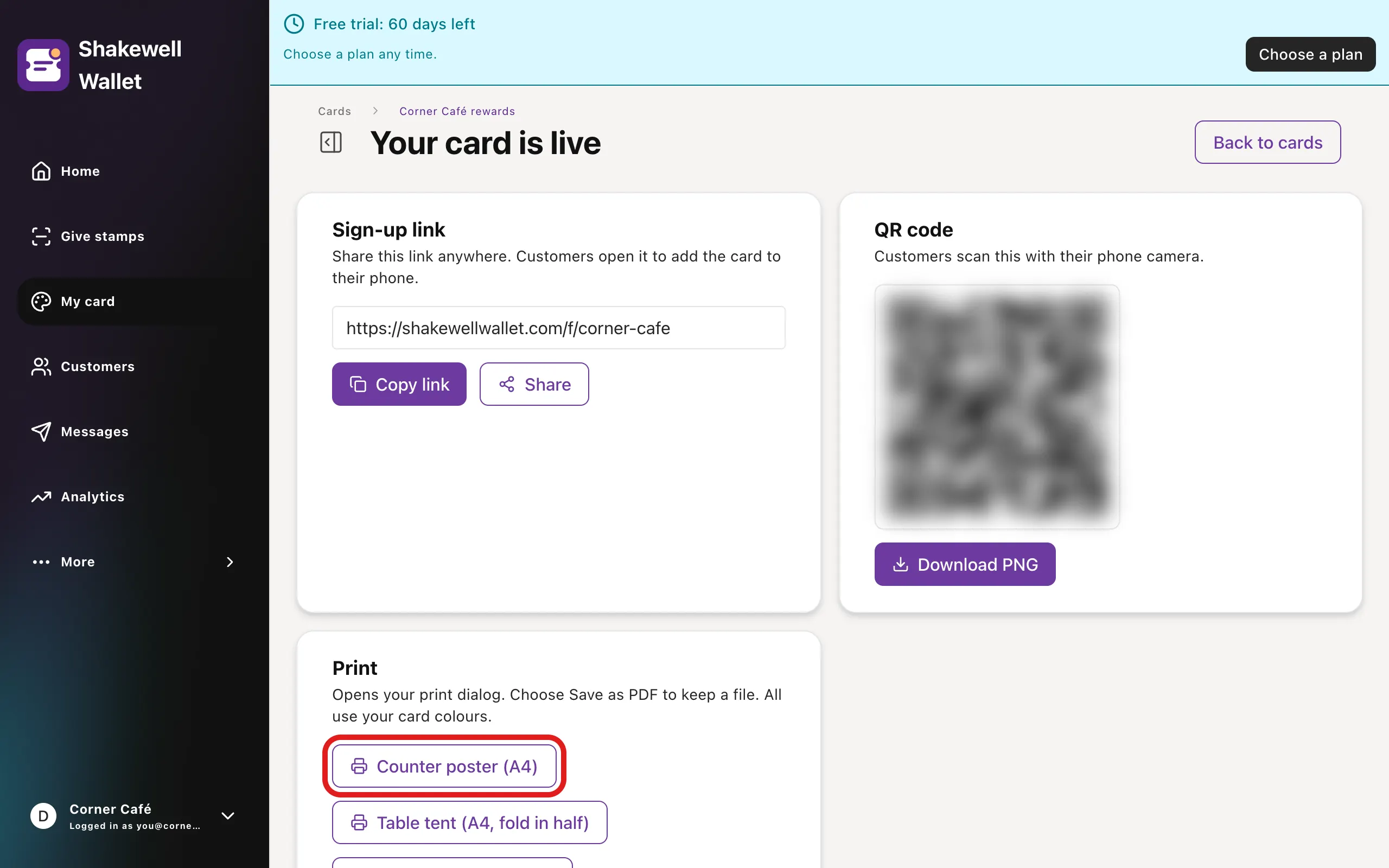
Step 4. Find the box called Print. Click the Counter poster (A4) button.
Your computer opens its print window.
Step 5. Look at the preview in the print window. It shows your café name, the words Scan to add our card to your phone, and a big QR code.
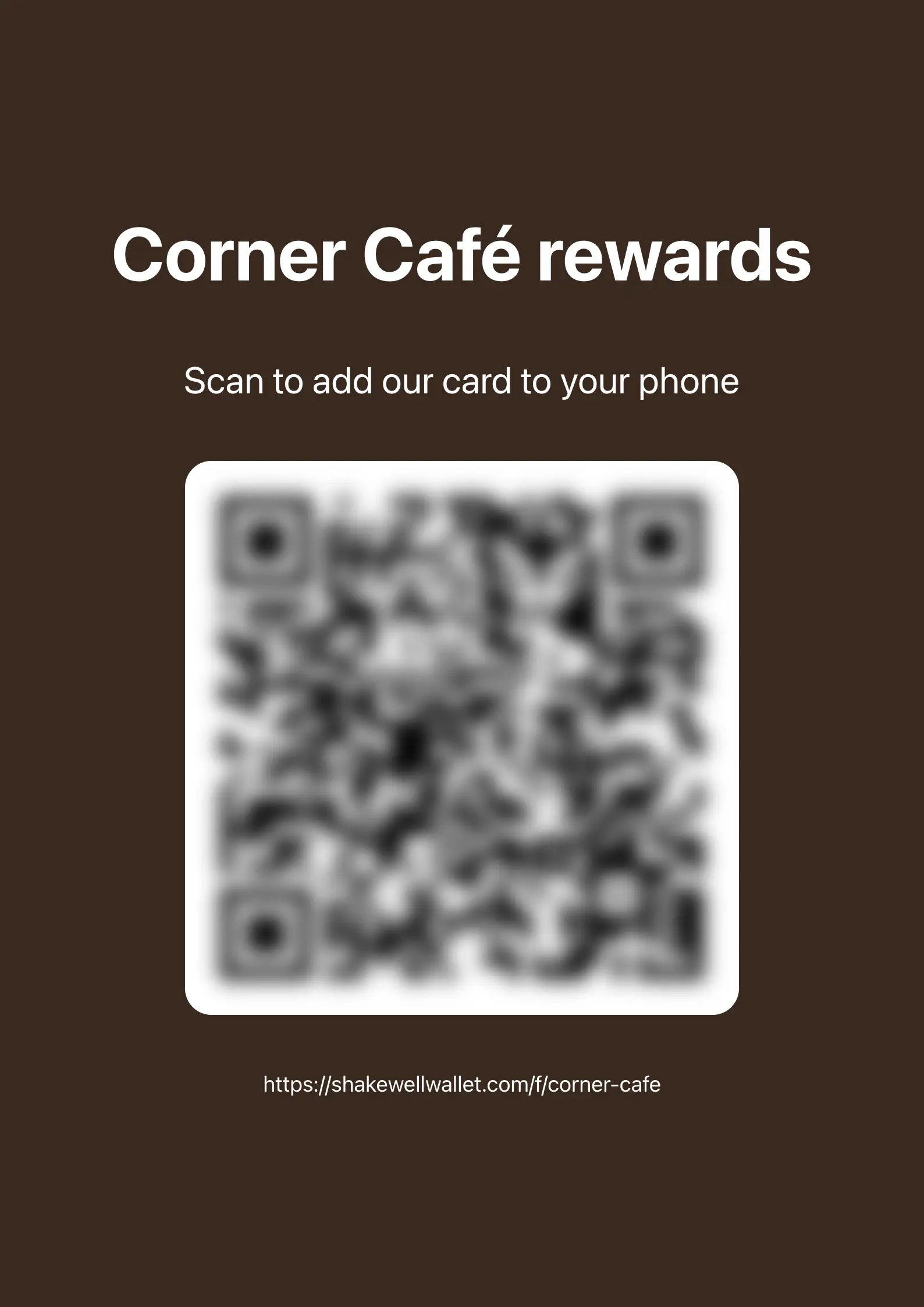
Step 6. Choose your printer in the print window. Click Print. To keep a file instead, choose Save as PDF where the printer name is.
Paper comes out of your printer, or a PDF file is saved on your computer.
Step 7. Put the poster on your counter, where customers wait. At eye height is best.
You'll know it worked when
You hold your phone camera over the printed QR code and a link to your sign-up page pops up.
Good to know
- Two more prints are in the same box: Table tent (A4, fold in half) and Staff cheat sheet (A4).
- You can also press Download PNG under the QR code to save the code as a picture.
Stuck?
That is fine. Contact us and we will help you. We reply within one business day.
These guides may help: