
How-to guides / Grow
How to share your sign-up link by text, email, Facebook or Instagram
Copy your sign-up link and ready-made words, then paste them into a message or a post.
Takes about 4 minutes
Before you start
- Your card is live. (See How to sign up and make your first card.)
- The app you want to share in, such as your messages, your email, Facebook or Instagram. You must already be signed in to it.
The steps
Step 1. On your computer, look at the menu on the left. Click My card.
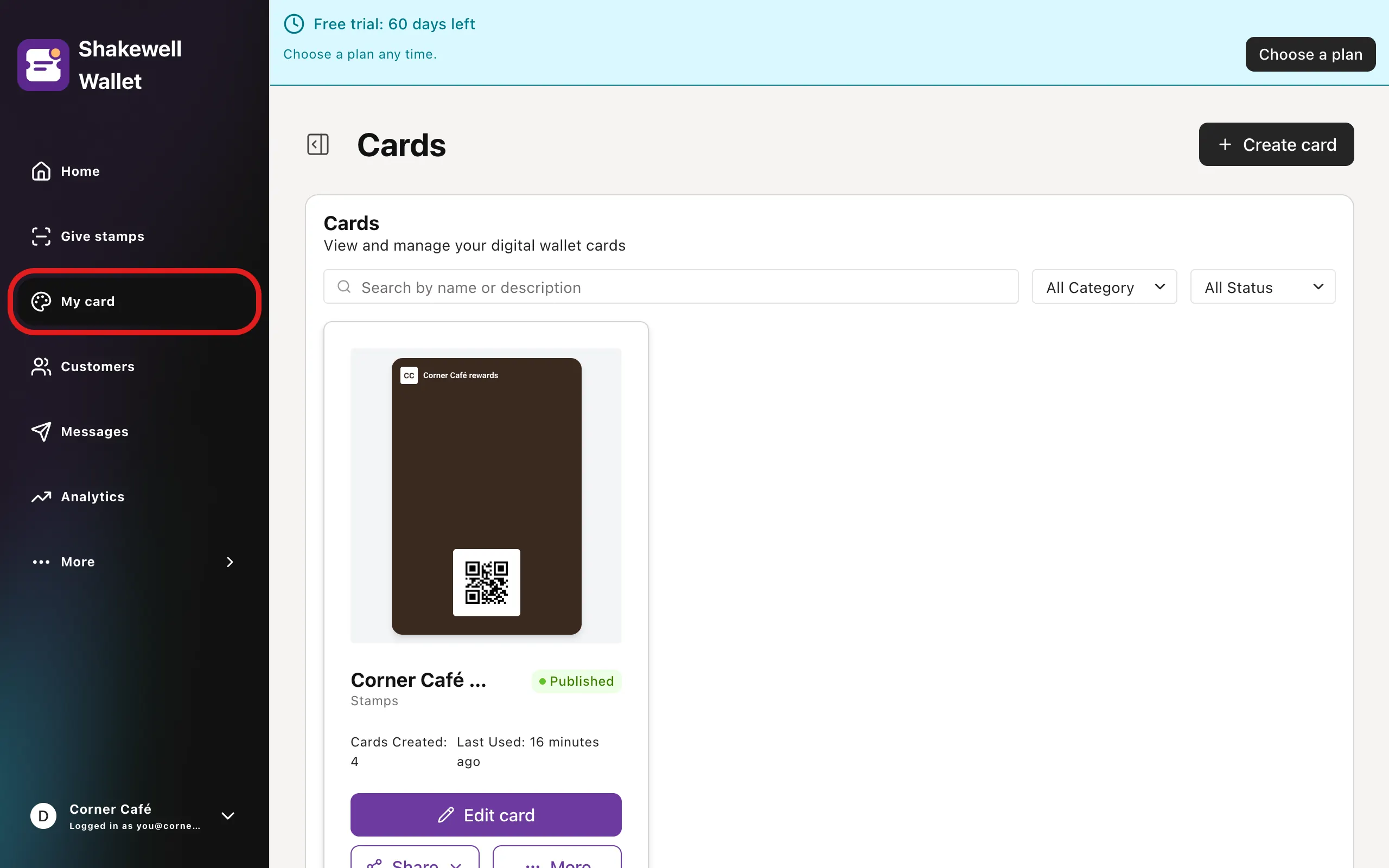
Step 2. Under your card, click the Share button.
A small menu opens.
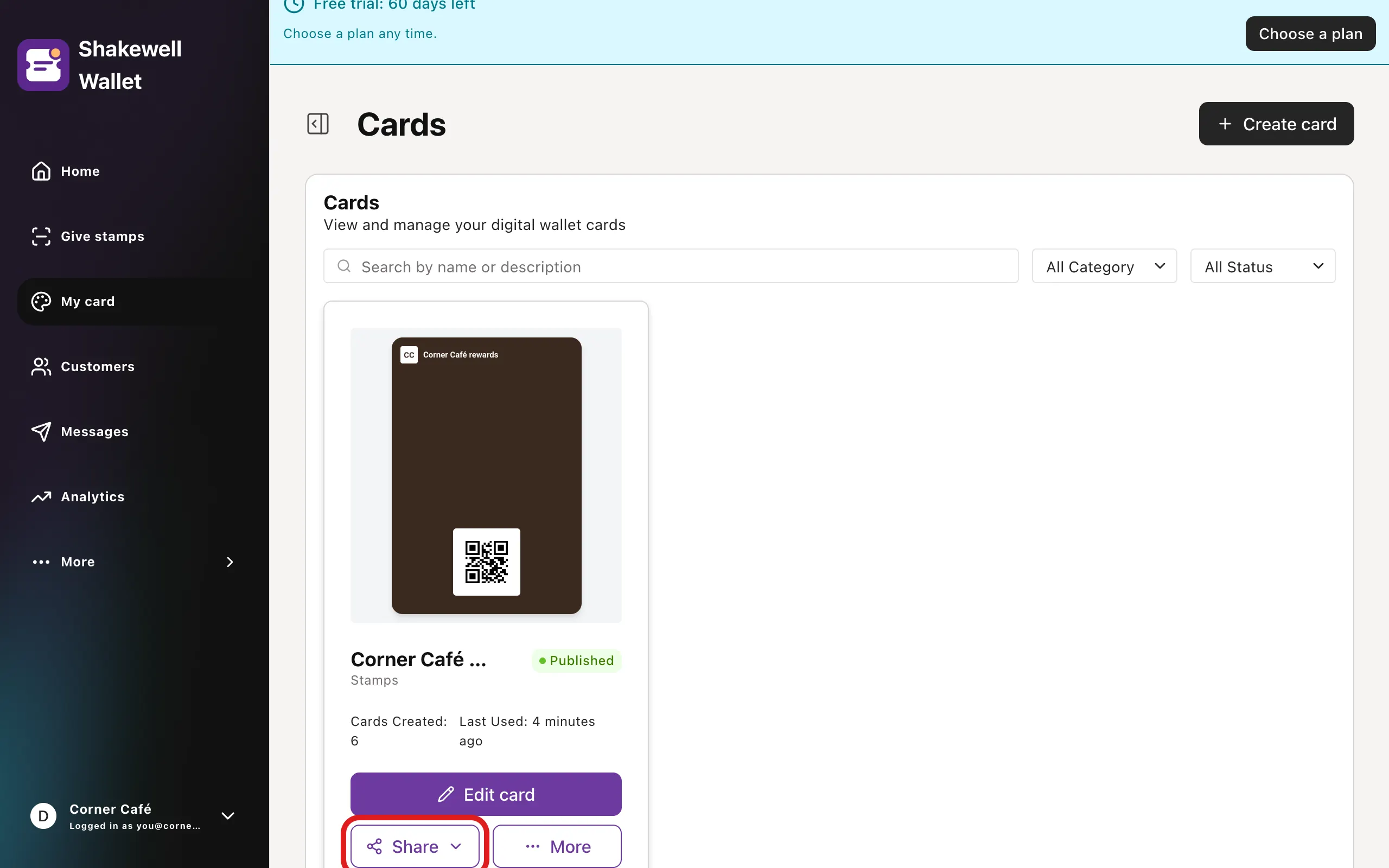
Step 3. In the small menu, click Share, QR & poster.
A page opens that says Your card is live.
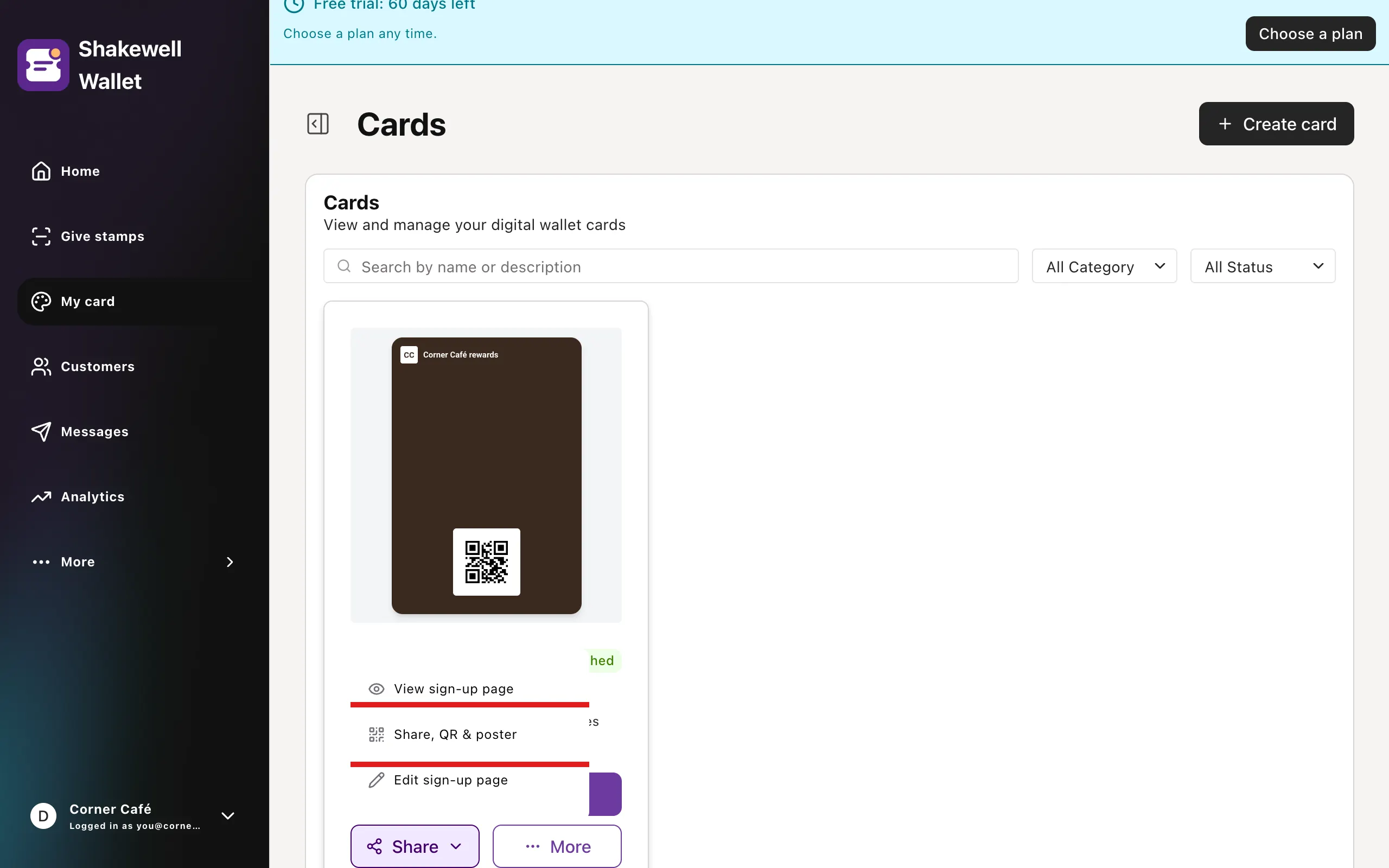
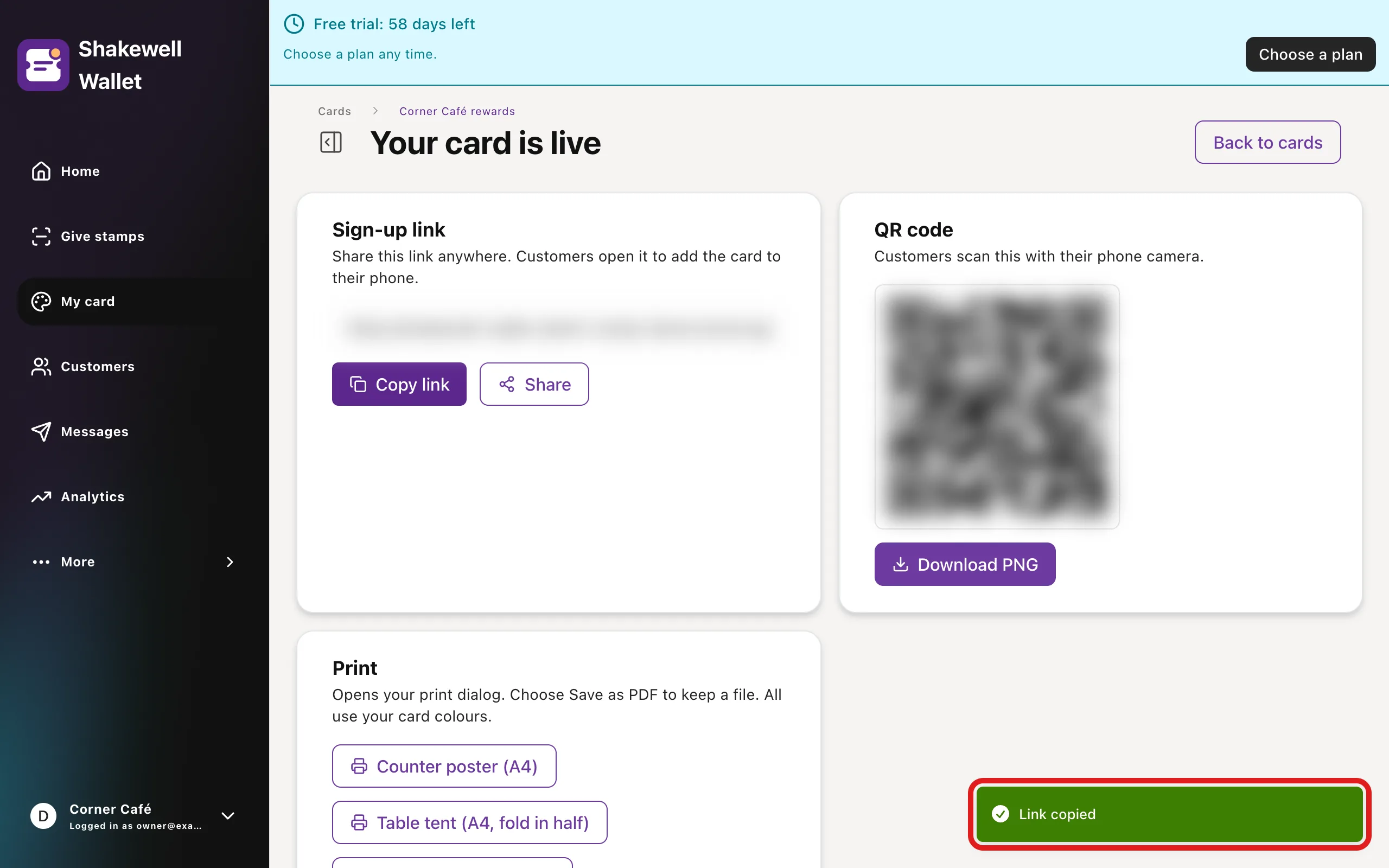
Step 4. Find the box called Sign-up link. Click the purple Copy link button.
Your link is now copied. The web address is blurred in this picture.
Step 5. Look at the bottom right of the screen.
A green message says Link copied.
Step 6. To share by text or email, open your messages app or your email. Start a new message.
Your link is waiting to be pasted. This picture shows the Link copied message.
Step 7. Click in the message box. Hold the Ctrl key and press V. On a Mac, hold the Command key and press V.
Your link shows in the message. Send it to your customer.
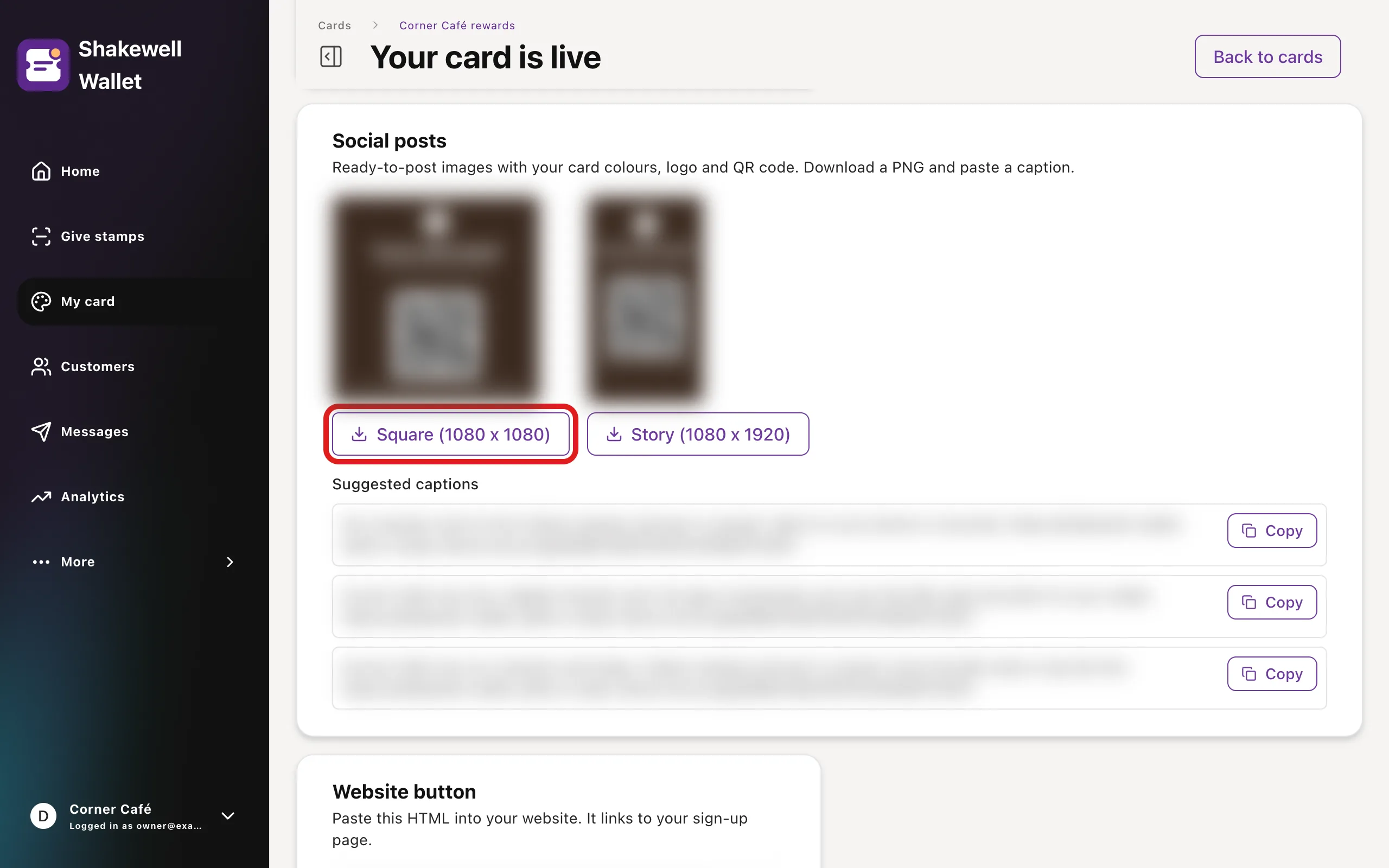
Step 8. To share on Facebook or Instagram, scroll down to the box called Social posts. Click Square (1080 x 1080).
A picture is saved on your computer. Look in your Downloads folder. It has your card colours and a QR code.
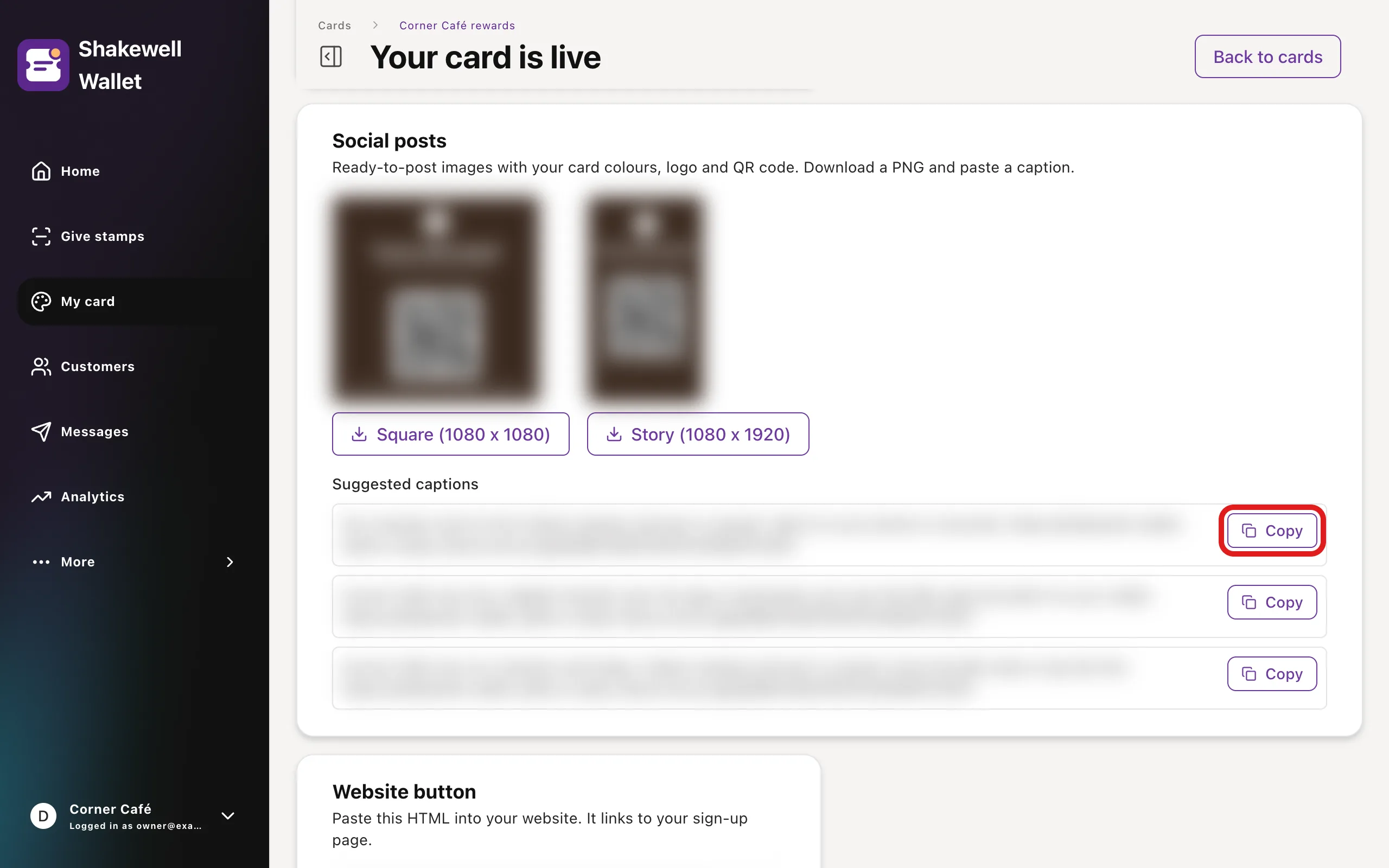
Step 9. Scroll down to Suggested captions. Click Copy next to the one you like.
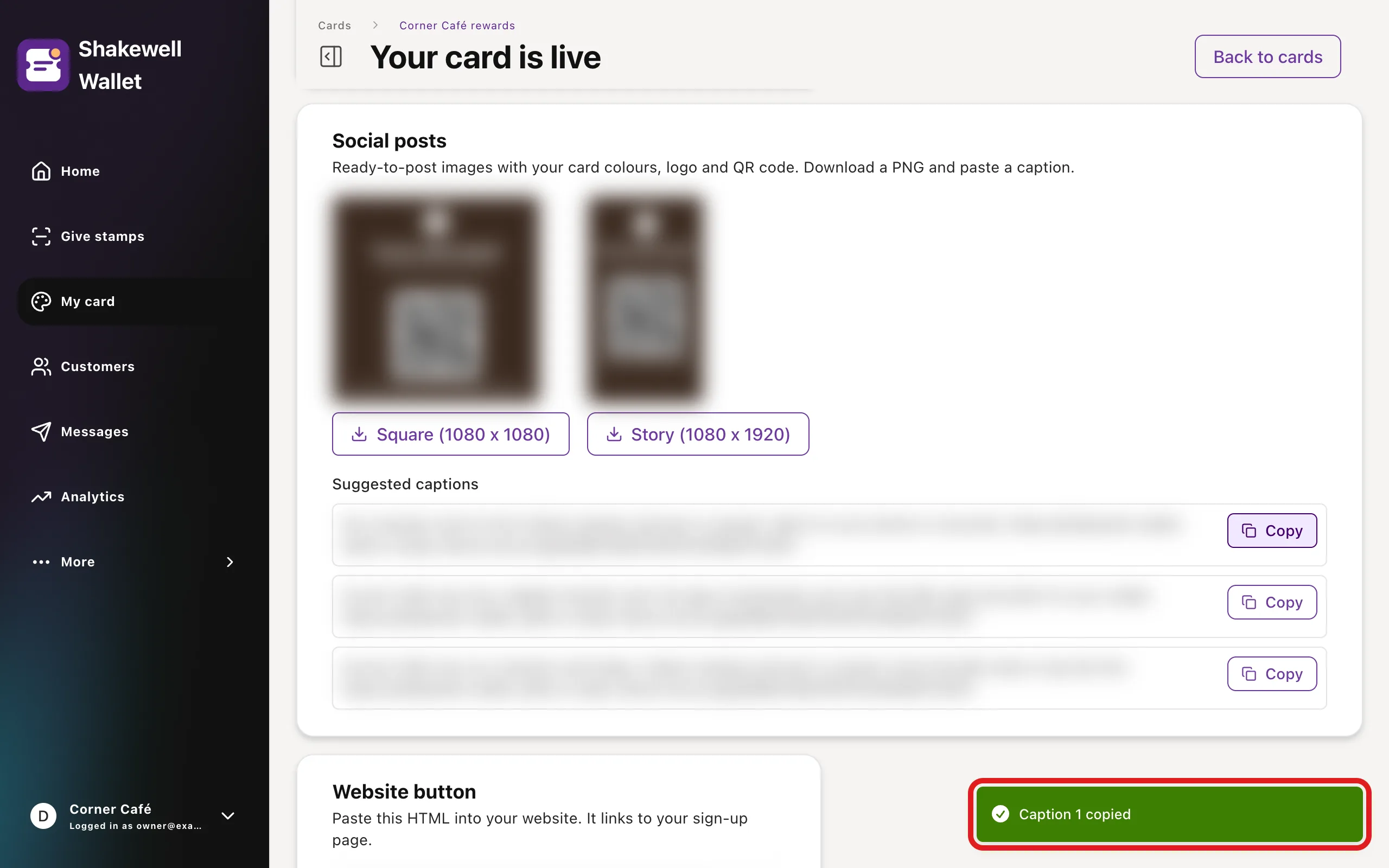
Step 10. Look at the bottom right of the screen.
A green message says Caption 1 copied. The number is the caption you chose.
Step 11. Open Facebook or Instagram. Start a new post. Add the picture you saved.
Step 12. Paste your caption into the post. Press the button that shares it.
Your post shows your picture, your words and your link.
You'll know it worked when
Your customer gets your link in a message, or your post shows your picture and words. When a customer taps the link, or scans the QR code in the picture, your sign-up page opens.
Good to know
- On a phone, the Share button next to Copy link opens the phone's own share menu. Pick Messages, Mail, Facebook or another app from it.
- The picture called Story (1080 x 1920) is tall. It fits Instagram and Facebook Stories.
- The link is the same for everyone. Share it as often as you like.
- On Instagram, a link in a post cannot be tapped. Customers scan the QR code in the picture instead, or you can put the link in your profile.
Stuck?
That is fine. Contact us and we will help you. We reply within one business day.
These guides may help: