
How-to guides / Connect your till or shop
How to connect Square
Link your Square till (the machine you take payments on) to your card.
Takes about 5 minutes
Before you start
- You can sign in to your Square account and approve apps.
- Your card is live. (See How to sign up and make your first card.)
The steps
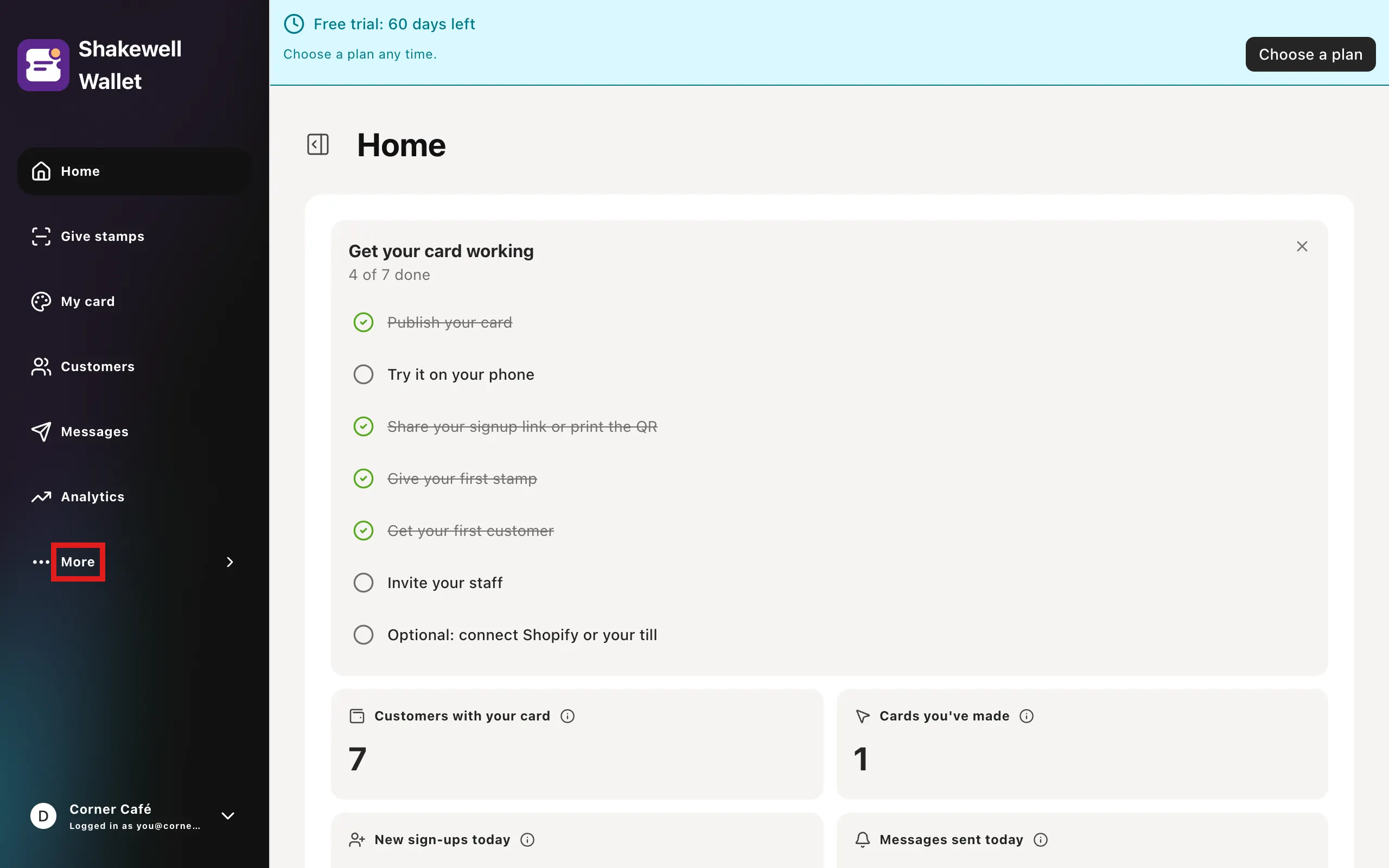
Step 1. In the left menu, click More.
A short list opens under it.
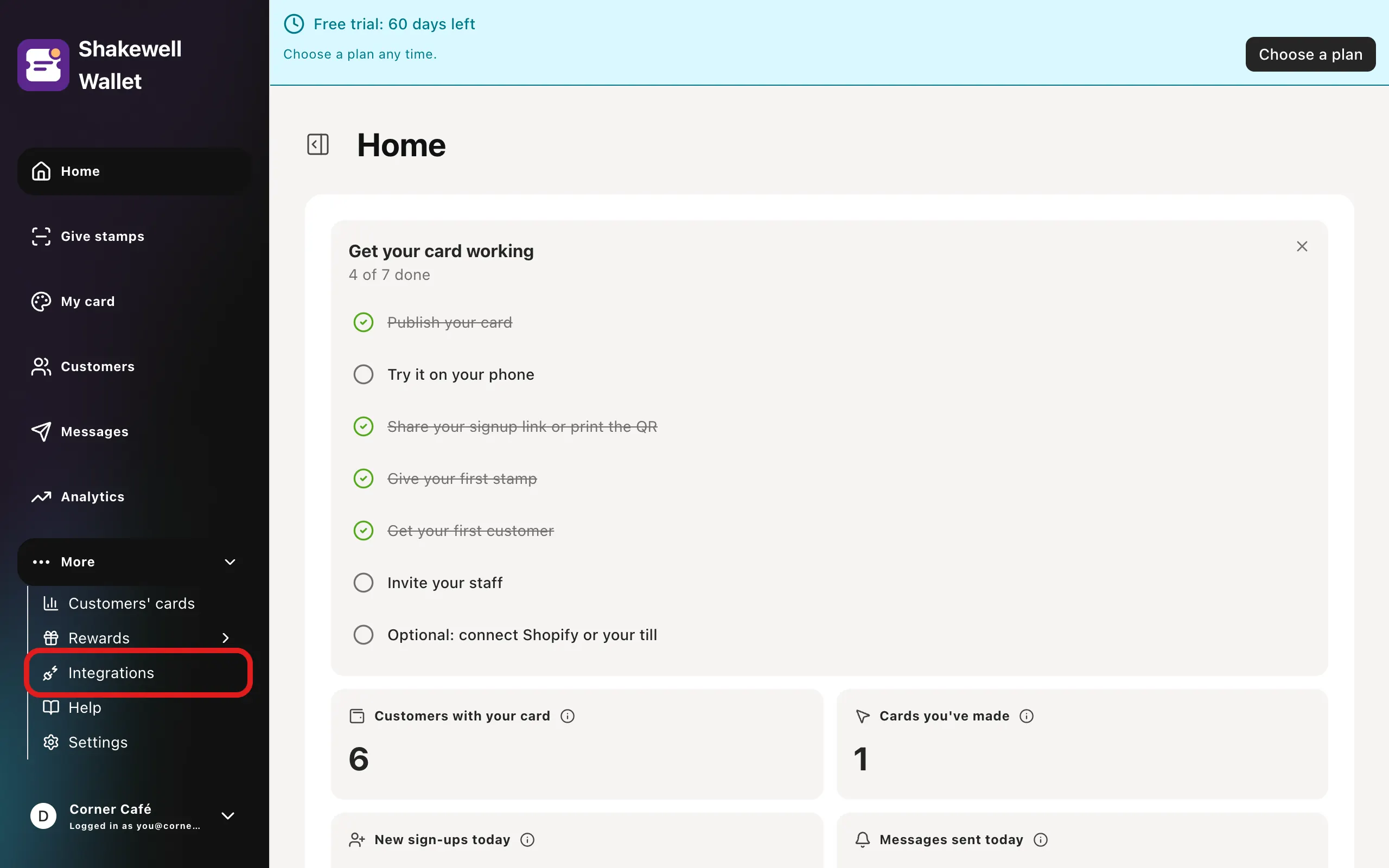
Step 2. Click Integrations.
A page opens with a list of tills, shops and other tools you can connect.
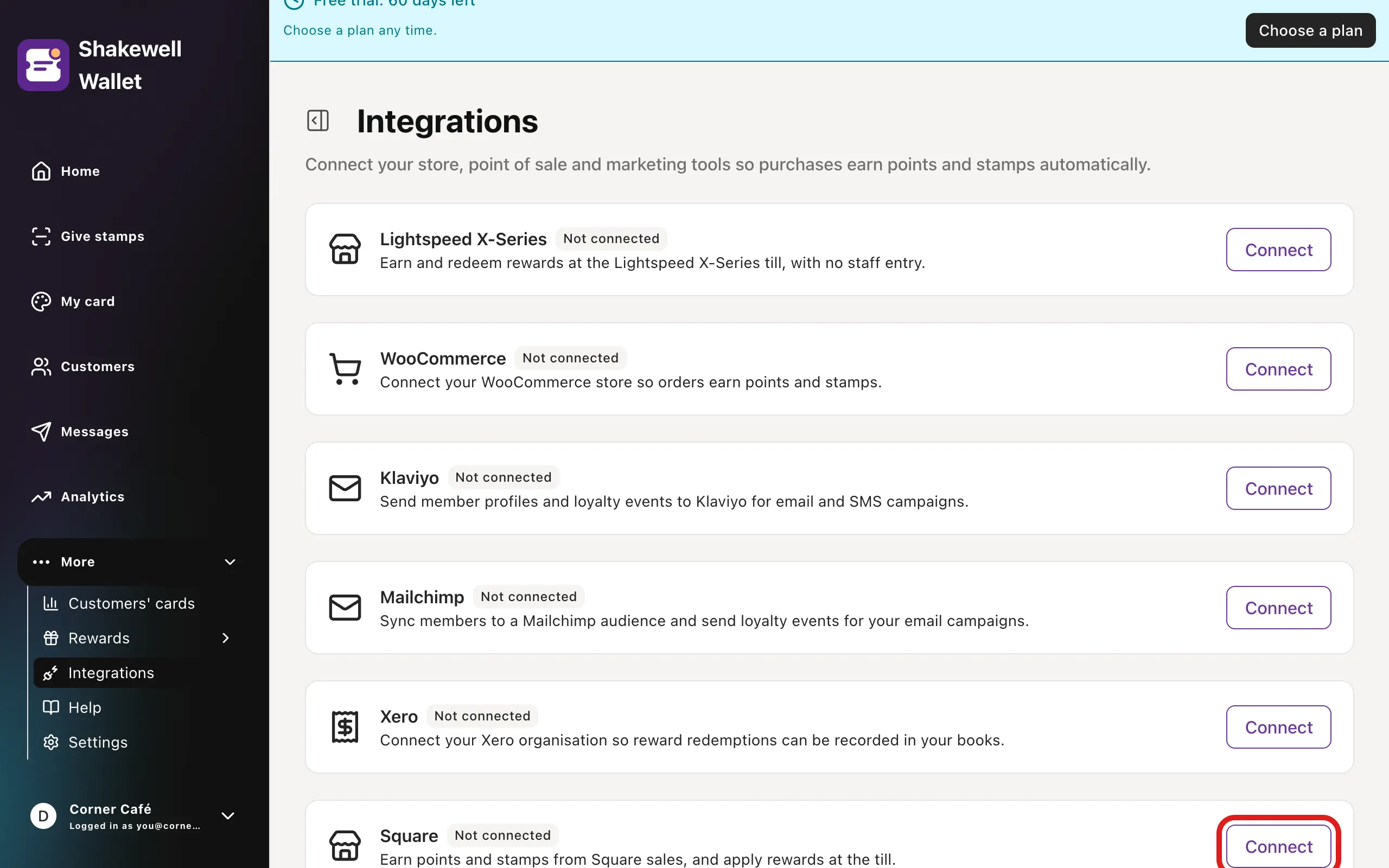
Step 3. Find Square in the list. Click the Connect button on its row.
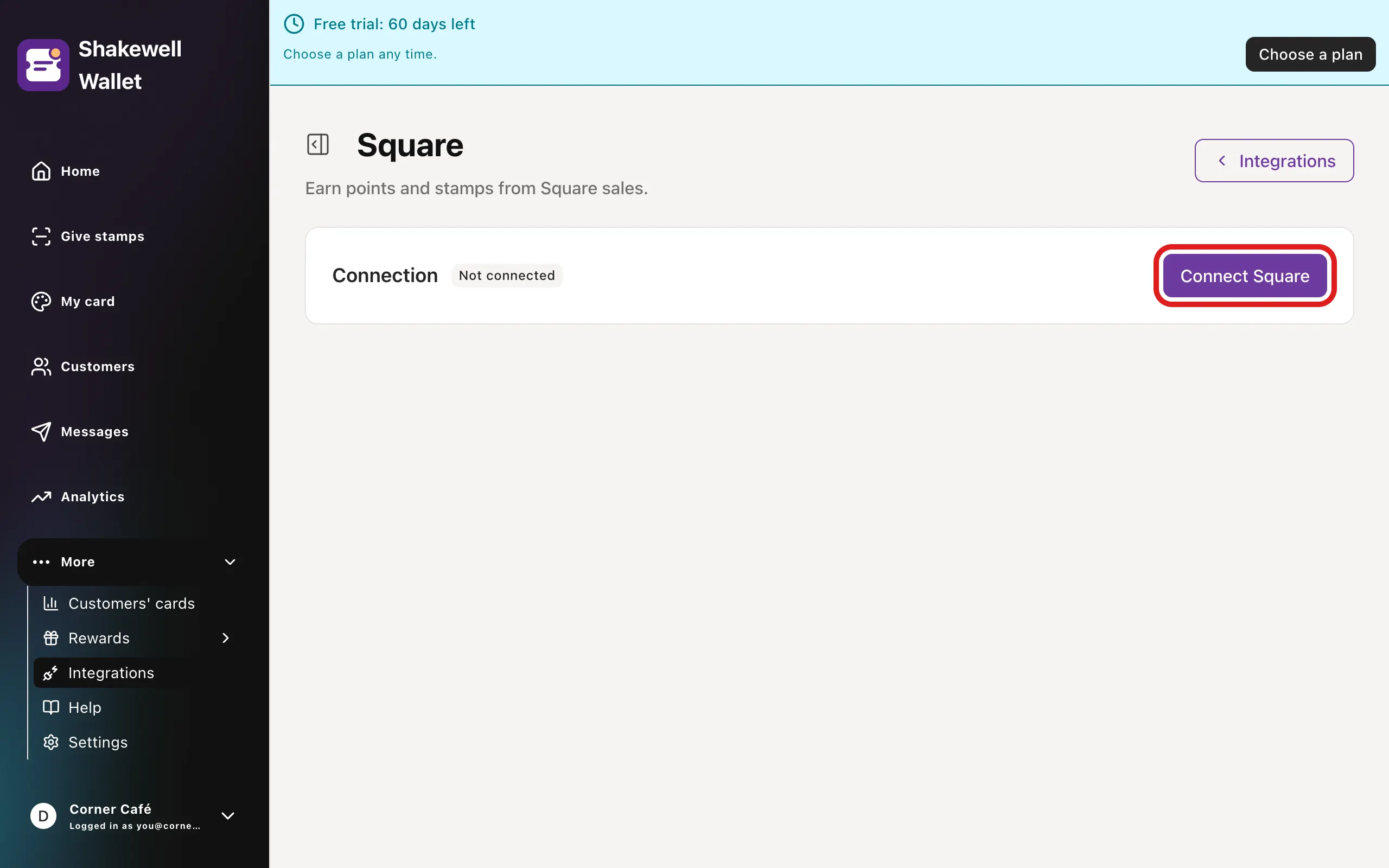
A page called Square opens. It says Not connected.
Step 4. Click the Connect Square button.
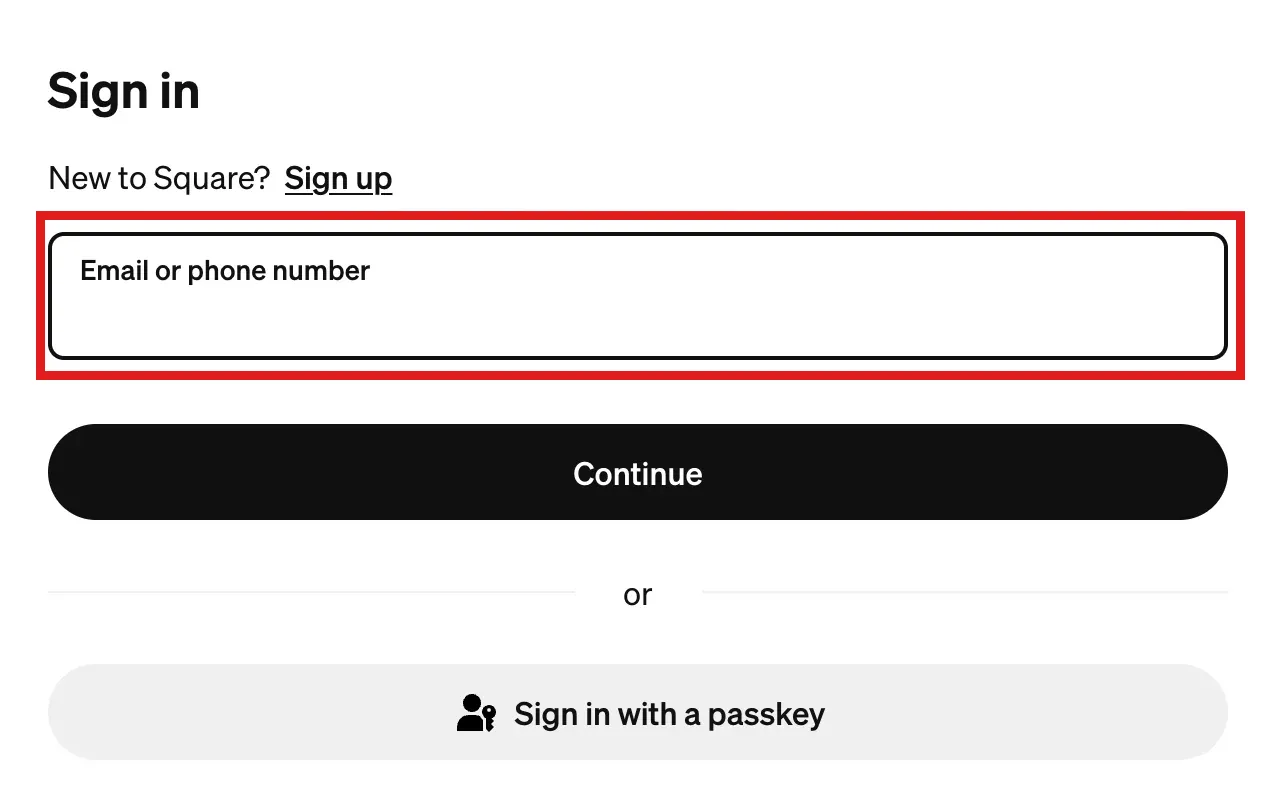
Shakewell Wallet takes you to a Square sign-in page.
Step 5. Sign in to Square. Type your email or phone number in the box, and follow Square's steps.
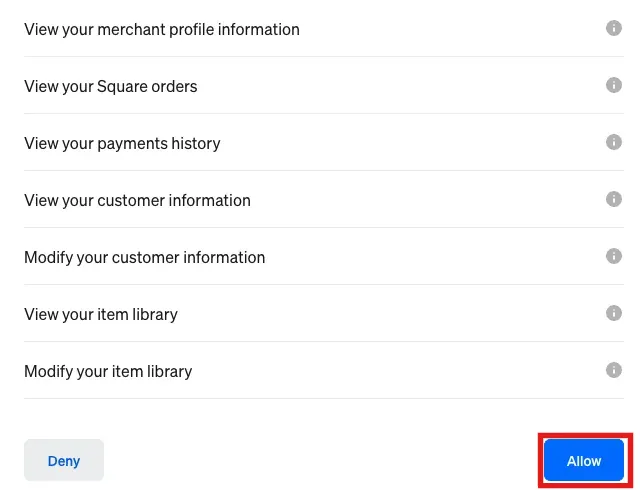
Step 6. Read what Square says Shakewell Wallet may do. Press Allow.
Square sends you back to Shakewell Wallet. The page says Connected.
You'll know it worked when
The Square page in Shakewell Wallet shows a green Connected badge.
Good to know
- Connecting is the first step. Then you choose how sales earn stamps or points. The full Square guide below covers that, step by step.
Stuck?
That is fine. Contact us and we will help you. We reply within one business day.
These guides may help: