
Lightspeed
How do I give stamps for Lightspeed products?
Last updated 2026-11-26
Add a stamp rule to your stamp card and type the SKU of each product that earns a stamp. Shakewell suggests SKUs from your synced Lightspeed products.
A SKU is the stock code Lightspeed keeps for each product. Stamps are matched by SKU. A product with no SKU in Lightspeed cannot earn a stamp.
Before you start
- Lightspeed is connected. See how to connect Lightspeed.
- You have a stamp card. Stamp cards are on every plan.
Steps
Step 1. Connect Lightspeed and wait for the catalogue to sync. On the Lightspeed X-Series page, Products synced shows how many products Shakewell has copied.

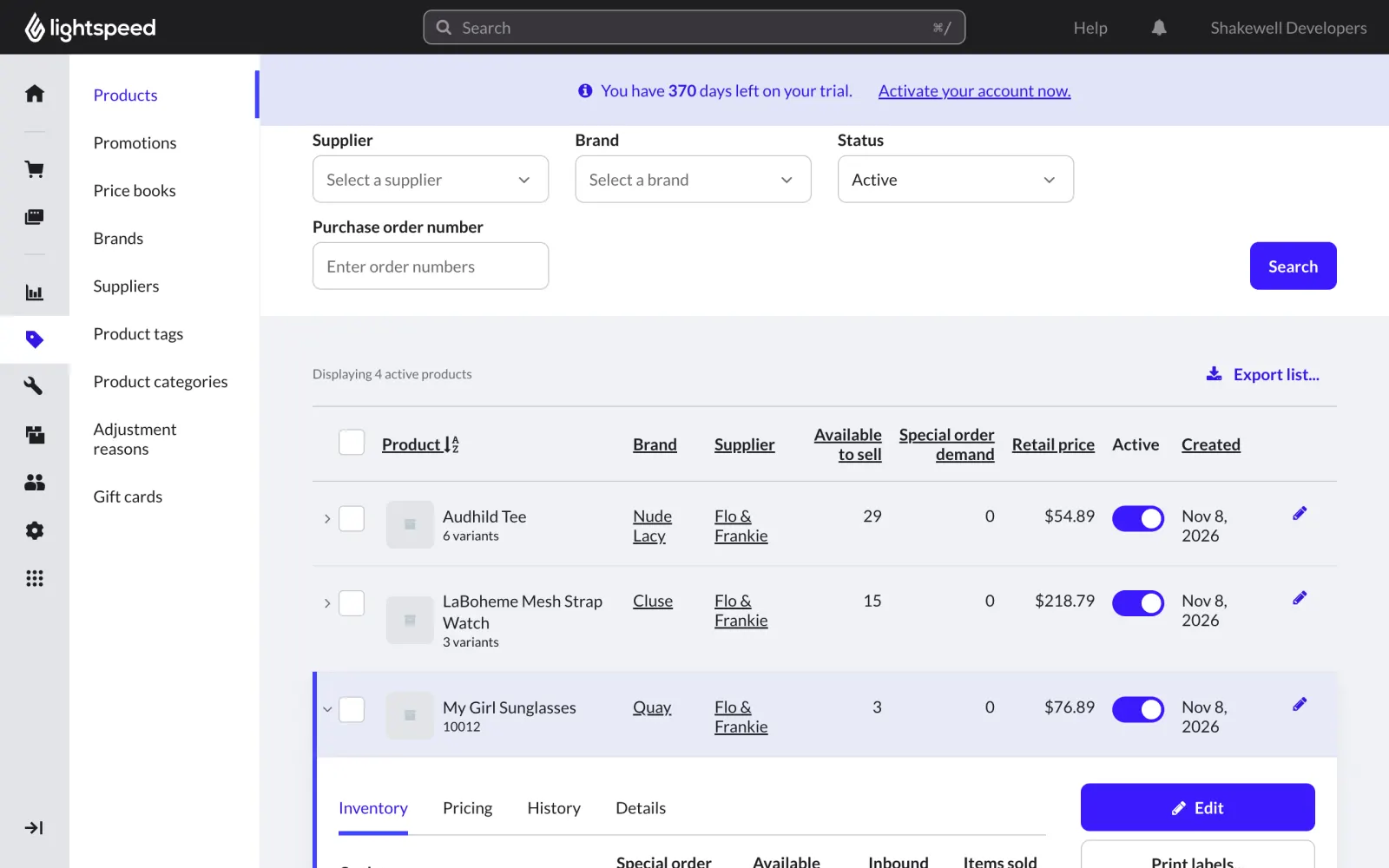
Step 2. In Lightspeed open Catalog, then Products. Each product shows its SKU, which is its stock code, under its name.
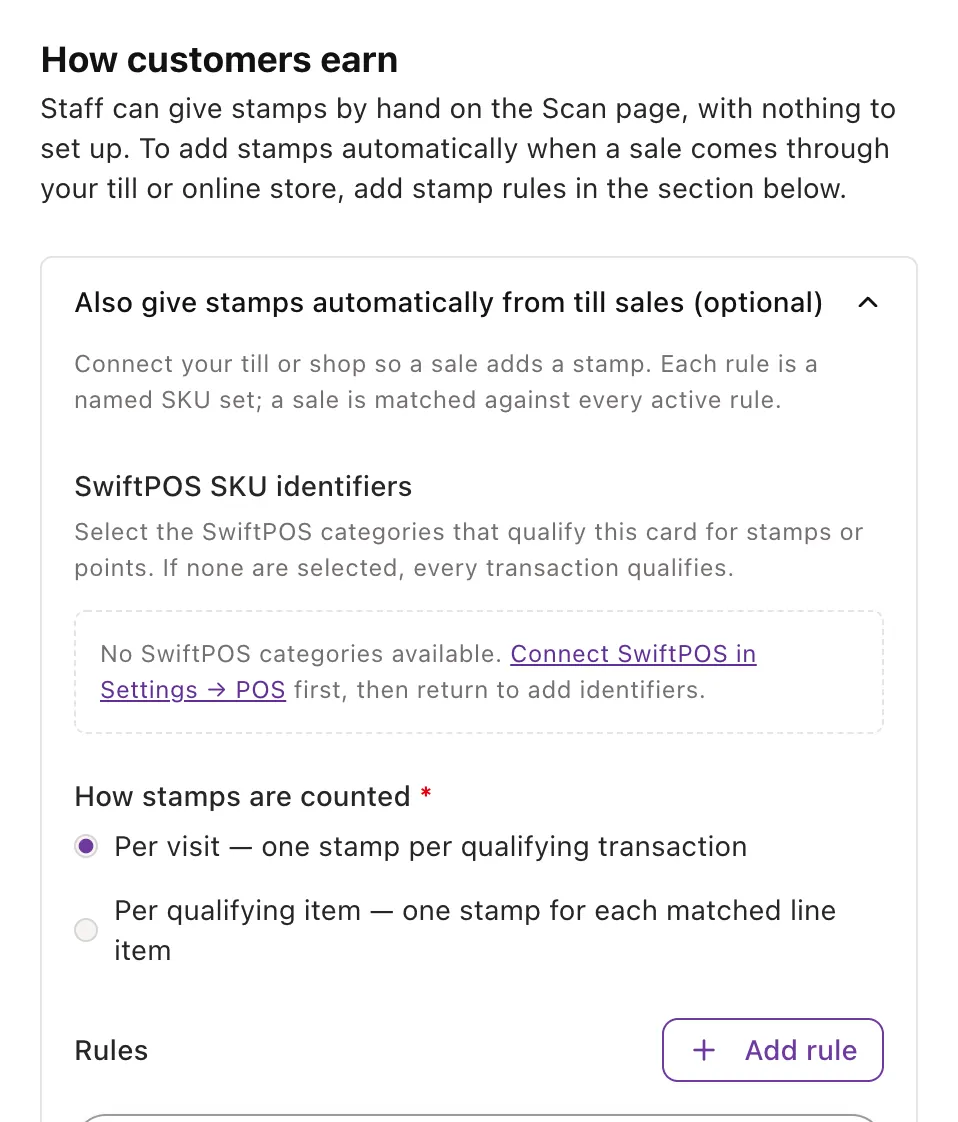
Step 3. In Shakewell choose My card and open your stamp card. Go to step 3, Pass content. Under How customers earn, open Also give stamps automatically from till sales.
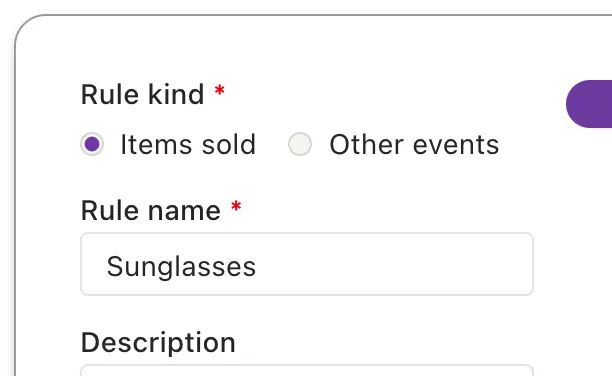
Step 4. Under Rules, choose Add rule. Keep the Rule kind on Items sold and give the rule a name.
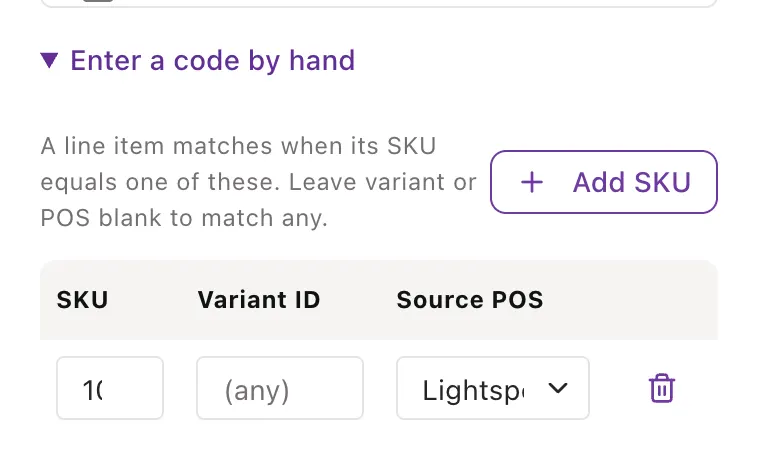
Step 5. Open Enter a code by hand and choose Add SKU. Type the SKU from Lightspeed and set Source POS to Lightspeed. Shakewell suggests SKUs from your synced products as you type.
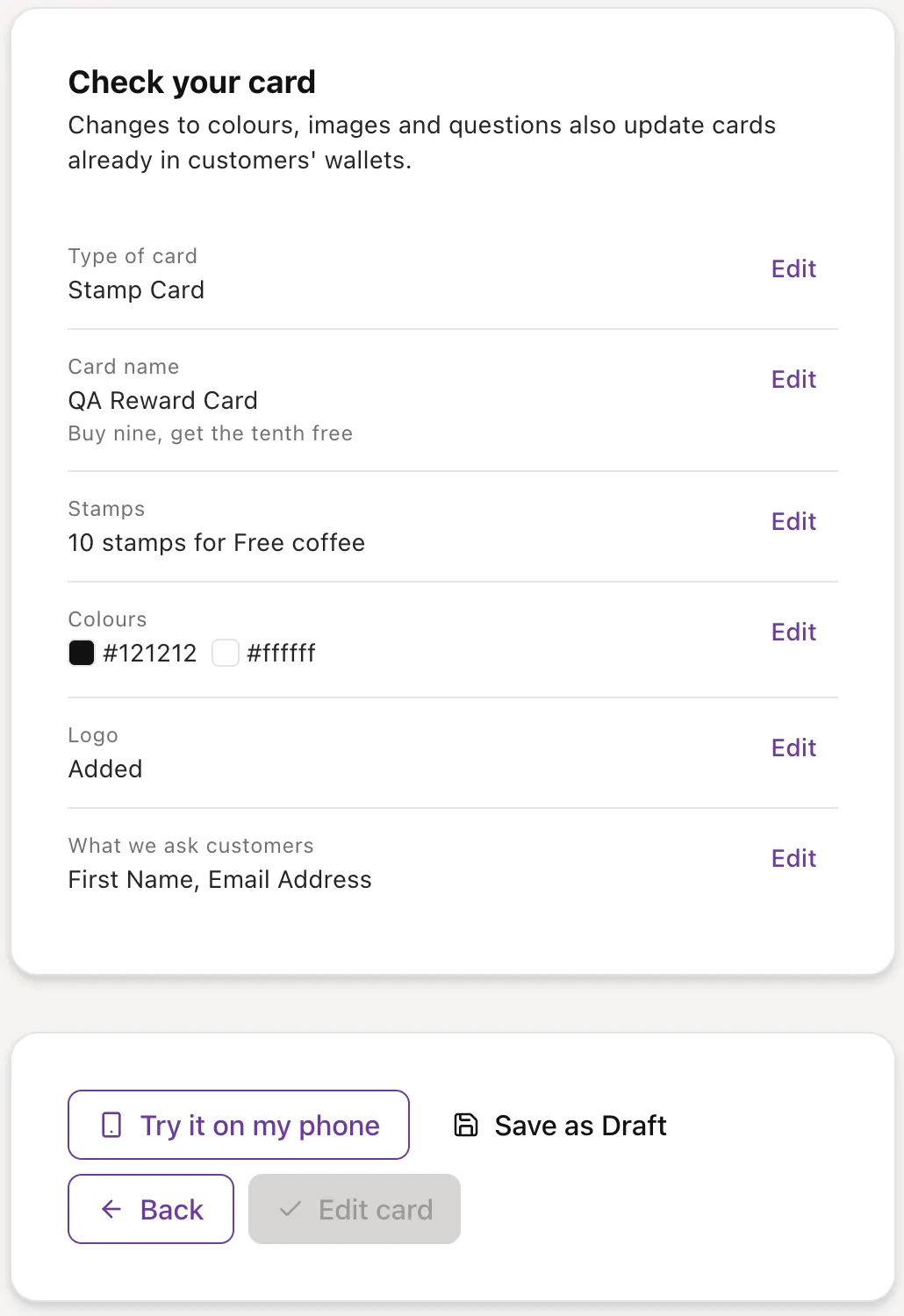
Step 6. Choose Next. On the Review step choose Edit card, or Publish card on a card that is not live yet.
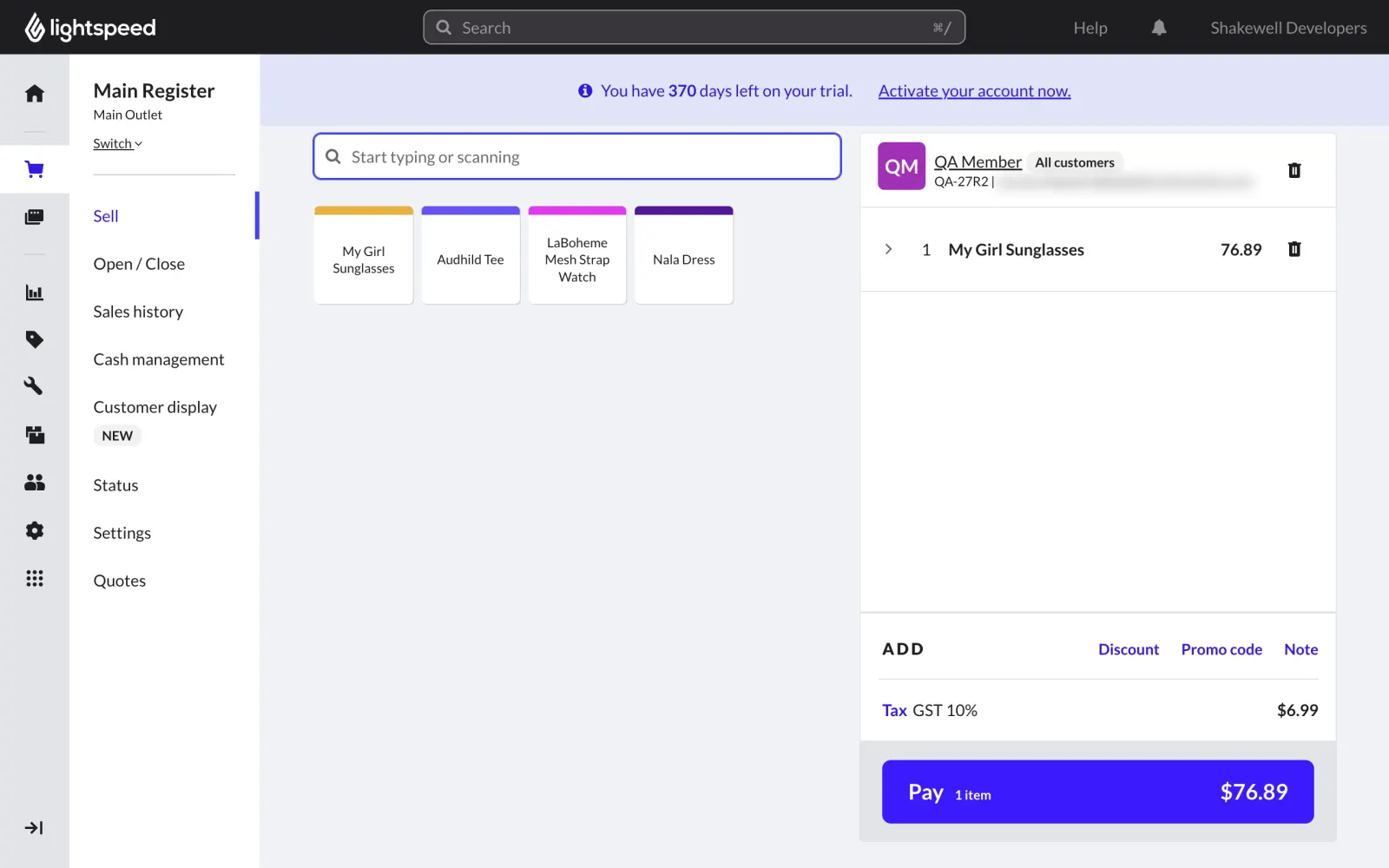
Step 7. At the till, sell that product with the customer added to the sale.
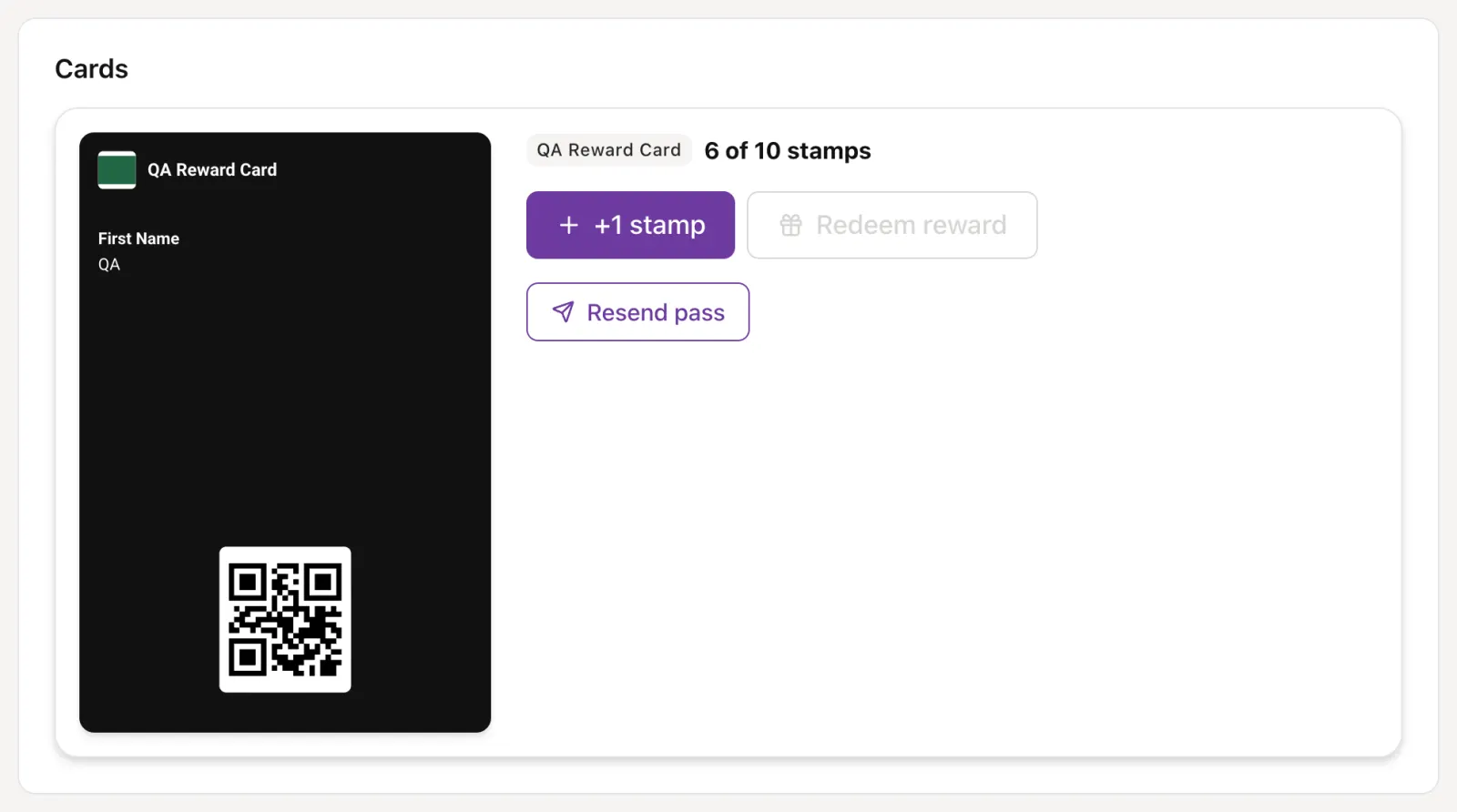
Step 8. In Shakewell open Customers and choose the customer. The Cards box shows the new stamp.
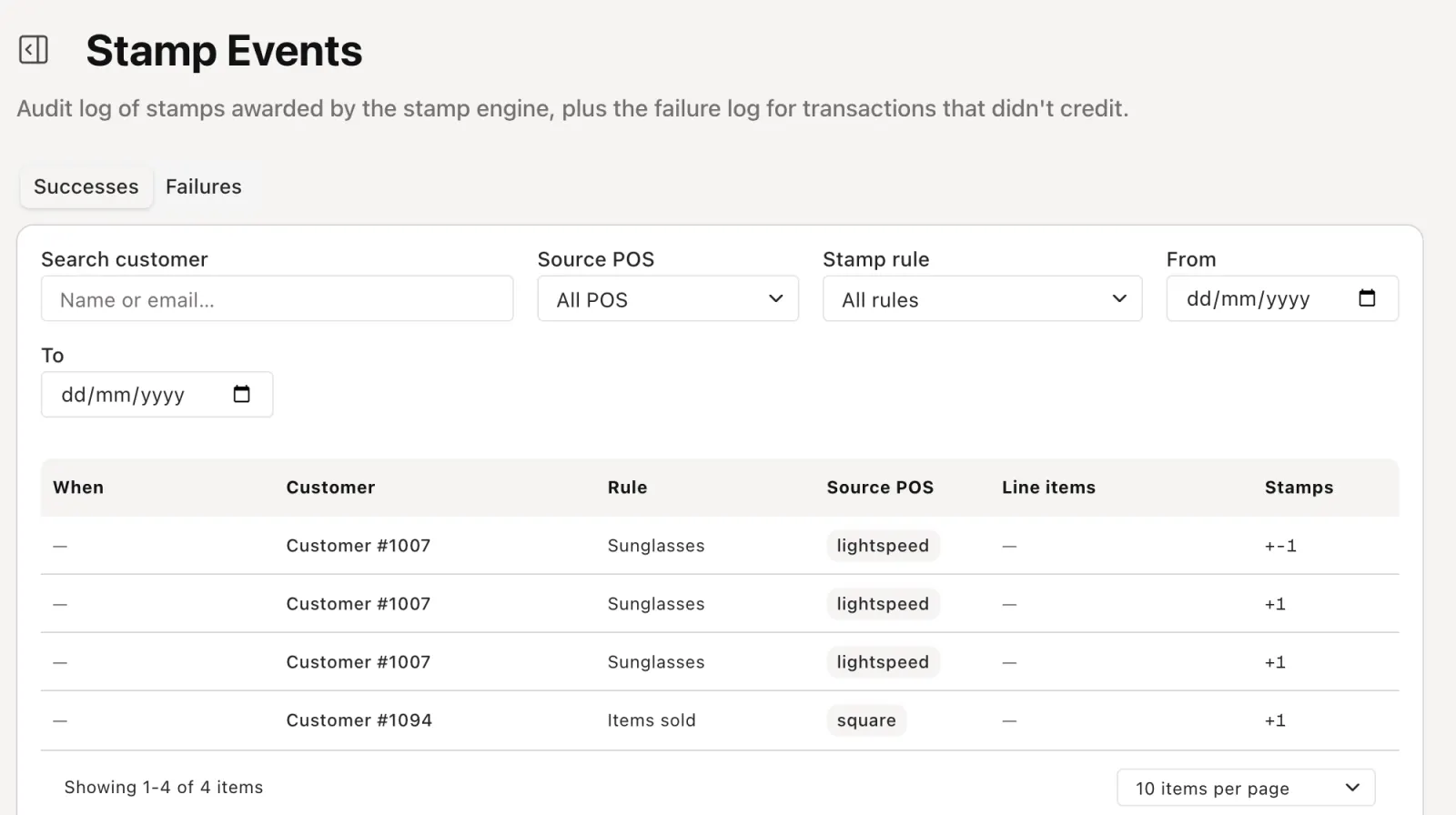
Step 9. Open More, then Rewards, then Stamp Events. Each stamp from Lightspeed is listed with the Source POS lightspeed.
How stamps are counted
- Per visit: one stamp for each sale that includes a product you chose.
- Per qualifying item: one stamp for each matching item on the sale. Two matching items give two stamps.
- A sale with no customer attached earns nothing.
- Only closed sales count. A returned product takes its stamp back. See refunds and returns.
Good to know
- Shakewell does not show a tick list of Lightspeed products like it does for Square. You type the SKU, or choose one of the suggestions that appear as you type. You can type any SKU, even one that is not in the suggestions.
- The suggestions come from the copy of your product list, which updates once a day and when a product changes in Lightspeed. Choose Sync catalogue on the Lightspeed X-Series page to update it now.
- A product with variants, such as sizes, has a SKU for each variant. Add the SKU of each variant you want to earn.
- Leave Variant ID blank. Source POS keeps the rule to Lightspeed sales. Leave it blank to match a SKU from any till.
- If a product is missing from your copy when a sale comes in, Shakewell looks it up in Lightspeed. The sale still earns.
If the stamp does not show up
- Check the product has a SKU in Lightspeed and the rule has exactly the same SKU.
- Check the sale had a customer attached and was completed.
- Check the customer's email address matches. See enrol customers from Lightspeed.
- Check the rule is Active, and that you saved the card with Edit card.
Next: rewards at the Lightspeed till.
Back to the complete Lightspeed guide, or start your free trial. No card is needed.