
Lightspeed
How do I connect Lightspeed to Shakewell Wallet?
Last updated 2026-11-26
Open More, then Integrations, choose Lightspeed X-Series, then approve Shakewell Wallet in Lightspeed. You land back in Shakewell, shown as Connected.
Before you start
- You can sign in to Lightspeed Retail (X-Series) and approve apps for your store.
- Your Shakewell login can manage integrations. If you cannot see the Connect Lightspeed button, ask the account owner to connect it or to change your role.
- You have a published card. You can connect before that, but nothing can earn until a card is live.
Integrations are on every plan, including the free trial. Shakewell Wallet is not in the Lightspeed App Marketplace yet, so you connect from your Shakewell dashboard.
Steps
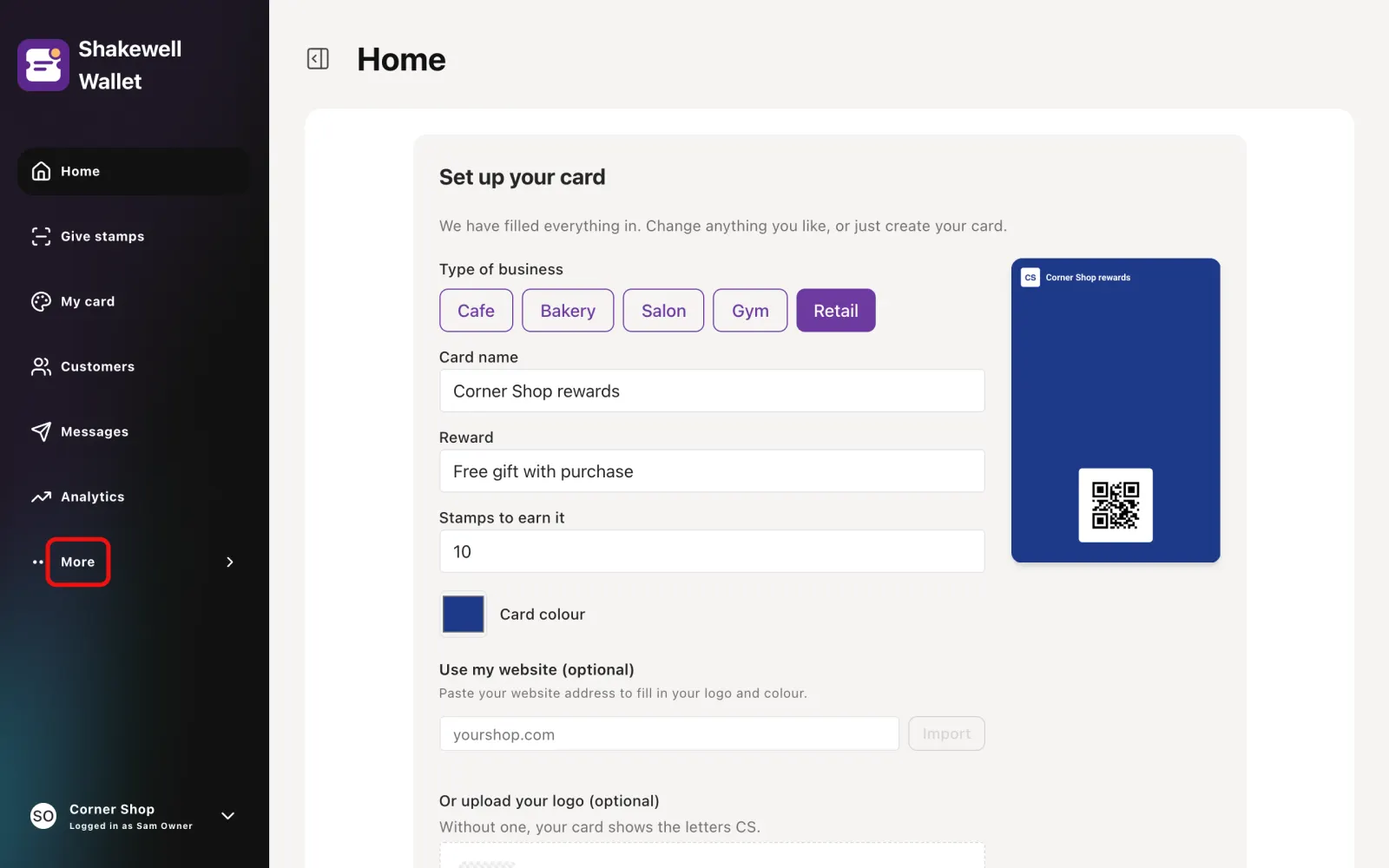
Step 1. Sign in to Shakewell Wallet. In the left menu choose More.
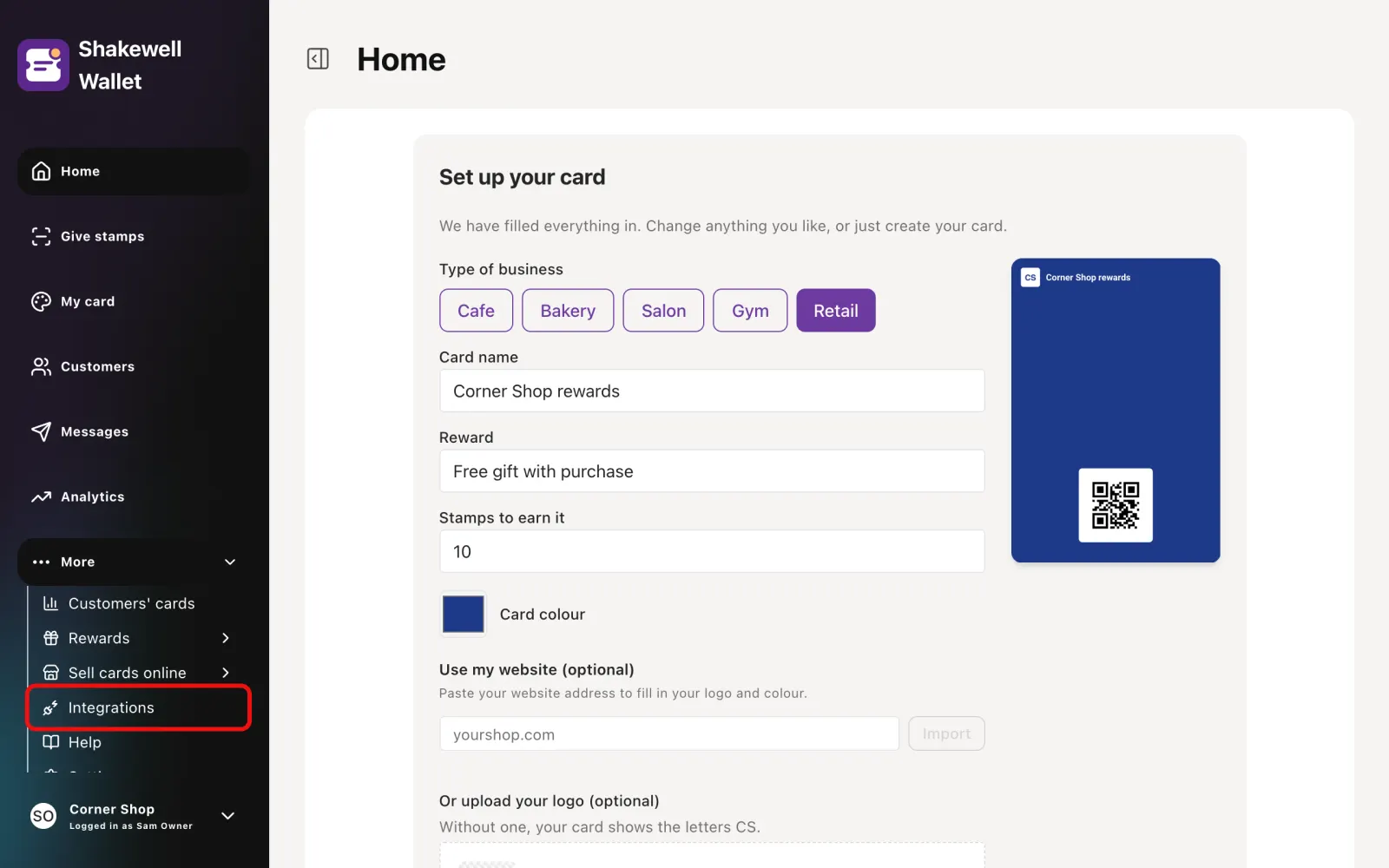
Step 2. Choose Integrations.
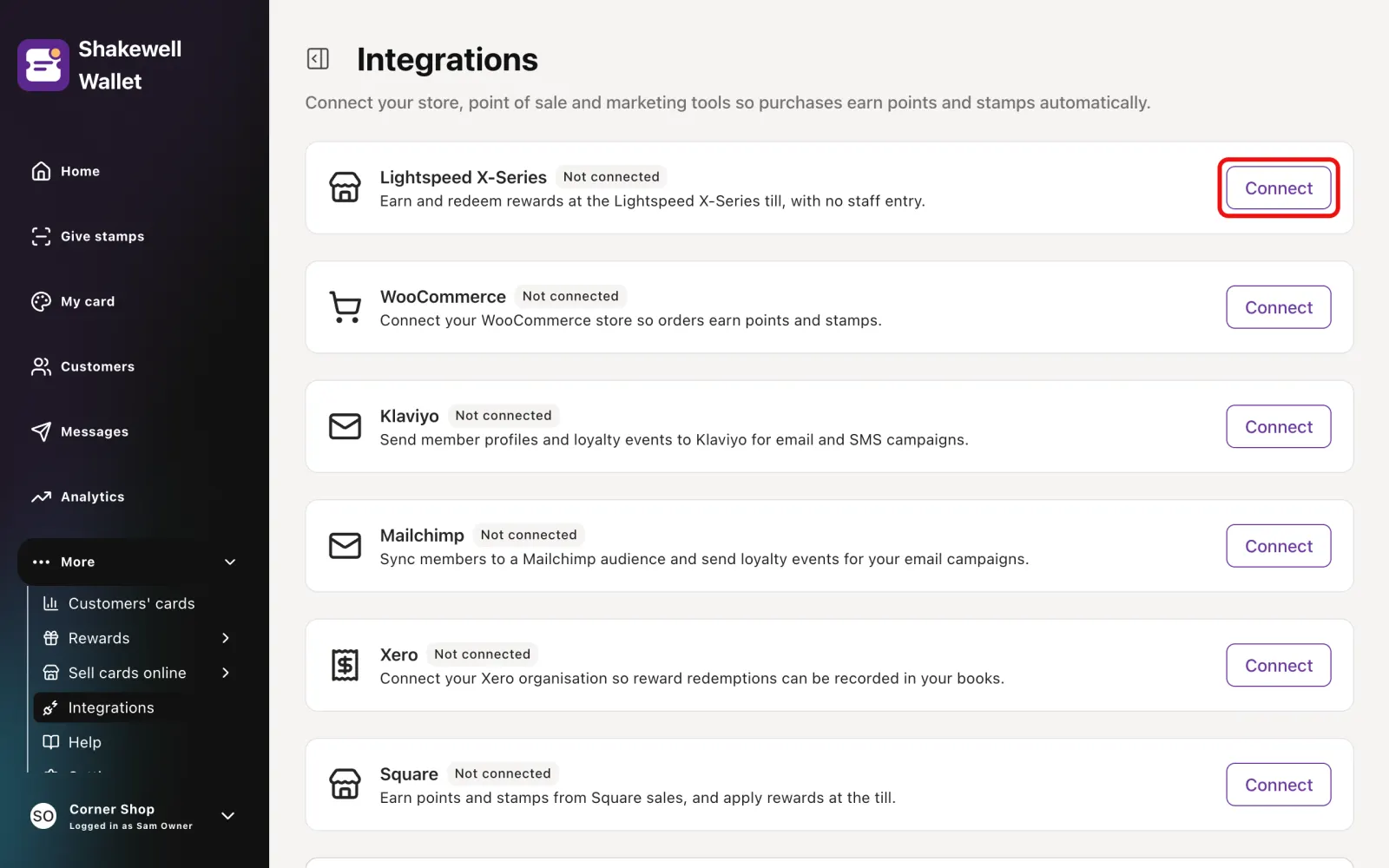
Step 3. Find Lightspeed X-Series in the list and choose Connect.
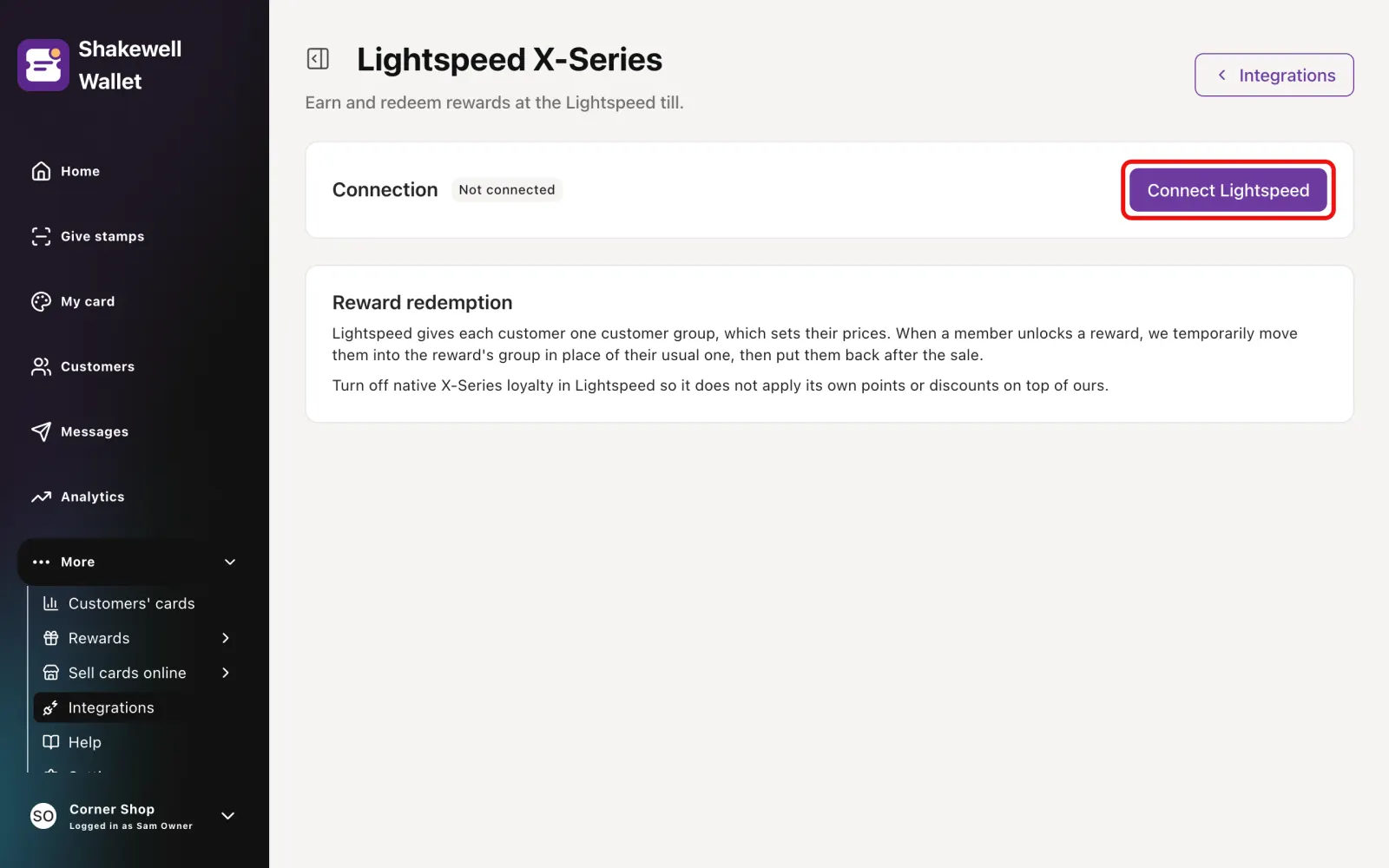
Step 4. On the Lightspeed X-Series page choose Connect Lightspeed. Shakewell takes you to Lightspeed.
Step 5. Check the store address Lightspeed shows is yours and choose Next. If Lightspeed asks you to sign in first, sign in.
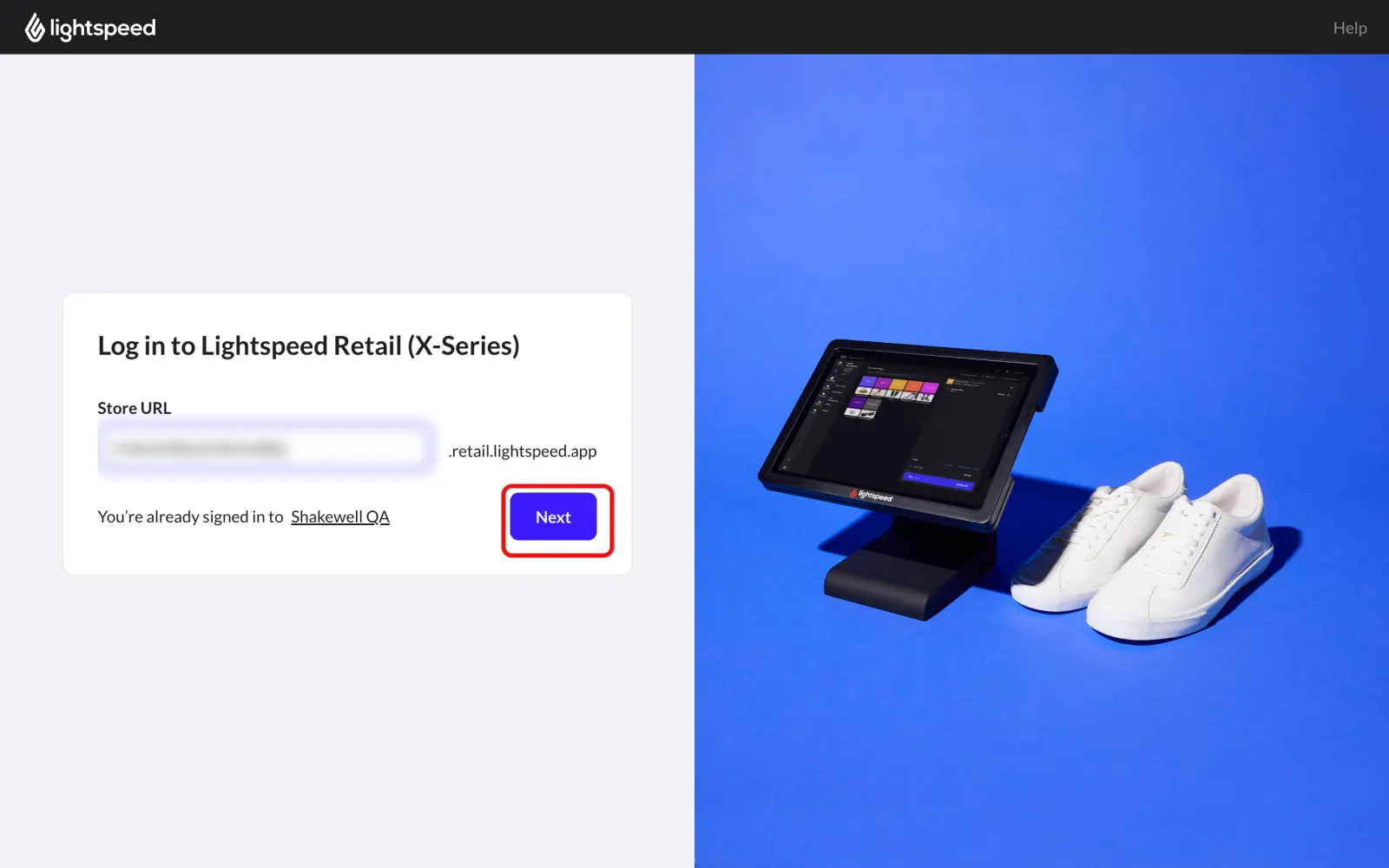
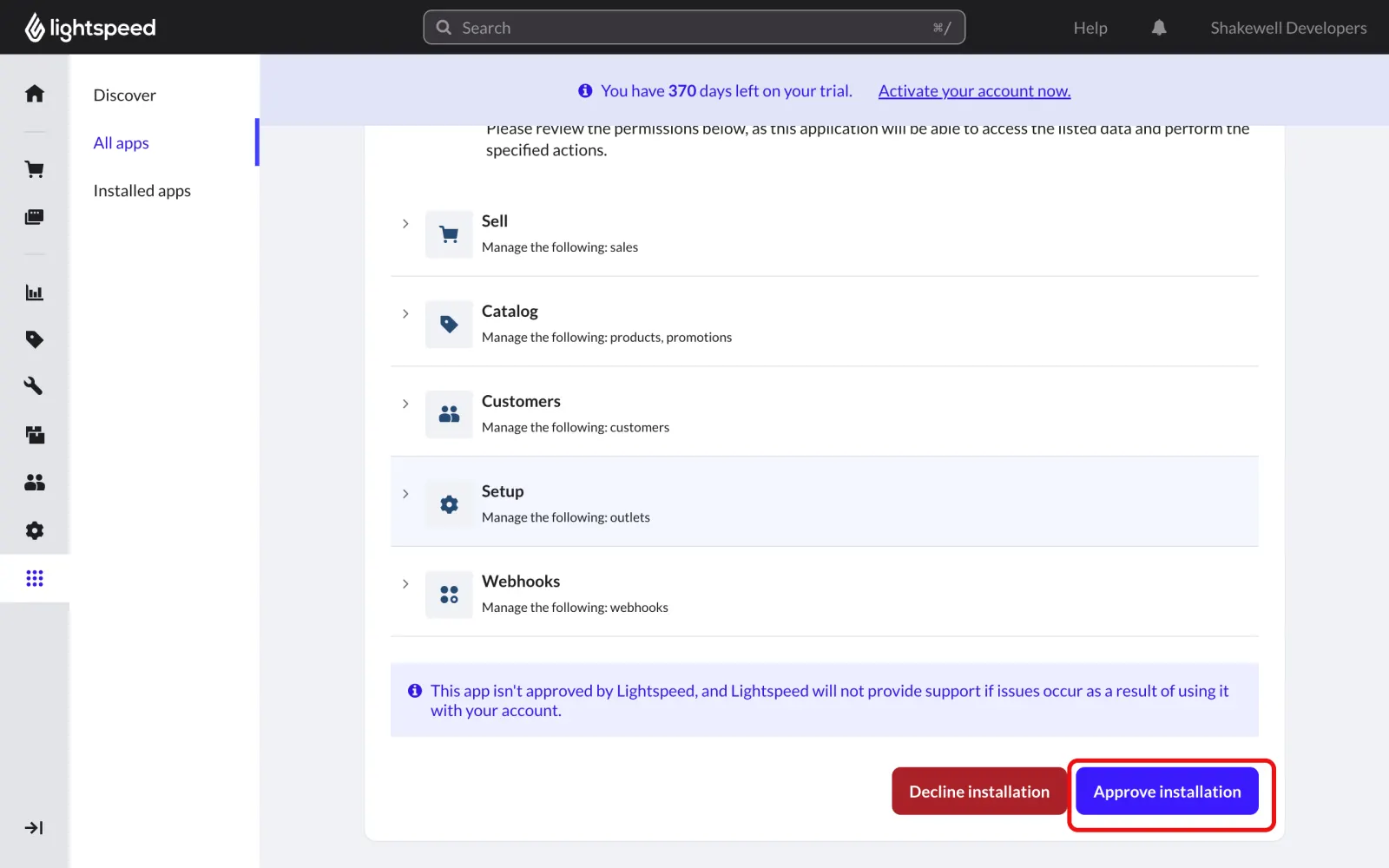
Step 6. Read what Shakewell Wallet asks to do, then choose Approve installation.
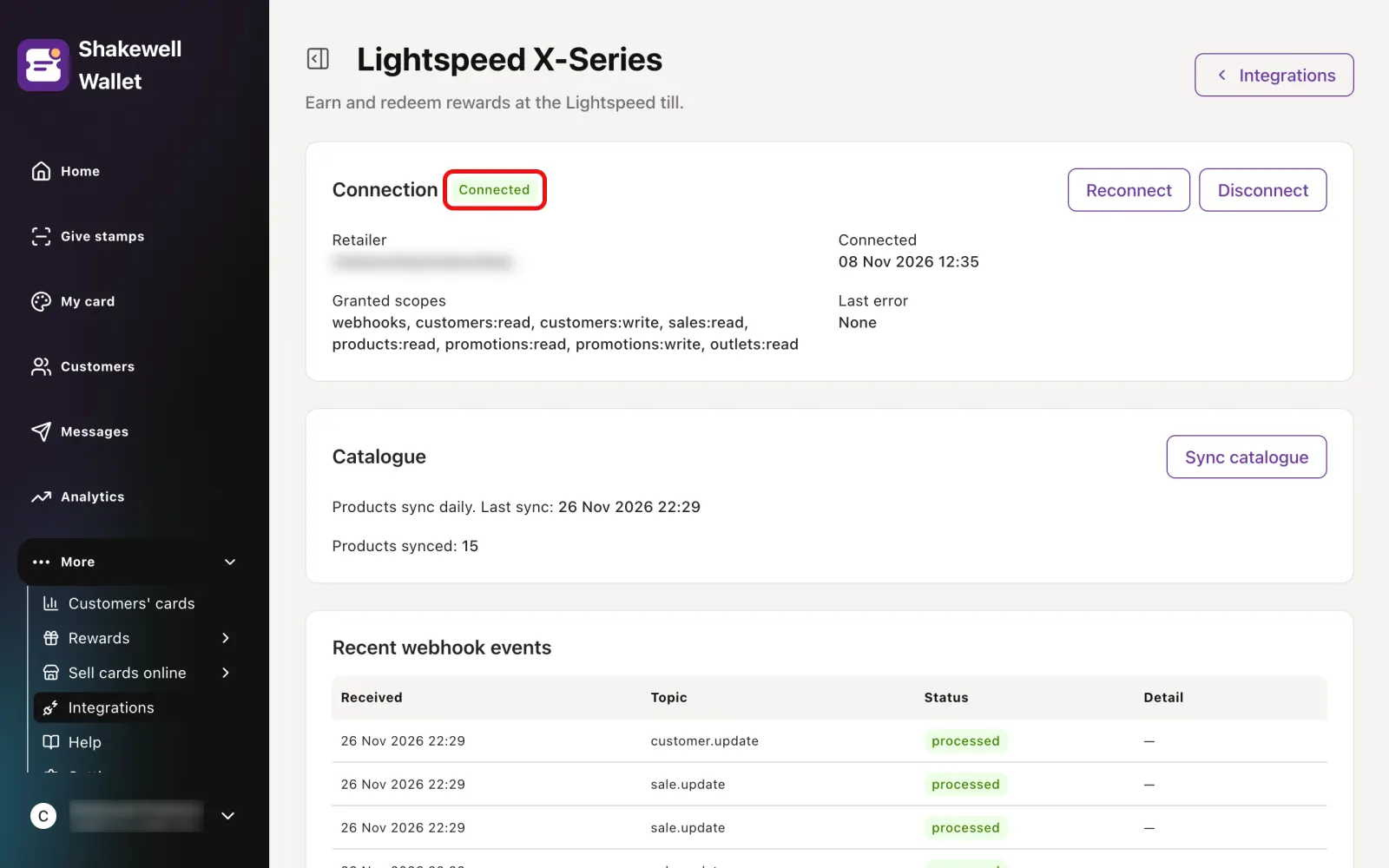
Step 7. Lightspeed sends you back to Shakewell. Check you see the green Connected badge.
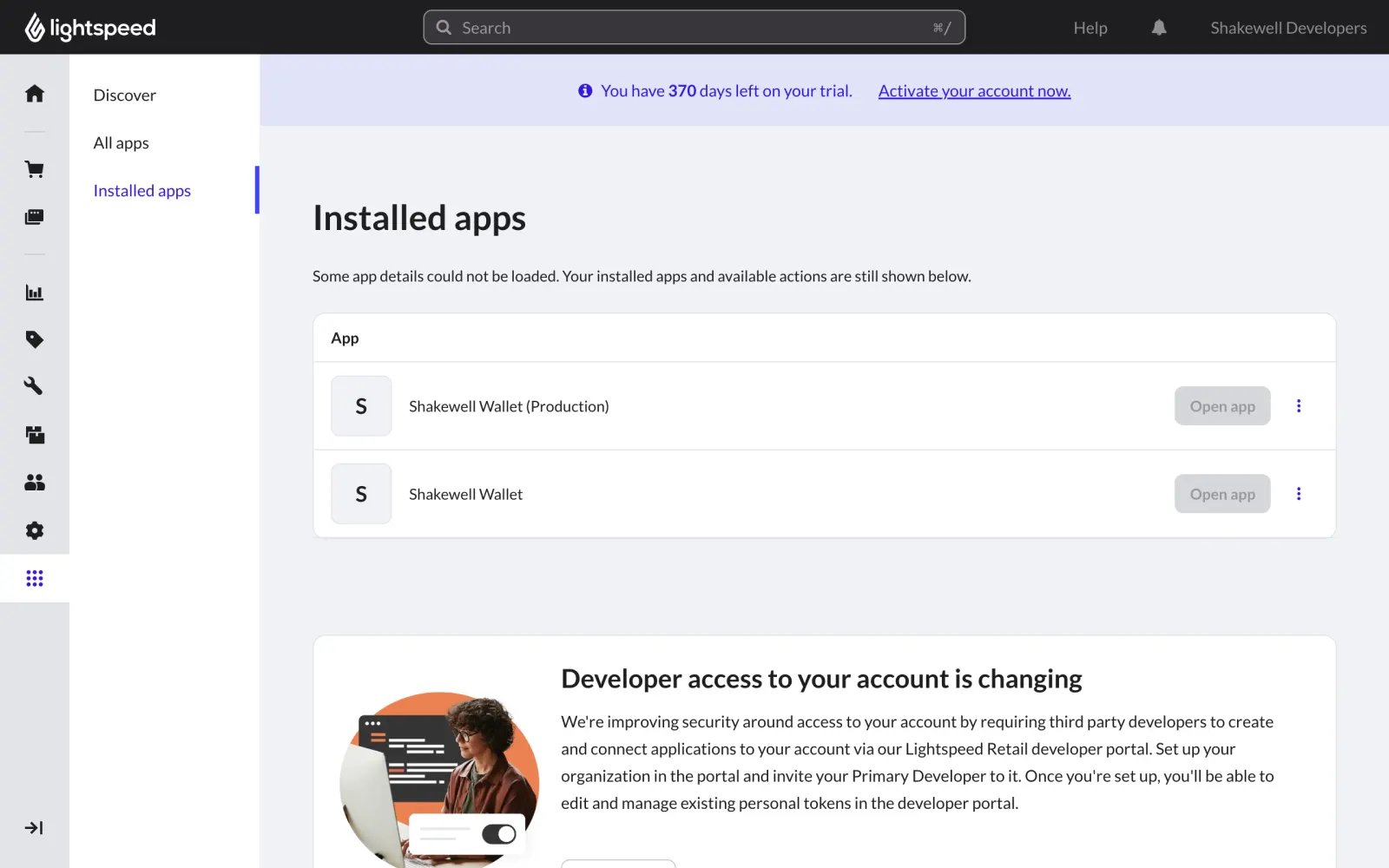
Step 8. In Lightspeed open Apps, then Installed apps. Shakewell Wallet is on the list.
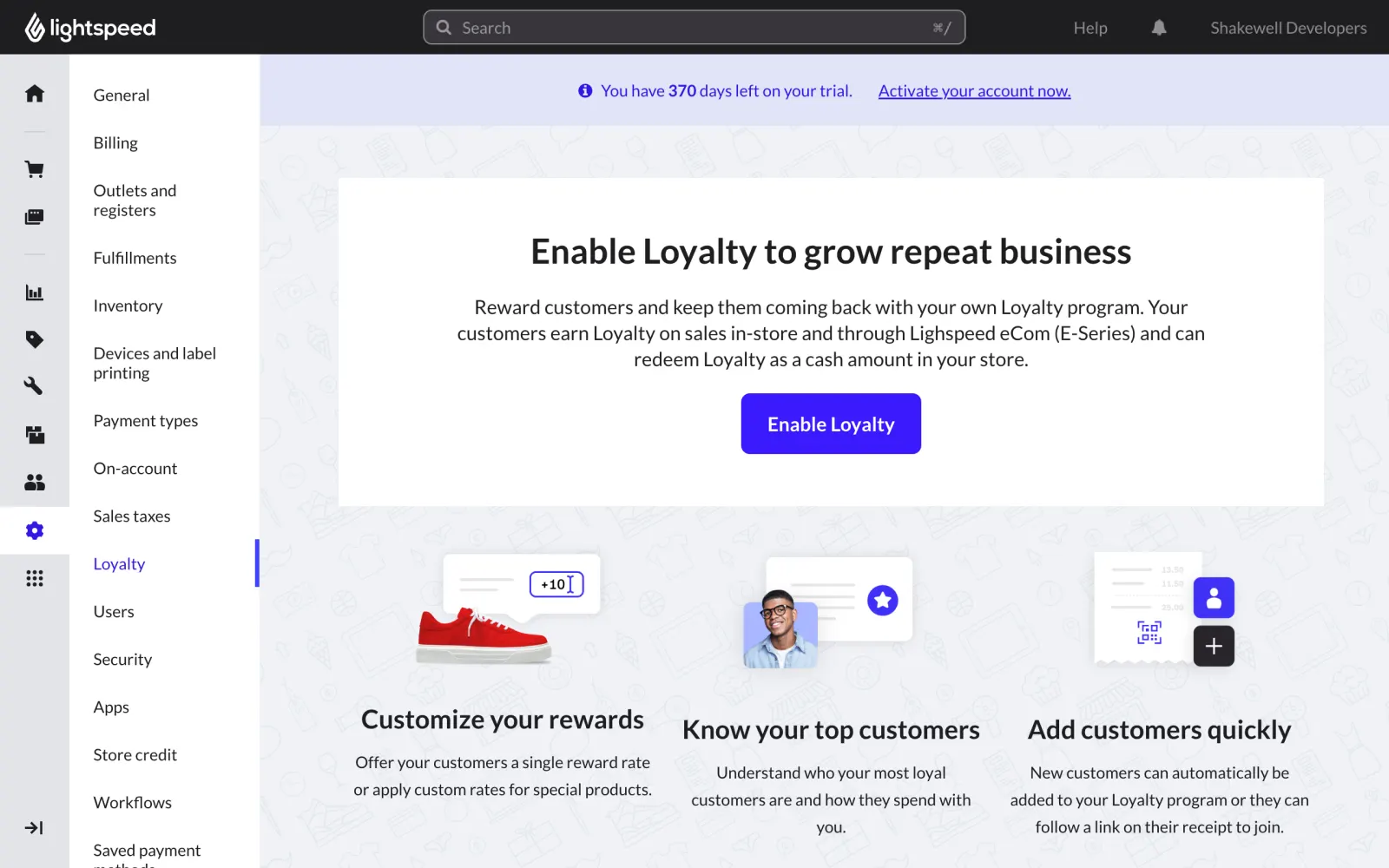
Step 9. Make sure Lightspeed's own loyalty is off. In Lightspeed open Setup, then Loyalty. If you see Enable Loyalty, it is off.
What Lightspeed asks you to allow
On the Lightspeed approval page you see five groups of access. Here is what Shakewell uses each one for.
- Sell, sales: to hear about each closed sale, so it can earn points and stamps.
- Catalog, products and promotions: to copy your product list, so Shakewell knows each product's SKU, and to make the reward promotions.
- Customers: to match a sale to a customer, to enrol new ones if you turn that on, and to move a customer in and out of a reward group.
- Setup, outlets: to make reward promotions work at every outlet.
- Webhooks: so Lightspeed tells Shakewell straight away when a sale, customer or product changes.
Check it worked
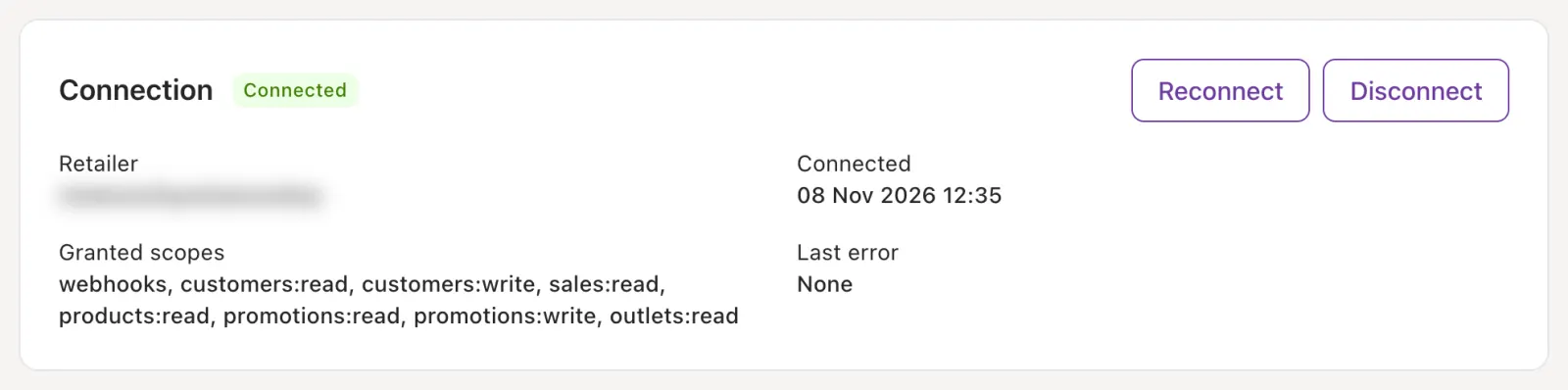
- The badge says Connected.
- Last error says None.
- Under Catalogue, Products synced is more than zero. Shakewell copies your product list when you connect and then once a day. Choose Sync catalogue to copy it again now.

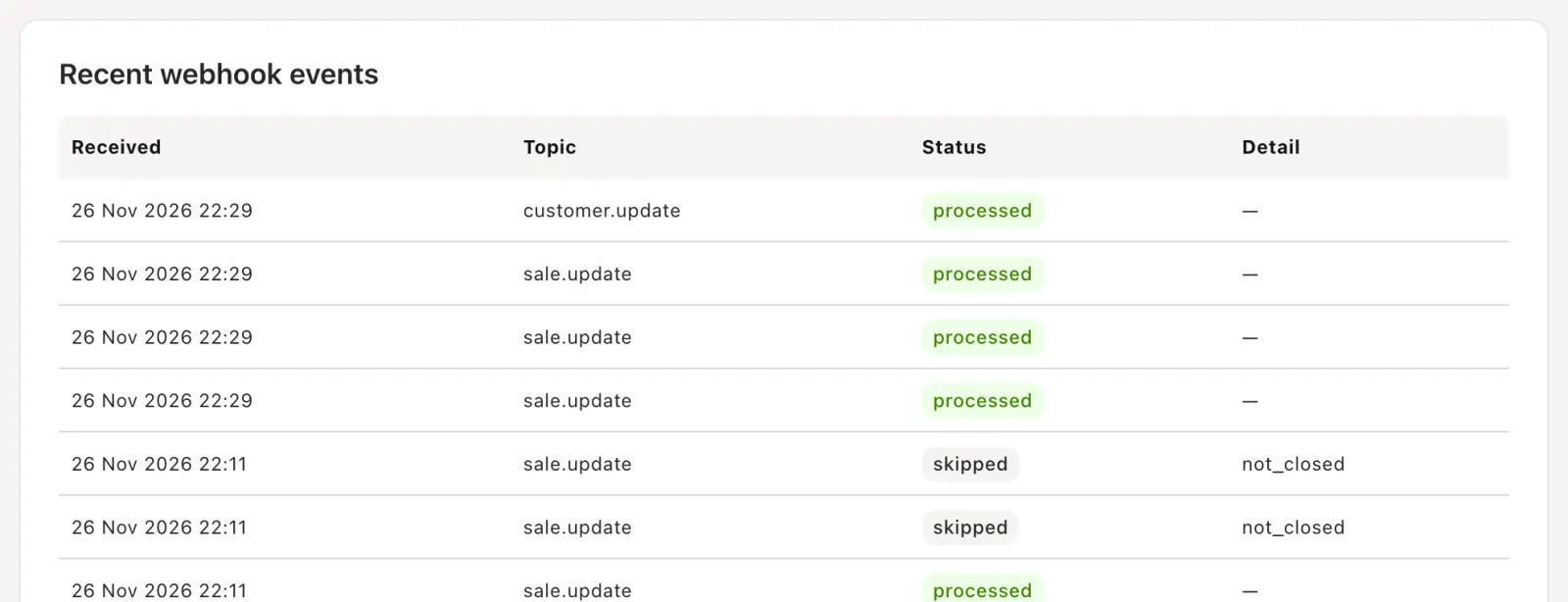
Recent webhook events lists the last 20 messages Lightspeed sent. Each row shows when it came, what it was about and whether Shakewell Processed it or Skipped it. A Skipped row has a reason in the Detail column. For example anonymous_sale means no customer was added to that sale.
If something goes wrong
- Lightspeed access was not approved, so nothing was connected: you chose Decline installation. Start again and approve.
- That connection link expired or was already used: start the connection again from the Lightspeed X-Series page.
- That connection took too long to finish: you have 10 minutes between Lightspeed and Shakewell. Start again.
- Only the person who started the connection can finish it: start it again while signed in as yourself.
- That Lightspeed retailer is already connected to another account: one Lightspeed store can be linked to one Shakewell account at a time. Disconnect it from the other account first.
- This account already has a Lightspeed connection: choose Disconnect first, or choose Reconnect.
- Lightspeed connections are temporarily unavailable: the limited release is full for now. Try again later or talk to us.
- We couldn't finish connecting Lightspeed: try again in a minute.
Disconnecting
Choose Disconnect on the Lightspeed X-Series page and confirm. Sales stop earning points and stamps. Shakewell archives its reward promotions in Lightspeed, puts any customer it moved back in their own group, removes its webhooks and deletes its copy of your product list. Existing customer points, stamps and rewards are kept.

Next: earn points from Lightspeed sales. The complete Lightspeed guide lists every step.
start your free trial. No card is needed.