
How-to guides / Set up
How to add your card to your own phone to try it
Put a test copy of your card on your own phone, so you see what your customers see.
Takes about 3 minutes
Before you start
- Your first card is made and live. (See How to sign up and make your first card.)
- Your phone, with its camera.
- A computer showing your Shakewell Wallet account.
The steps
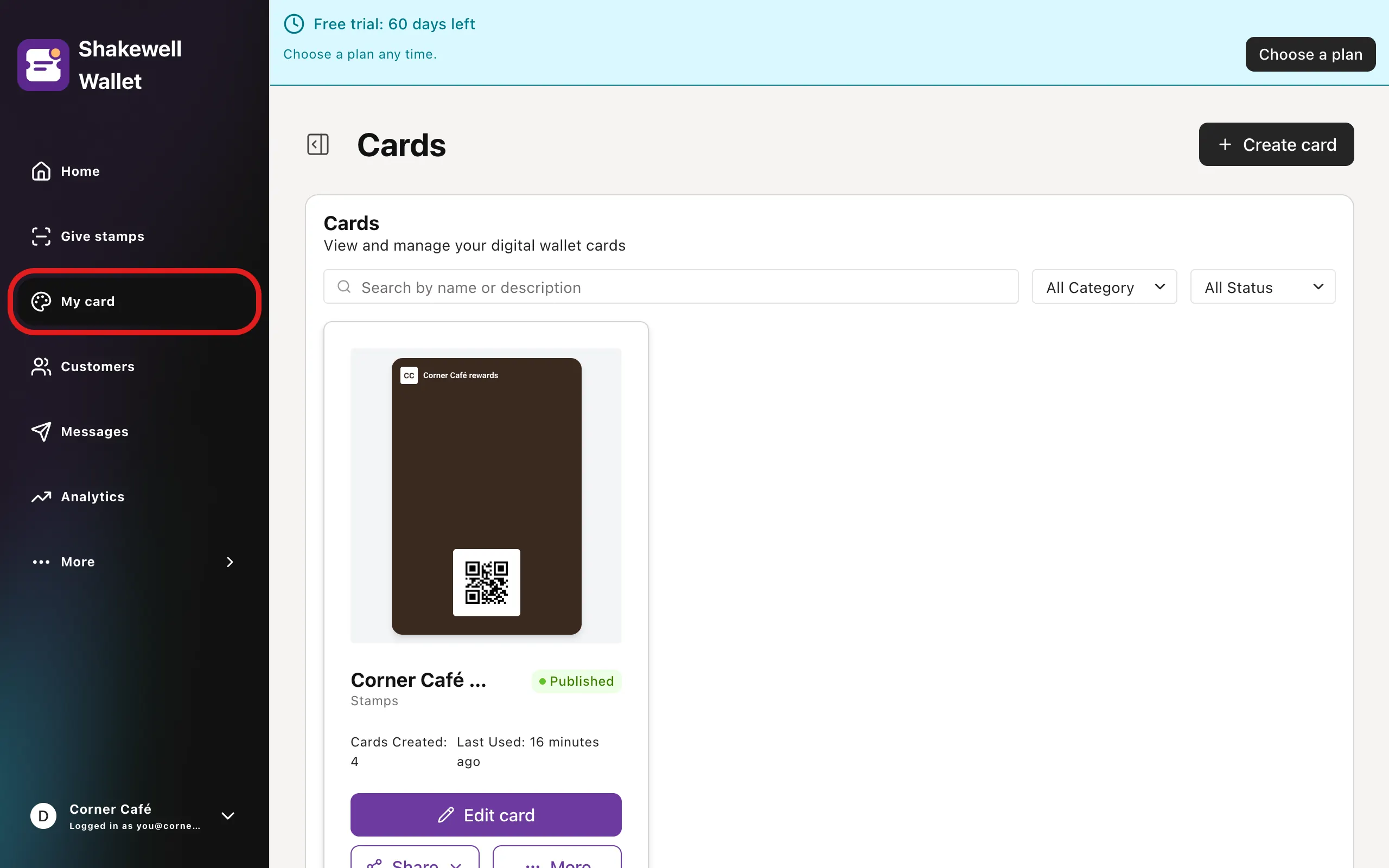
Step 1. On your computer, look at the menu on the left. Click My card.
You see your card in a list.
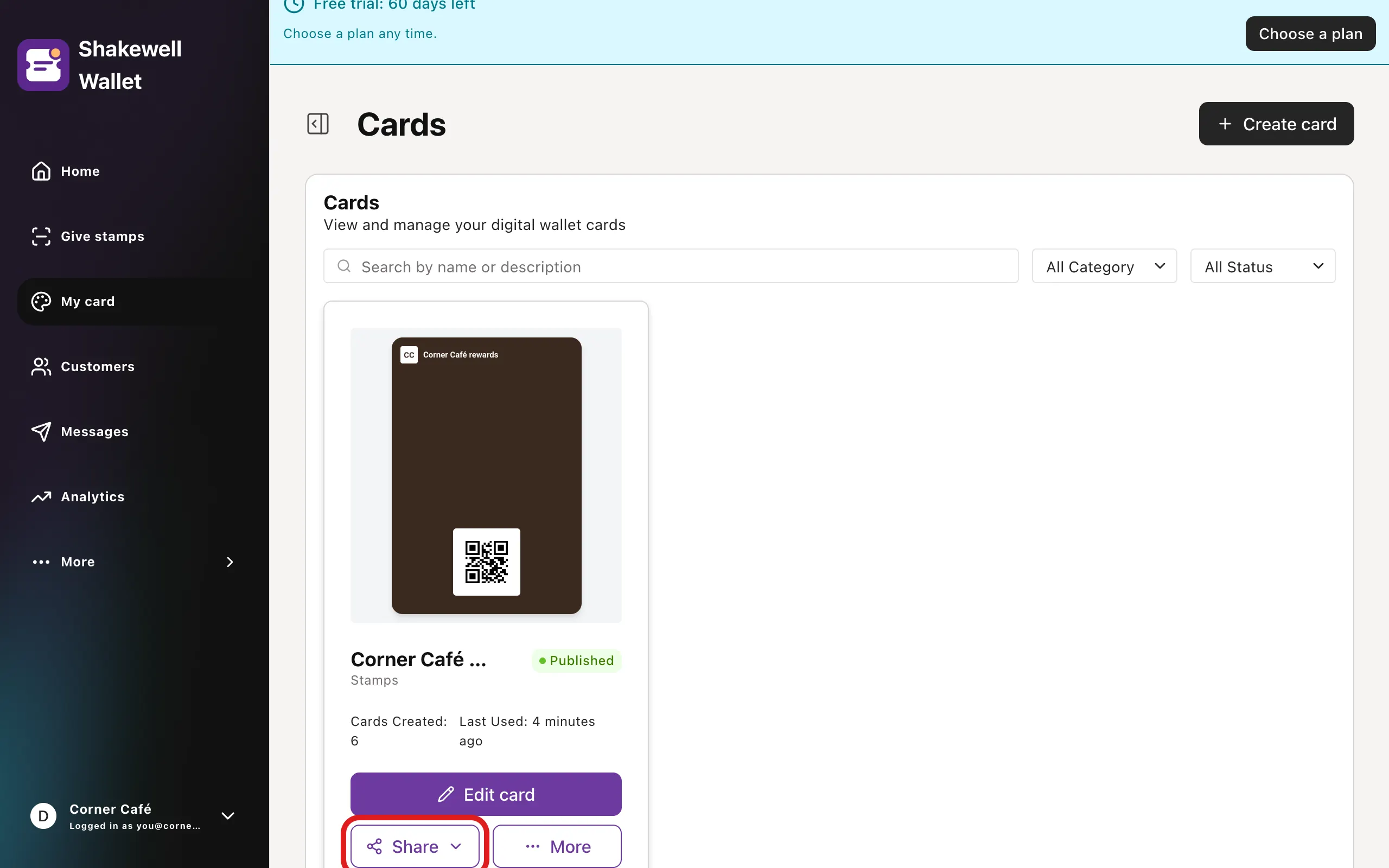
Step 2. Under your card, click the Share button.
A small menu opens.
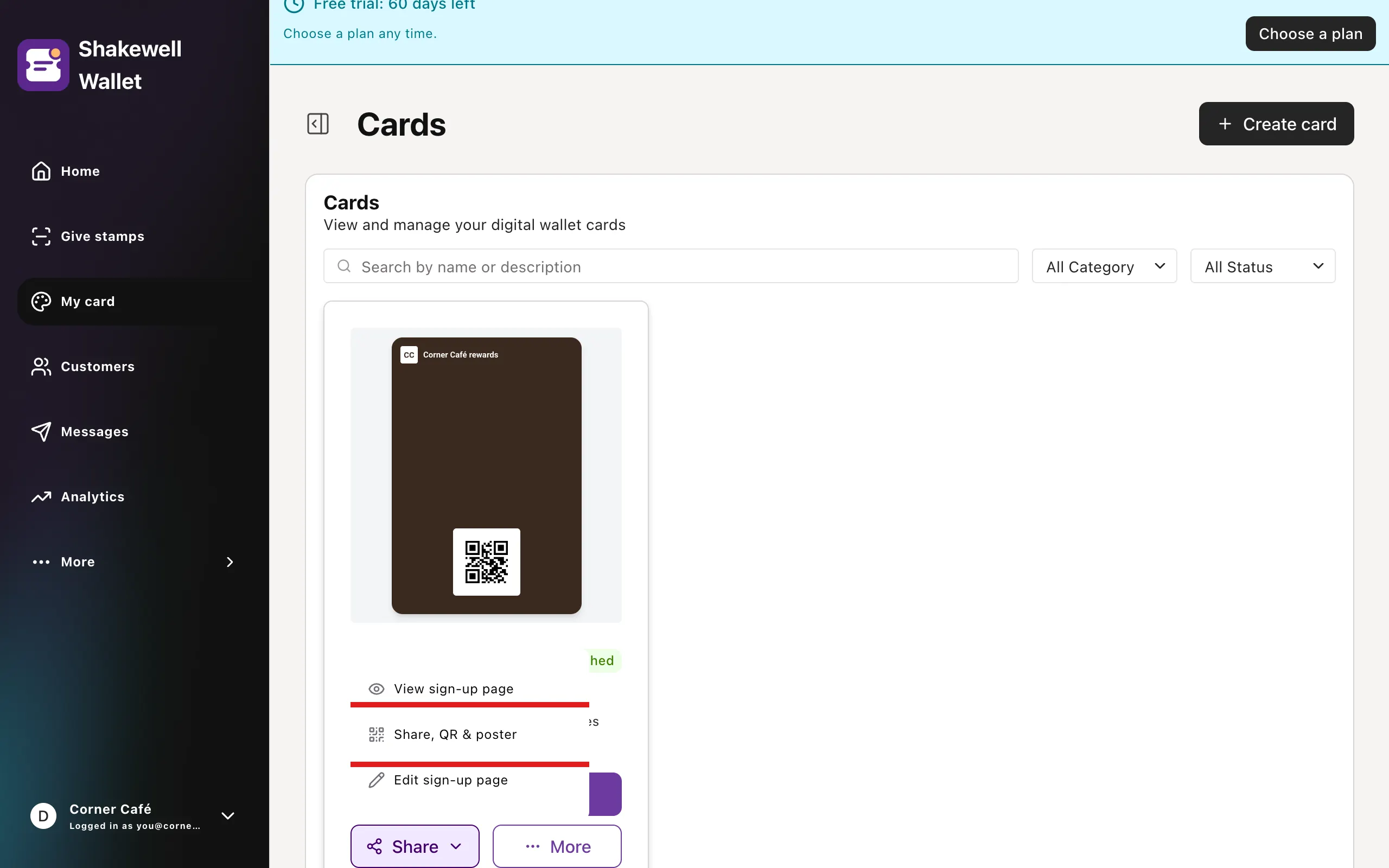
Step 3. In the small menu, click Share, QR & poster.
A page opens that says Your card is live.
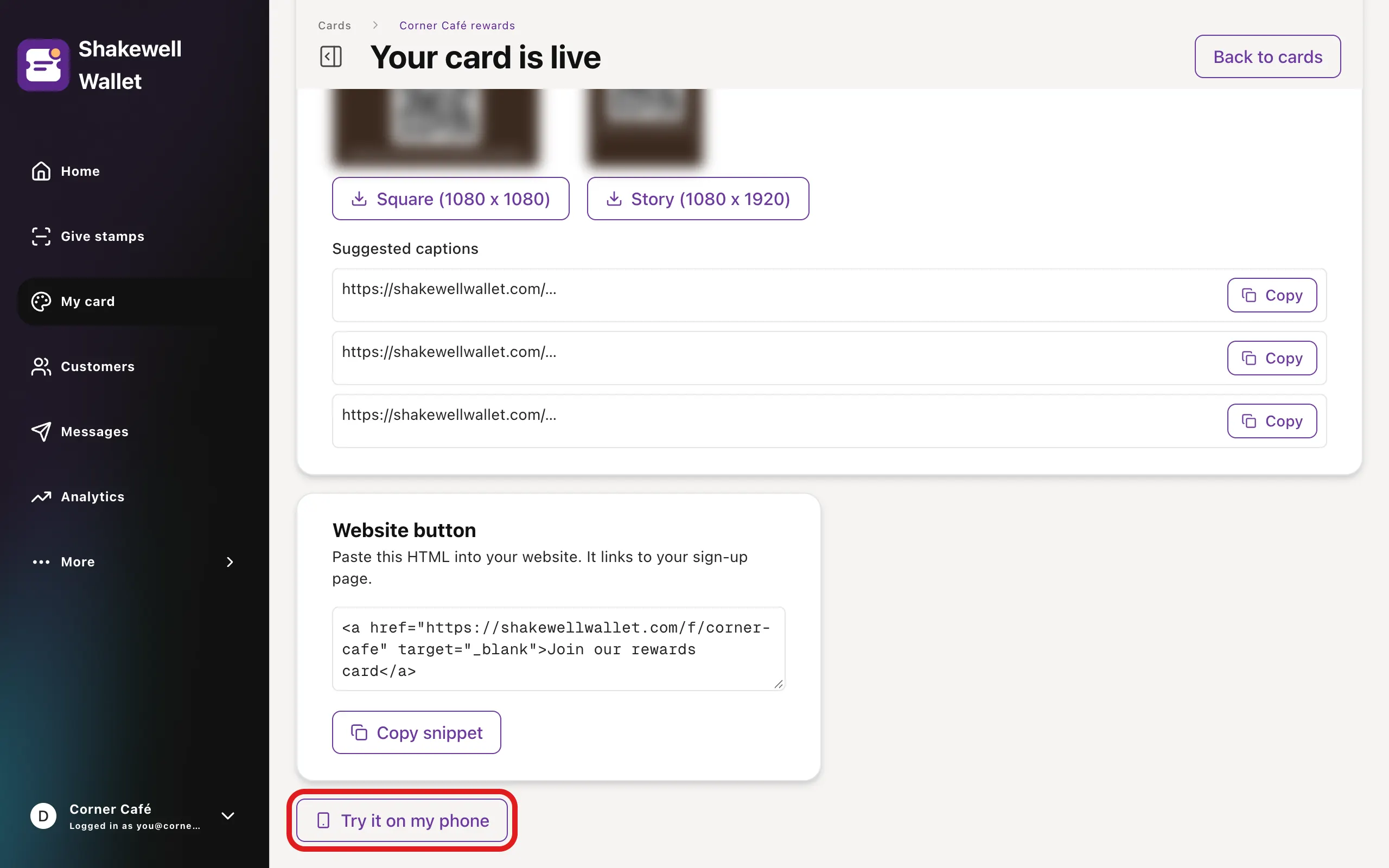
Step 4. Scroll to the bottom of the page. Click the Try it on my phone button.
A white box opens with a square code in it. If it shows a spinning circle, wait a few seconds.
Step 5. Look at the square code (a QR code) in the white box.
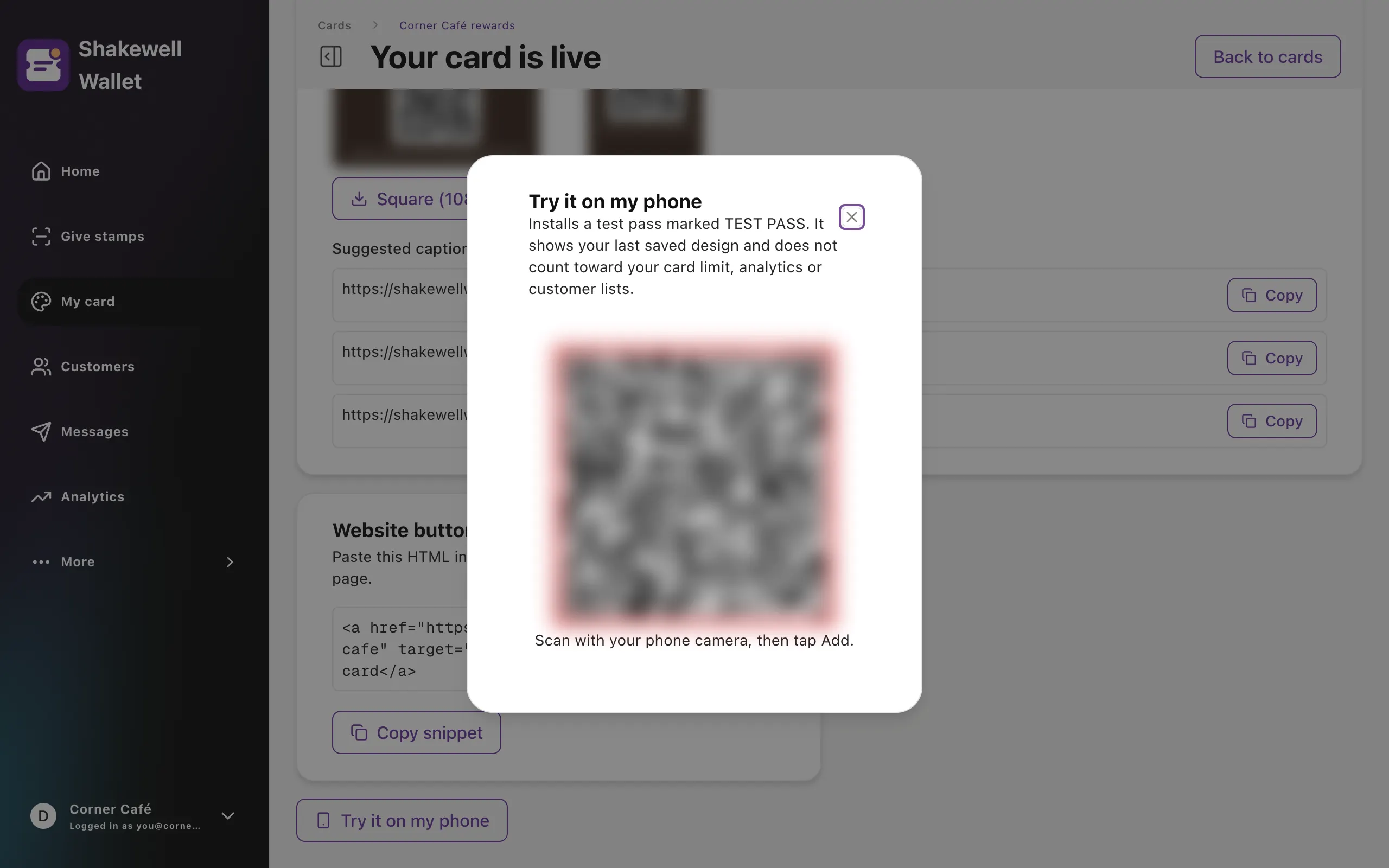
Step 6. Now pick up your phone. Open the camera. Hold it over the square code on your computer screen.
A link pops up on your phone screen.
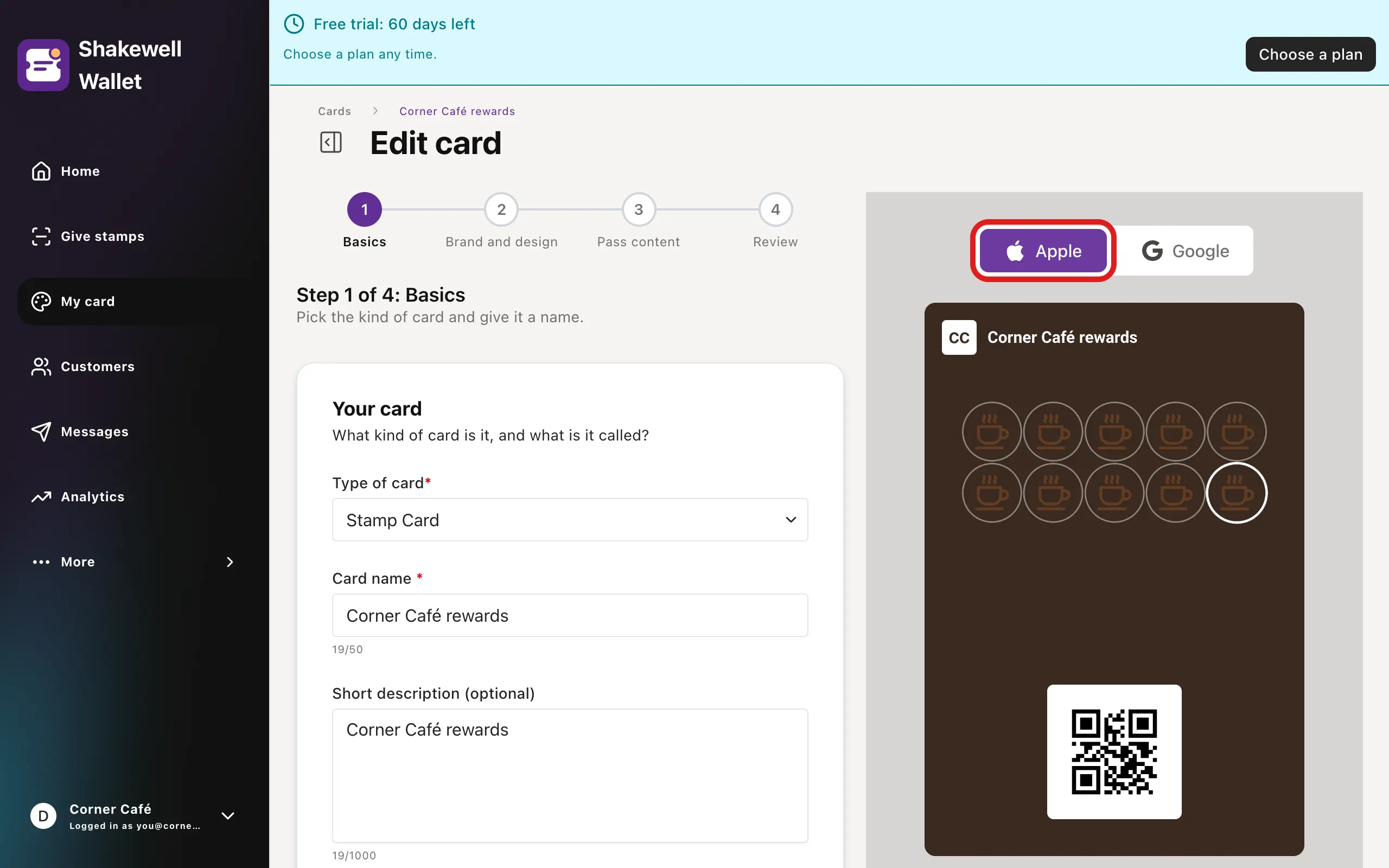
Step 7. Tap the link on your phone. When your card shows up, tap Add.
On an iPhone the card goes into Apple Wallet. This picture shows how your card looks there.
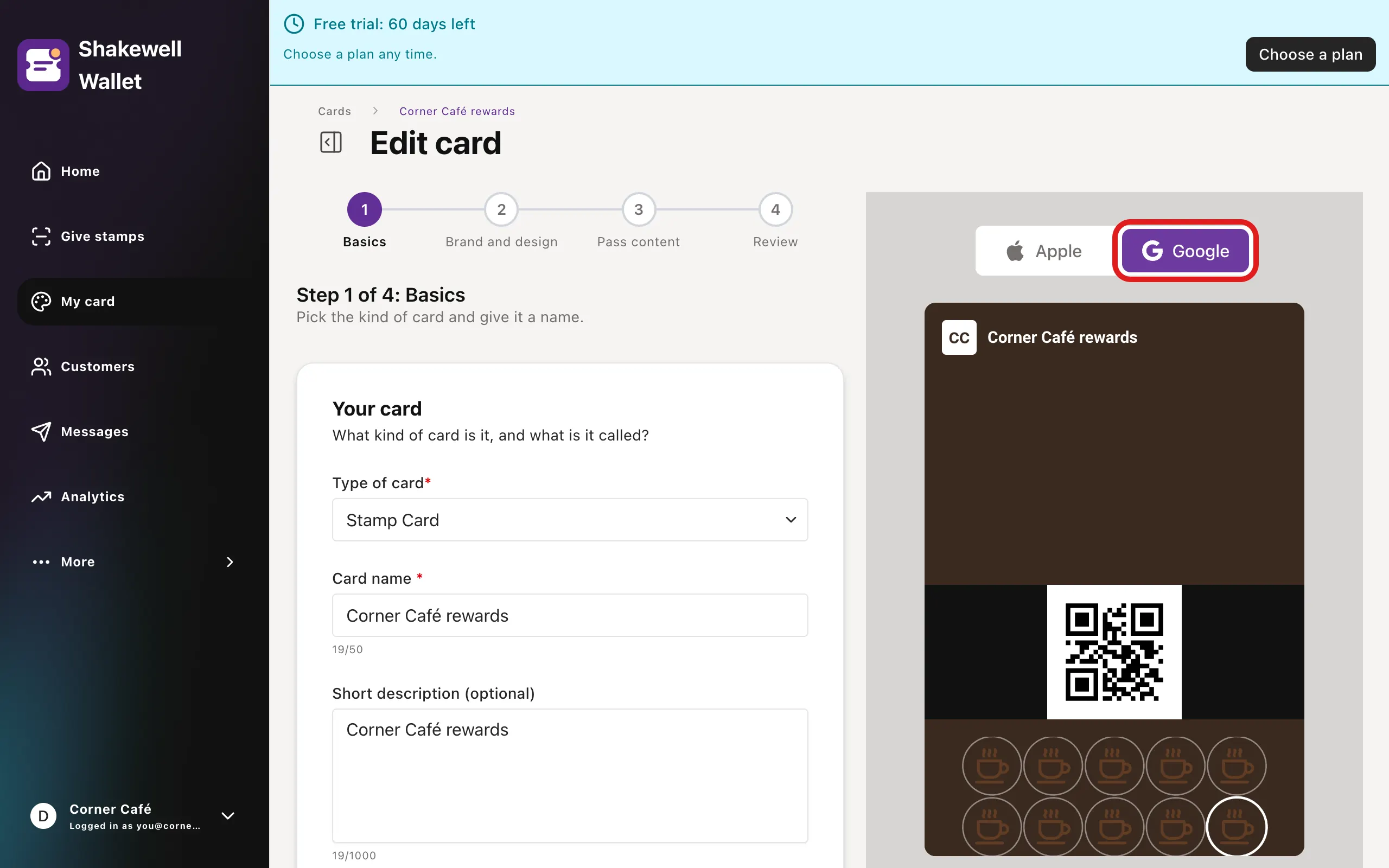
Step 8. On an Android phone, tap Add to Google Wallet instead.
The card goes into Google Wallet. This picture shows how your card looks there.
You'll know it worked when
You open the Wallet app on your phone and see your card with the words TEST PASS on it.
Good to know
- The test card does not count as a customer. It does not show in your customer list or your numbers.
- It shows your last saved design. If you change your card, save it, then try again.
Stuck?
That is fine. Contact us and we will help you. We reply within one business day.
These guides may help: