
How-to guides / Grow
How to see what your customer sees, and how they add the card
Follow the same steps as your customer, so you can help them at the counter.
Takes about 3 minutes
Before you start
- Your card is live. (See How to sign up and make your first card.)
- Your phone with its camera.
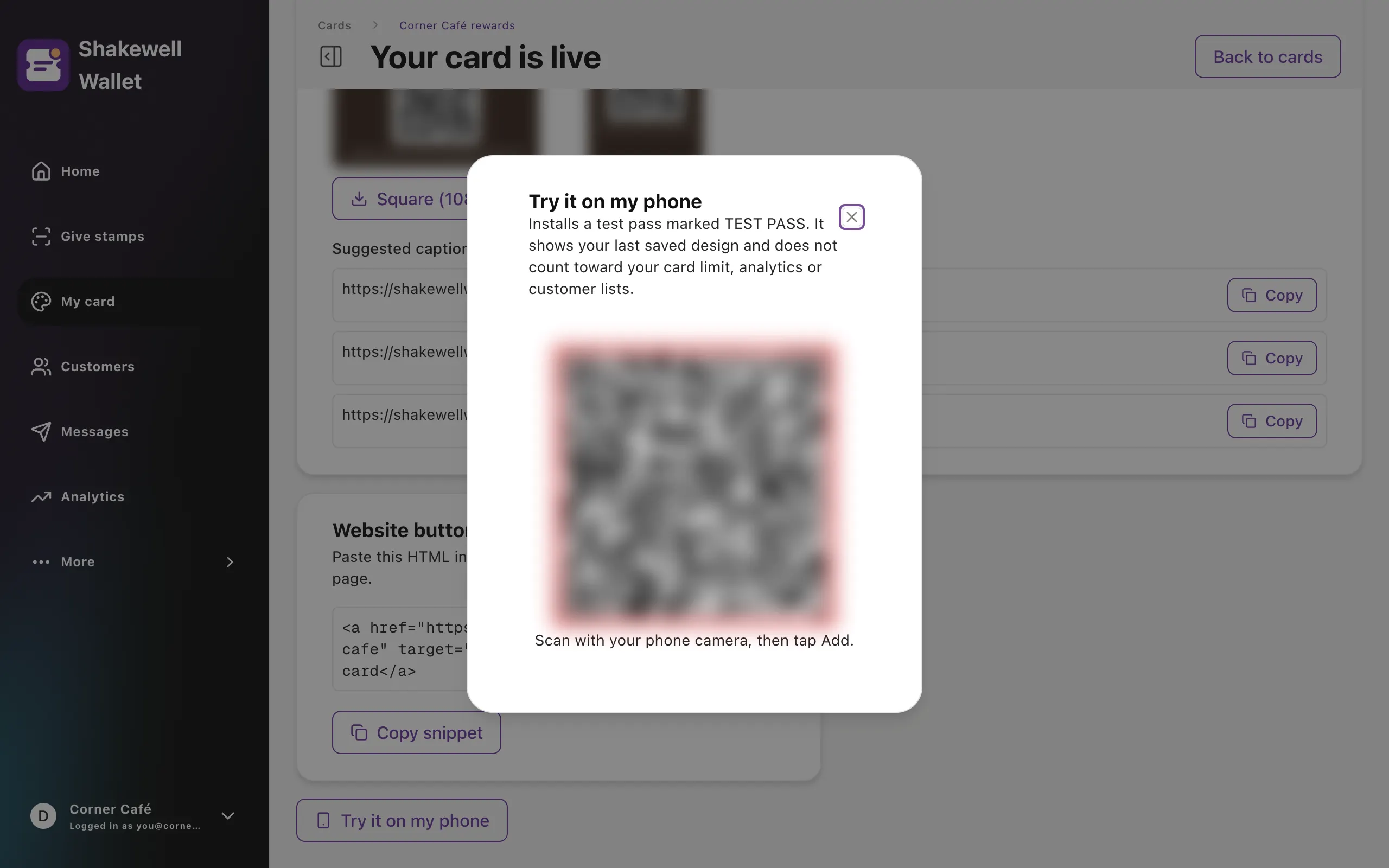
- Your QR code on a screen or on paper. (See How to print the QR poster.)
The steps
Step 1. Open your phone camera. Hold it over your QR code.
A link pops up on the screen. Tap it.
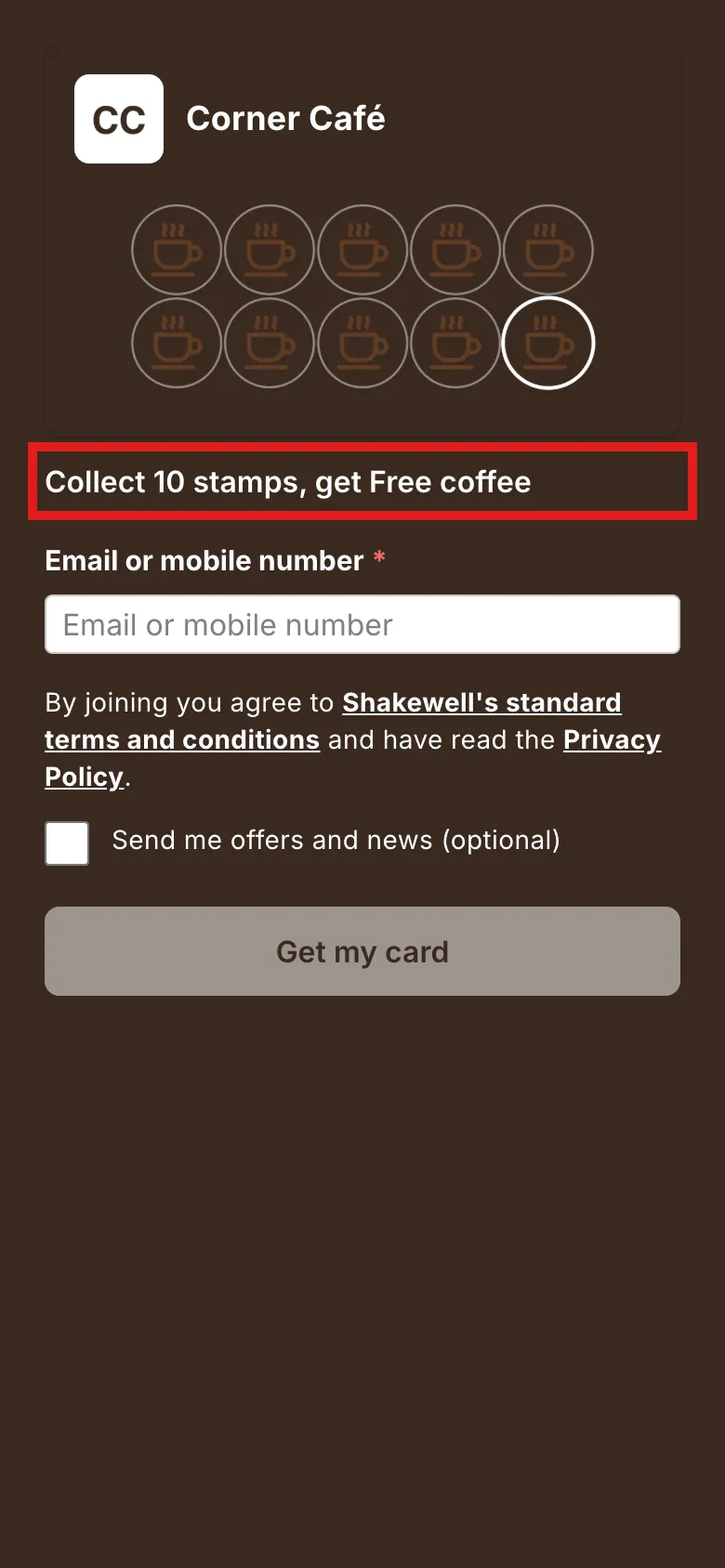
Step 2. Read the page that opens. It shows your card, and the words that say how many stamps get a reward.
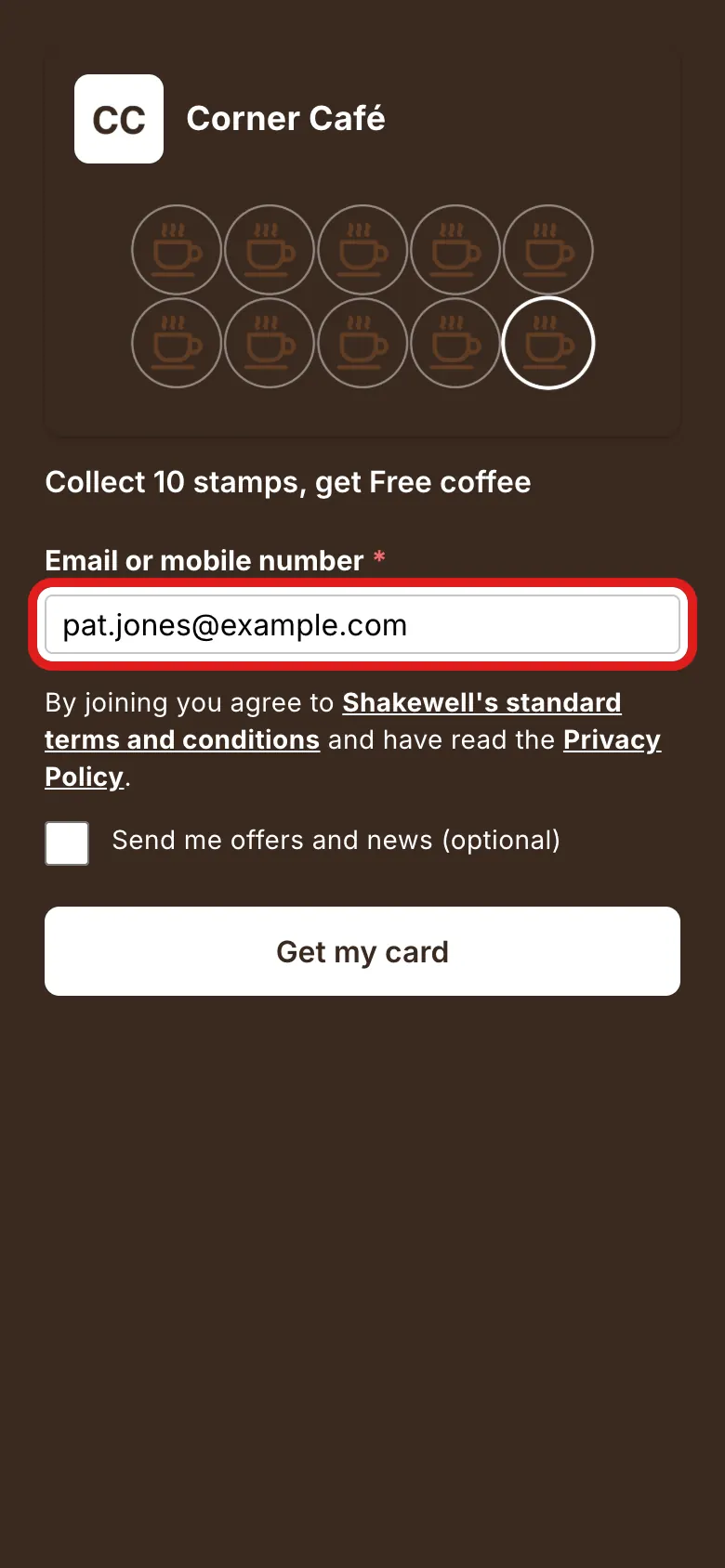
Step 3. Tap the white box. Type an email address or a mobile number.
The box is called Email or mobile number. You chose what to ask for when you made your card.
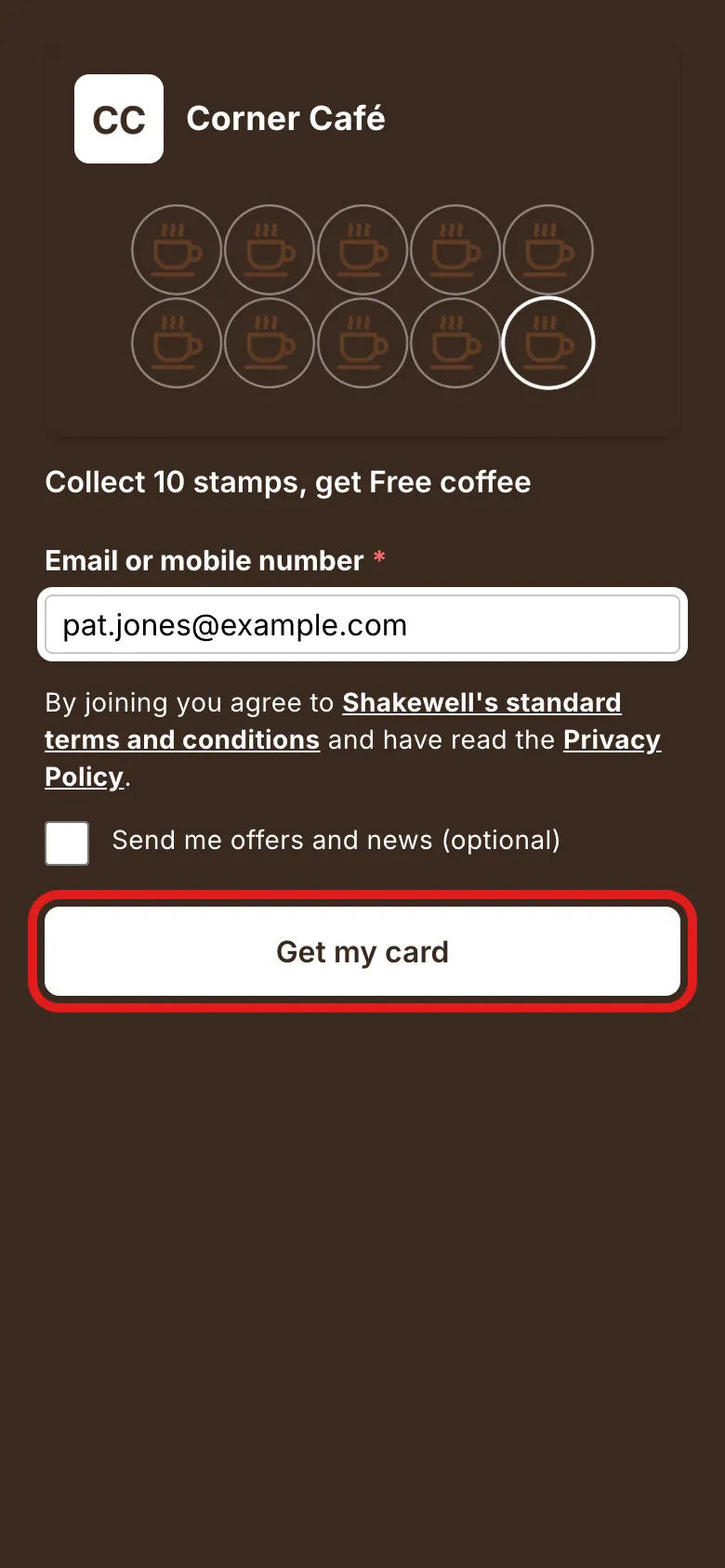
Step 4. Tap the Get my card button.
Wait a few seconds.
Step 5. Look at the page. It says Your card is ready.
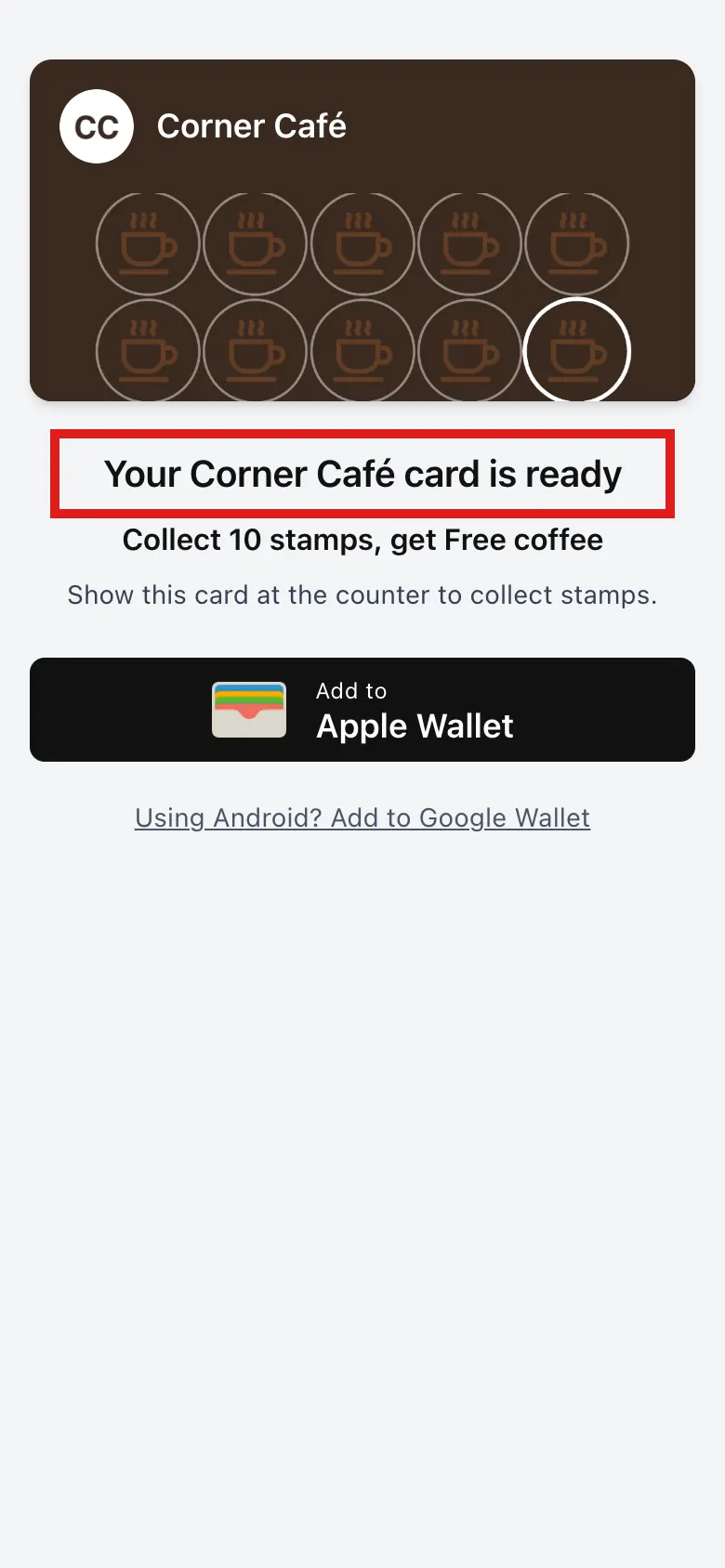
Step 6. On an iPhone, tap the black Add to Apple Wallet button.
The card shows on screen. Tap Add at the top right.
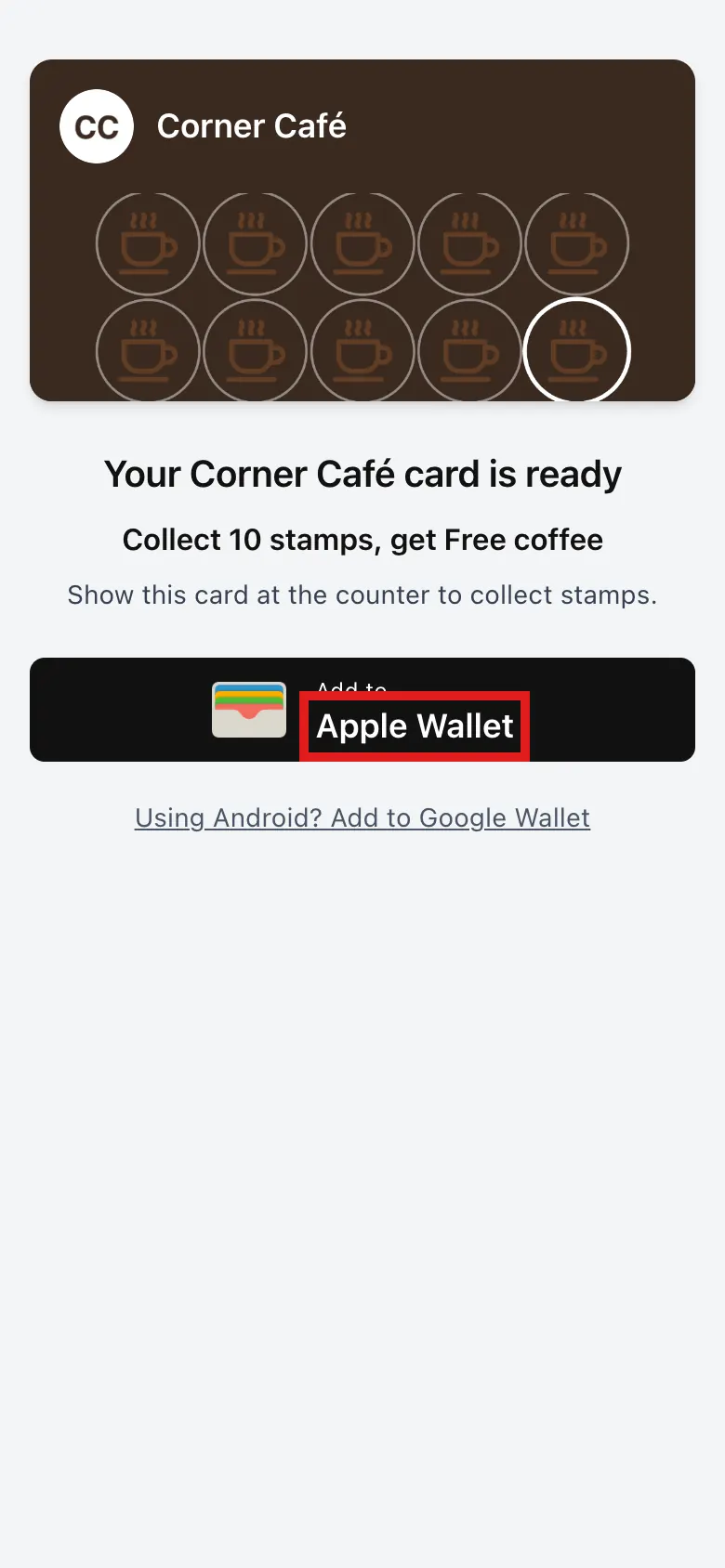
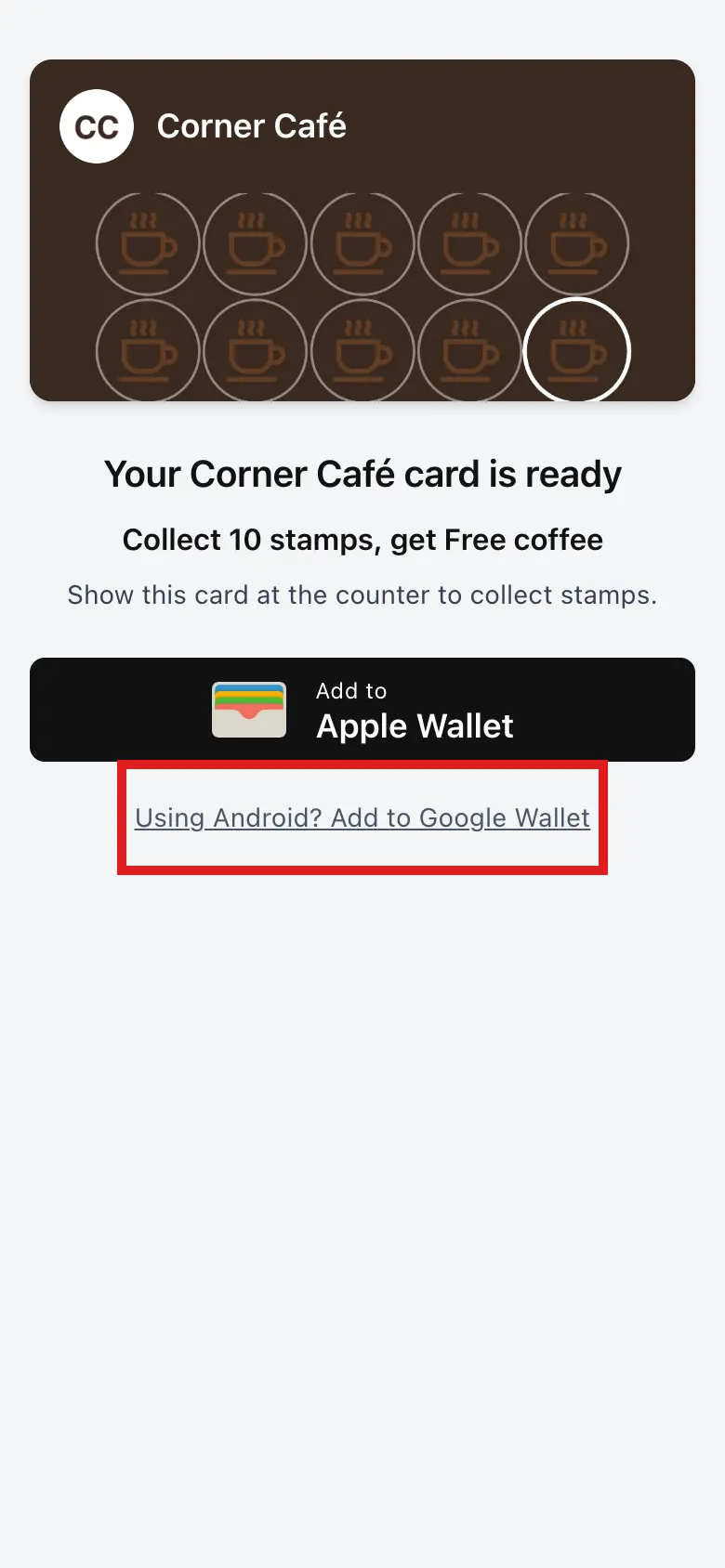
Step 7. On an Android phone, tap the underlined words Using Android? Add to Google Wallet.
Google Wallet opens. Tap Add to Google Wallet.
You'll know it worked when
Your customer opens the Wallet app on their phone and sees your card there. You can also see them in your Customers list.
Good to know
- Customers do not need to download an app. The Wallet app is already on their phone.
- At the counter, tell them: Scan the code, type your email, tap Get my card, then tap Add.
Stuck?
That is fine. Contact us and we will help you. We reply within one business day.
These guides may help: