
How-to guides / Grow
How to send a message to your customers' phones
Send a short message, like a special offer, to the cards on your customers' phones.
Takes about 4 minutes
Before you start
- Your card is live and you have customers. (See How to sign up and make your first card.)
- Your message ready. Keep it short. You can use up to 1,000 letters, but the first few words matter most.
- Remember: a sent message cannot be taken back.
The steps
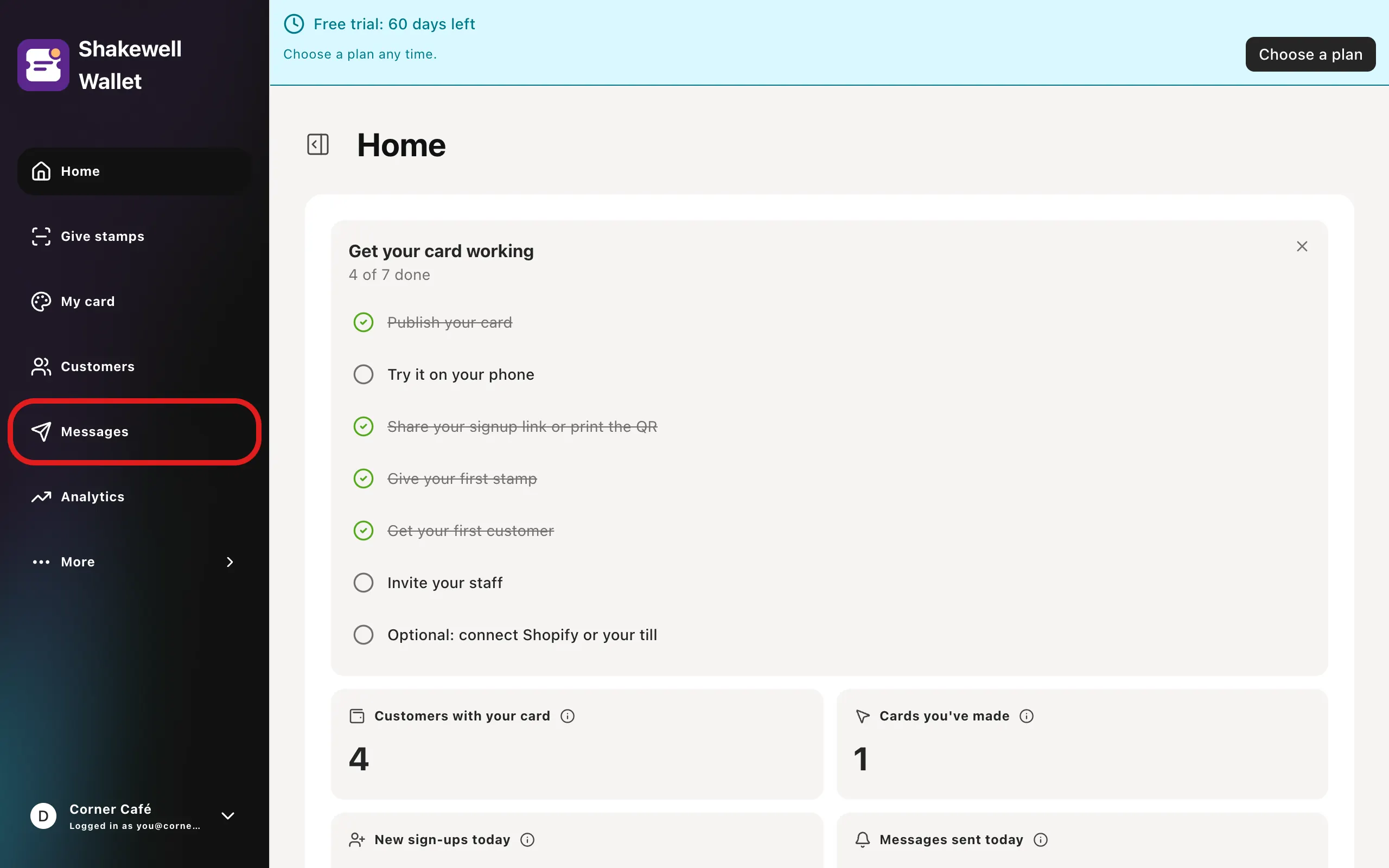
Step 1. In the left menu, click Messages.
A page opens with three parts: Who gets it, What does it say and When.
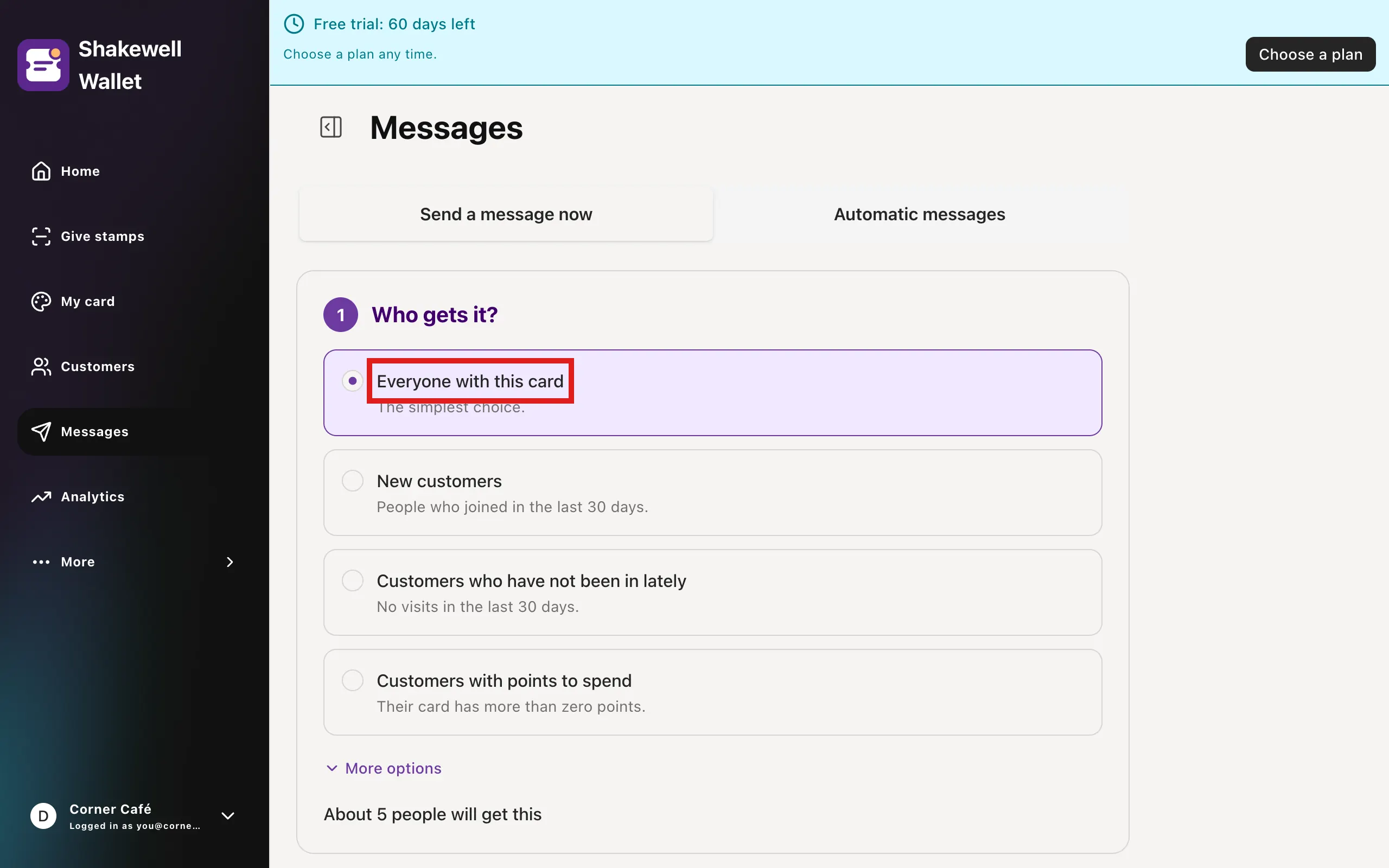
Step 2. Under Who gets it?, click a choice. The first one, Everyone with this card, is the simplest.
Under the choices it says how many people will get your message.
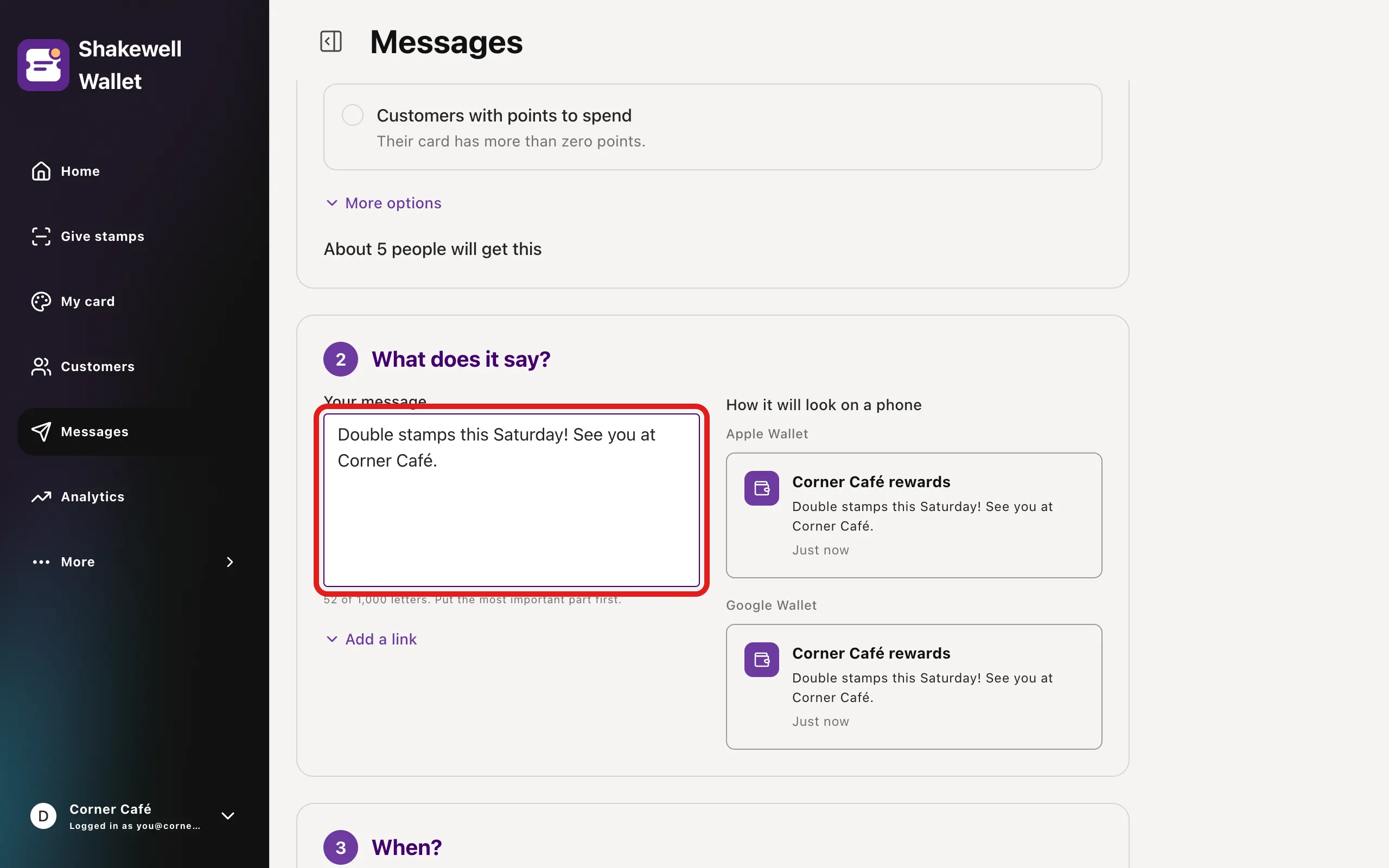
Step 3. Under What does it say?, click the big box. Type your message.
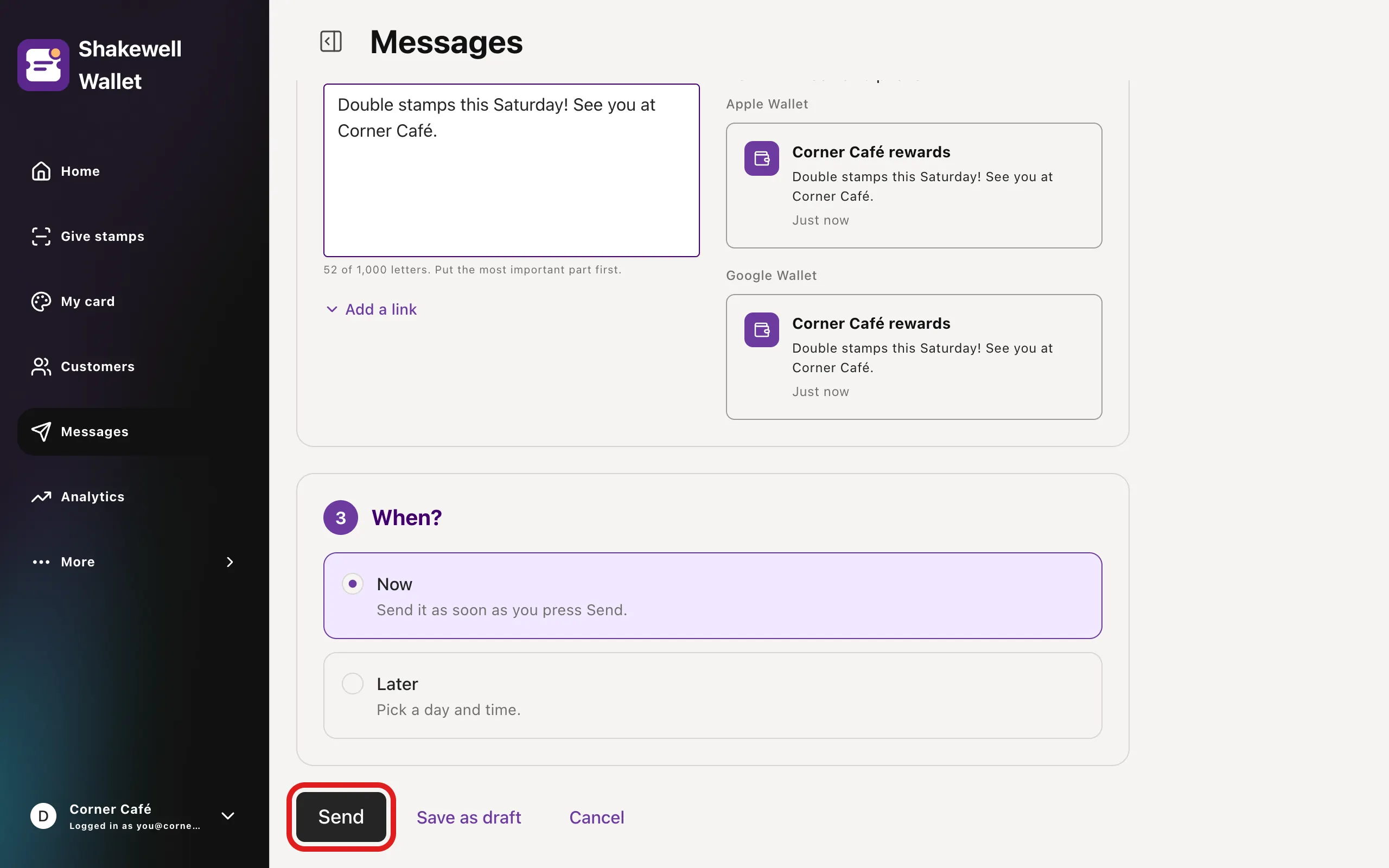
On the right, you see how it will look on a phone, for Apple Wallet and Google Wallet.
Step 4. Look at the part called When?. Leave it on Now to send as soon as you press Send. Choose Later to pick a day and time.
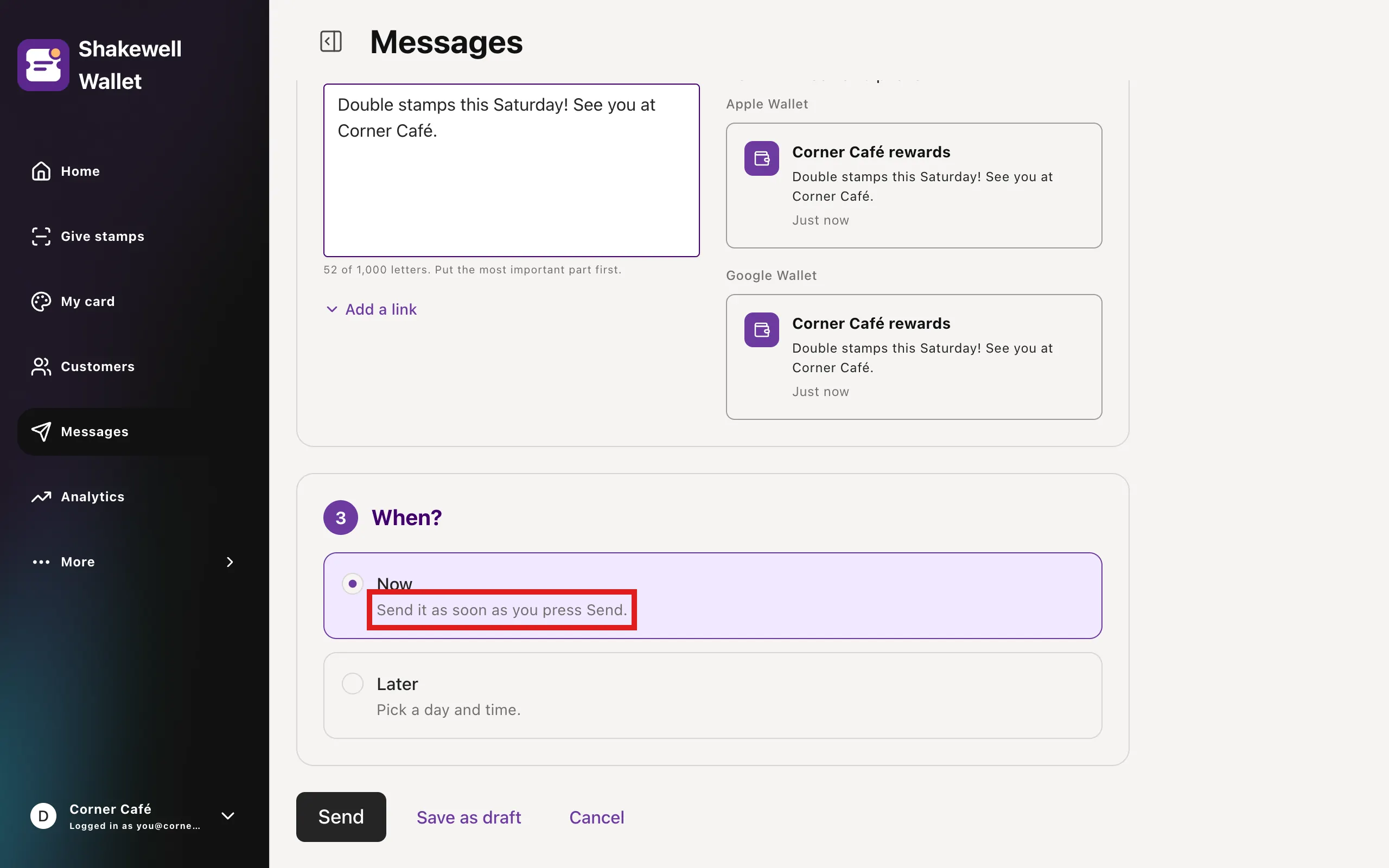
Step 5. Click the Send button at the bottom.
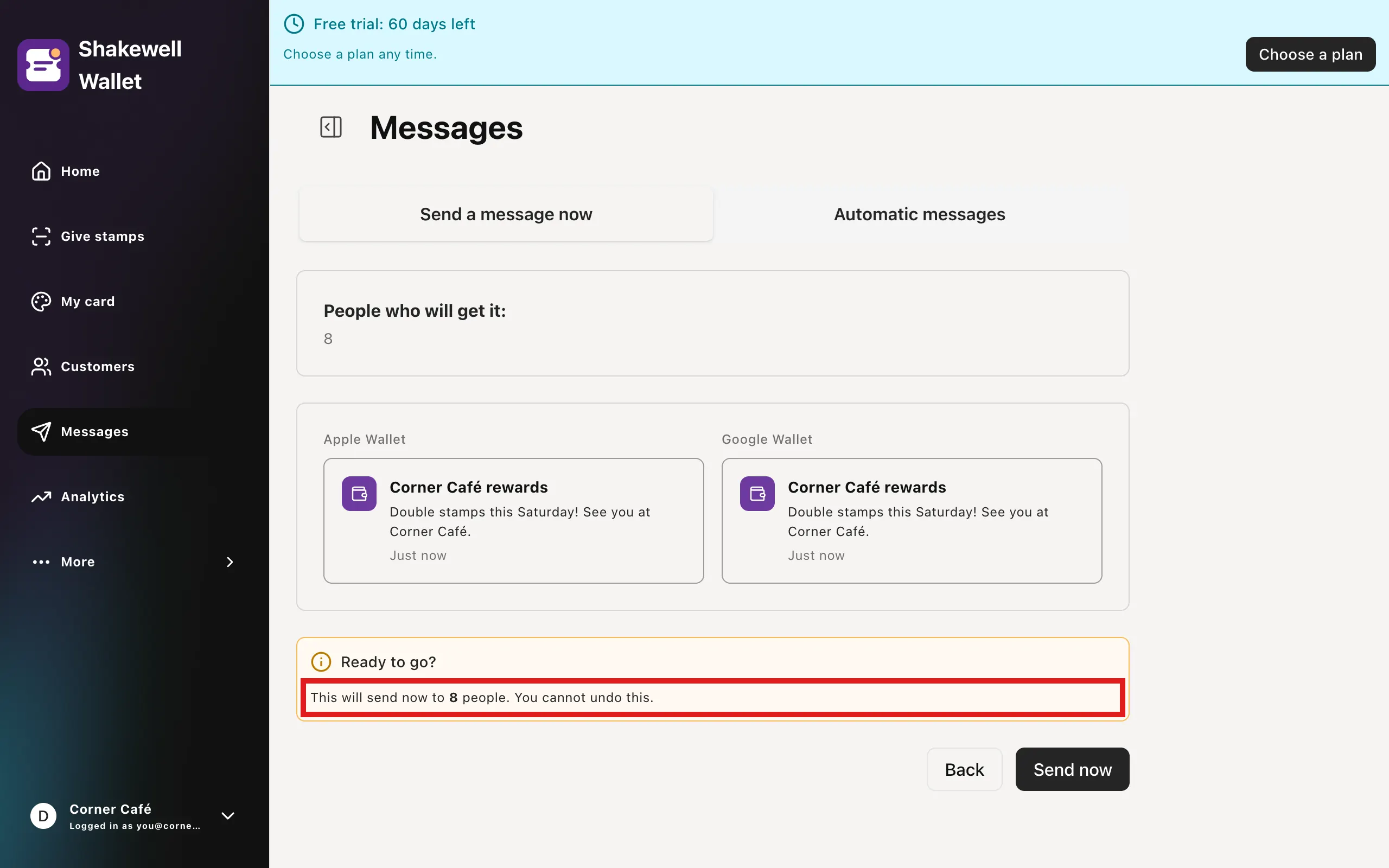
A box asks Ready to go? It says how many people will get it and that you cannot undo this.
Step 6. Check your message and the number of people in the box.
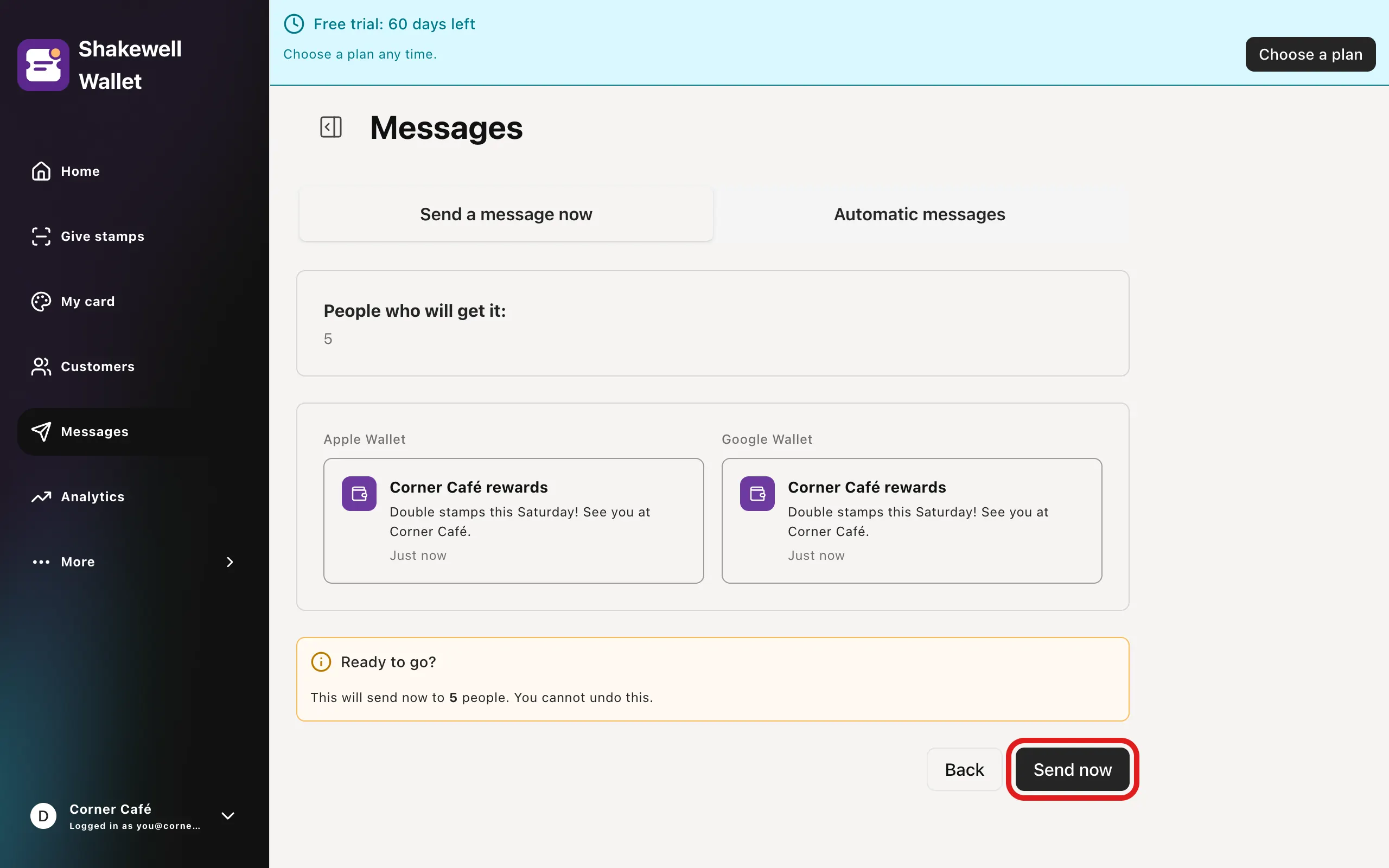
Step 7. Click Send now.
Wait a moment.
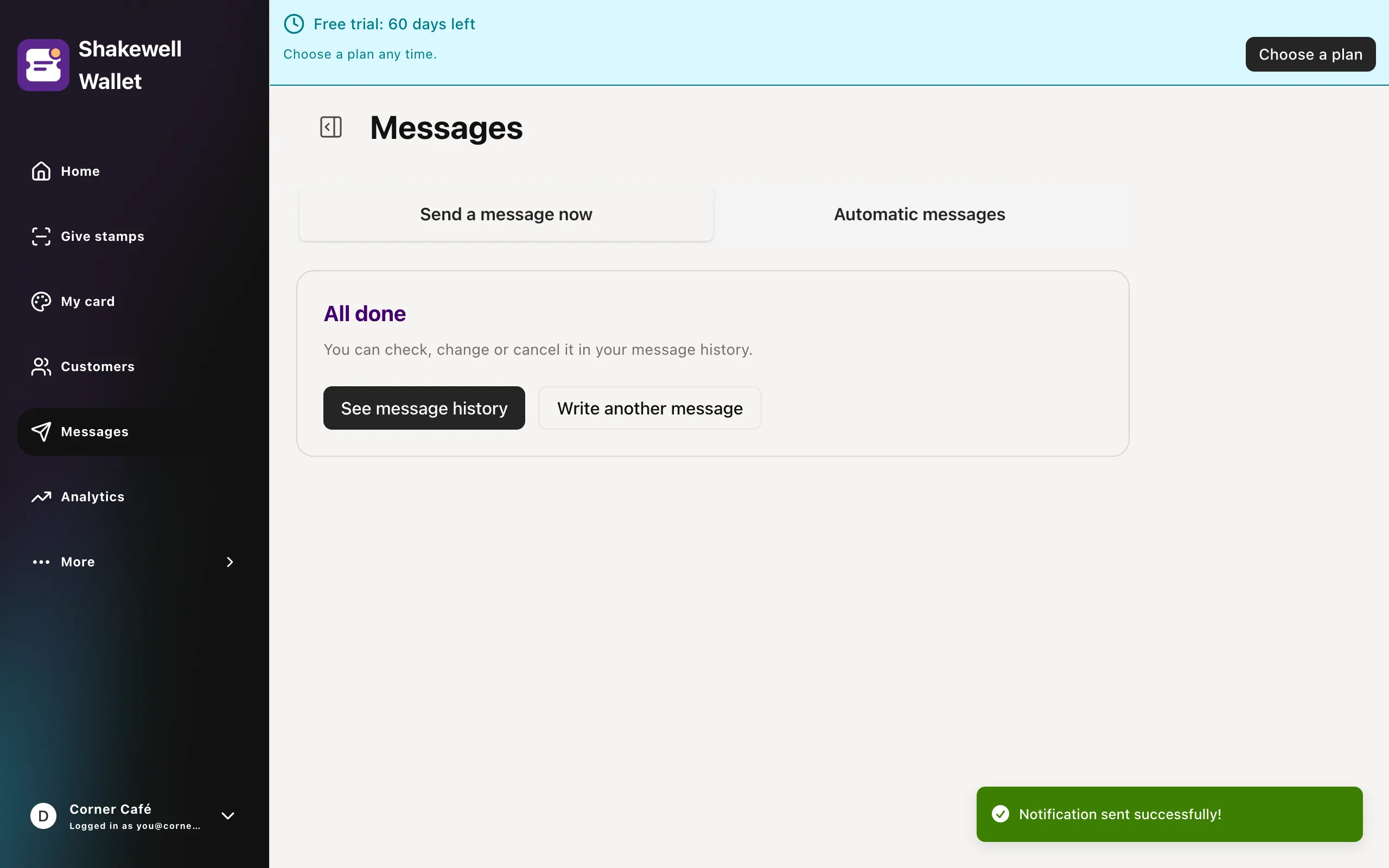
Step 8. Look at the page. It says All done.
A green message at the bottom right says Notification sent successfully!
You'll know it worked when
The page says All done and a green message says Notification sent successfully! You can see the message later by pressing See message history.
Good to know
- Want to write it now but send it later? Choose Later under When, or press Save as draft.
- Other choices under Who gets it: New customers, Customers who have not been in lately, and Customers with points to spend.
Stuck?
That is fine. Contact us and we will help you. We reply within one business day.
These guides may help: