
How-to guides / Set up
How to change how your card looks
Change the colours or logo on your card. Cards your customers already have update too.
Takes about 4 minutes
Before you start
- Your card is made. (See How to sign up and make your first card.)
- A colour you want, as a colour code like #1f5f4a. Or pick one with the colour box.
- Optional: a new logo file (JPG or PNG, up to 2 MB) saved on your computer.
The steps
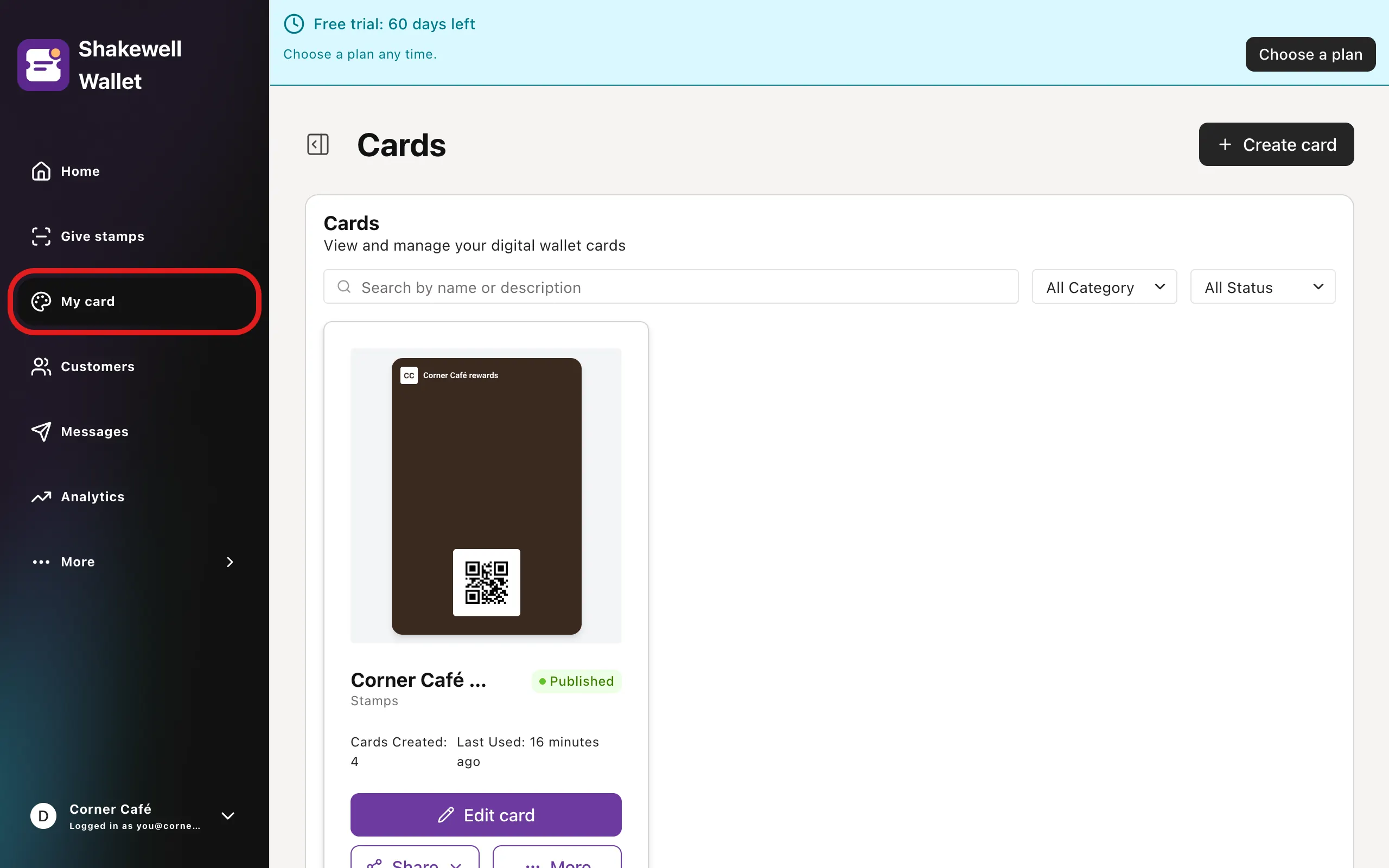
Step 1. In the left menu, click My card.
You see your card in a list.
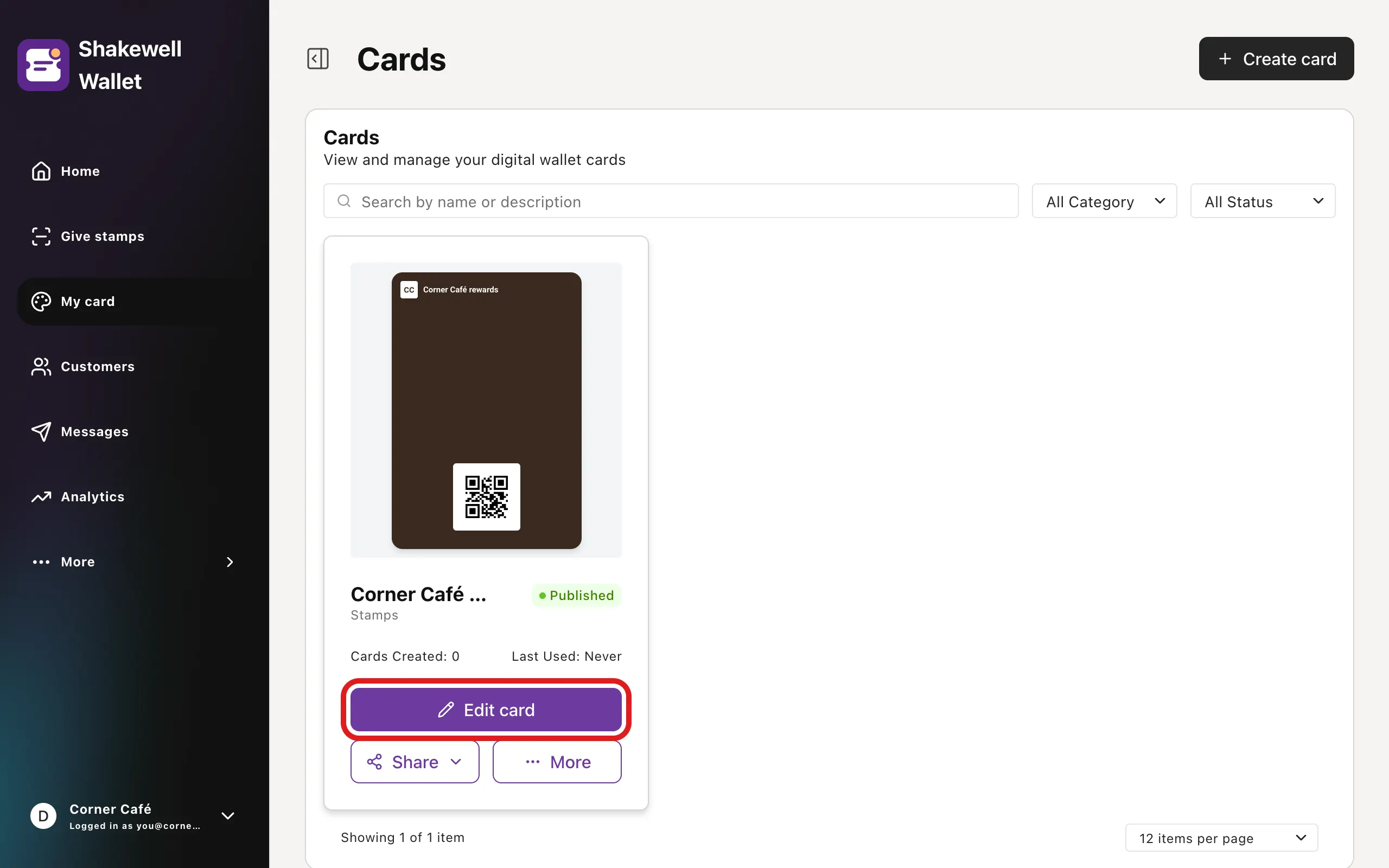
Step 2. Click the purple Edit card button under your card.
A page opens called Edit card. It has 4 steps along the top: Basics, Brand and design, Pass content and Review.
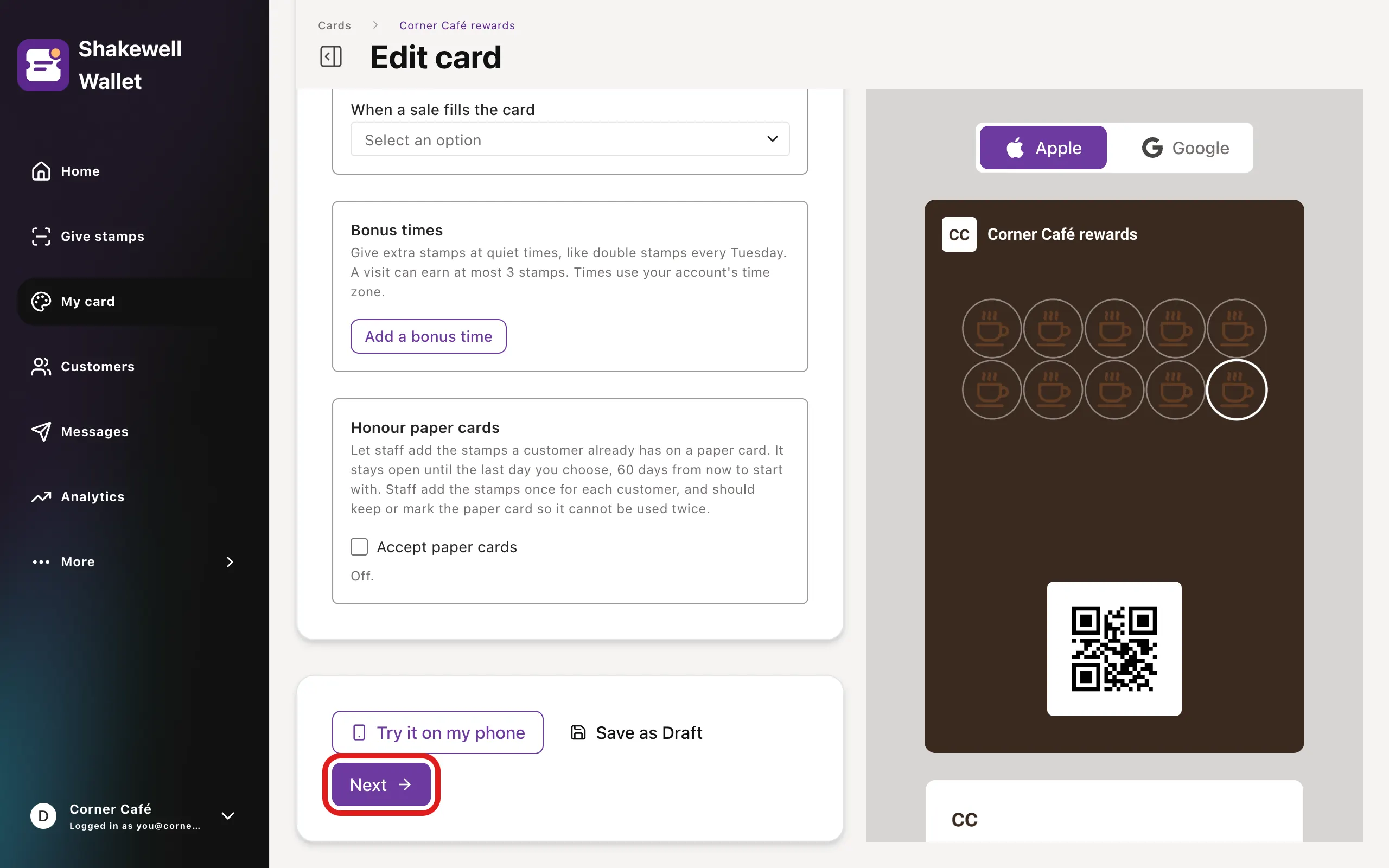
Step 3. Click the Next button at the bottom of the page.
Step 2 opens. It is called Brand and design.
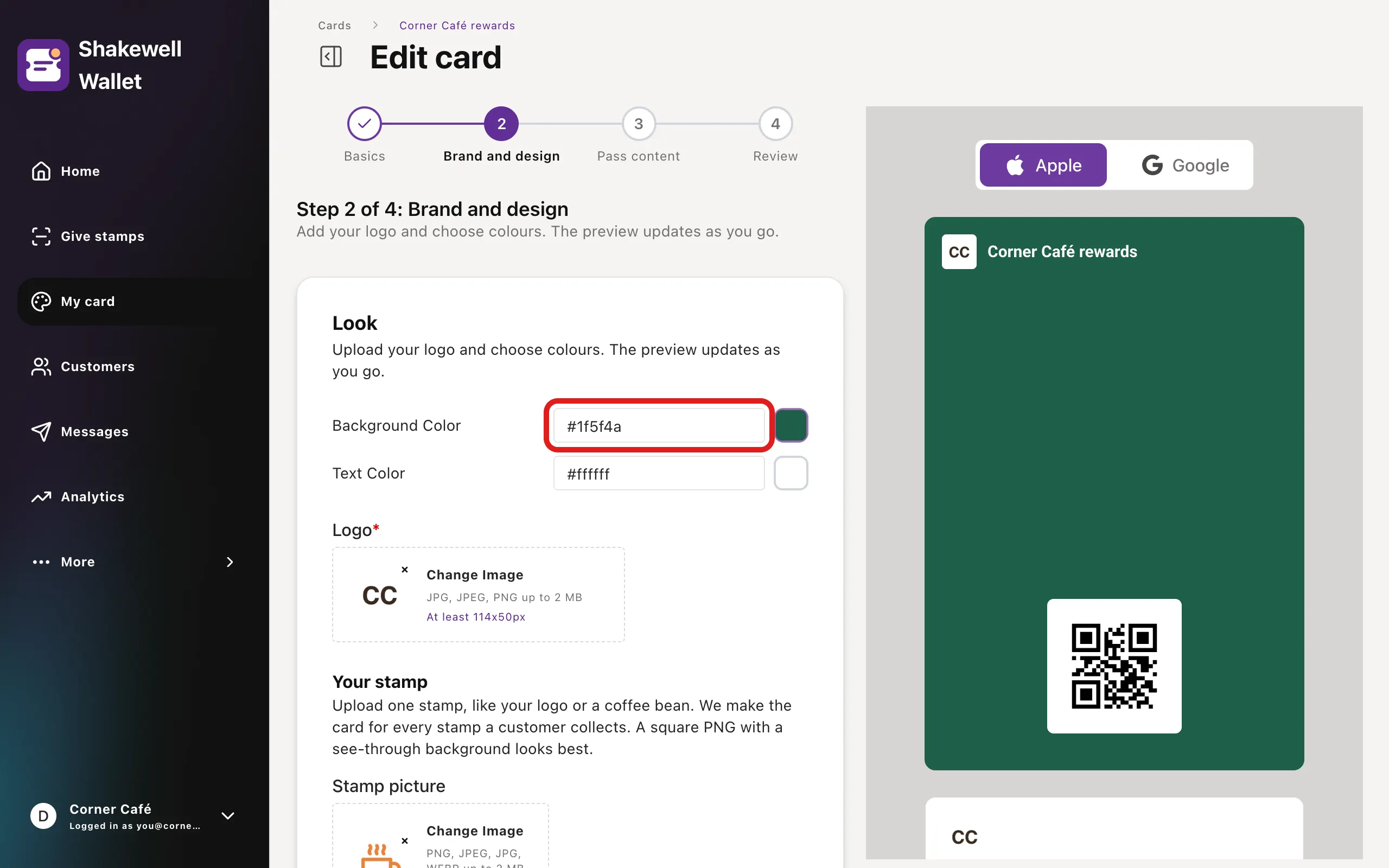
Step 4. Find the Background Color box. It is the colour of your card.
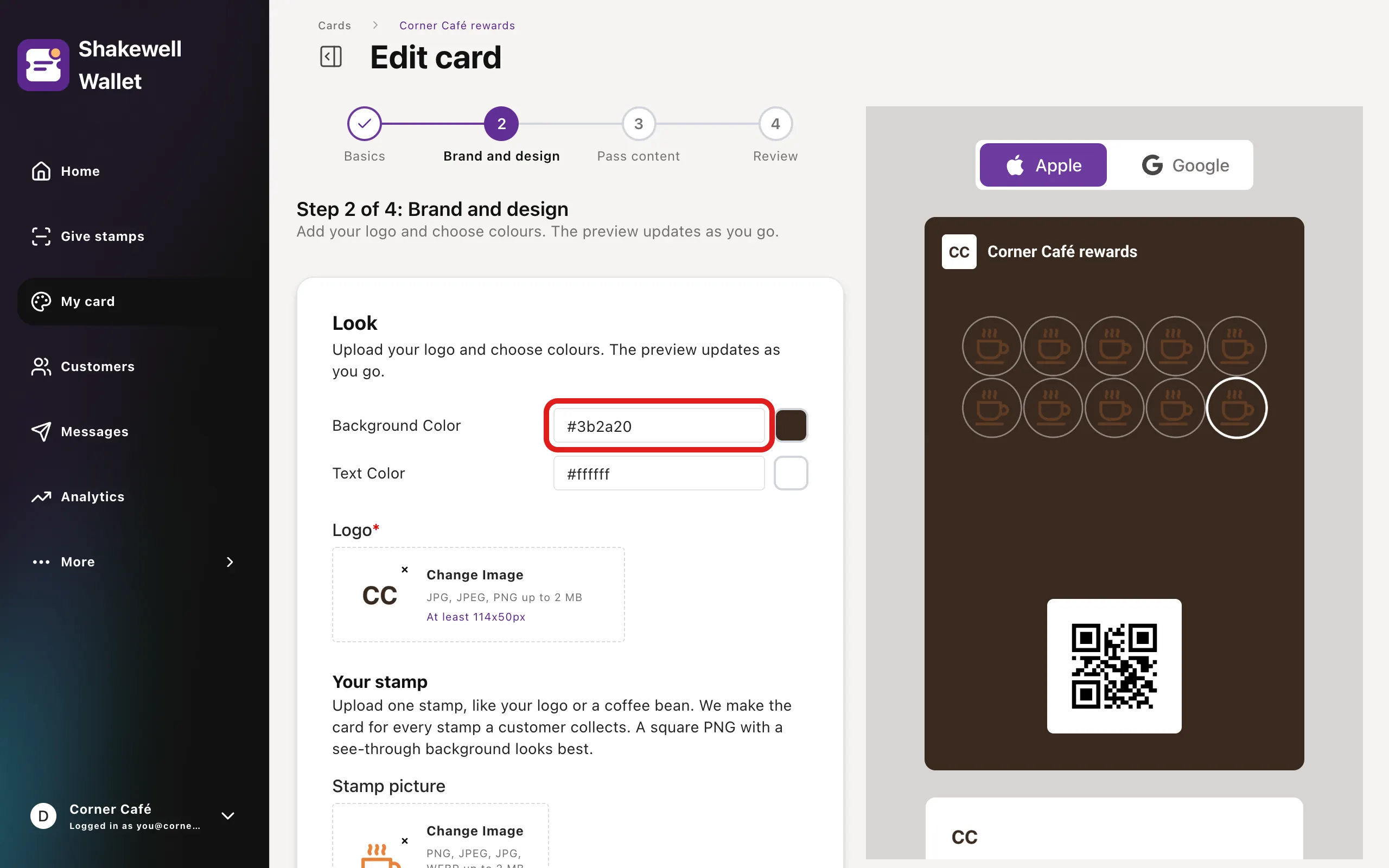
Step 5. Click in the box and type a new colour code, for example #1f5f4a.
Step 6. Click anywhere else on the page.
The card in the picture on the right changes colour.
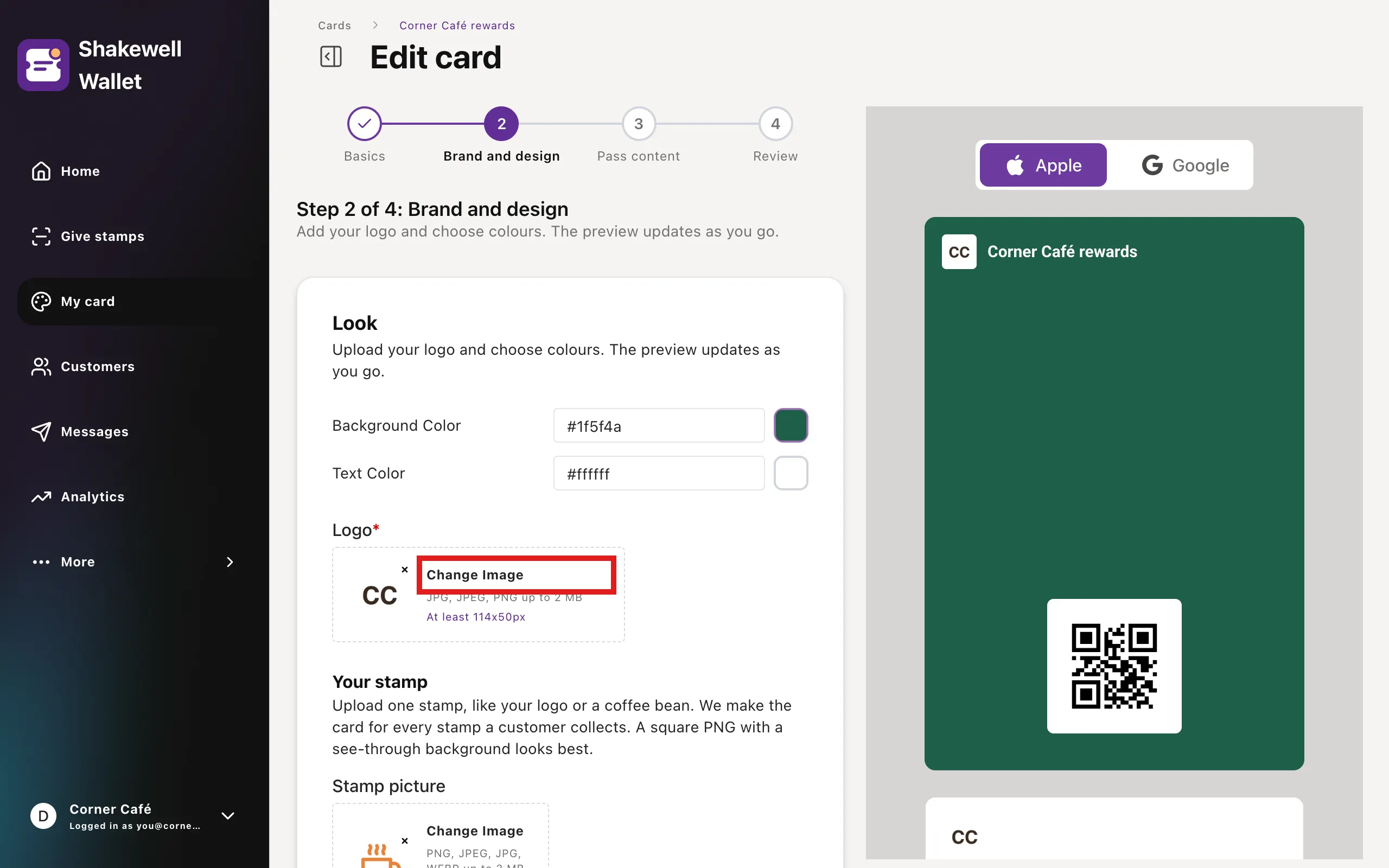
Step 7. To change your logo, click Change Image under Logo. Choose a picture from your computer.
Skip this step if you only want new colours.
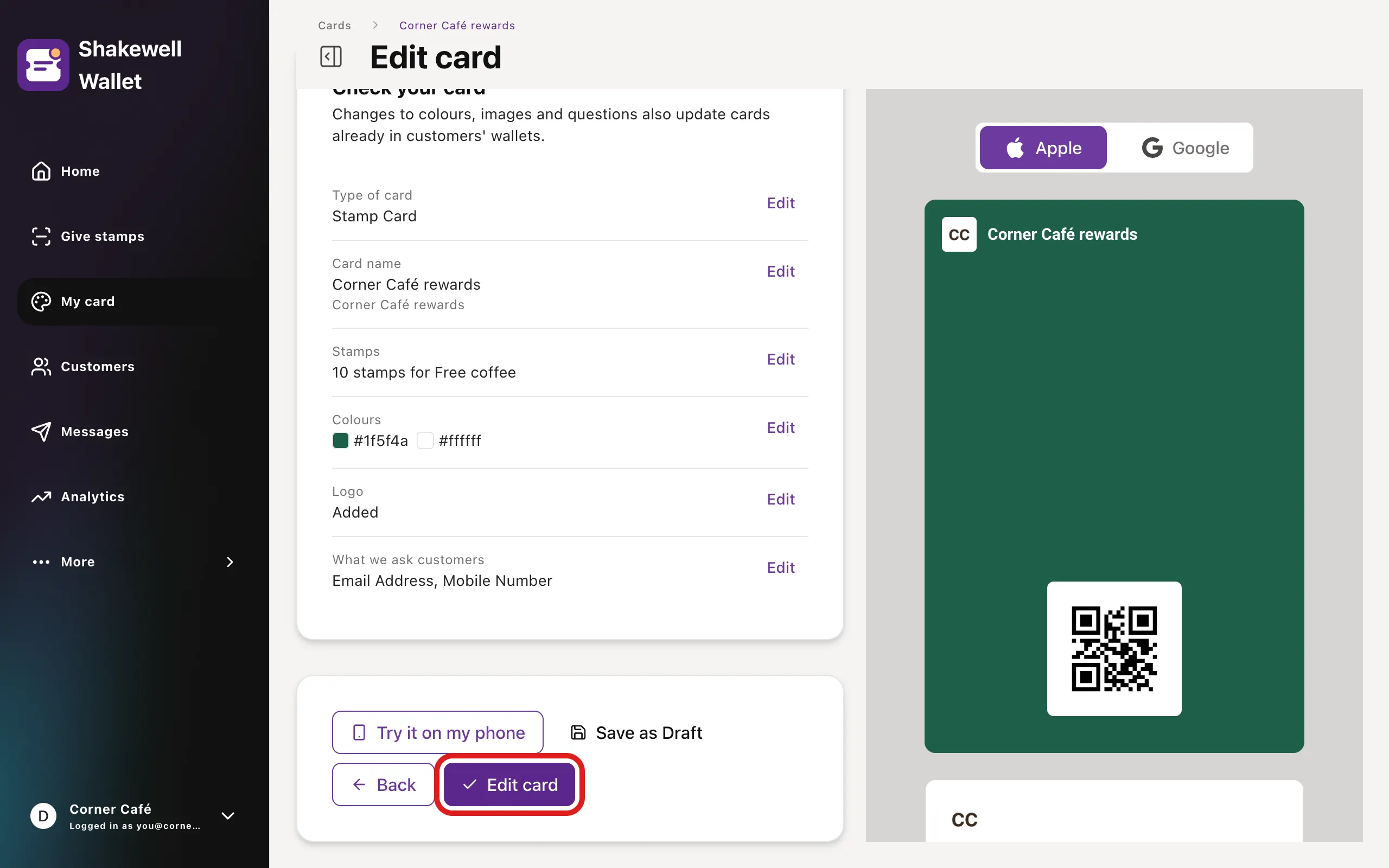
Step 8. Click Next two times. You are now on the last step, called Review.
It shows a list of your card. The Colours line shows your new colour.
Step 9. Click the Edit card button at the bottom.
It is the button that saves your changes. It is grey until you change something.
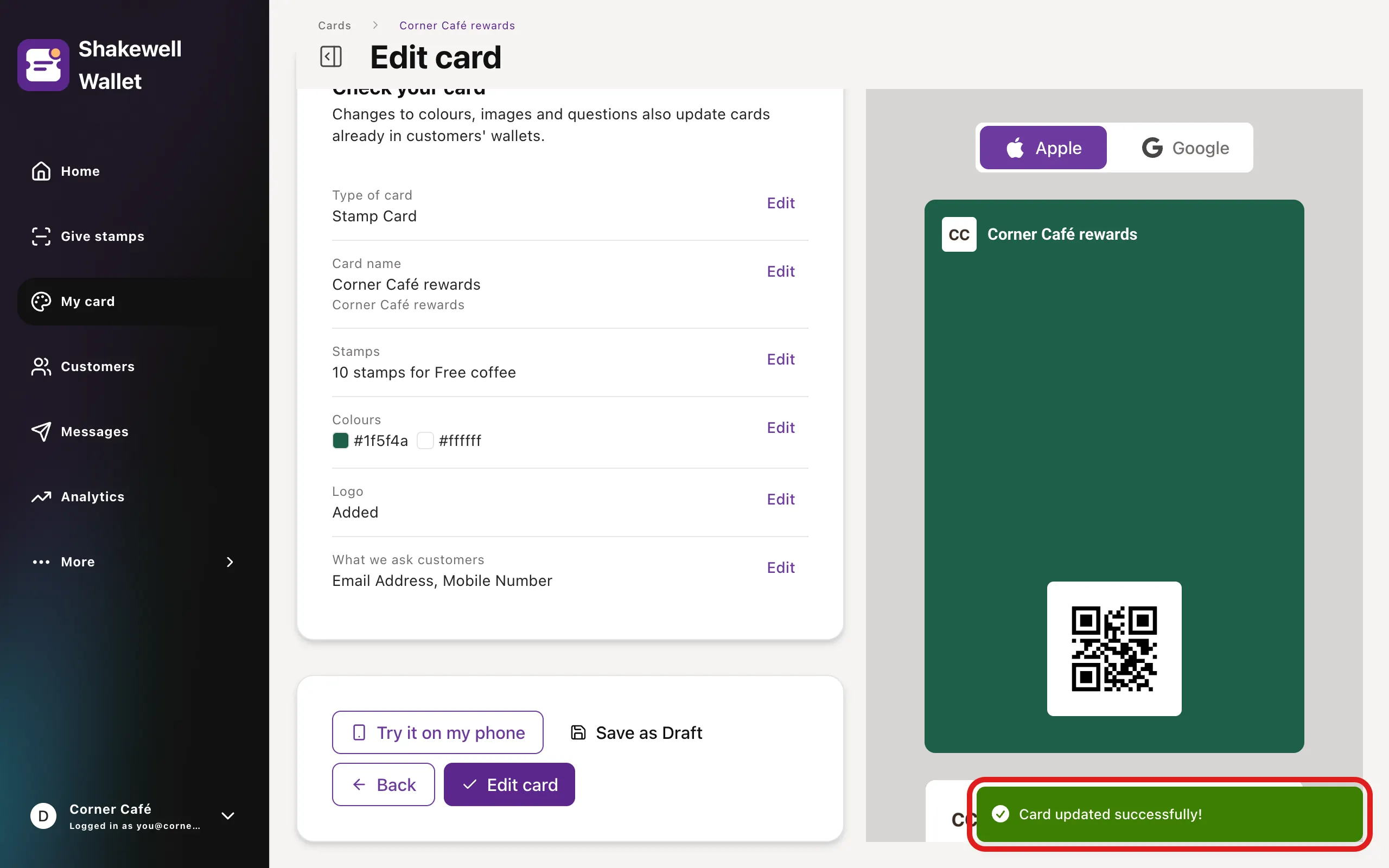
Step 10. Look at the bottom right of the screen.
A green message says Card updated successfully!
You'll know it worked when
A green message says Card updated successfully! The new colours also show on cards your customers already have in their phones.
Good to know
- Not ready to save? Press Save as Draft instead. Then come back later.
- Text Color is the colour of the writing on your card. It is the box under Background Color.
- You can also click the little coloured square next to the box and pick a colour.
Stuck?
That is fine. Contact us and we will help you. We reply within one business day.
These guides may help: