
How-to guides / Grow
How to see how many customers you have
Find out how many people have joined your card, and how many joined lately.
Takes about 2 minutes
Before you start
- You are signed in to Shakewell Wallet.
- At least one customer has joined your card.
The steps
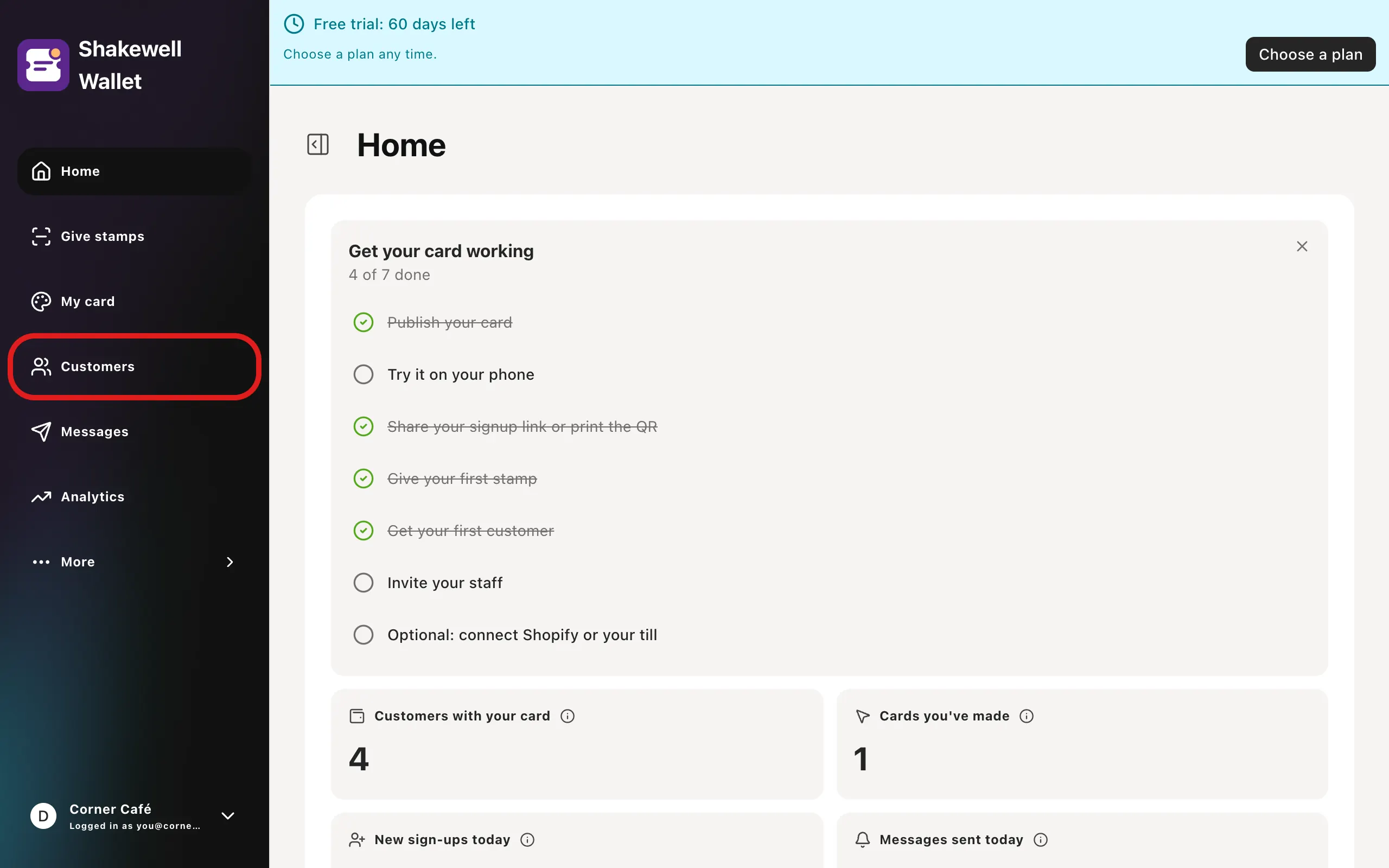
Step 1. In the left menu, click Customers.
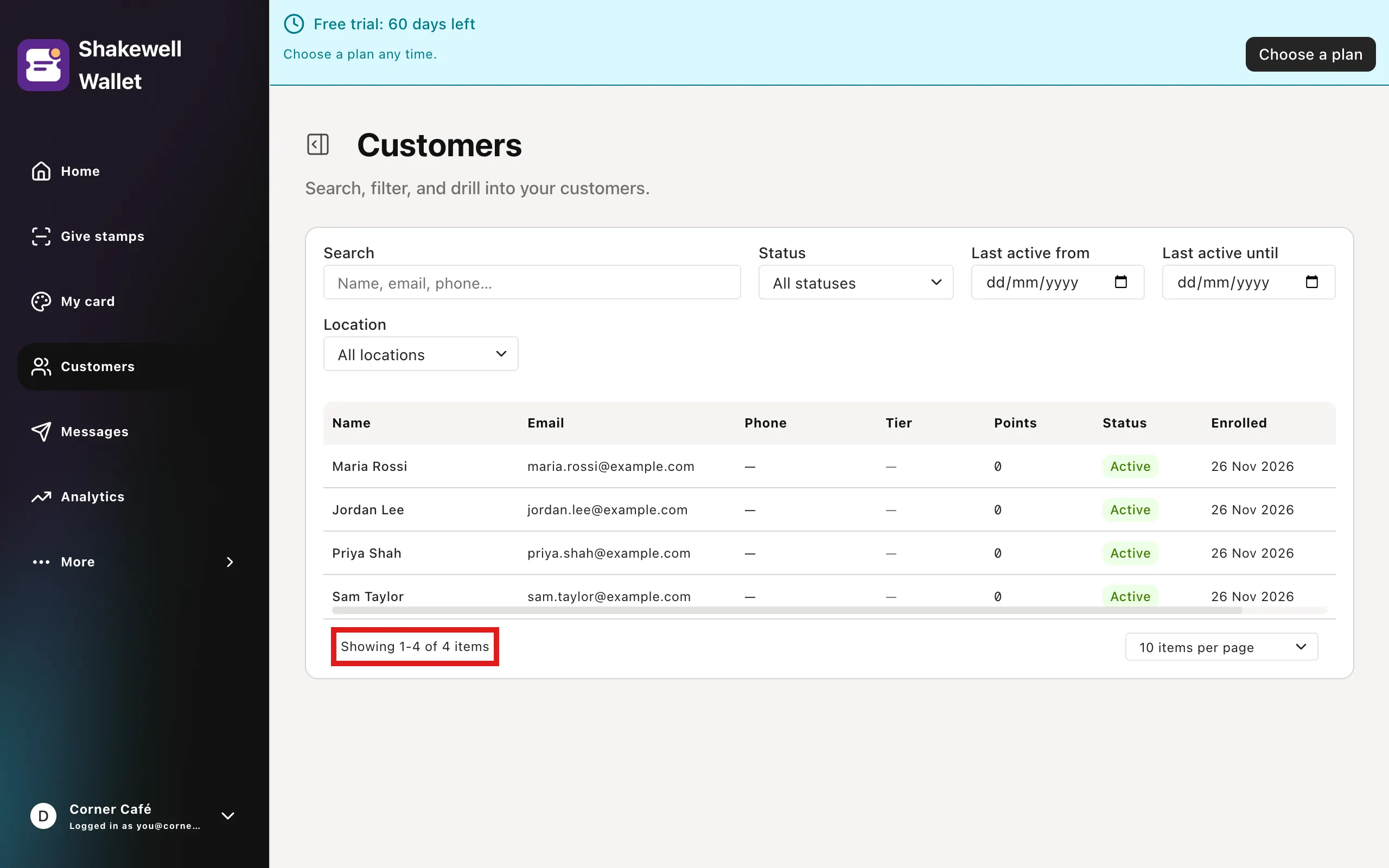
A page opens with a list of every customer. It shows their name, email, and when they joined.
Step 2. Look at the bottom of the list. Find the words Showing and a number.
For example, Showing 1-4 of 4 items. The last number is how many customers you have.
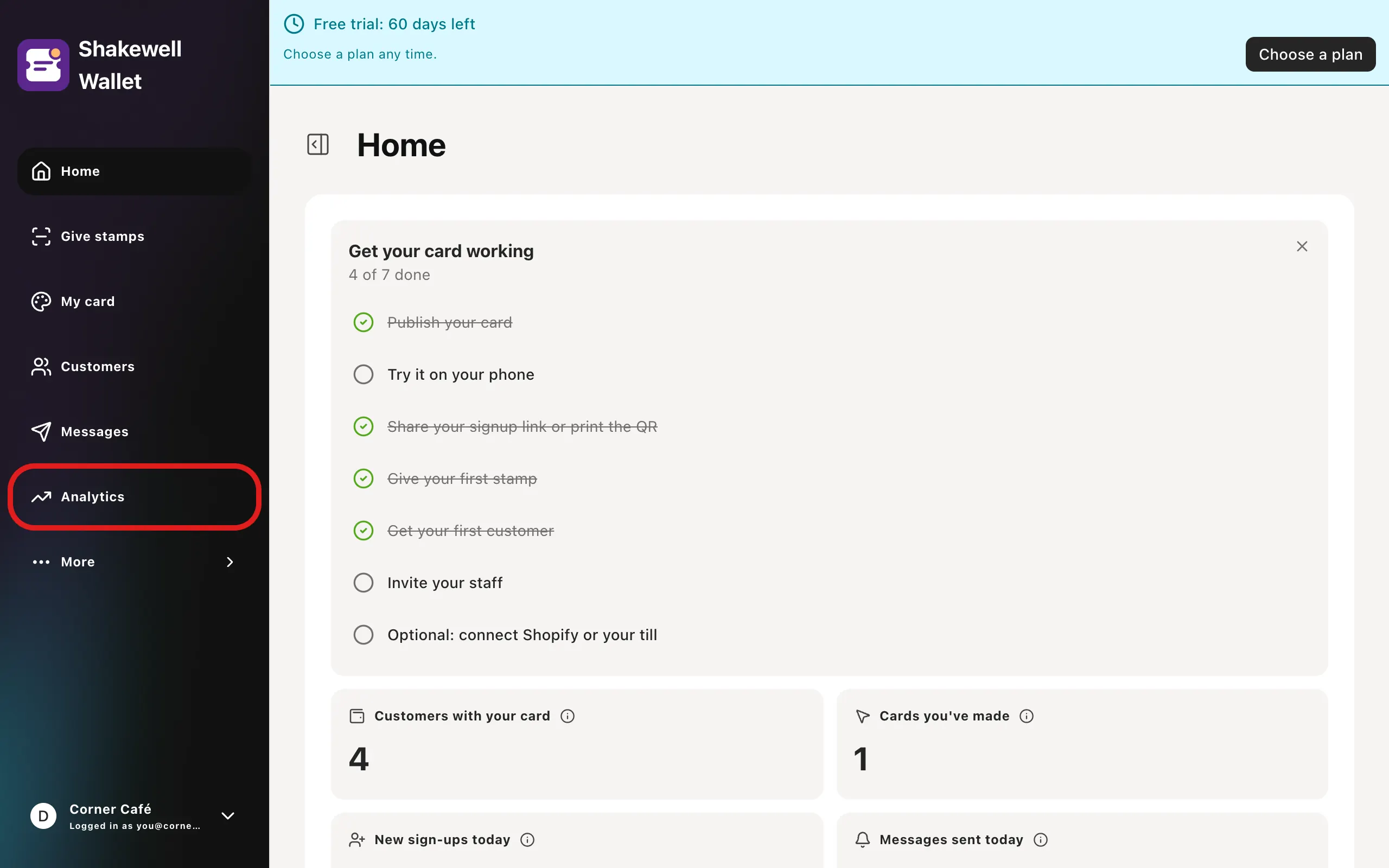
Step 3. To see new customers, click Analytics in the left menu.
A page opens with numbers about your card.
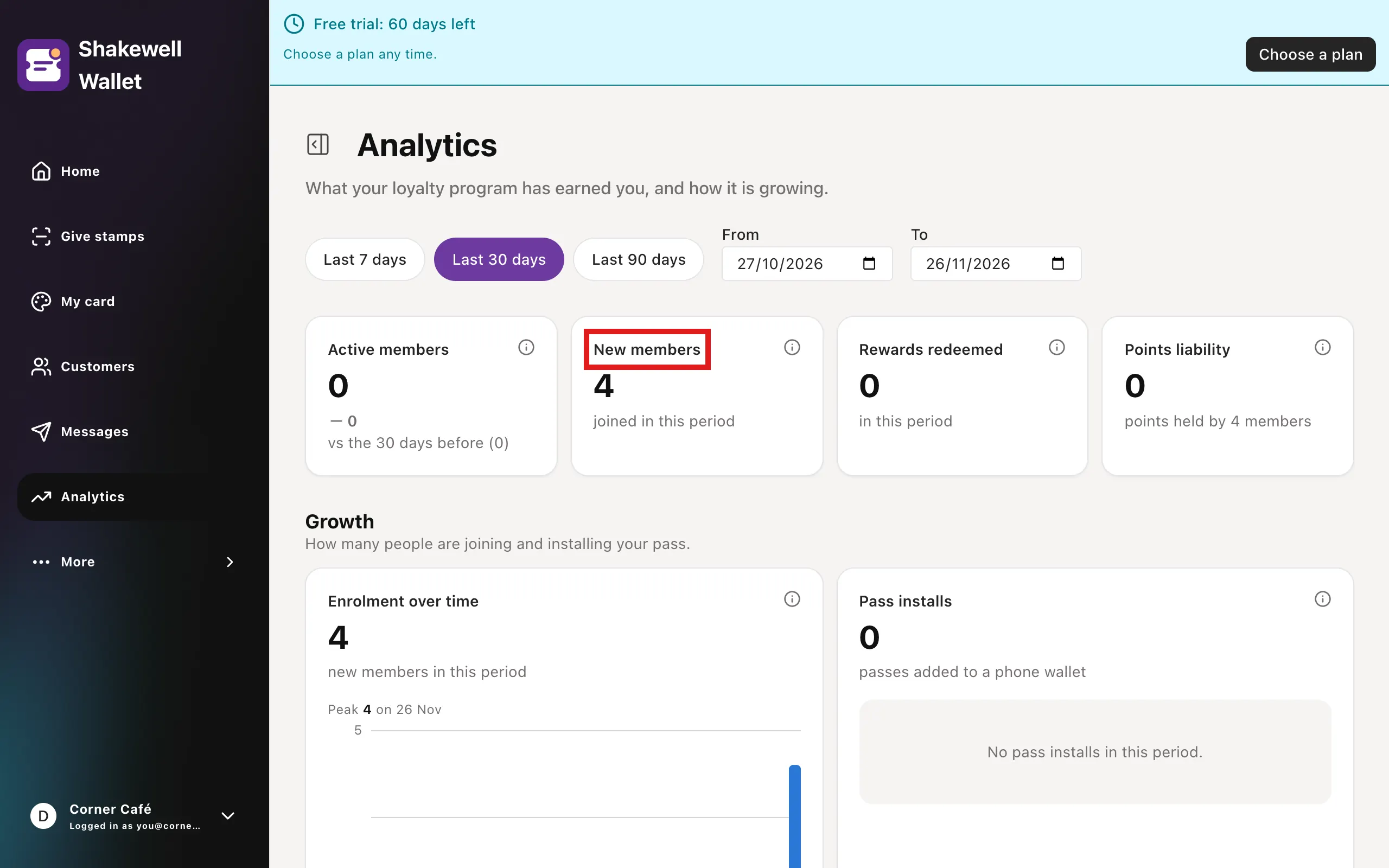
Step 4. Find the box called New members.
It shows how many people joined in the time shown at the top. You can pick Last 7 days, Last 30 days or Last 90 days.
You'll know it worked when
You can say how many customers you have in total, and how many joined in the last month.
Good to know
- A new account shows Sample data on Analytics until the first customer joins. The numbers are not real. They go away by themselves.
Stuck?
That is fine. Contact us and we will help you. We reply within one business day.
These guides may help: