
How-to guides / At the counter
How to send a customer their card again
Email the card link again to a customer who lost it or got a new phone.
Takes about 2 minutes
Before you start
- You are signed in to Shakewell Wallet on your phone.
- The customer's name. They must already be on your list with an email address.
The steps
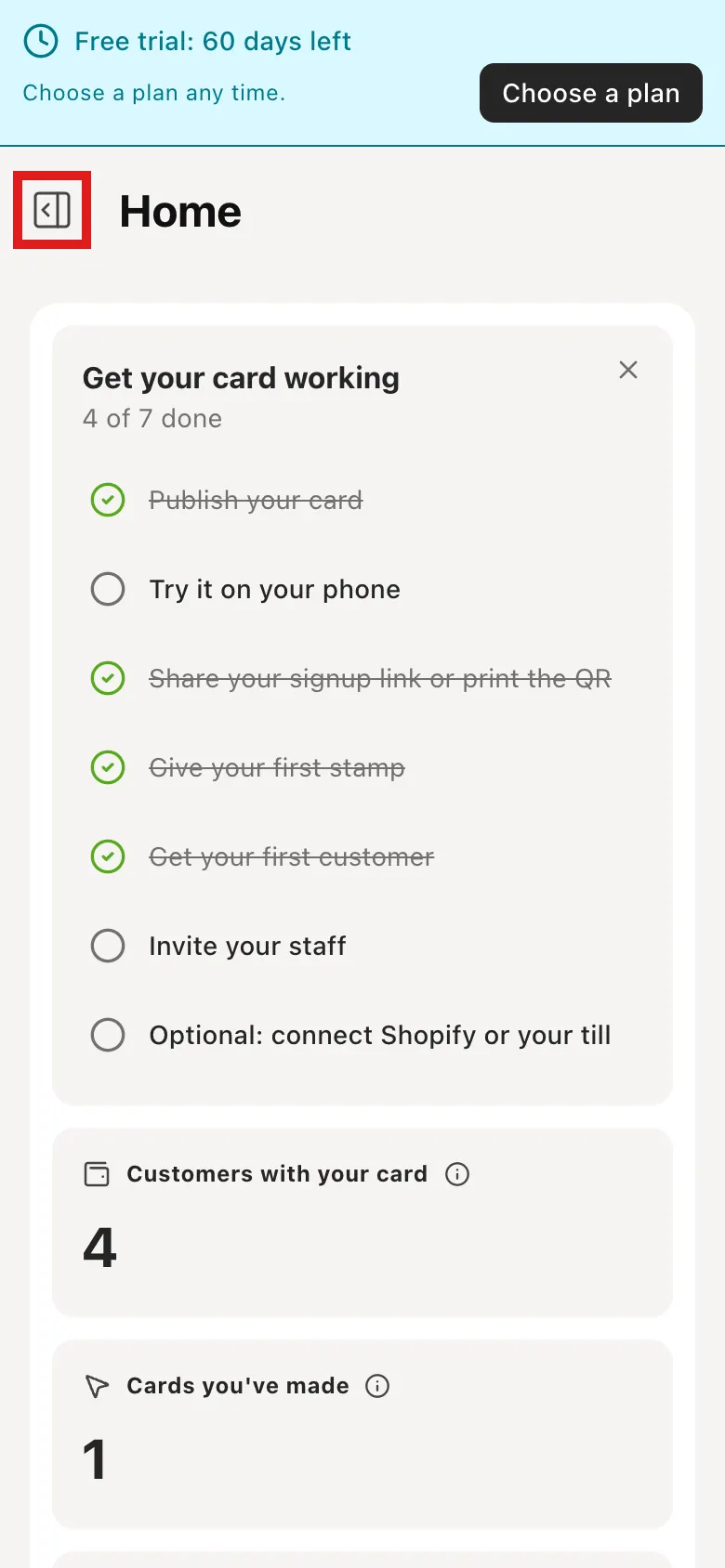
Step 1. On your phone, tap the small square icon at the top left of the screen. (It is the one next to the page name.)
The menu slides in from the left.
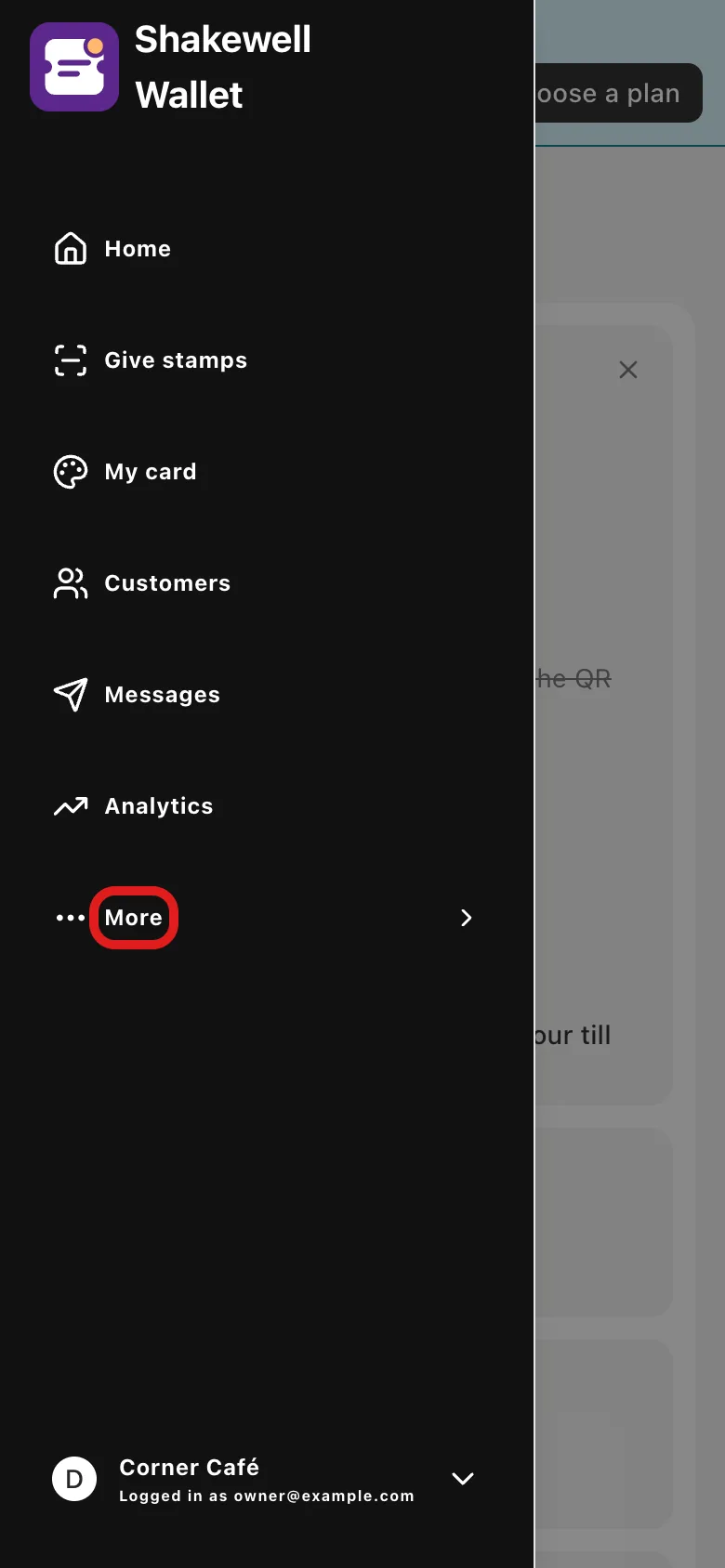
Step 2. Tap More.
A short list opens under it.
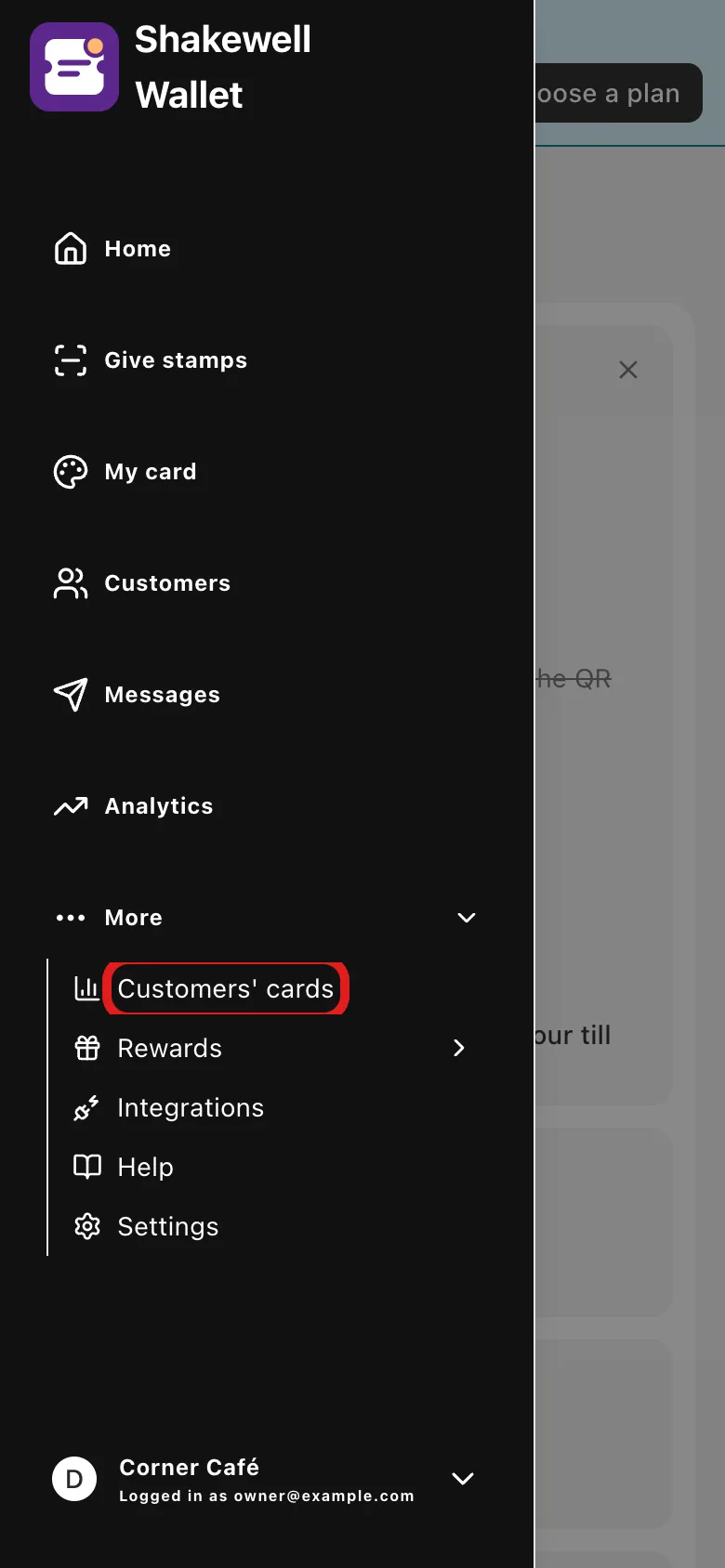
Step 3. Tap Customers' cards.
A page called Customer cards opens.
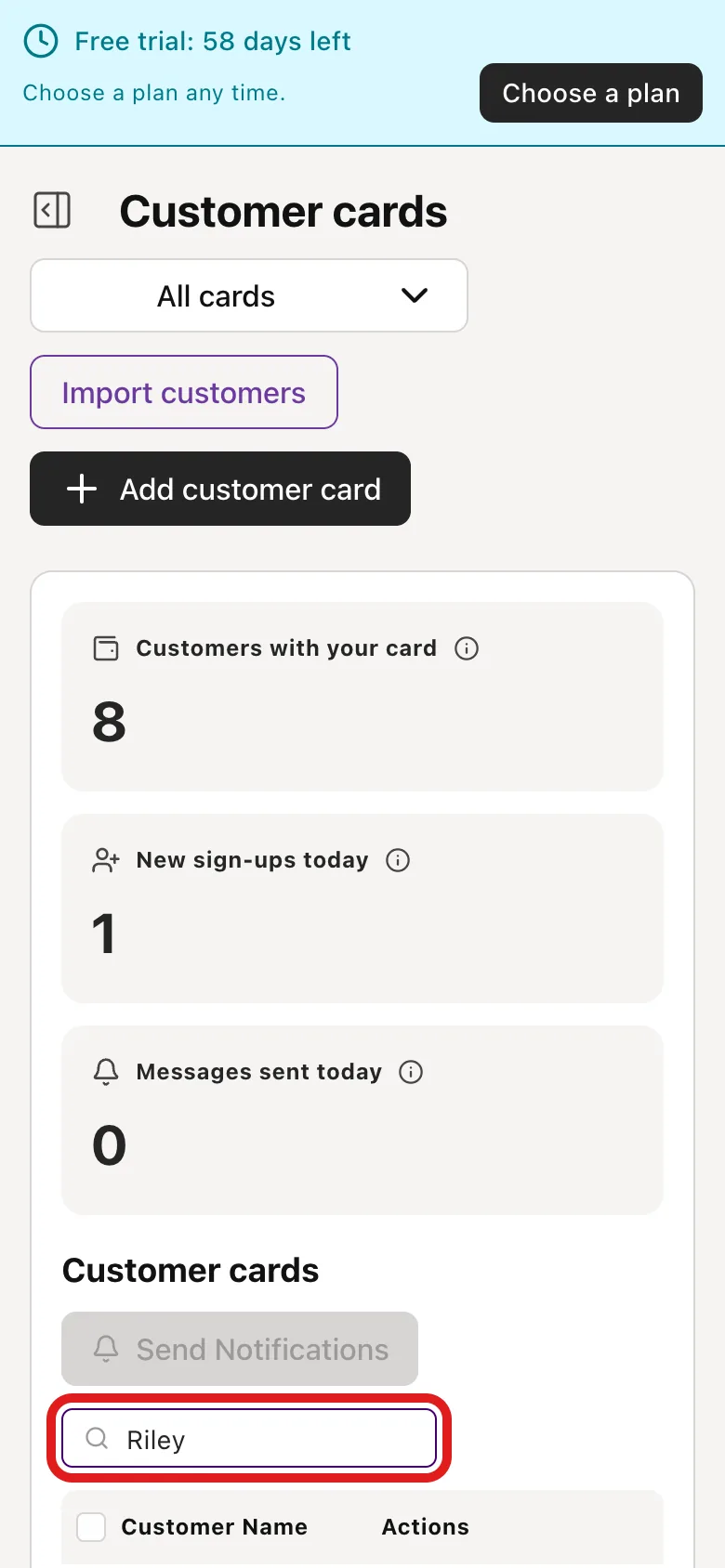
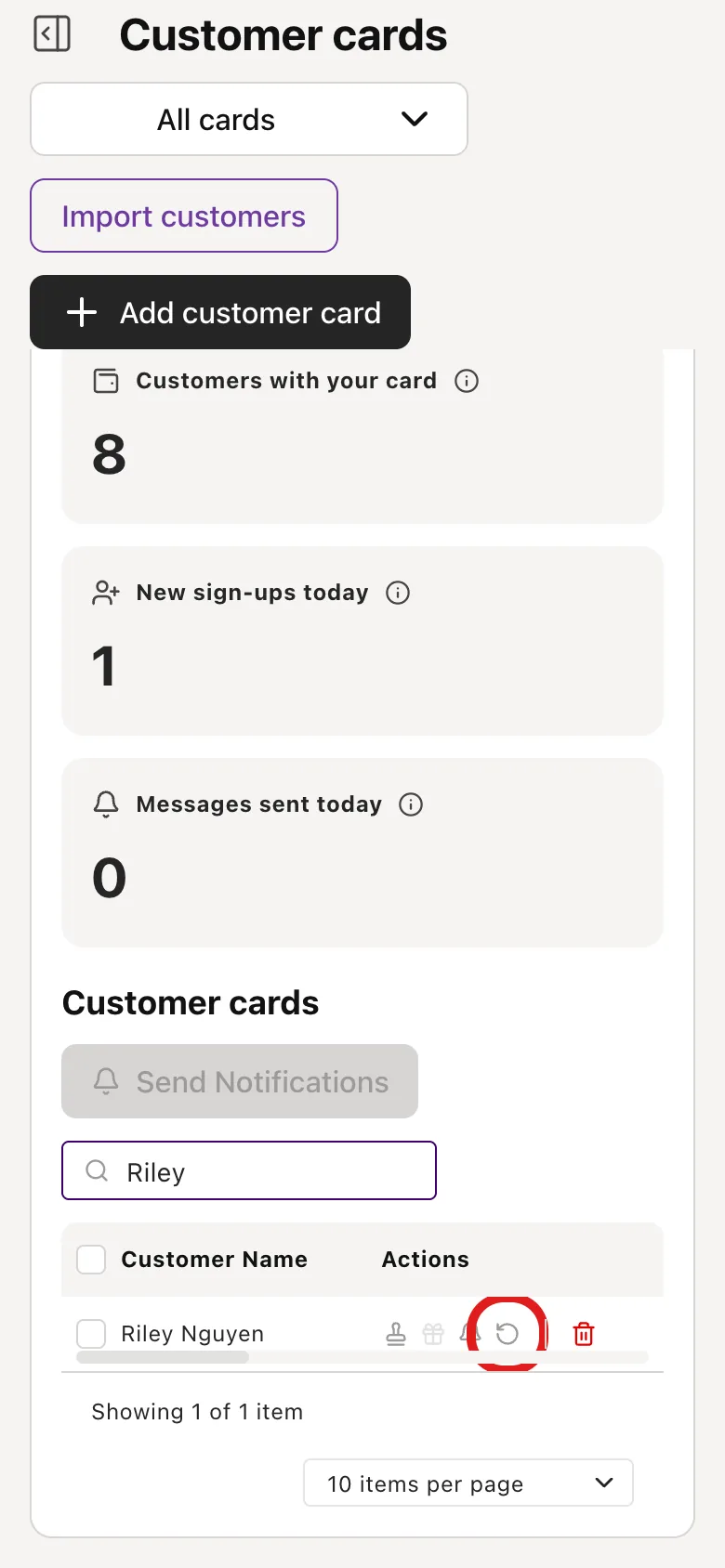
Step 4. Tap the Search customer cards box. Type the customer's name.
The list gets shorter. Only that customer shows.
Step 5. Find the customer's row. Tap the round arrow icon under Actions. It is the last grey icon before the red bin.
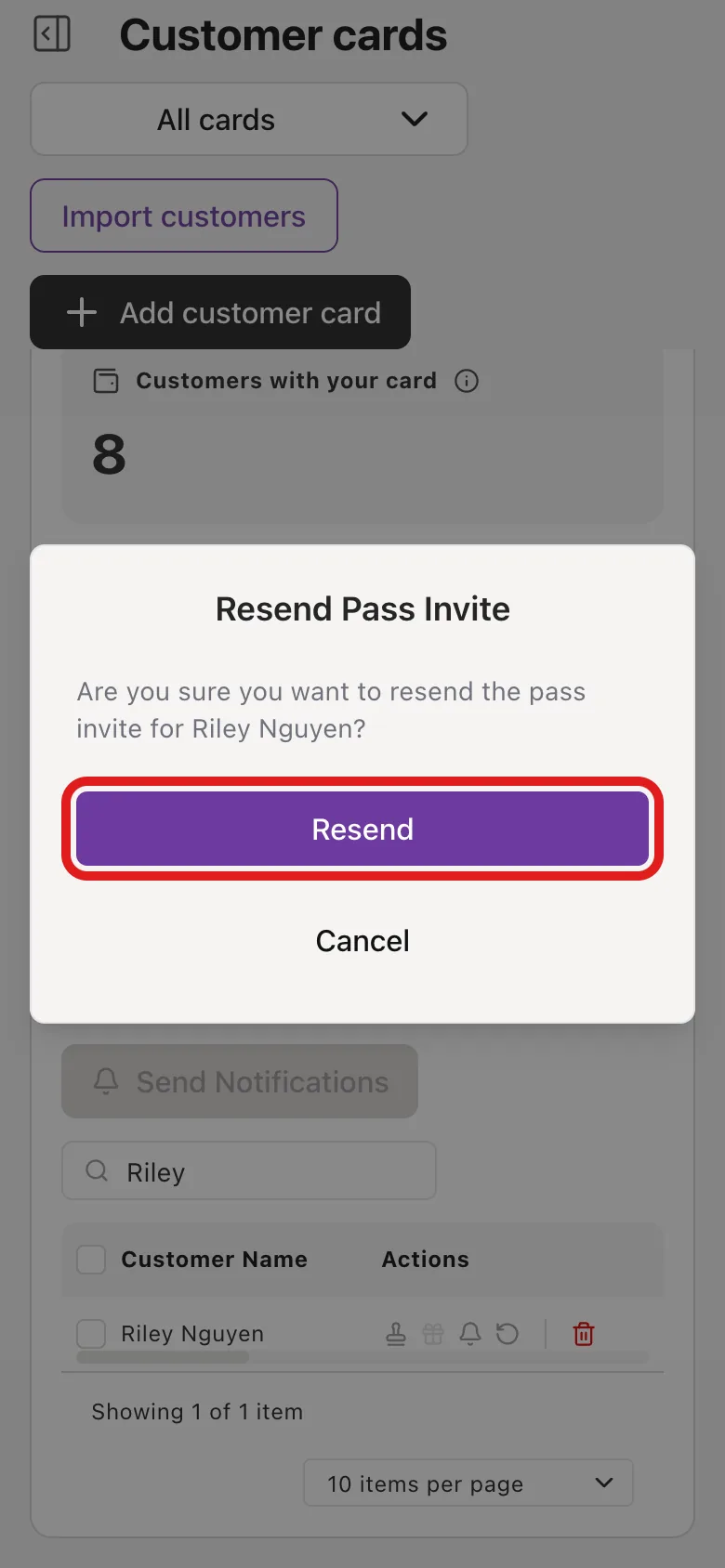
A box called Resend Pass Invite opens. (A pass invite is the email with the link that adds the card to a phone.)
Step 6. Tap the purple Resend button.
Wait a moment.
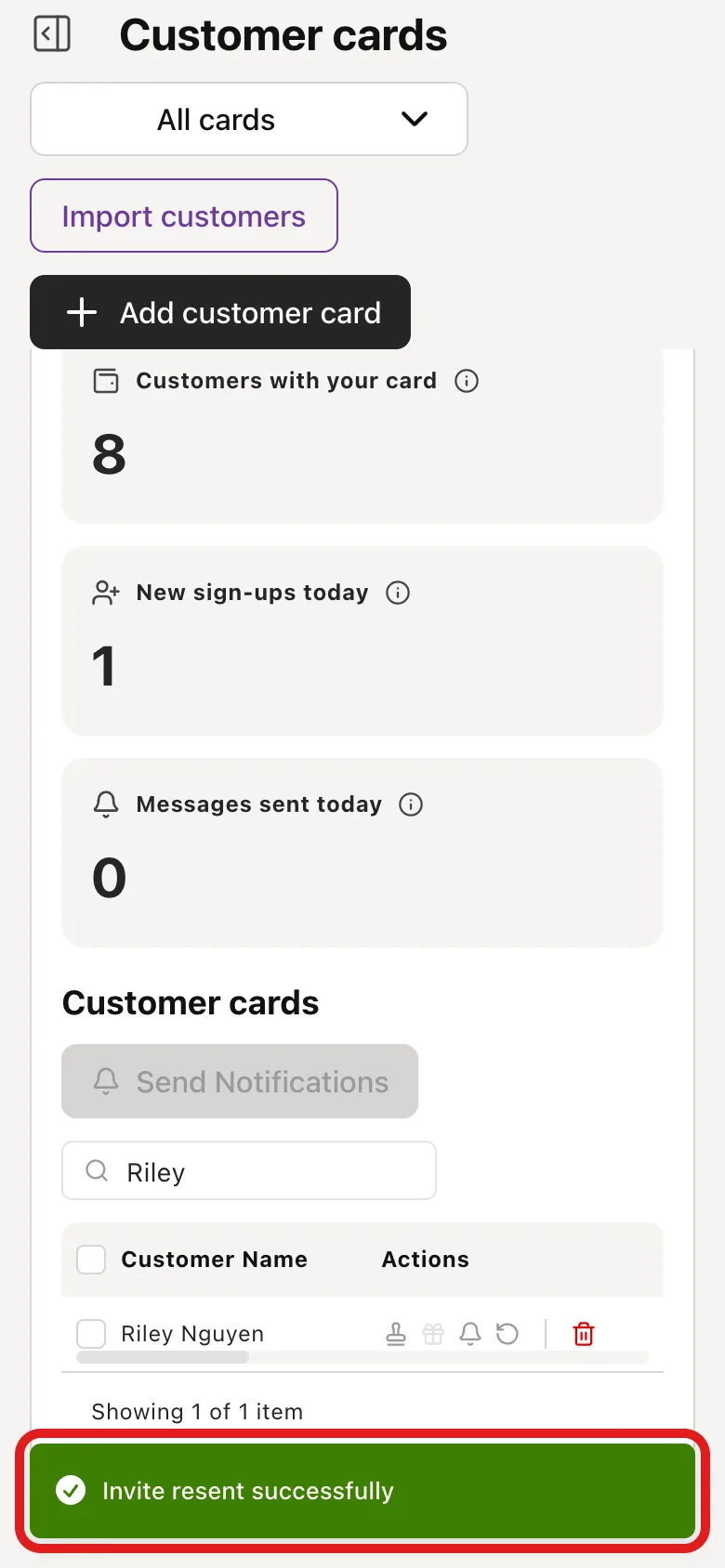
Step 7. Look at the bottom of the screen.
A green message says Invite resent successfully.
You'll know it worked when
A green message says Invite resent successfully. The customer gets an email called Your Digital Wallet Card is Ready, with a button to add the card to their phone.
Good to know
- Ask the customer to look in their spam folder if the email does not show up.
- The email goes to the address on the customer's card.
- The other icons in the row are for other jobs. The first one adds a stamp, and the bell sends a message.
Stuck?
That is fine. Contact us and we will help you. We reply within one business day.
These guides may help: