
How-to guides / At the counter
How to add a customer yourself
Make a card for a customer who cannot scan the QR code. You type their name and email.
Takes about 2 minutes
Before you start
- You are signed in to Shakewell Wallet on your phone.
- The customer's first name, last name and email address. They need an email address so we can send them the card.
The steps
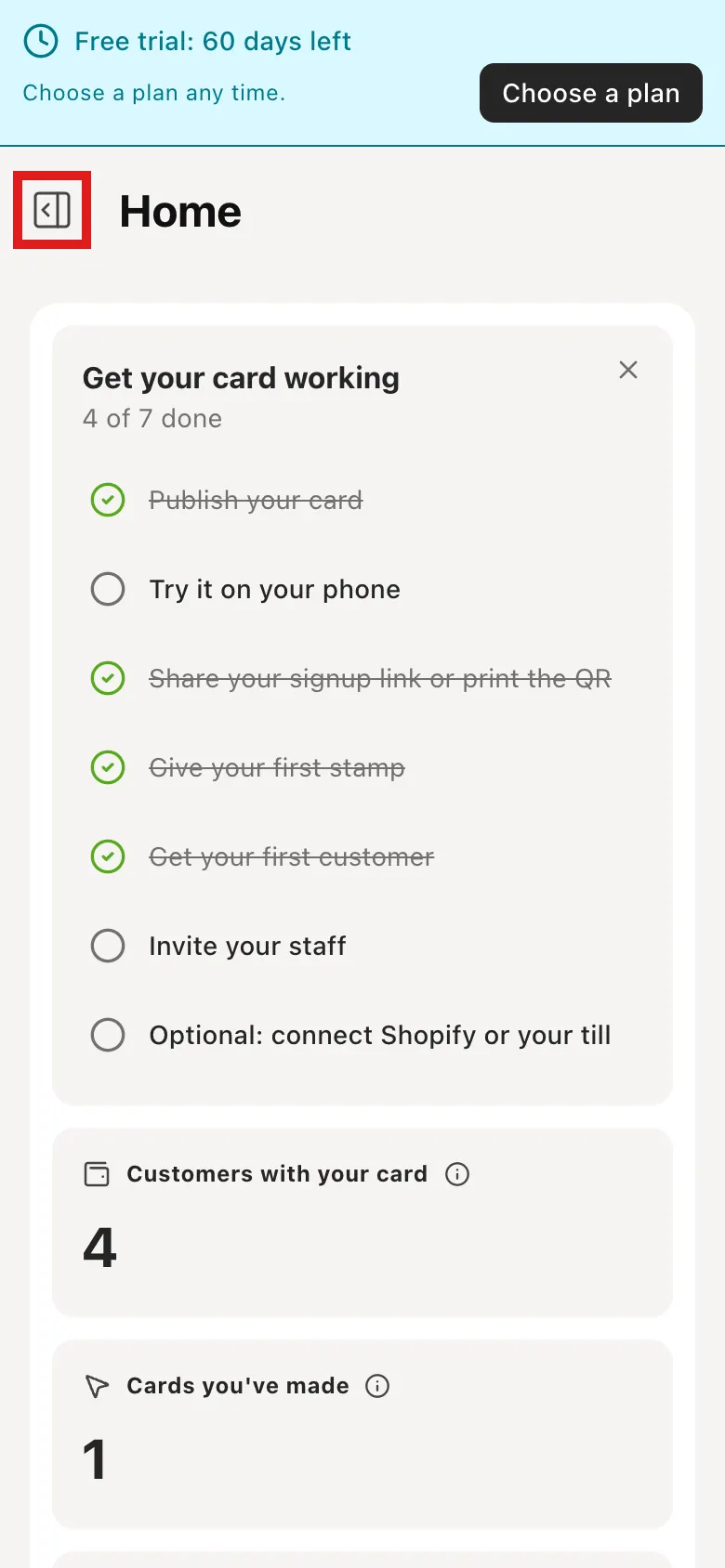
Step 1. On your phone, tap the small square icon at the top left of the screen. (It is the one next to the page name.)
The menu slides in from the left.
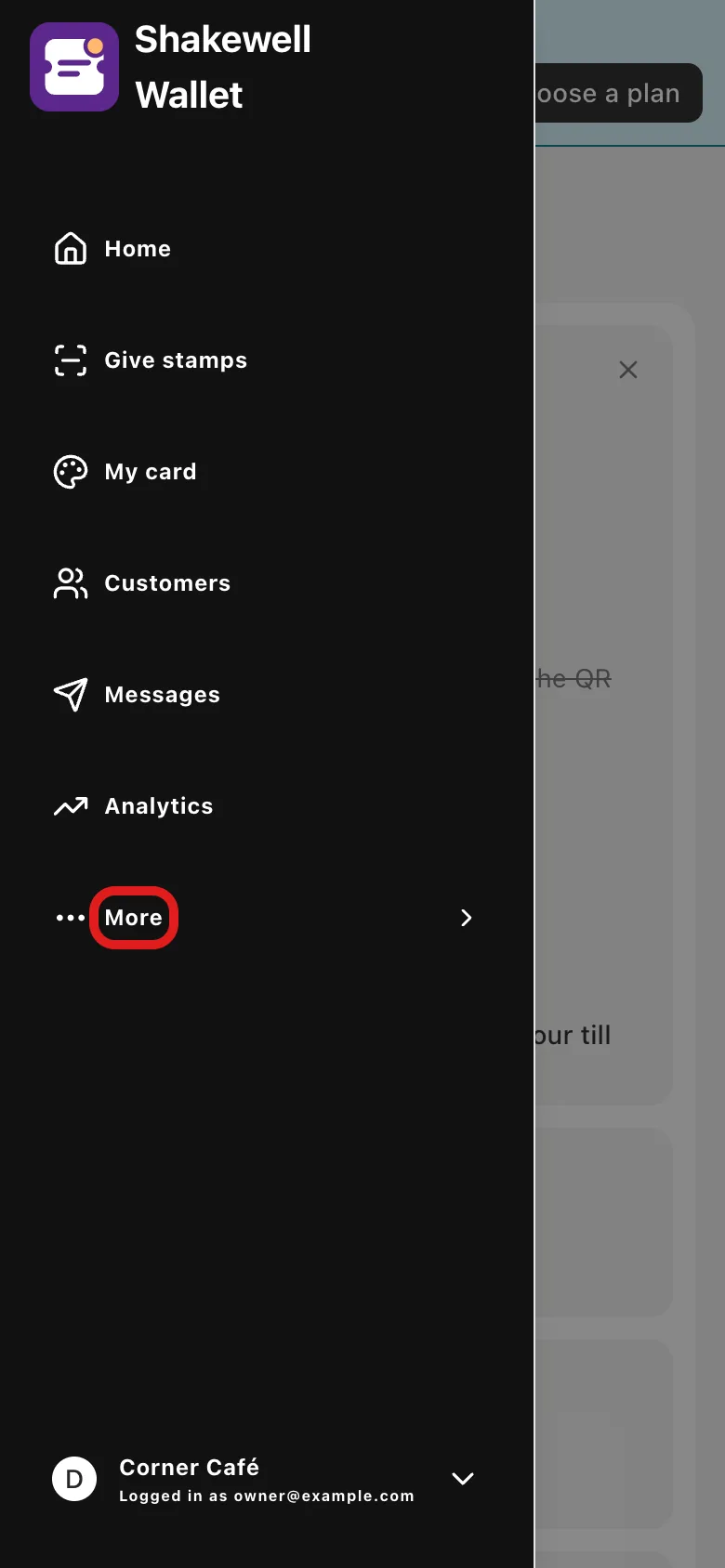
Step 2. Tap More.
A short list opens under it.
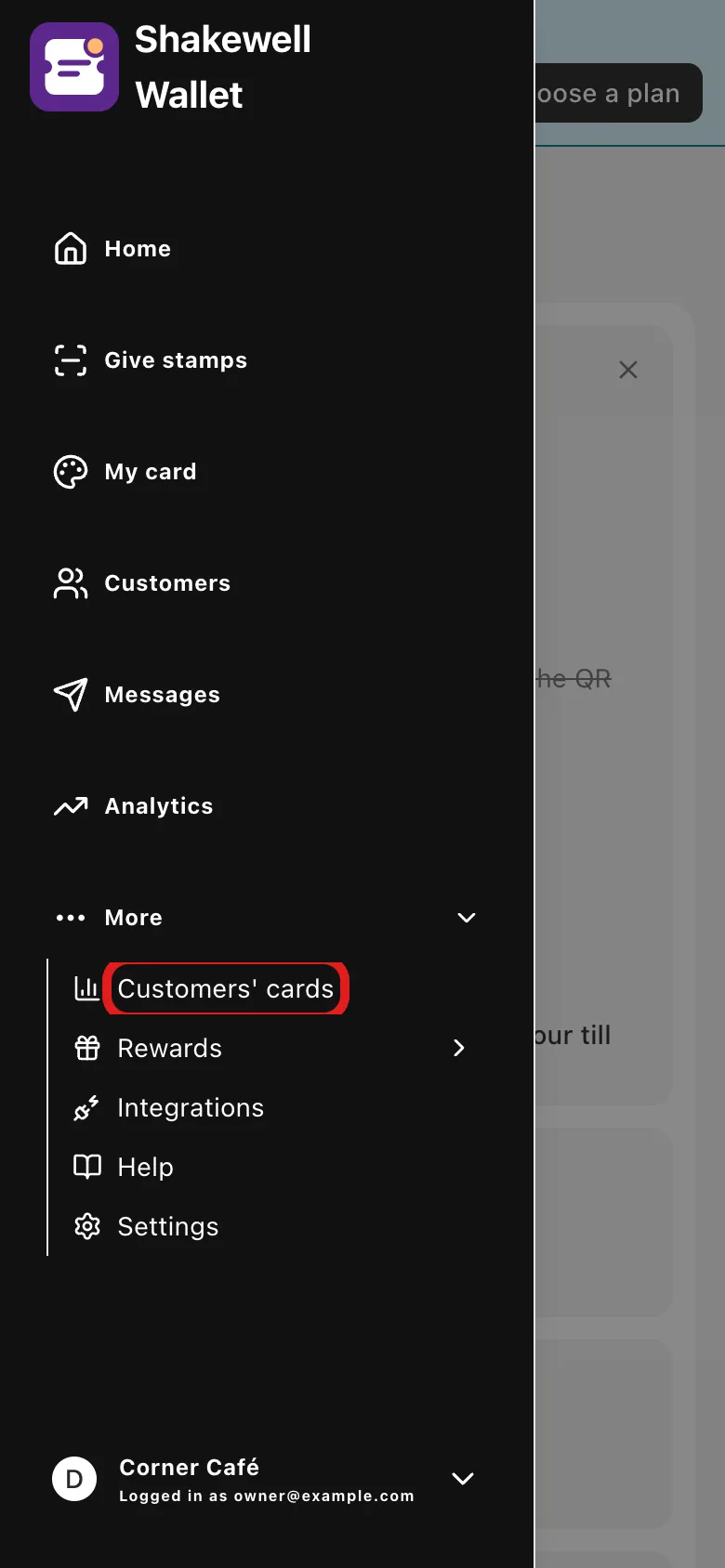
Step 3. Tap Customers' cards.
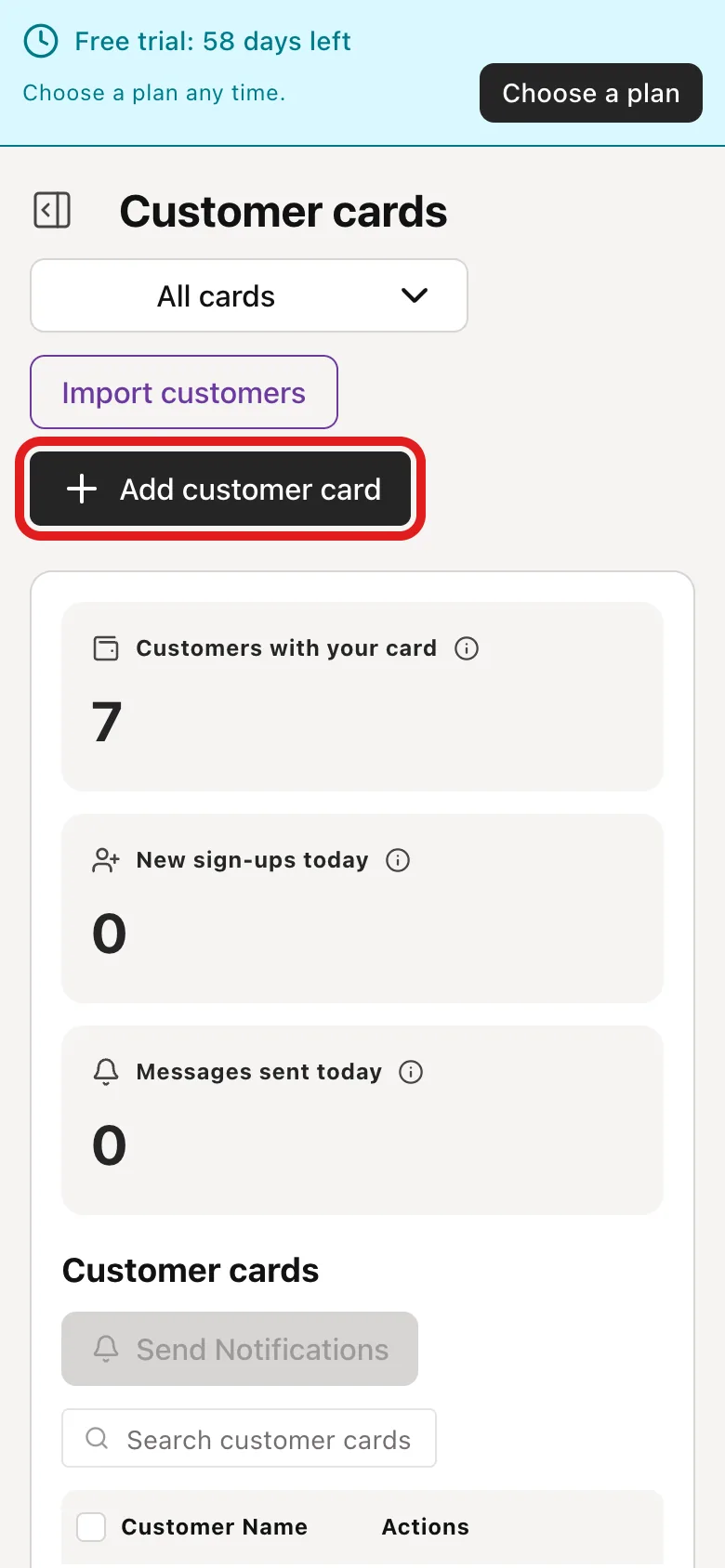
A page called Customer cards opens.
Step 4. Tap the black Add customer card button.
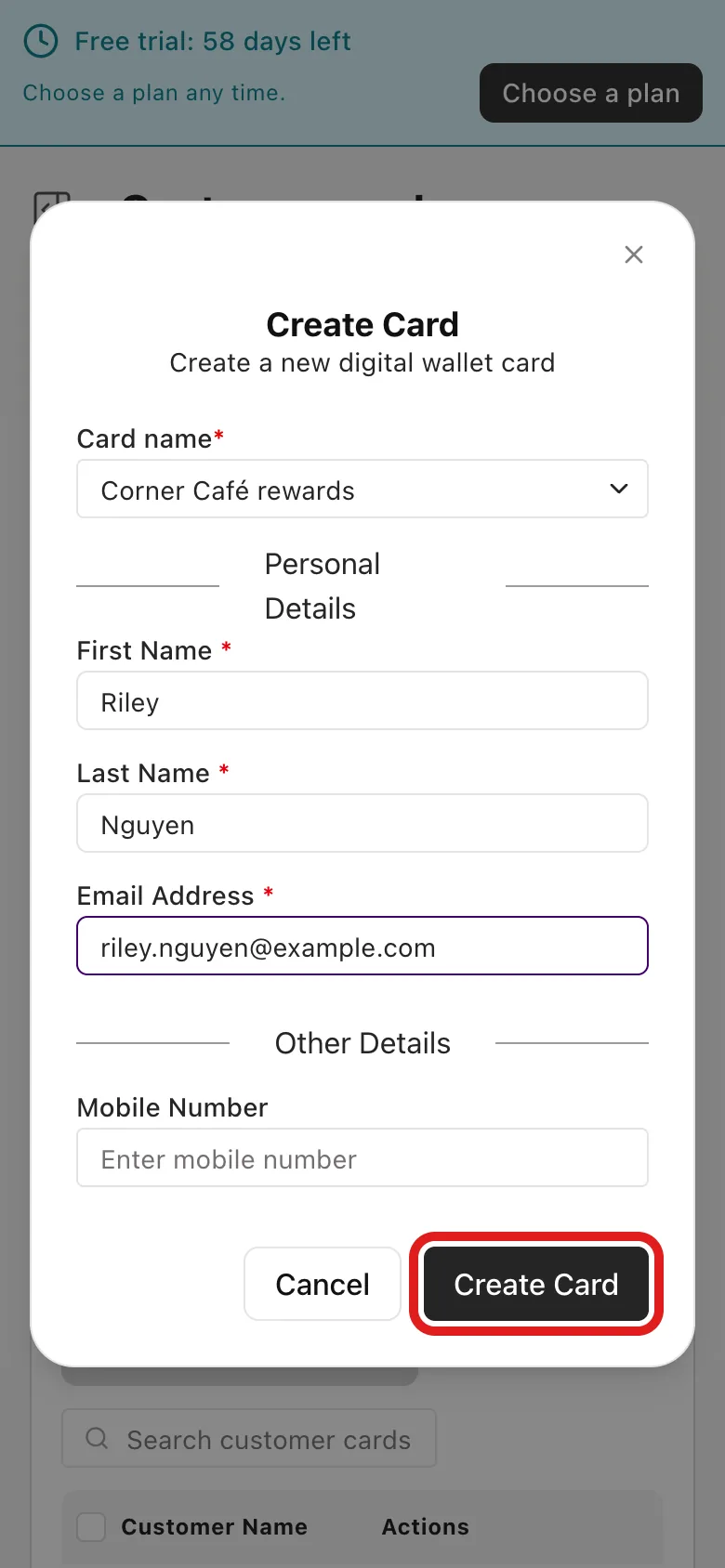
A box called Create Card opens.
Step 5. Look at the Card name box. It shows your card.
If you have more than one card, tap the box and pick the right one.
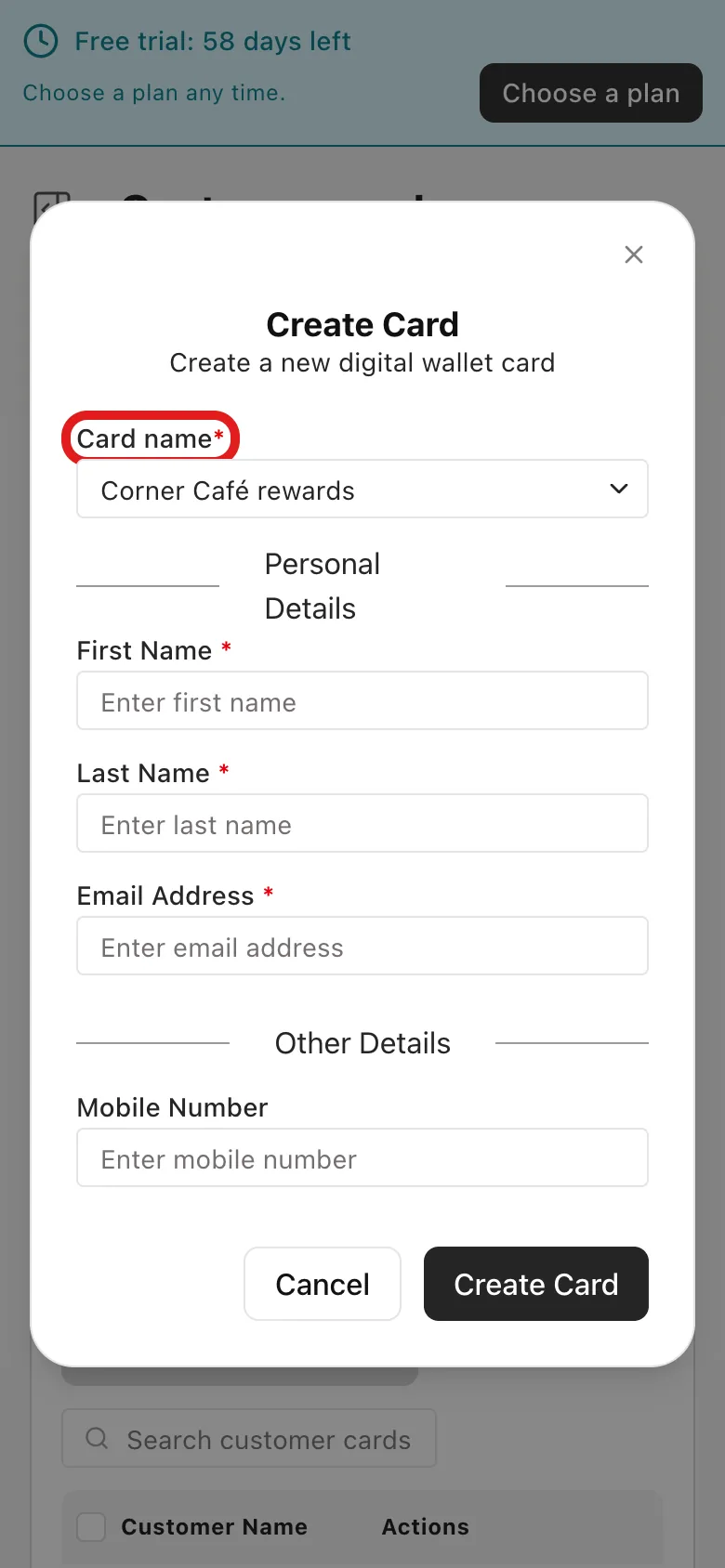
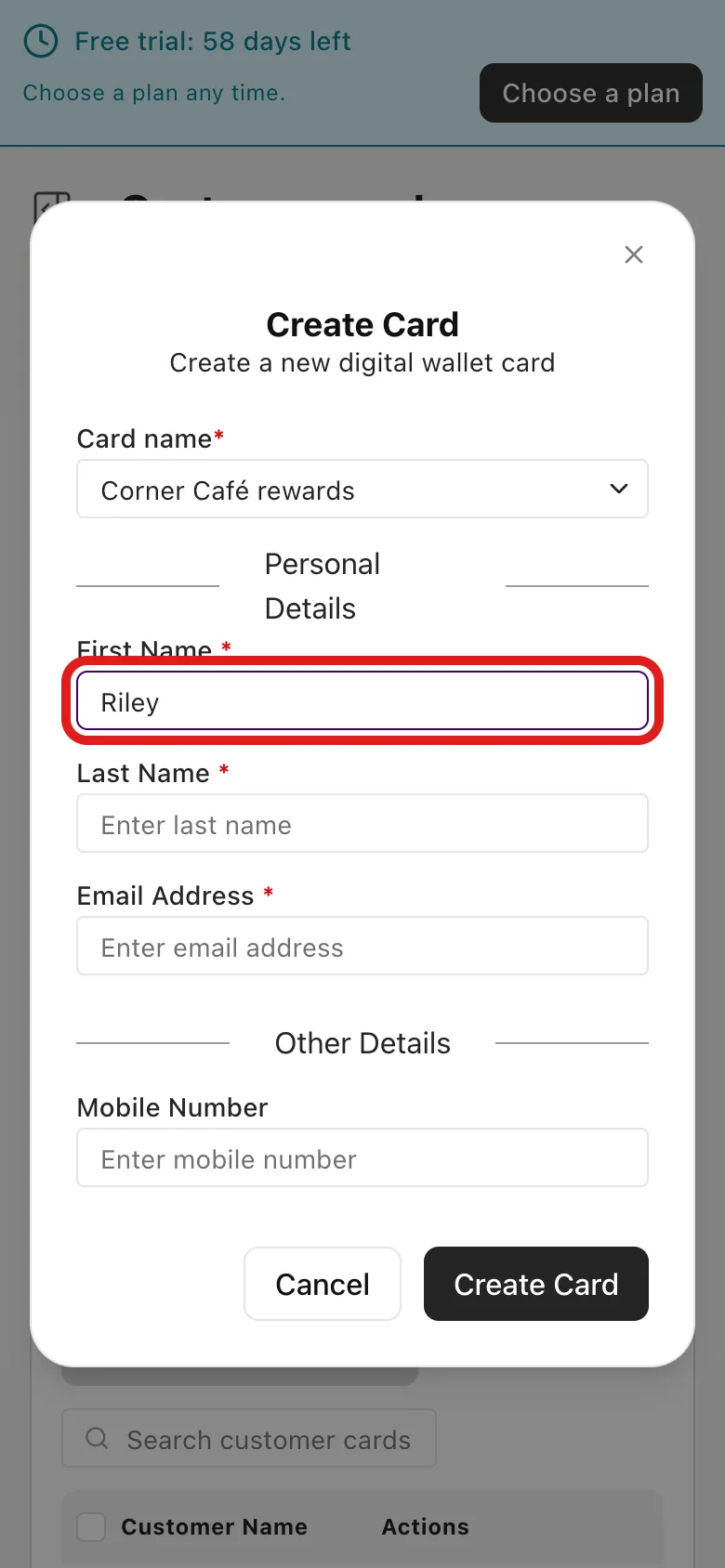
Step 6. Tap the First Name box. Type the customer's first name.
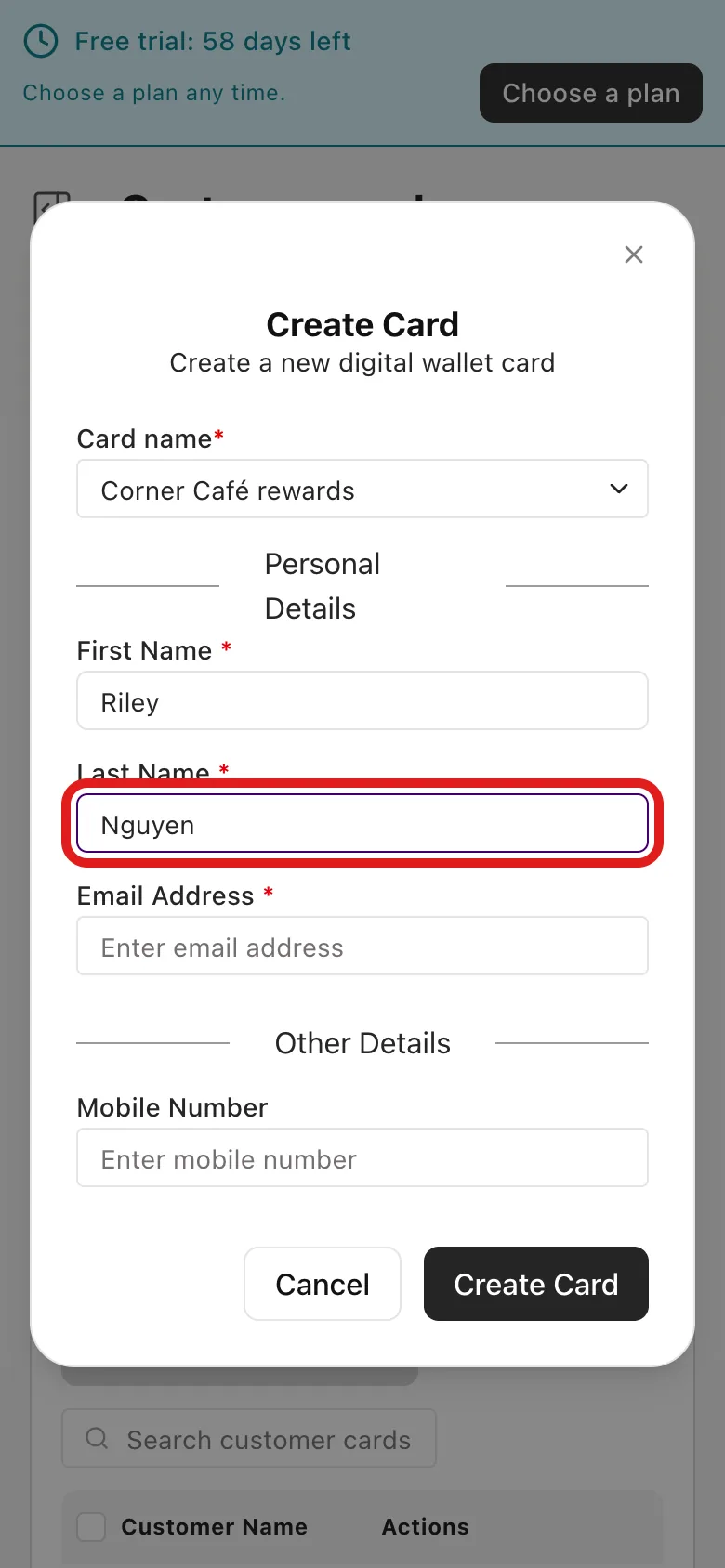
Step 7. Tap the Last Name box. Type the customer's last name.
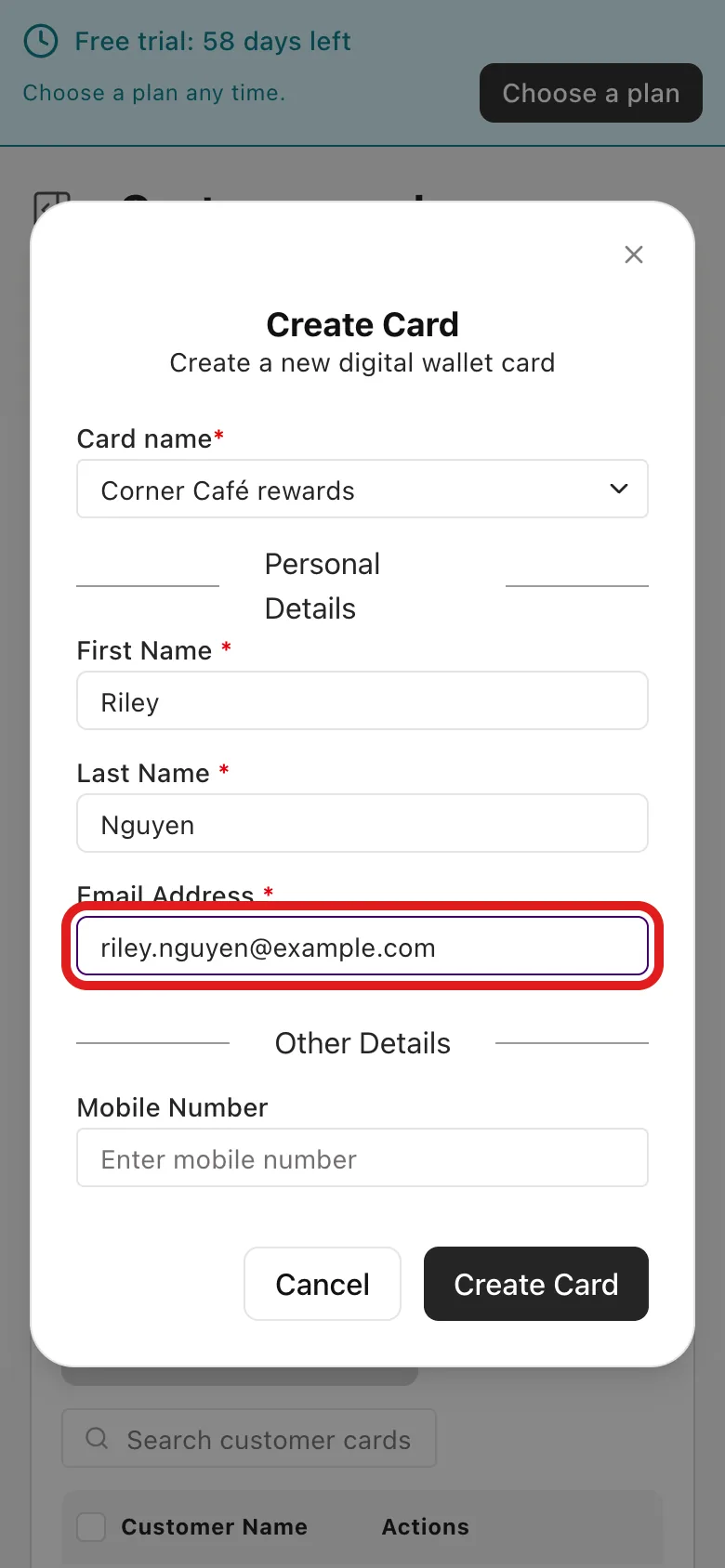
Step 8. Tap the Email Address box. Type the customer's email address. Check each letter.
We send the card to this address, so it must be right.
Step 9. Tap the black Create Card button at the bottom of the box.
Wait a moment.
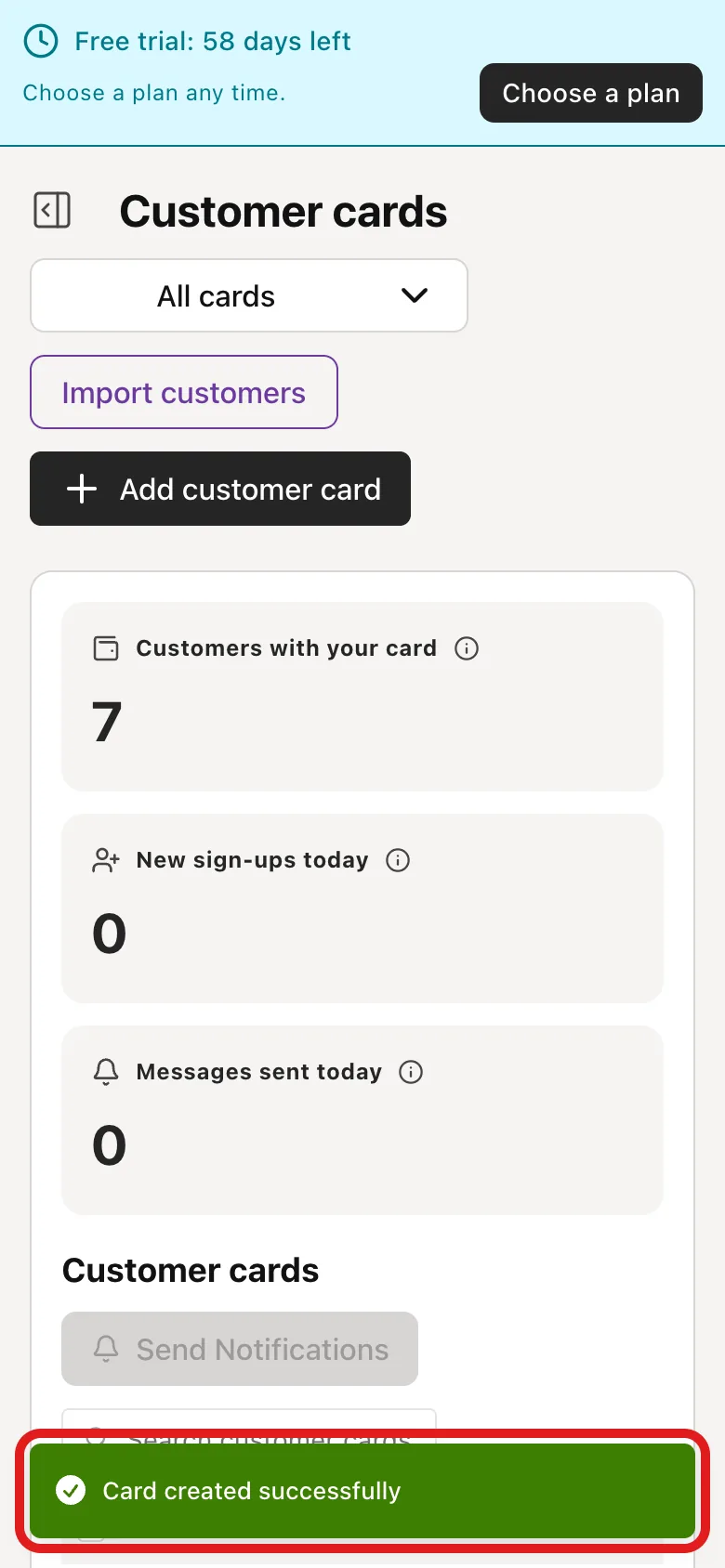
Step 10. Look at the bottom of the screen.
A green message says Card created successfully.
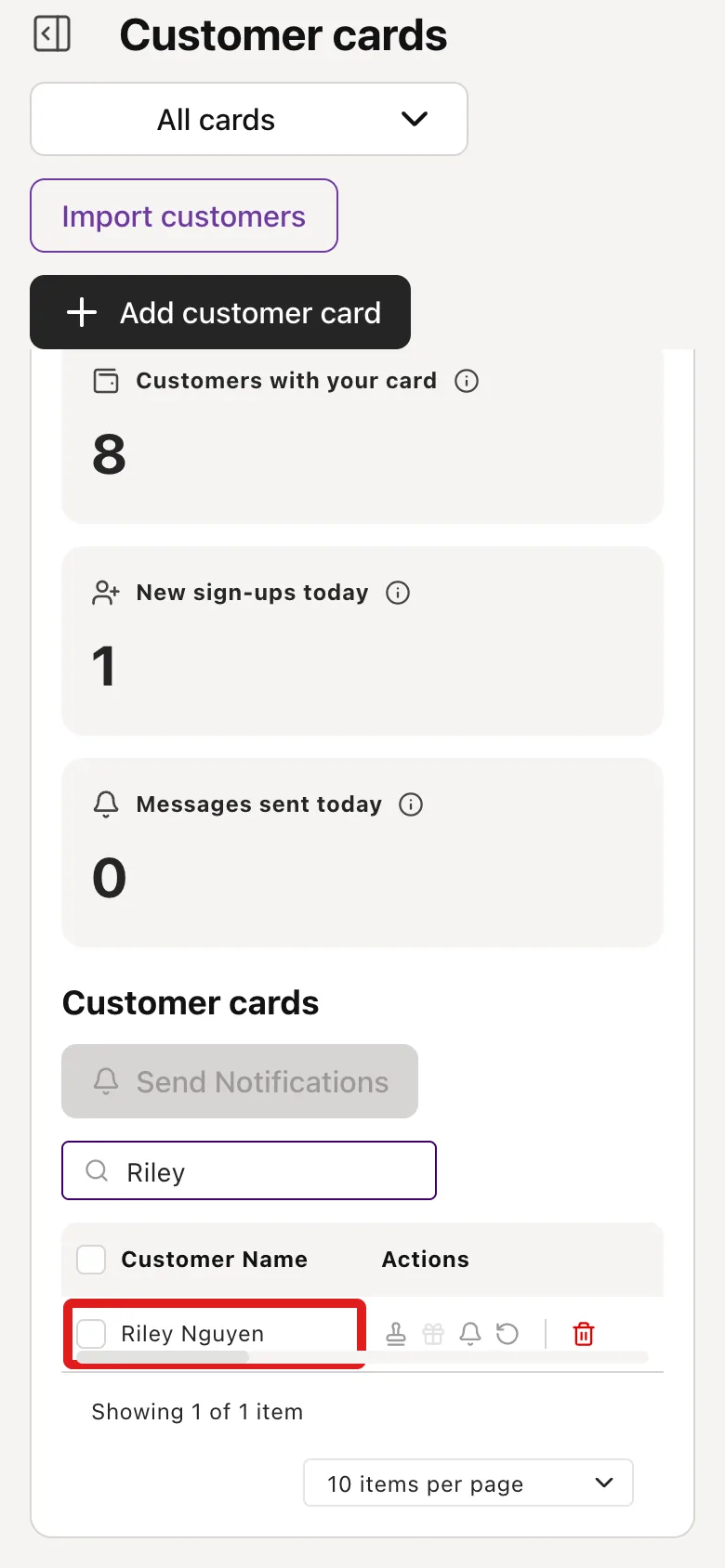
Step 11. Tap the Search customer cards box. Type the customer's first name.
The customer's name shows in the list below.
You'll know it worked when
A green message says Card created successfully and the customer's name shows in your list. The customer gets an email with a button to add the card to their phone.
Good to know
- The email is called Your Digital Wallet Card is Ready. The customer opens it on their phone and taps the button.
- The Mobile Number box is optional. You can leave it empty.
- Did the customer lose the email? See How to send a customer their card again.
Stuck?
That is fine. Contact us and we will help you. We reply within one business day.
These guides may help: