
How-to guides / At the counter
How to find a customer
Look up one customer by name, email or phone, and see their card.
Takes about 1 minute
Before you start
- You are signed in to Shakewell Wallet on your phone.
- You know part of the customer's name, email or phone number.
The steps
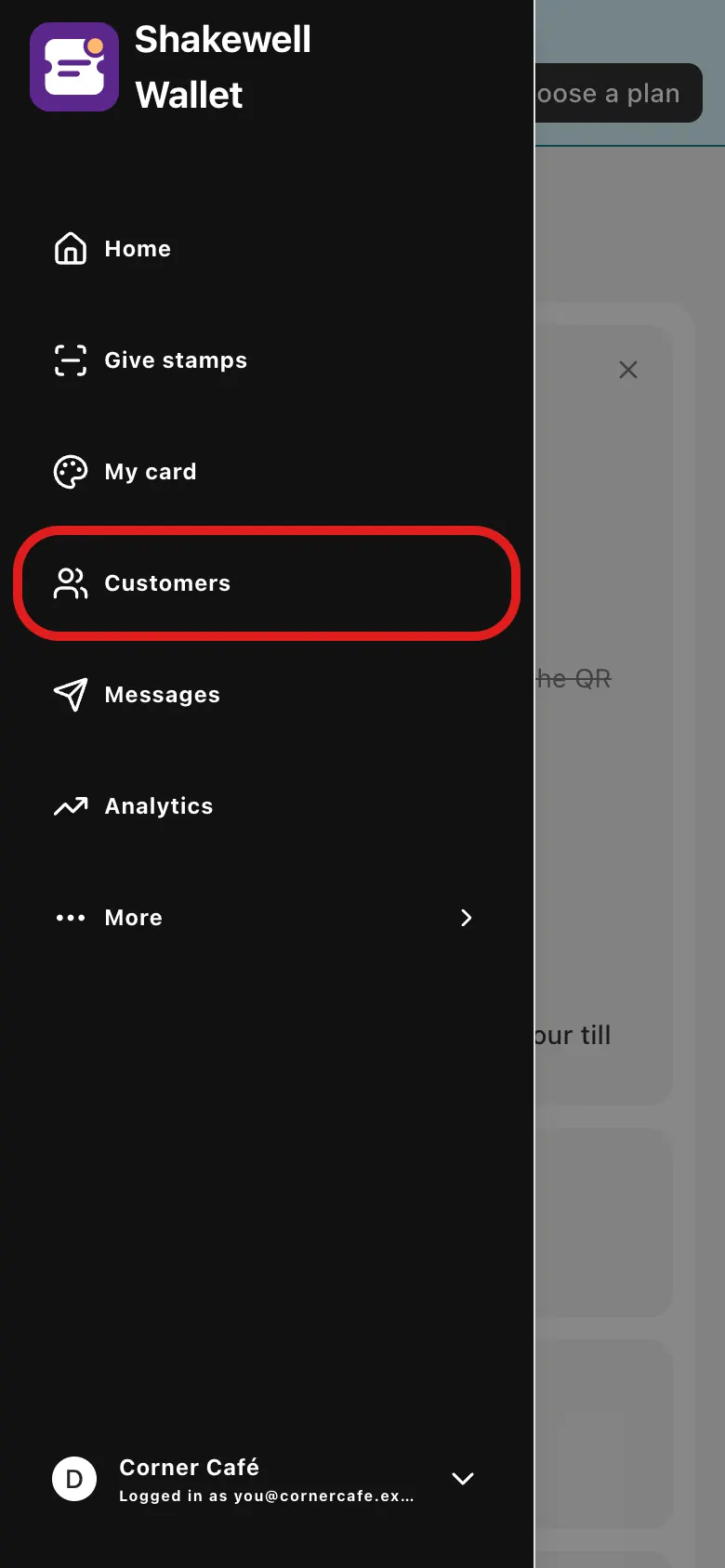
Step 1. Tap the small square icon at the top left of the screen to open the menu. Tap Customers.
A page called Customers opens with a list of everyone who joined.
Step 2. Tap the white Search box at the top.
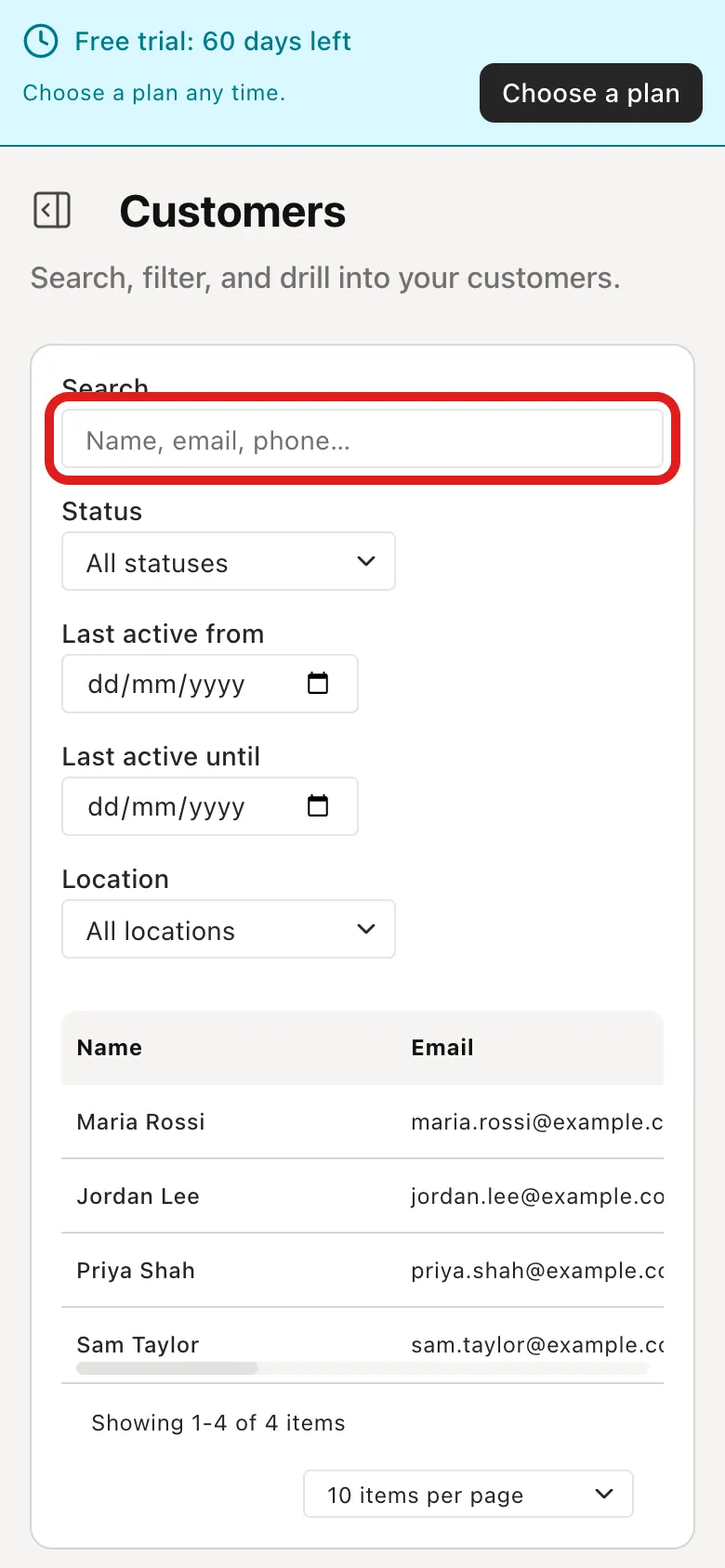
Step 3. Type part of the name, email or phone number. For example, type sam.
The list gets shorter as you type.
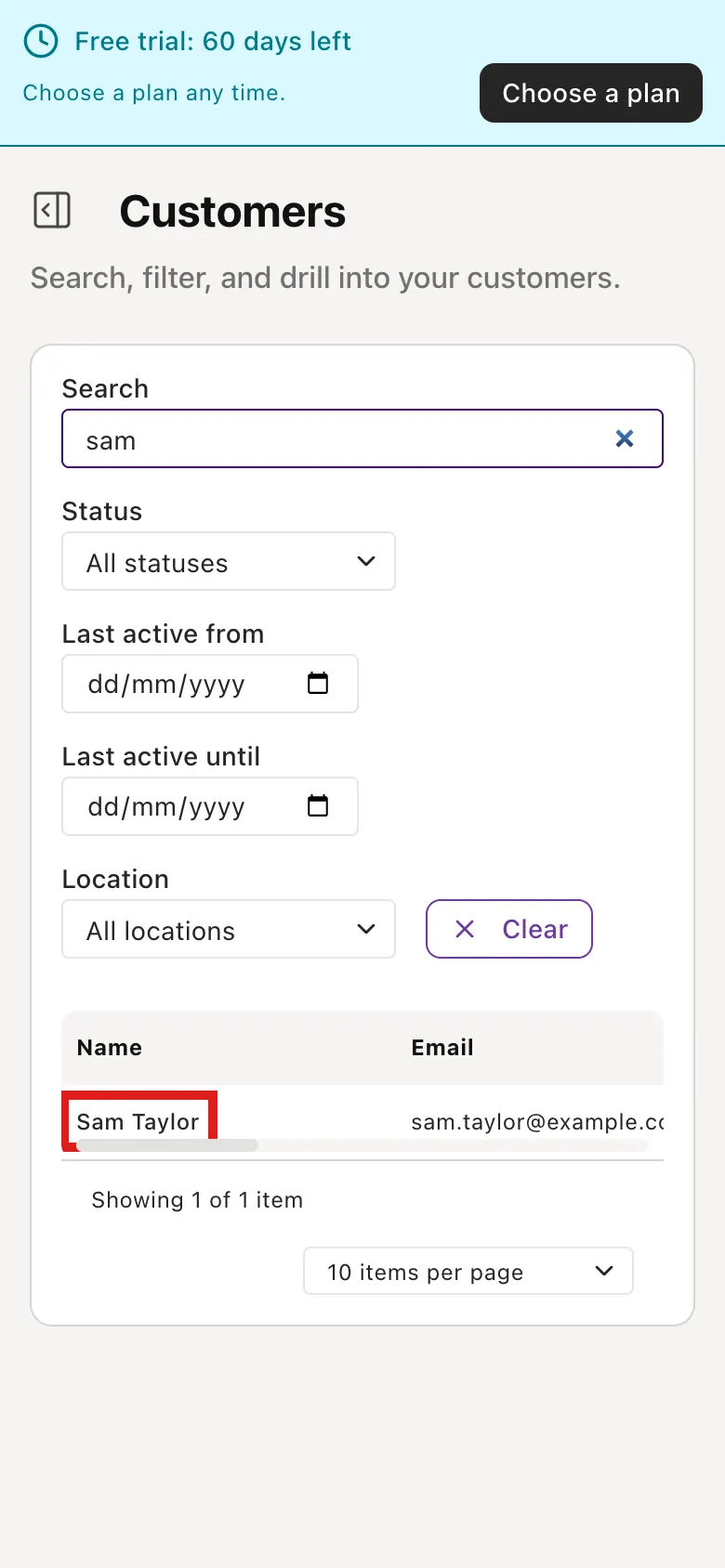
Step 4. Tap the customer's name.
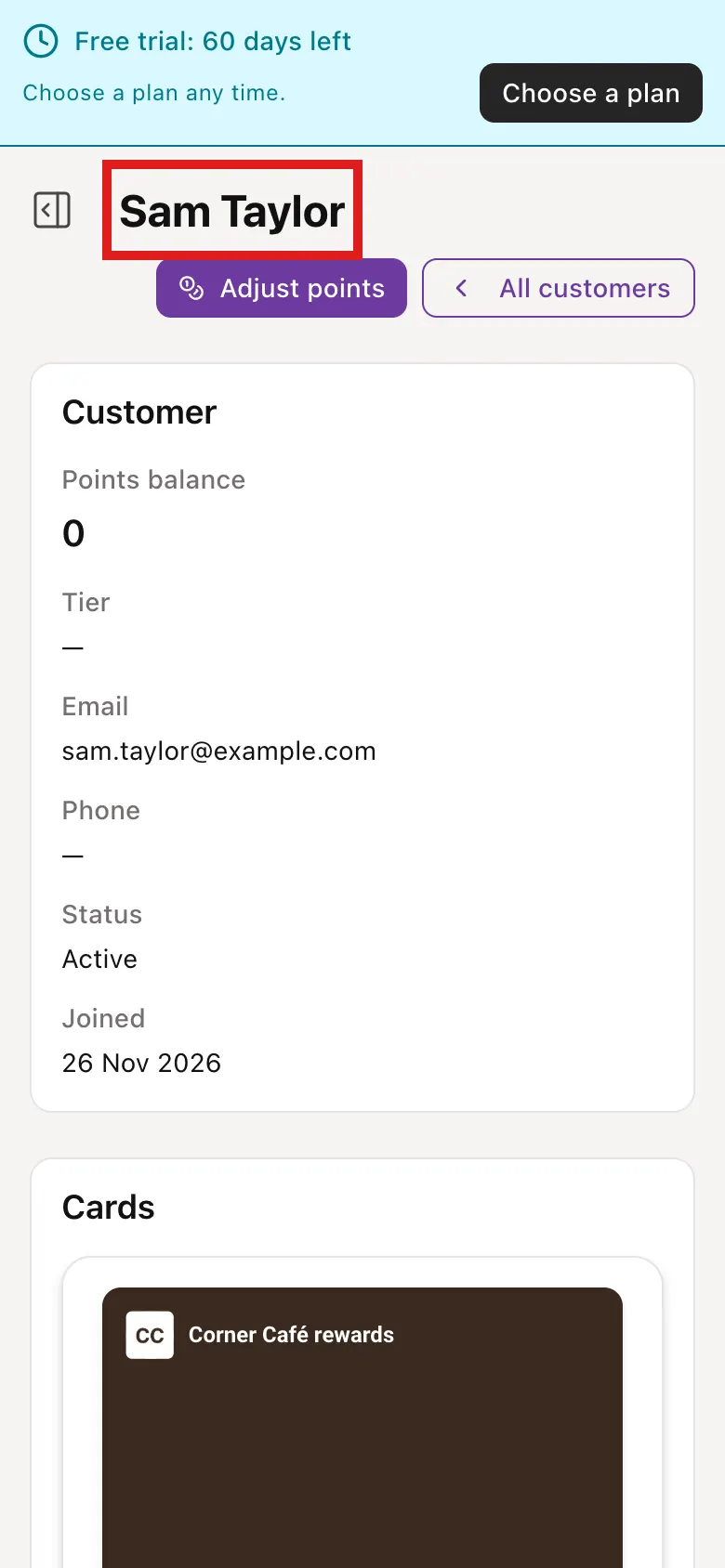
Their page opens. You see their email, the day they joined and their card with the number of stamps.
You'll know it worked when
You see the customer's own page, with their name at the top and their card and stamps below.
Good to know
- You can give a stamp from this page too. Use the +1 stamp button.
- At the counter, the search box on the Give stamps page finds customers the same way.
Stuck?
That is fine. Contact us and we will help you. We reply within one business day.
These guides may help: