
How-to guides / At the counter
How to remove a staff phone's access
Sign a phone out of the staff link, for example when someone leaves.
Takes about 2 minutes
Before you start
- You are the account owner, or you can change account settings.
- Your staff link is set up. (See How to let your staff give stamps on their own phone.)
The steps
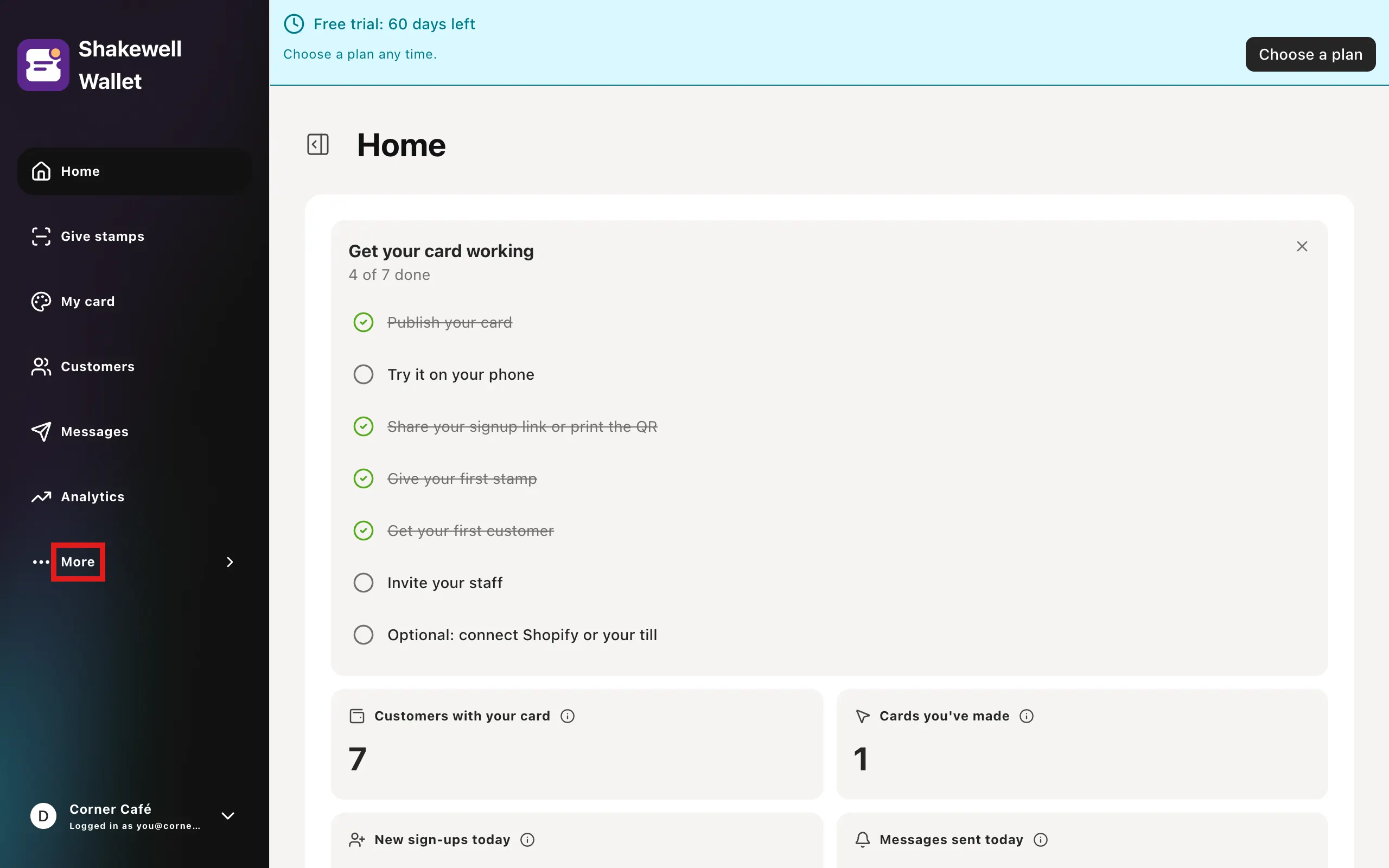
Step 1. In the left menu, click More.
A short list opens under it.
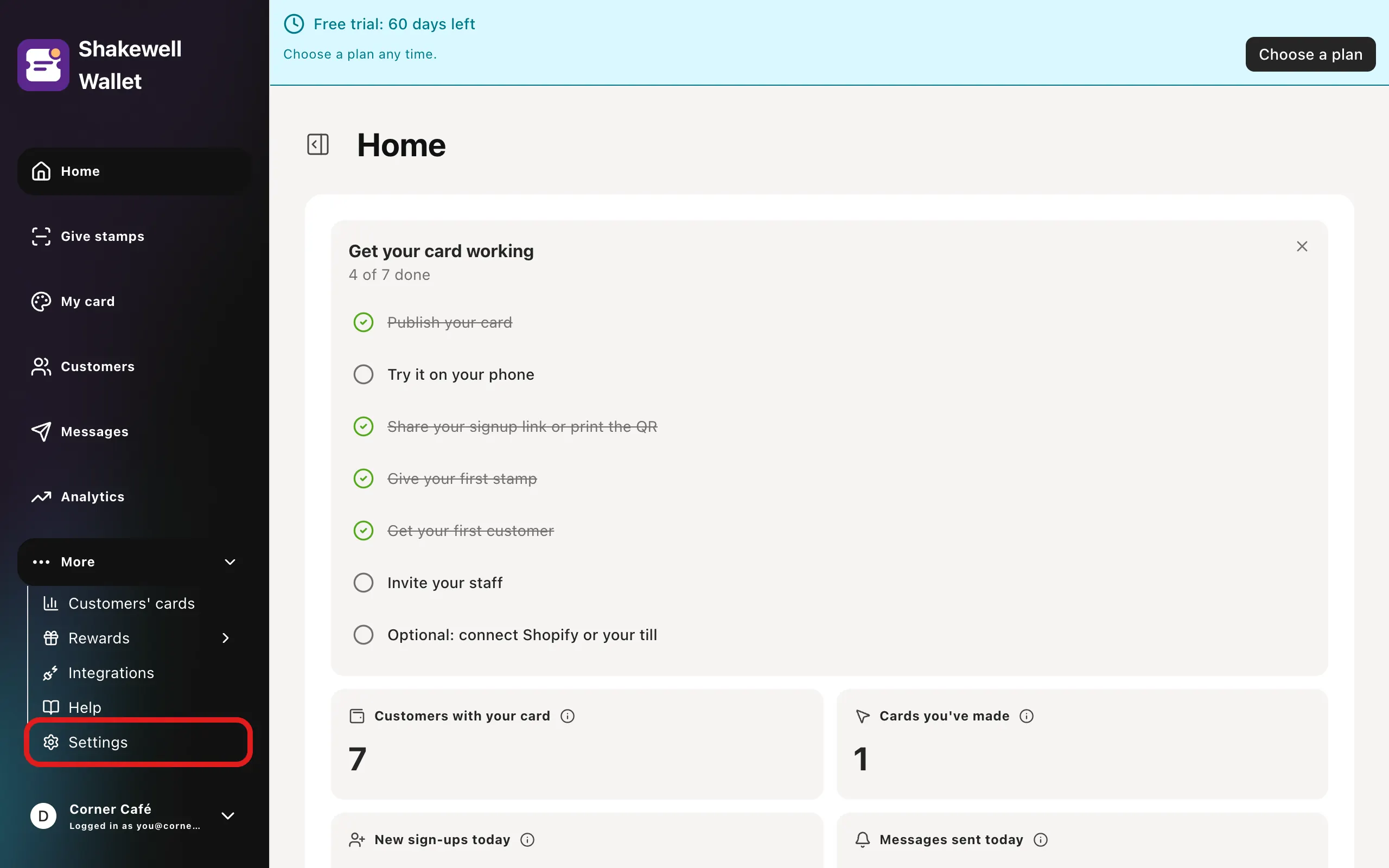
Step 2. Click Settings.
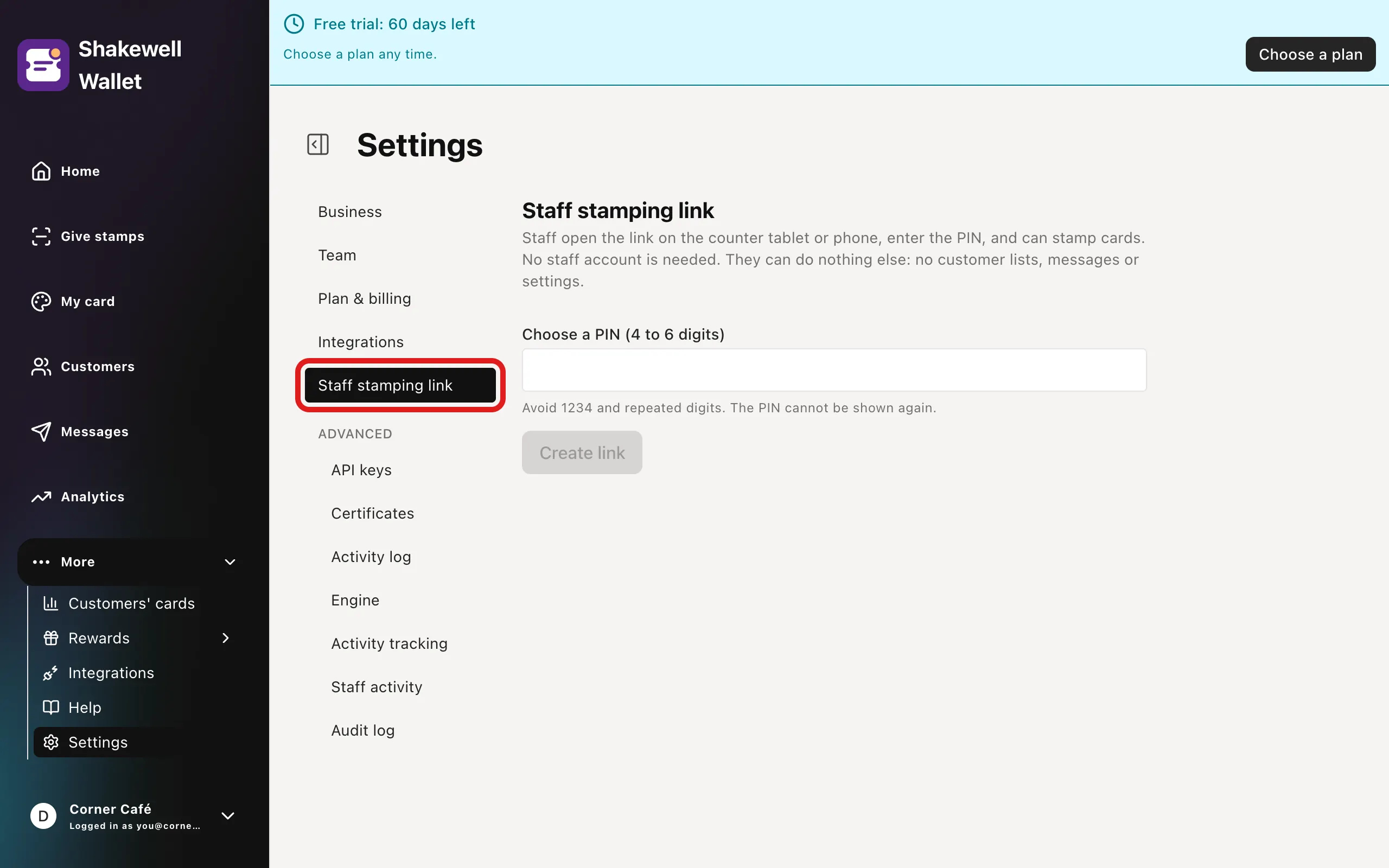
Step 3. Click Staff stamping link in the list on the left side of the Settings page.
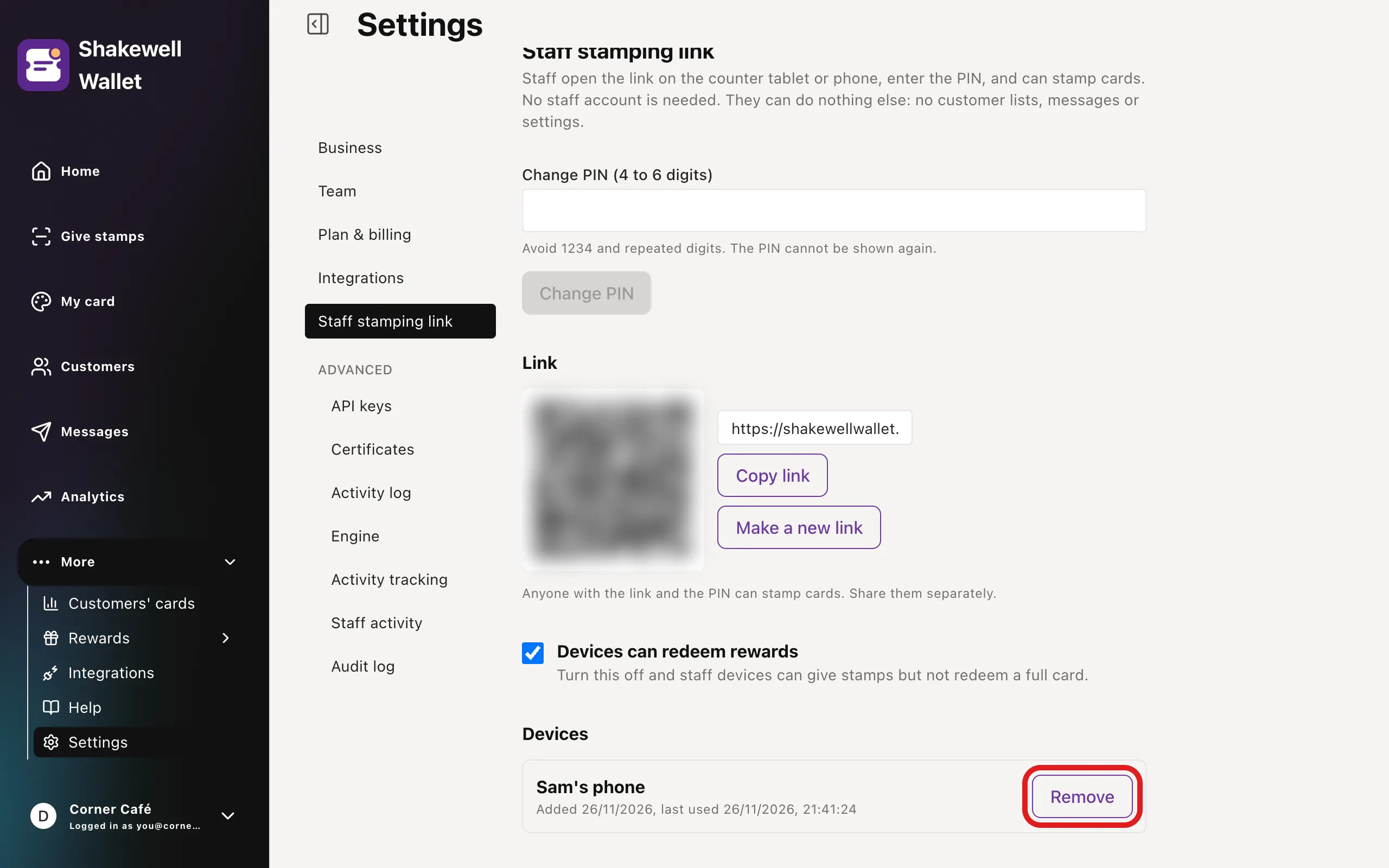
Step 4. Scroll down to the part called Devices. Find the name of the phone.
Each phone shows its name, the day it was added and when it was last used.
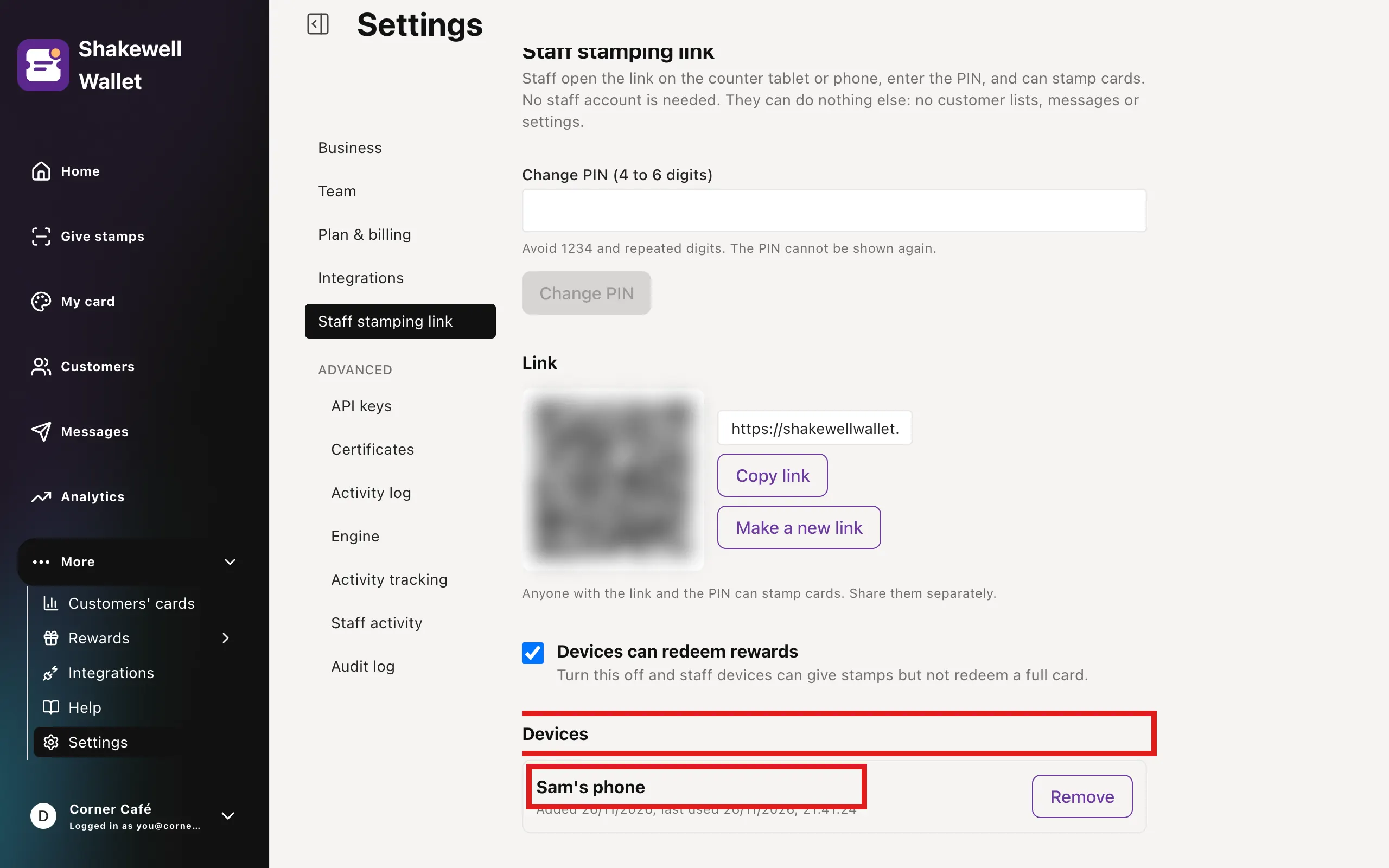
Step 5. Click the Remove button next to that phone.
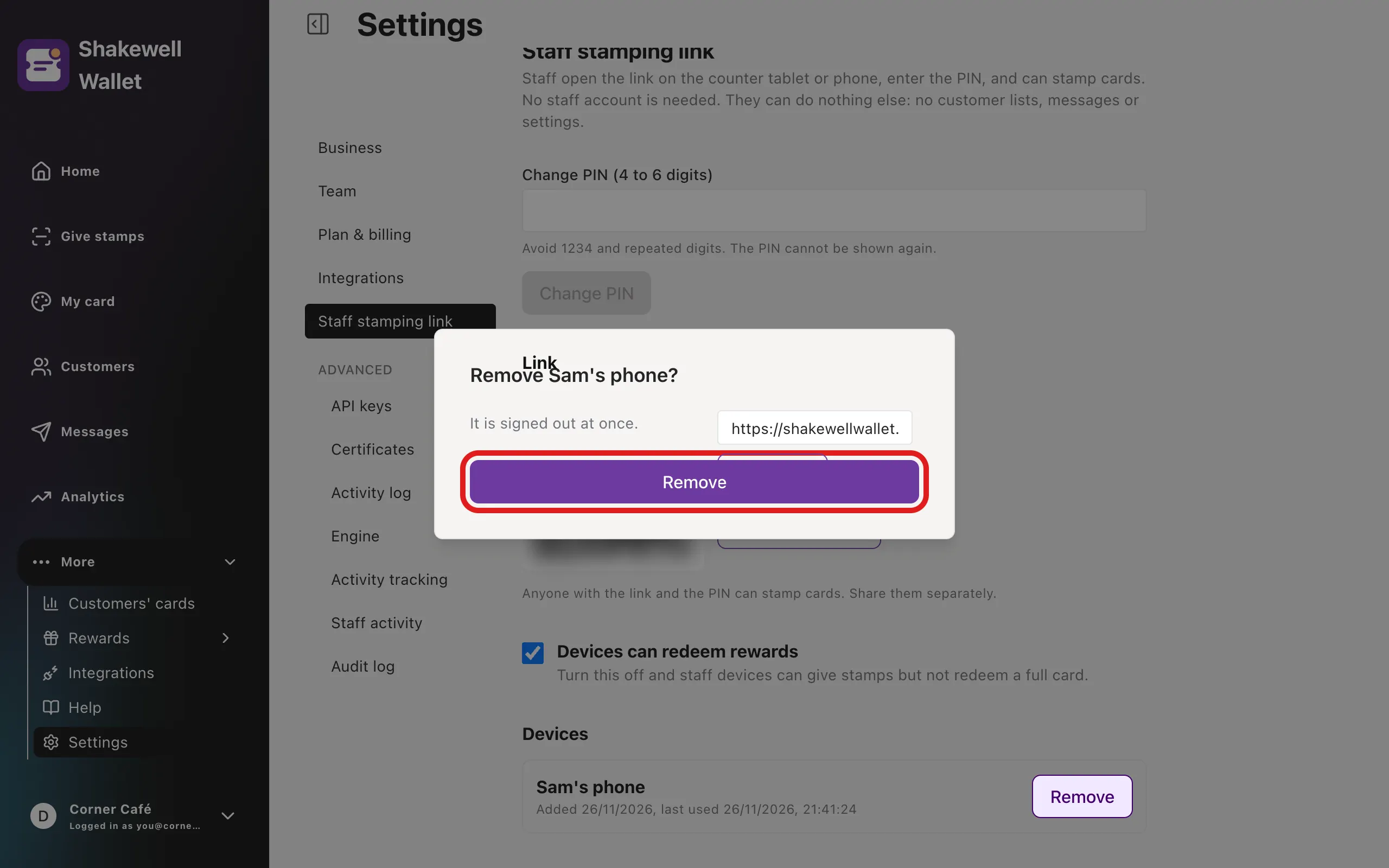
A box asks Remove Sam's phone?
Step 6. In the box, click Remove.
The phone is signed out at once.
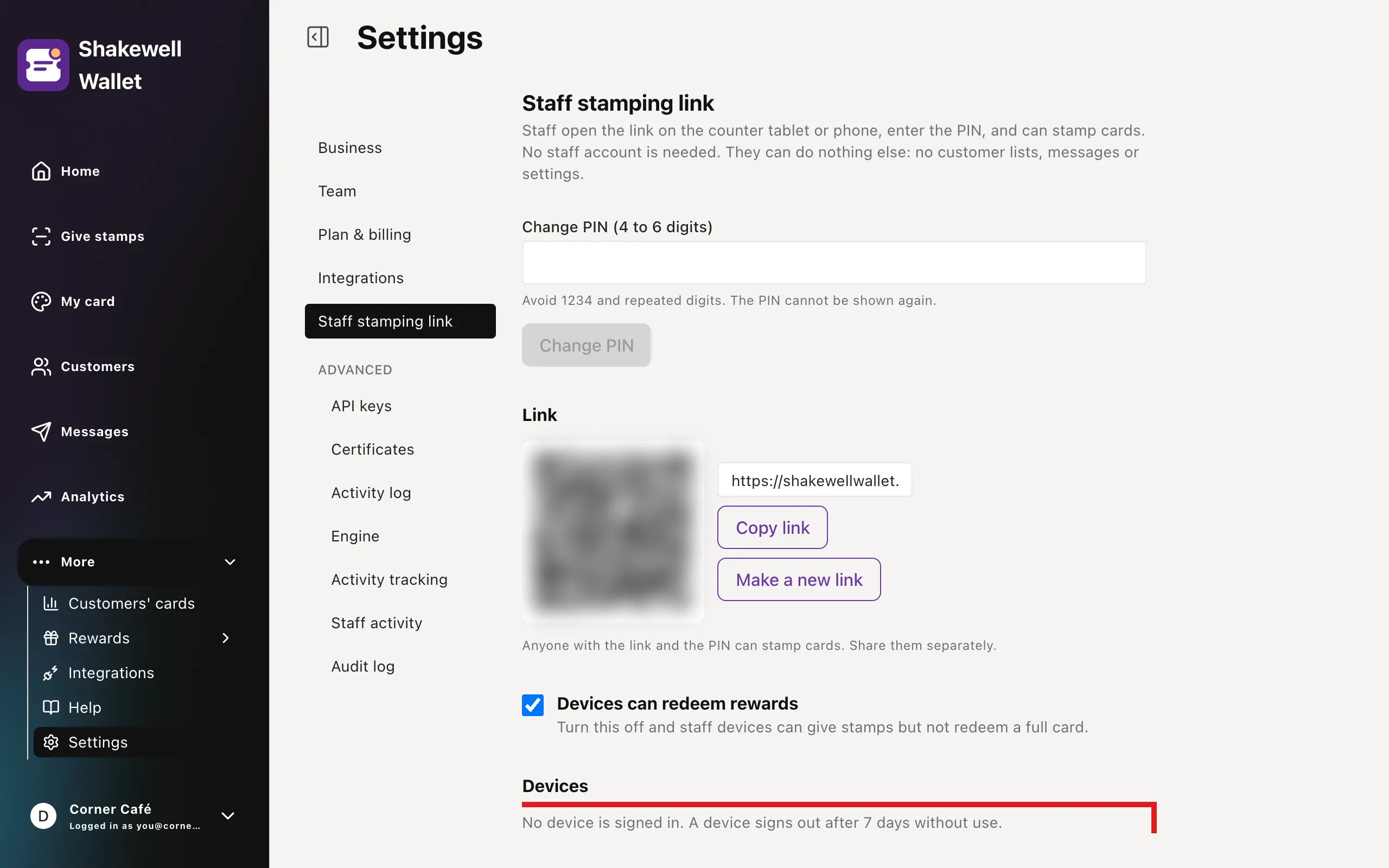
Step 7. Look at the Devices list.
The phone is gone. If it was the only one, it says No device is signed in.
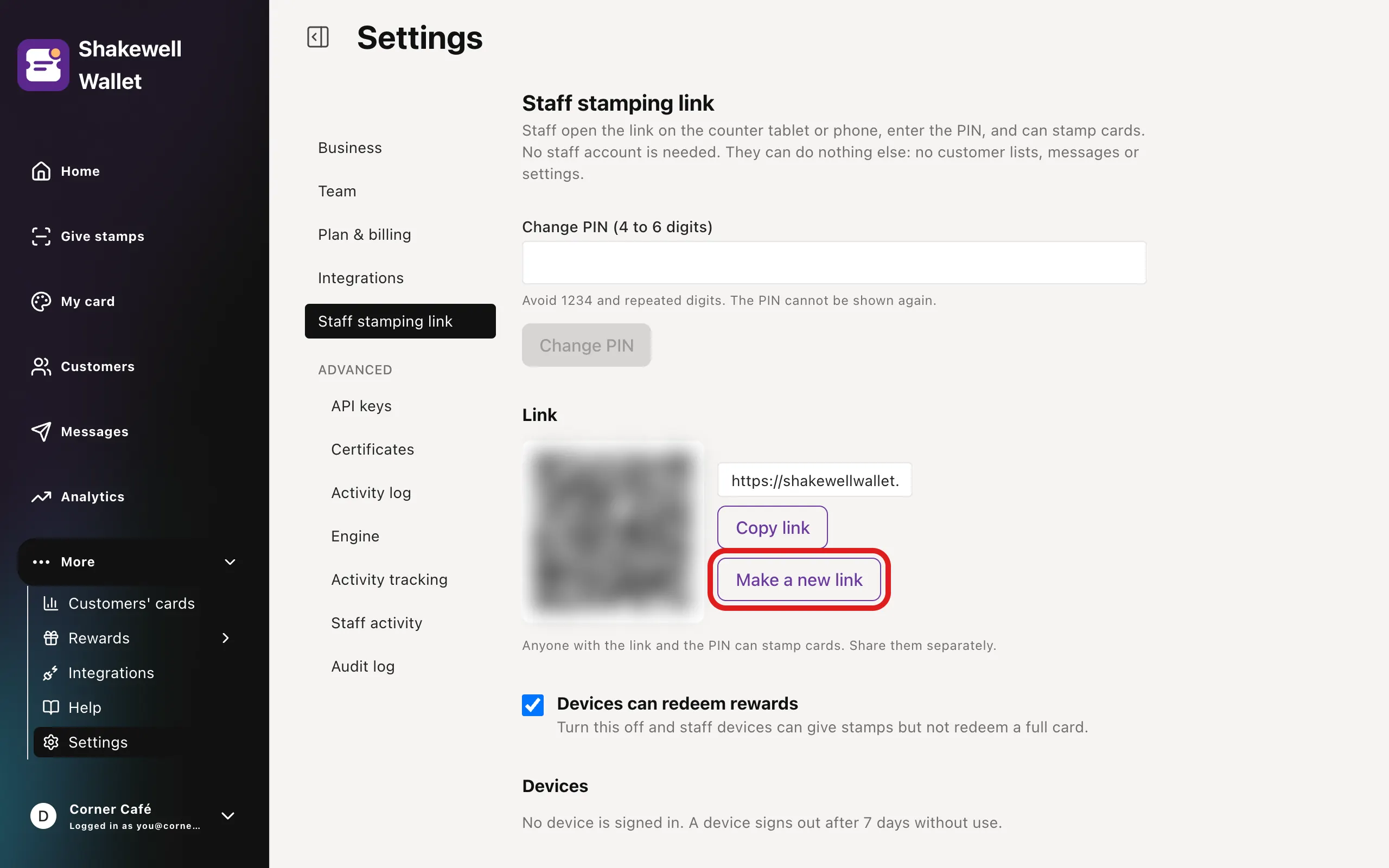
Step 8. To stop everyone at once, for example if the link was shared by mistake, click Make a new link.
A box asks you to confirm. The old link and square code stop working, and every phone is signed out.
You'll know it worked when
The phone is not in the Devices list any more. If the person opens the link, they see Start stamping and need the PIN.
Good to know
- Changing the PIN also signs every phone out. Do this if someone knows the PIN who should not.
- There is no off switch for the staff link. Making a new link is the way to stop the old one.
Stuck?
That is fine. Contact us and we will help you. We reply within one business day.
These guides may help: