
How-to guides / At the counter
How to give stamps with the staff link
For staff: open the link on your phone, type the PIN and give stamps.
Takes about 2 minutes
Before you start
- The link and the PIN from your boss. (The owner makes them. See How to let your staff give stamps on their own phone.)
- Your phone, or the counter tablet.
- The customer's name, or the code on their card.
The steps
Step 1. Open the staff link on your phone.
A page opens called Start stamping.
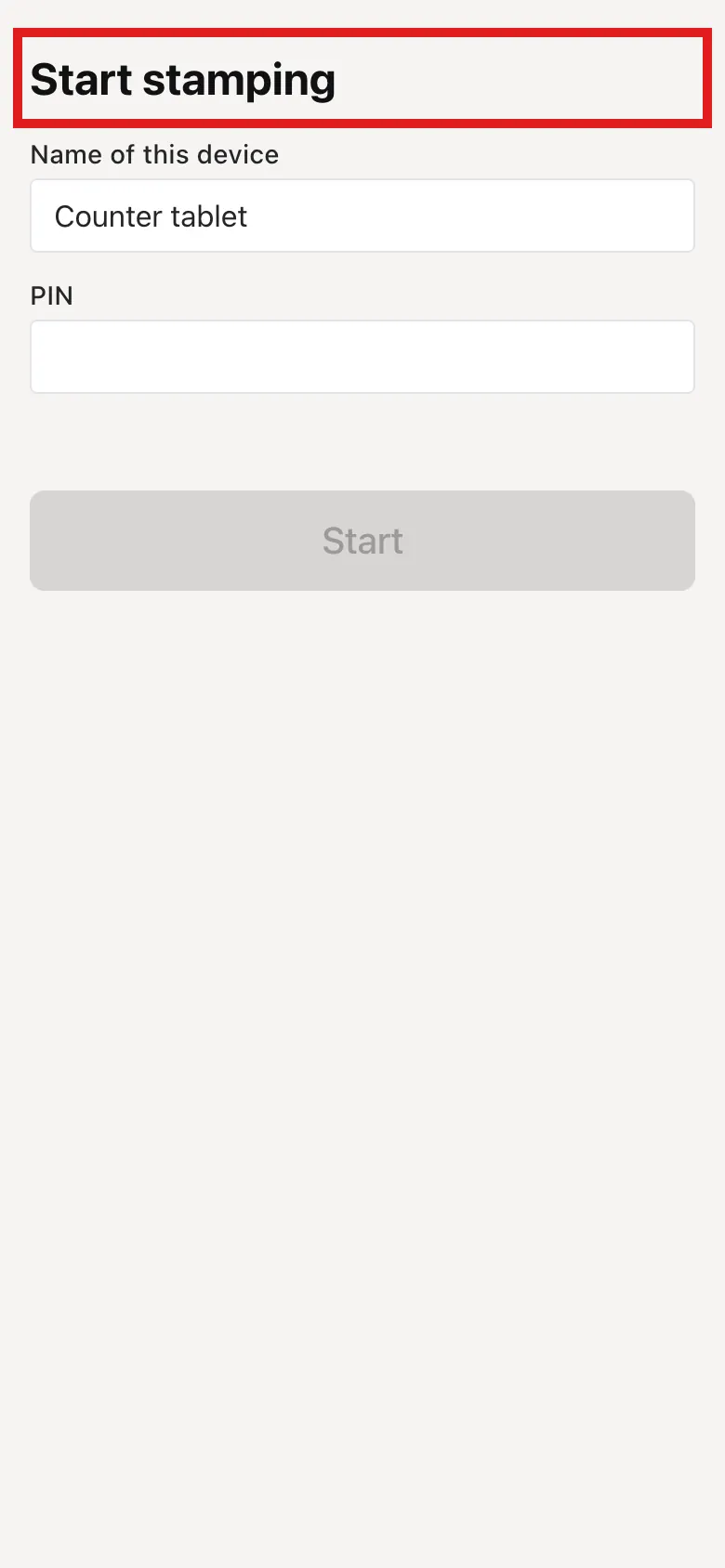
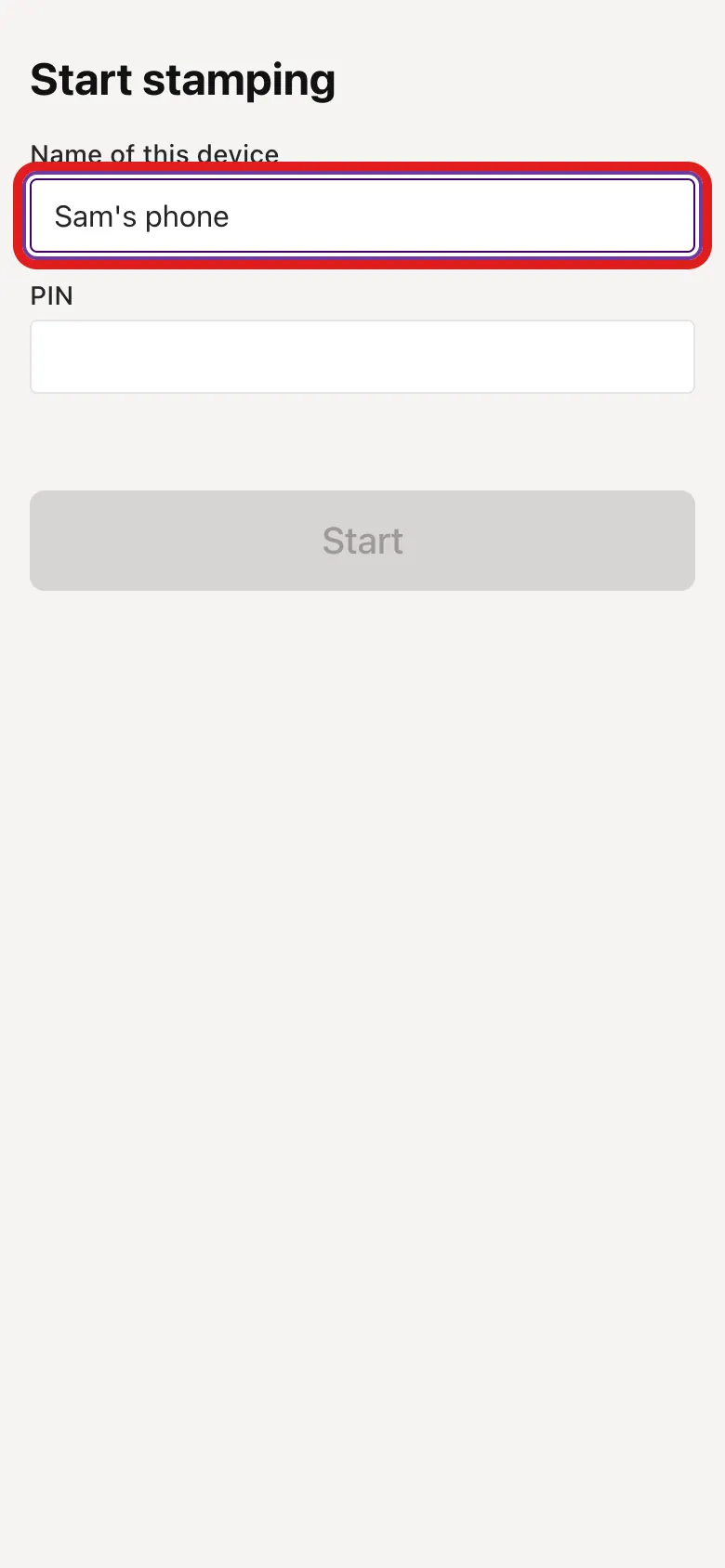
Step 2. Look at the box called Name of this device. Leave the name, or type your own, like Sam's phone.
The owner sees this name in their list of phones.
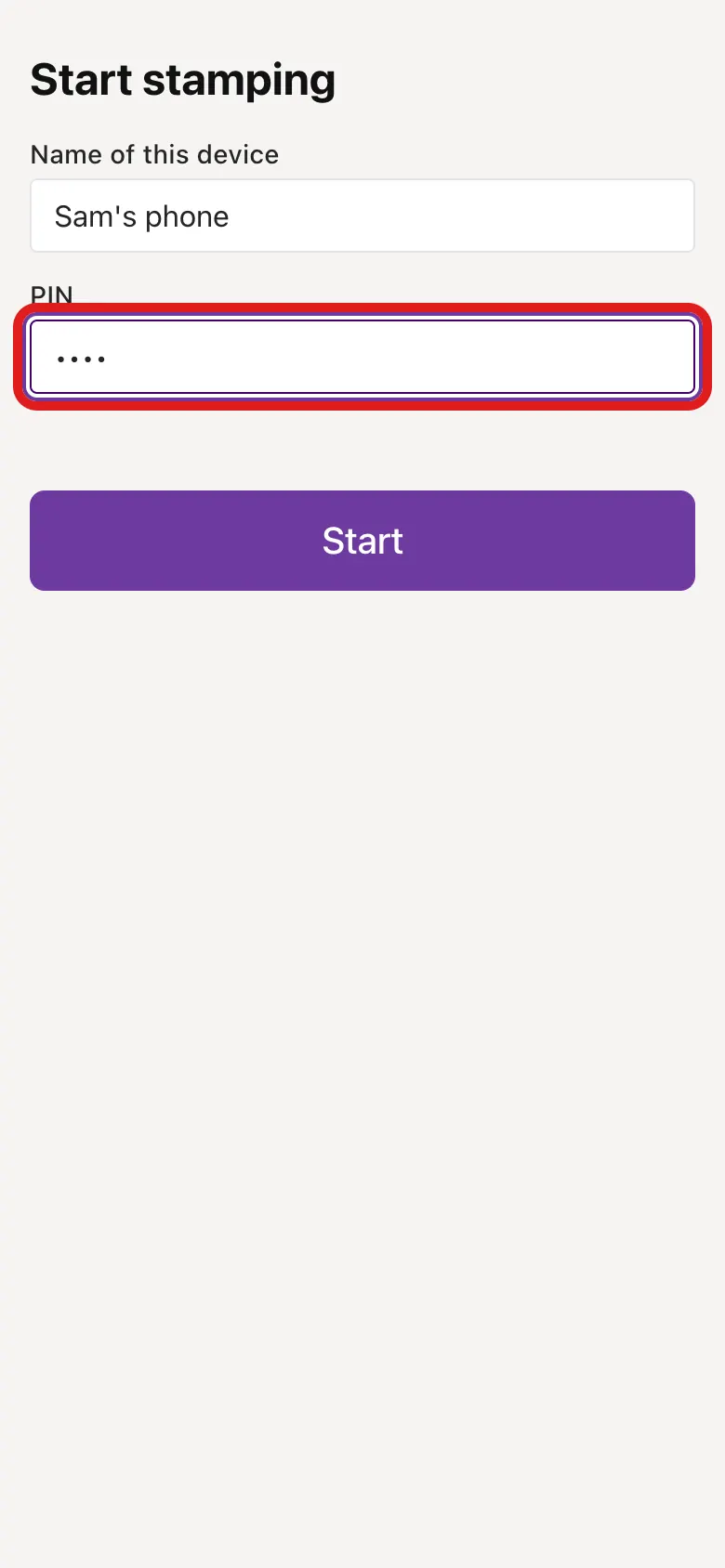
Step 3. Tap the box called PIN. Type the PIN.
The numbers show as dots.
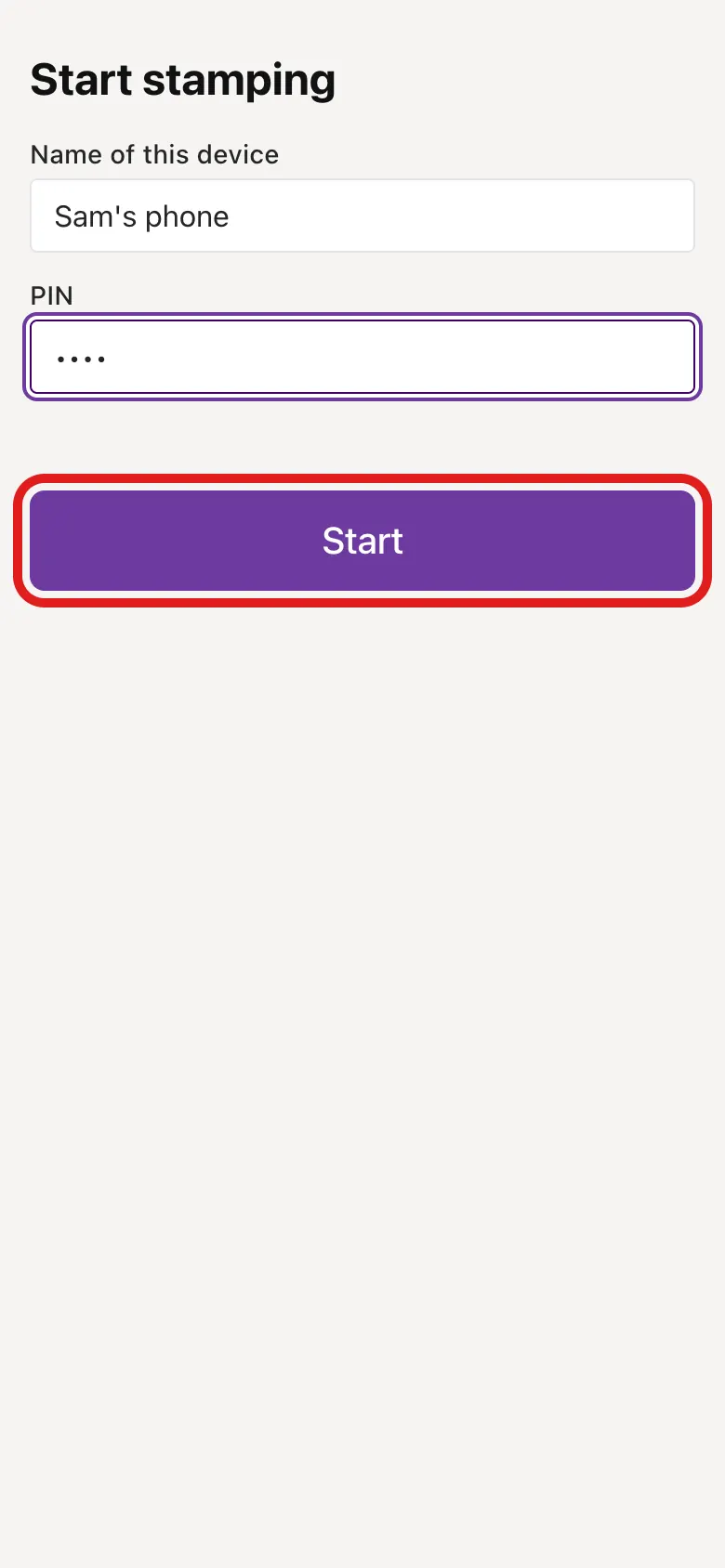
Step 4. Tap the purple Start button.
Wait a moment. The shop name shows at the top, with a Scan a card button.
Step 5. Tap the white box under Name or card code. Type at least 3 letters of the customer's name.
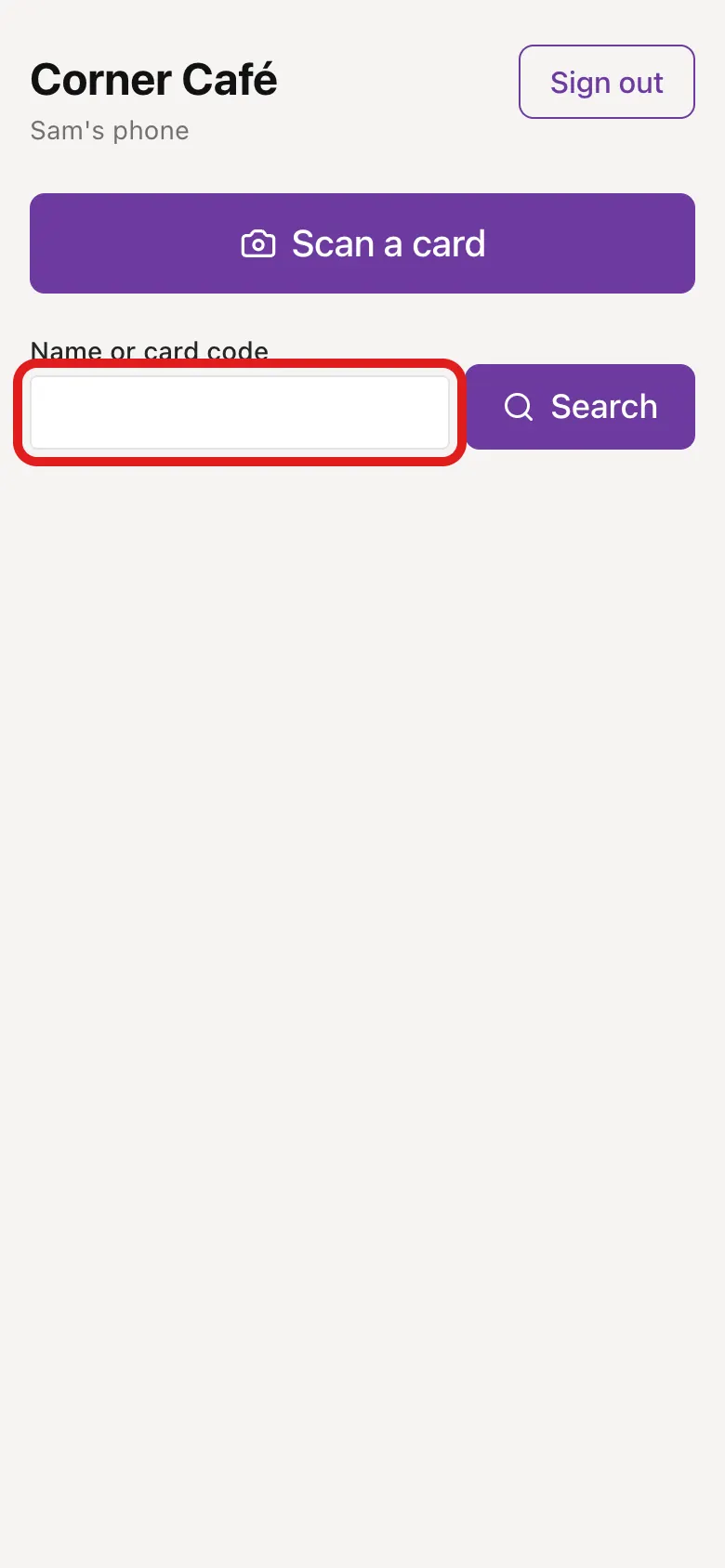
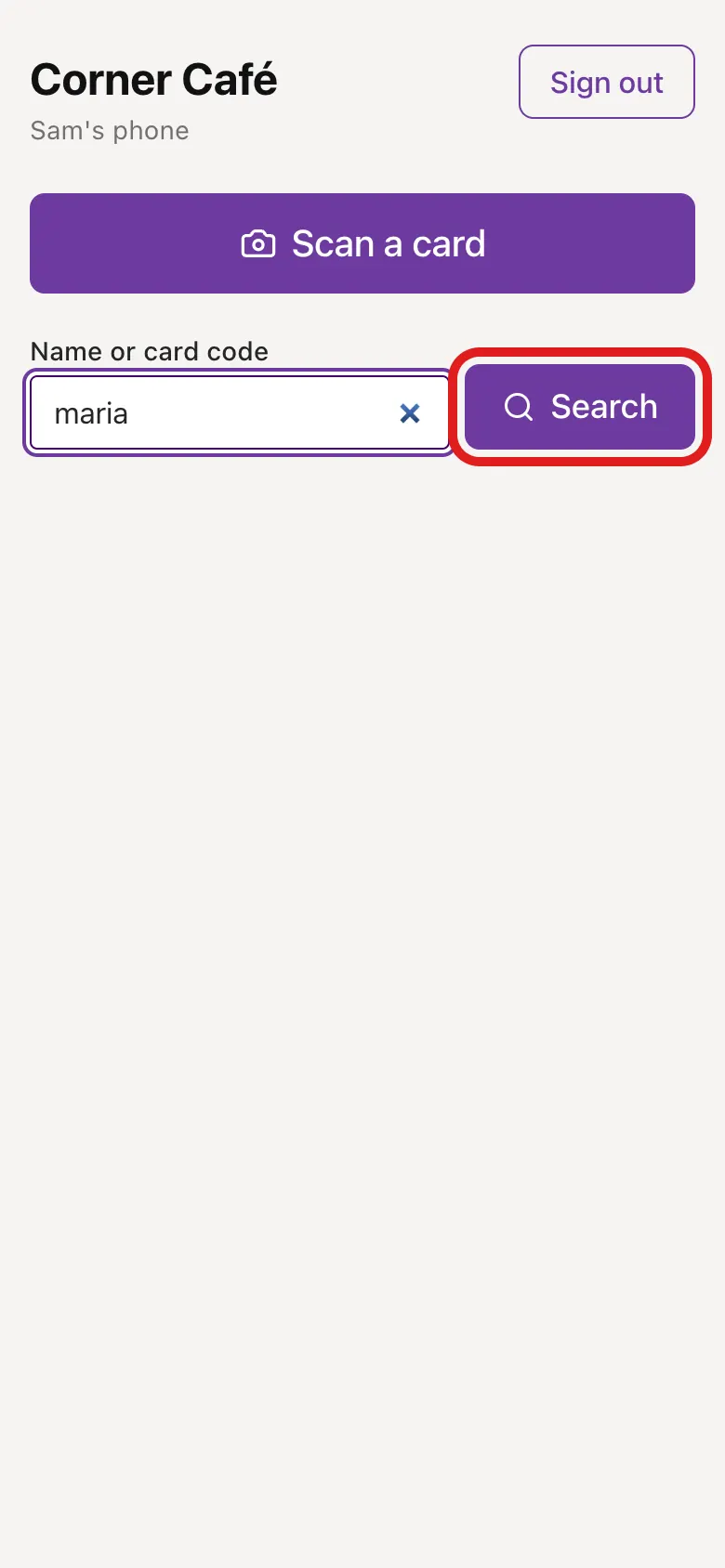
Step 6. Tap the purple Search button.
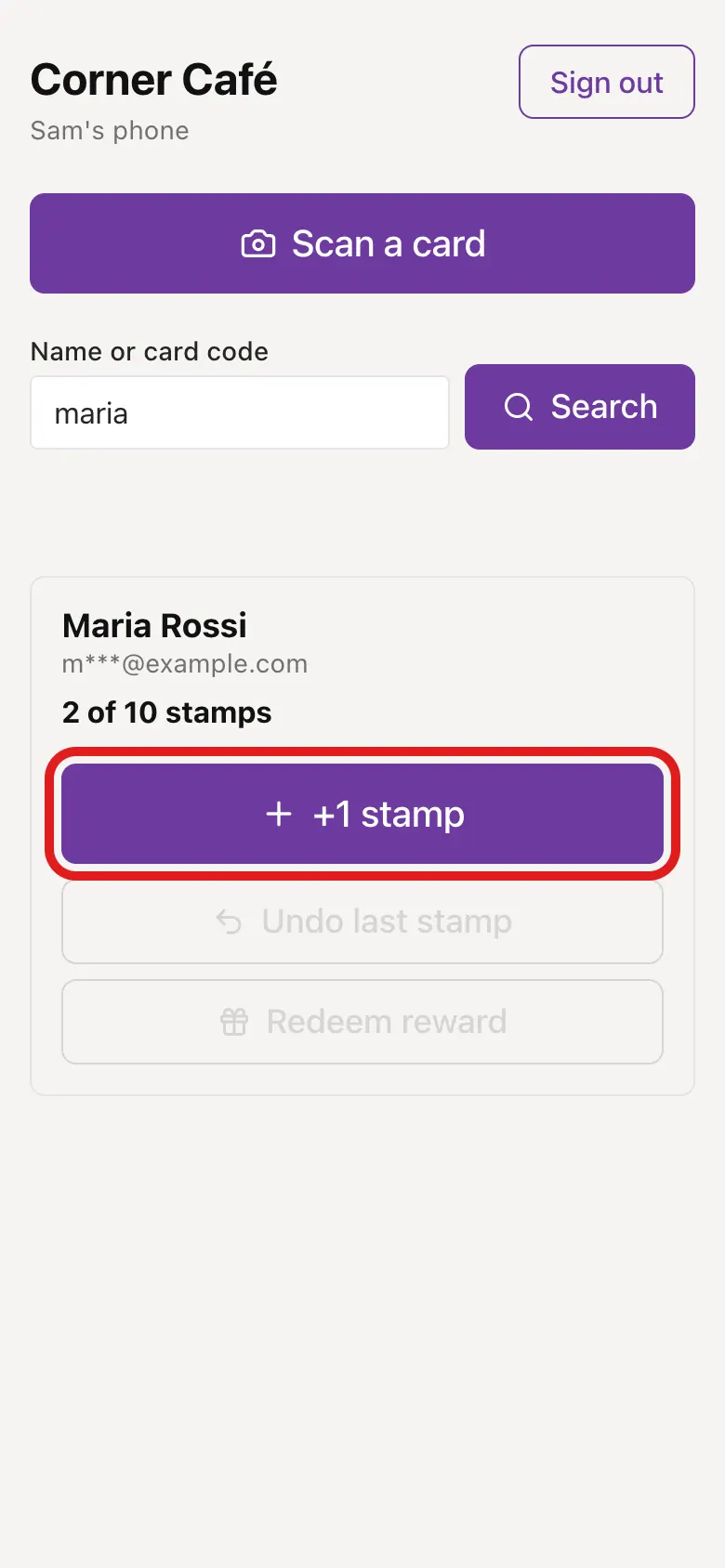
The customer shows up with how many stamps they have, like 1 of 10 stamps.
Step 7. Tap the big purple +1 stamp button. Tap it once only.
Wait a moment while it works.
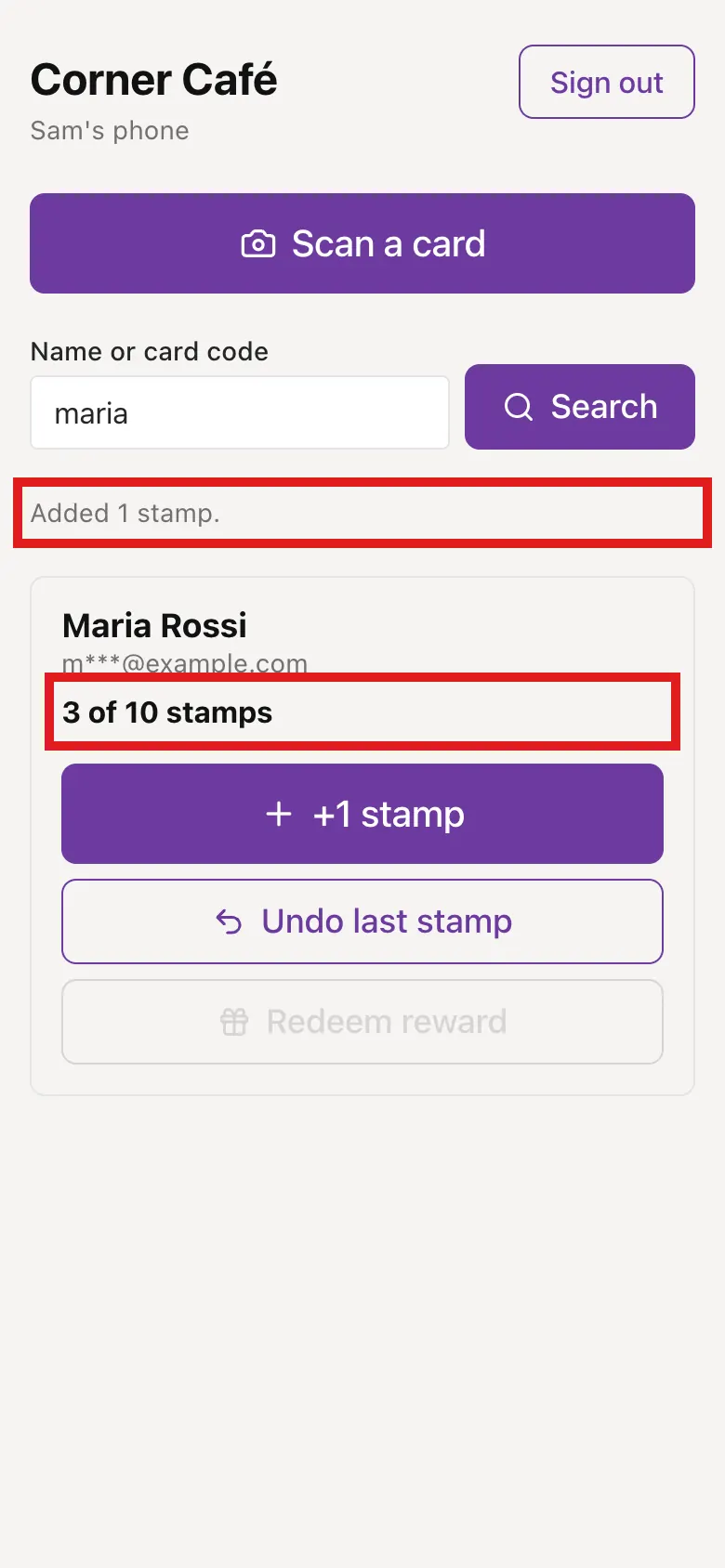
Step 8. Look at the message under the search box, and the number of stamps.
The message says Added 1 stamp. The number is one higher.
Step 9. Gave a stamp by mistake? Tap Undo last stamp.
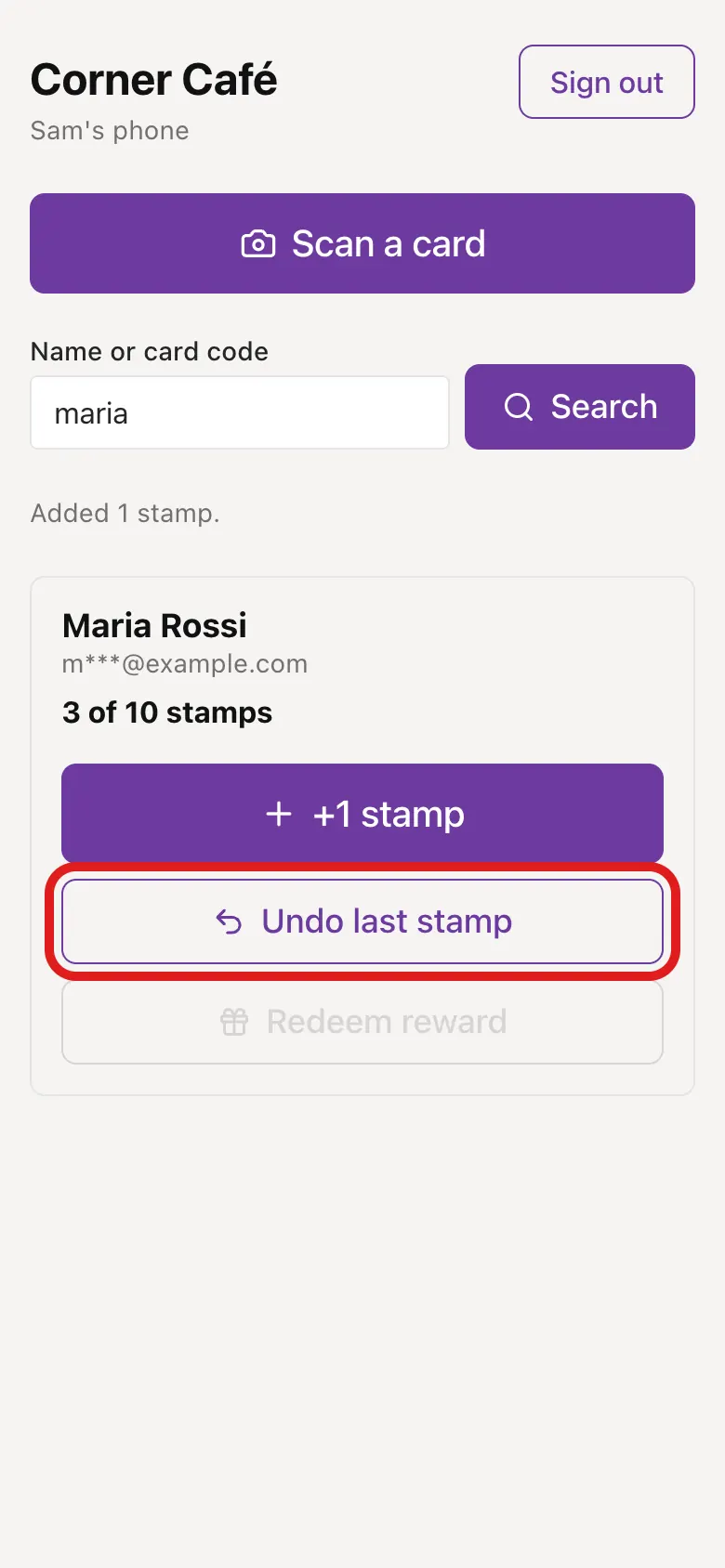
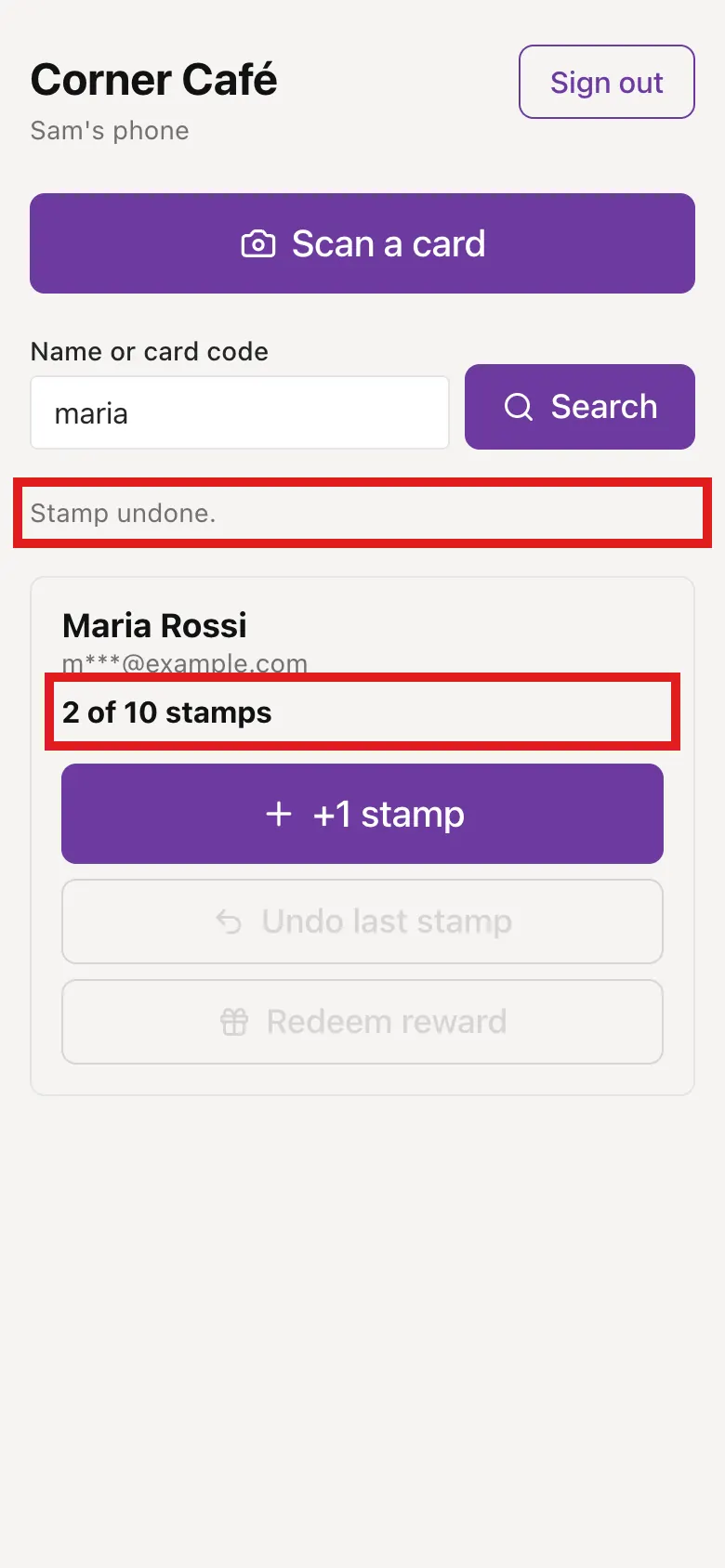
Step 10. Look at the message and the number of stamps again.
The message says Stamp undone. The number is one lower.
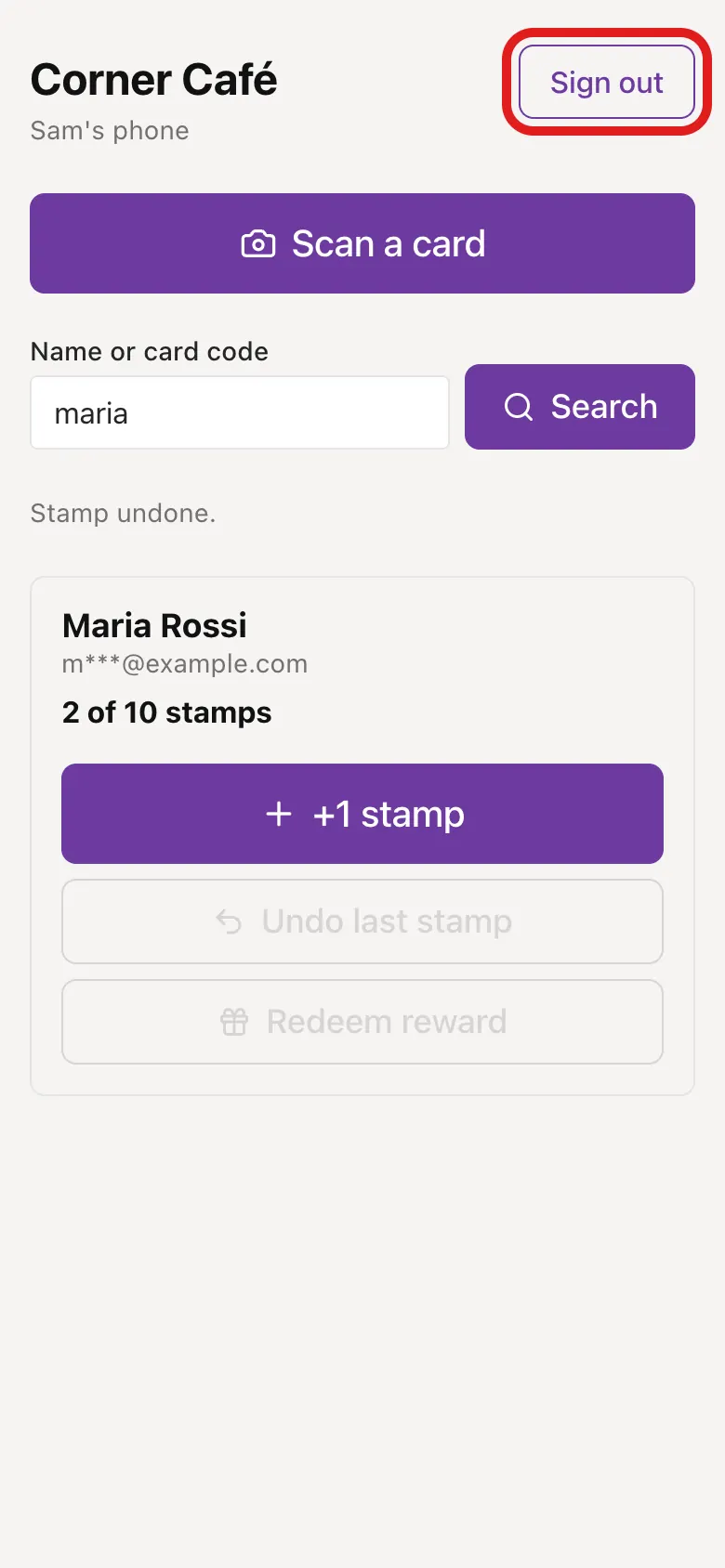
Step 11. When your shift is over, tap Sign out at the top right.
The page goes back to Start stamping.
You'll know it worked when
A message says Added 1 stamp and the number next to the customer's name goes up by one.
Good to know
- A phone with a camera can also tap Scan a card and point at the code on the customer's card.
- The Redeem reward button only works when the card is full. It only shows if the owner allows it.
- A phone signs itself out after 7 days without use. Just type the PIN again.
Stuck?
That is fine. Contact us and we will help you. We reply within one business day.
These guides may help: