
How-to guides / At the counter
How to let your staff give stamps on their own phone
Make a private link and a PIN, so staff can give stamps without their own login.
Takes about 4 minutes
Before you start
- You are the account owner, or you can change account settings.
- Your card is live. (See How to sign up and make your first card.)
- A PIN of 4 to 6 numbers. Do not use 1234 or the same number again and again.
The steps
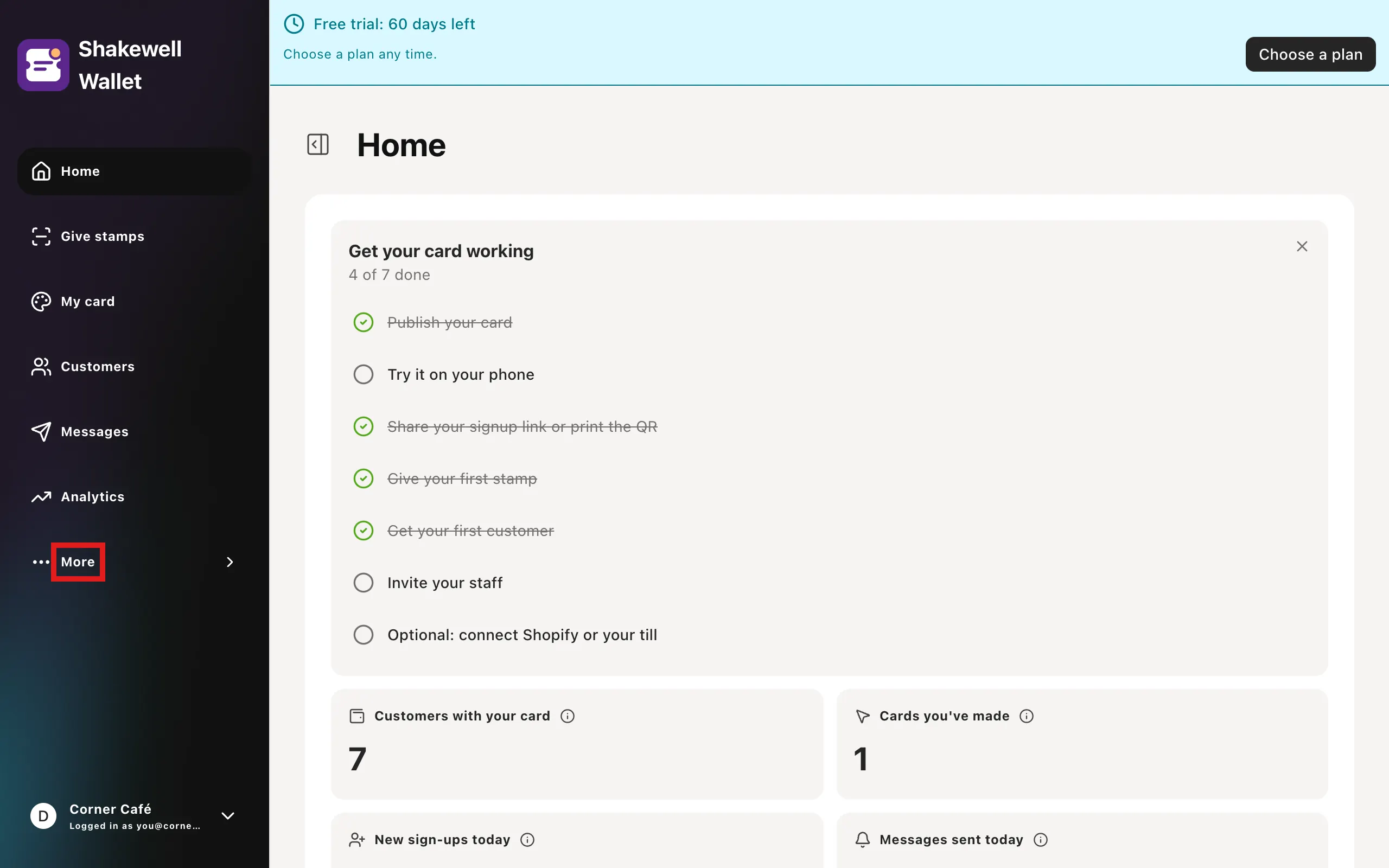
Step 1. In the left menu, click More.
A short list opens under it.
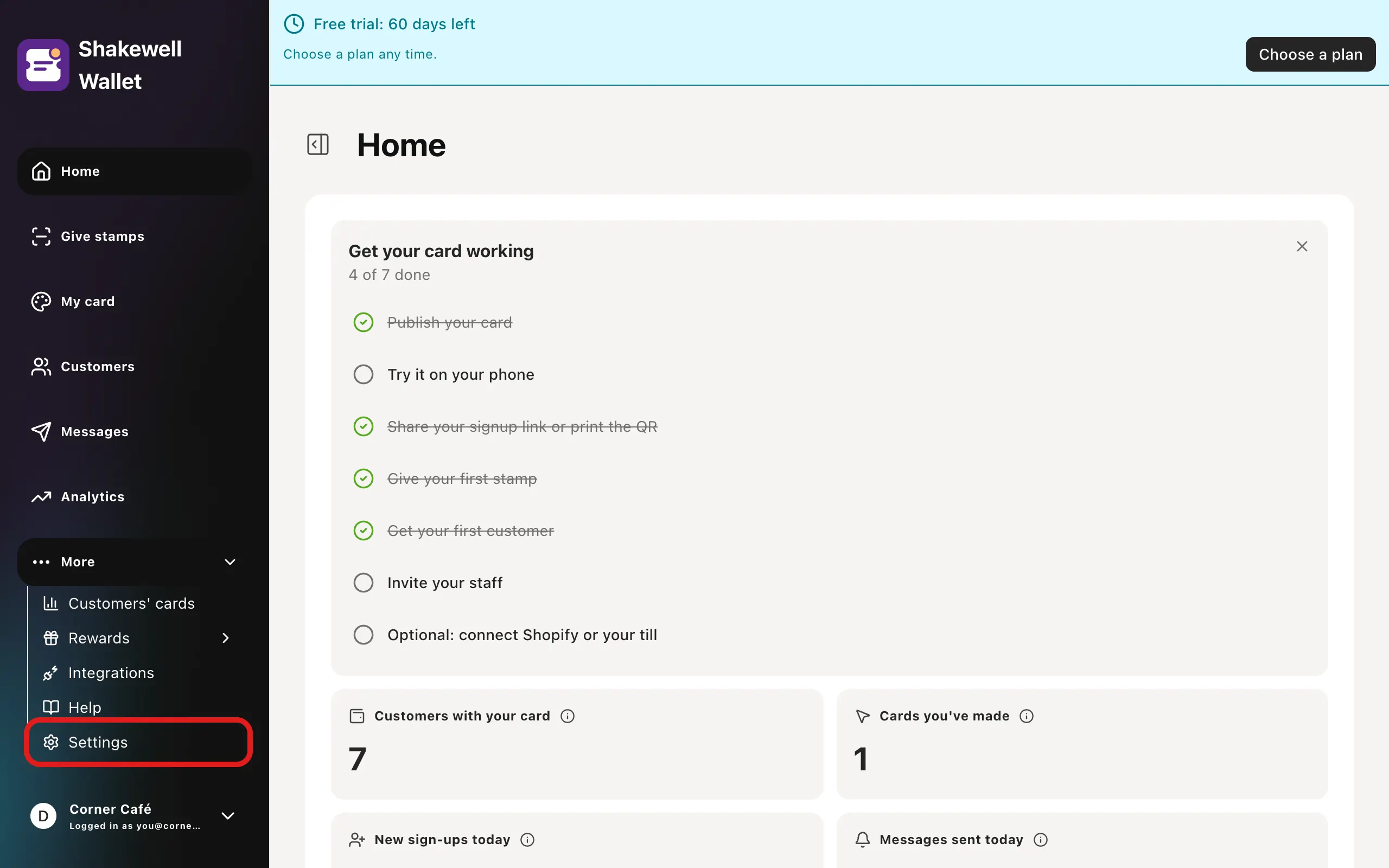
Step 2. Click Settings.
A page called Settings opens.
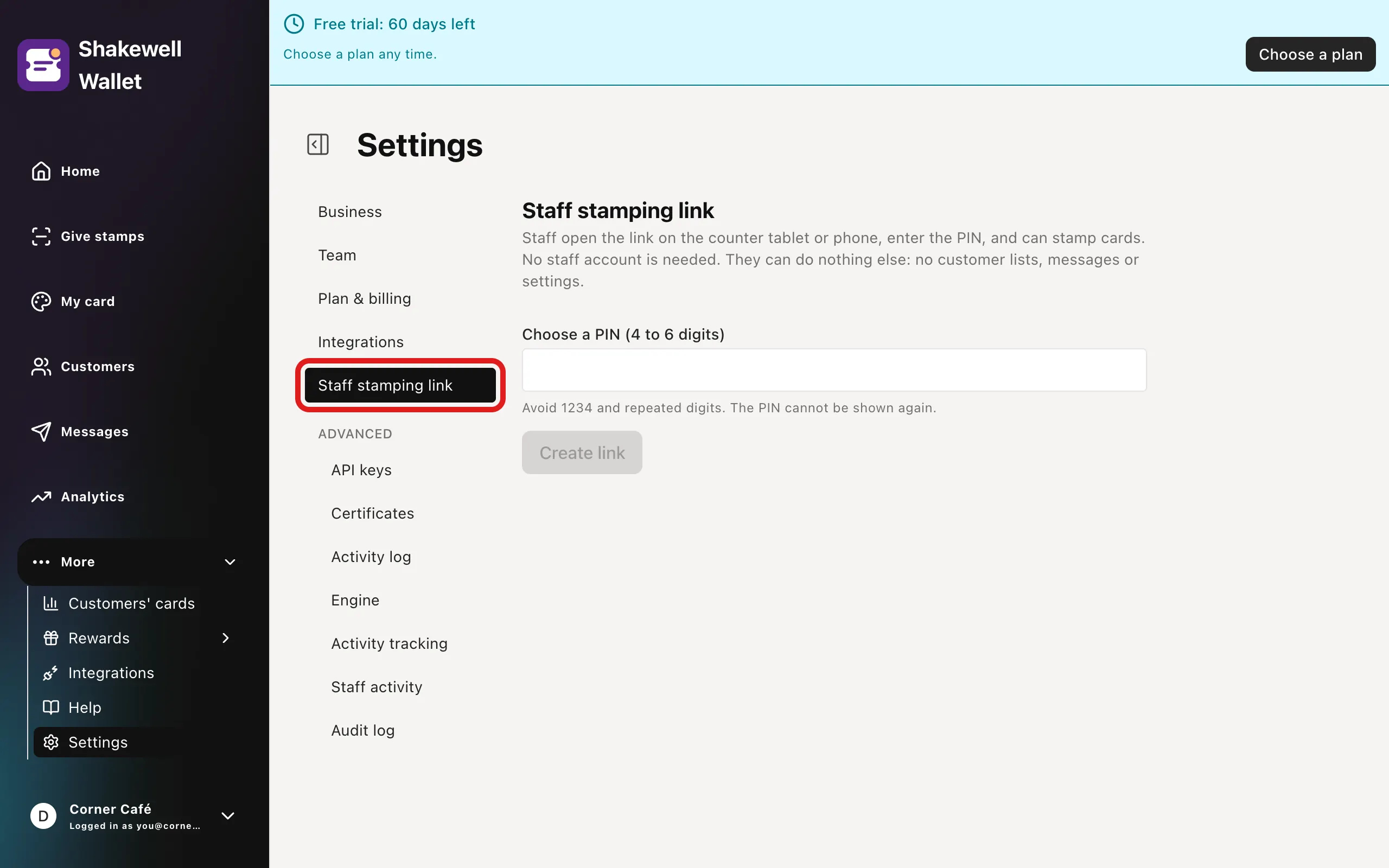
Step 3. Click Staff stamping link in the list on the left side of the Settings page.
A page opens that explains the staff link.
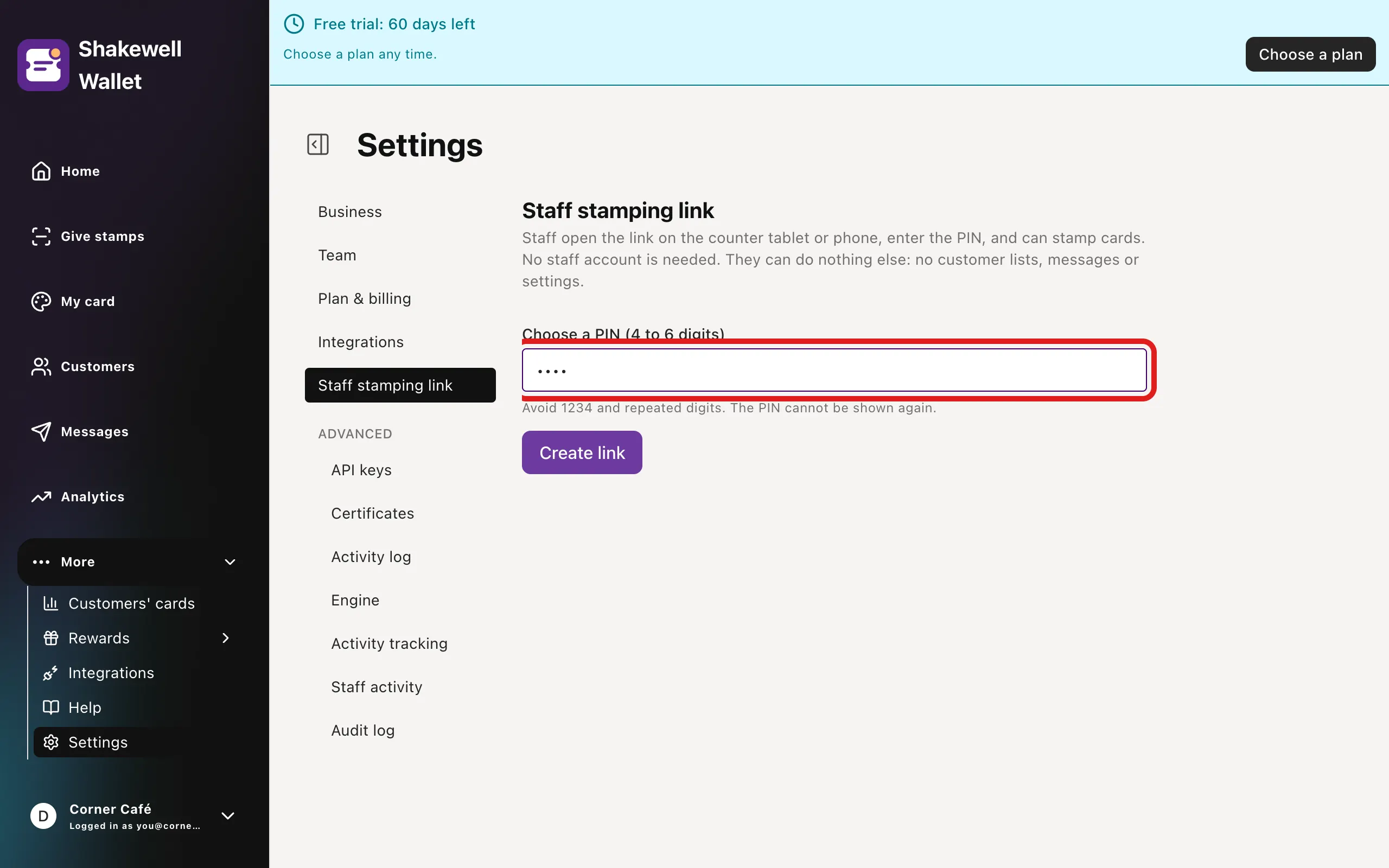
Step 4. Click the white box under Choose a PIN (4 to 6 digits). Type your PIN.
The numbers show as dots. We cannot show the PIN again later, so write it down.
Step 5. Click the Create link button.
Wait a moment. A box called Link appears.
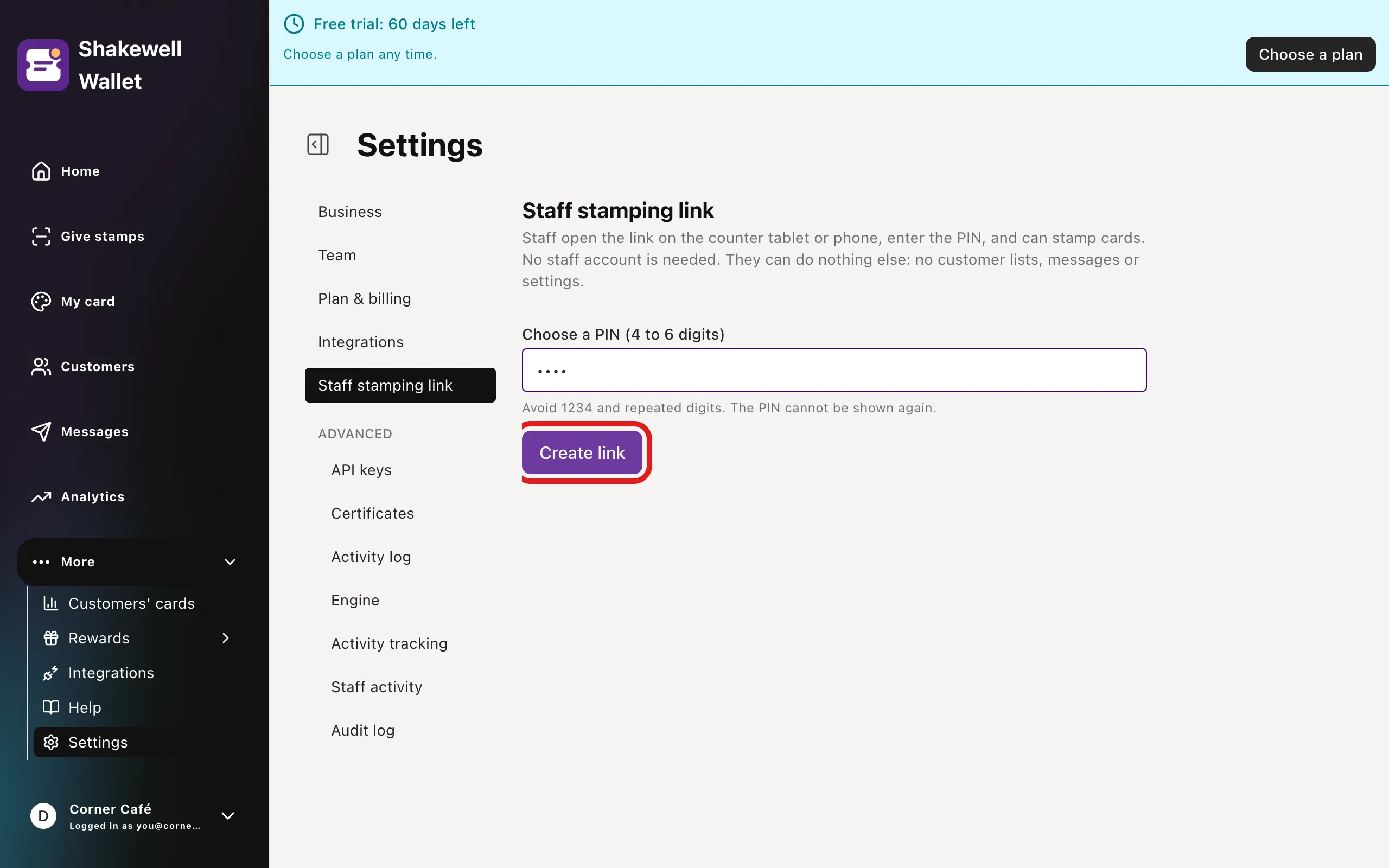
Step 6. Look at the box called Link. It has a square code and a web address.
Staff can scan the square code, or open the web address.
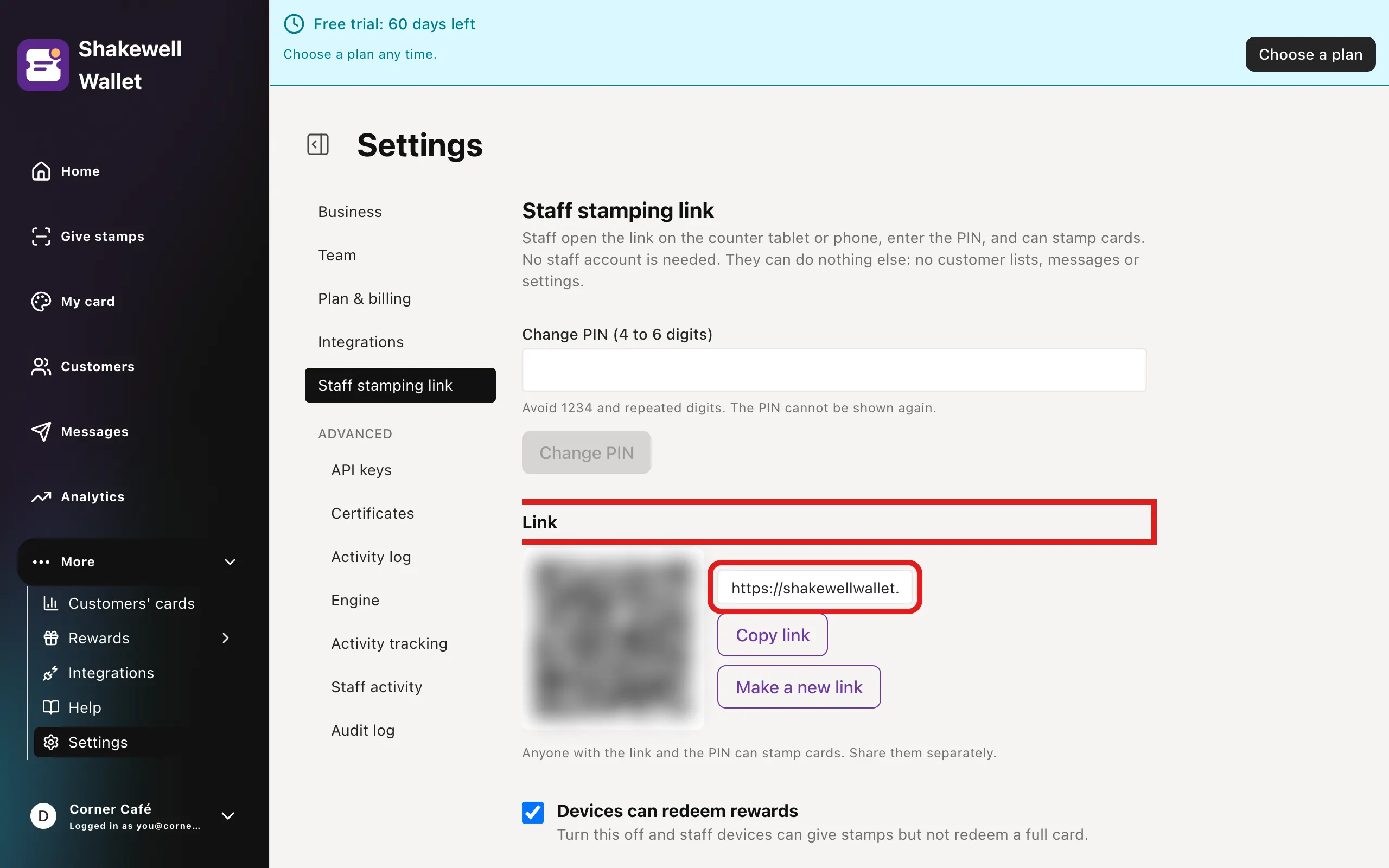
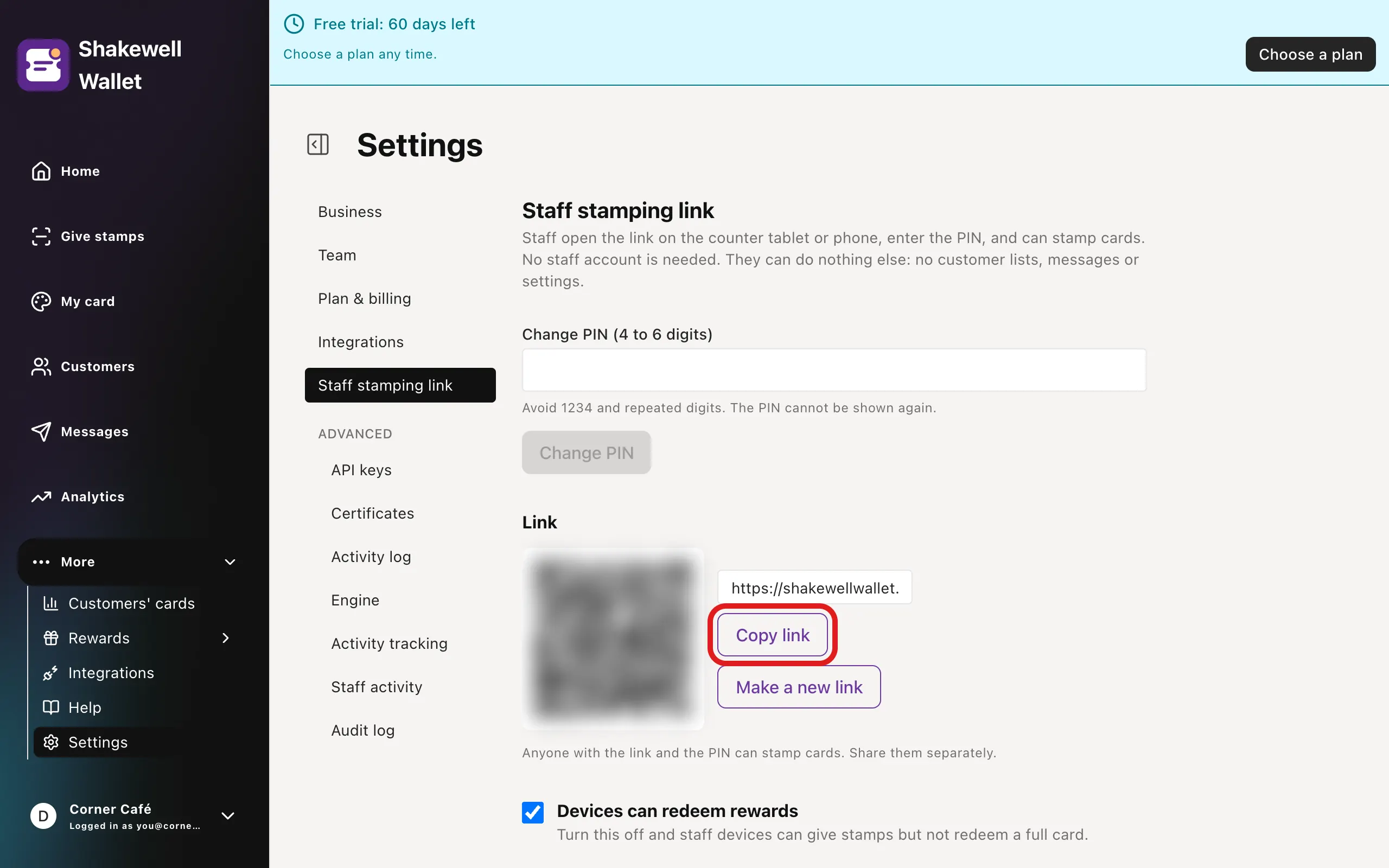
Step 7. Click the Copy link button.
A green message says Link copied.
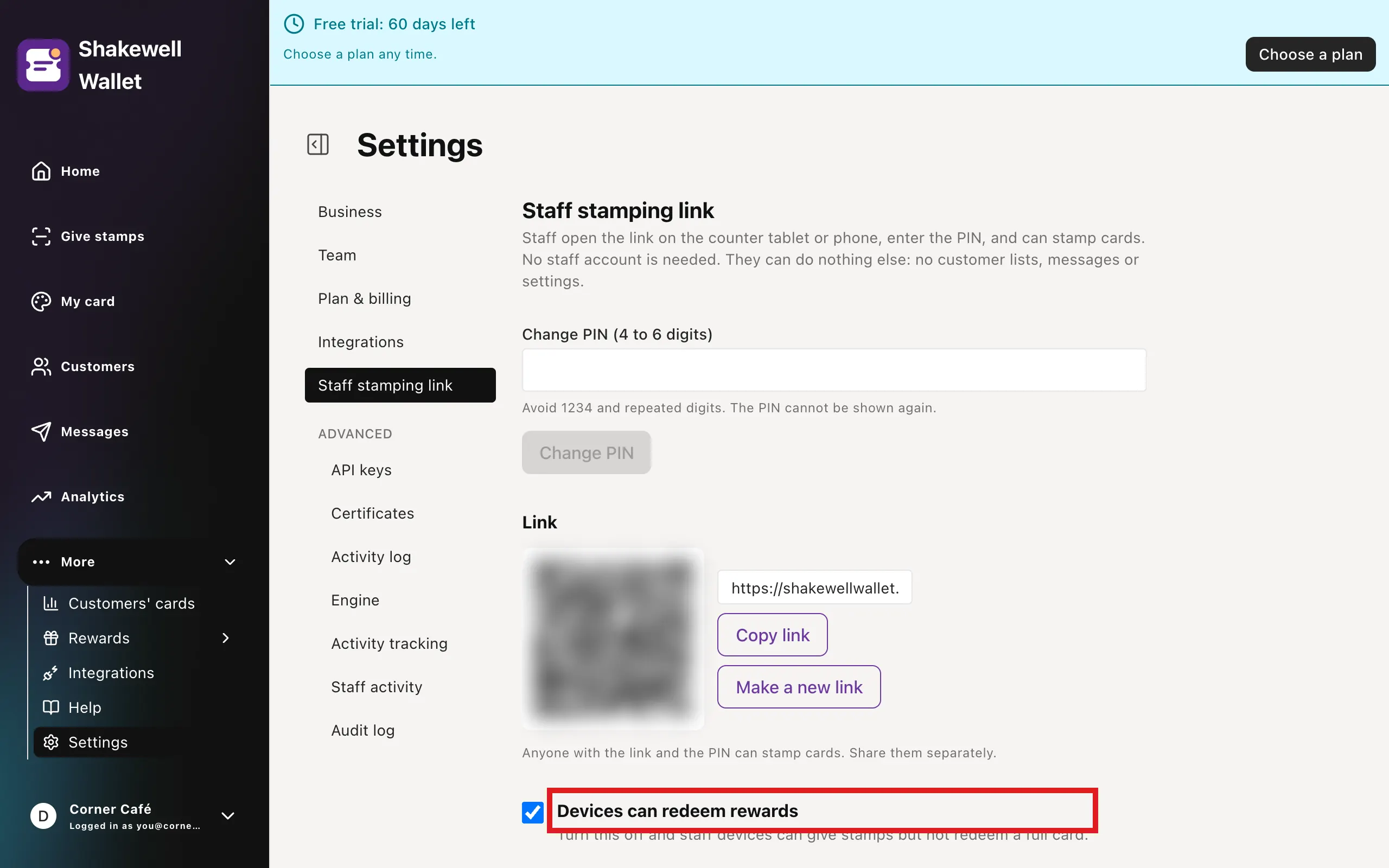
Step 8. Look at the switch called Devices can redeem rewards. Leave it ticked to let staff give out rewards. Untick it if staff should only give stamps.
It saves by itself when you click it.
You'll know it worked when
You see a Link box with a square code and a web address. It also says Anyone with the link and the PIN can stamp cards.
Good to know
- Send the link and the PIN in two different messages. Anyone with both can give stamps.
- Staff open the link on their phone, type the PIN and start. See How to give stamps with the staff link.
- Staff can only give stamps. They cannot see your customer list, messages or settings.
Stuck?
That is fine. Contact us and we will help you. We reply within one business day.
These guides may help: