
How-to guides / Grow
How to give a club one shared card
Switch on Shared card, so every member of a club adds the same card and all spending goes into one club balance.
Takes about 4 minutes
Before you start
- Your account is on the Growth plan or a higher plan. Points are not on the Starter or Free plans. Your 60-day free trial includes them.
- A points card for the club. (See How to make a points card instead of a stamp card.) Make one card for each club.
The steps
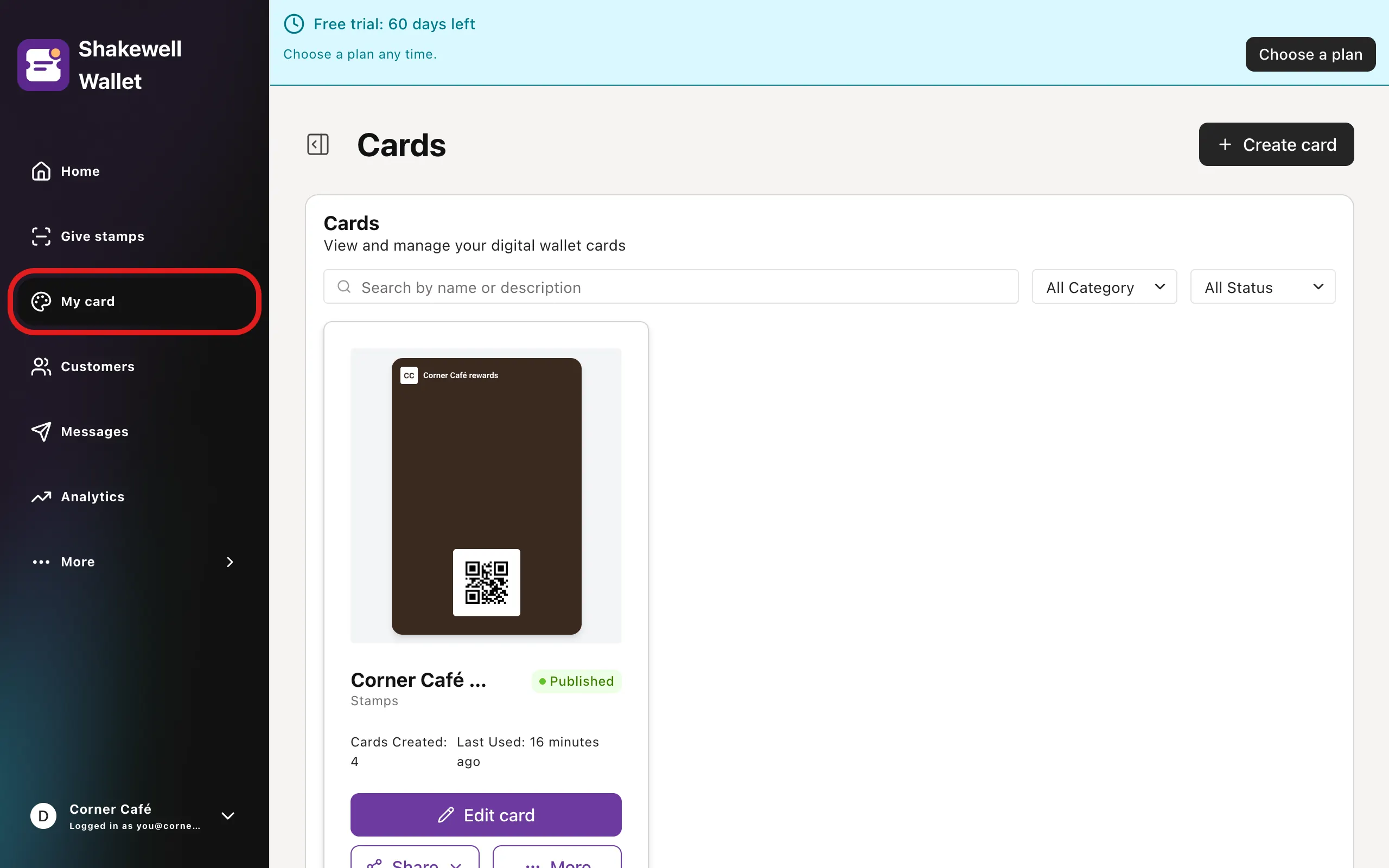
Step 1. On your computer, look at the menu on the left. Click My card.
You see your cards in a list.
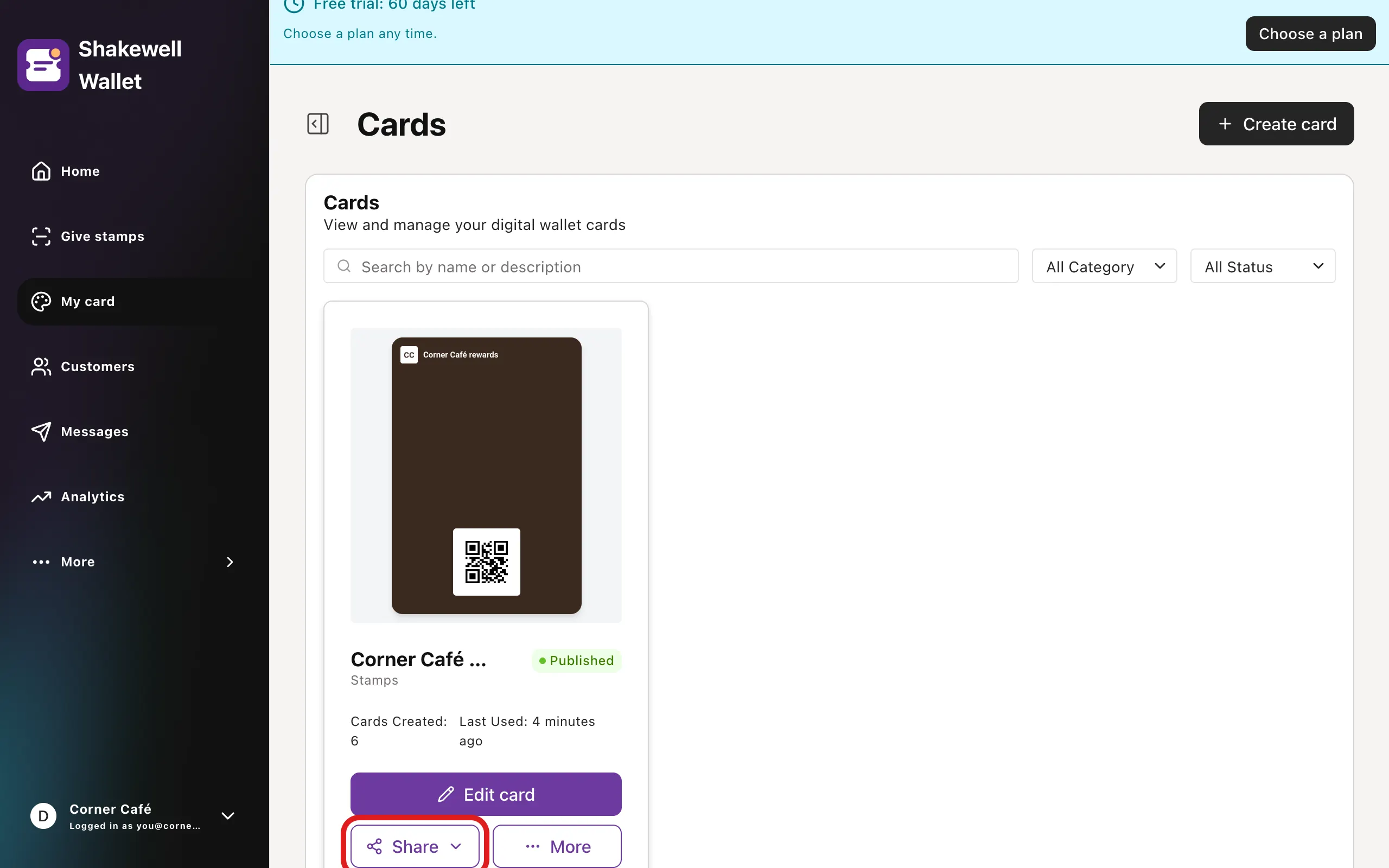
Step 2. Under the club's card, click the Share button.
A small menu opens.
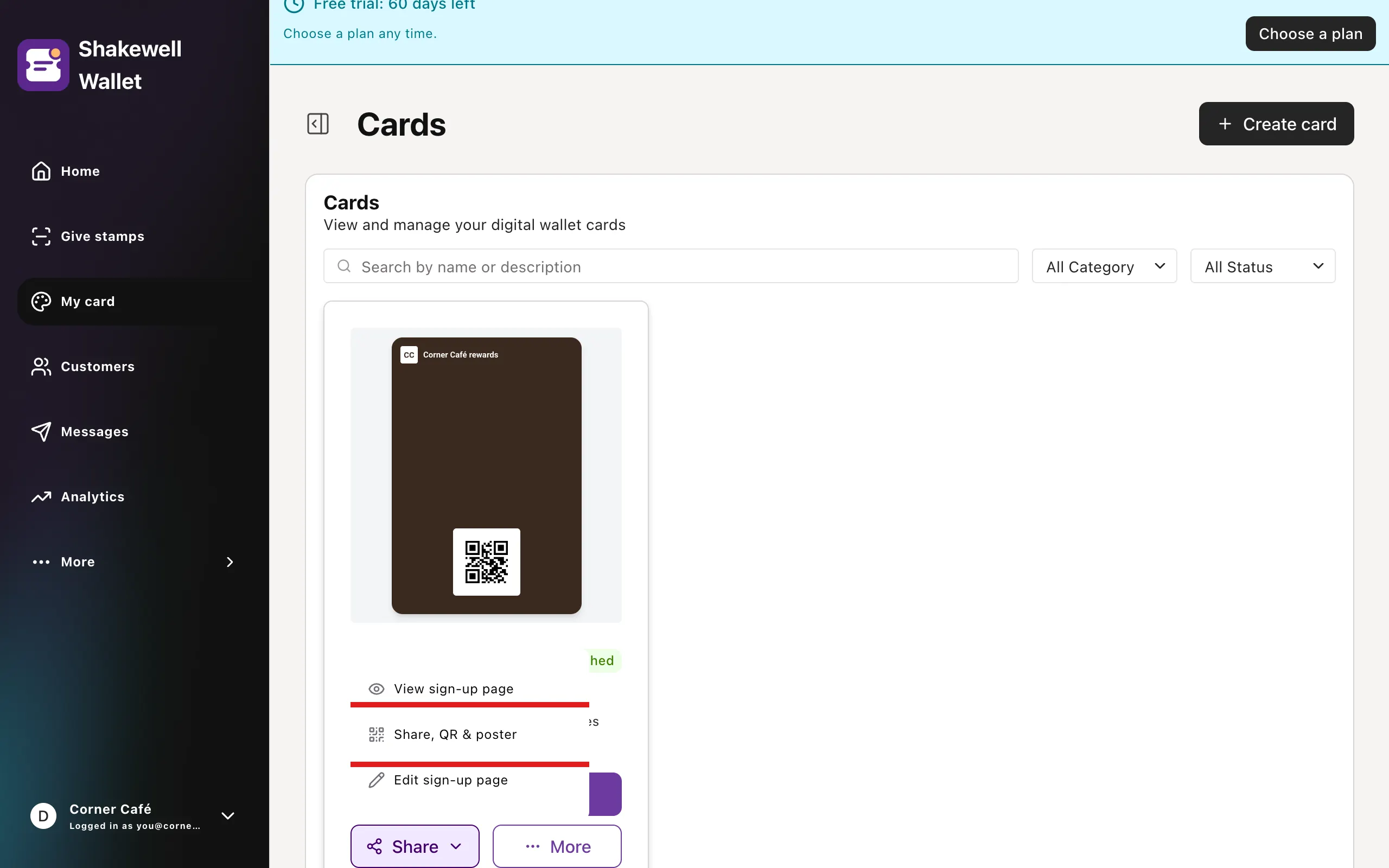
Step 3. In the small menu, click Share, QR & poster.
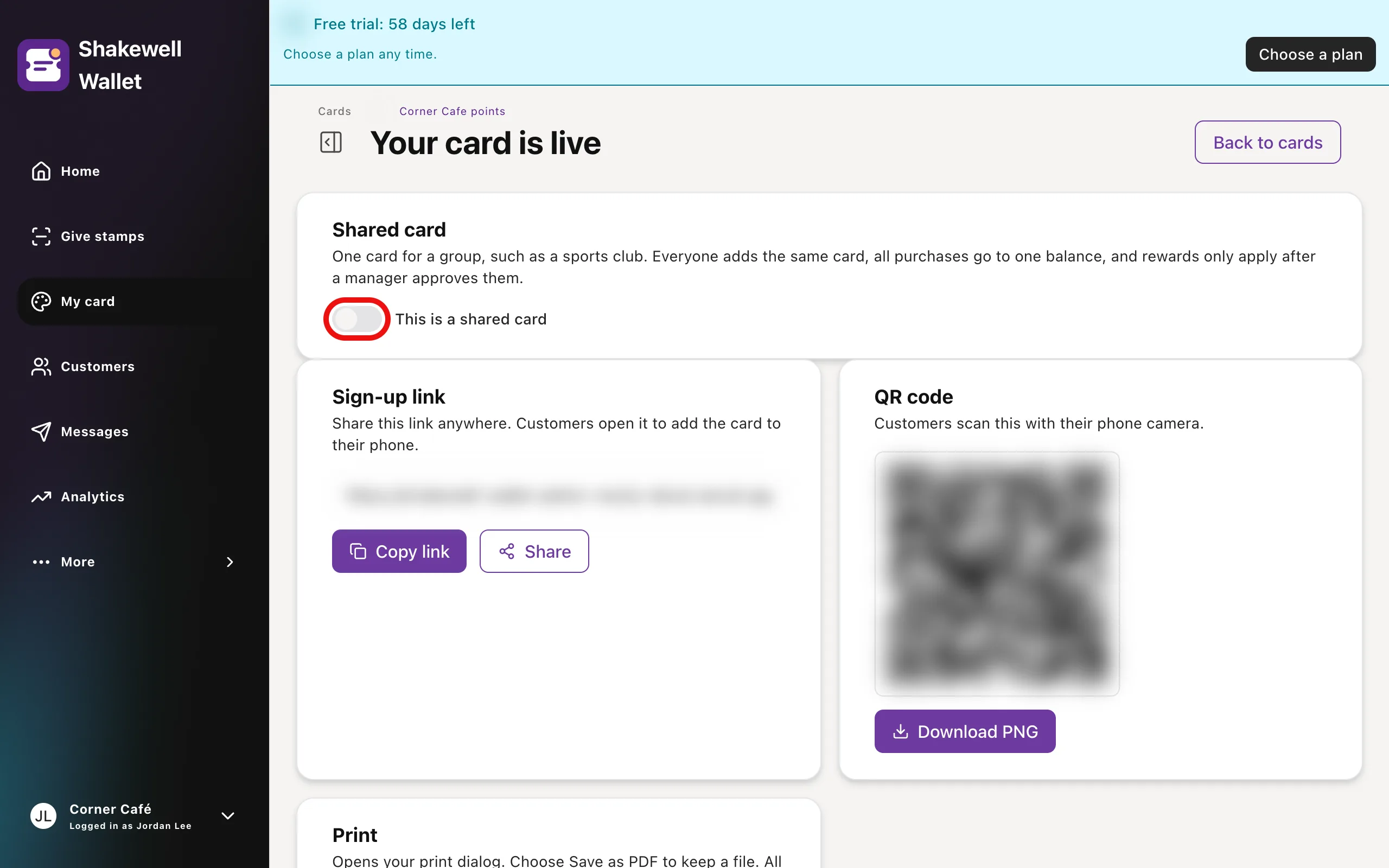
A page opens that says Your card is live. A box called Shared card is at the top.
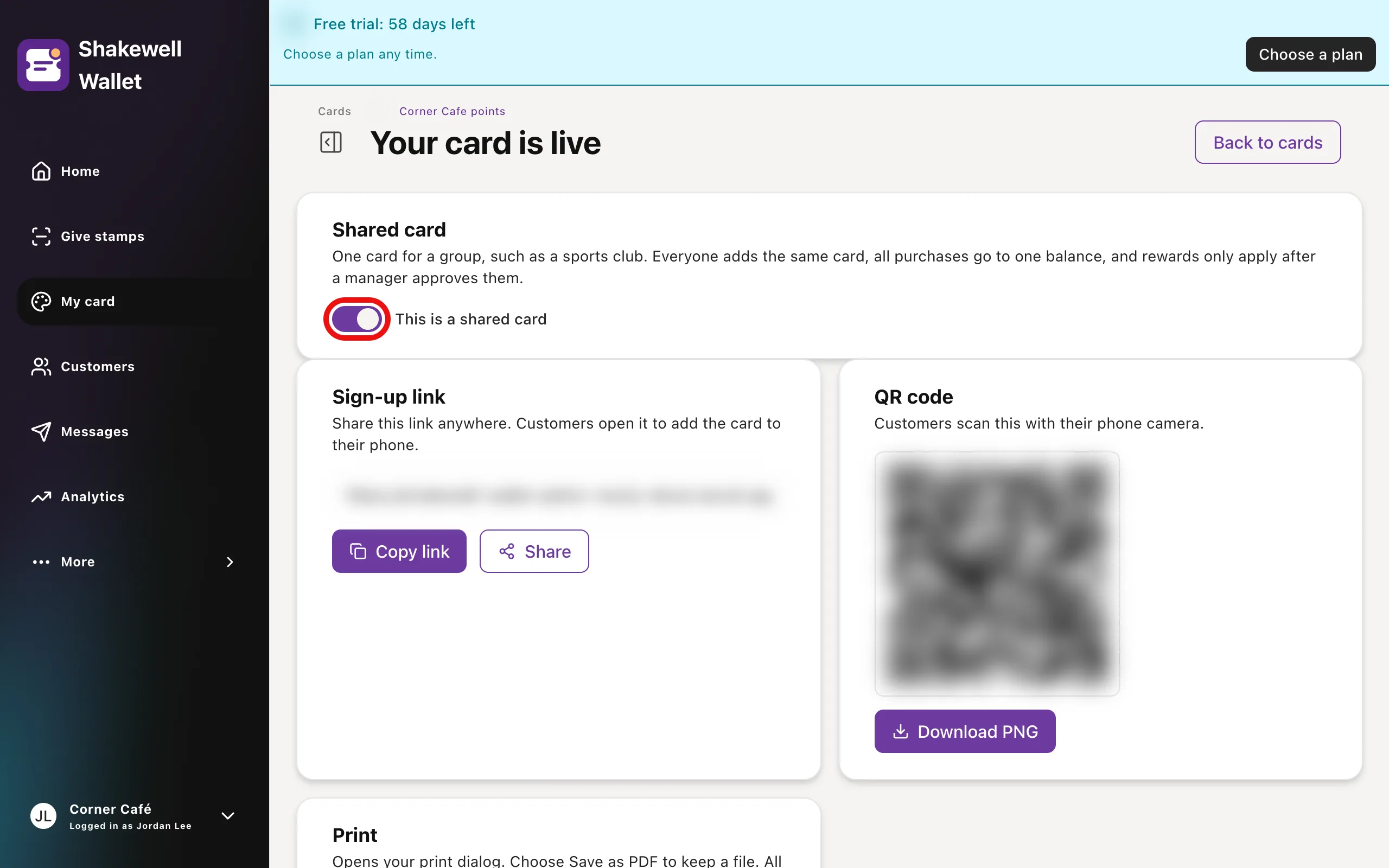
Step 4. In the Shared card box, click the switch next to This is a shared card.
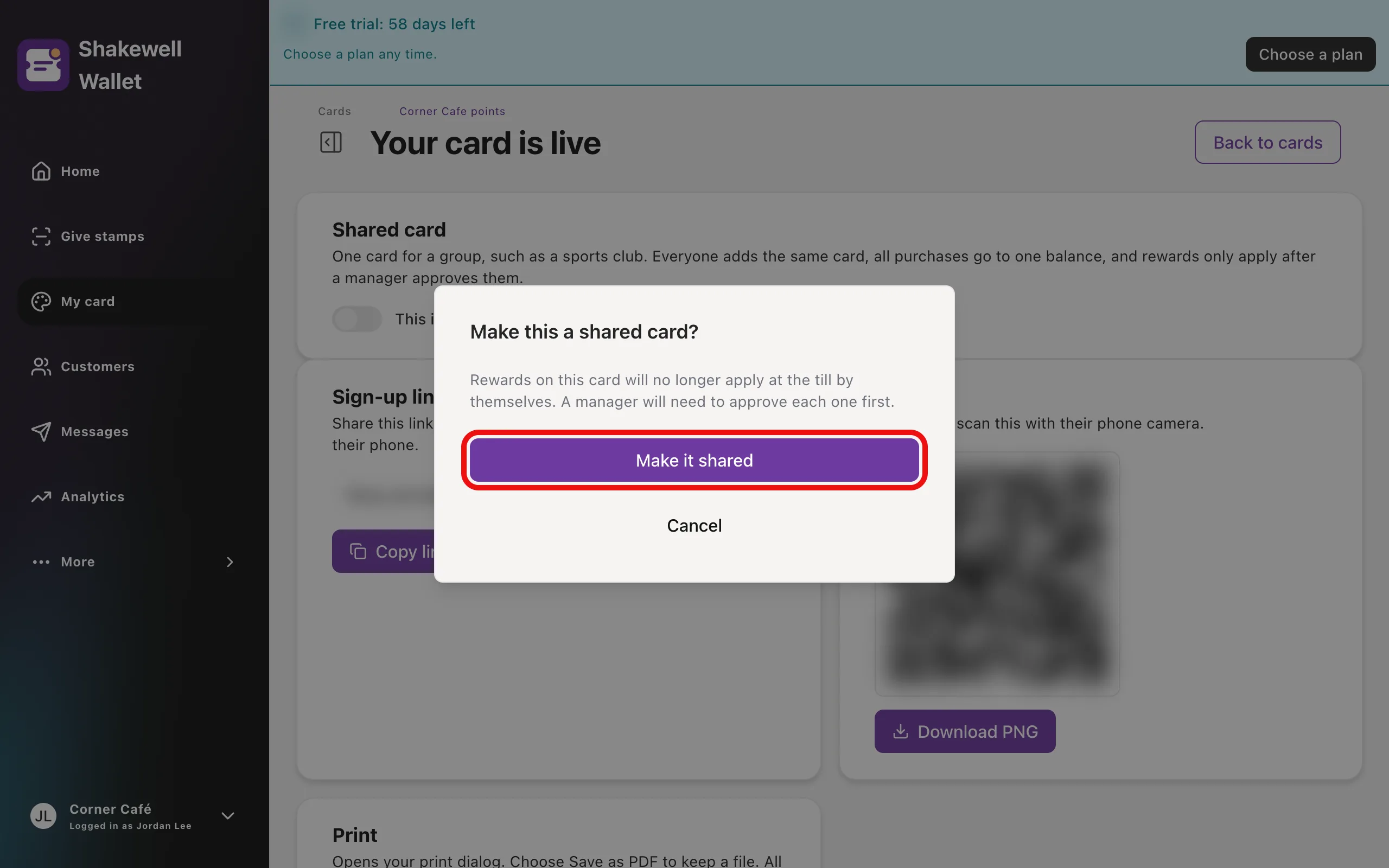
A box opens that asks Make this a shared card? It says a manager must approve each reward.
Step 5. Click the purple Make it shared button.
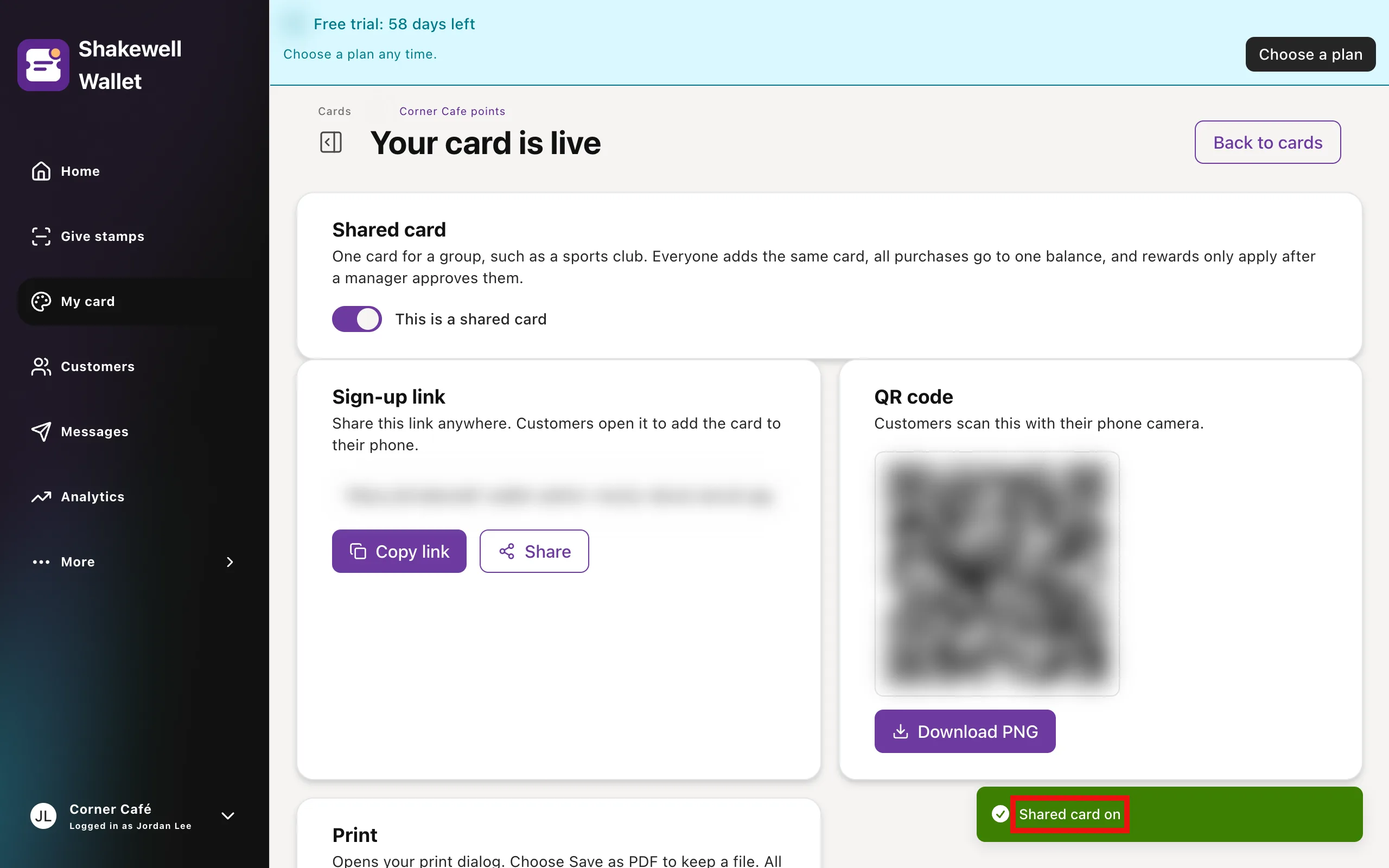
A green message pops up that says Shared card on.
Step 6. Look at the switch.
It is purple. Every purchase on this card now goes into one balance for the club.
Step 7. Give the club the sign-up link or the poster. See How to share your sign-up link by text, email, Facebook or Instagram.
Every member adds the same card to their own phone.
You'll know it worked when
The switch next to This is a shared card is purple on the card's Your card is live page.
Good to know
- With a shared card you see the club's spending, not each member's. You hold no record of each member.
- Want to see each member, and message them? Use one card for each member instead. See How to see how many points each club earned.
- To stop sharing, click the switch again. A box asks Stop sharing this card? Click Stop sharing. Rewards then reach the till again without a manager's approval.
Stuck?
That is fine. Contact us and we will help you. We reply within one business day.
These guides may help: