
How-to guides / Connect your till or shop
How to connect Klaviyo
Link Klaviyo (the tool you send marketing emails with) to your card.
Takes about 4 minutes
Before you start
- You have a Klaviyo account and can approve apps in it.
- Your card is live. (See How to sign up and make your first card.)
The steps
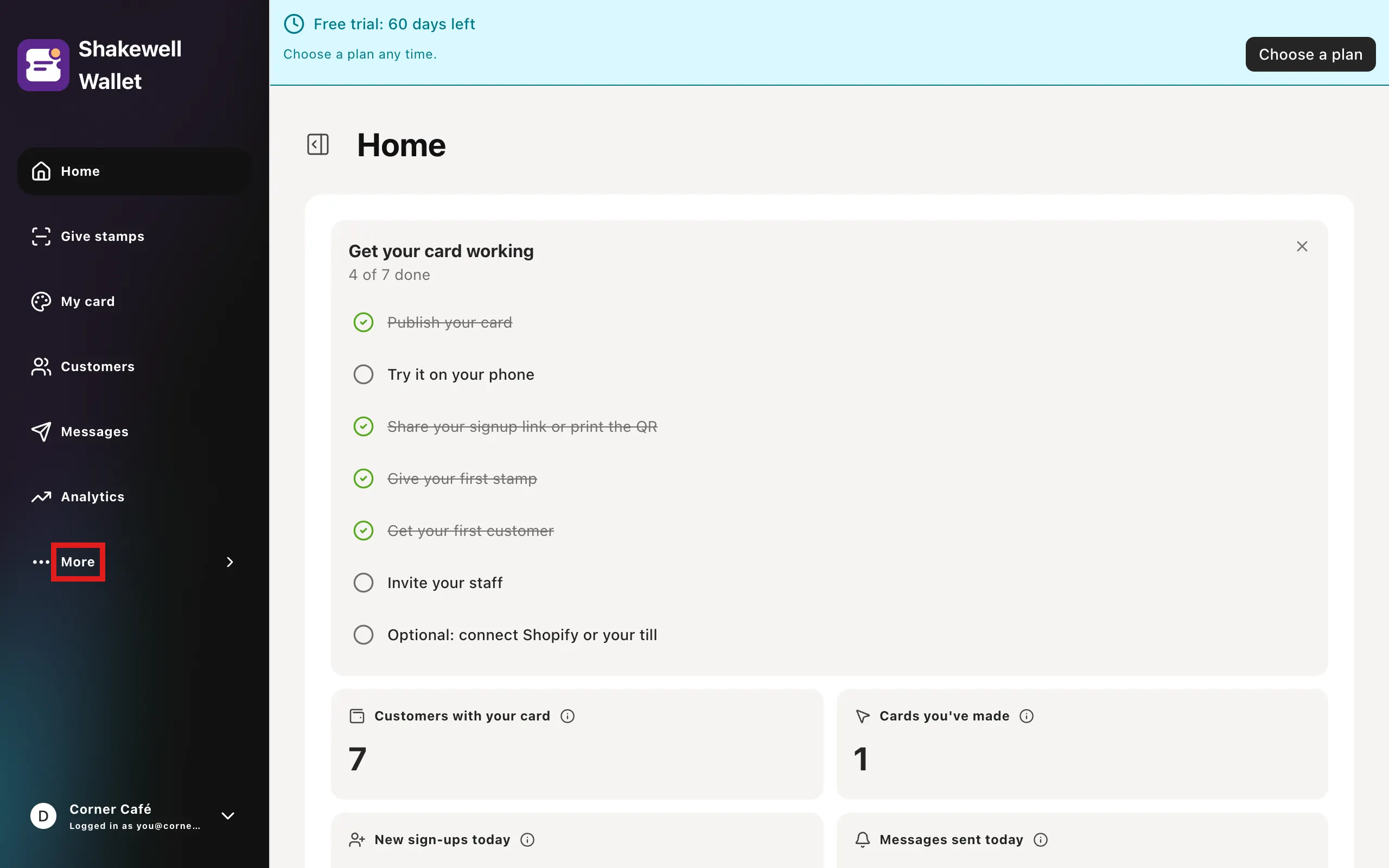
Step 1. In the left menu, click More.
A short list opens under it.
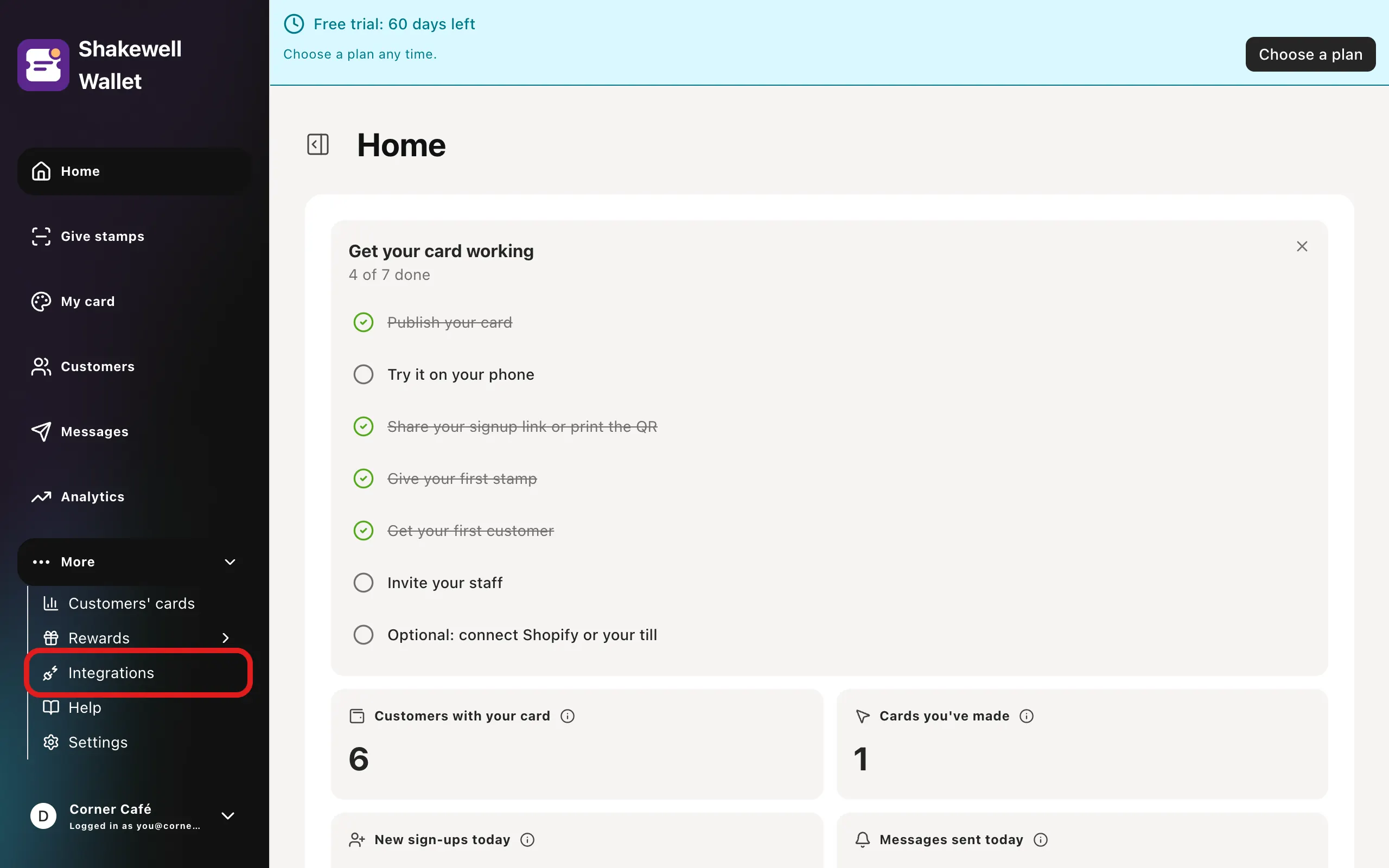
Step 2. Click Integrations.
A page opens with a list of tills, shops and other tools you can connect.
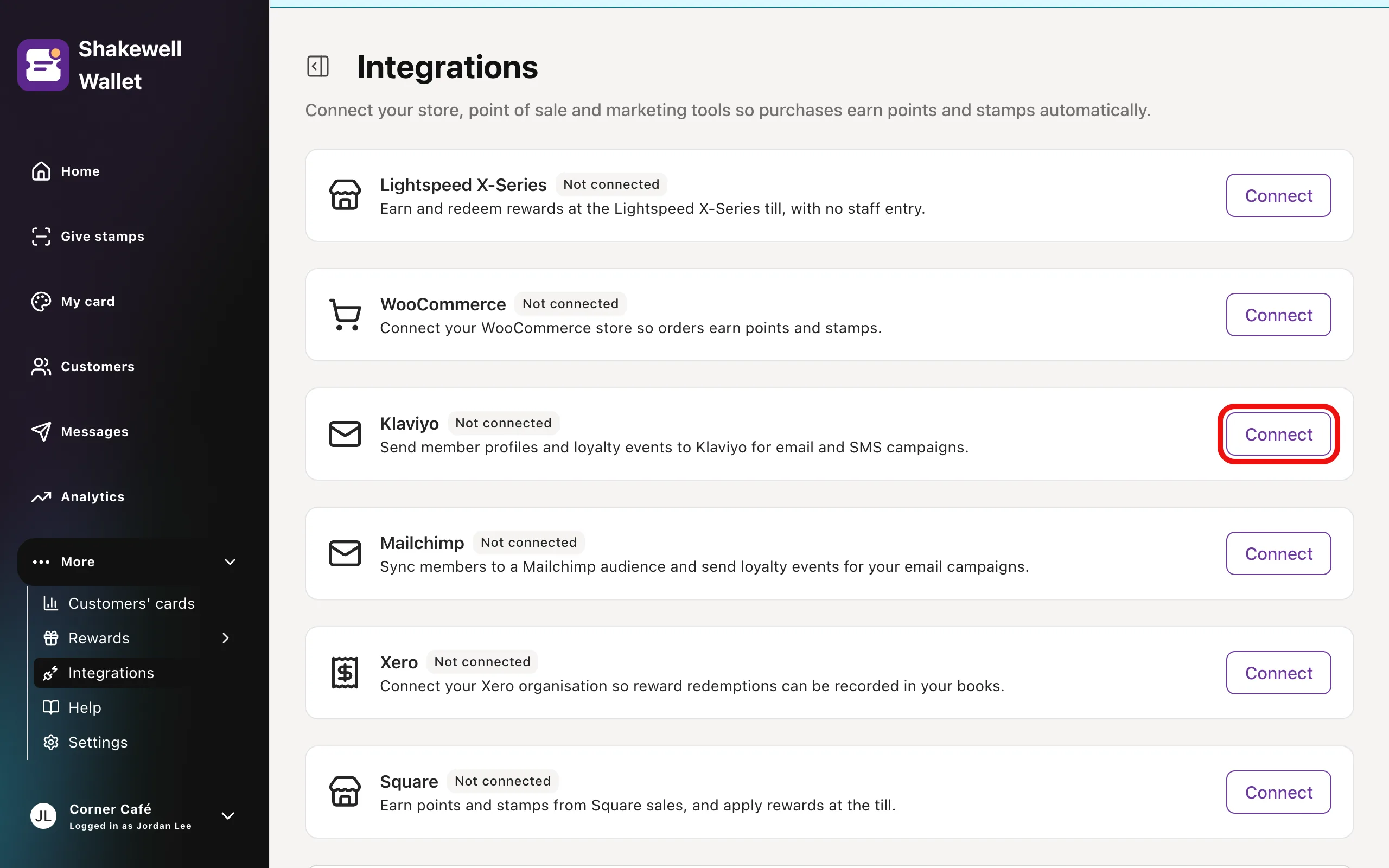
Step 3. Find Klaviyo in the list. Click the Connect button on its row.
A page called Klaviyo opens. It says Not connected.
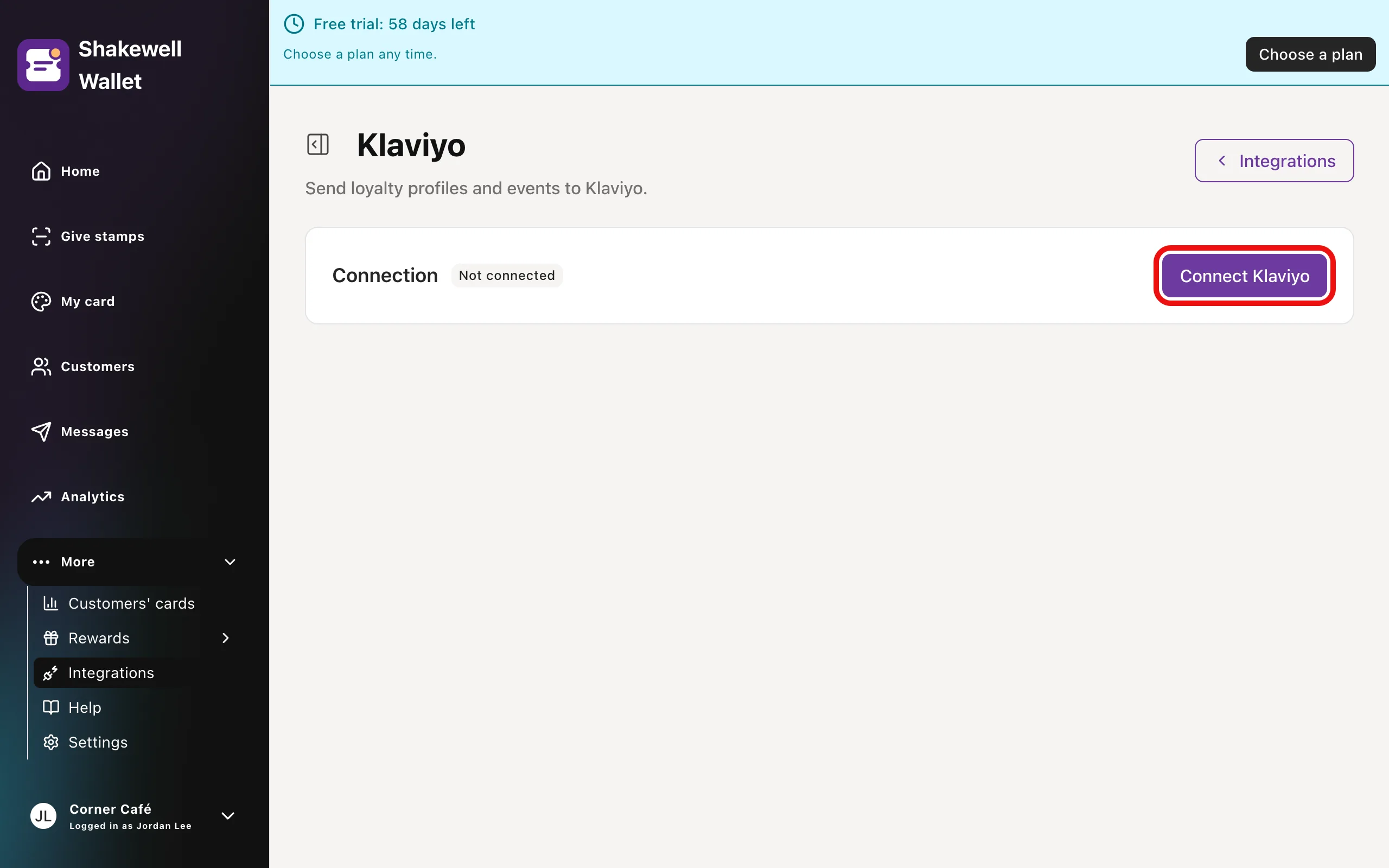
Step 4. Click the purple Connect Klaviyo button.
Shakewell Wallet takes you to Klaviyo's own page.
Step 5. On Klaviyo's page, sign in if it asks. Choose your Klaviyo account. Read what it says we may do. Approve it. Finish in the same browser within 10 minutes.
Klaviyo sends you back to Shakewell Wallet. We cannot show Klaviyo's own pages here, because they belong to Klaviyo.
You'll know it worked when
The Klaviyo page in Shakewell Wallet says Connected instead of Not connected.
Good to know
- We ask Klaviyo only to read your account name and to add customer profiles and loyalty events.
- Customers are matched by email address or phone number. A customer with neither is skipped.
- Integrations are on every plan, including the free trial.
Stuck?
That is fine. Contact us and we will help you. We reply within one business day.
These guides may help: