
How-to guides / Set up
How to change the questions on your sign-up form
Choose what customers type when they join, like a name and an email.
Takes about 4 minutes
Before you start
- Your card is live. (See How to sign up and make your first card.)
- You know what you want to ask. For example, a name and an email.
The steps
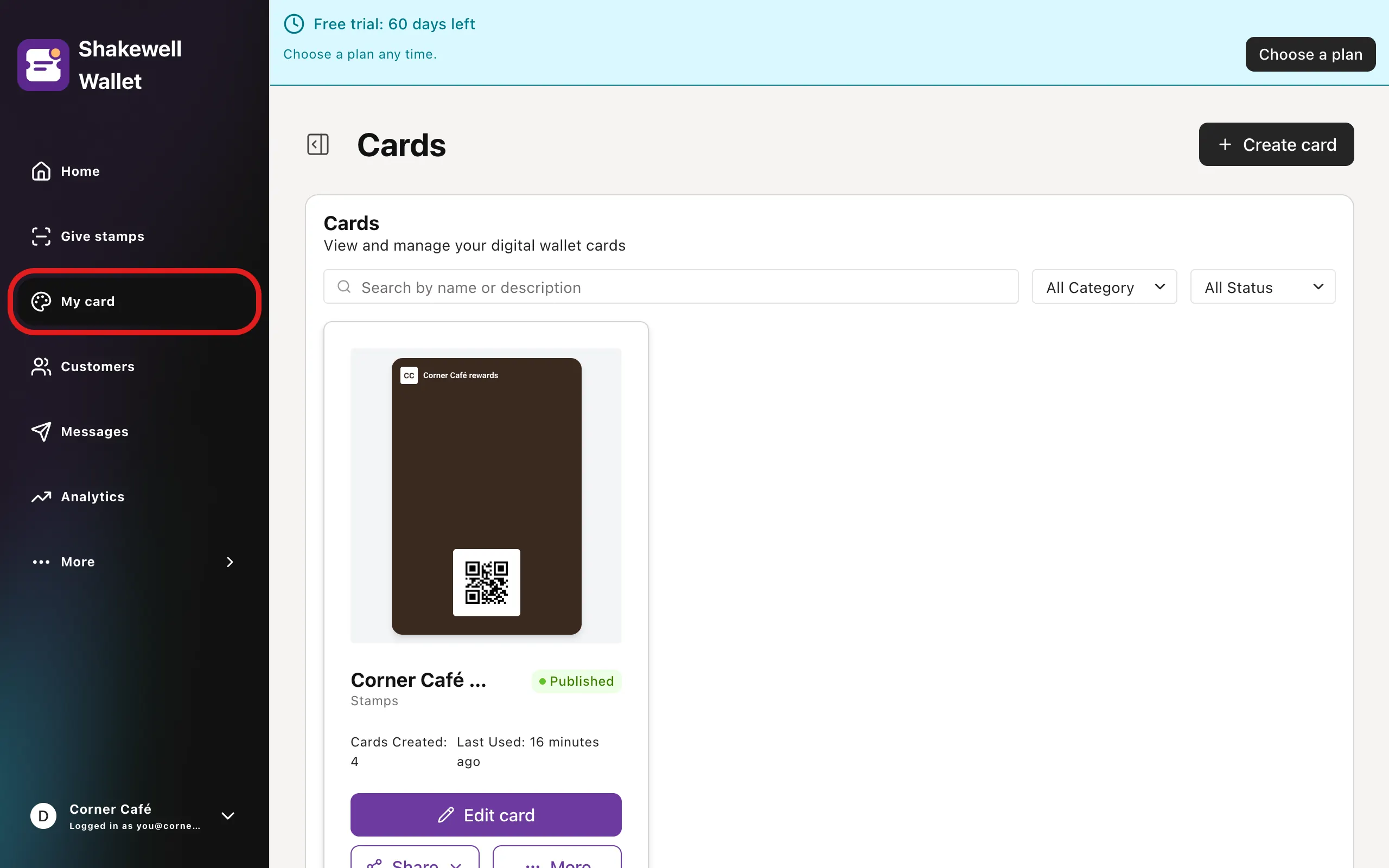
Step 1. On your computer, look at the menu on the left. Click My card.
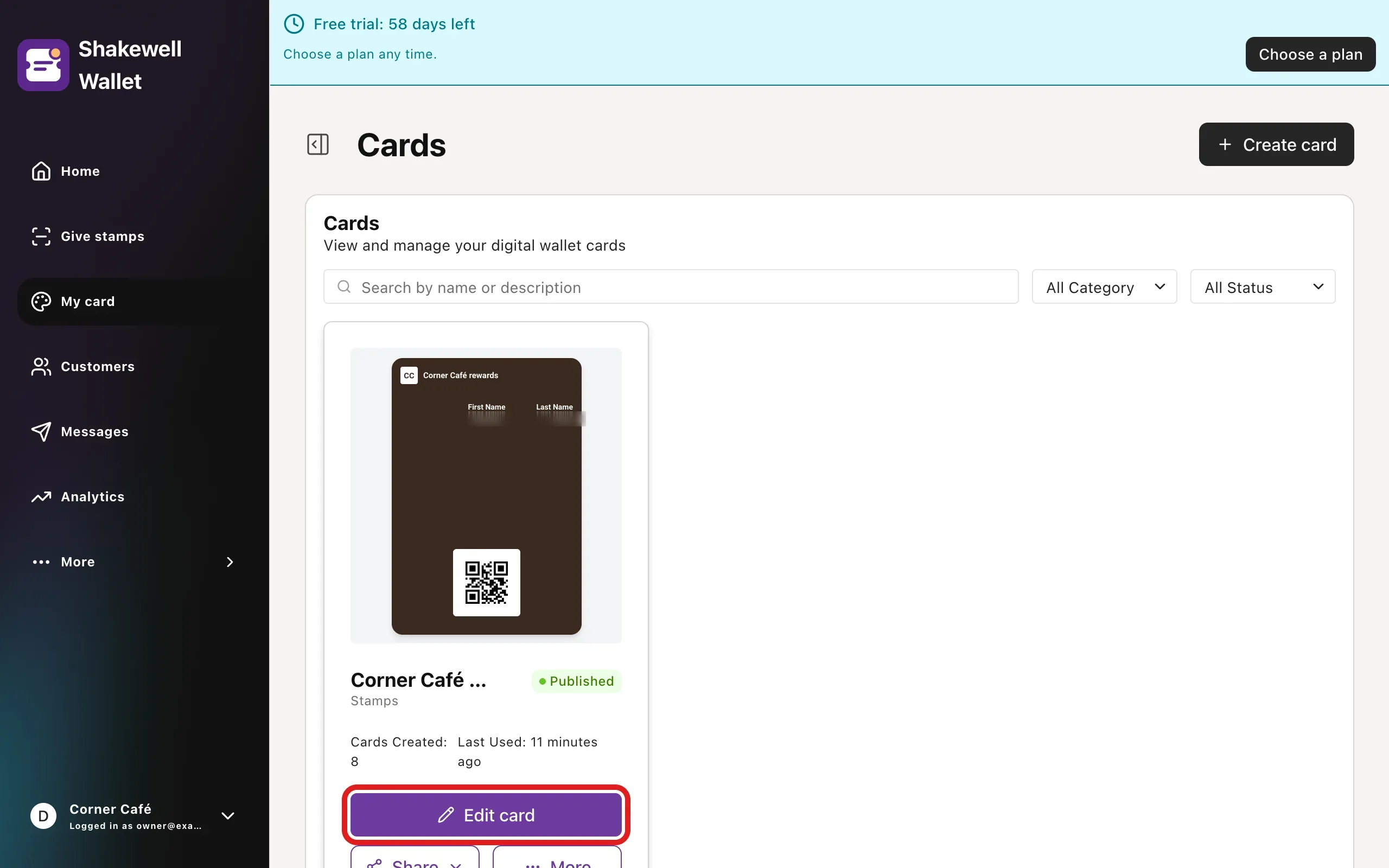
Step 2. Under your card, click the purple Edit card button.
A page called Edit card opens. It has 4 steps along the top.
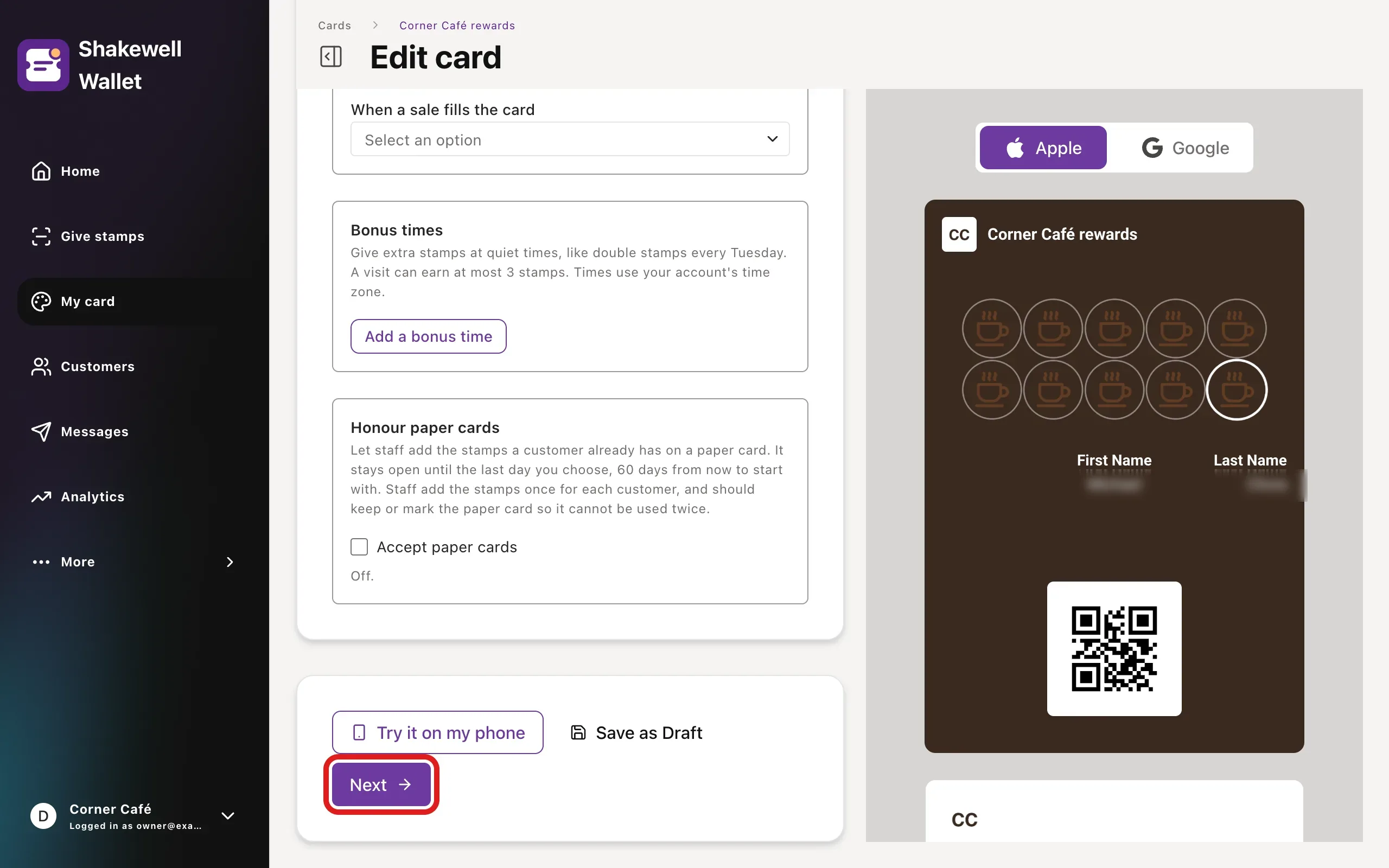
Step 3. Click Next at the bottom of the page.
Step 2 of 4 shows. It is called Brand and design.
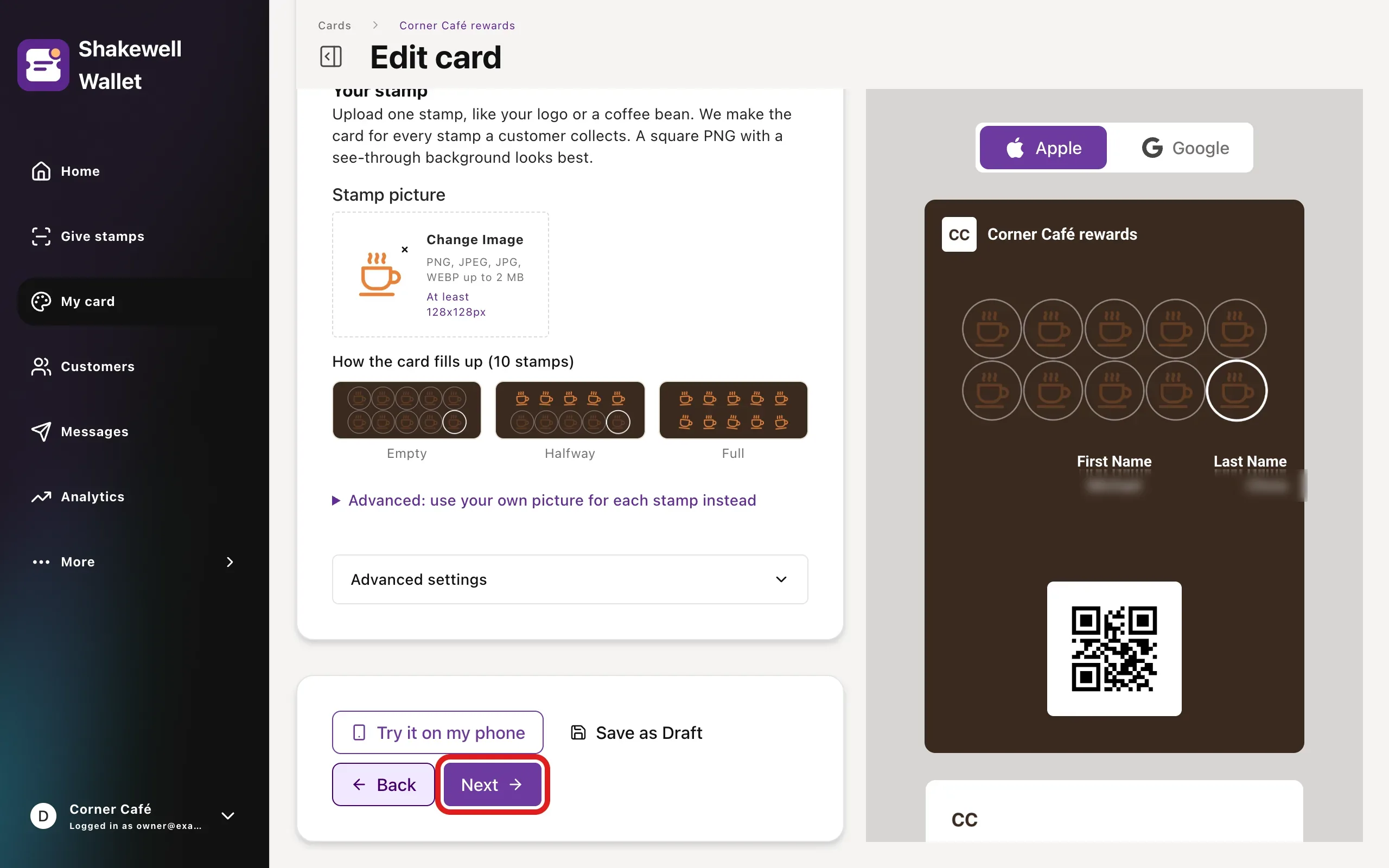
Step 4. Click Next again.
Step 3 of 4 shows. It is called Pass content.
Step 5. Find the heading What do customers enter?
You see four choices: Email or mobile, Phone only, Email only and Name and email.
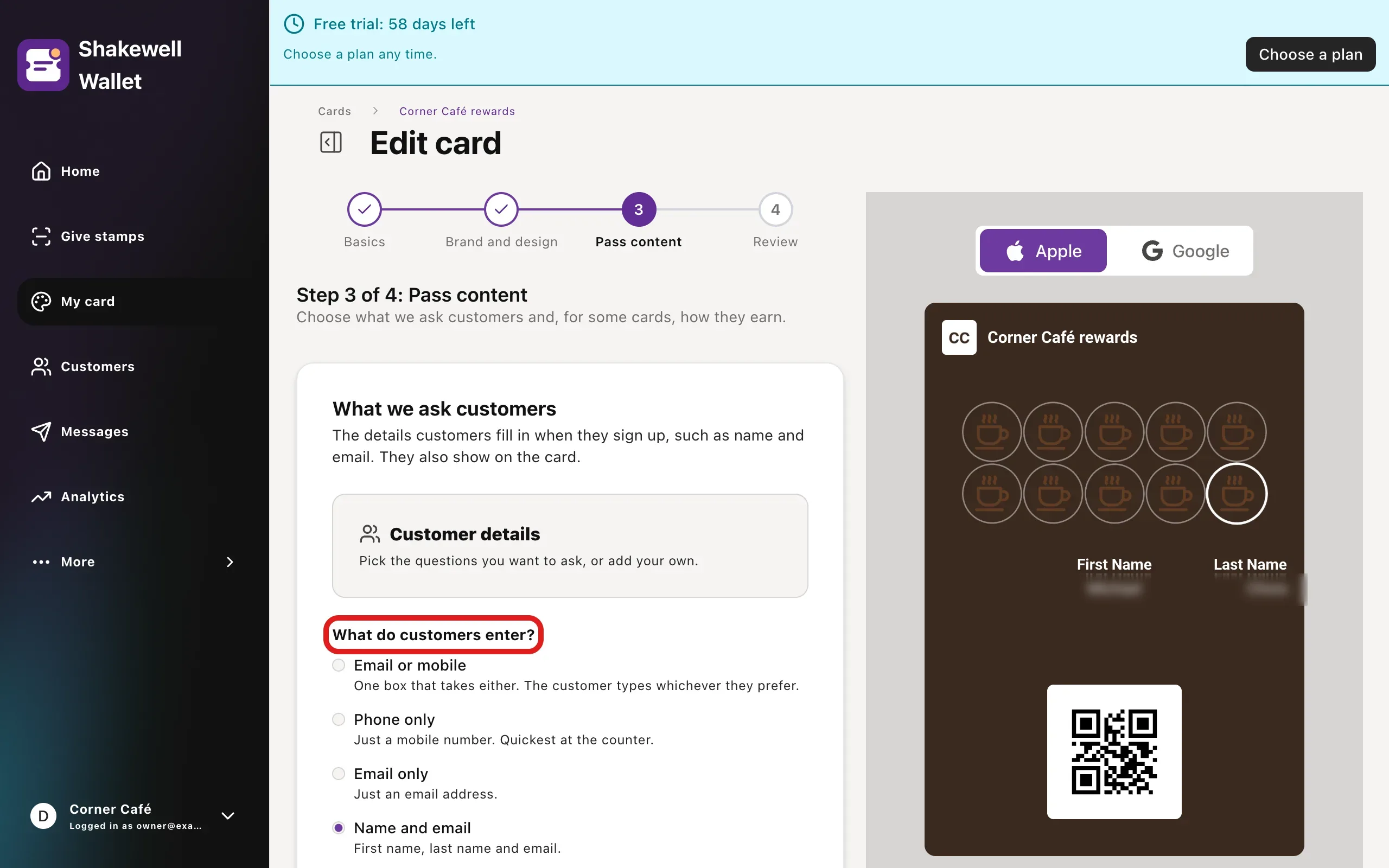
Step 6. Click the choice you want. For example, click Name and email.
The dot moves to your choice. The list of questions below changes too.
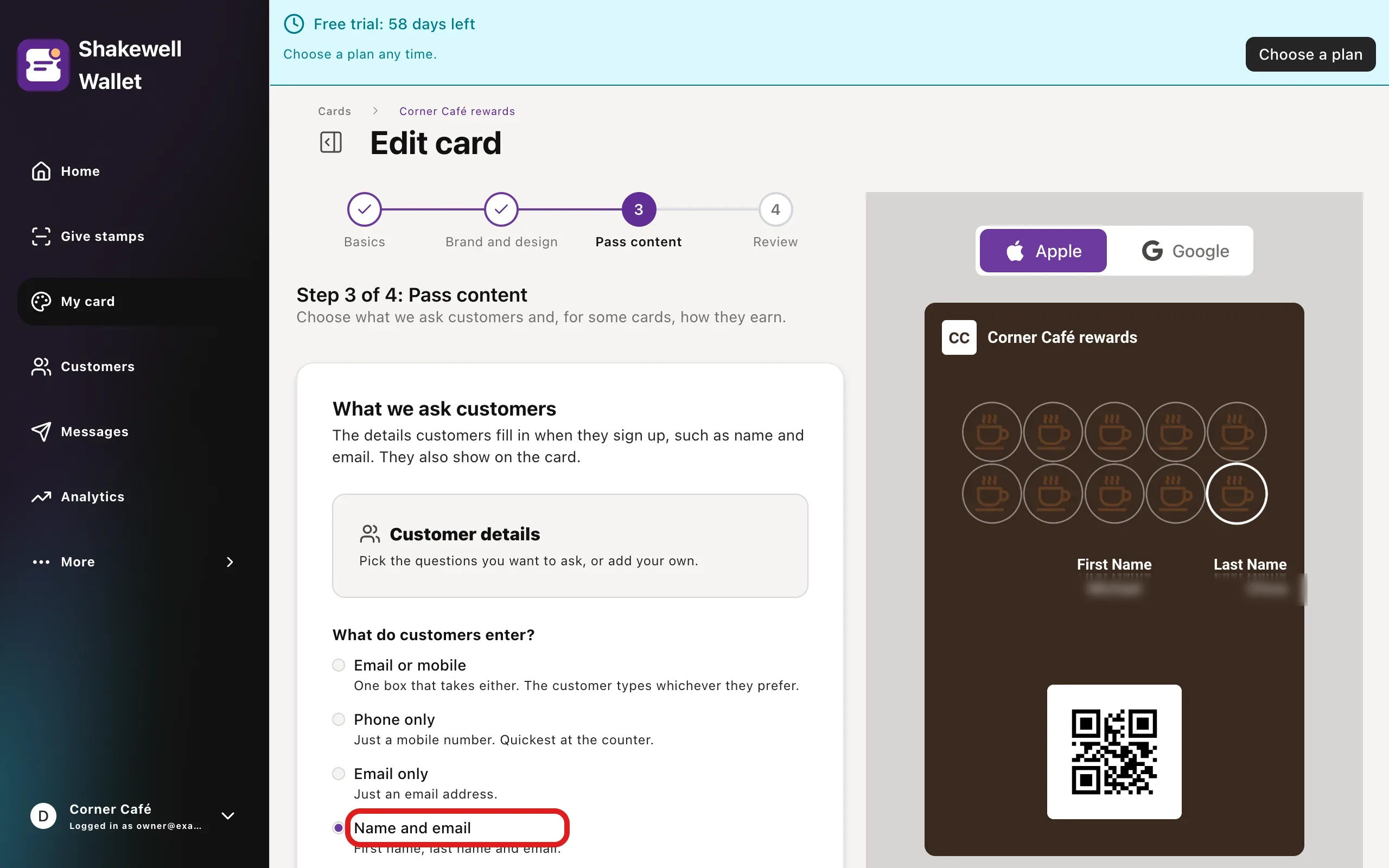
Step 7. Scroll down a little. Look at the boxes called Question.
Each question has a tick called Customers must answer this. A customer cannot skip a ticked question.
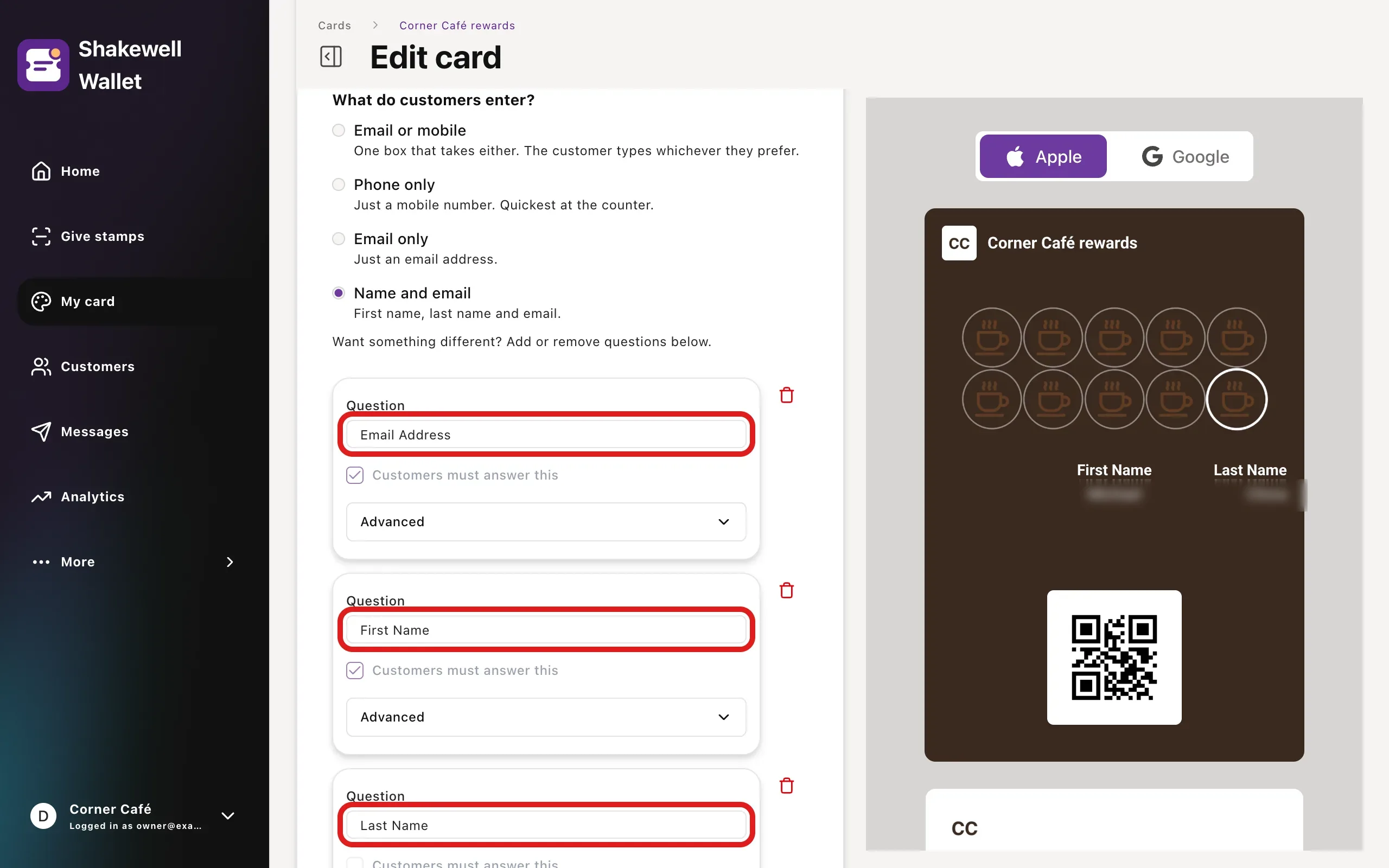
Step 8. Optional: to ask one more thing, click the green Add a question button.
A list of ready-made questions opens, like Date of Birth. Click one to add it. A grey one is already on your form.
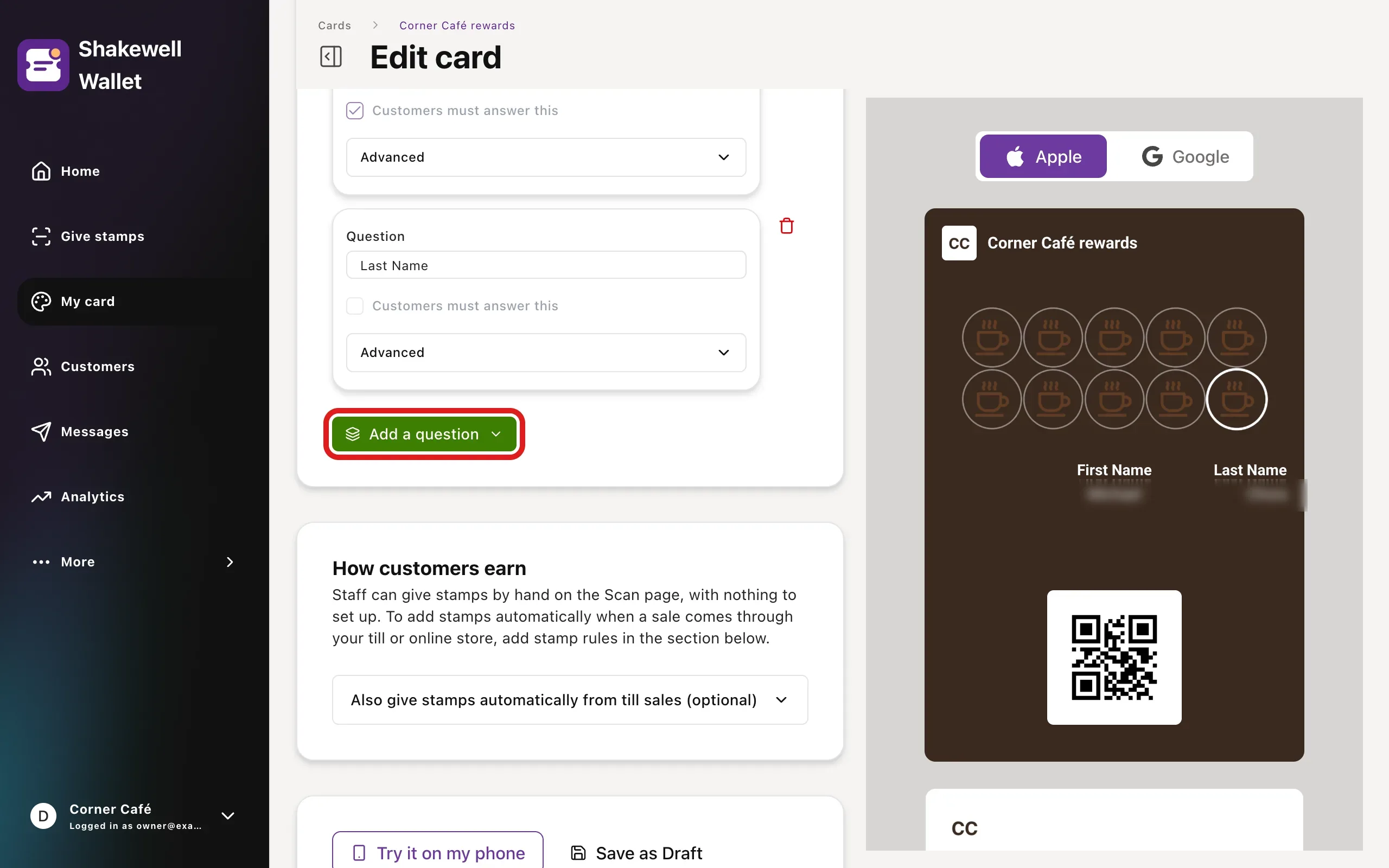
Step 9. Click Next again.
Step 4 of 4 shows. It is called Review.
Step 10. Look at the line called What we ask customers.
It lists the questions you chose.
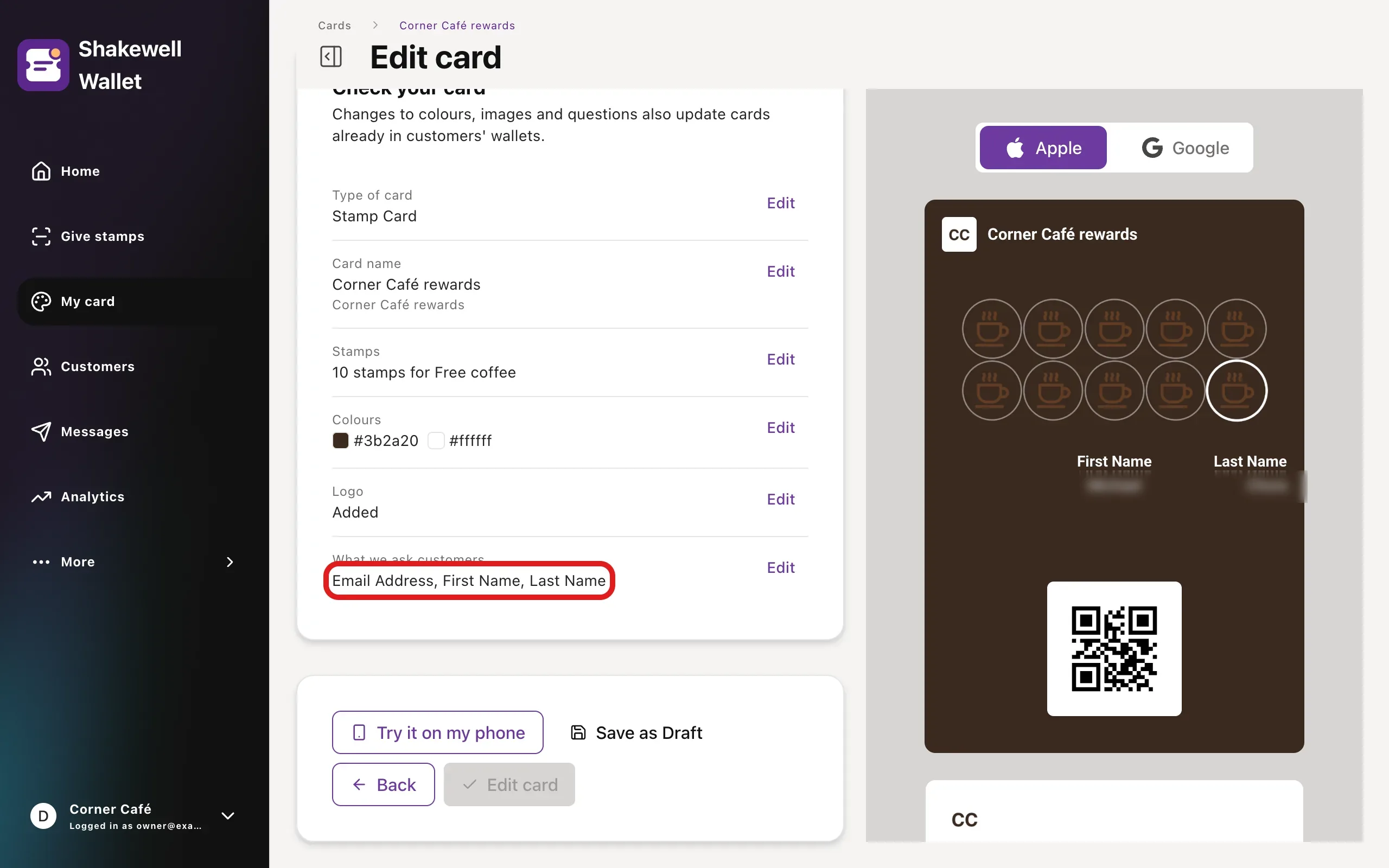
Step 11. Click the purple Edit card button at the bottom. It is the button that saves your changes.
Wait a moment.
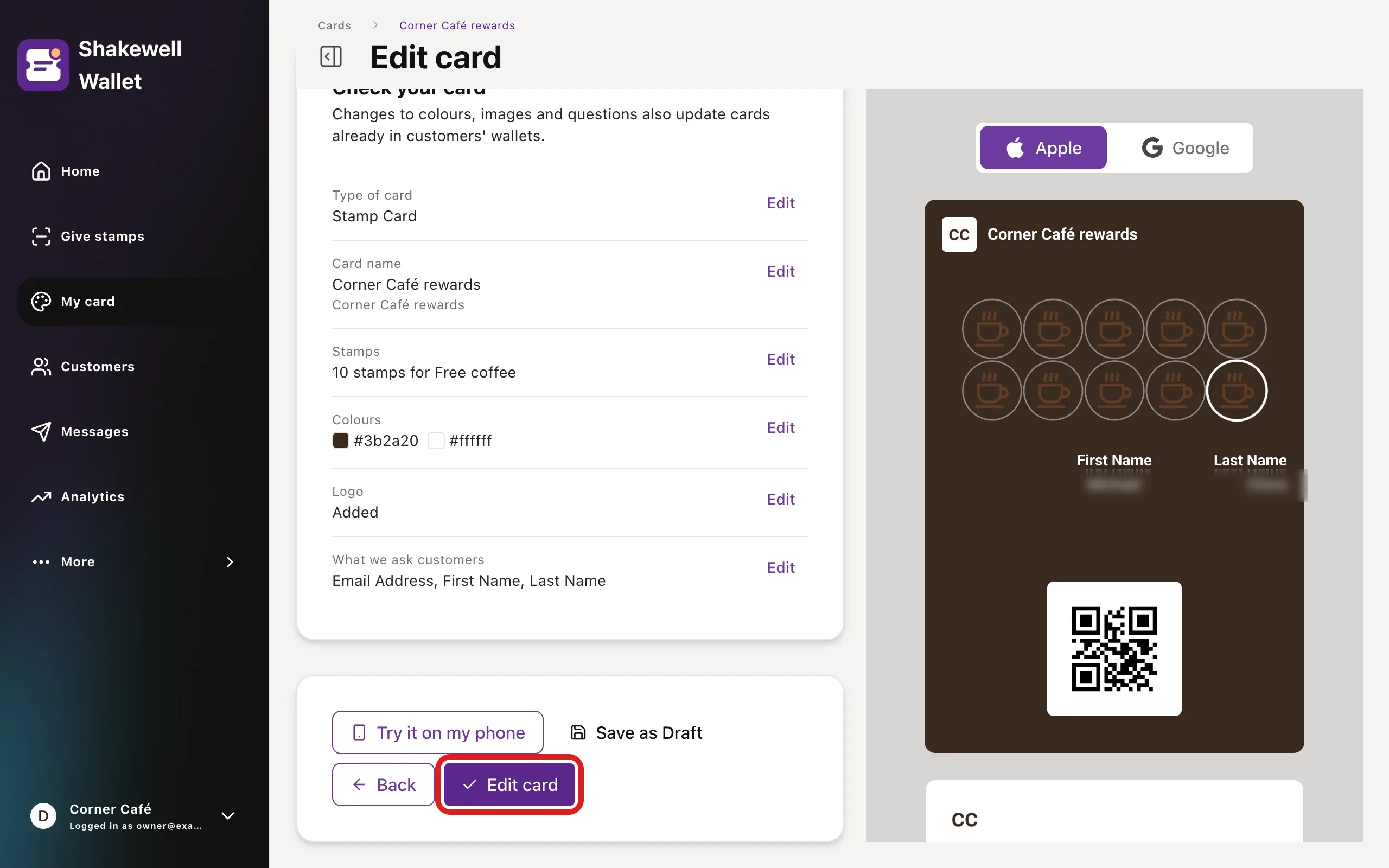
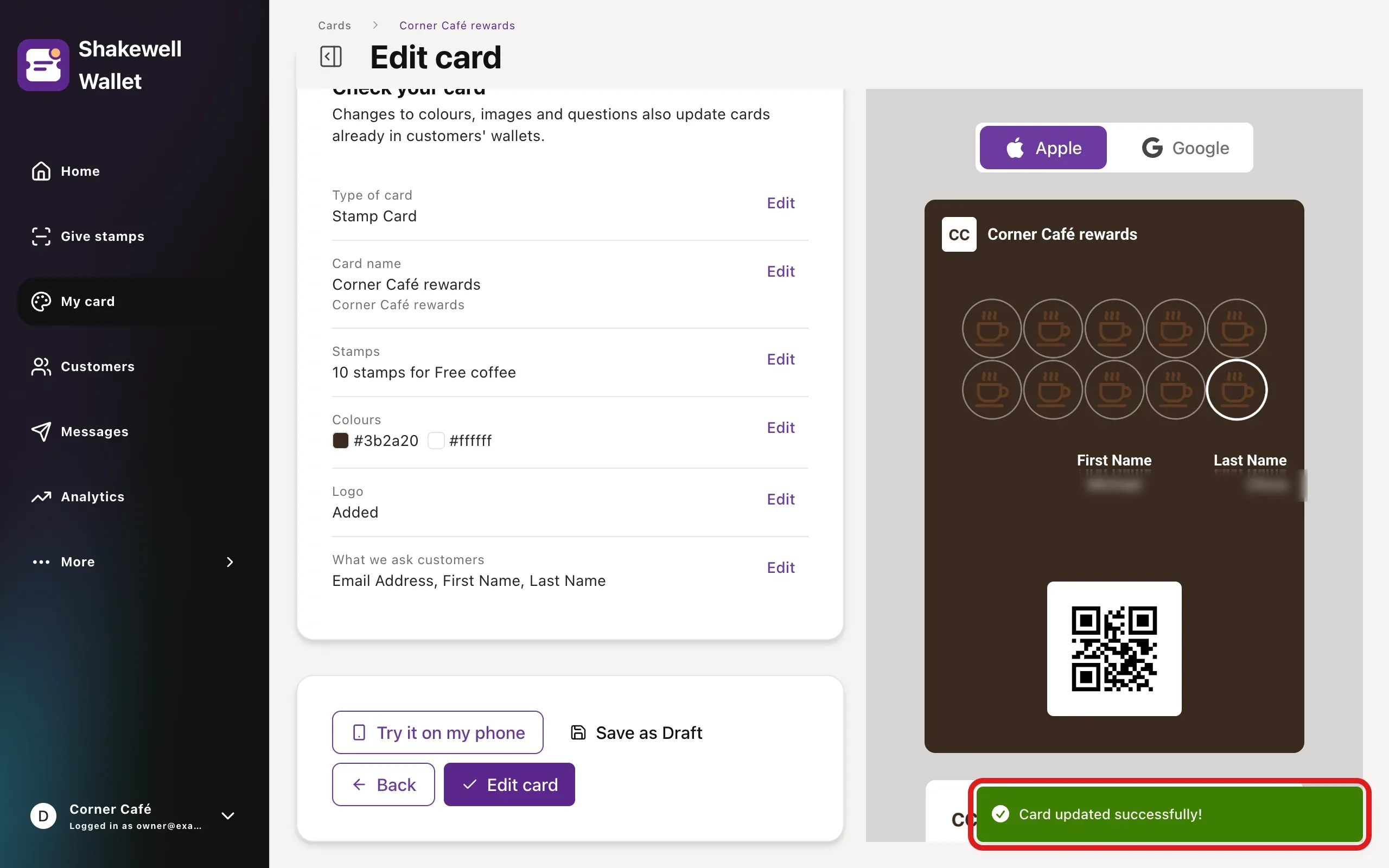
Step 12. Look at the bottom right of the screen.
A green message says Card updated successfully!
You'll know it worked when
A green message says Card updated successfully! After a short wait, new customers who open your sign-up link are asked the questions you chose.
Good to know
- To stop asking a question, click the red bin next to it. Then save the card.
- The change also updates the cards your customers already have in their wallets.
- Phone only is the quickest choice at the counter. Name and email helps you know your customers by name.
Stuck?
That is fine. Contact us and we will help you. We reply within one business day.
These guides may help: