
How-to guides / Grow
How to bring in customers from your old list
Upload a spreadsheet of your customers so each one gets a card.
Takes about 6 minutes
Before you start
- Your customer list in a spreadsheet, with headings in the first row, like Name and Email.
- The list saved as a CSV file. (A CSV file is a plain list file. In Excel or Google Sheets, use Save as or Download and pick CSV.)
- An email address or a mobile number on every row. The file can be up to 2,000 rows and 2 MB.
The steps
Step 1. In the left menu, click More.
A short list opens under it.
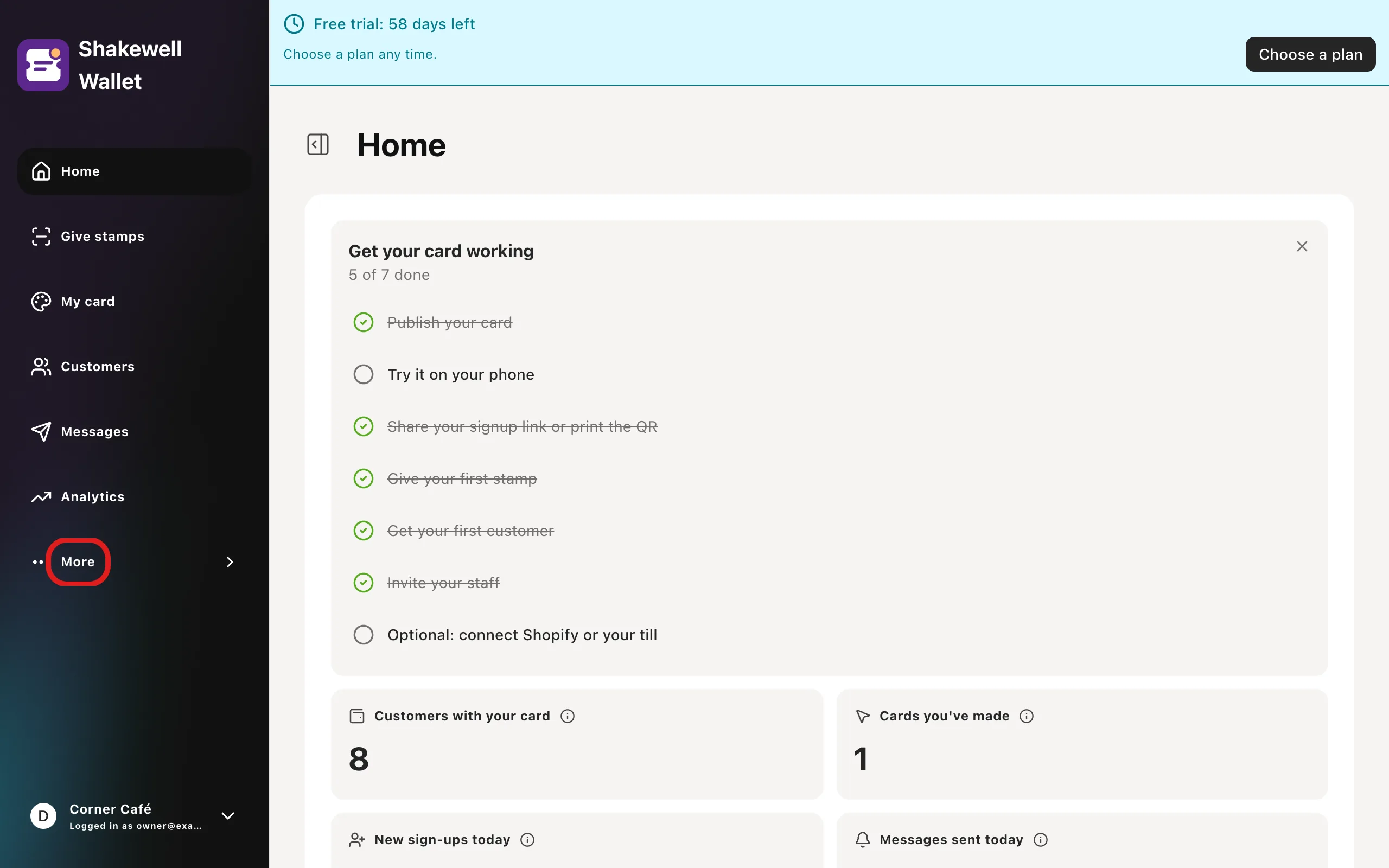
Step 2. Click Customers' cards.
A page called Customer cards opens.
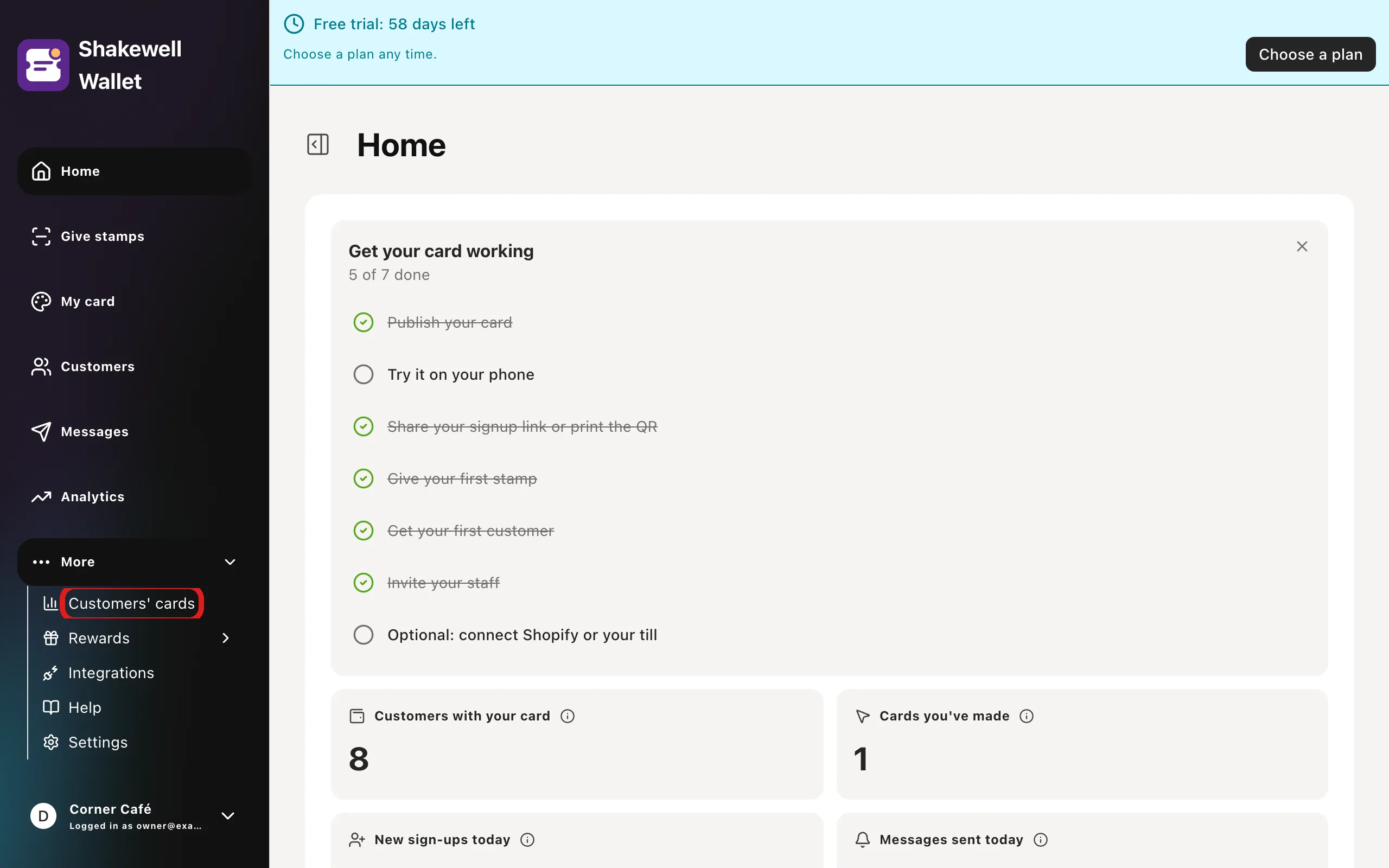
Step 3. Click the Import customers button at the top of the page.
A page called Import customers opens.
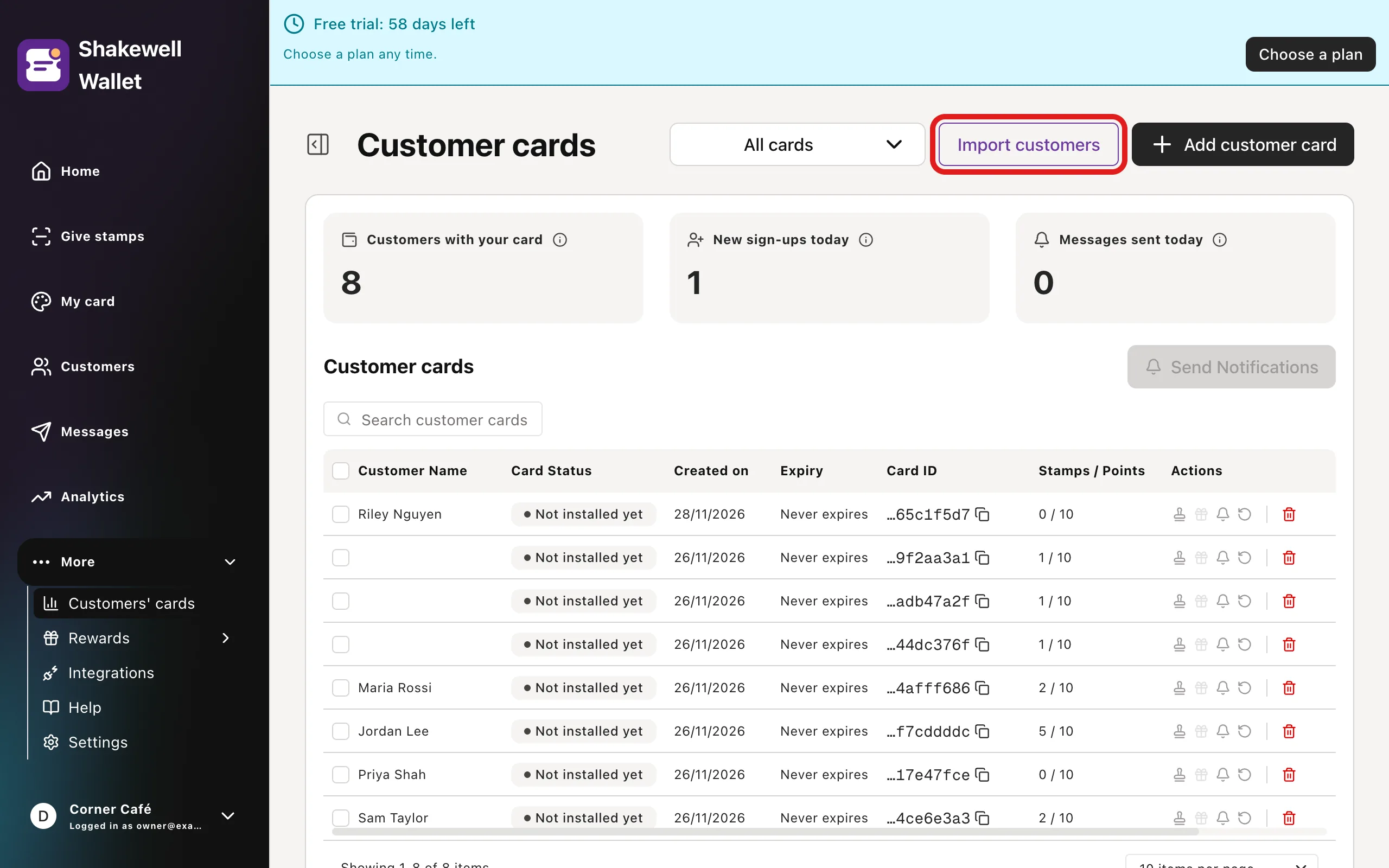
Step 4. Click the box under Add the customers to this card.
A list of your cards opens.
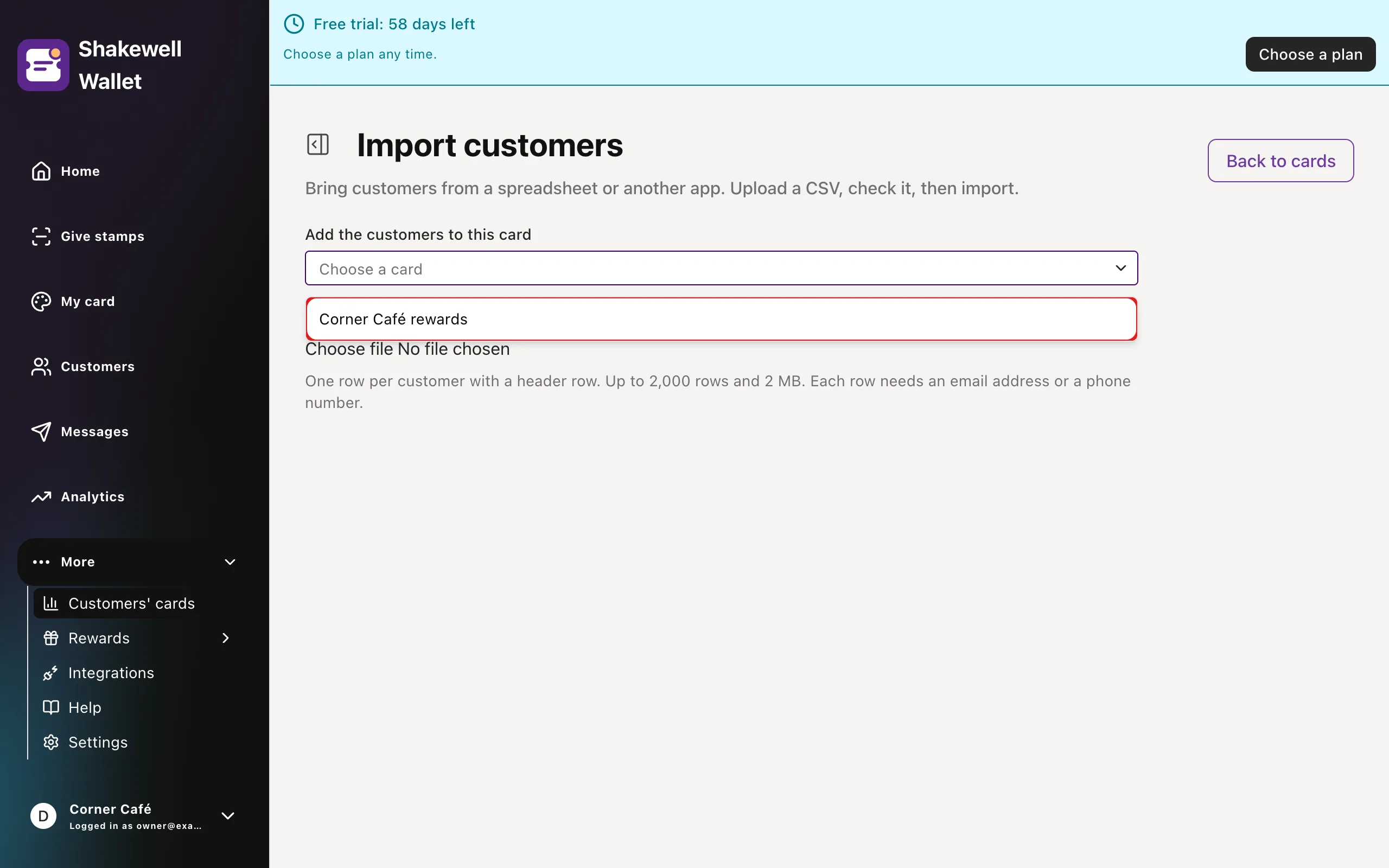
Step 5. Click the name of your card.
The card name shows in the box.
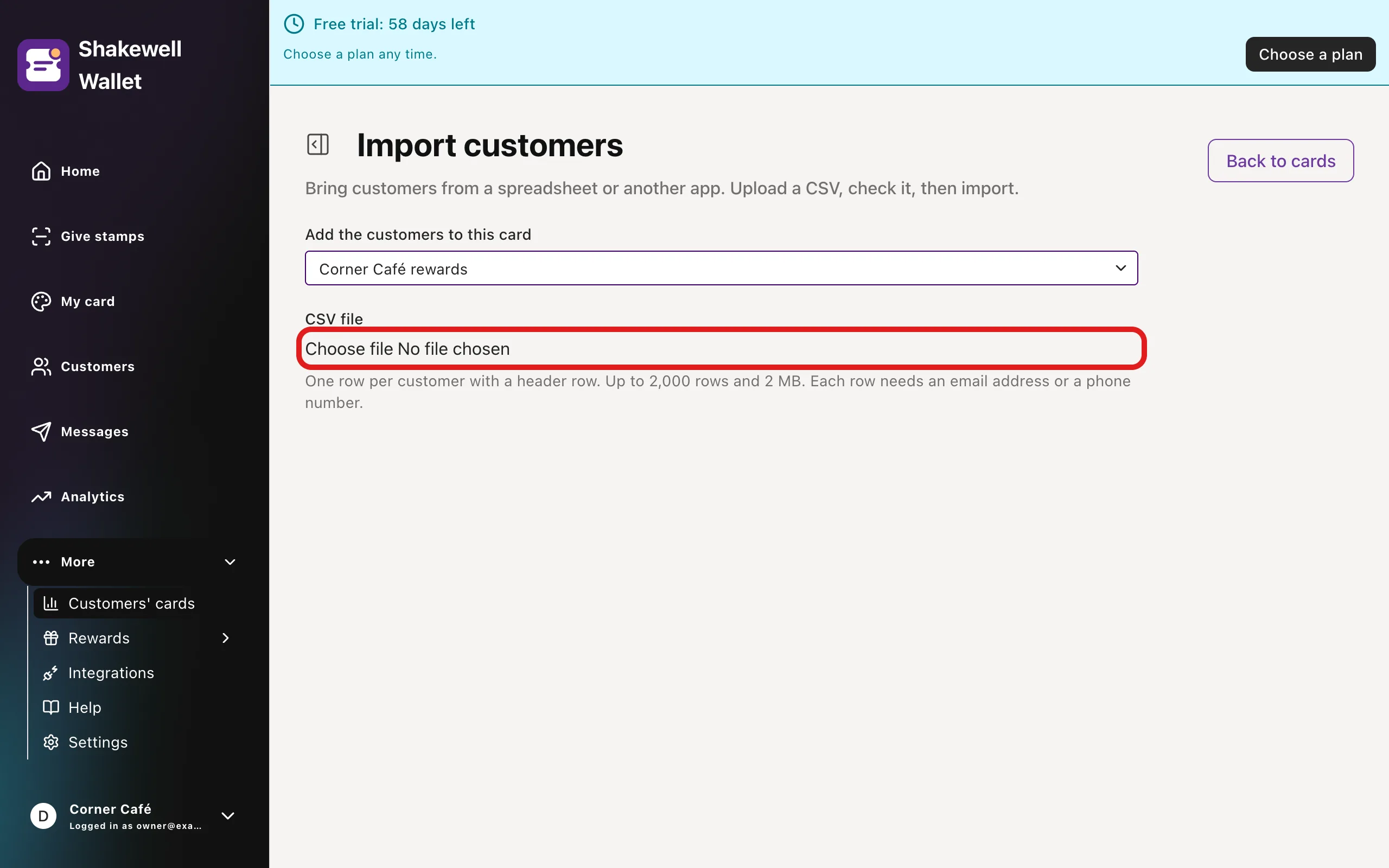
Step 6. Under CSV file, click Choose file.
A window opens on your computer. Pick your list file and press Open. The file name then shows next to Choose file.
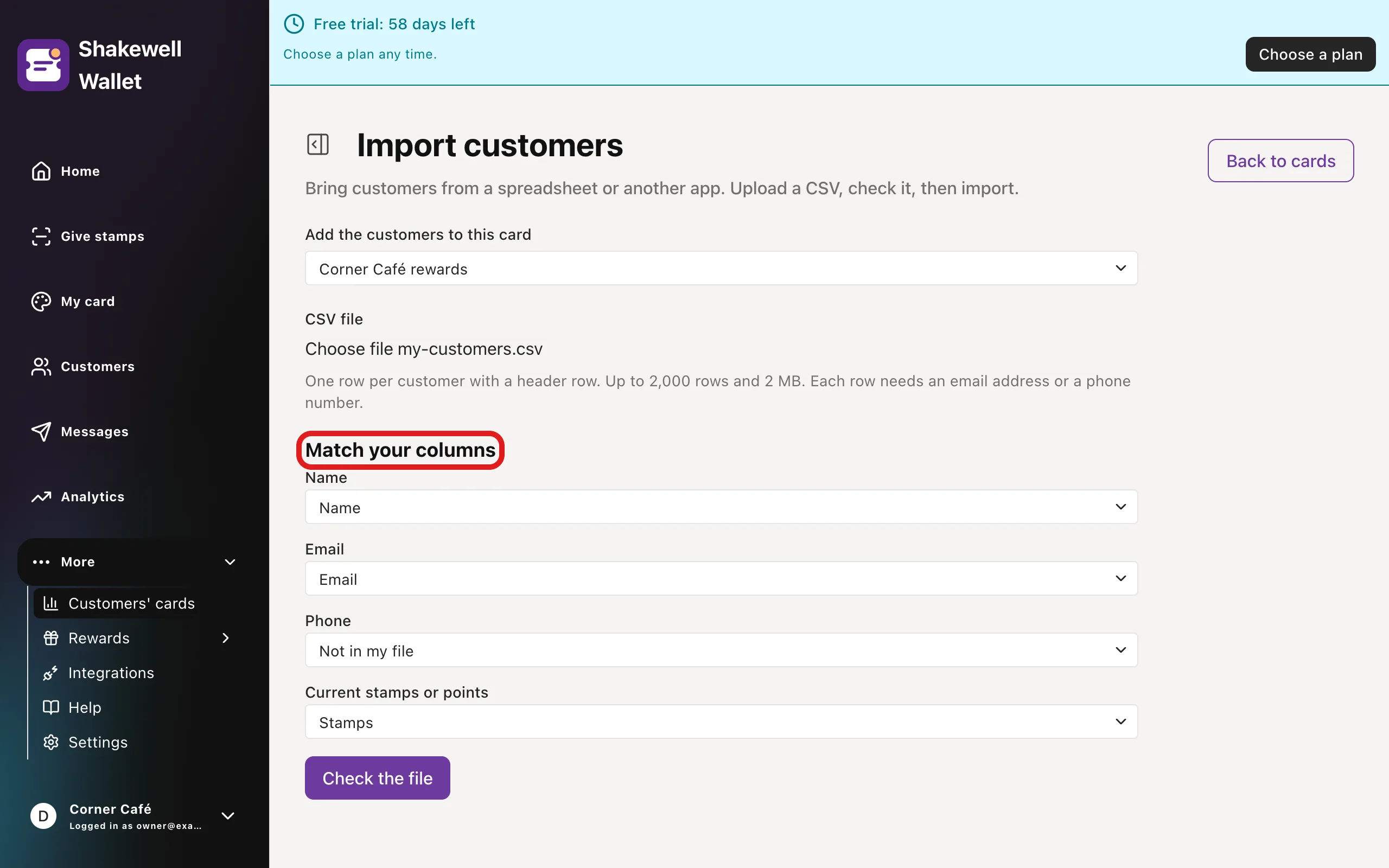
Step 7. Look at the part called Match your columns.
We guess which heading in your file is the name, the email and so on. Check that each one is right.
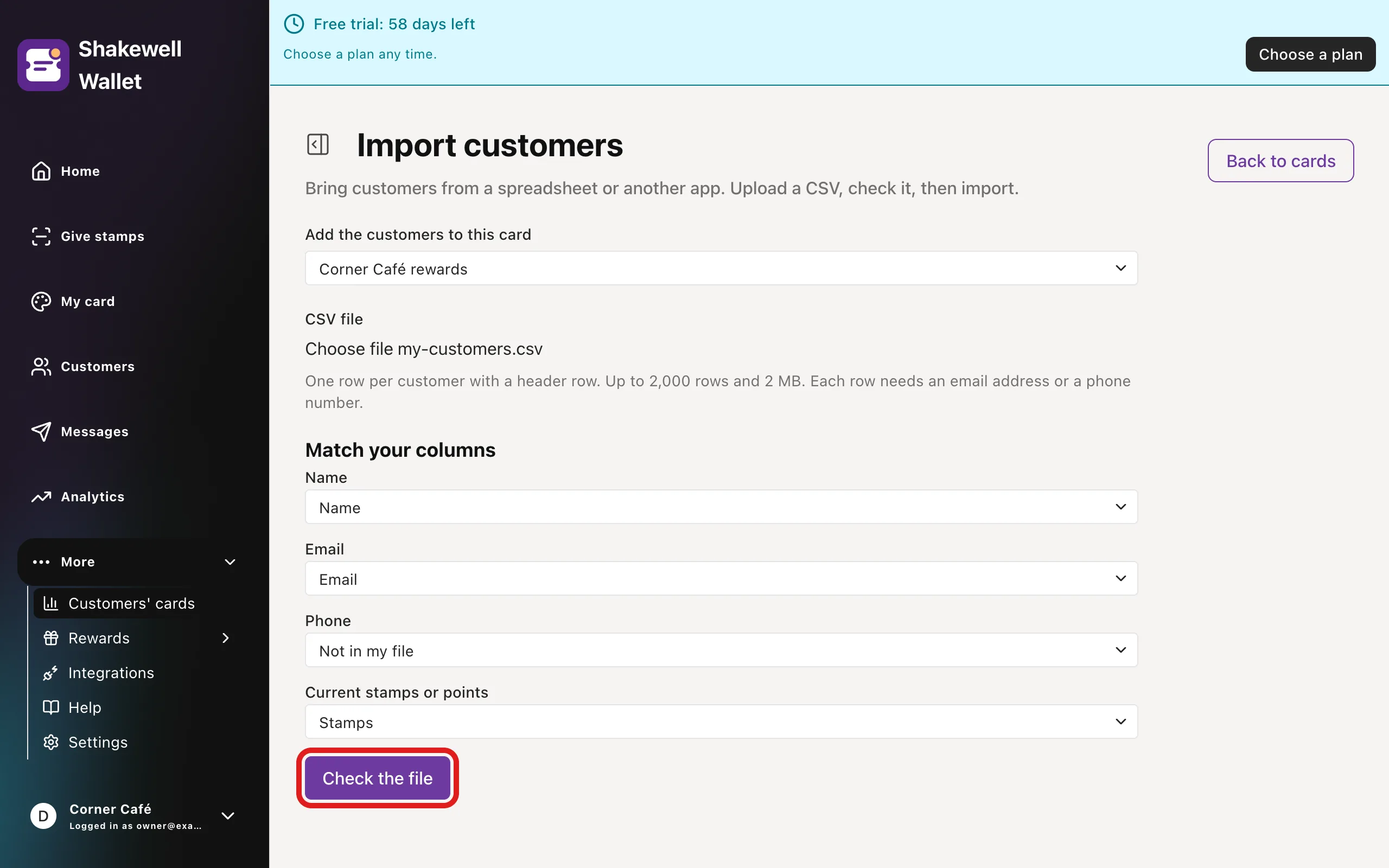
Step 8. Click the purple Check the file button.
We look at your rows. Nothing is added yet.
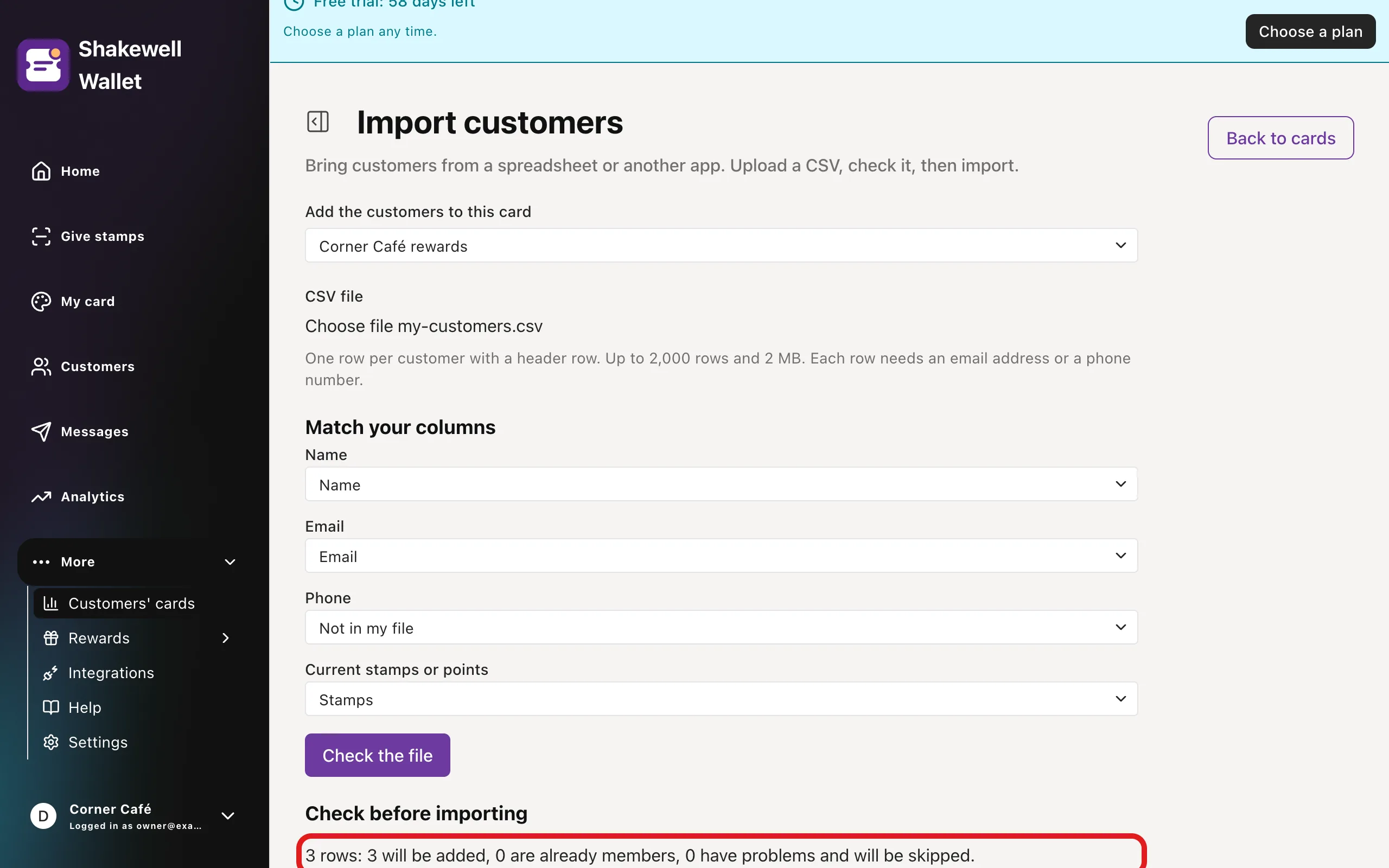
Step 9. Read the line under Check before importing.
It says how many customers will be added, how many are on your card already and how many have problems.
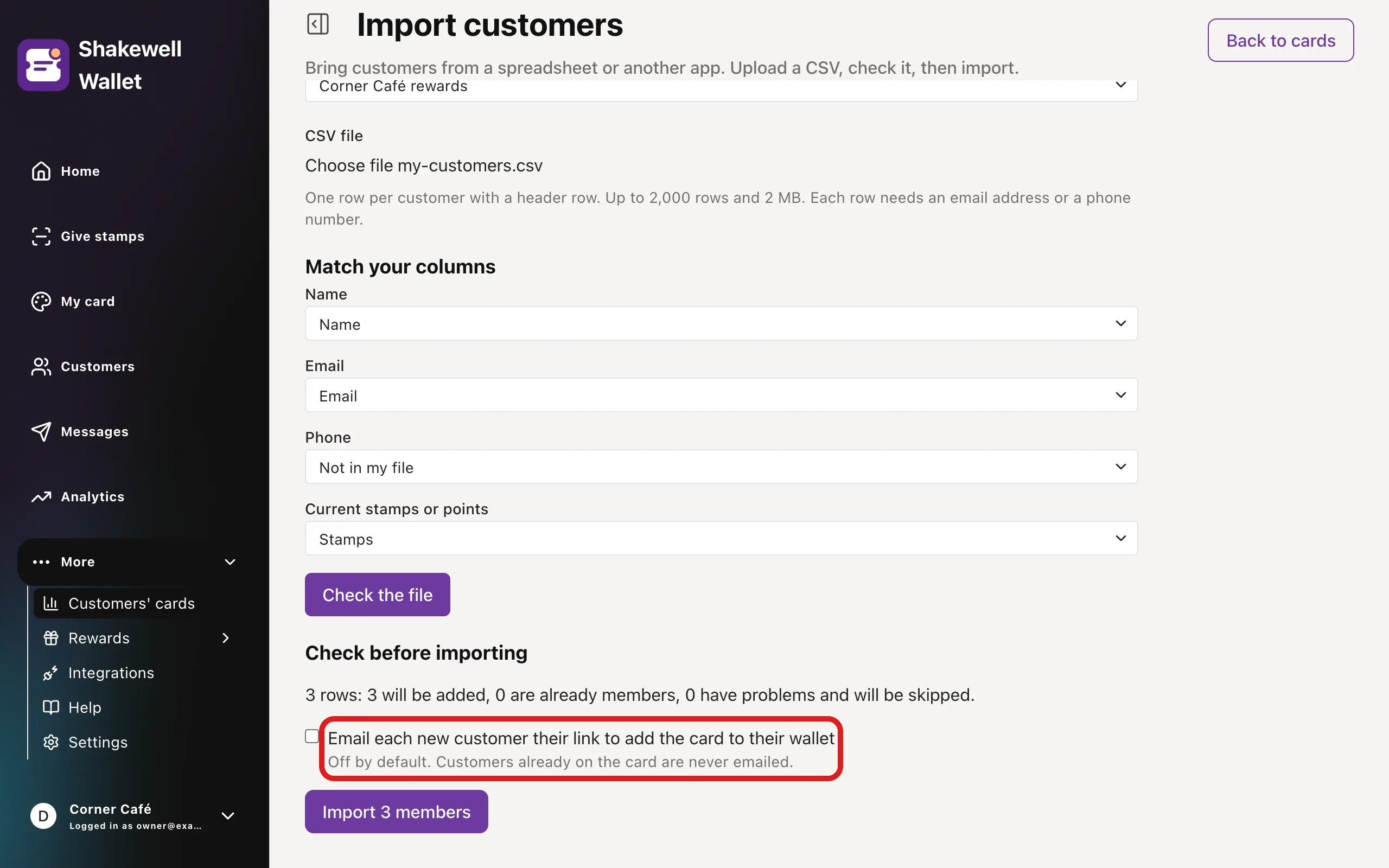
Step 10. Look at the little box called Email each new customer their link to add the card to their wallet.
It is empty, so no emails go out. Click it only if you want your customers emailed now.
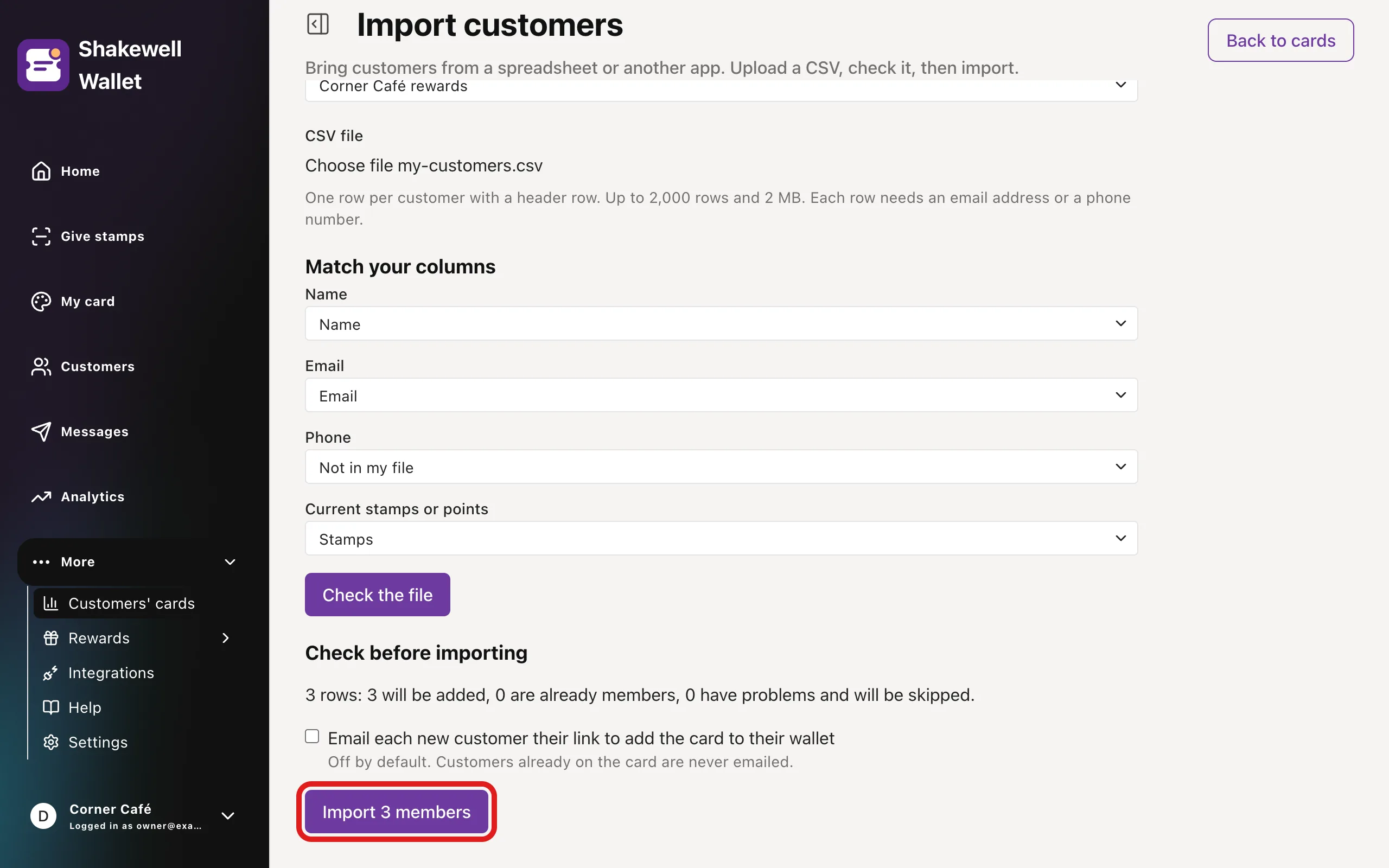
Step 11. Click the purple Import button. It shows how many customers it will add, like Import 3 members.
Wait a few seconds.
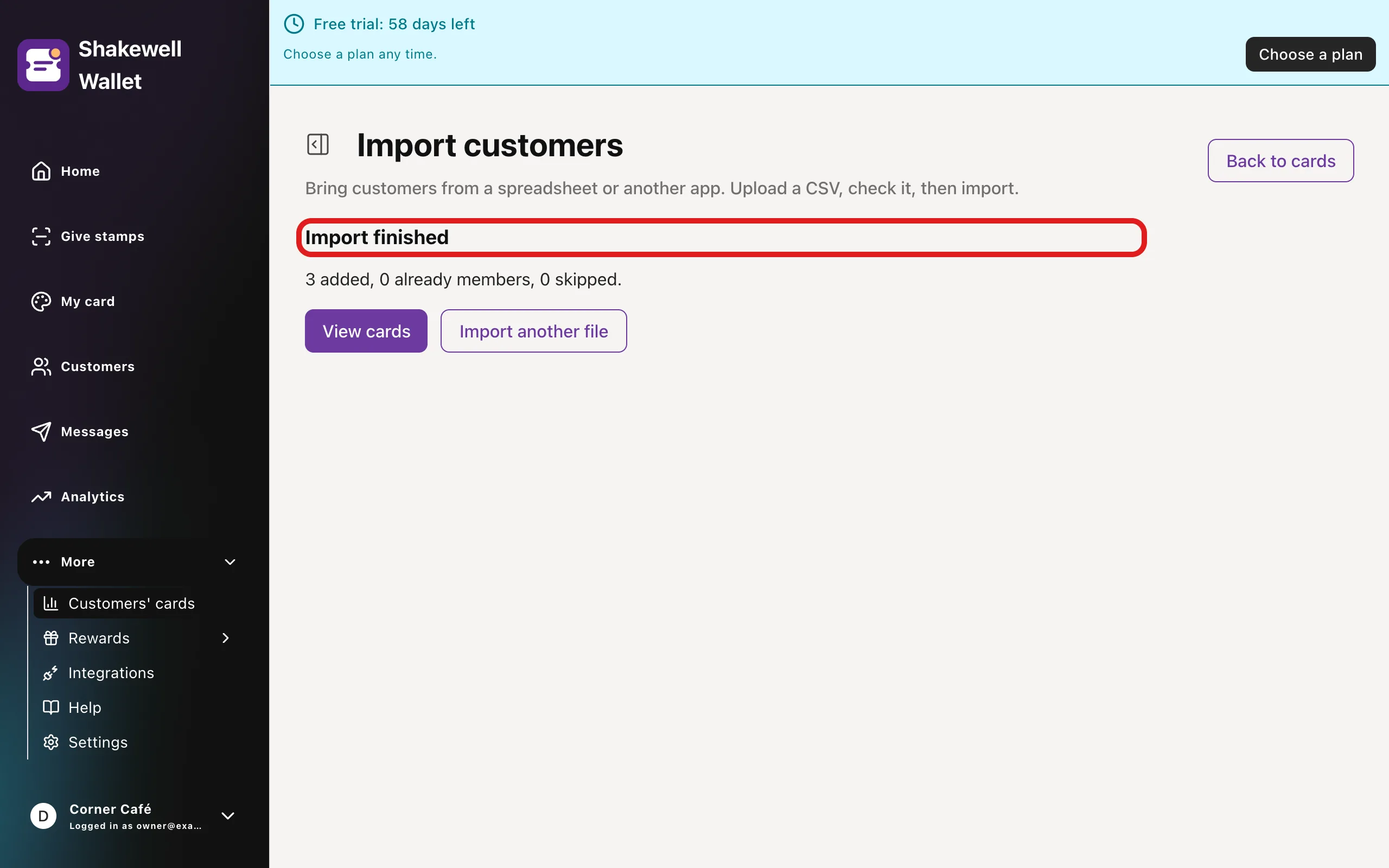
Step 12. Look for the heading Import finished.
A line under it says how many were added, like 3 added, 0 already members, 0 skipped.
You'll know it worked when
The page says Import finished and tells you how many customers were added. They show in your Customer cards list.
Good to know
- A row with no email and no mobile number is skipped. The page lists the skipped rows so you can fix them.
- If you have a column of stamps, we add them to each card. A card that gives new customers a free stamp adds one more.
- Customers you bring in are not emailed unless you tick the box. They can only add the card to their phone when they get the link. See How to send a customer their card again.
- Not enough room on your plan? The page says so before it imports anything. See How to change your plan.
Stuck?
That is fine. Contact us and we will help you. We reply within one business day.
These guides may help: