
How-to guides / Grow
How to add a join button to your website
Copy a small piece of code, so visitors to your website can press a link and join your card.
Takes about 5 minutes
Before you start
- Your card is live. (See How to sign up and make your first card.)
- A way to change your website. If someone else looks after it, send them the code you copy here.
The steps
Step 1. On your computer, look at the menu on the left. Click My card.
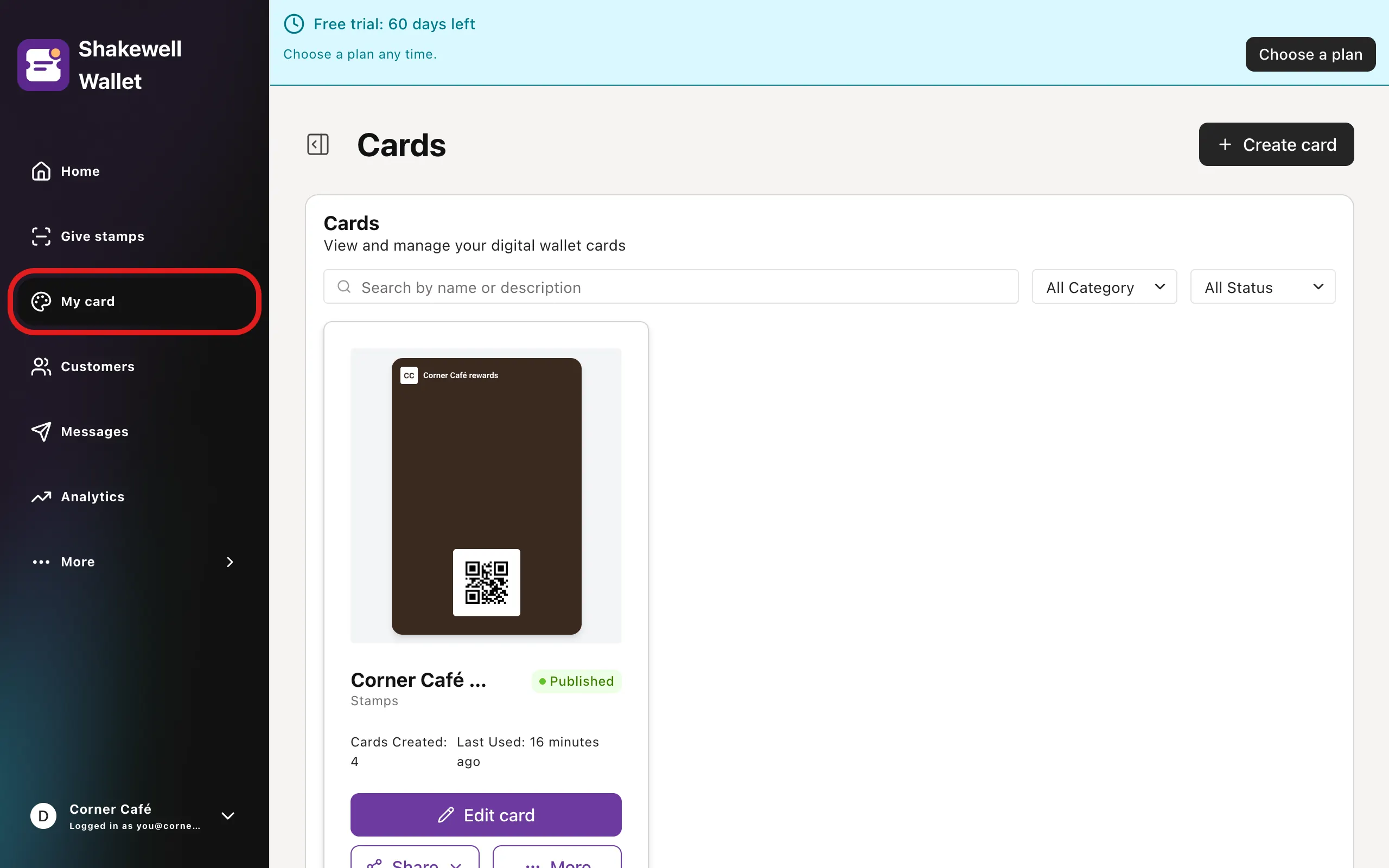
Step 2. Under your card, click the Share button.
A small menu opens.
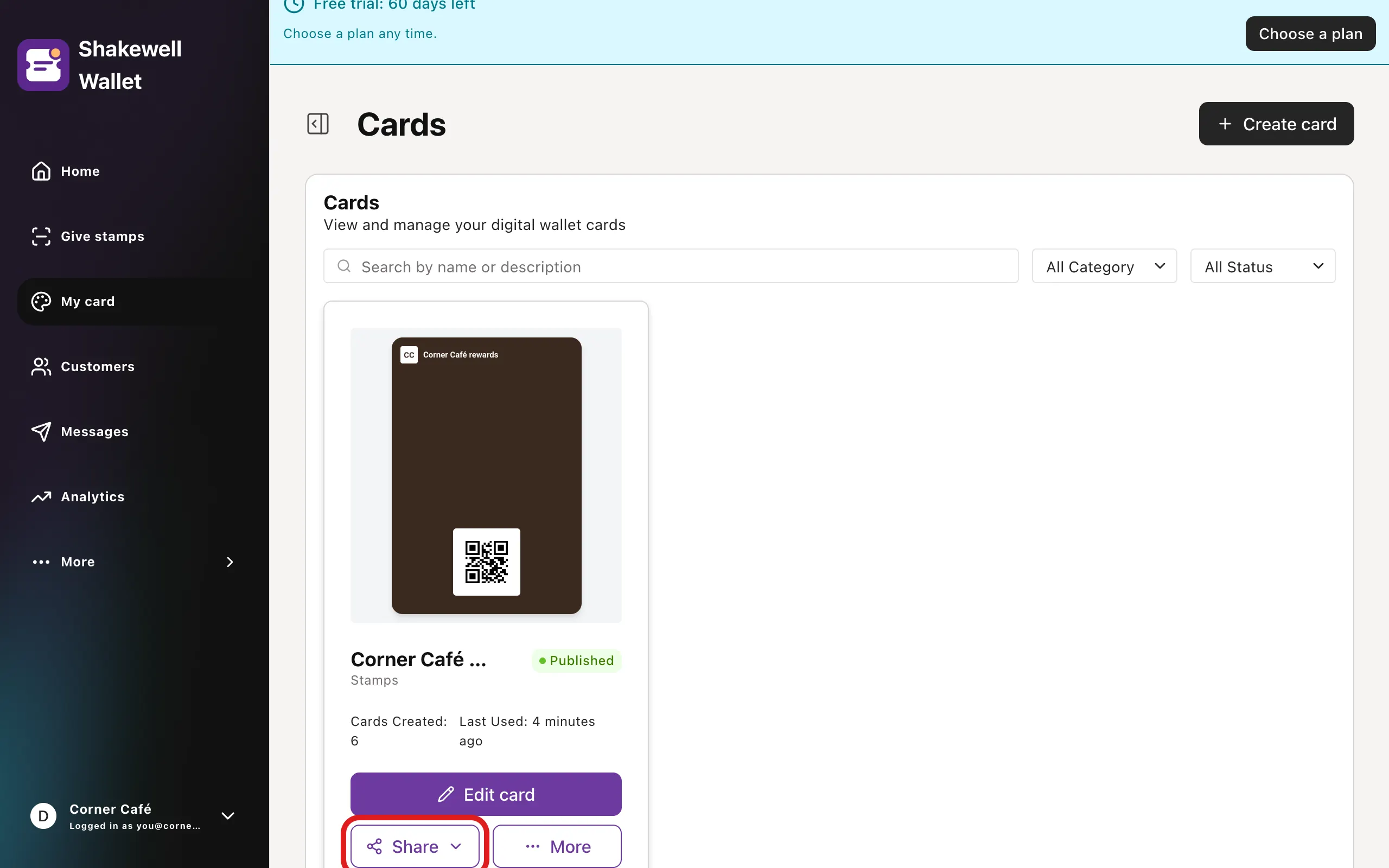
Step 3. In the small menu, click Share, QR & poster.
A page opens that says Your card is live.
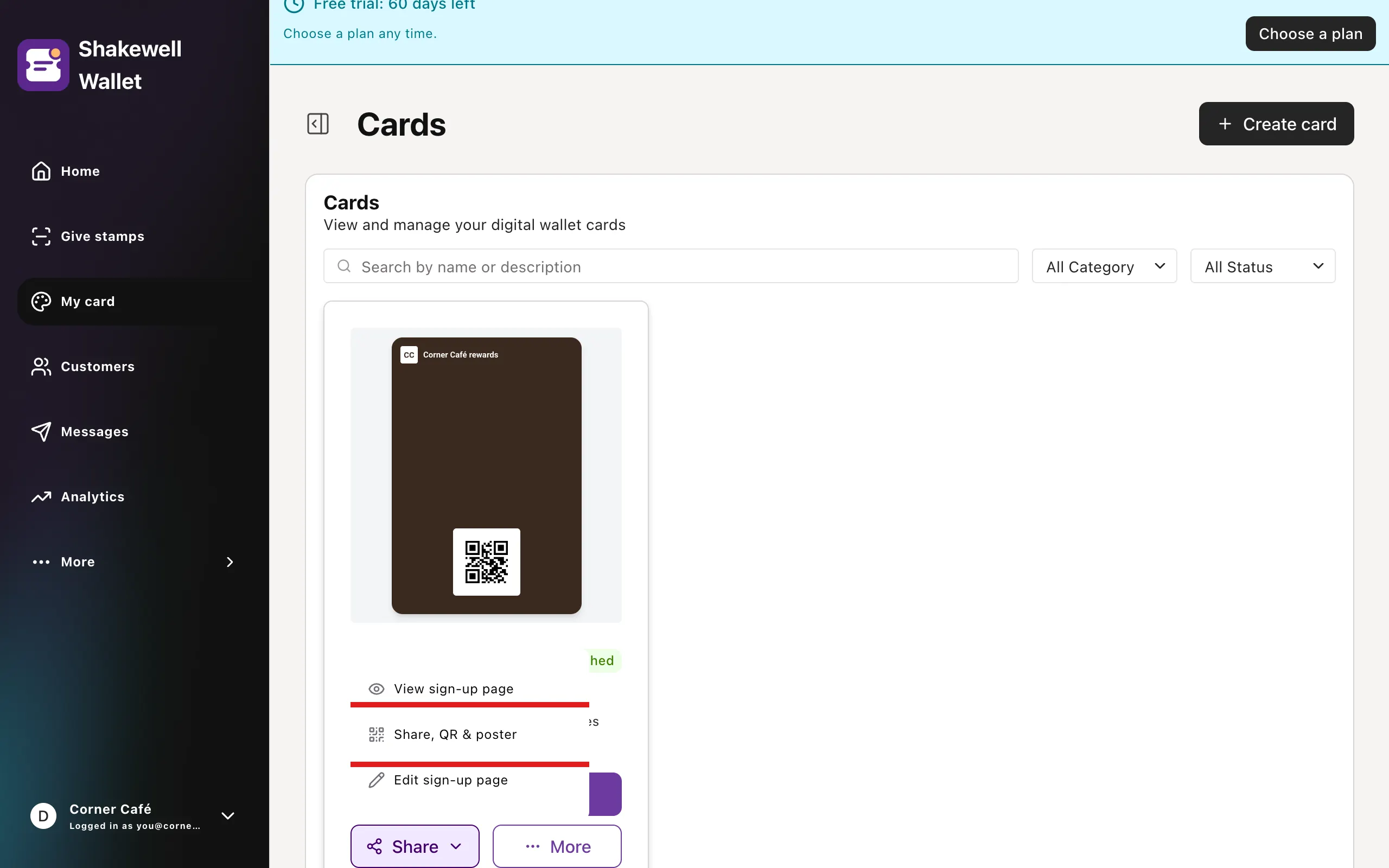
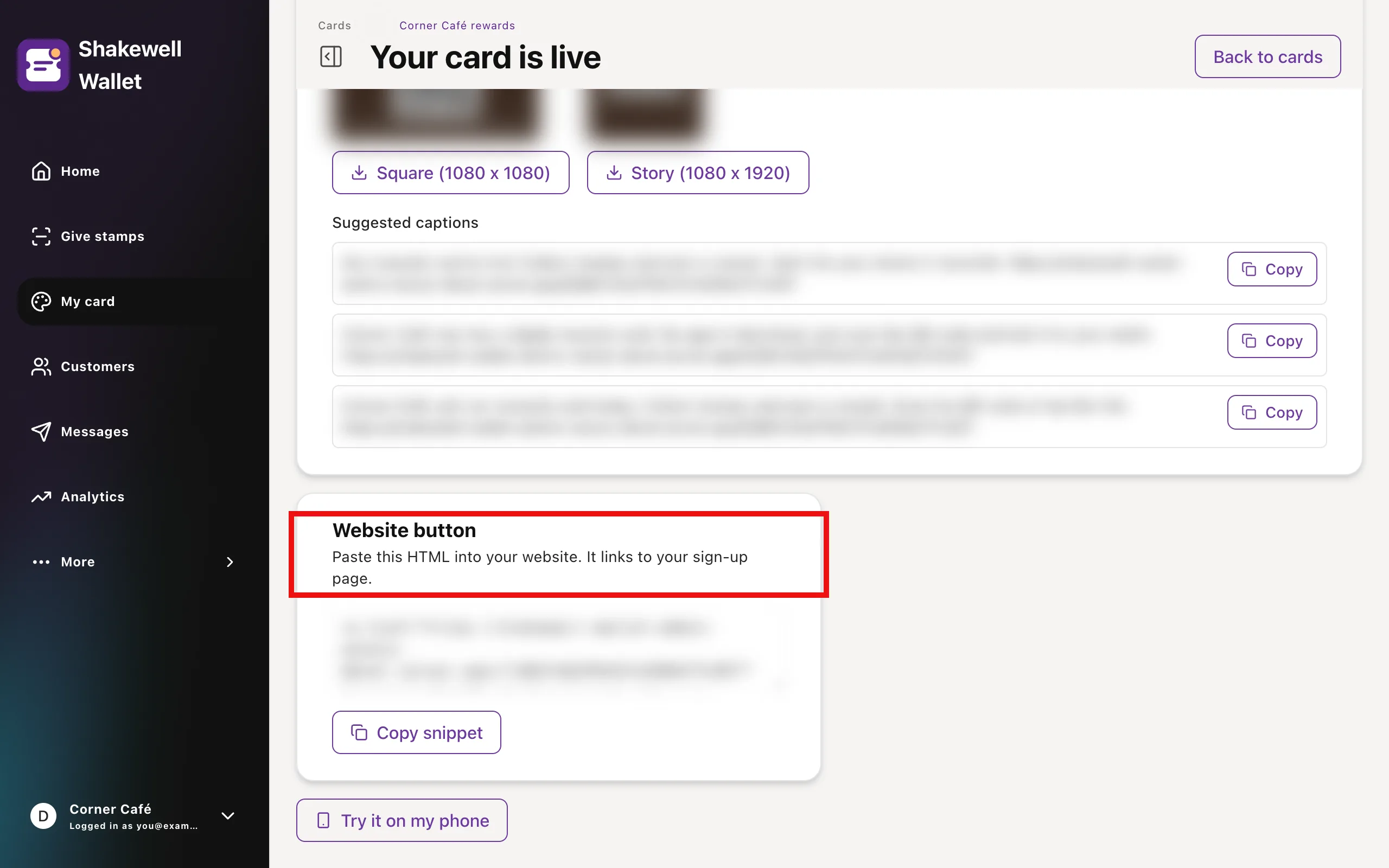
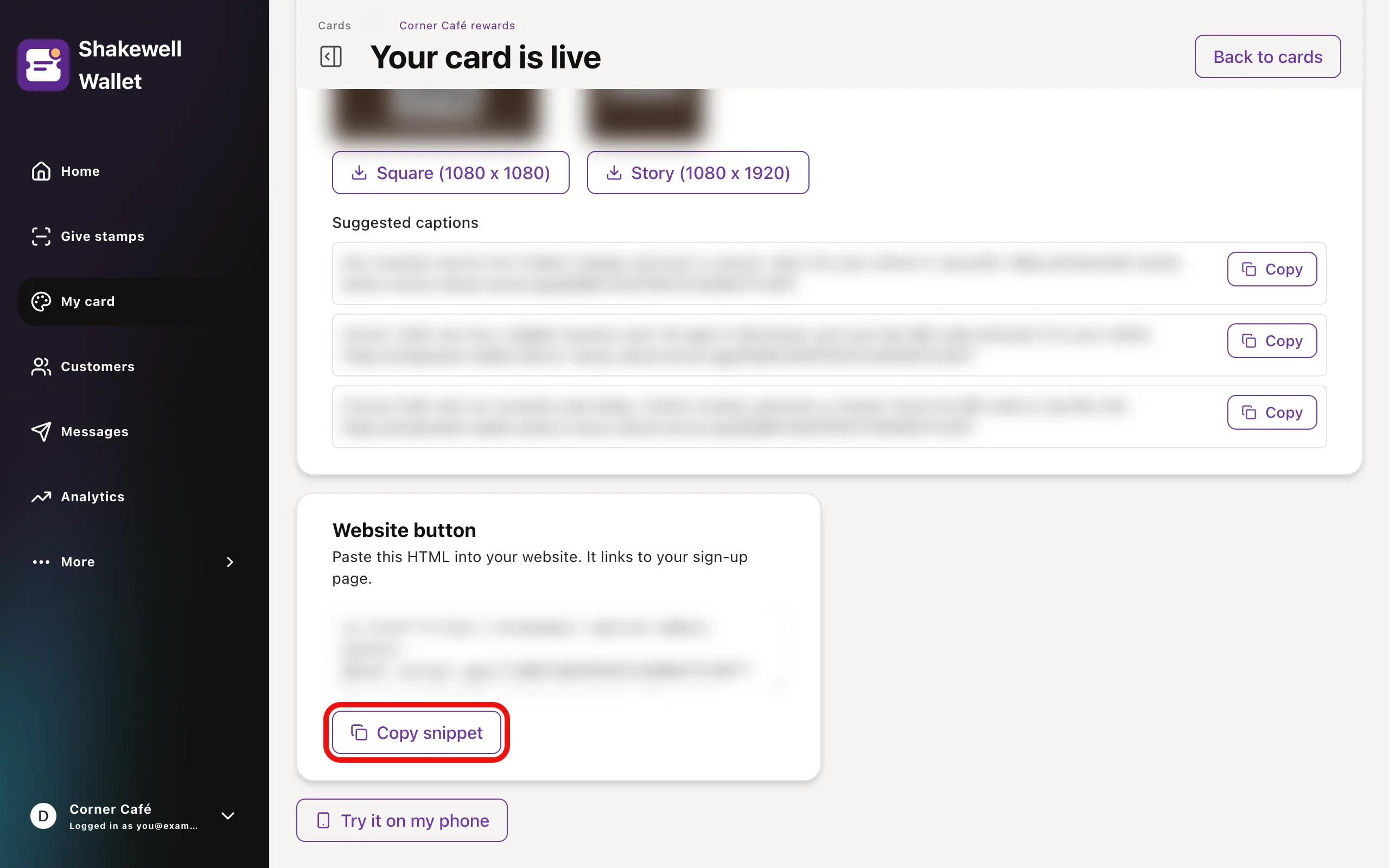
Step 4. Scroll down to the box called Website button.
It holds a short piece of code (the instructions a website reads). Your sign-up link is inside it. It is blurred here.
Step 5. Click the Copy snippet button.
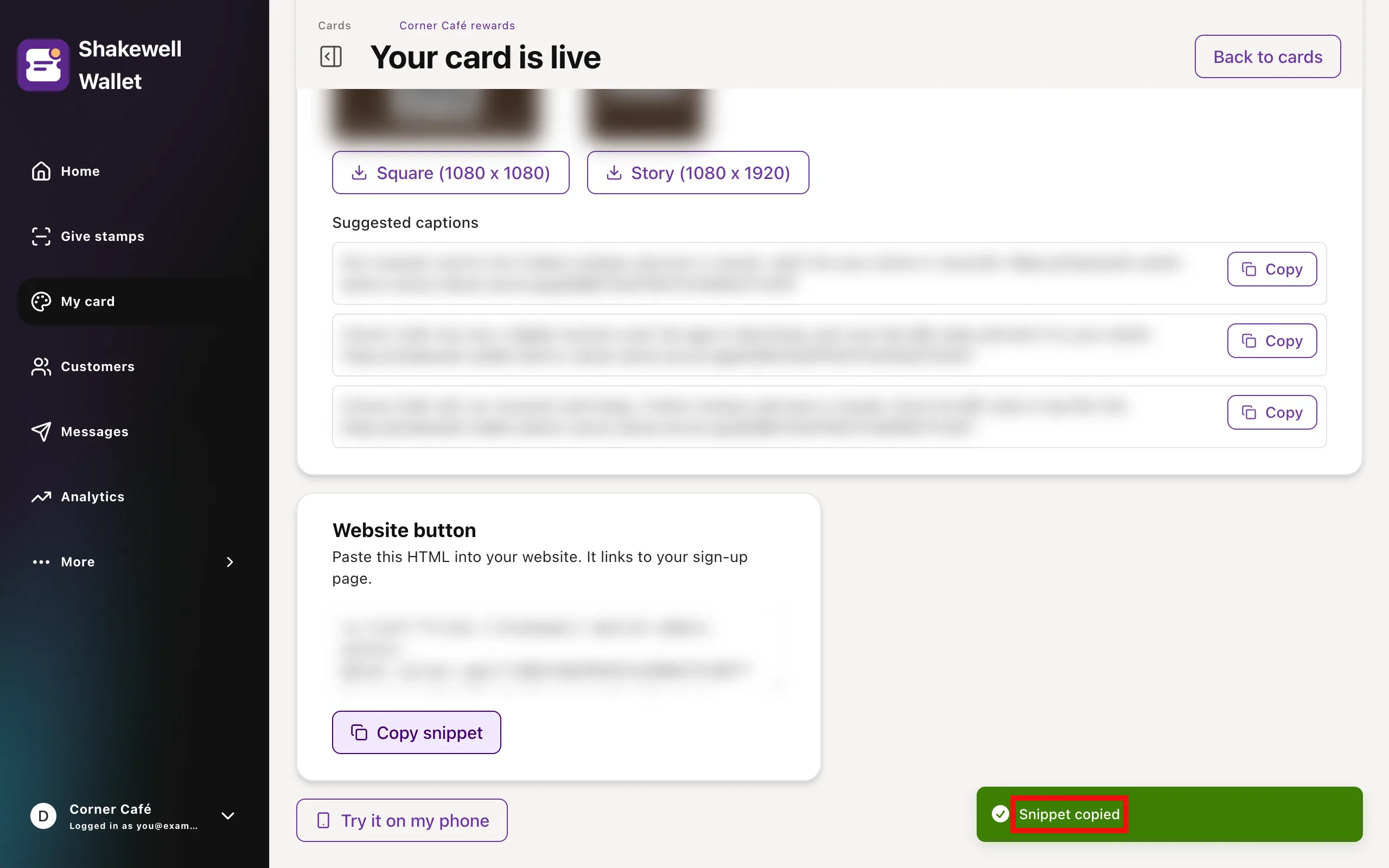
A green message pops up at the bottom right.
Step 6. Look at the green message at the bottom right. It says Snippet copied.
The code is now saved on your computer, ready to paste.
Step 7. Open the place where you change your website. Open the page where you want the button. Add a block for code. It may be called HTML, Custom code or Embed.
Every website maker names this block a little differently. If you cannot find it, send the code to the person who looks after your website.
Step 8. Click inside the code block. Hold the Ctrl key and press V. On a Mac, hold the Command key and press V.
The code shows in the block.
Step 9. Save or publish your website page.
The button shows on your website.
You'll know it worked when
Your website page shows a link that says Join our rewards card. When you click it, your sign-up page opens.
Good to know
- The code makes a plain text link, not a picture. Your website sets how it looks.
- It opens your sign-up page in a new tab.
- You can also give the link by text, email or social media. See How to share your sign-up link by text, email, Facebook or Instagram.
Stuck?
That is fine. Contact us and we will help you. We reply within one business day.
These guides may help: