
Square
How do I check my Square locations and choose settings?
Last updated 2026-11-26
Open the Square page under Integrations. It lists your Square locations and has three settings: a card for first-time buyers, an email option and refund rewards.
Locations: every location earns
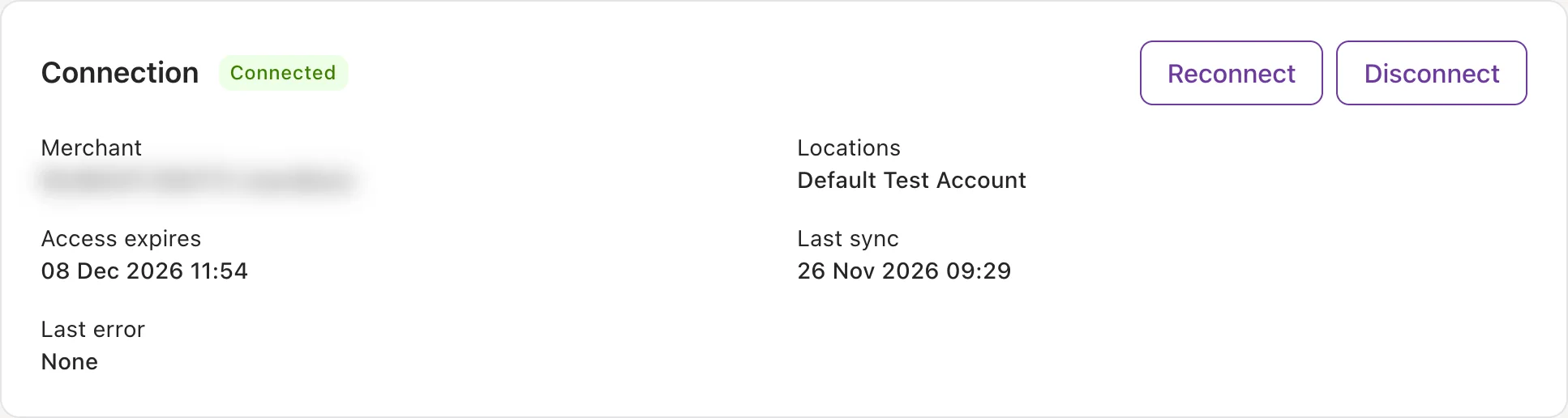
You do not pick locations in Shakewell. Sales from every location in your Square business earn points and stamps. The Locations line is there so you can check Shakewell found the right ones.
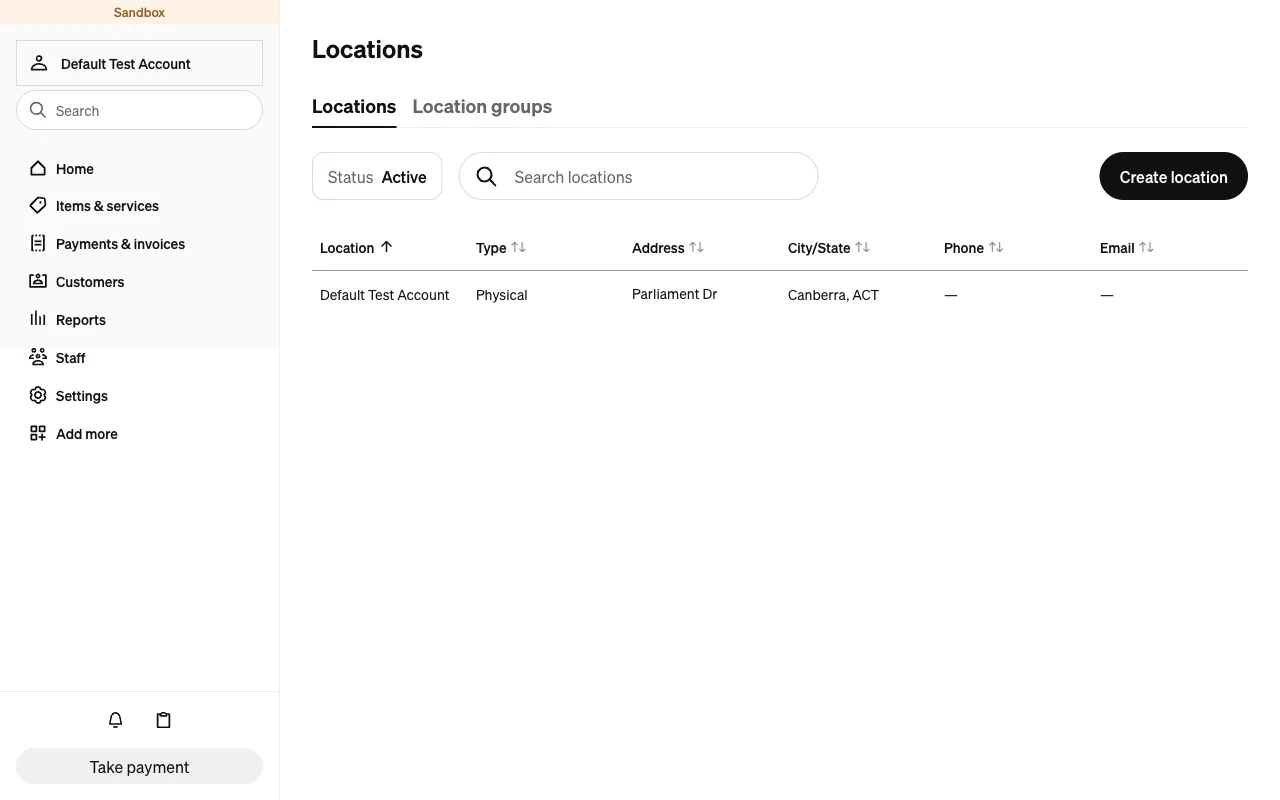
You can compare the list with the Locations page in your Square Dashboard. Shakewell reads your locations when you connect. If you add a location in Square later, choose Reconnect on the Square page to refresh the list.
Steps
- Open More in the left menu, then Integrations, and choose Manage next to Square.
- Check the Locations line in the Connection box. It lists every Square location Shakewell found.
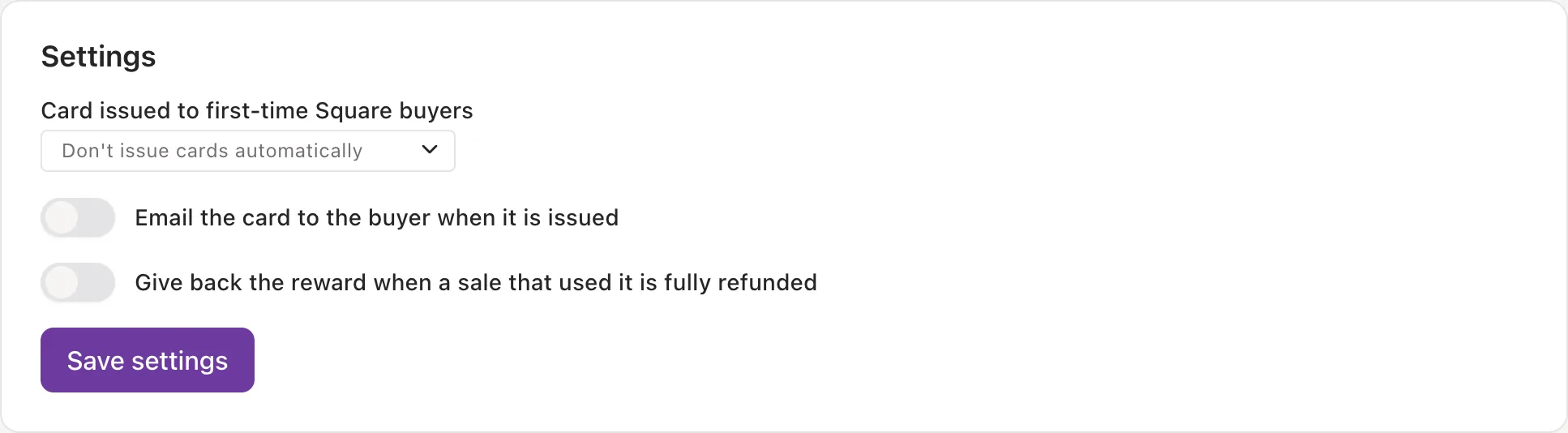
- Under Settings, choose a card for Card issued to first-time Square buyers, or leave it on Don't issue cards automatically.
- Turn on Email the card to the buyer when it is issued if you want new customers to get their card by email.
- Turn on Give back the reward when a sale that used it is fully refunded if you want refunds to return rewards.
- Choose Save settings. You see Square settings saved.
What each setting does
- Card issued to first-time Square buyers: when a customer who has no card buys something, Shakewell gives them this card. Leave it on Don't issue cards automatically to switch this off. See enrol customers automatically.
- Email the card to the buyer when it is issued: sends the new customer an email with a link to add the card to their wallet.
- Give back the reward when a sale that used it is fully refunded: off by default. See refunds and reversals.
Only people who can manage integrations can change these. For everyone else the settings are greyed out.
Your Square menu
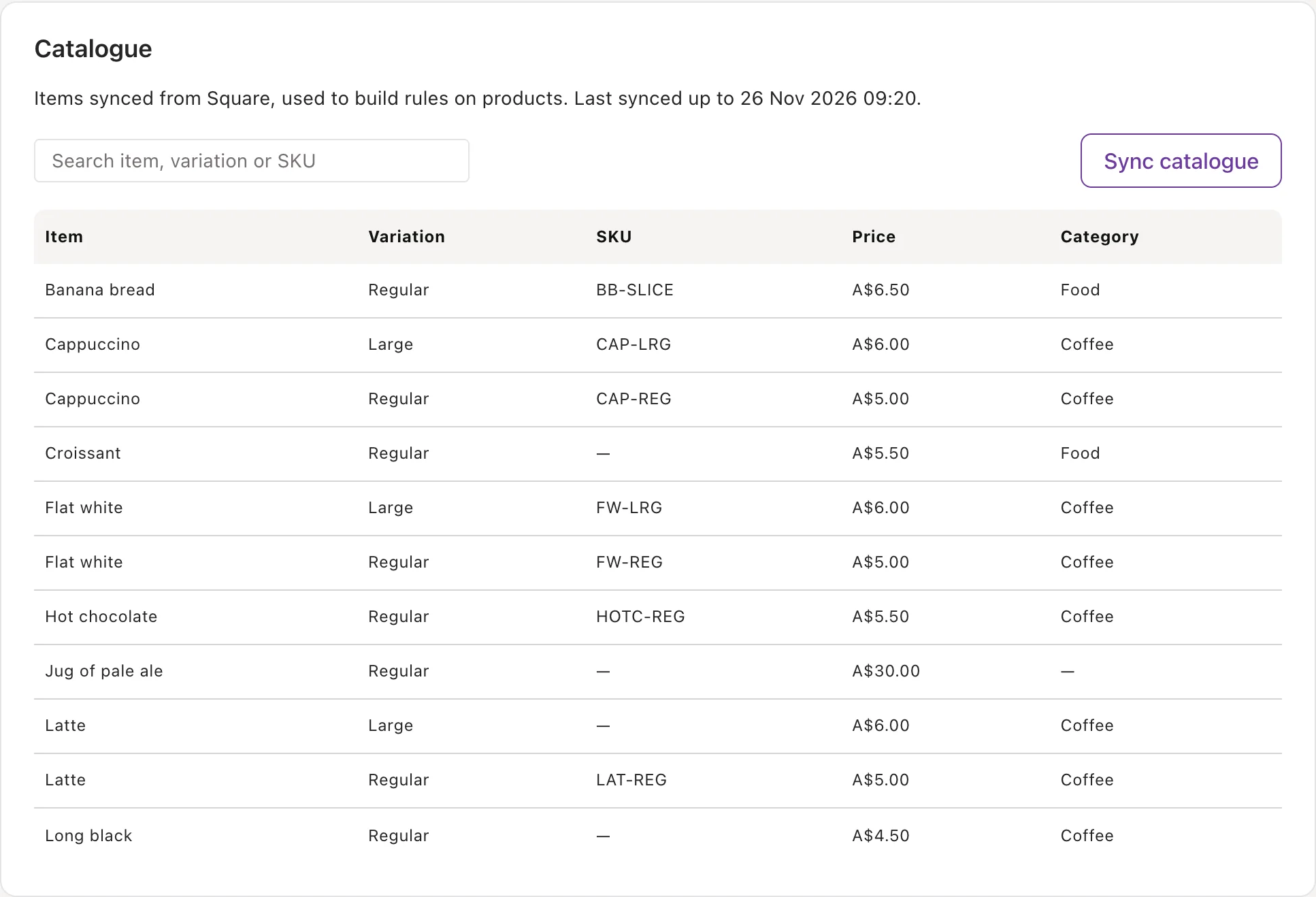
Shakewell keeps a copy of your Square items so you can pick them when you set up stamps. It updates when your Square menu changes. If an item is missing, choose Sync catalogue in the Catalogue box on the Square page. You see a message saying the sync has started, and new items appear in a minute or two.
Keeping the connection healthy
Square access runs out after about 30 days. Shakewell renews it by itself before it runs out, so you do not need to do anything. The Access expires and Last error lines show how things are going. If Square stops accepting the saved access, the badge changes to Needs reconnecting and you choose Reconnect.