
How-to guides / Grow
How to set bonus times
Give double or triple stamps at quiet times, like a slow afternoon.
Takes about 5 minutes
Before you start
- Your card is a stamp card, and it is live. (See How to sign up and make your first card.)
- The days and hours you want, for example Tuesday 2pm to 4pm.
- Know that a visit can earn at most 3 stamps. The times use your shop's time zone.
The steps
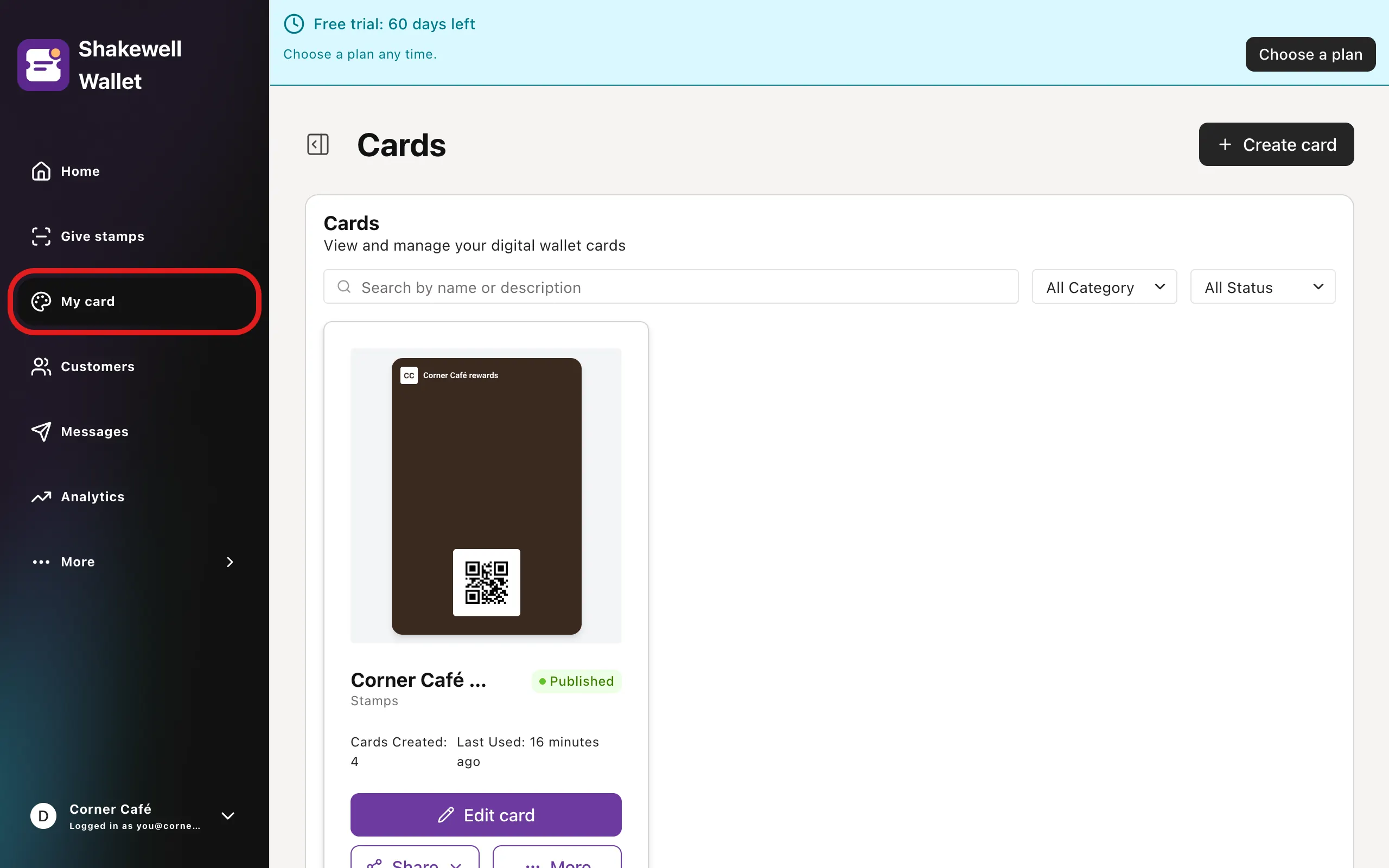
Step 1. In the left menu, click My card.
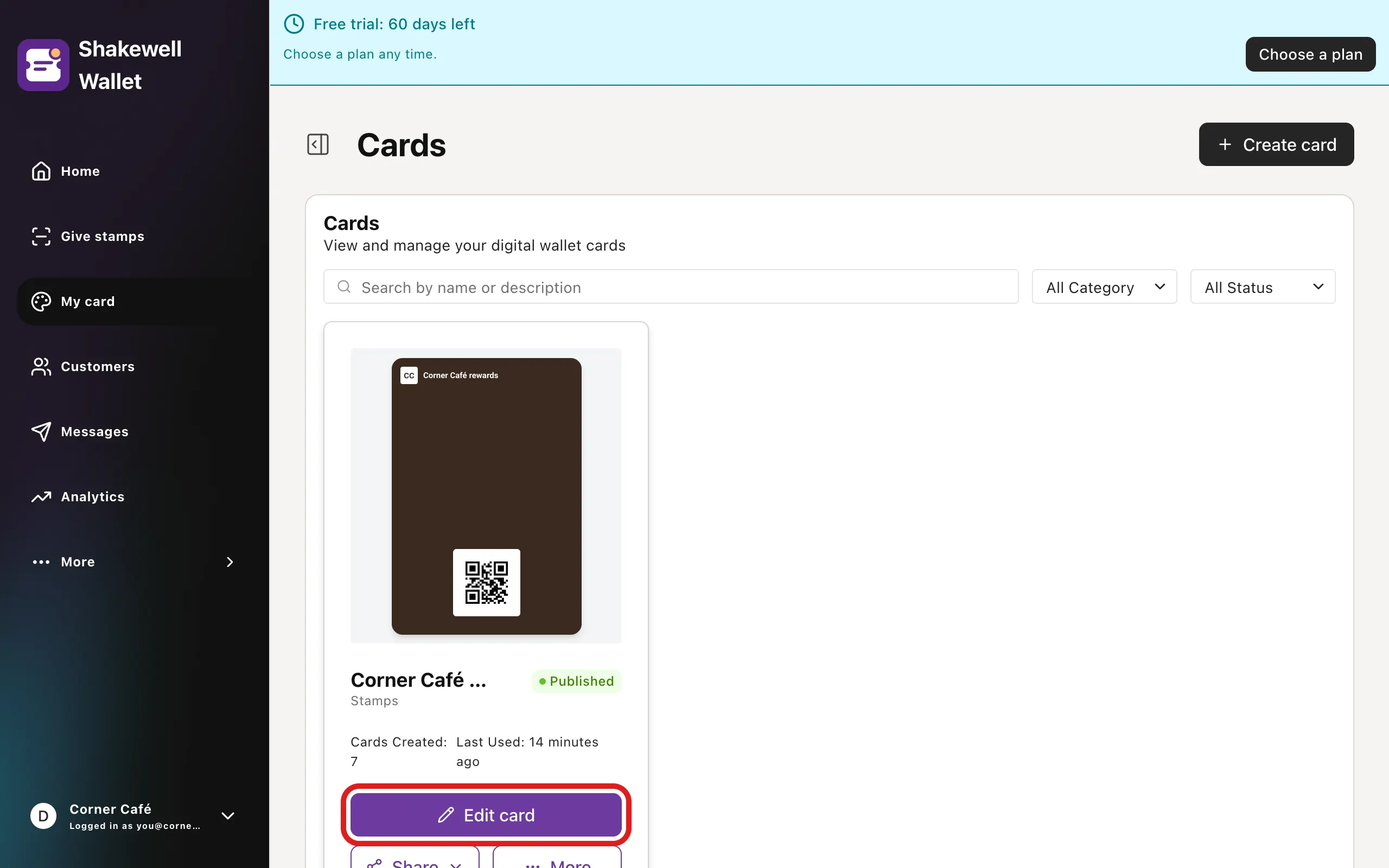
Step 2. Click the purple Edit card button under your card.
A page opens called Edit card. You start on step 1, Basics.
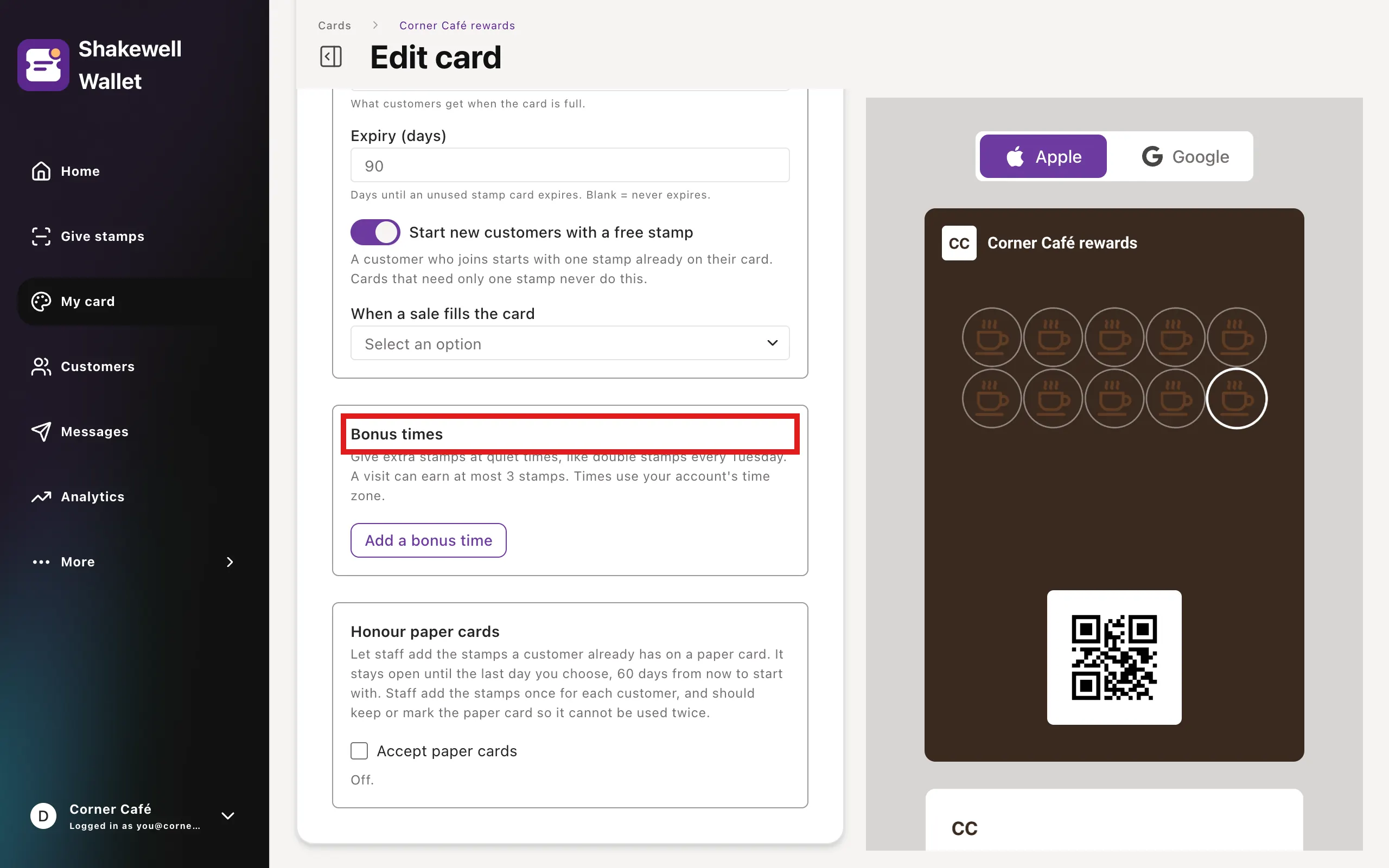
Step 3. Scroll down on step 1 until you see the box called Bonus times.
It is under the Stamps Program part.
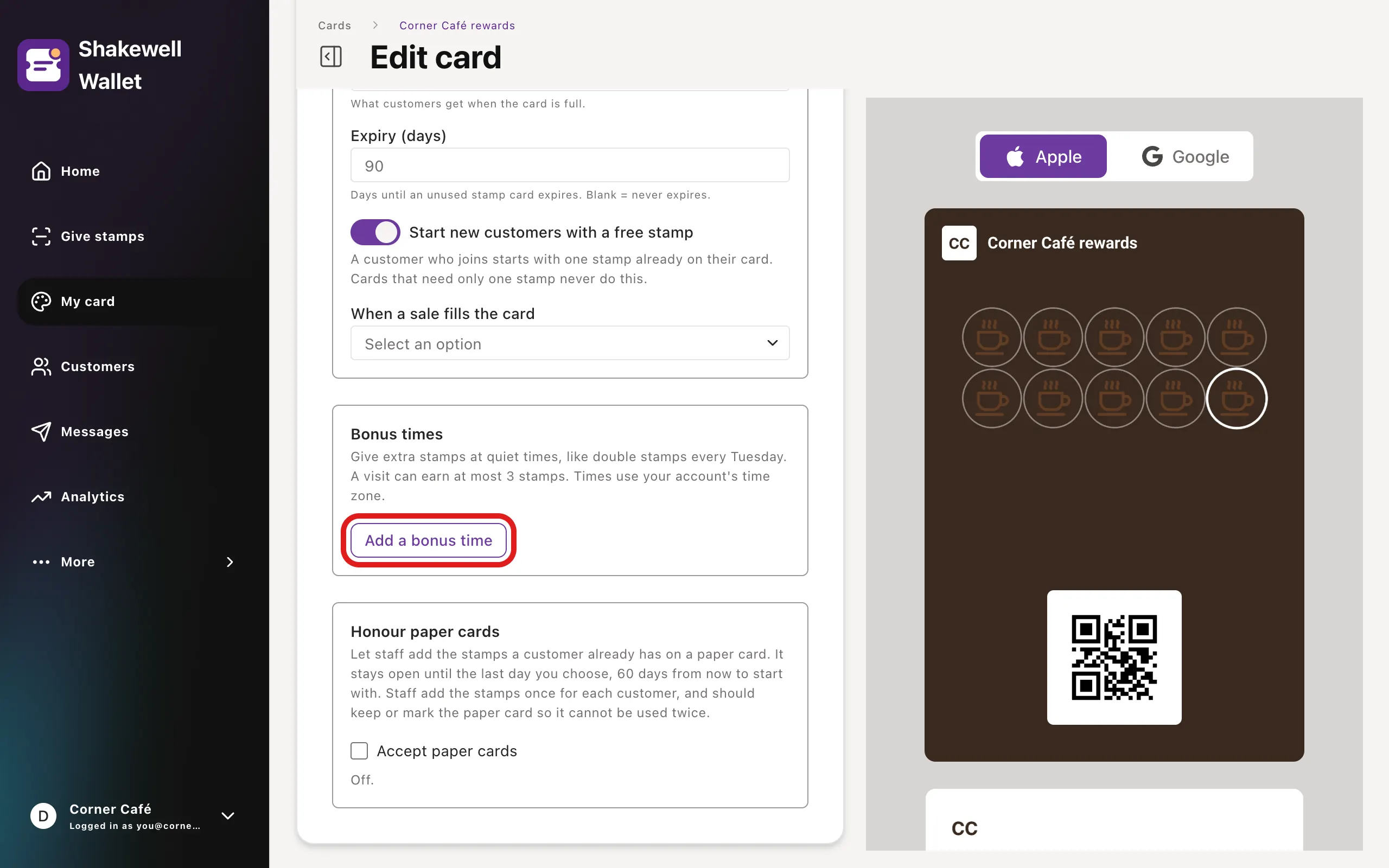
Step 4. Click the Add a bonus time button.
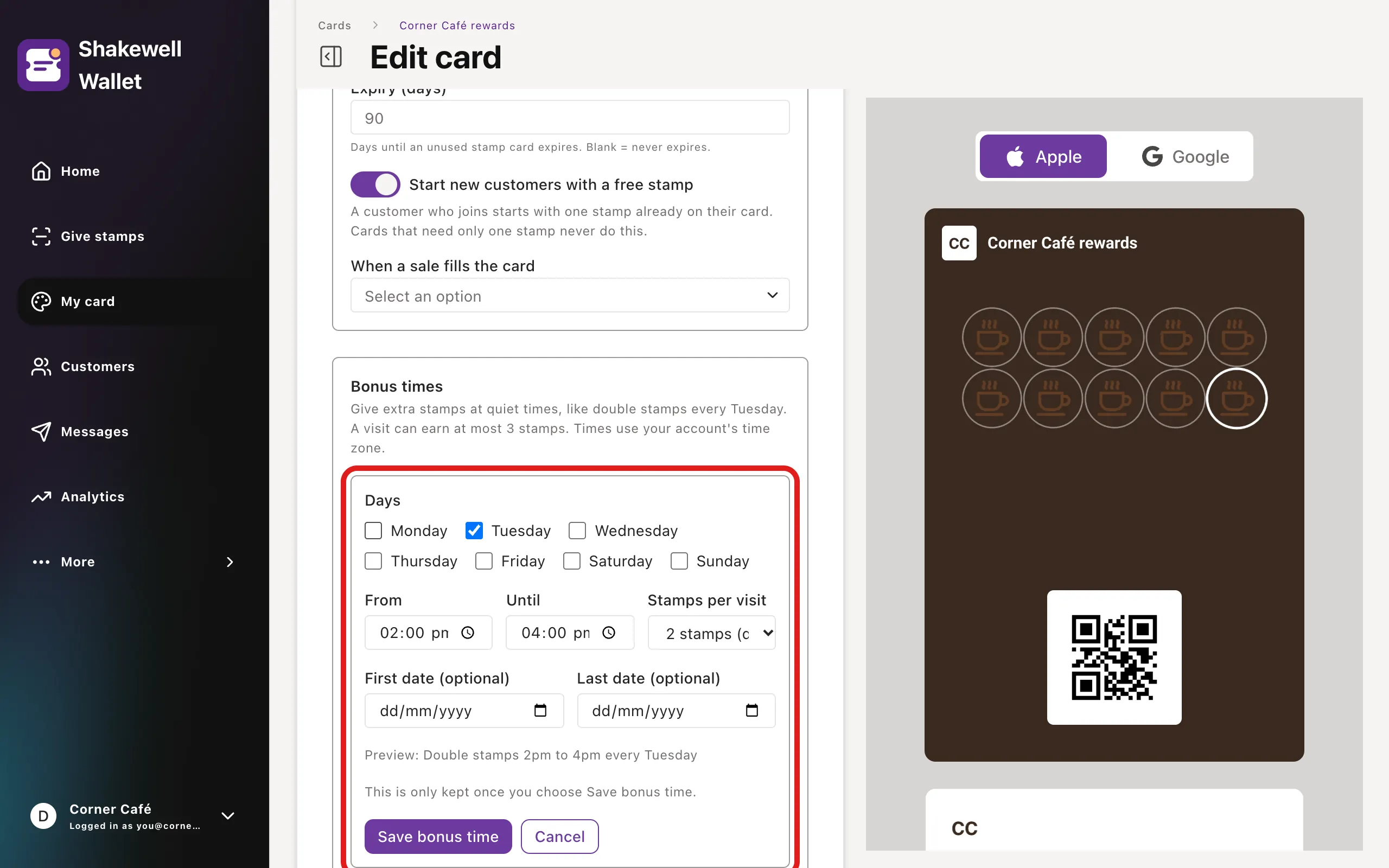
A form opens. It starts with Tuesday, 2pm to 4pm and double stamps.
Step 5. Look at the form that opened.
It has Days, From, Until and Stamps per visit.
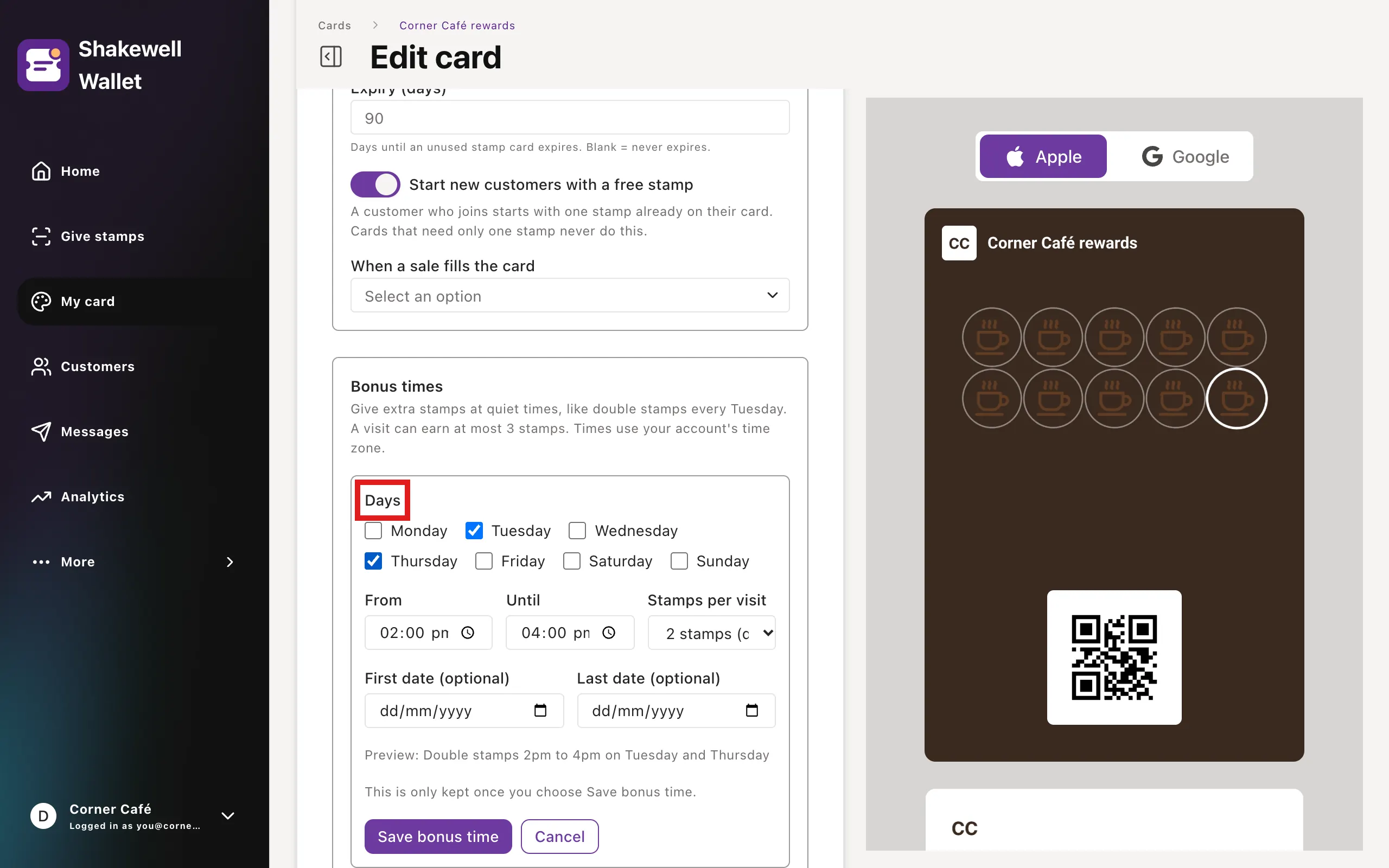
Step 6. Under Days, tick each day you want. For example, tick Thursday as well as Tuesday.
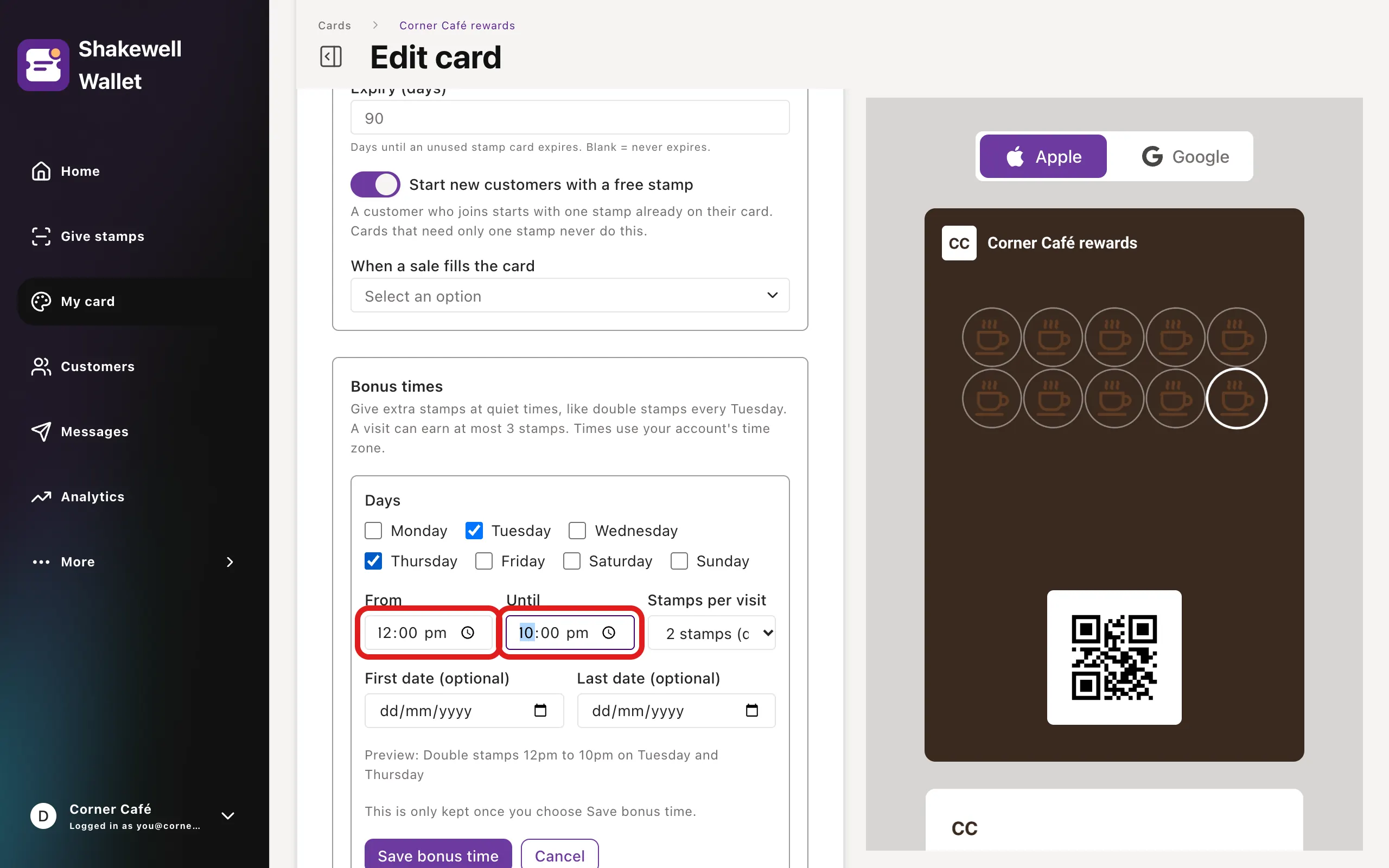
Step 7. Set the From and Until times. For example, From 12:00 pm and Until 10:00 pm.
The bonus only works between these times.
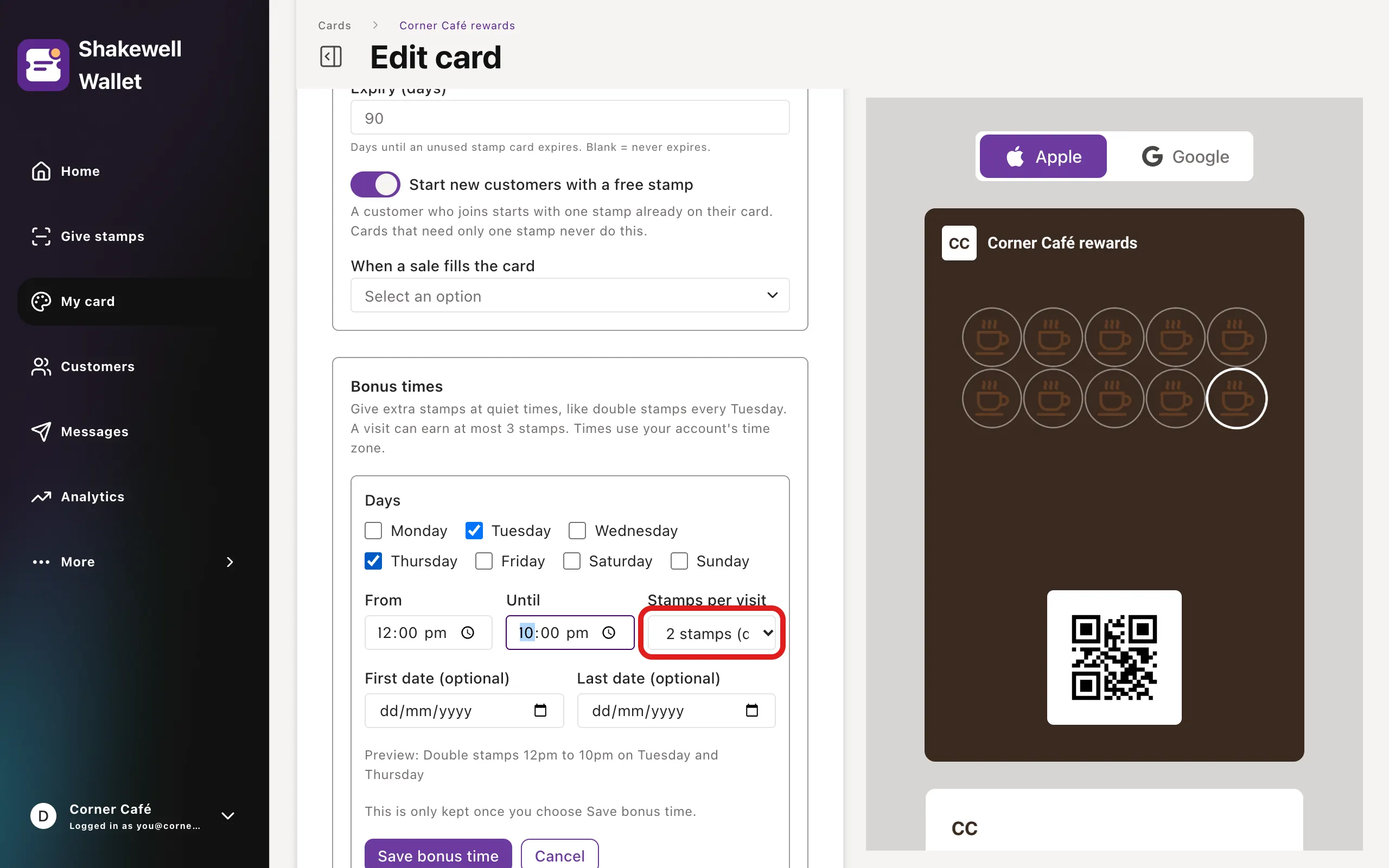
Step 8. Choose how many stamps a visit earns in the box called Stamps per visit. Pick 2 stamps (double) or 3 stamps (triple).
Step 9. Read the line that starts with Preview.
It says your bonus in plain words, like Double stamps 12pm to 10pm on Tuesday and Thursday.
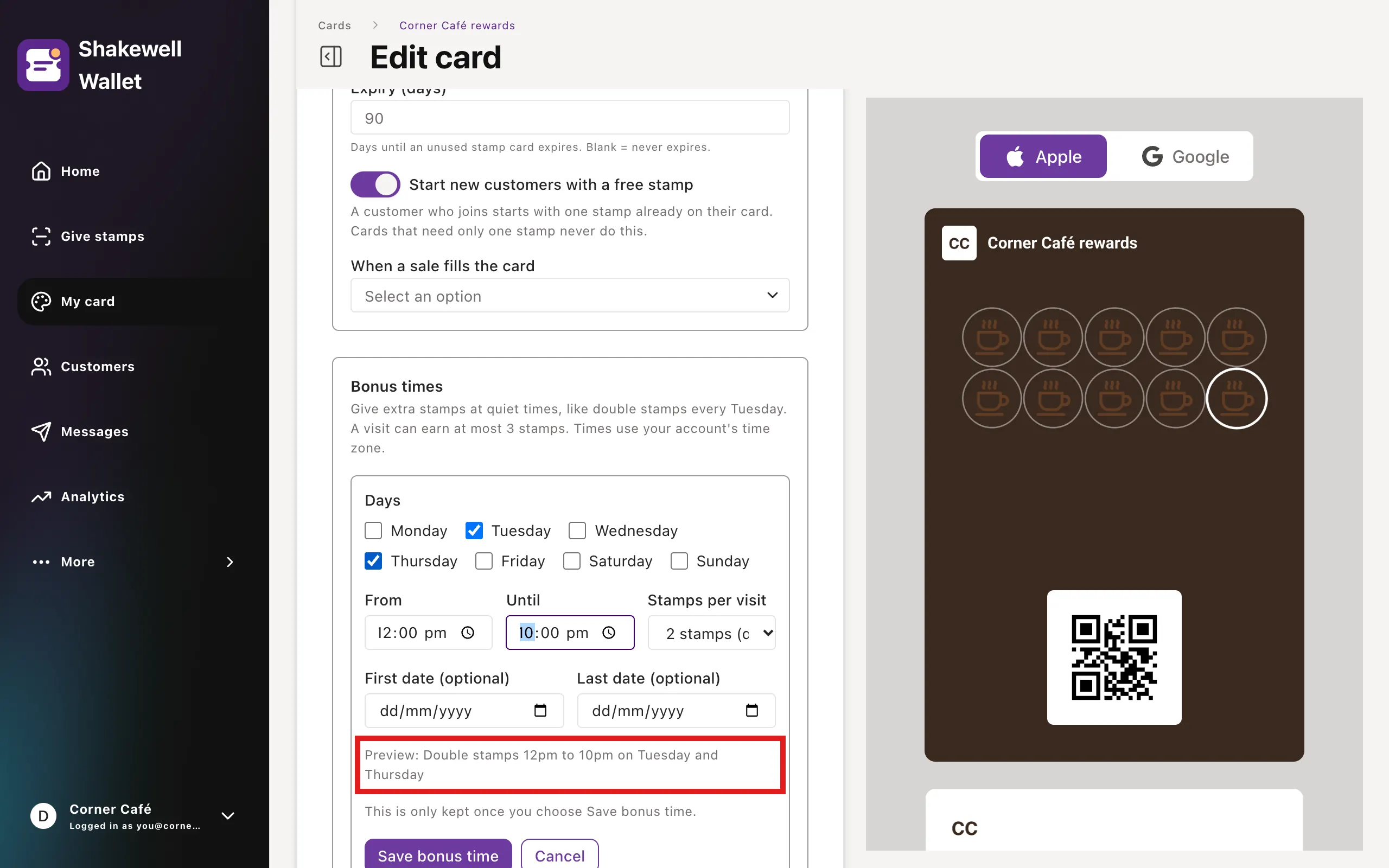
Step 10. Click Save bonus time.
It is only kept once you click this button.
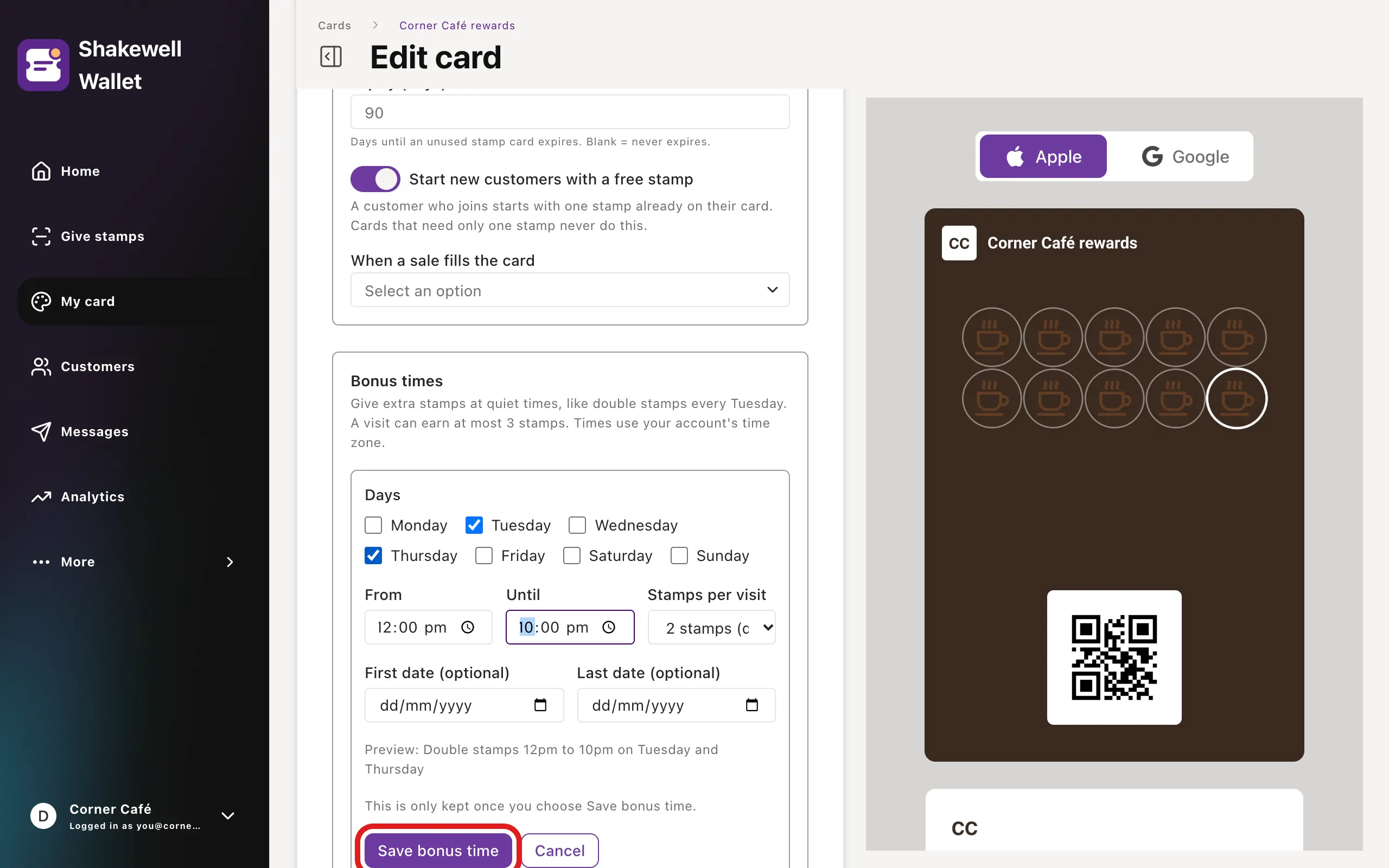
Step 11. Look at your list of bonus times.
Your new bonus time is in the list.
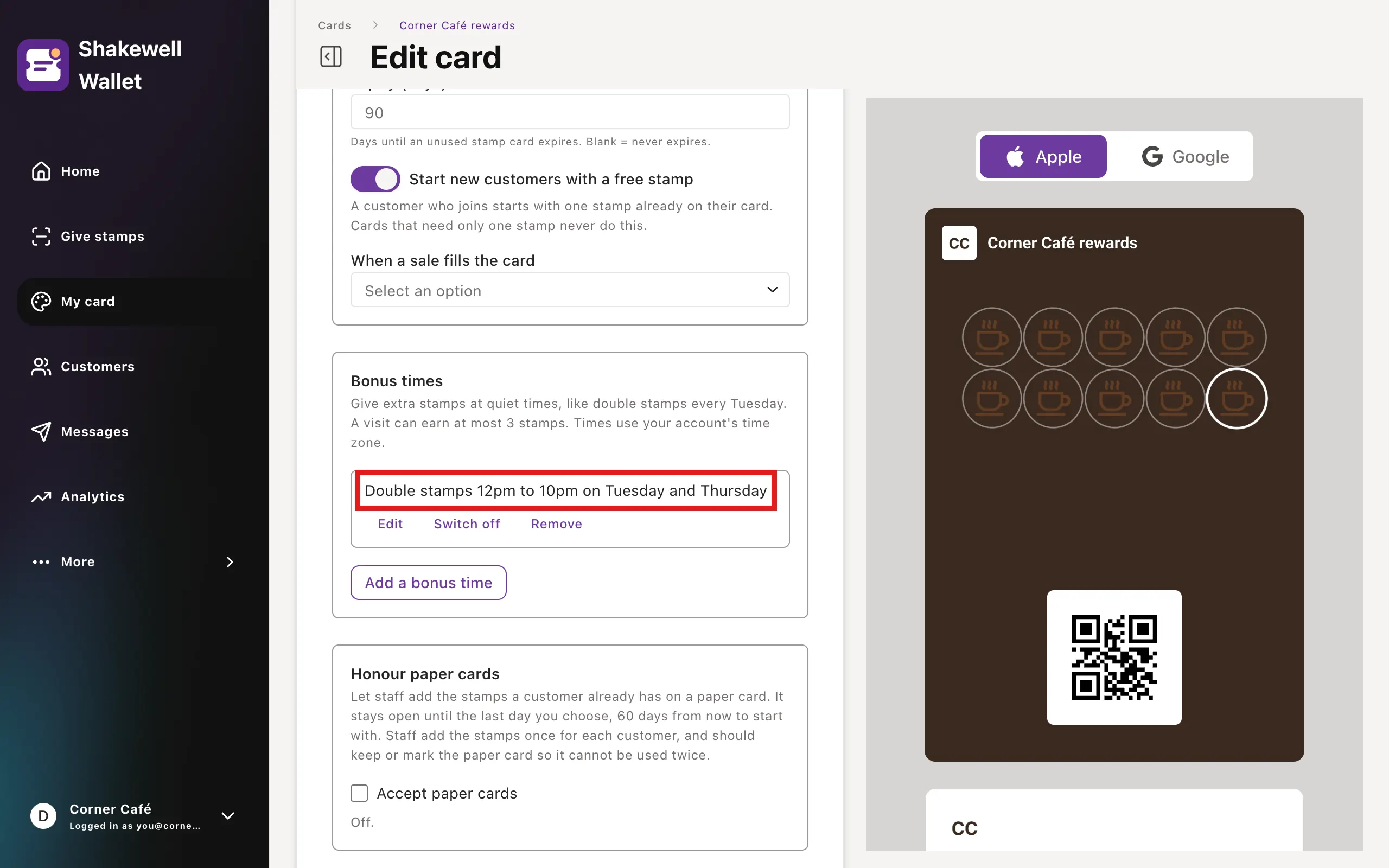
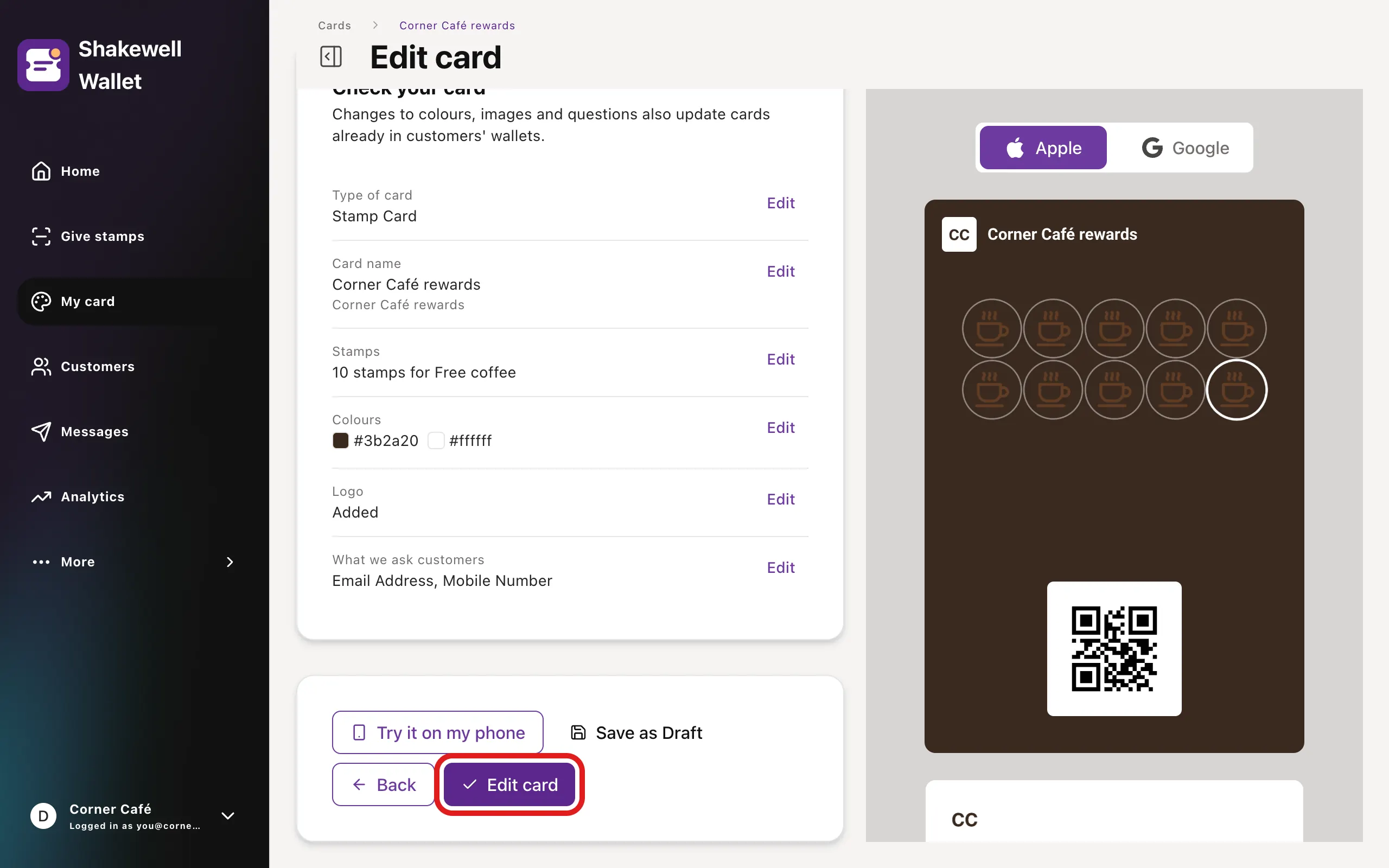
Step 12. Click Next three times. You are now on the last step, called Review.
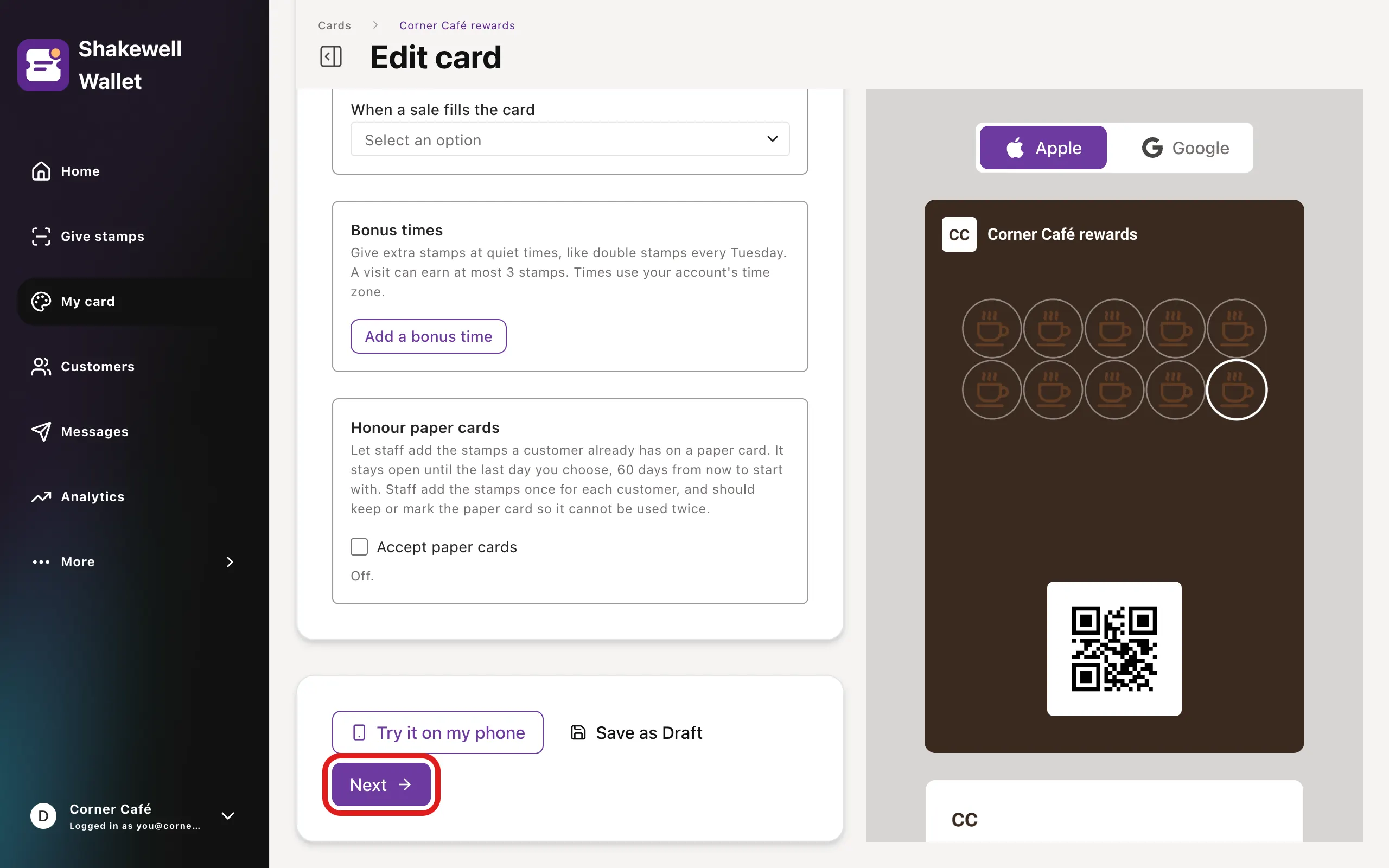
Step 13. Click the Edit card button at the bottom. It is the button that saves your changes.
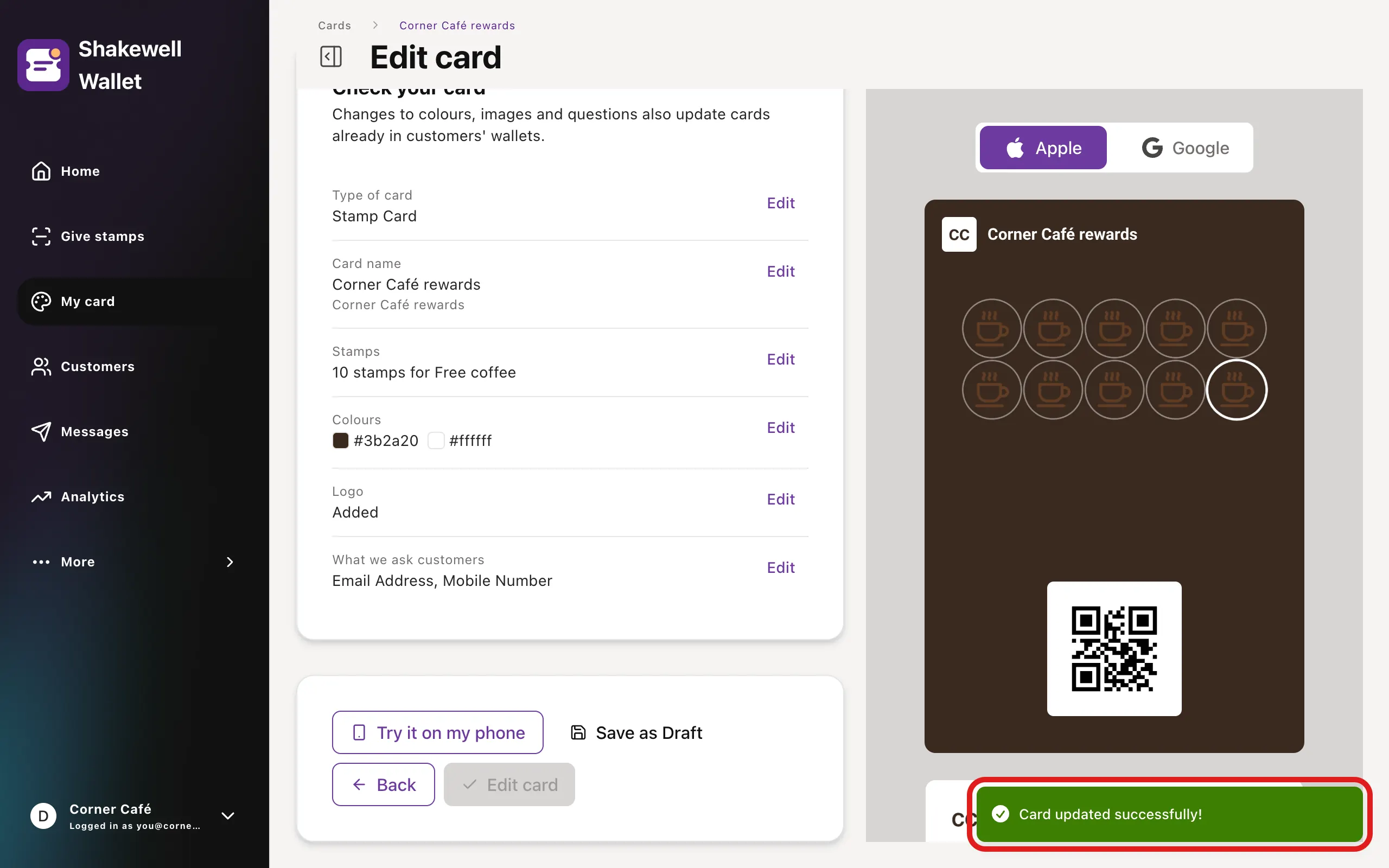
Step 14. Look at the bottom right of the screen.
A green message says Card updated successfully!
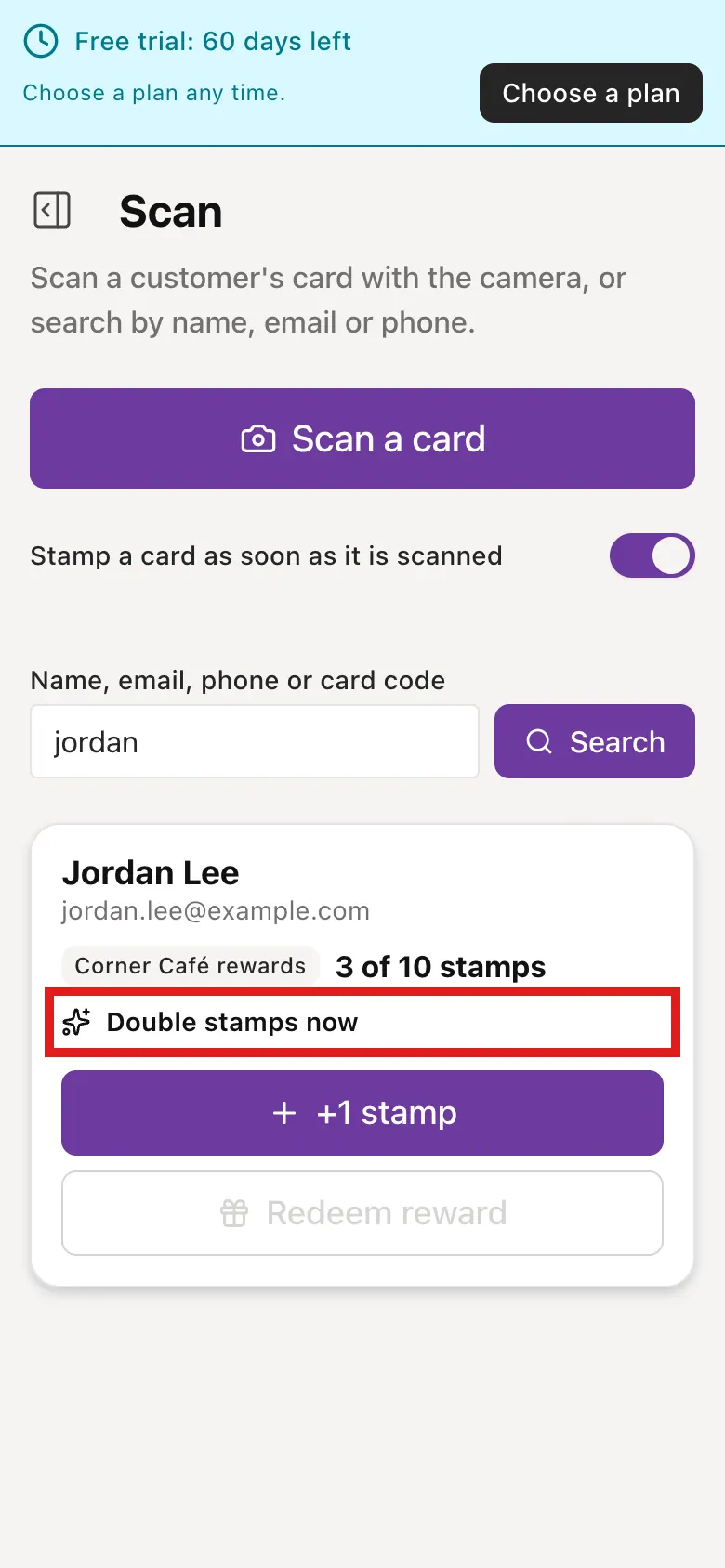
Step 15. At the counter, open the Give stamps page on your phone and search for a customer. During the bonus time, a line says Double stamps now.
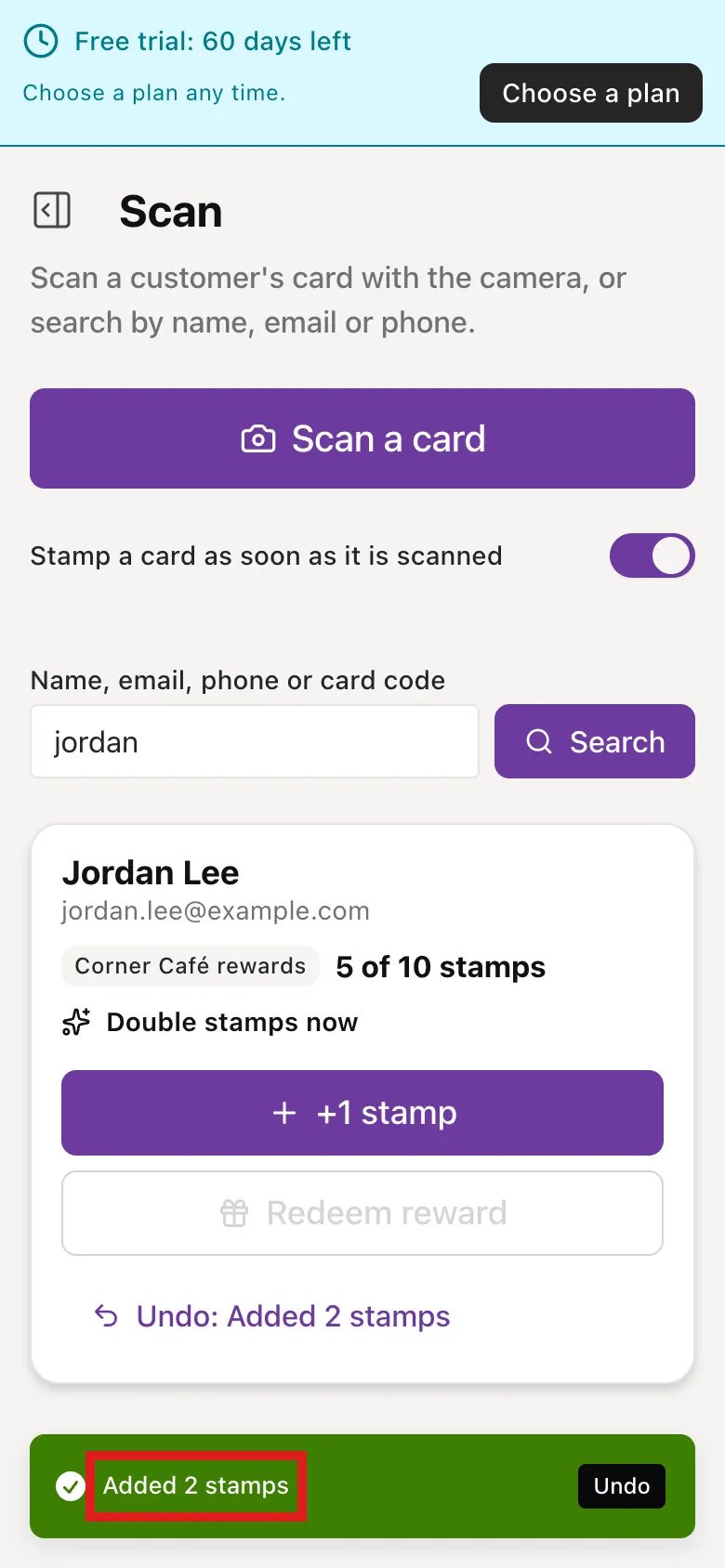
Step 16. Tap +1 stamp. Look at the message.
It says Added 2 stamps. The customer gets the bonus by itself.
You'll know it worked when
Your bonus time is in the list on your card, and at the counter a stamp adds 2 stamps during the bonus time.
Good to know
- You can add up to 5 bonus times to one card.
- Want it for a short time only? Fill in First date and Last date in the form.
- To stop a bonus, see How to switch off or remove a bonus time.
Stuck?
That is fine. Contact us and we will help you. We reply within one business day.
These guides may help: