
How-to guides / Set up
How to log in to your account
Log in with your email. We send you a code to type in. You do not need a password.
Takes about 2 minutes
Before you start
- You already have an account. (See How to sign up and make your first card.)
- The email address you signed up with, and a way to open that email.
The steps
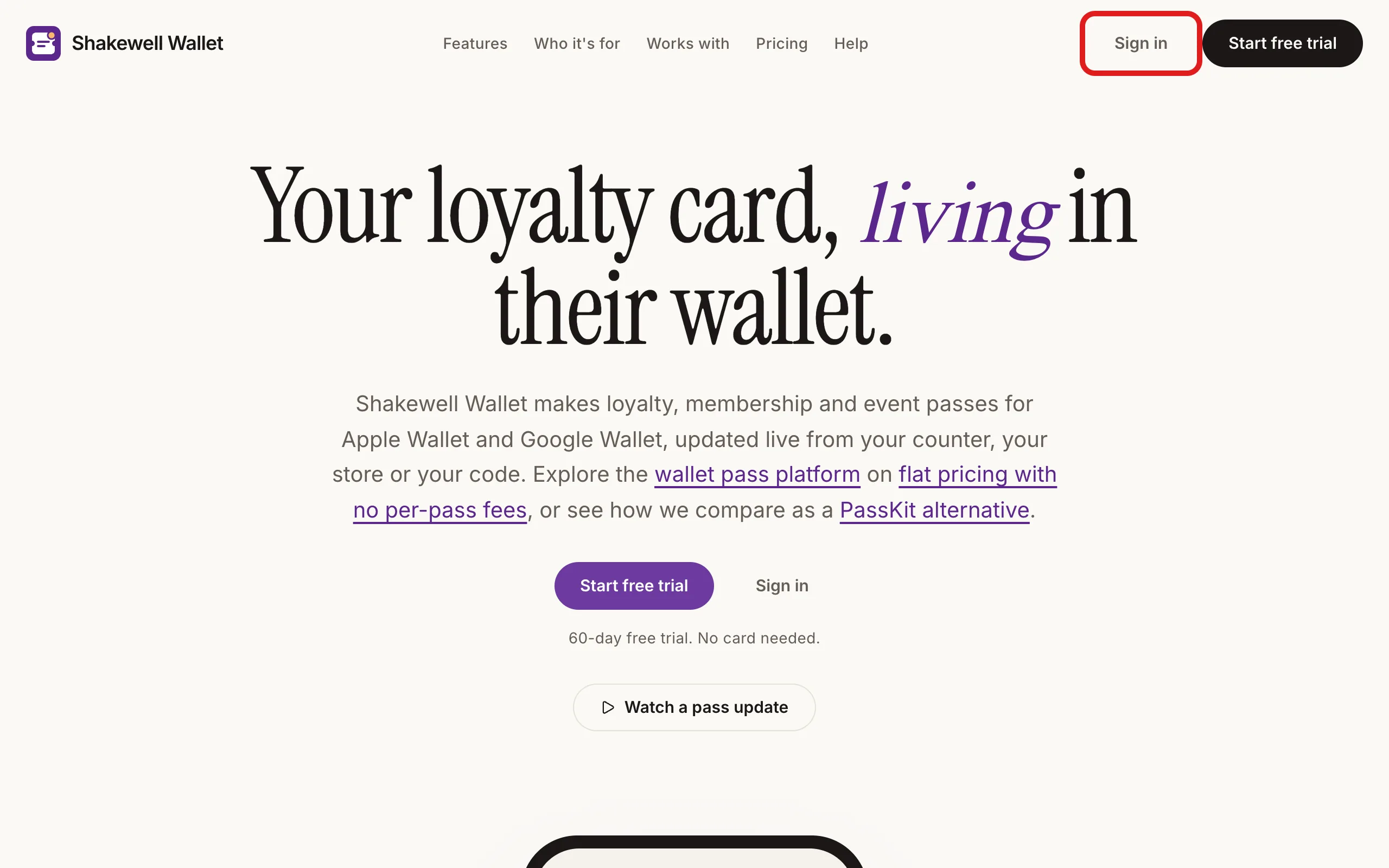
Step 1. Open shakewellwallet.com in your web browser. Click Sign in at the top right.
A page called Sign In opens. It has an Email box and a Password box.
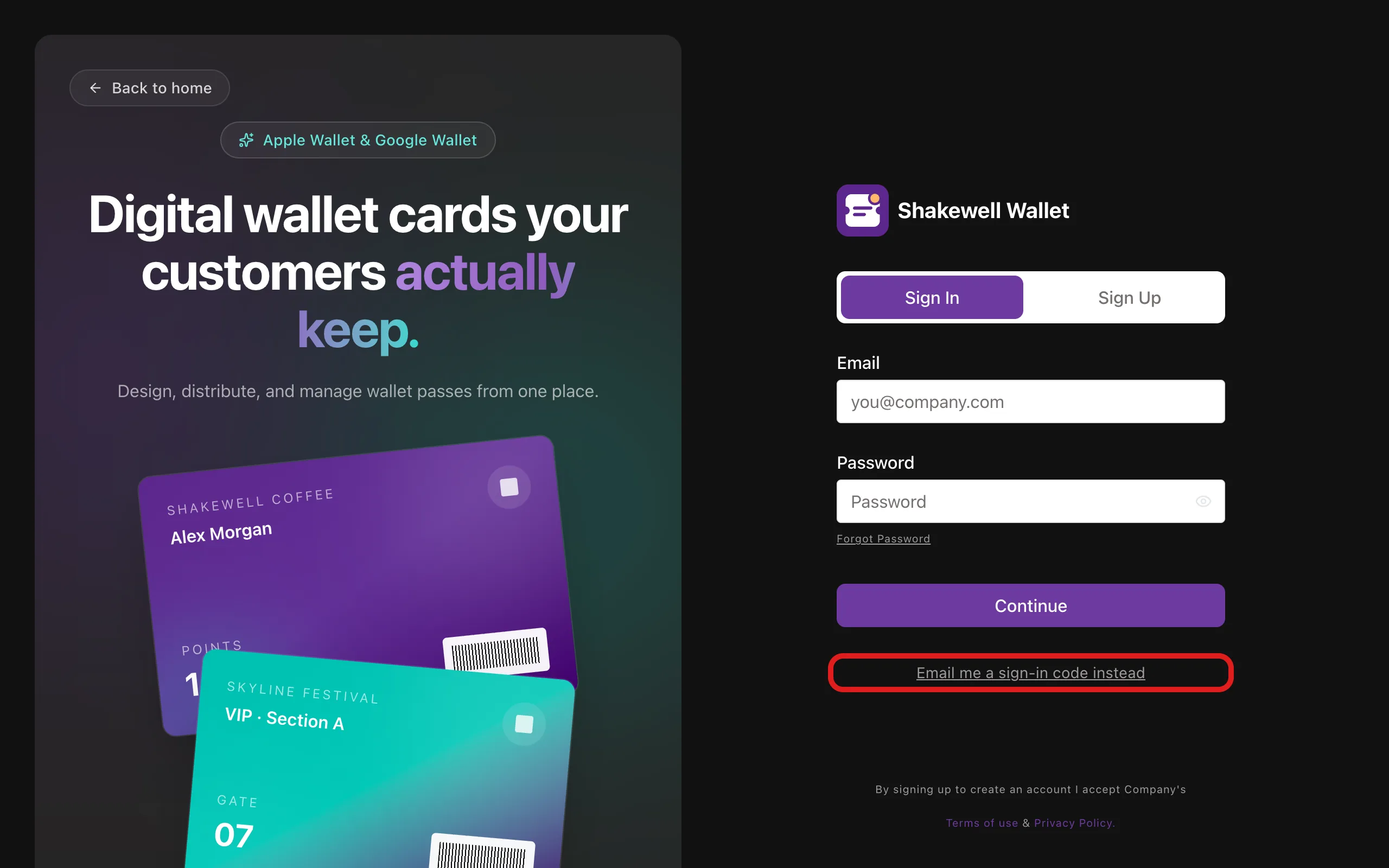
Step 2. Click the small link that says Email me a sign-in code instead.
The Password box goes away. You only need your email.
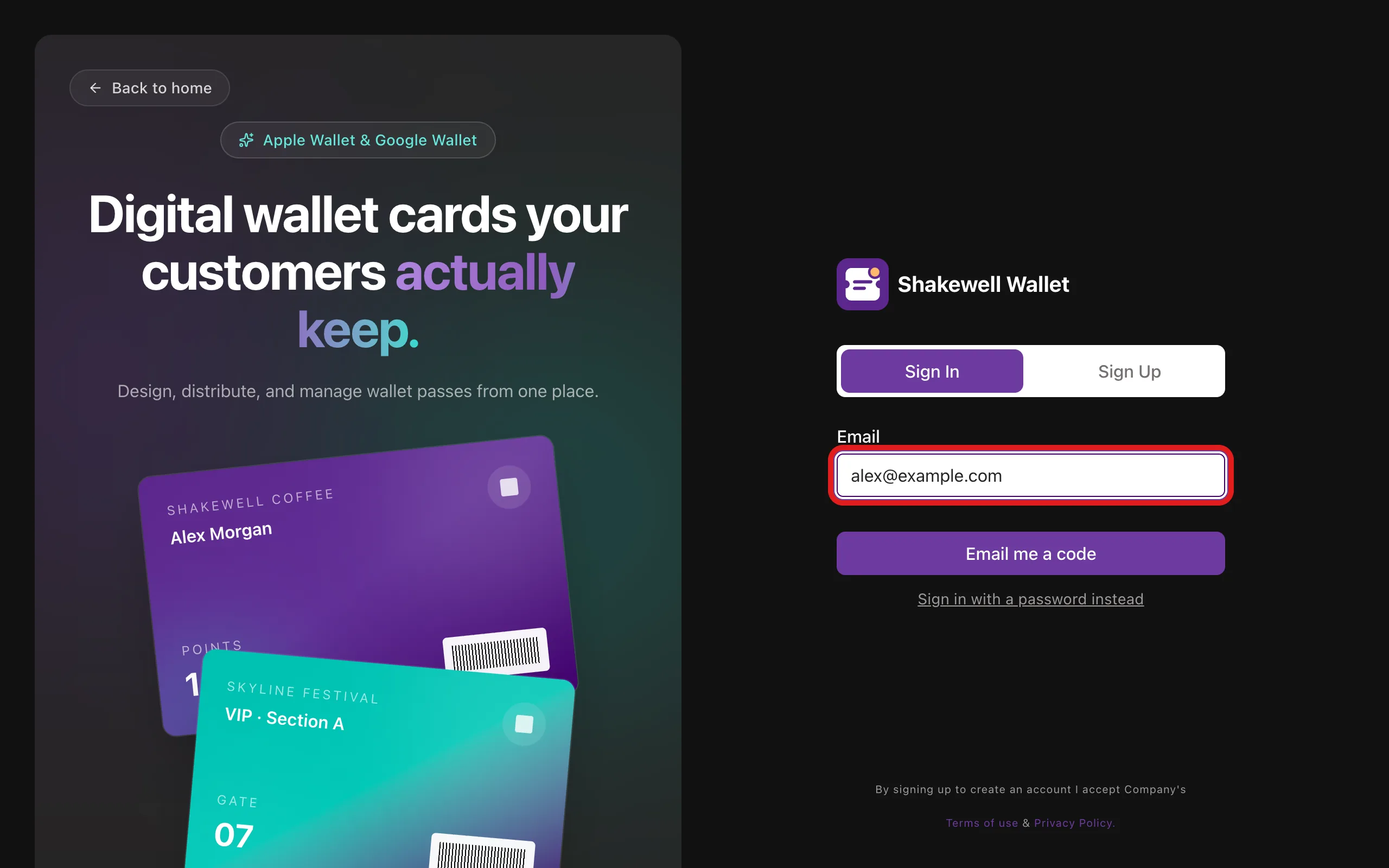
Step 3. Click the Email box and type your email address.
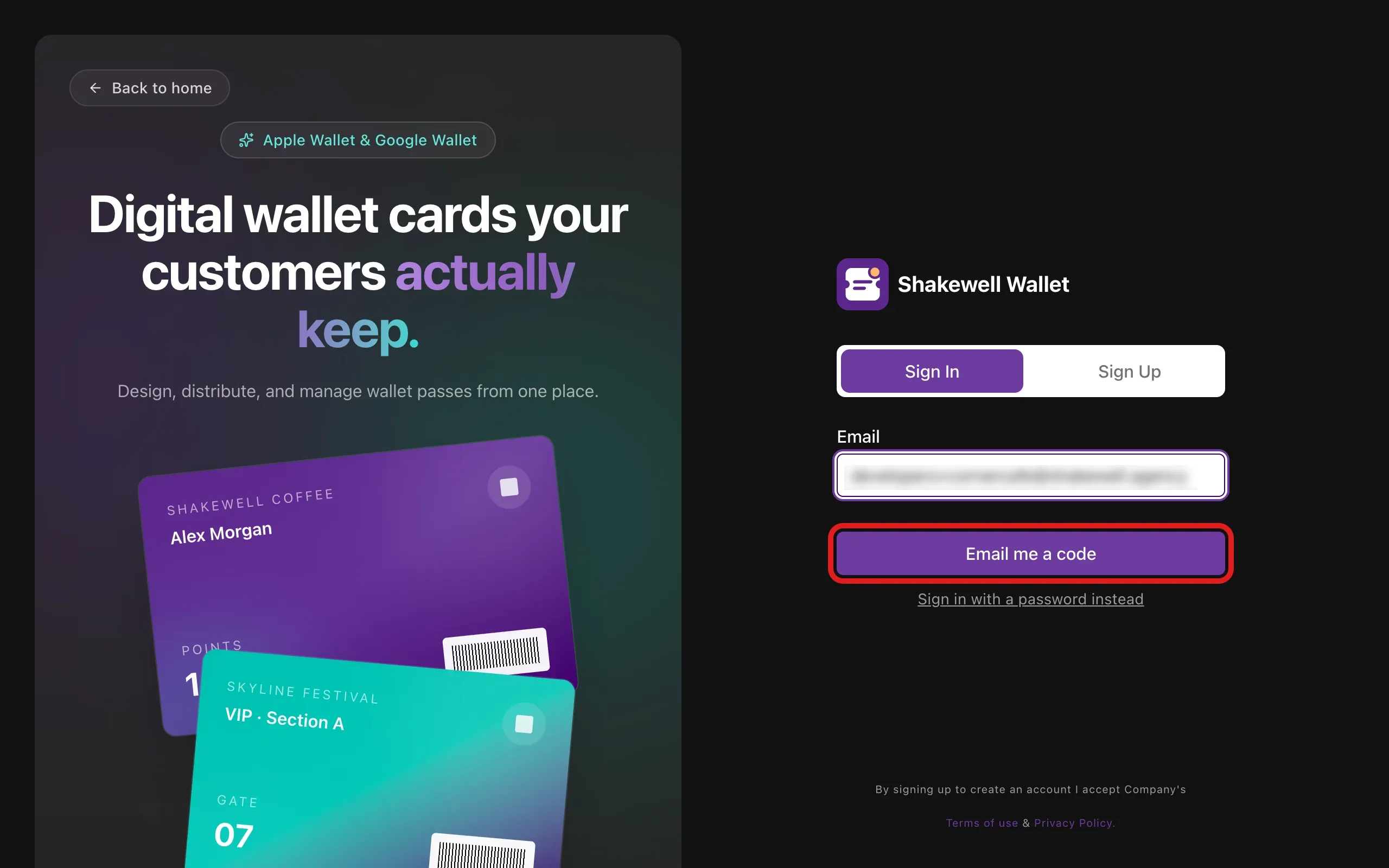
Step 4. Click the purple Email me a code button.
Wait a moment.
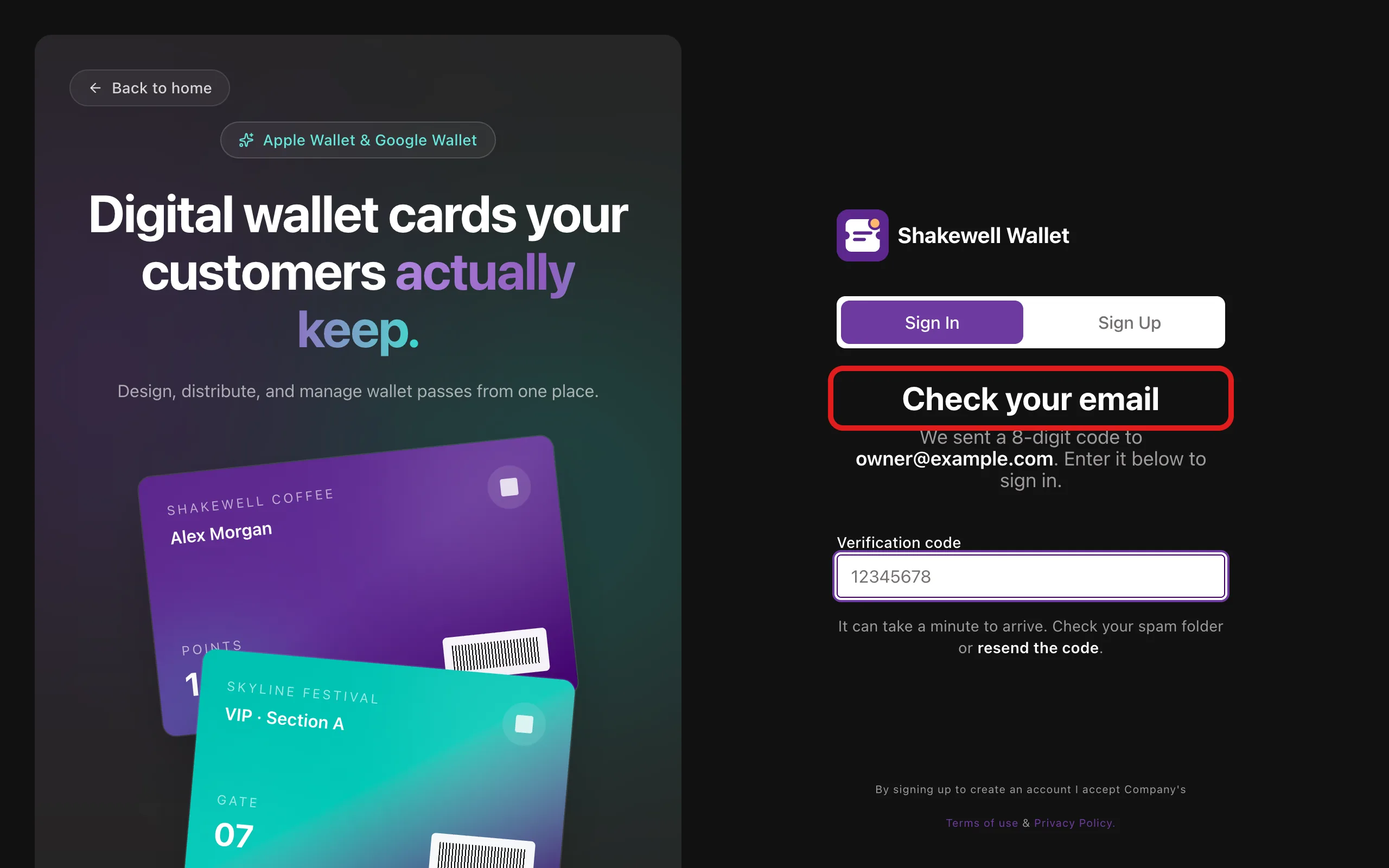
Step 5. Look at the top of the box. It says Check your email.
We have sent you a code. It has 8 numbers.
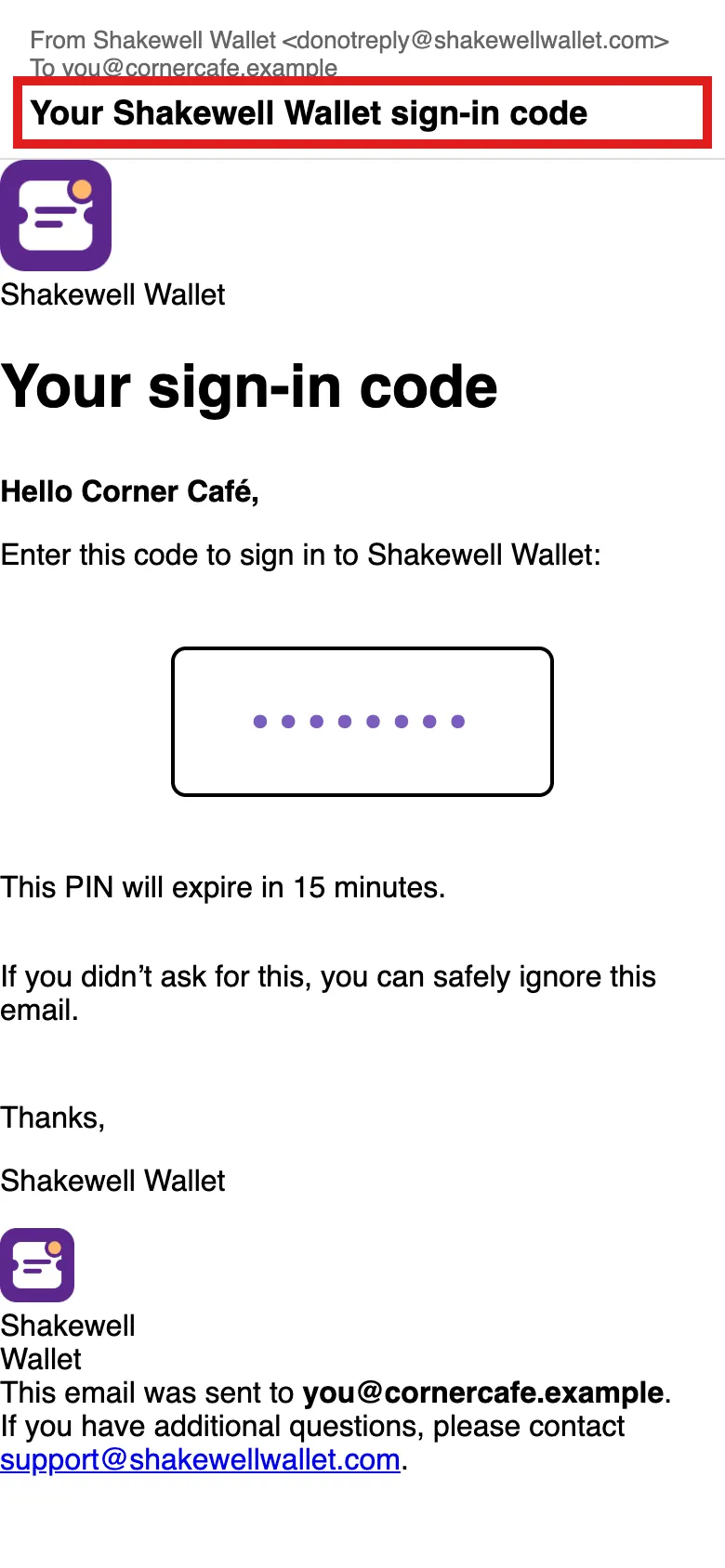
Step 6. Open your email in a new tab. Find the message called Your Shakewell Wallet sign-in code.
The message has 8 numbers in it. Keep the first tab open so you can come back.
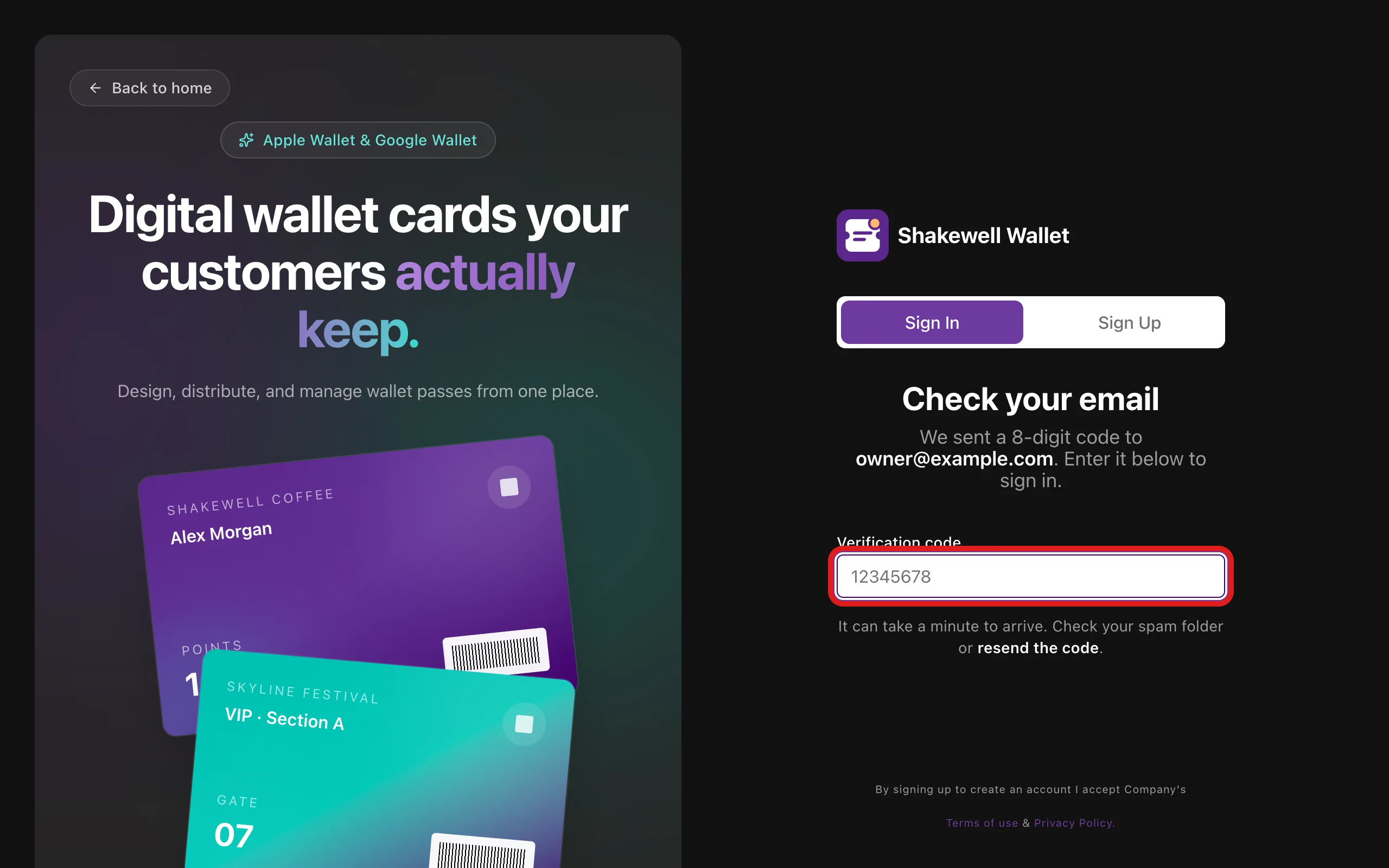
Step 7. Go back to the Check your email page. Type the 8 numbers into the Verification code box.
You do not need to press anything else. The page opens by itself in a few seconds.
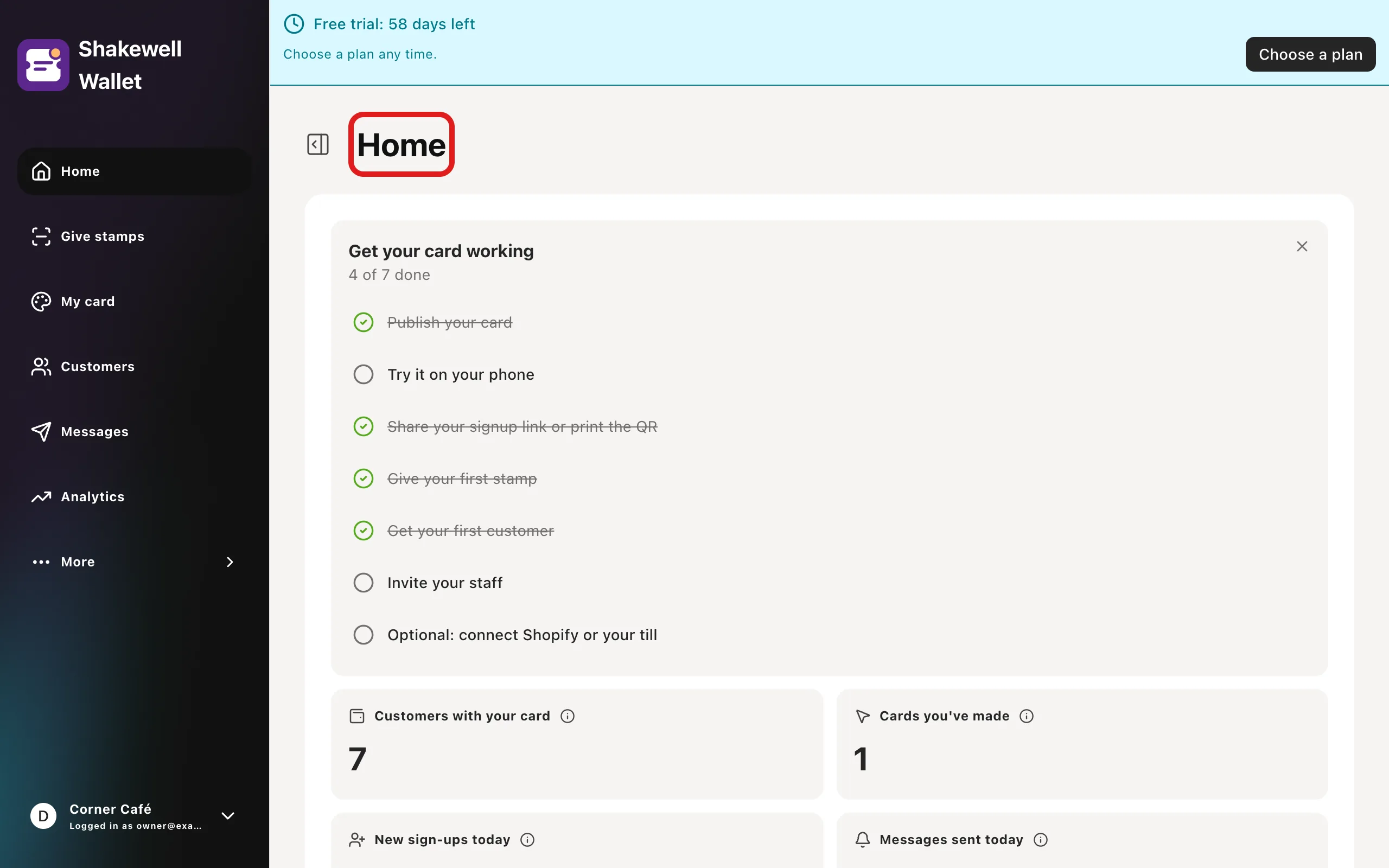
Step 8. Look at the page that opens. The word Home is at the top.
You are logged in.
You'll know it worked when
You see the Home page, with your business name at the bottom left of the menu.
Good to know
- The code works once, and only for 15 minutes. If it has run out, go back to the Sign In page and ask for a new one.
- No email yet? Look in your spam folder. On the Check your email page you can also press resend the code after a short wait.
- Made a password? You can type it in the Password box on the Sign In page instead.
- Run more than one business? After the code, a page asks which business to open.
Stuck?
That is fine. Contact us and we will help you. We reply within one business day.
These guides may help: