
How-to guides / Grow
How to honour a customer's paper card
Let customers who have a paper stamp card bring it in, and add their stamps to the new card.
Takes about 5 minutes
Before you start
- Your stamp card is live. (See How to sign up and make your first card.)
- The customer has joined your new card. If not, see How to add a customer yourself.
- The customer has their paper card with them.
The steps
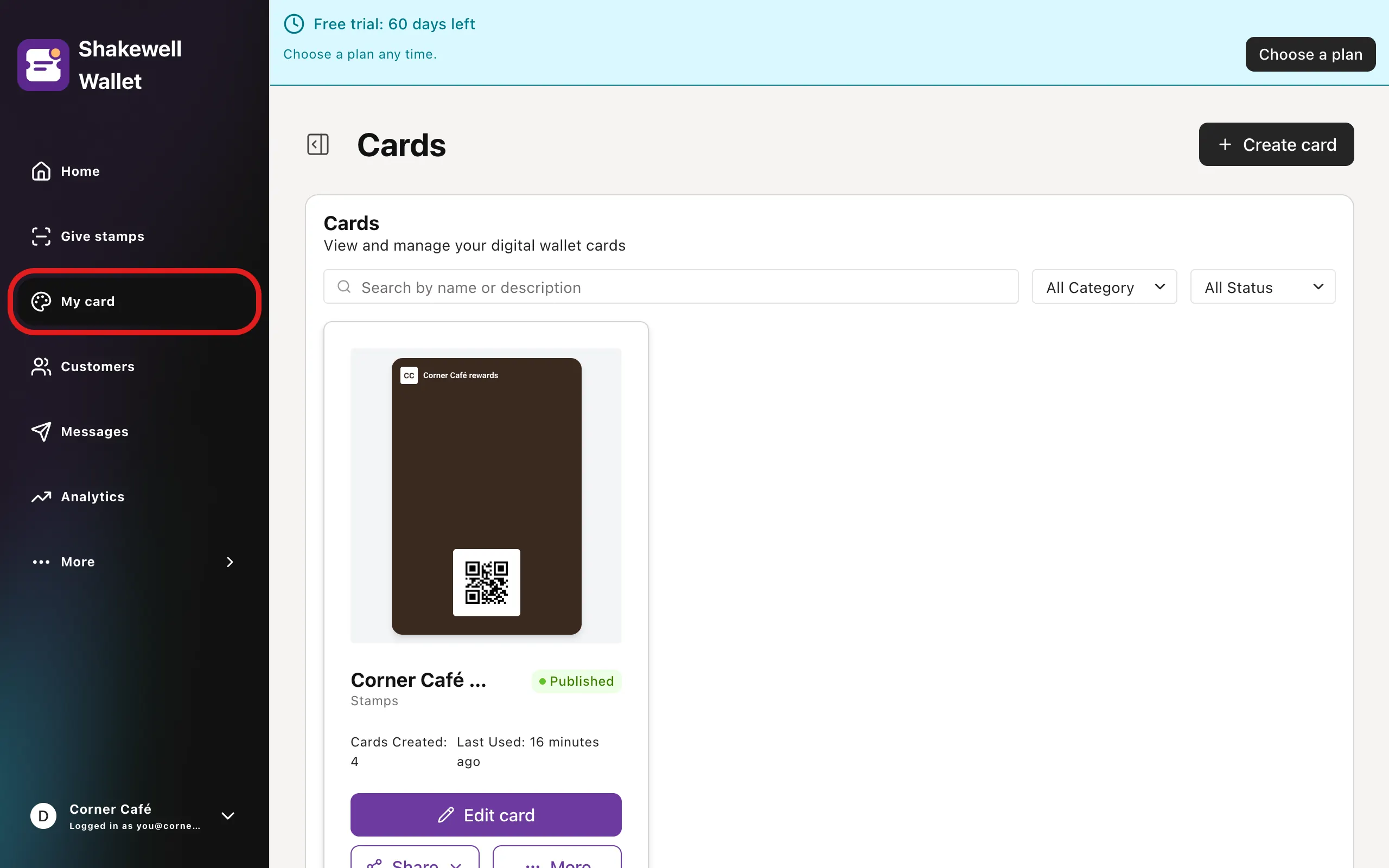
Step 1. On your computer, look at the menu on the left. Click My card.
You see your card in a list.
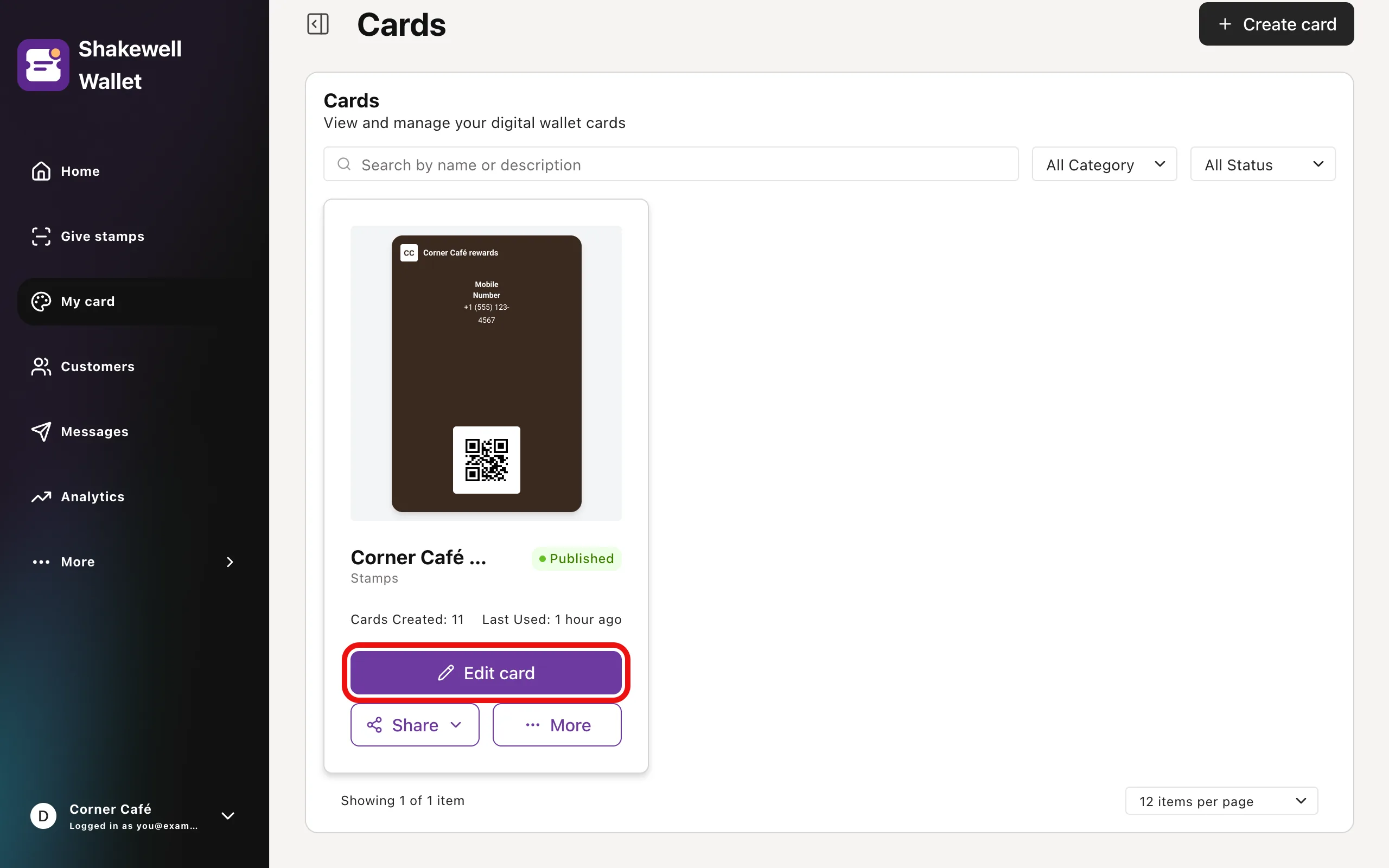
Step 2. Under your card, click the purple Edit card button.
A page called Edit card opens.
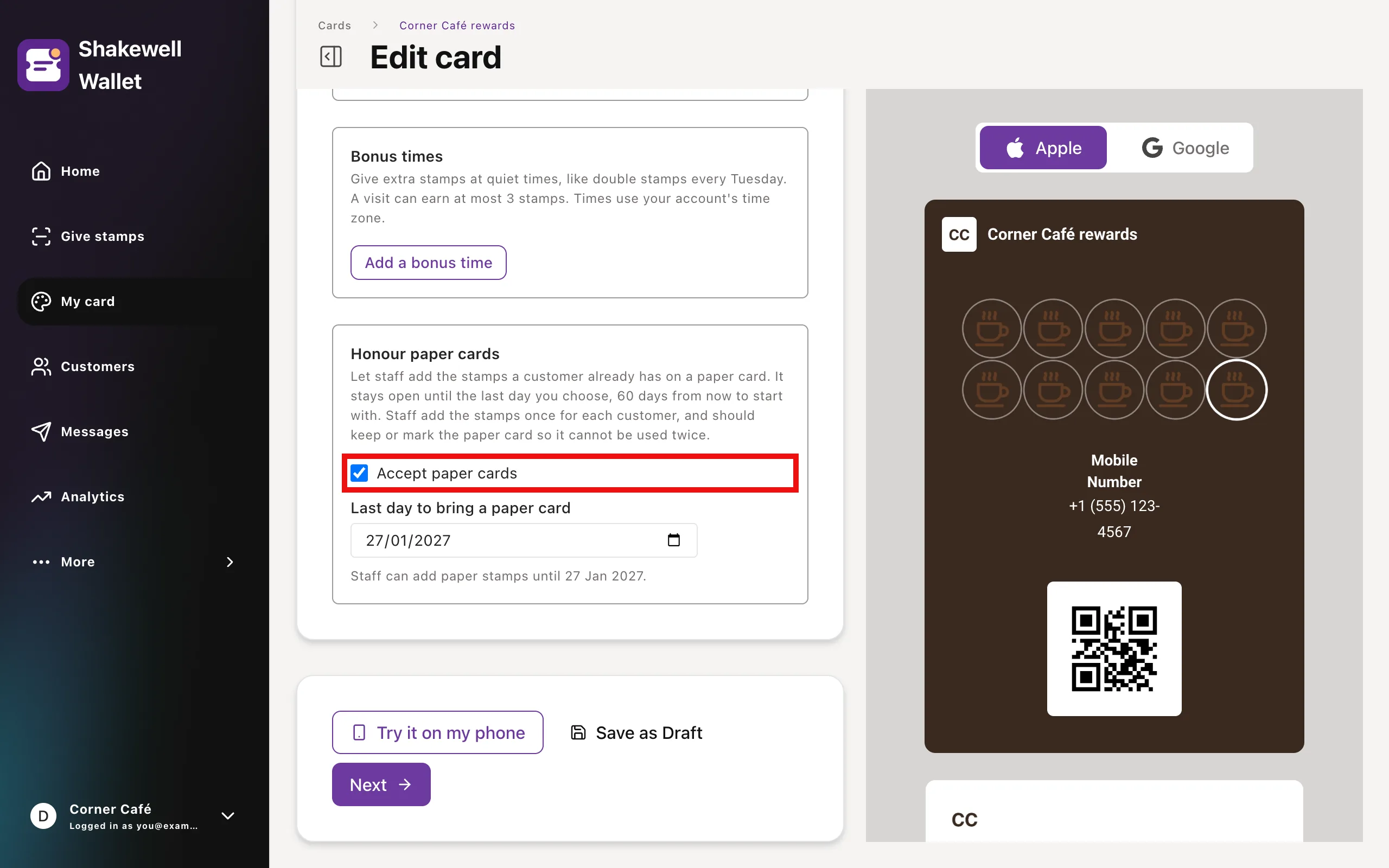
Step 3. Scroll down to the box called Honour paper cards. Click the small square next to Accept paper cards.
A tick shows in the square. A new box called Last day to bring a paper card shows under it.
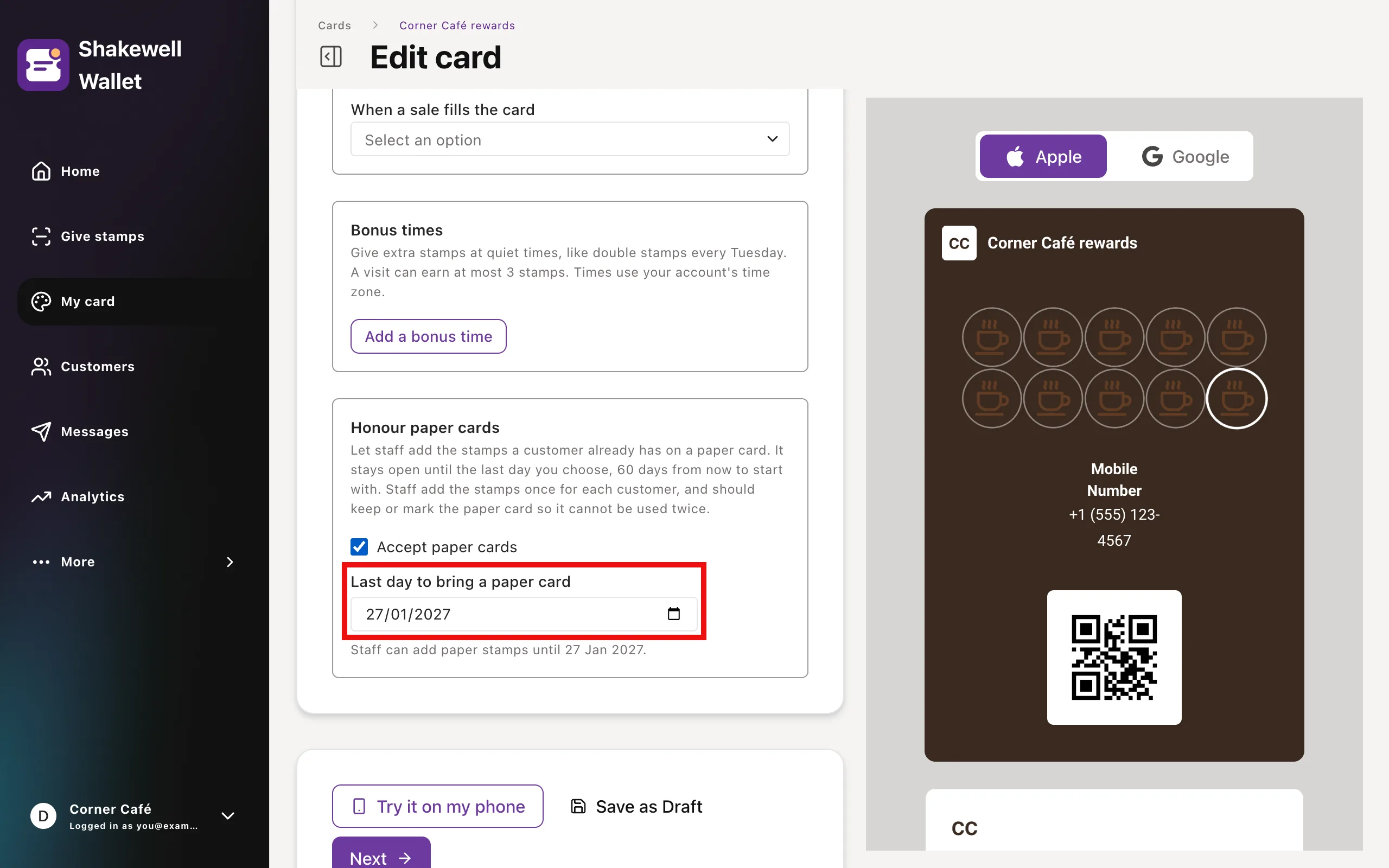
Step 4. Look at the date in the Last day to bring a paper card box. We fill in a day 60 days from today. Click the box to pick a different day.
The line under it says Staff can add paper stamps until that day.
Step 5. Scroll to the bottom of the page. Click the purple Next button.
The page moves to step 2 of 4.
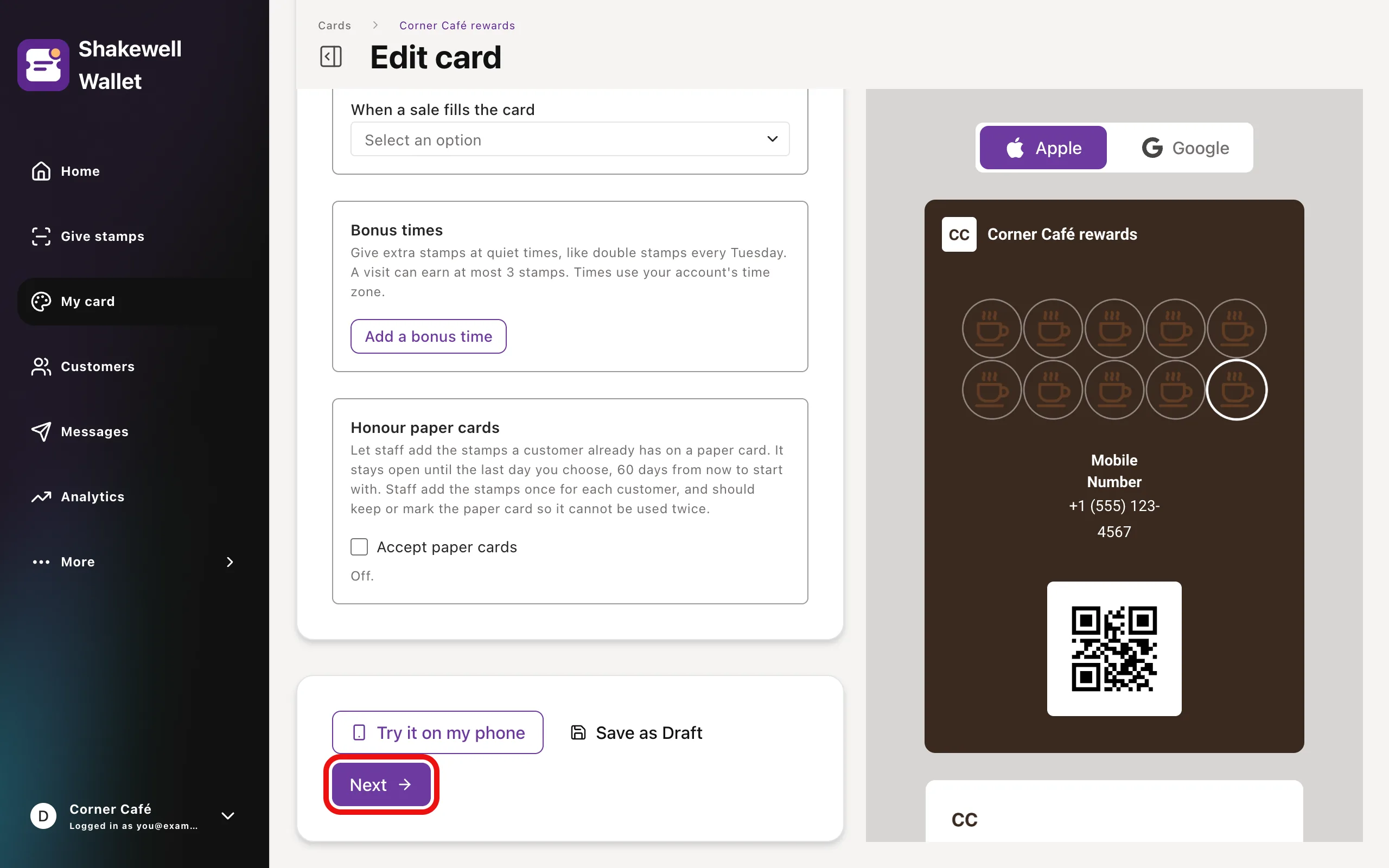
Step 6. Click the purple Next button two more times.
The page says Step 4 of 4: Review.
Step 7. On the Review step, scroll to the bottom. Click the purple Edit card button.
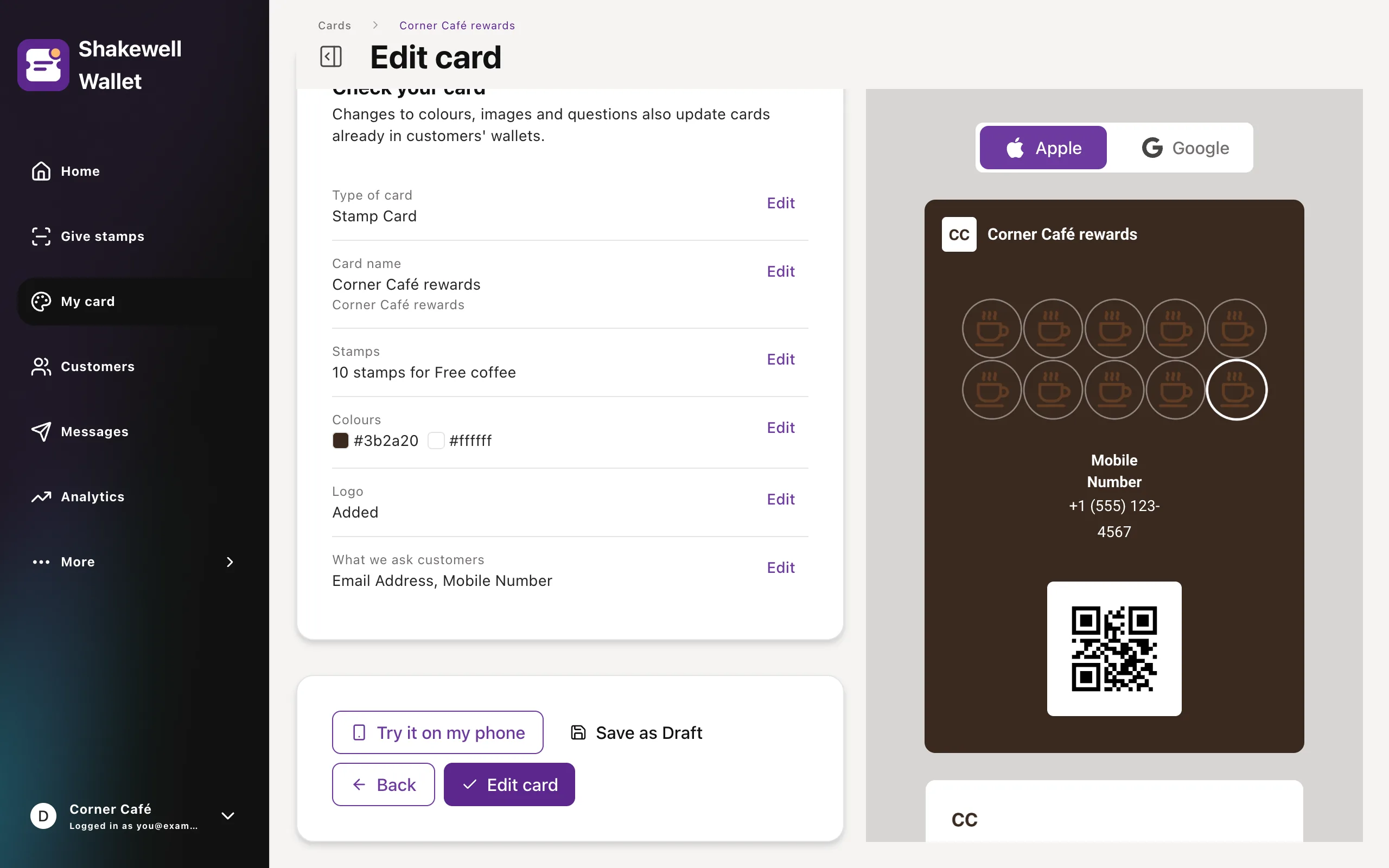
Your change is saved. Your card stays live.
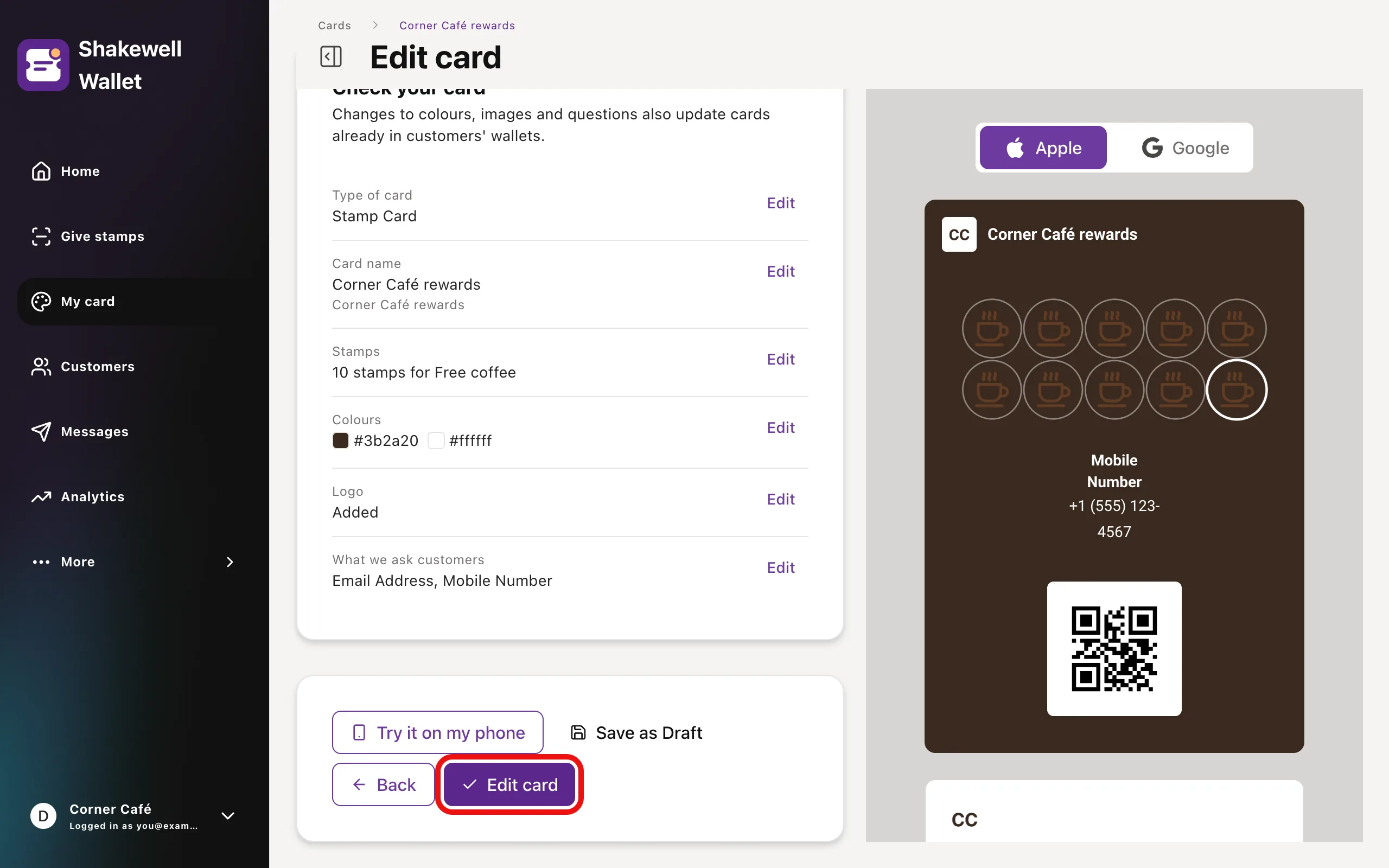
Step 8. Look at the Edit card button.
It turns grey for a moment while your change is saved.
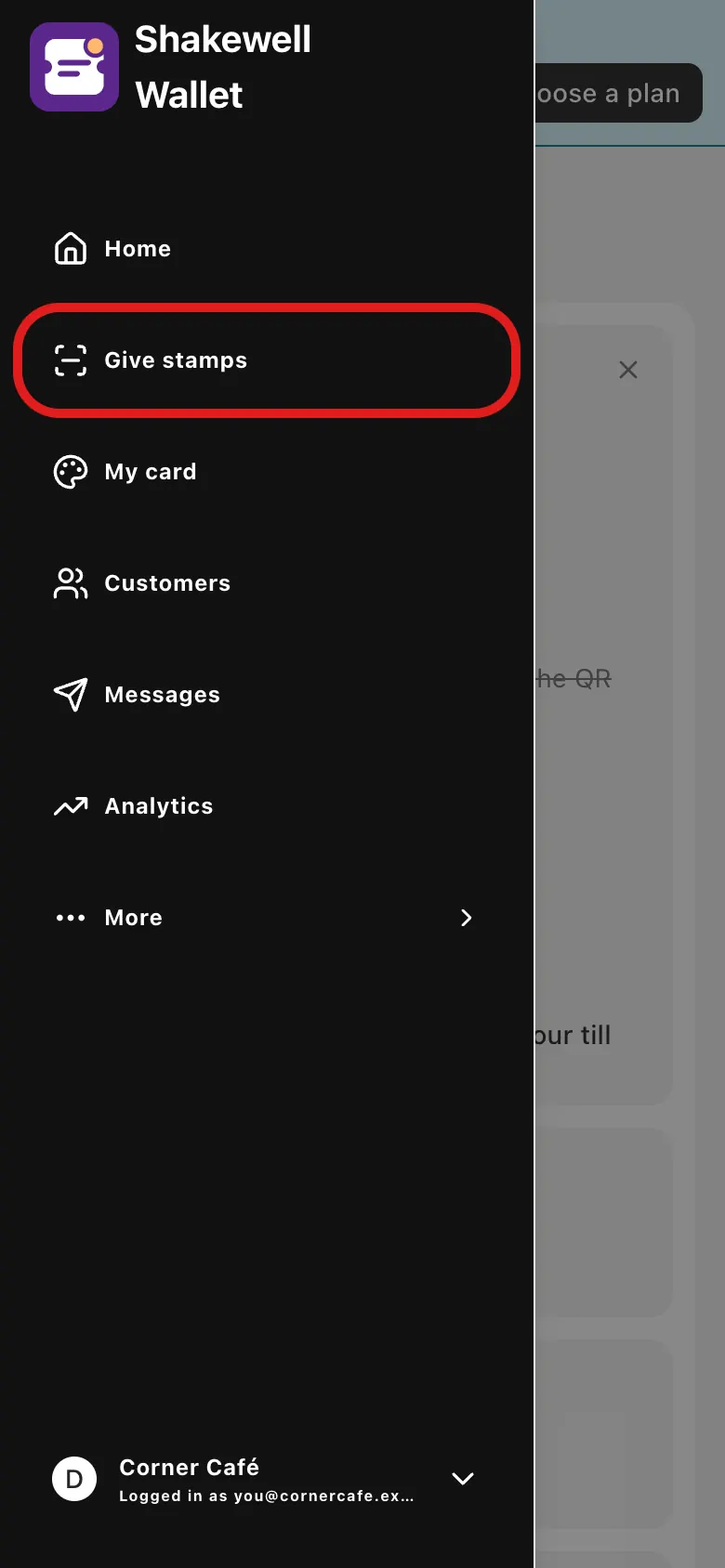
Step 9. Now go to the counter. On your phone, tap the small square icon at the top left. Tap Give stamps.
A page called Scan opens.
Step 10. Tap the white box under Name, email, phone or card code. Type the customer's name.
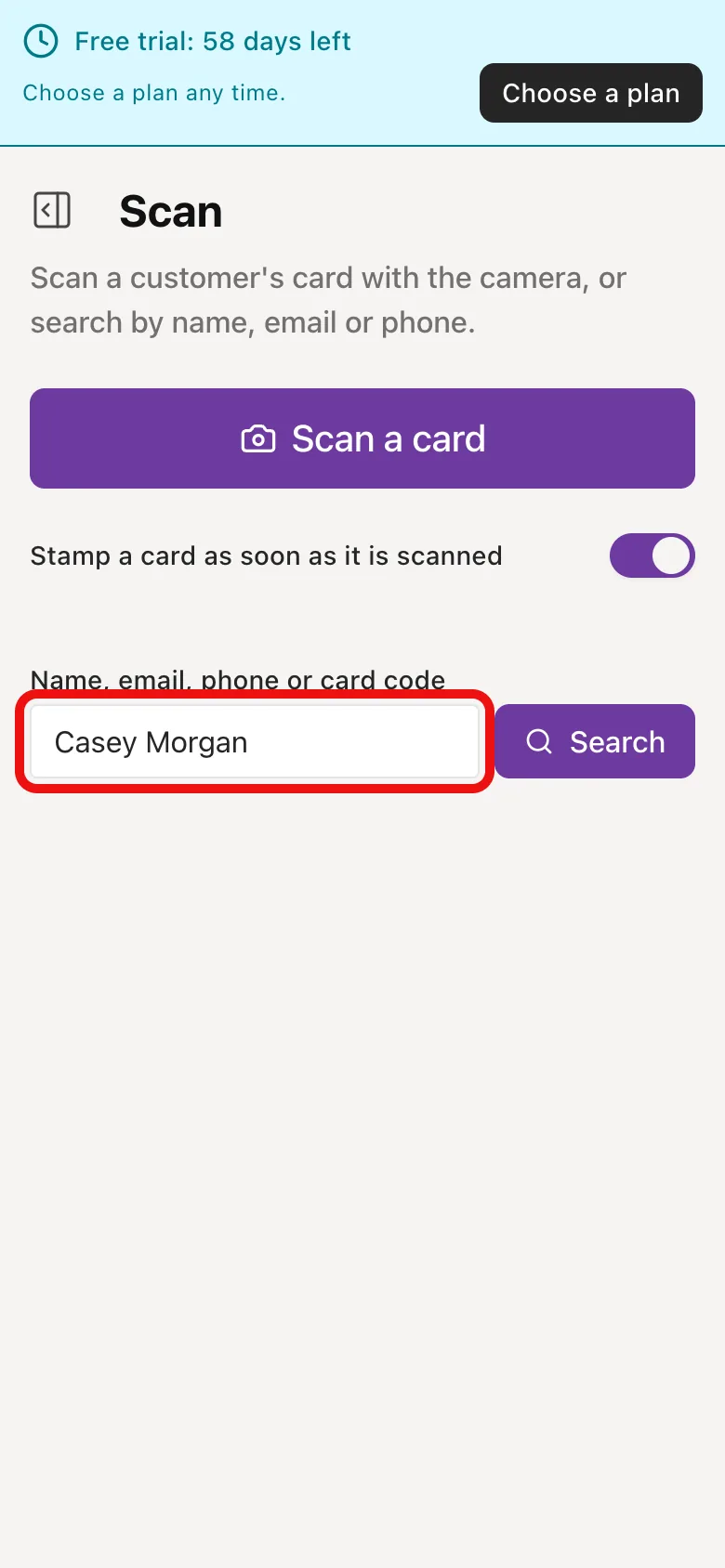
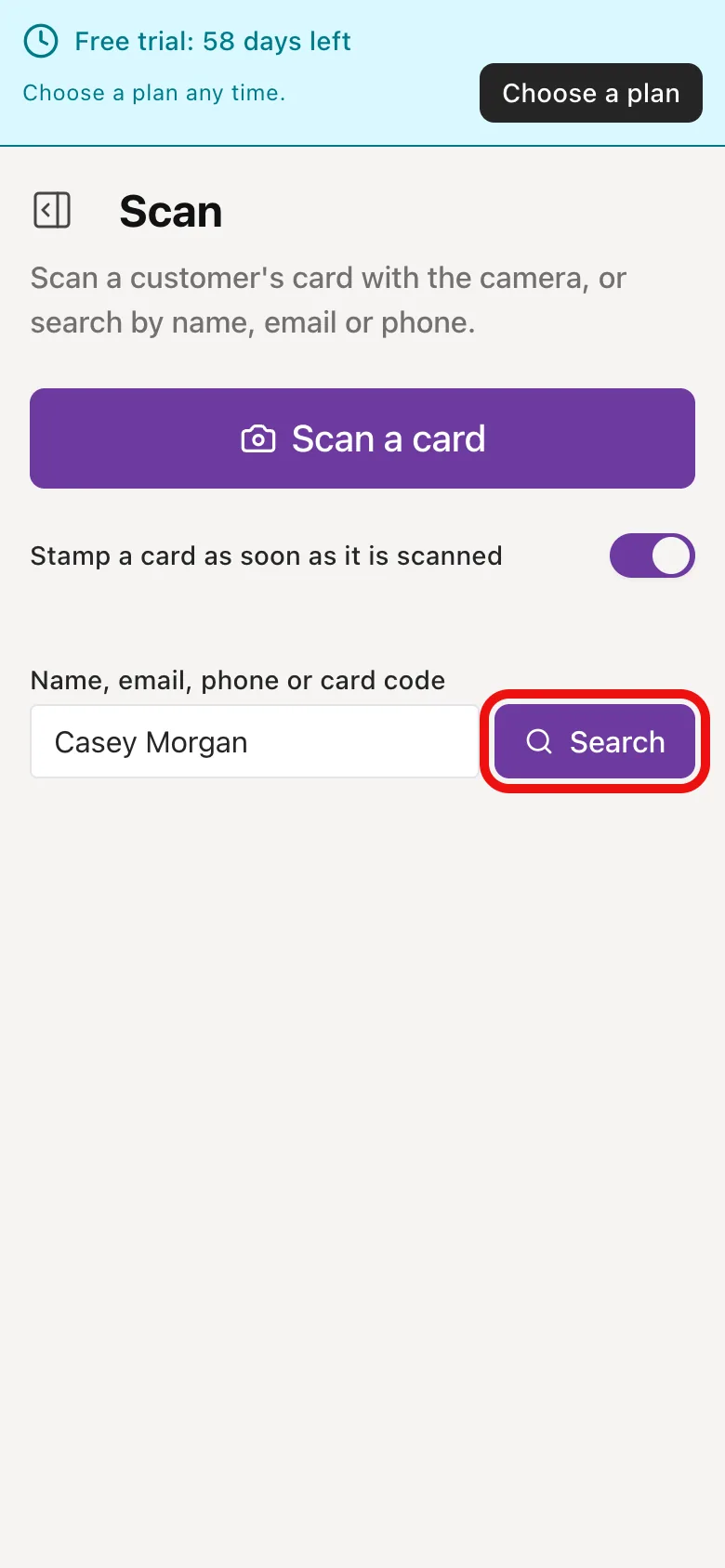
Step 11. Tap the purple Search button.
The customer's card shows, with how many stamps it has now.
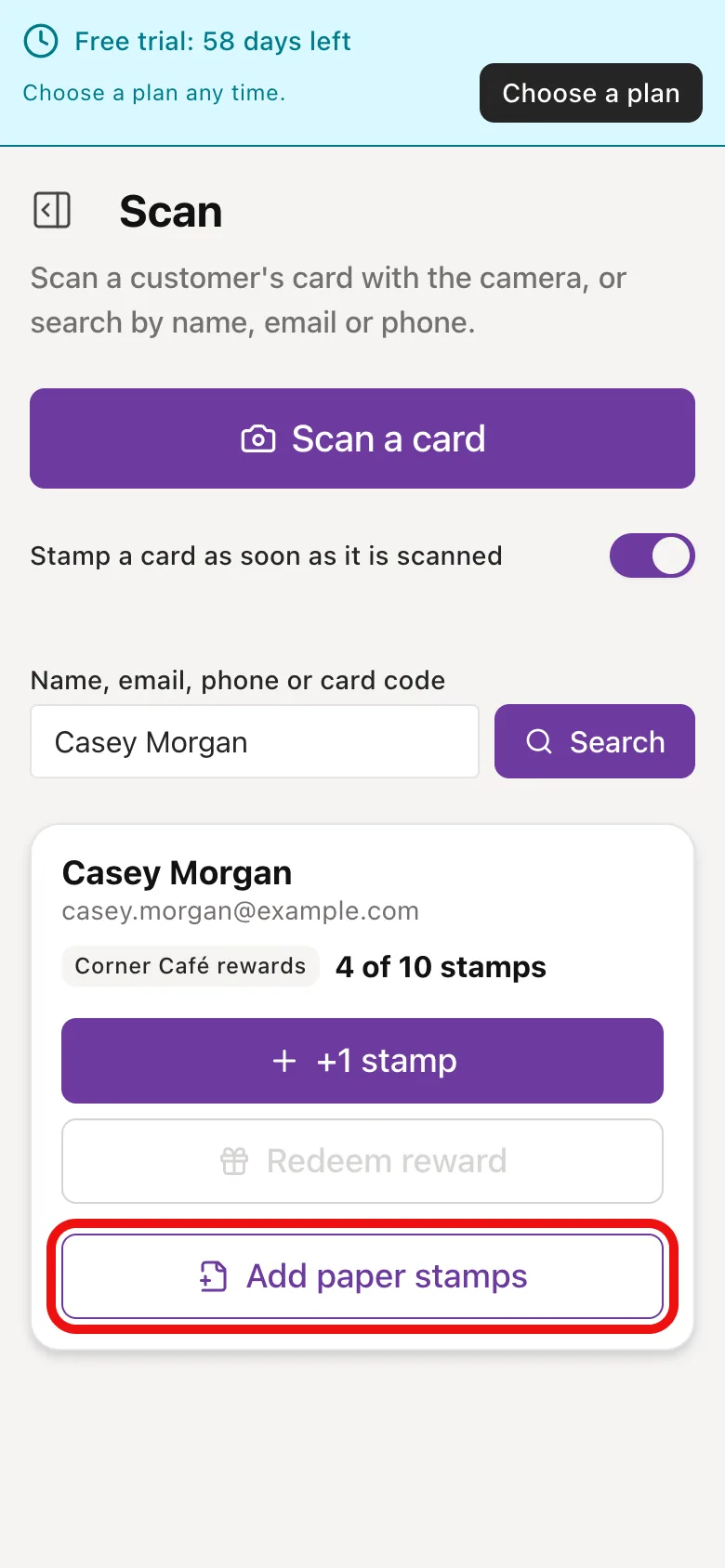
Step 12. Tap the white Add paper stamps button under the customer's card.
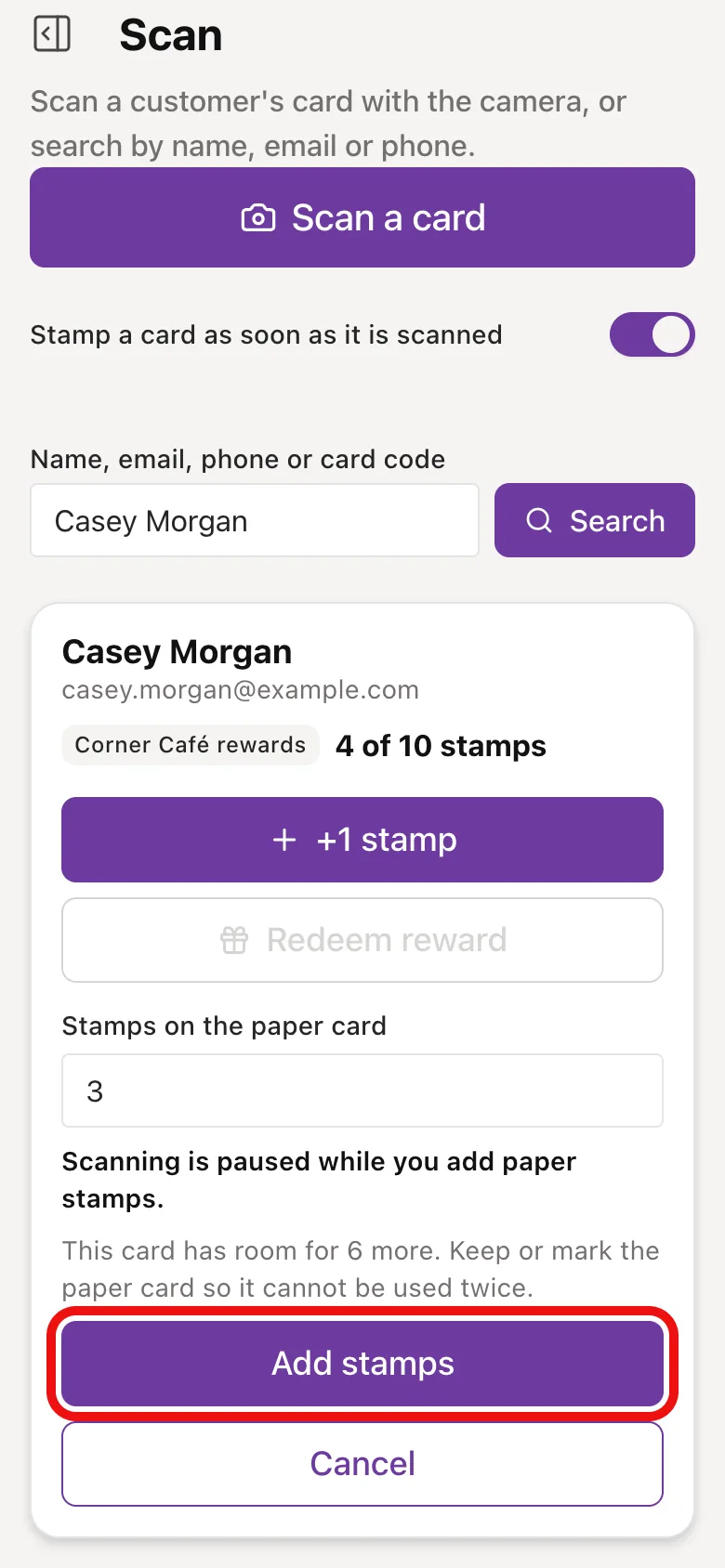
A box called Stamps on the paper card opens. Scanning is paused while it is open.
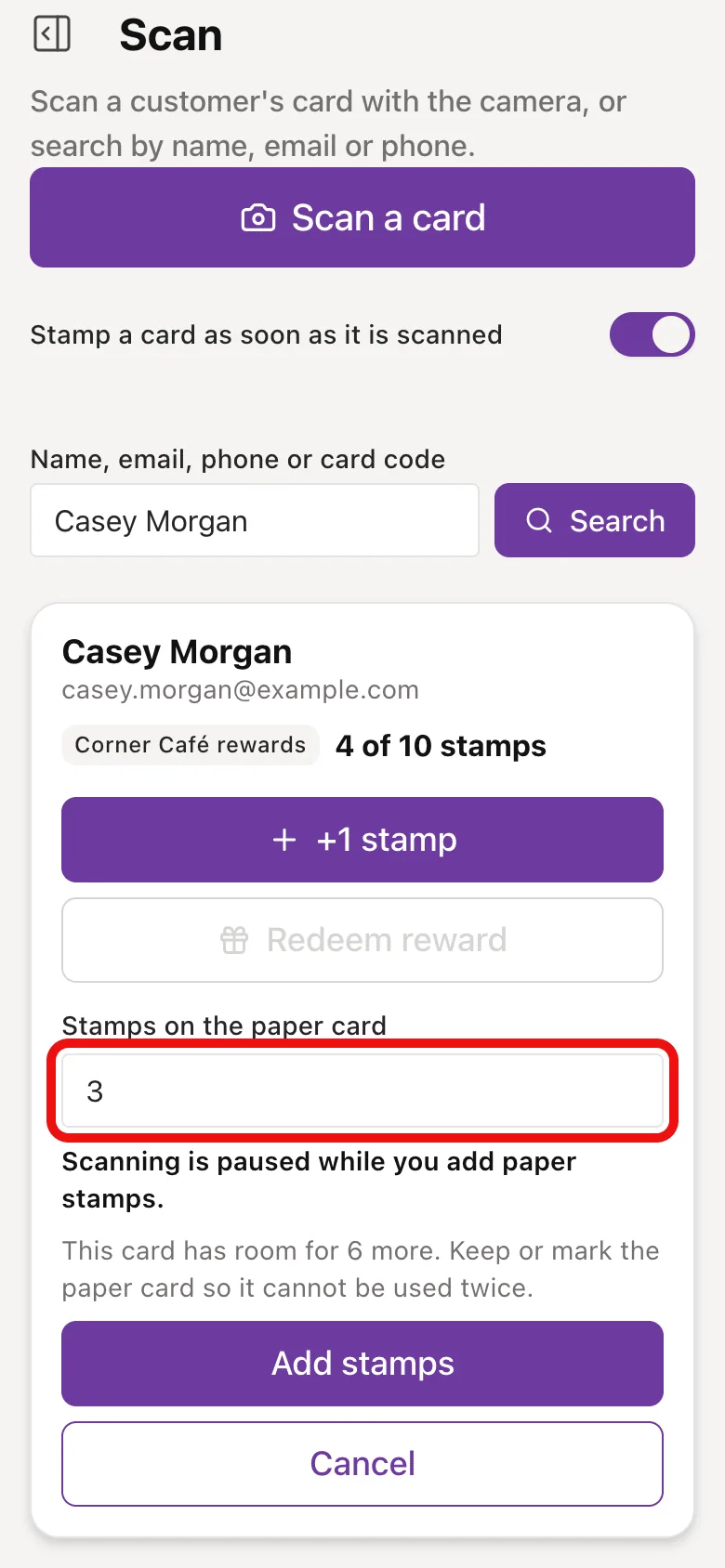
Step 13. Count the stamps on the paper card. Tap the Stamps on the paper card box and type that number.
The page tells you how much room is left on the new card.
Step 14. Tap the purple Add stamps button.
Wait a moment. The stamps are added to the card.
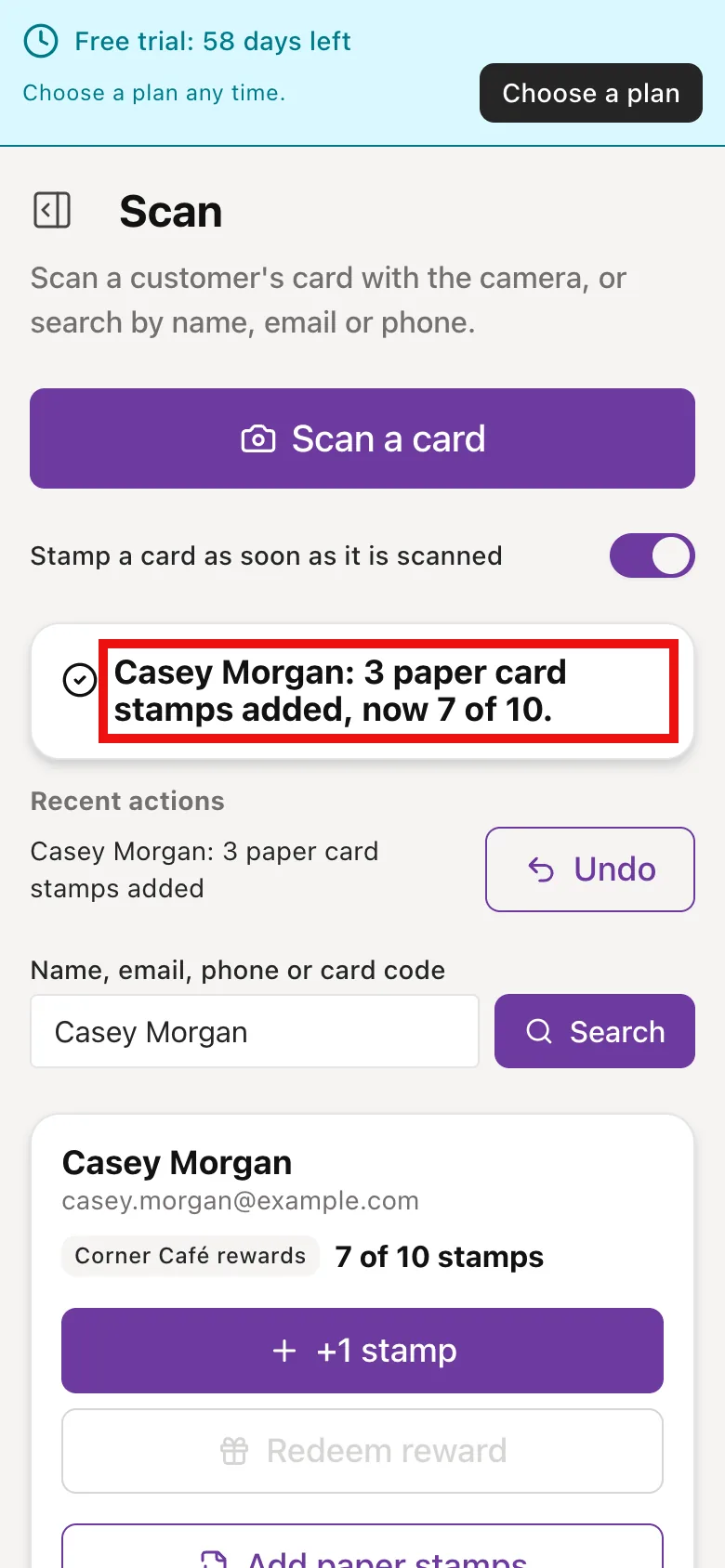
Step 15. Look at the message at the top. It says the customer's name, how many paper card stamps were added, and the new total.
Now keep the paper card, or mark it, so it cannot be used again.
You'll know it worked when
The message at the top of the Scan page says how many paper card stamps were added, and the customer's card shows the new total.
Good to know
- Add the stamps once for each customer. If a paper card was already added, the page says so. Only a manager can add more.
- You cannot add more stamps than the new card has room for. The page tells you how many fit.
- The offer stops after the last day you chose. The Add paper stamps button then goes away. You can switch Accept paper cards off any time.
- Added too many by mistake? Tap Undo under Recent actions on the Scan page.
Stuck?
That is fine. Contact us and we will help you. We reply within one business day.
These guides may help: