
How-to guides / Connect your till or shop
How to give stamps automatically for chosen Square items
Pick the items from your Square menu that earn a stamp, so a sale adds the stamp without any work at the counter.
Takes about 6 minutes
Before you start
- Your Square till is connected. (See How to connect Square.) Your menu is copied from Square a few minutes after you connect.
- You have a stamp card that is live.
- The customer is linked to the sale at the till. Square matches the sale to a customer by their email address or phone number.
The steps
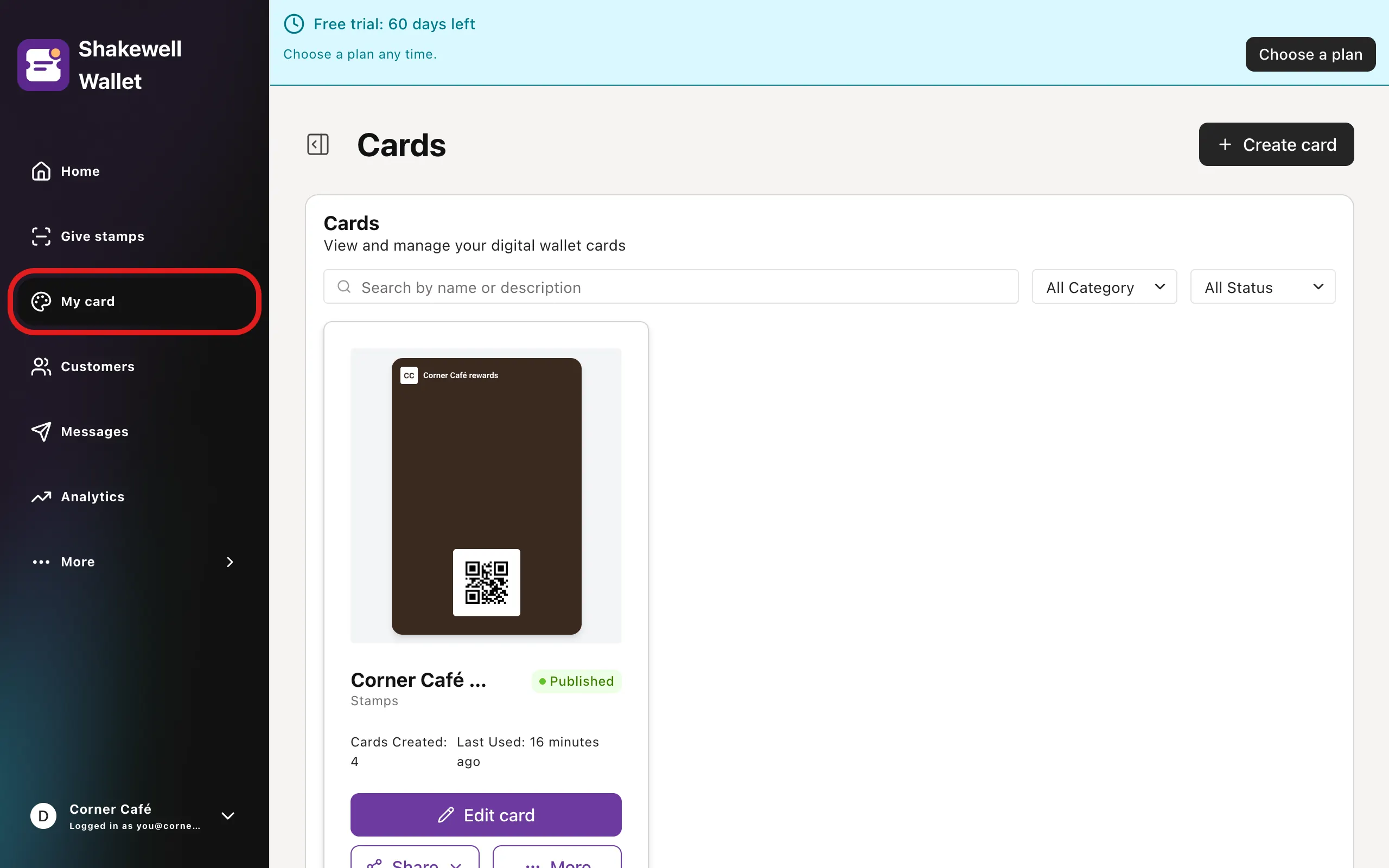
Step 1. On your computer, look at the menu on the left. Click My card.
You see your card in a list.
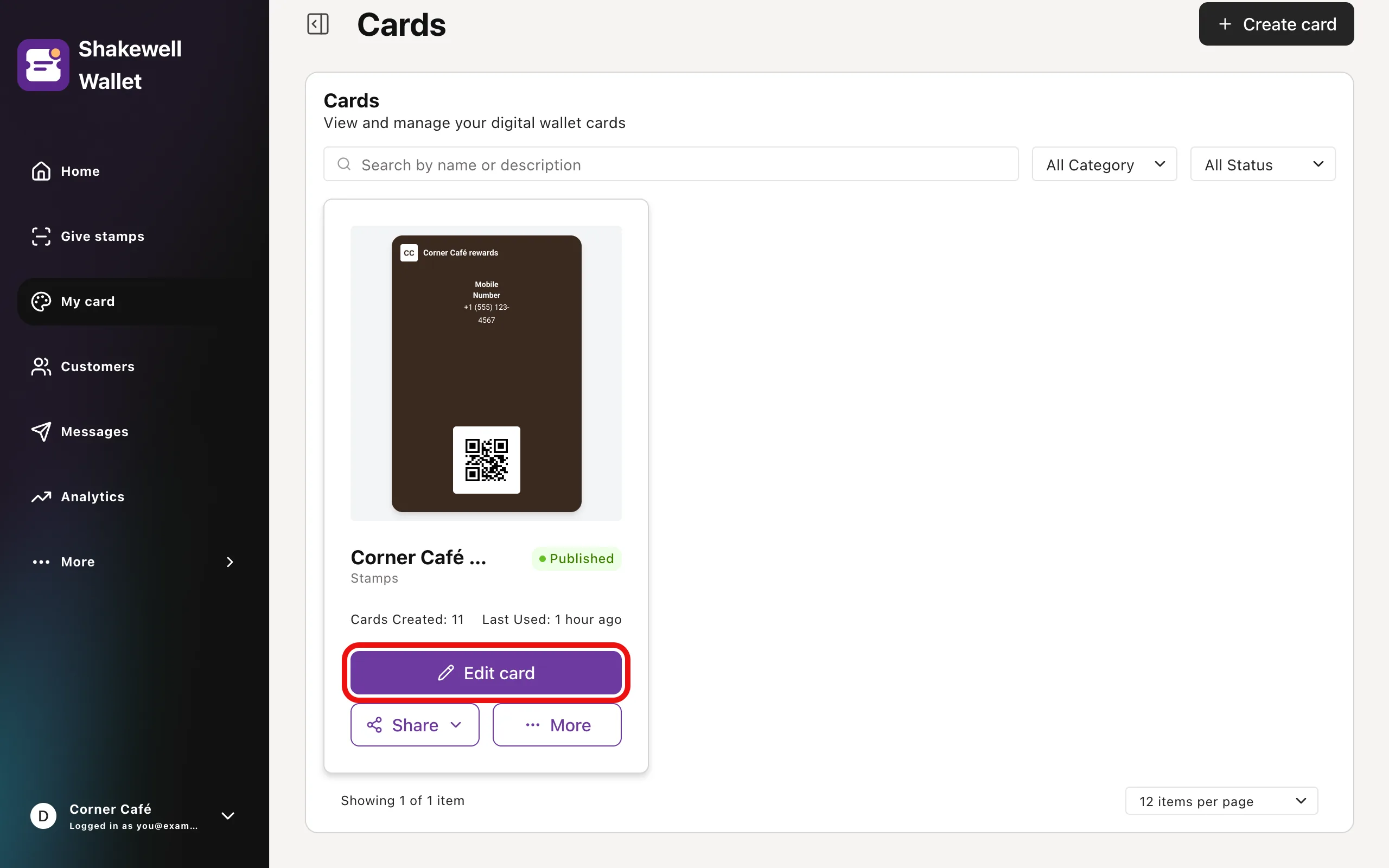
Step 2. Under your stamp card, click the purple Edit card button.
A page called Edit card opens.
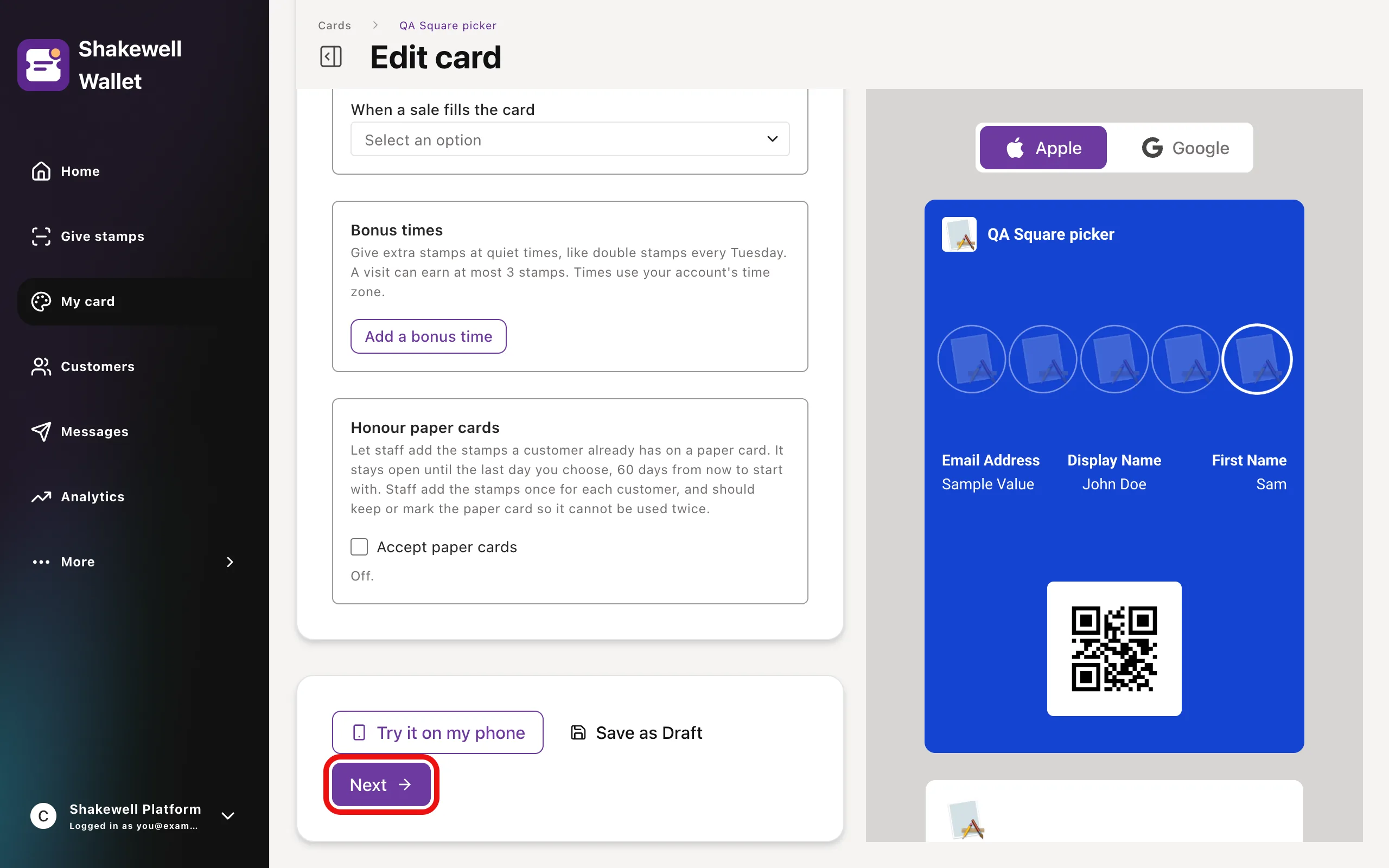
Step 3. Scroll to the bottom of the page. Click the purple Next button.
The page moves to step 2 of 4.
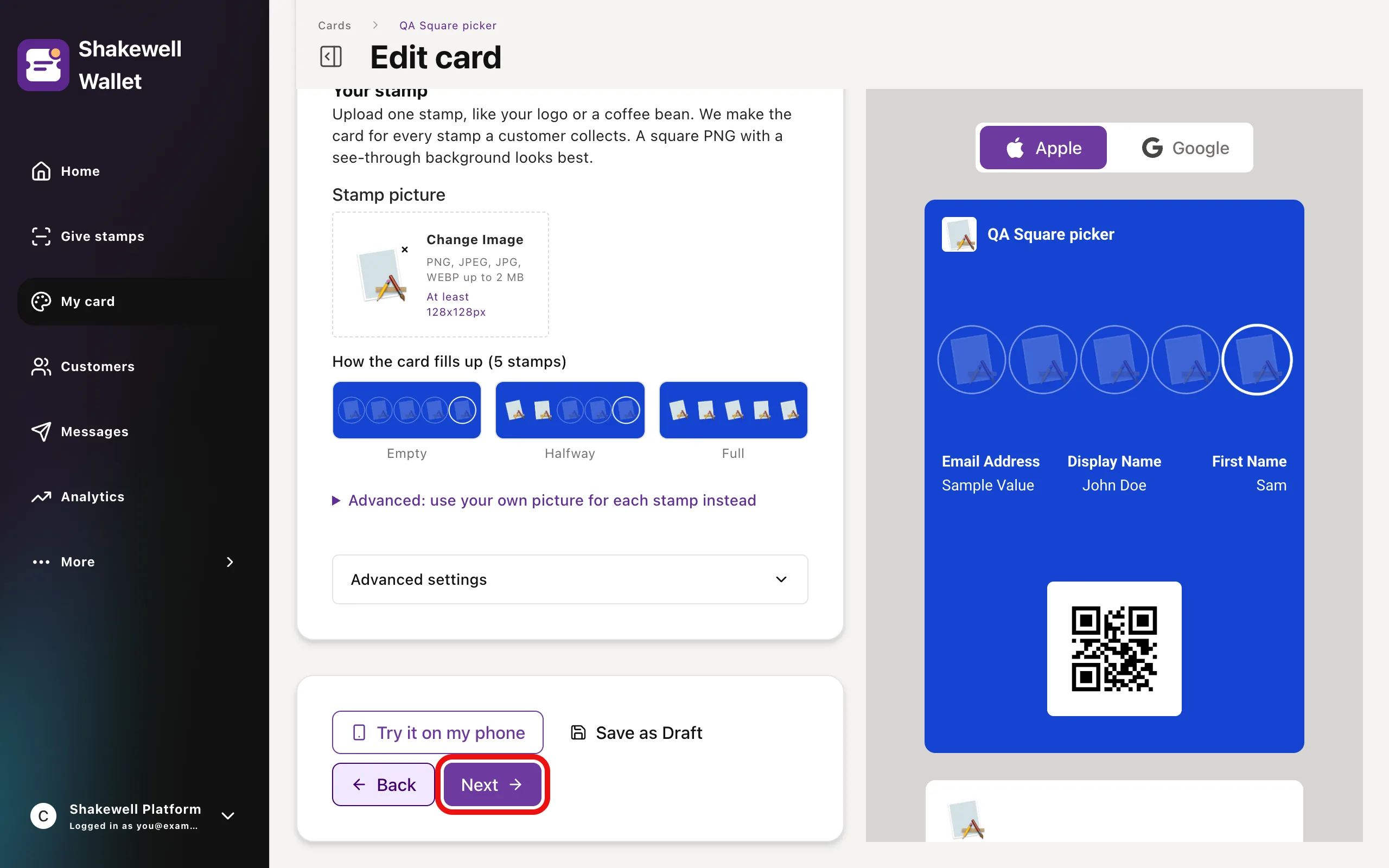
Step 4. Scroll to the bottom again. Click the purple Next button.
The page moves to step 3 of 4. It is called Pass content.
Step 5. Scroll down to the heading How customers earn.
It says staff can give stamps by hand on the Scan page. The part below it is for stamps that happen by themselves.
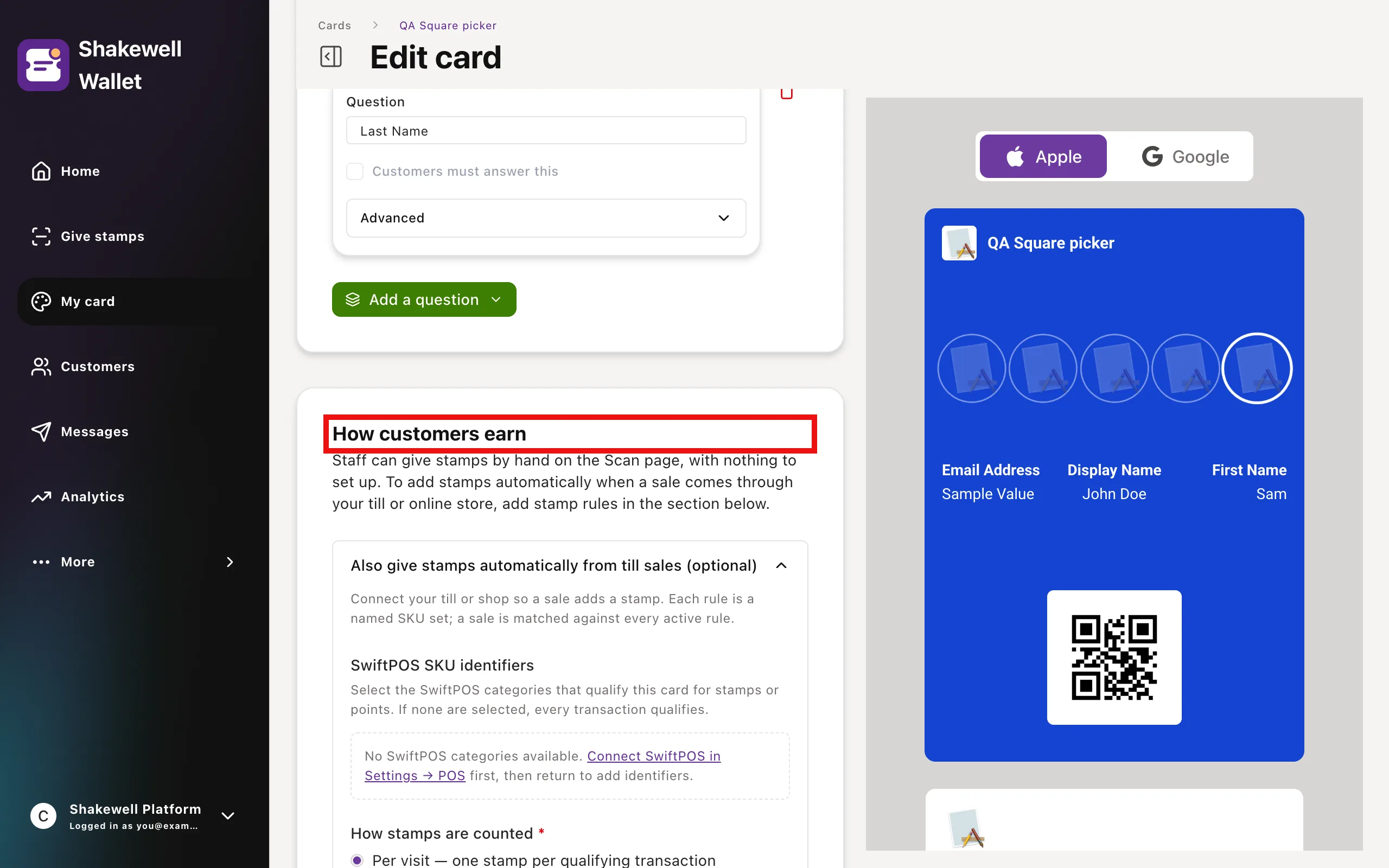
Step 6. Scroll down to Rules. Click the Add rule button on the right.
A new box shows under the rules you have. (A rule says which sales earn a stamp.)
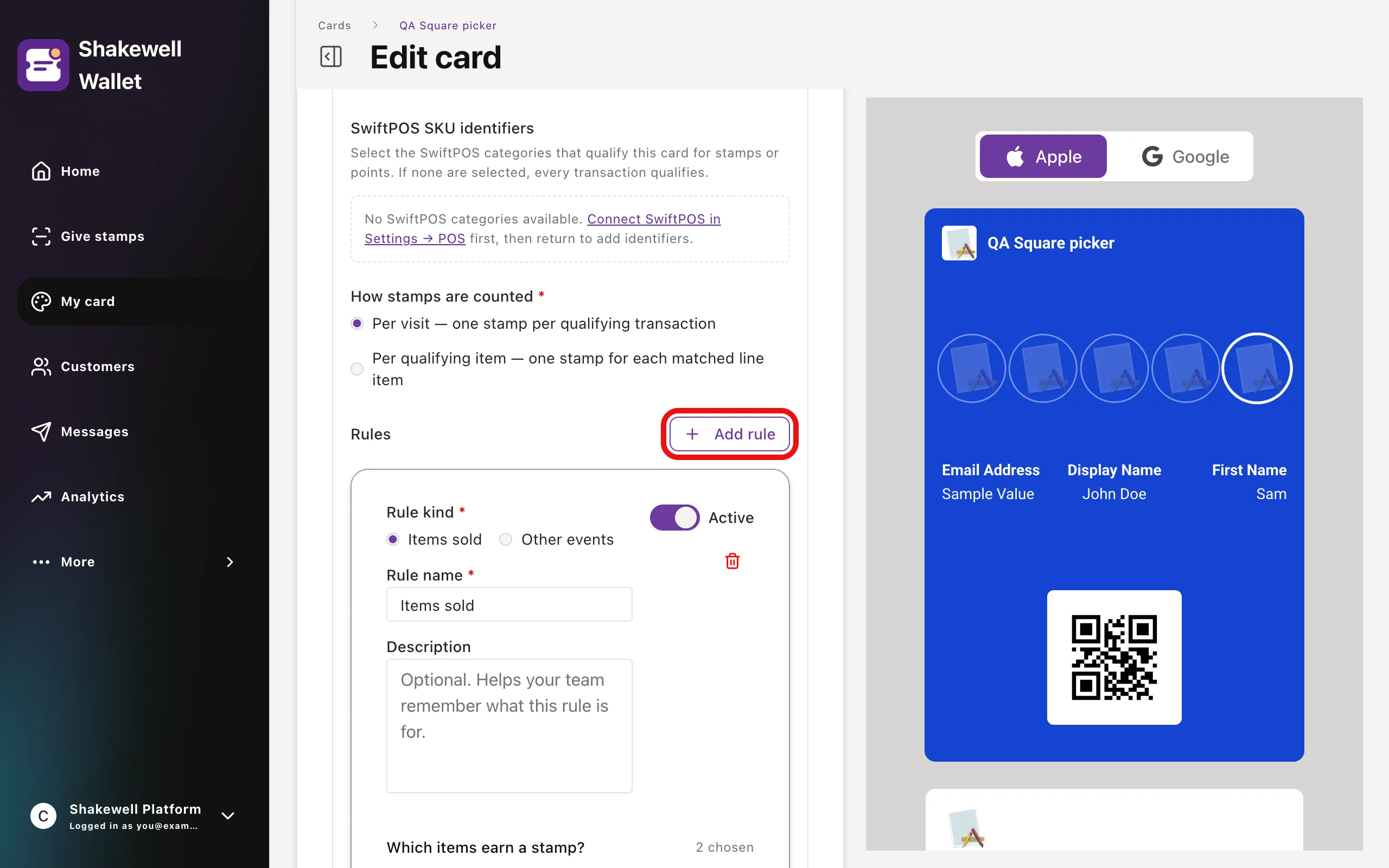
Step 7. Click the Rule name box in the new rule. Type a short name, like Coffee drinks.
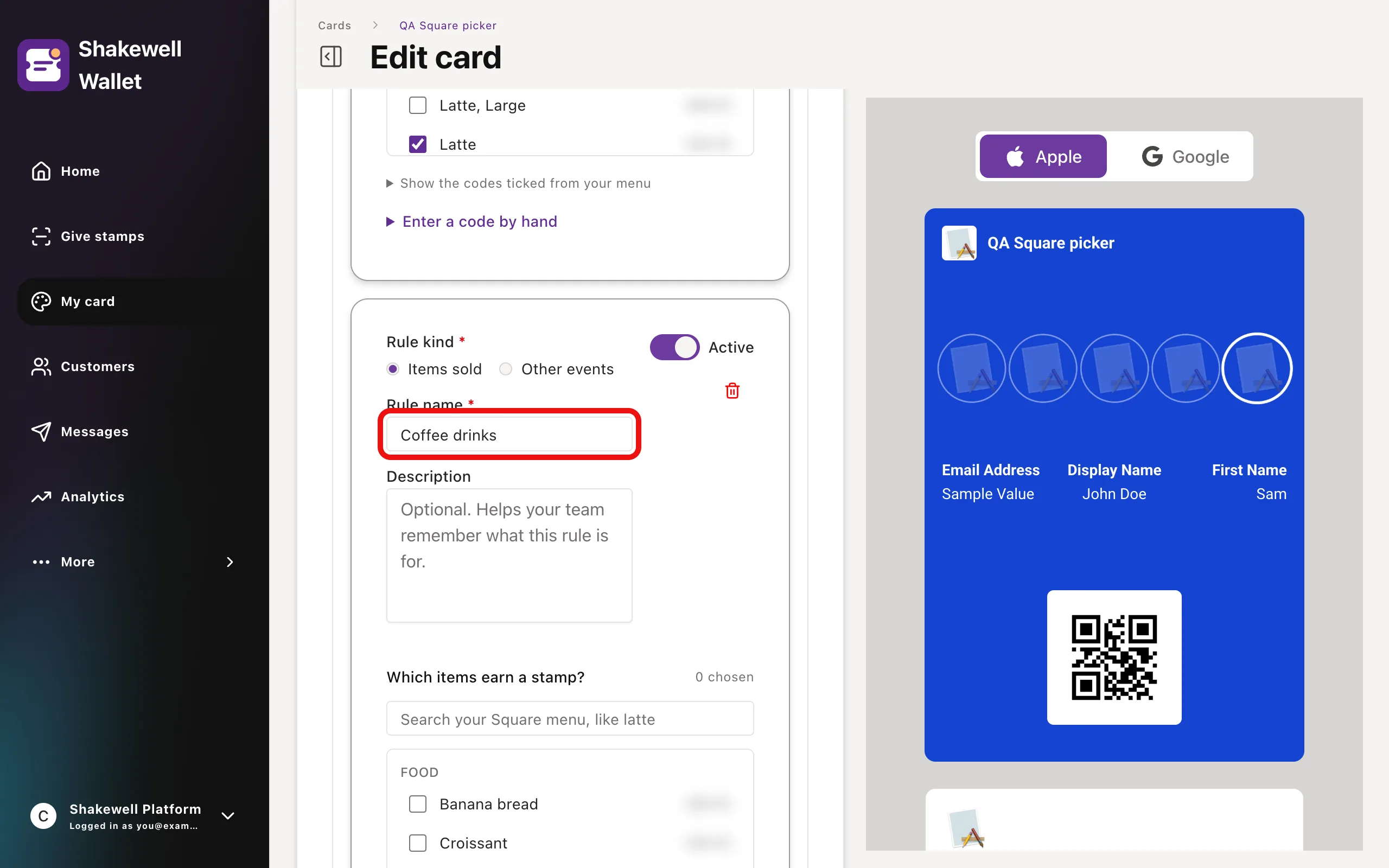
Step 8. Look at Rule kind. Check that Items sold is picked.
It is picked already. The list Which items earn a stamp? shows your Square menu below it.
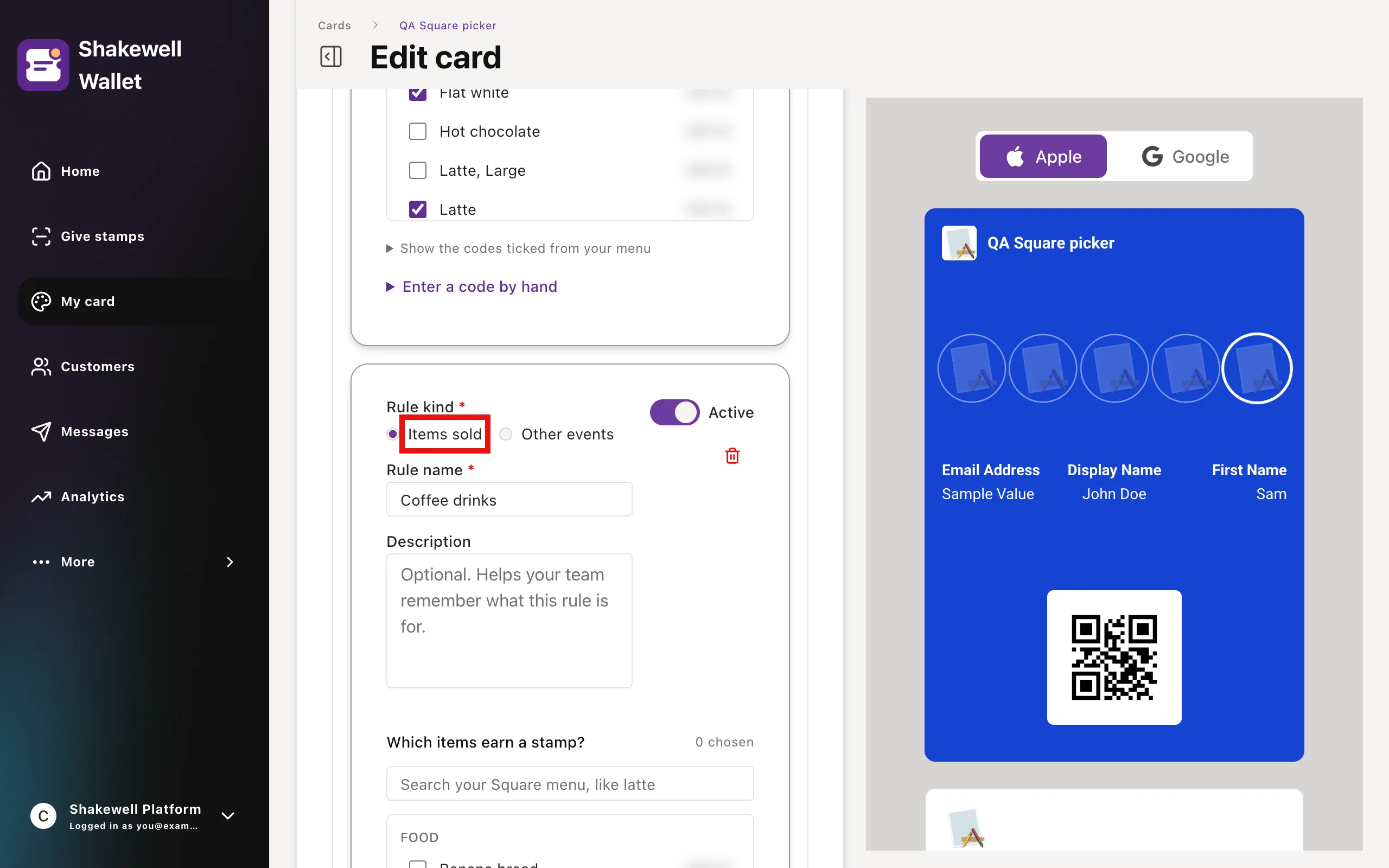
Step 9. Click the search box that says Search your Square menu. Type the name of an item, like latte.
The list shows only the items that match. The prices are blurred here.
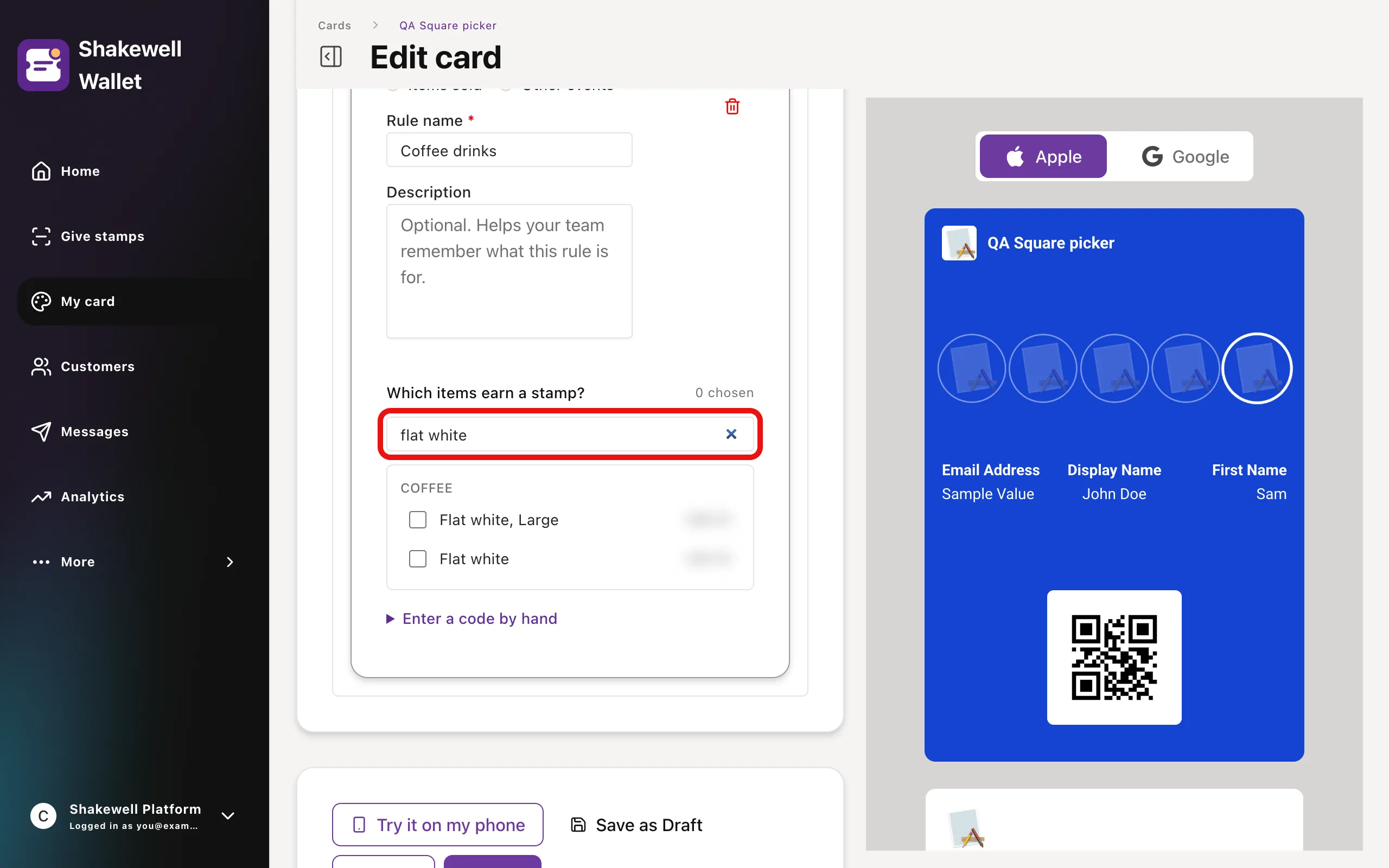
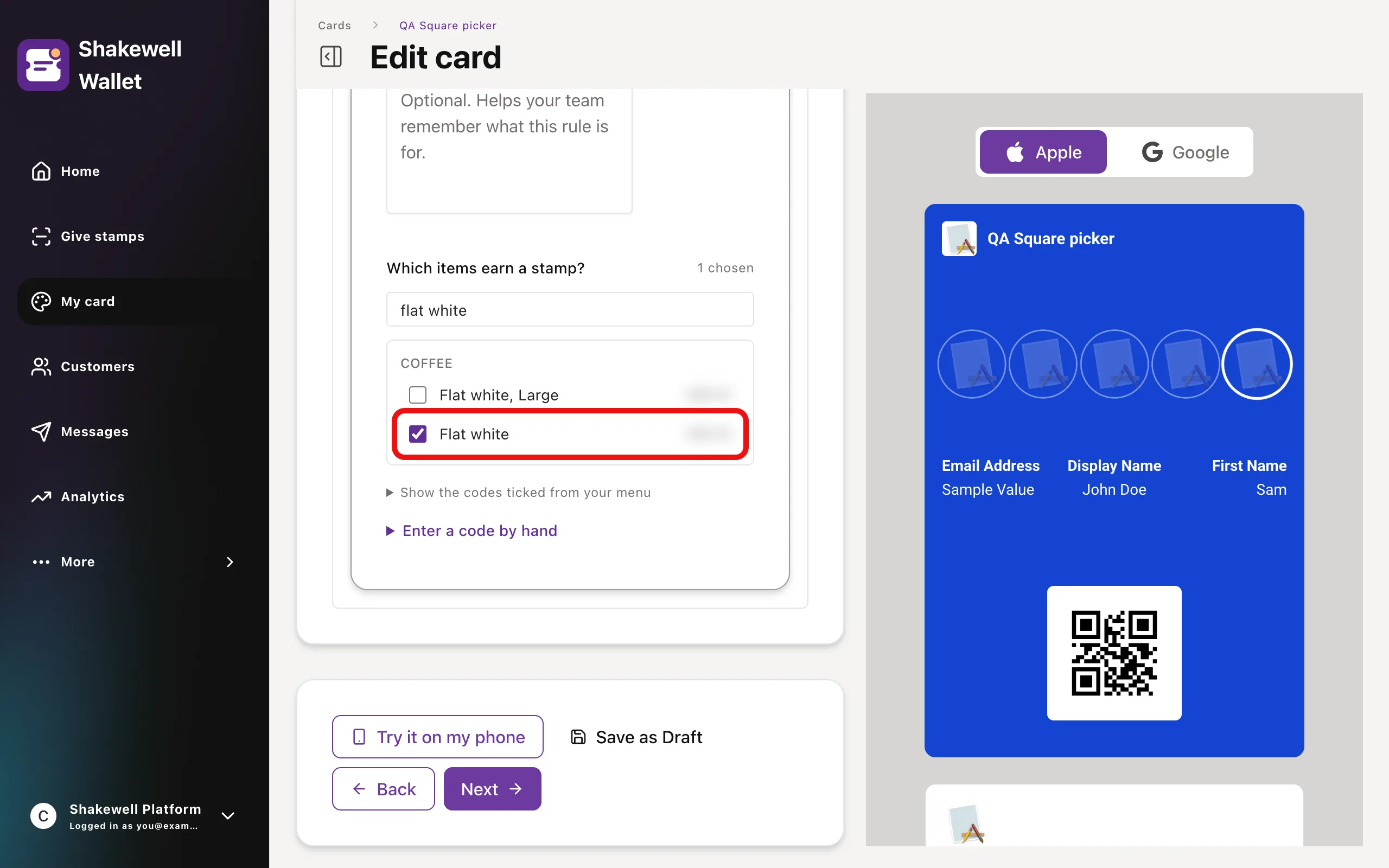
Step 10. Click the small square next to an item to tick it.
A tick shows. Tick every item that should earn a stamp.
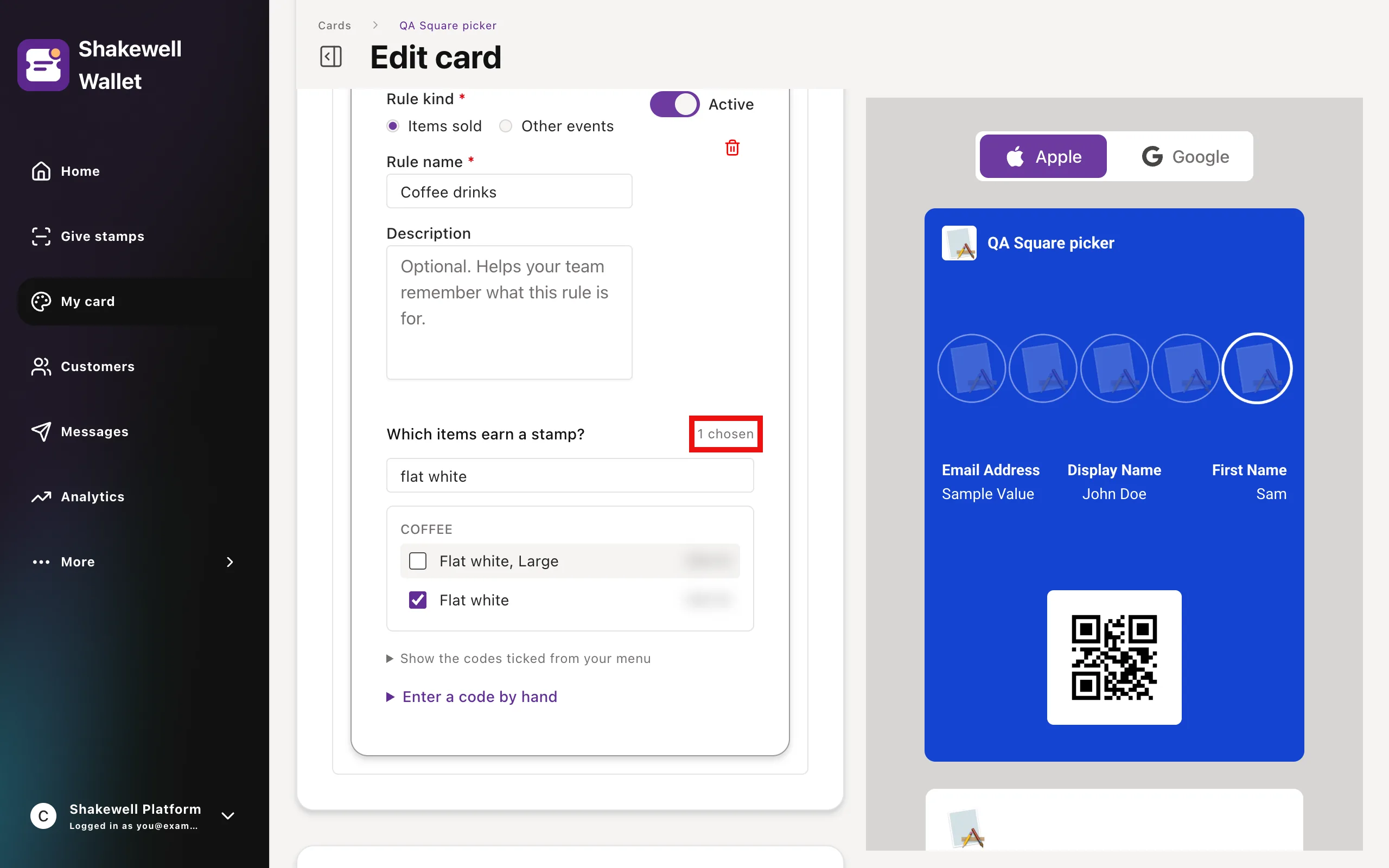
Step 11. Look at the number at the top right of the list. It says how many items you ticked.
Check it matches what you meant.
Step 12. Scroll to the bottom. Click the purple Next button.
The page moves to step 4 of 4. It is called Review.
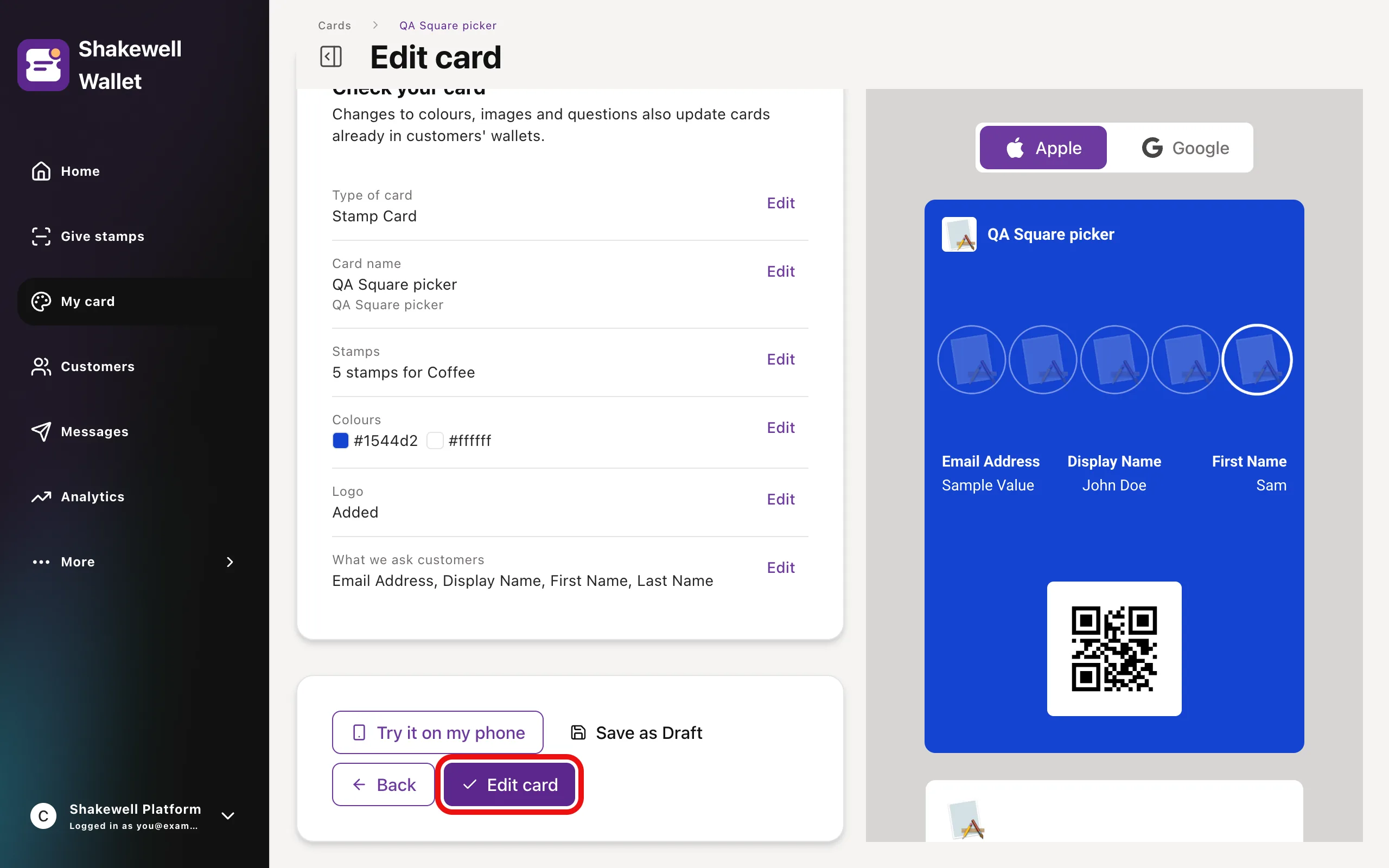
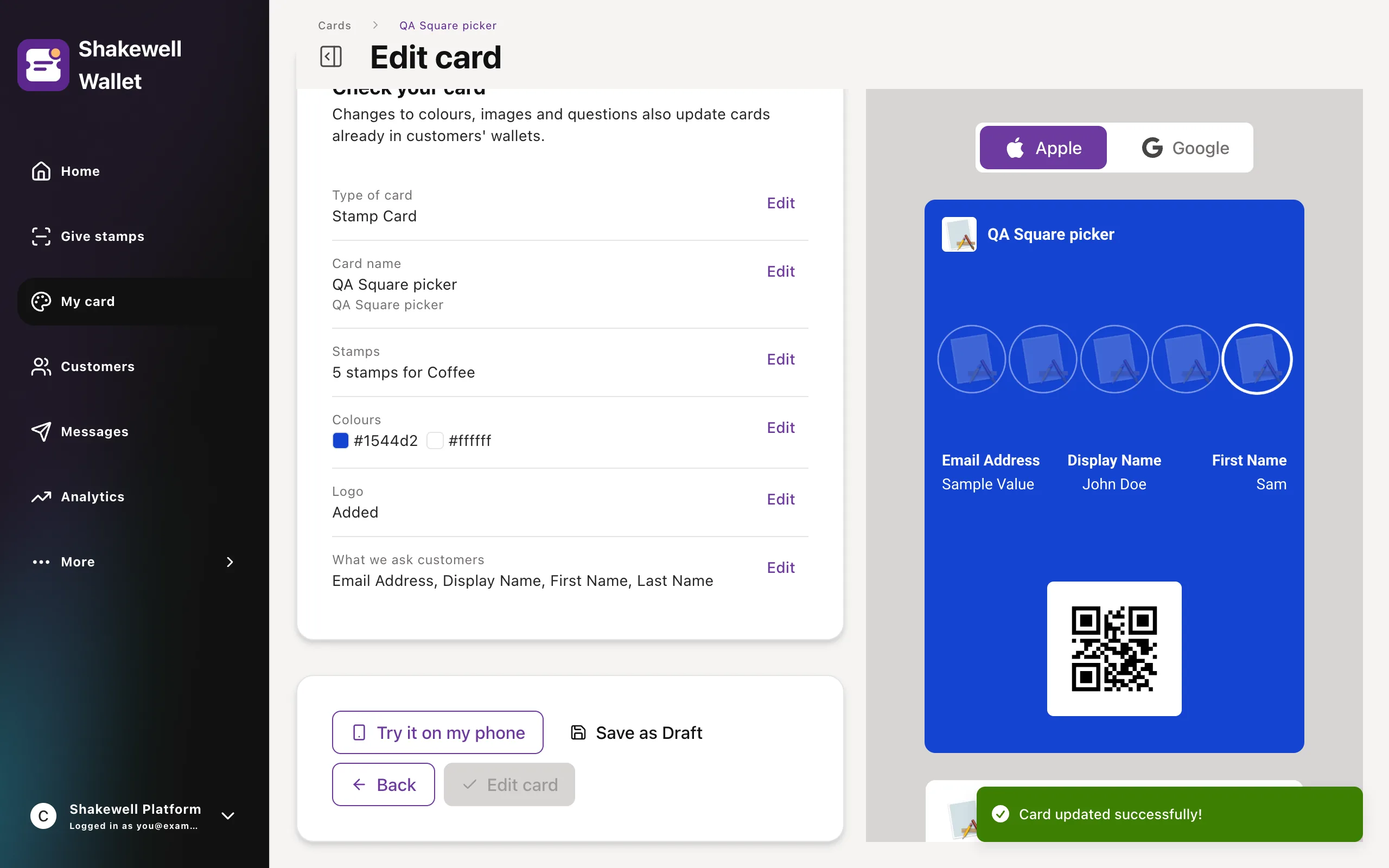
Step 13. Click the purple Edit card button at the bottom of the page.
Your change is saved.
Step 14. Look at the bottom right of the screen.
A green message says Card updated successfully.
You'll know it worked when
A customer buys one of the ticked items at your Square till, and one stamp shows on their card.
Good to know
- Under How stamps are counted, pick Per visit to give one stamp for each sale. Pick Per qualifying item to give one stamp for each ticked item in the sale.
- A sale with no customer linked adds no stamp. You can always add one by hand. See How to give a customer a stamp.
- Your menu is copied from Square. If an item is missing, wait a few minutes and open this page again.
- Use Shopify instead? If you have connected it, the same section shows a list of your Shopify products to tick.
Stuck?
That is fine. Contact us and we will help you. We reply within one business day.
These guides may help: