
How-to guides / At the counter
How to give a reward when the card is full
Hand over the free coffee (or other reward) and start the customer's card again.
Takes about 1 minute
Before you start
- You are signed in to Shakewell Wallet on your phone.
- The customer's card is full, for example 10 of 10 stamps.
The steps
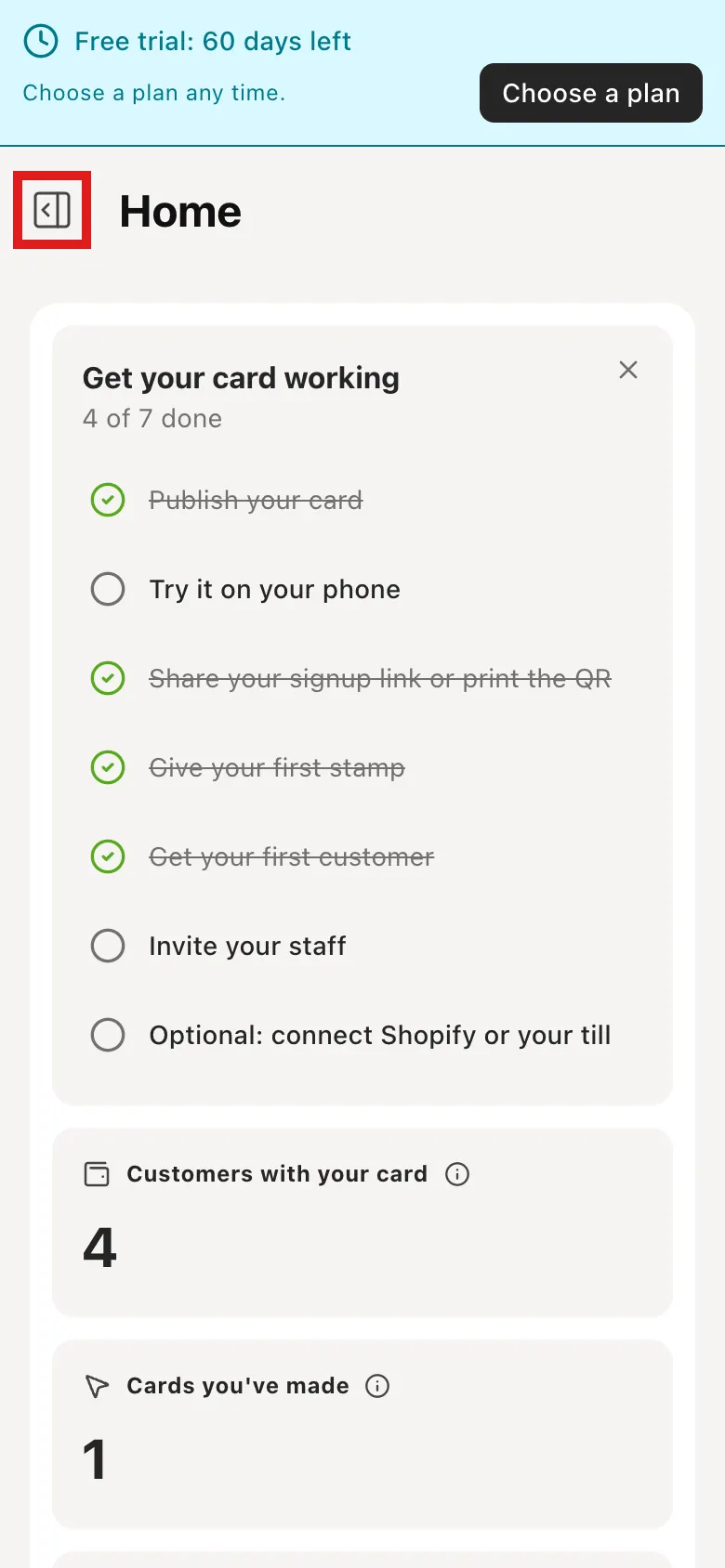
Step 1. On your phone, tap the small square icon at the top left of the screen.
The menu slides in from the left.
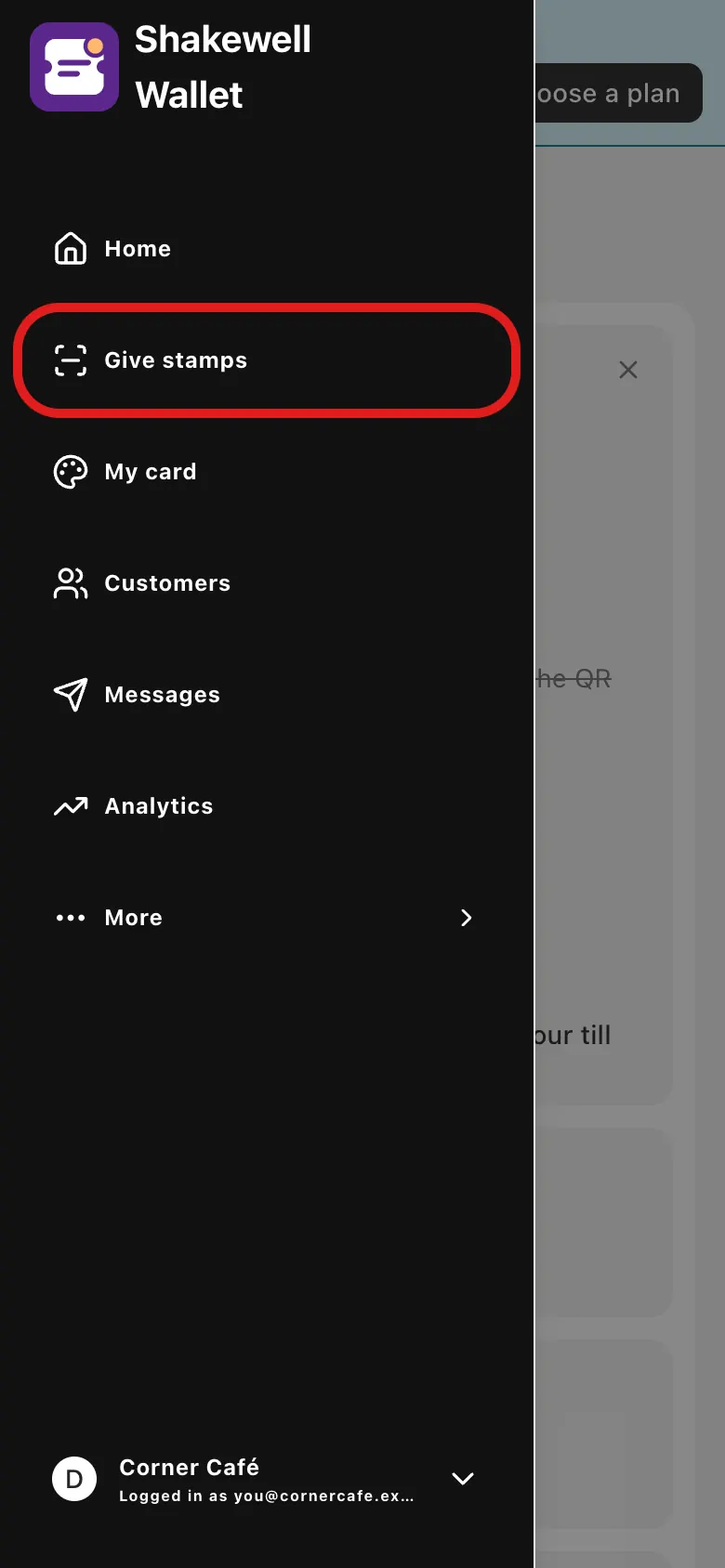
Step 2. Tap Give stamps.
A page called Scan opens.
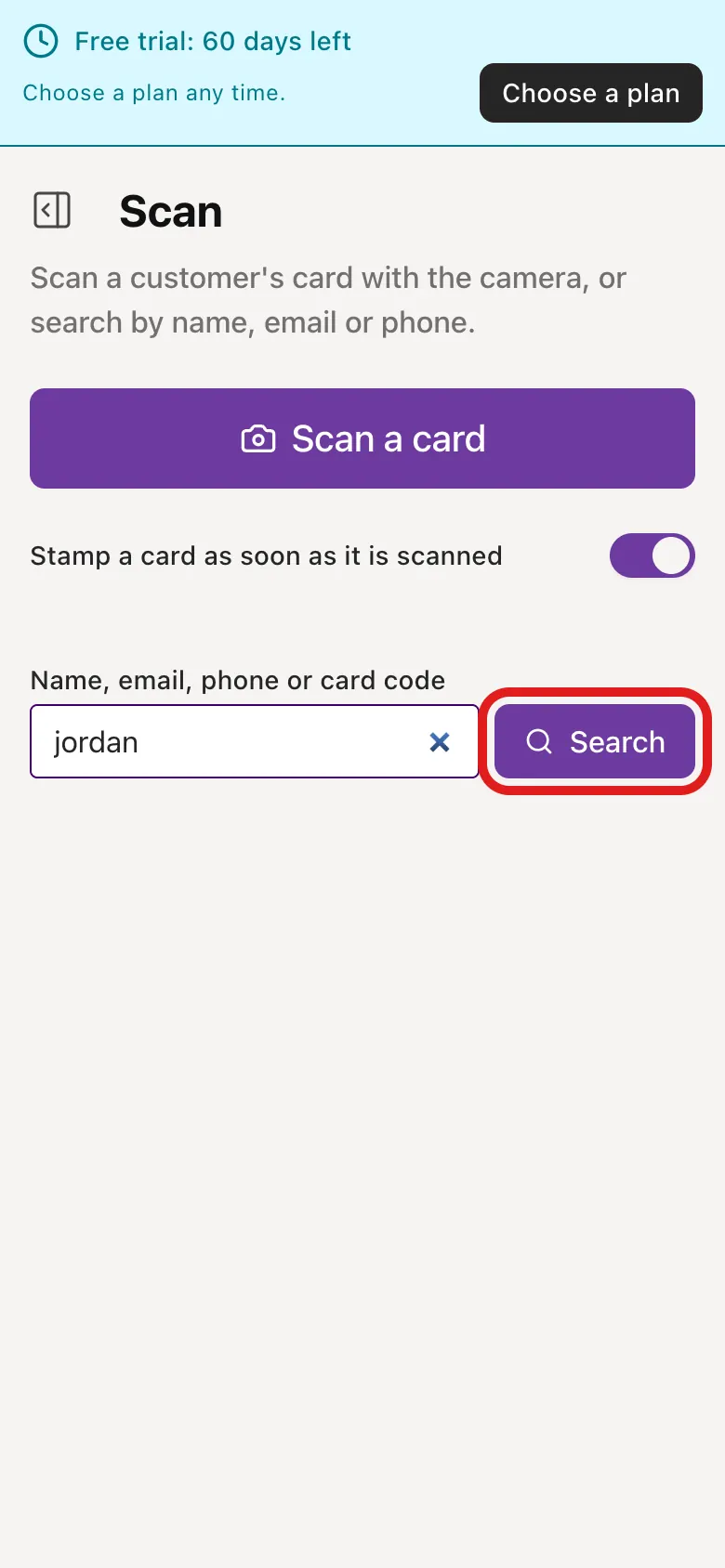
Step 3. Tap the white box under Name, email, phone or card code. Type the customer's name. Tap Search.
The customer shows up.
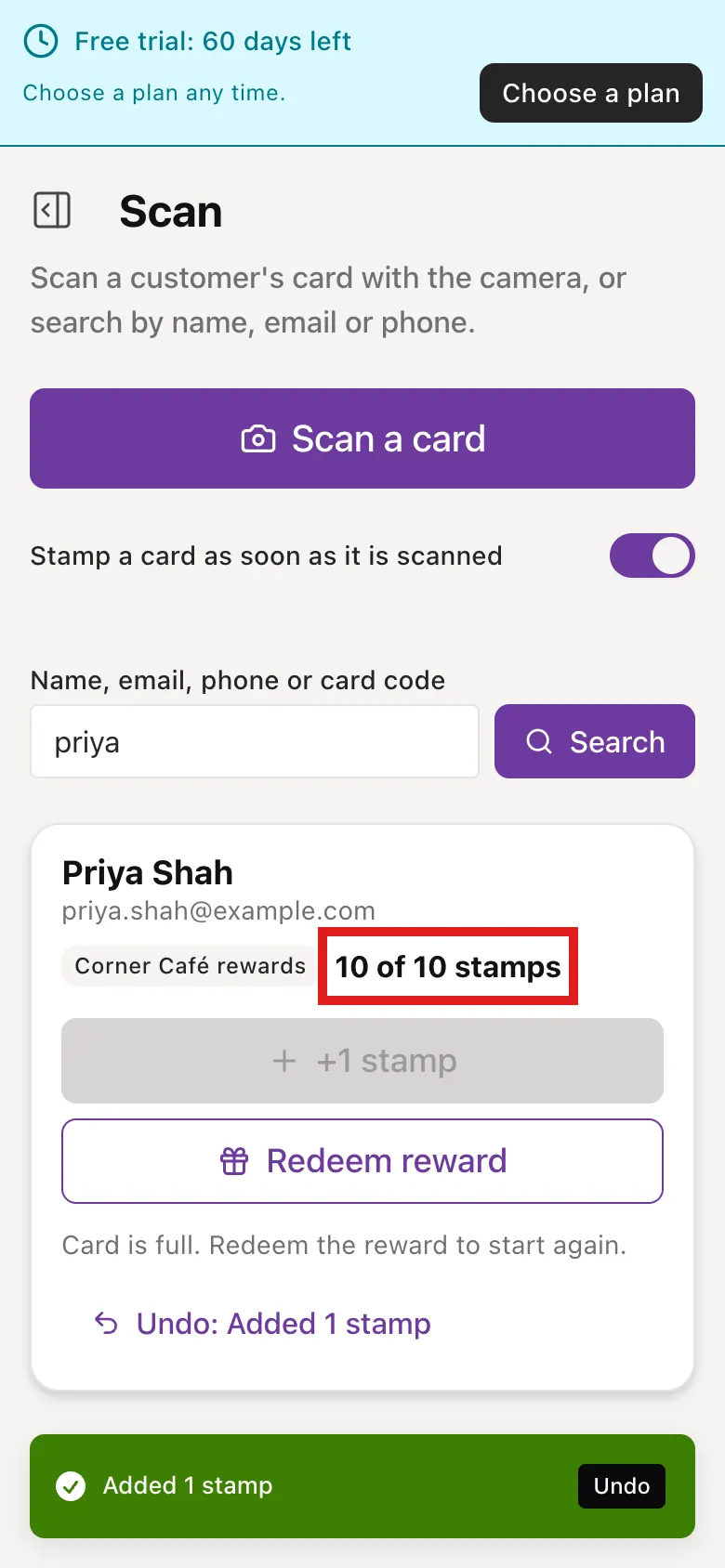
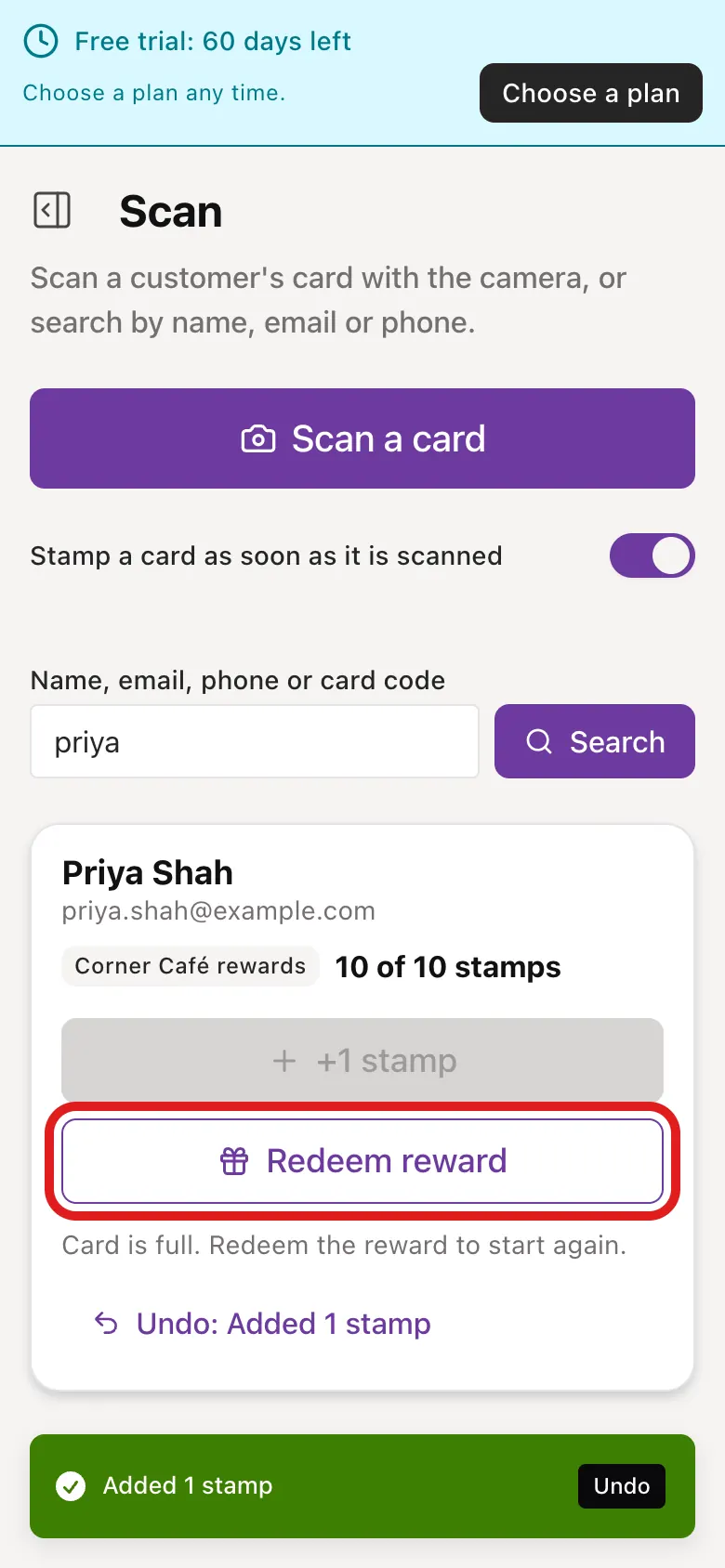
Step 4. Check the stamps. A full card says 10 of 10 stamps, or whatever number you chose.
Under the buttons it says Card is full. Redeem the reward to start again. The +1 stamp button is grey.
Step 5. Tap the Redeem reward button.
Wait a moment while it works.
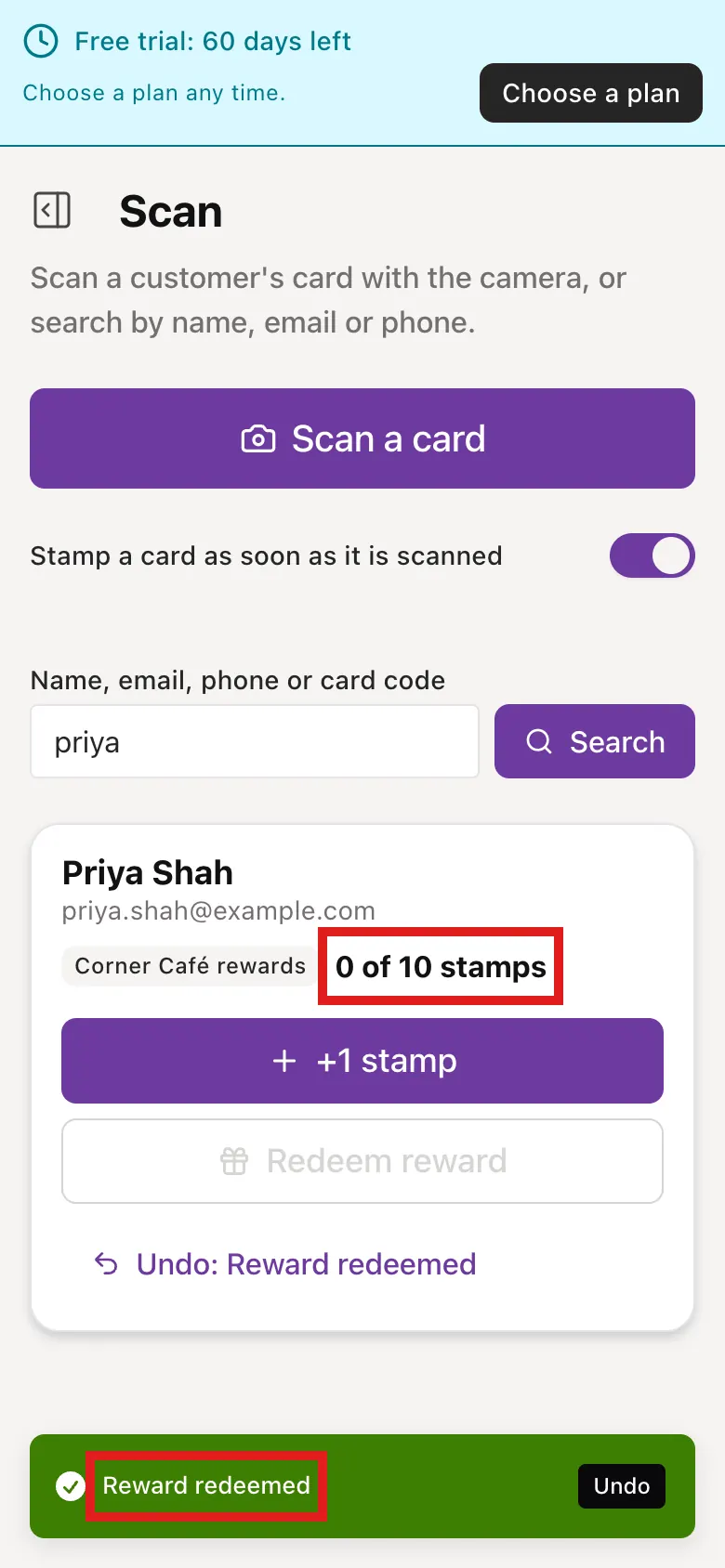
Step 6. Look at the stamps. A message says Reward redeemed. Now hand your customer their reward.
The card goes back to 0 of 10 stamps, ready to start again.
You'll know it worked when
A green message says Reward redeemed and the customer's card goes back to 0 of 10 stamps.
Good to know
- The Redeem reward button is grey until the card is full. This stops you giving a reward too early.
- Pressed it by mistake? Tap Undo in the green message, or Undo: Reward redeemed under the buttons.
Stuck?
That is fine. Contact us and we will help you. We reply within one business day.
These guides may help: