
How-to guides / Grow
How to check what your staff did
Switch on activity tracking, then see which pages and buttons each person on your team used.
Takes about 4 minutes
Before you start
- You are the account owner. Only the owner can switch this on and see the results.
- The people you want to check have their own sign-in on your account. (See How to give someone else access to your account.)
The steps
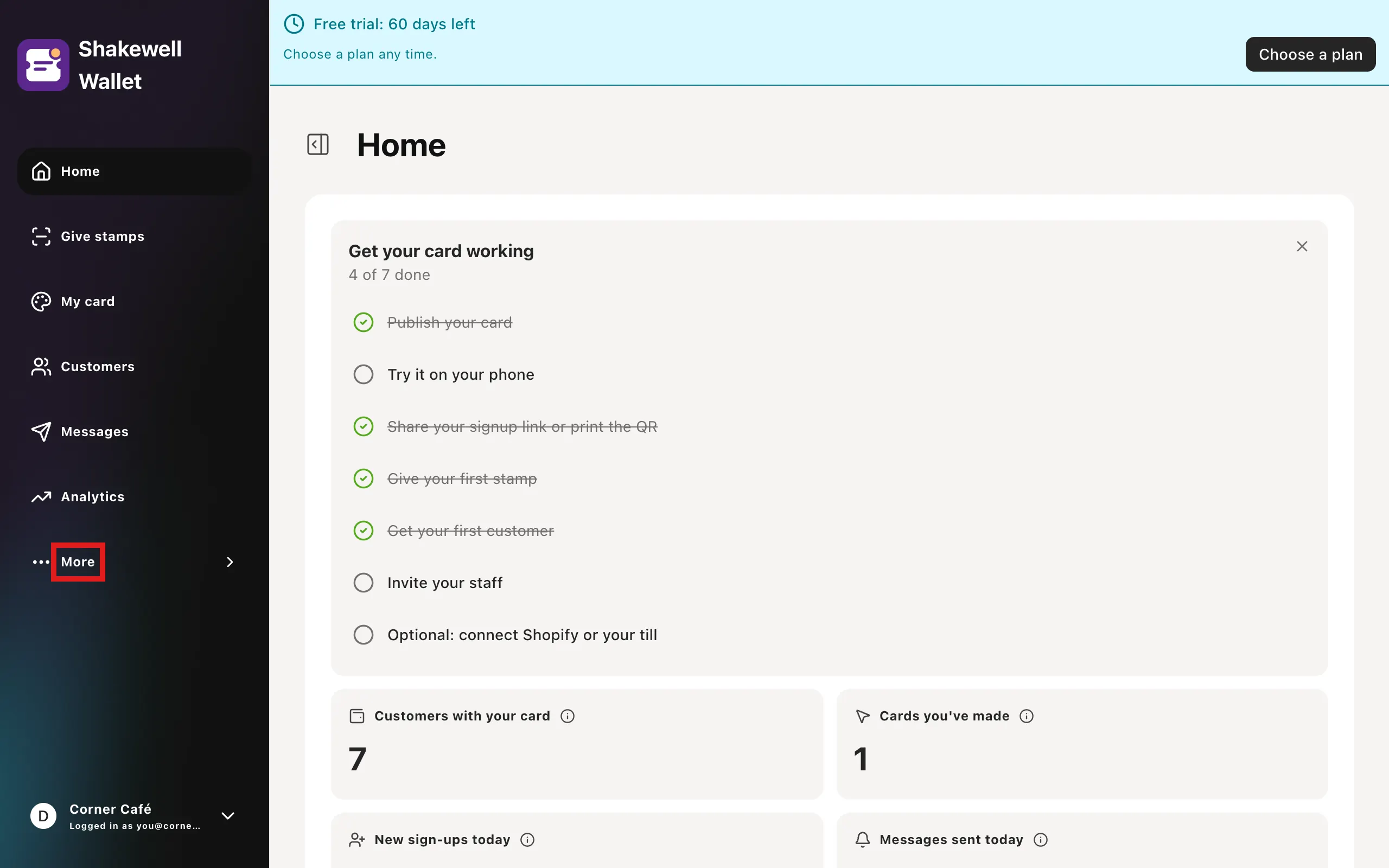
Step 1. In the left menu, click More.
A short list opens under it.
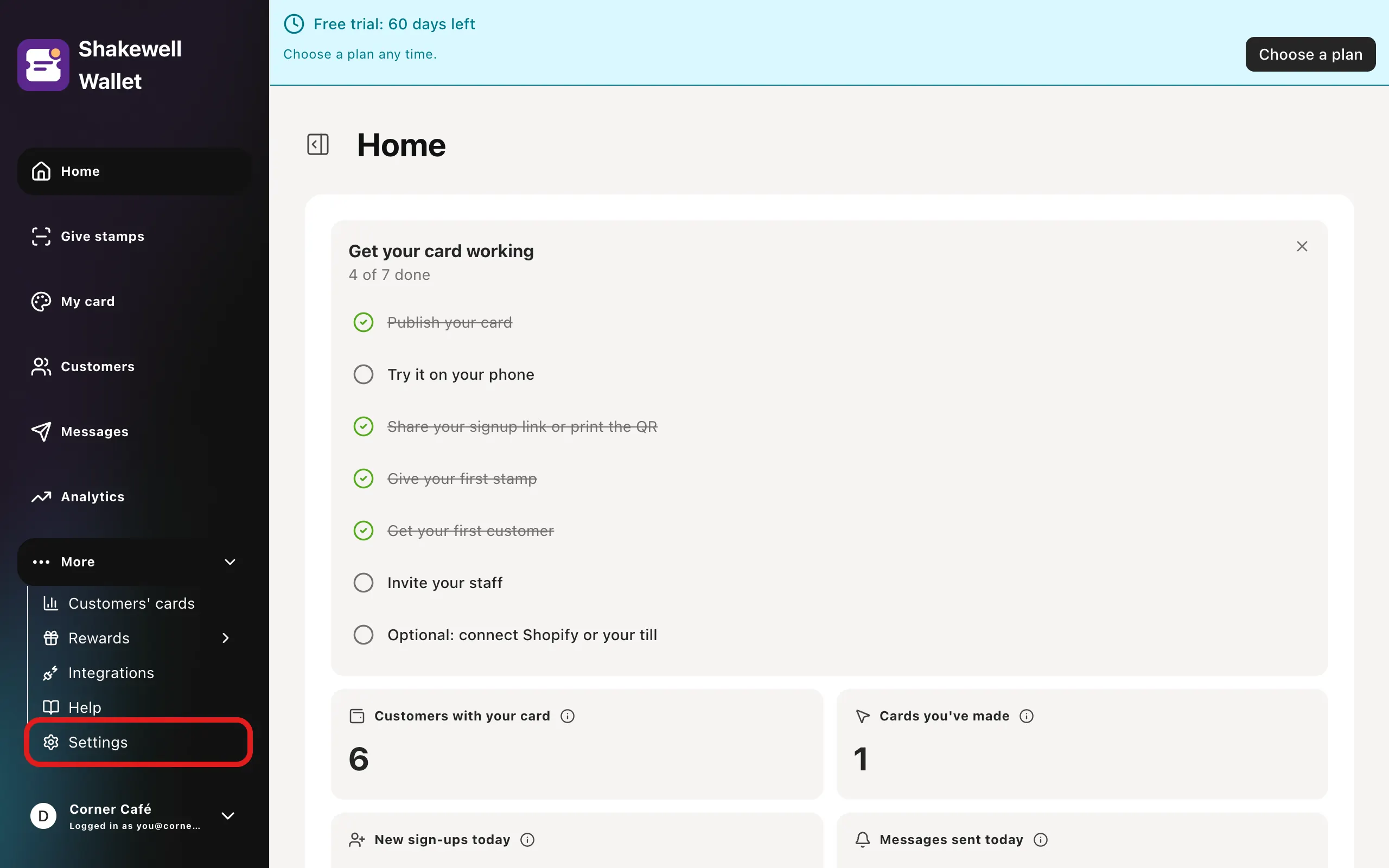
Step 2. Click Settings.
A page called Settings opens.
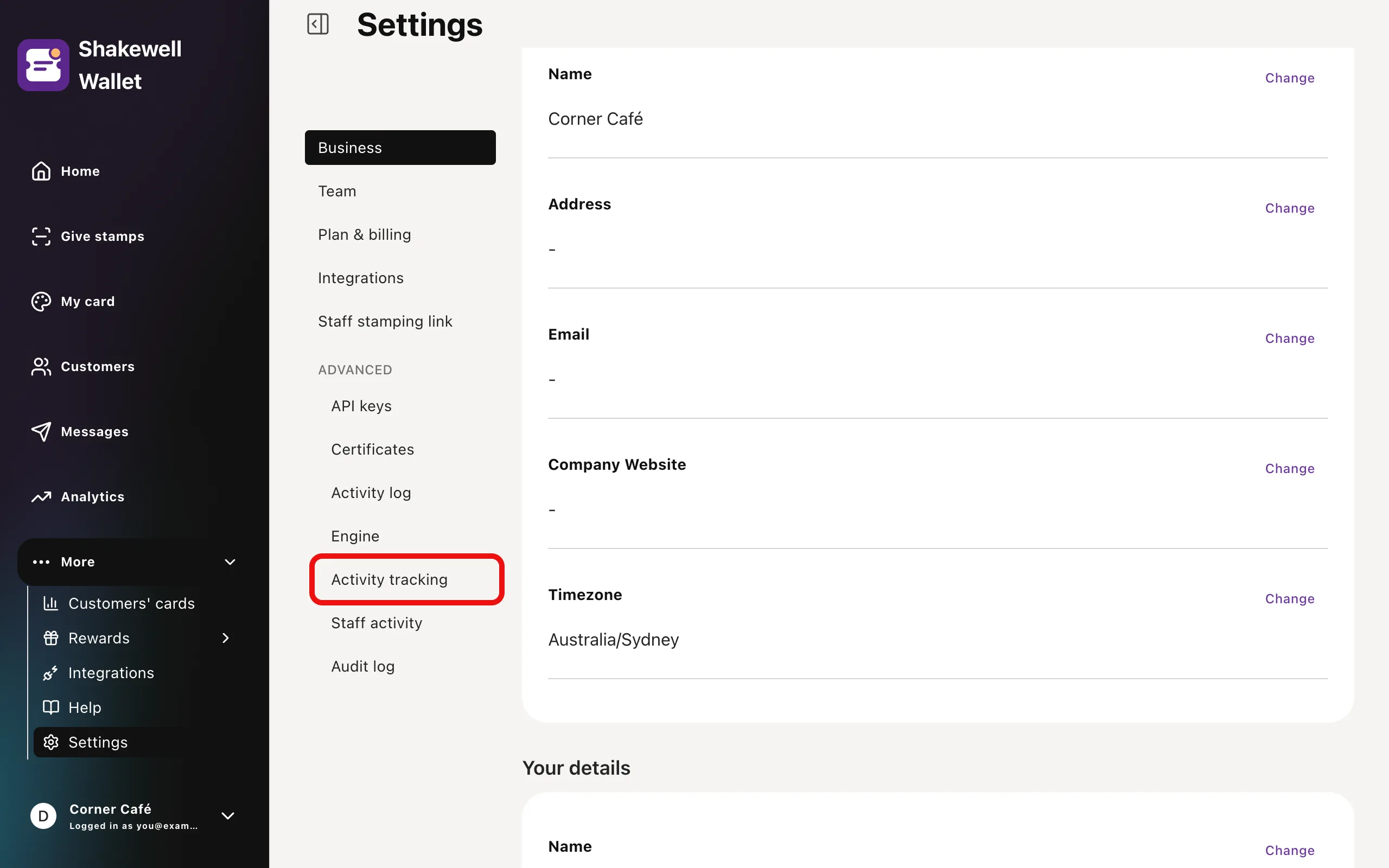
Step 3. In the list on the left of the Settings page, find the heading Advanced. Click Activity tracking under it.
A box called Activity tracking opens. It says what is recorded.
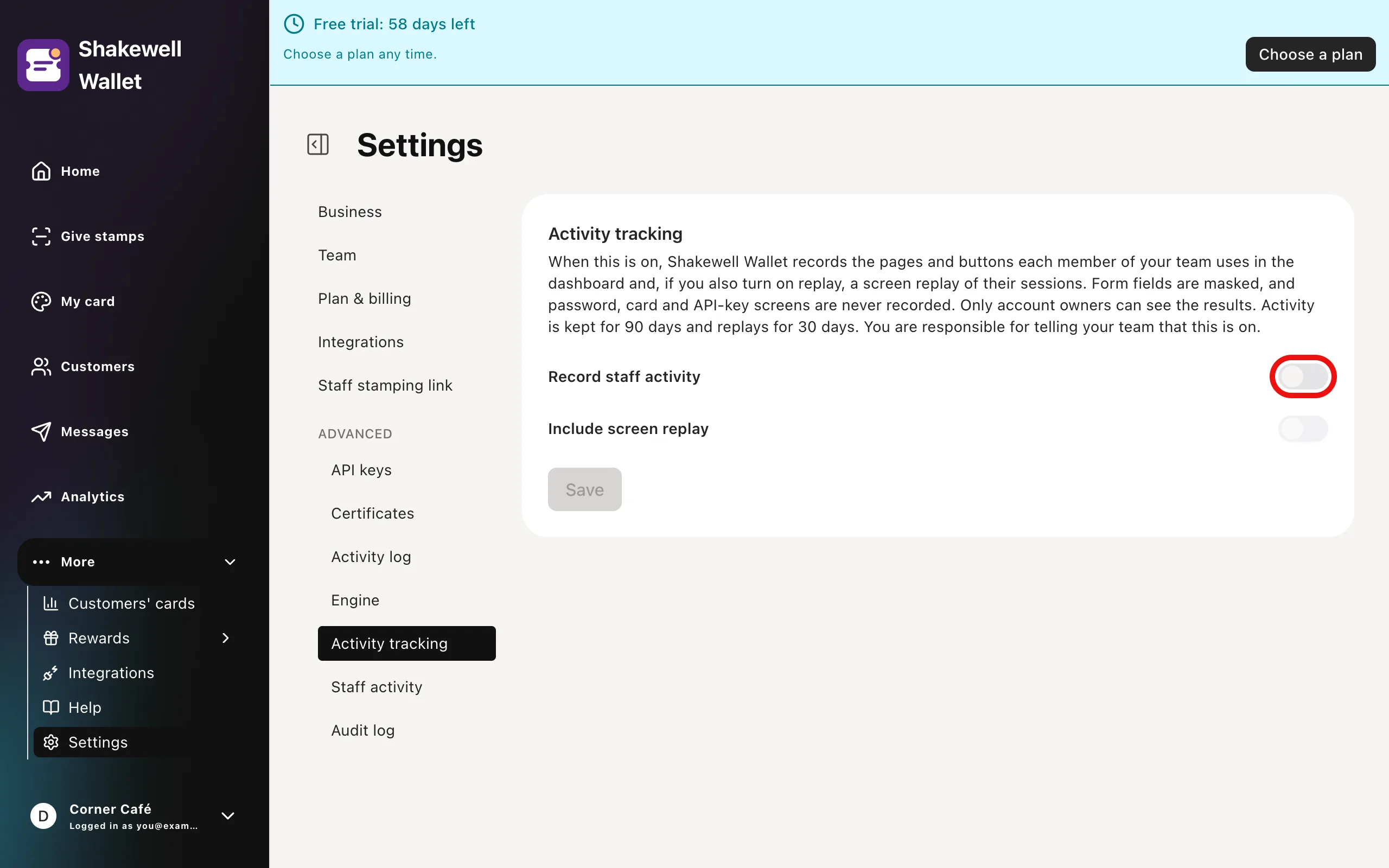
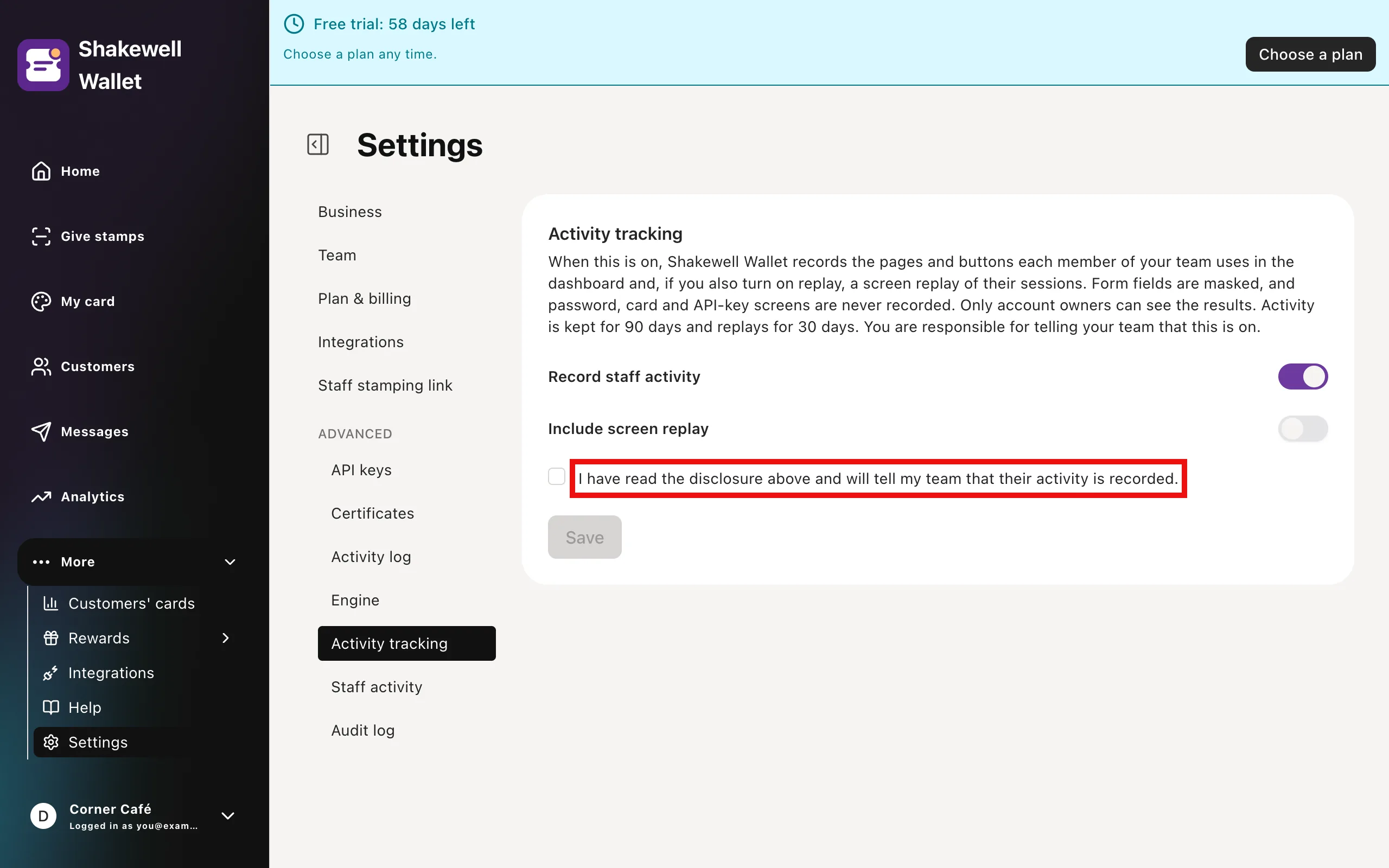
Step 4. Read the box. Click the switch next to Record staff activity.
The switch turns purple. A tick box shows under it.
Step 5. Click the tick box that says you have read the notice and will tell your team.
A tick shows in the box. The Save button turns on.
Step 6. Click the purple Save button.
A green message pops up that says Activity tracking settings saved.
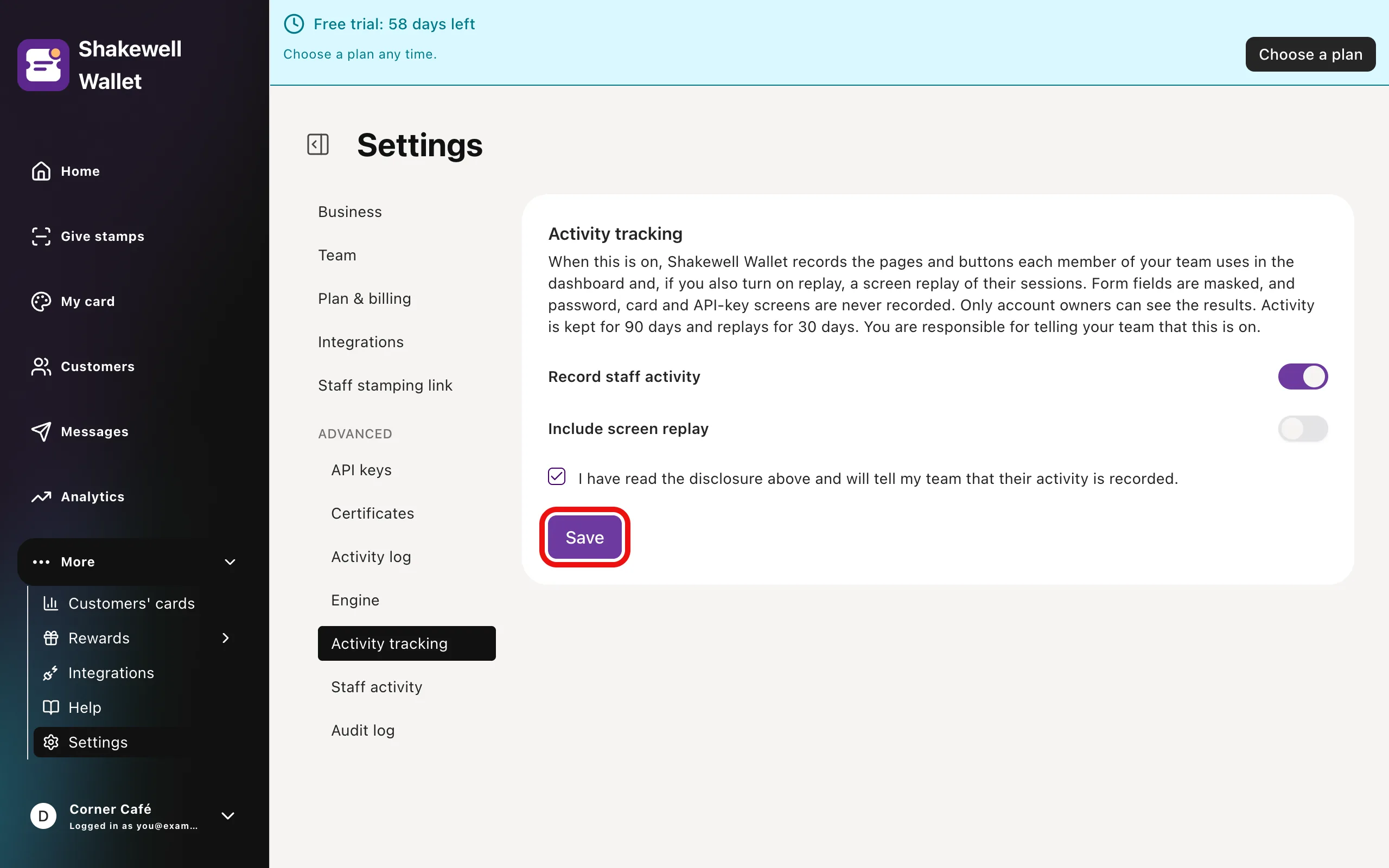
Step 7. Look at the green message at the bottom right of the screen.
From now on, Shakewell Wallet writes down the pages and buttons each person uses. A note at the top of every page tells your team.
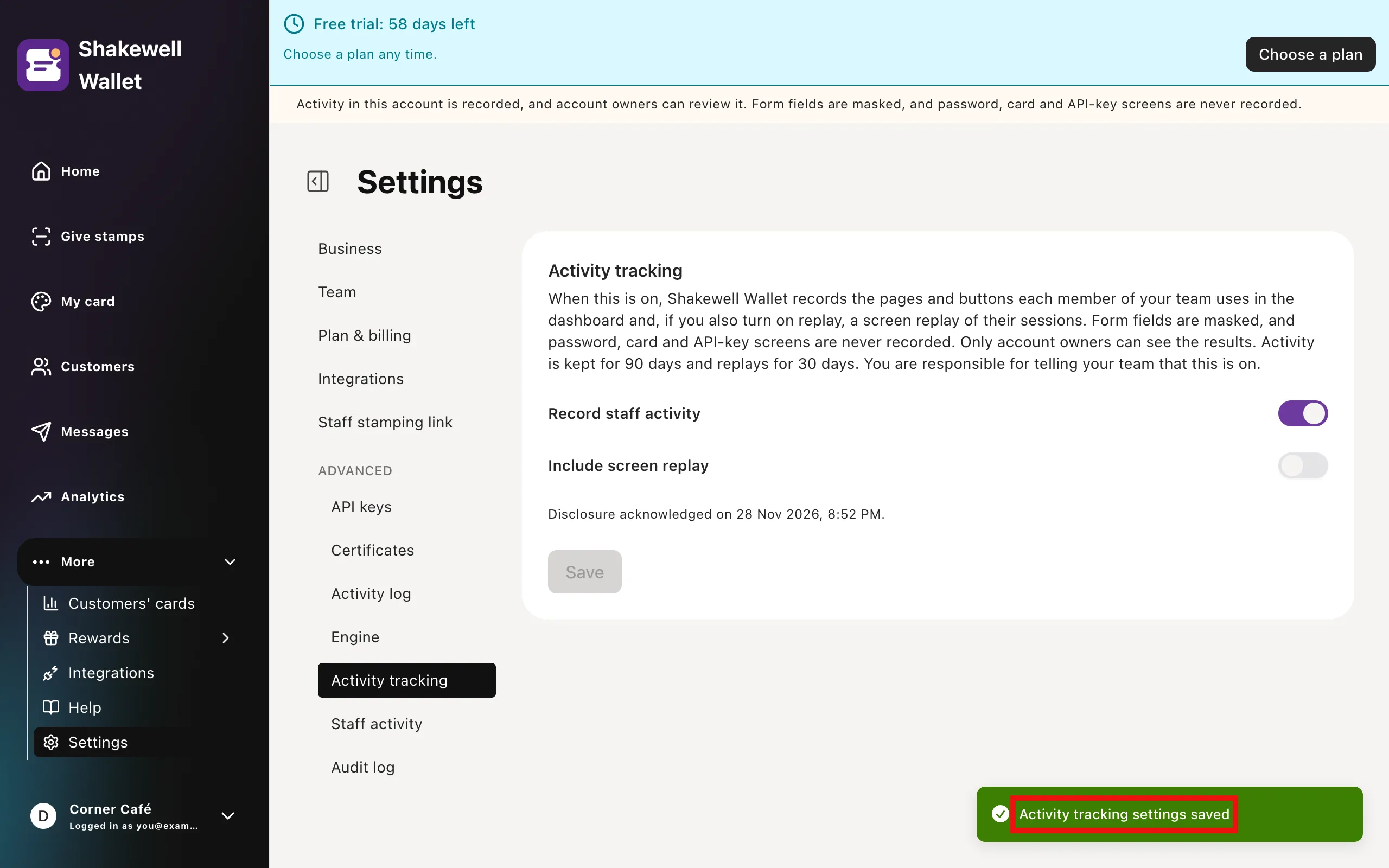
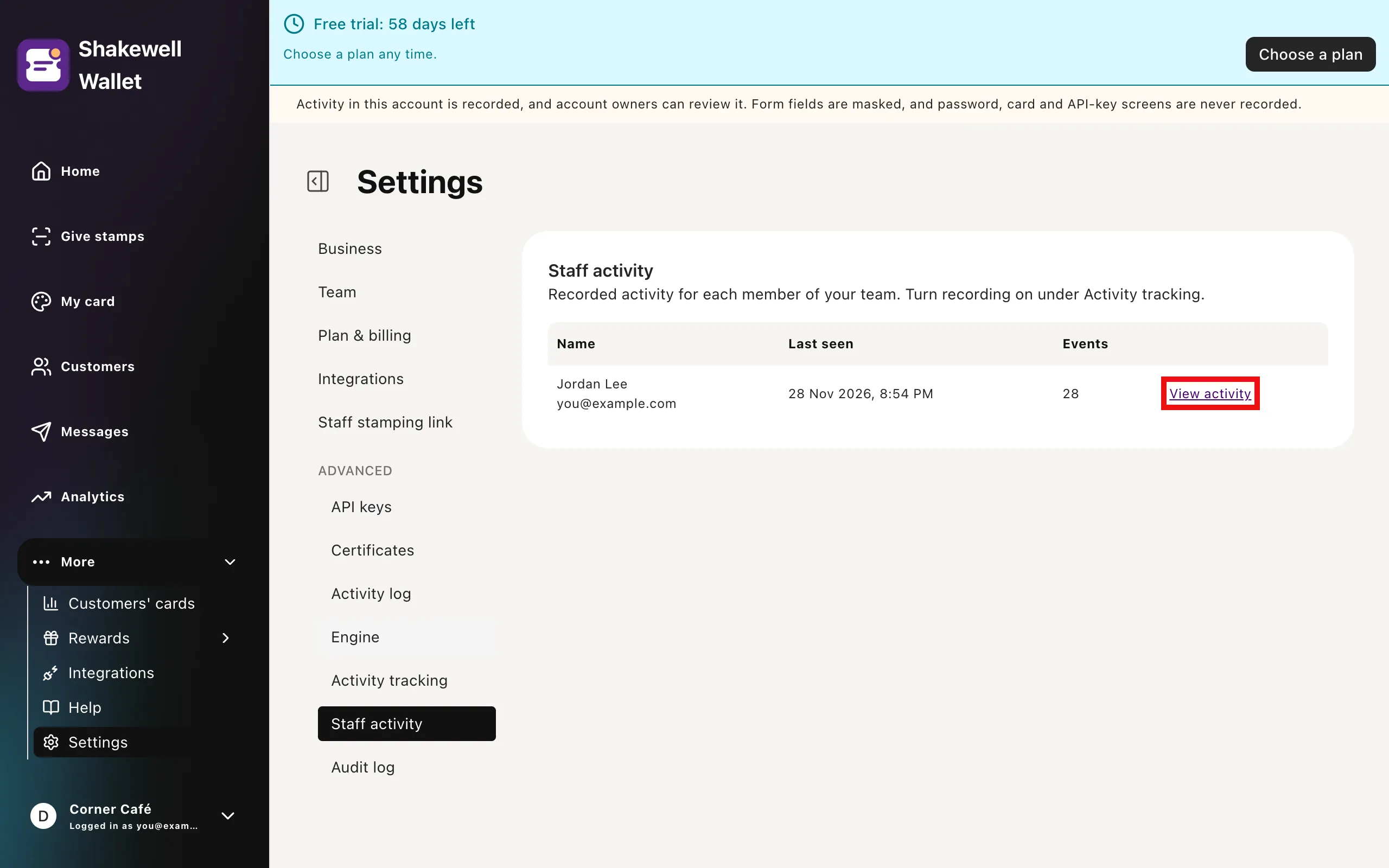
Step 8. Later, come back to Settings. In the list on the left, click Staff activity.
A list of your team opens. It shows each person's name, when we last saw them, and how many things they did.
Step 9. Find the person you want to check. Click View activity on their row.
A page opens with that person's list.
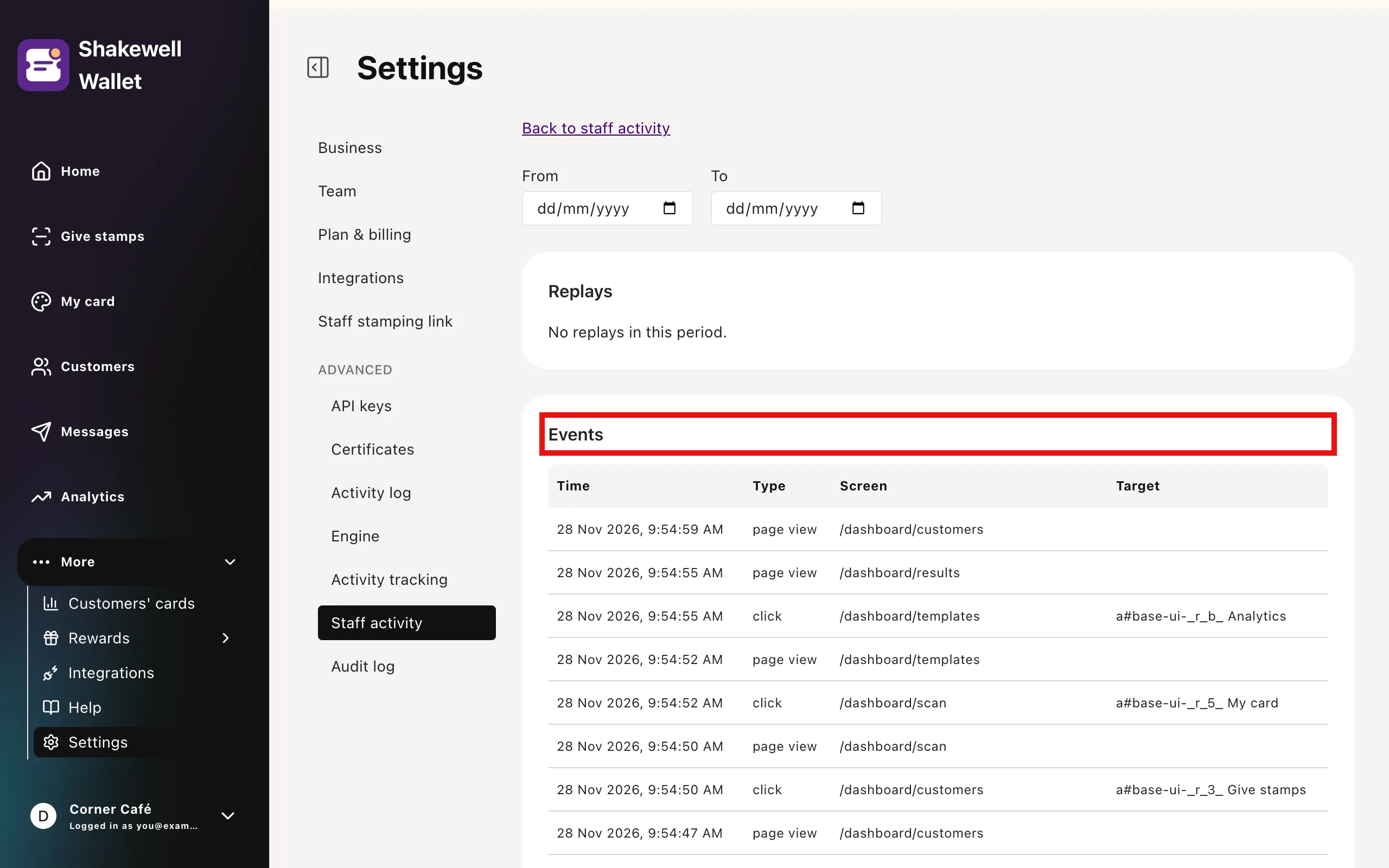
Step 10. Look at the box called Events.
Each row is one thing they did. It shows the time, the kind (a page they opened, or a button they clicked), the page, and the name of the button.
You'll know it worked when
The Staff activity list shows a number of events next to each person, and their Events table lists the pages and buttons they used.
Good to know
- Only things done after you switch it on are recorded. Nothing from before shows.
- Activity is kept for 90 days.
- Typed words in boxes are hidden. Password and card screens are never recorded.
- Tell your team before you switch it on. You are responsible for that.
- Switch it off any time. Click Activity tracking, click the switch next to Record staff activity, then click Save.
Stuck?
That is fine. Contact us and we will help you. We reply within one business day.
These guides may help: