
Shopify
How do I give customers a card from Shopify?
Last updated 2026-11-26
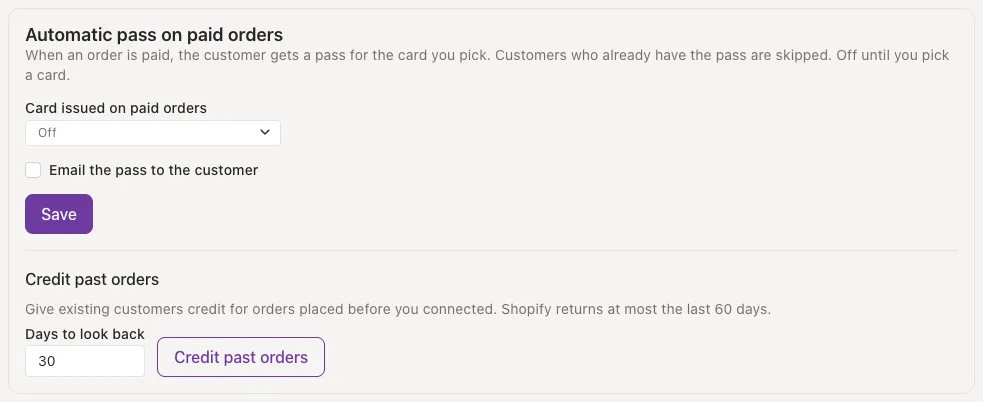
Choose a card under Automatic pass on paid orders on your store's page. Every customer who pays gets that card, unless they already have it.
Without this setting, only customers who already have a Shakewell card earn. Turn it on and a paid order gives the customer a card.
Steps
- Publish the card you want customers to get. In the left menu choose My card and check it shows Published.
- Open More, then Integrations, and choose your Shopify store.
- Under Automatic pass on paid orders, open Card issued on paid orders and choose your card.
- Optional: tick Email the pass to the customer.
- Choose Save.
- Place a test order as a new customer. Once it is paid, the customer has a card.
What happens
- When an order is paid, Shakewell gives the customer the card you chose.
- A customer who already has the card is skipped.
- The order needs an email address or a phone number. Without either, no card is made.
- With Email the pass to the customer ticked, the customer is also emailed their card. Otherwise they get it another way, such as from your signup link.
The setting is off until you pick a card. Choose Turn off under the card list, then Save, to stop.
Other ways to give a card
- At your Shopify POS till, staff choose Issue card. See set up Shopify POS.
- On your website, add the Shakewell signup block to your theme. See install Shakewell on Shopify.
- Share your signup link or a QR code. See how to share your signup page.