
Getting started
How do I build and share a signup page?
Last updated 2026-11-09
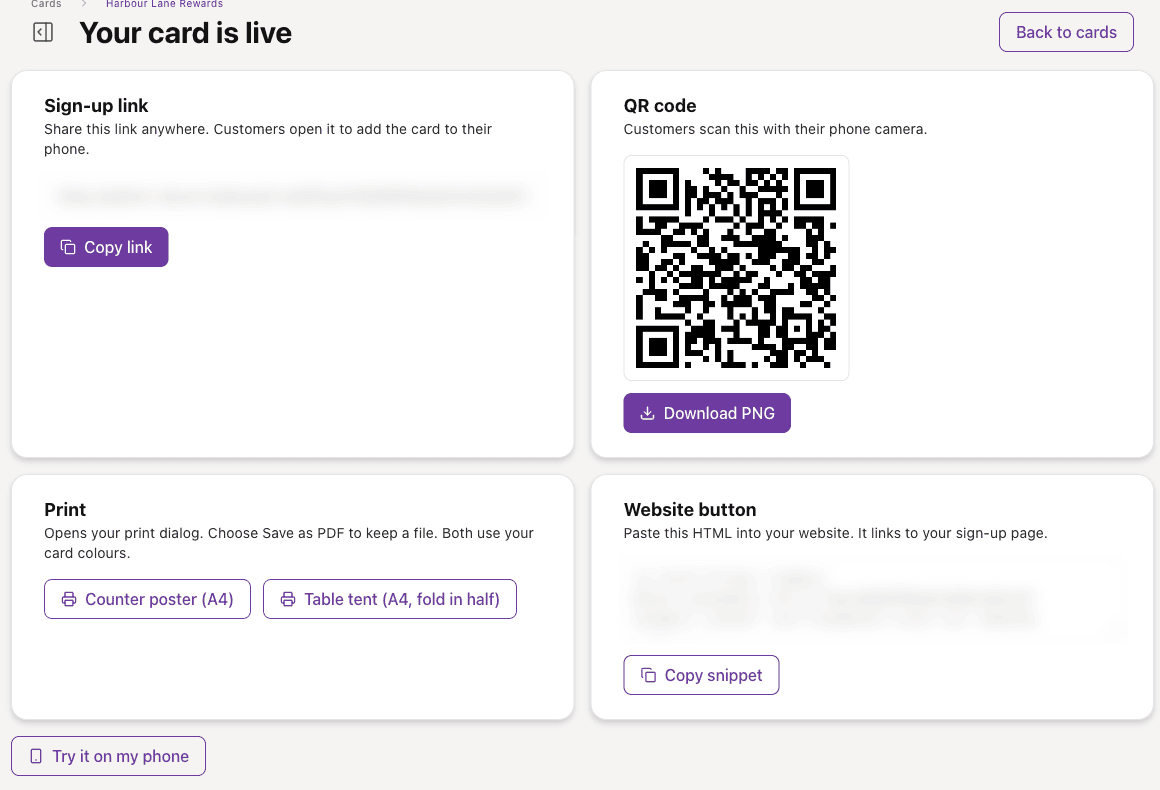
Open the Signup Page menu on your card, choose Build sign-up page, then publish. The Share, QR & poster page gives you the link, QR code, printable poster and a website button.
What you need first
- A card. You can build the page while the card is a draft, but customers can only use it once the card is published.
- Your logo and brand colours.
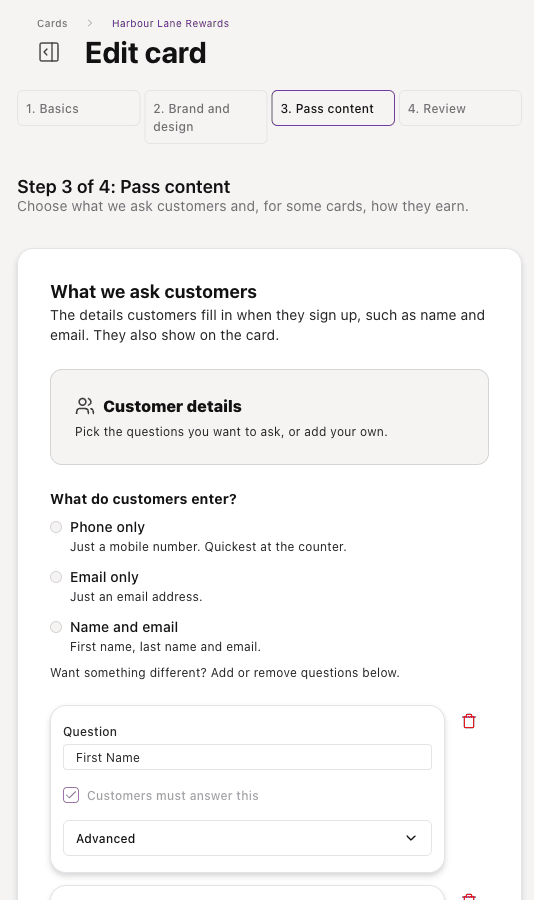
- Decide what to ask customers. This is set on the card, in Pass content. Keep it short: a phone number alone is quickest at the counter.
Steps
- Open Cards and find your card.
- Open the Signup Page menu on the card and choose Build sign-up page. If you have built it before, the option says Edit sign-up page.
- Work through the steps: the page title and headline, the logo, colours and fonts, the button text and any terms link.
- Choose Publish card to make the page live. Save as Draft keeps your work without publishing.
- Once the card is published, open the Signup Page menu again and choose Share, QR & poster. This page also opens when you first publish a card.
- Copy the sign-up link, download the QR code as a PNG, print the counter poster or table tent, or copy the website button snippet.
- Test the link or QR code with your own phone before you print anything.
What the customer sees
A short form with the questions you chose, a box to accept the terms and a tick box for offers and news that is optional. When they finish, the next page offers the card for Apple Wallet or Google Wallet.
If something goes wrong
- The page says the card is still a draft: publish the card.
- The page says there is no sign-up page yet: choose Build sign-up page from the card's Signup Page menu.
- The customer cannot submit: they must accept the terms, and any email address or phone number must be valid.
- You have connected Shopify: the builder adds a Shopify Customer Mapping step. Choose which form field is the customer's email, first name, last name and phone. The email is required.
- A customer who already has the card sees a message saying so, and is emailed the card if you have their address.