
Shopify
How do I give stamps for Shopify products?
Last updated 2026-11-26
On a stamp card, add a stamp rule and tick the Shopify products that earn a stamp. Orders with those products add a stamp.
A stamp rule adds a stamp when an order includes the Shopify products you tick.
Before you start
- Your Shopify store is connected. See how to connect Shopify.
- You have a stamp card, or you are creating one.
- You have approved the Shakewell Wallet app's permission to read your products. Shopify asks when you install or update the app.
Steps
- In the left menu choose My card and open your stamp card, or create one with the type Stamp Card. Go to step 3, Pass content.
- Under How customers earn, open Also give stamps automatically from till sales (optional).
- Under How stamps are counted, choose Per visit or Per qualifying item.
- Under Rules, choose Add rule. Keep the Rule kind on Items sold and give the rule a name.
- Under Which Shopify products earn a stamp?, search your products and tick each one that should earn. The counter shows how many you have chosen.
- Choose Next, then on the Review step choose Publish card. On a card that is already live, this button reads Edit card.
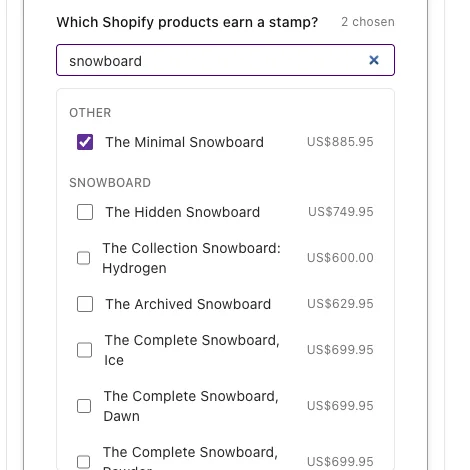
The list shows your Shopify products, with each version of a product (for example each size) on its own line. Search by name to find one quickly, and choose Show more products if your store has a lot.
If a product is not in the list
Choose Enter a code by hand, then Add SKU. Type the product code from Shopify and set Source POS to Shopify. You enter a product's code on its page in Shopify, under Inventory.
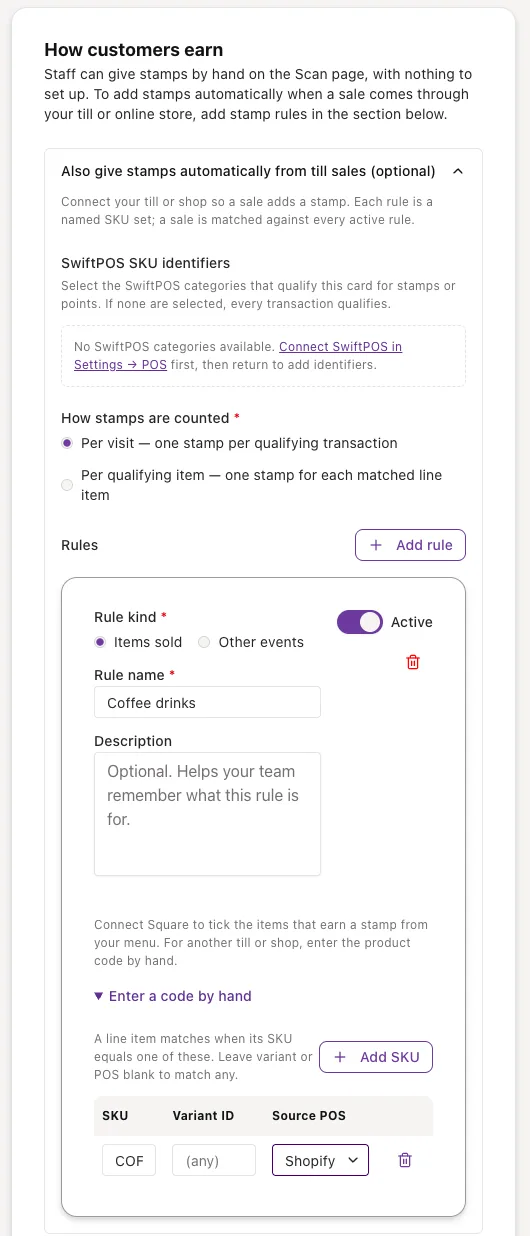
If the list says Shopify has not given us permission
Open the Shakewell Wallet app in your Shopify admin and approve the new permissions, or reconnect Shopify, then come back to the card.
Check it worked
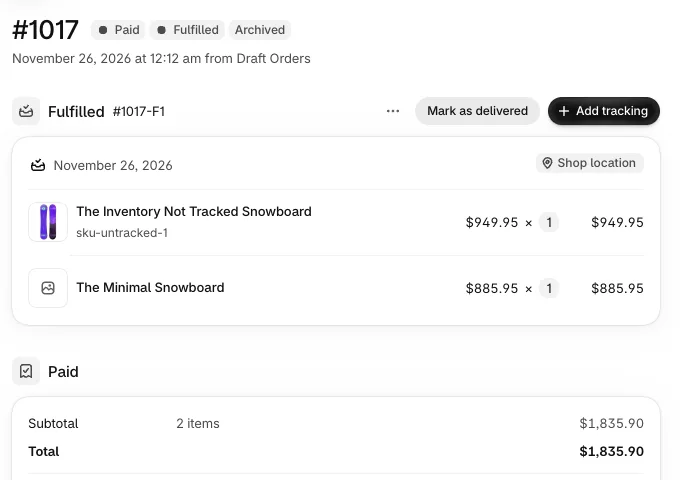
- Place a test order in Shopify for a customer who holds the card, with one of the ticked products, and pay for it.
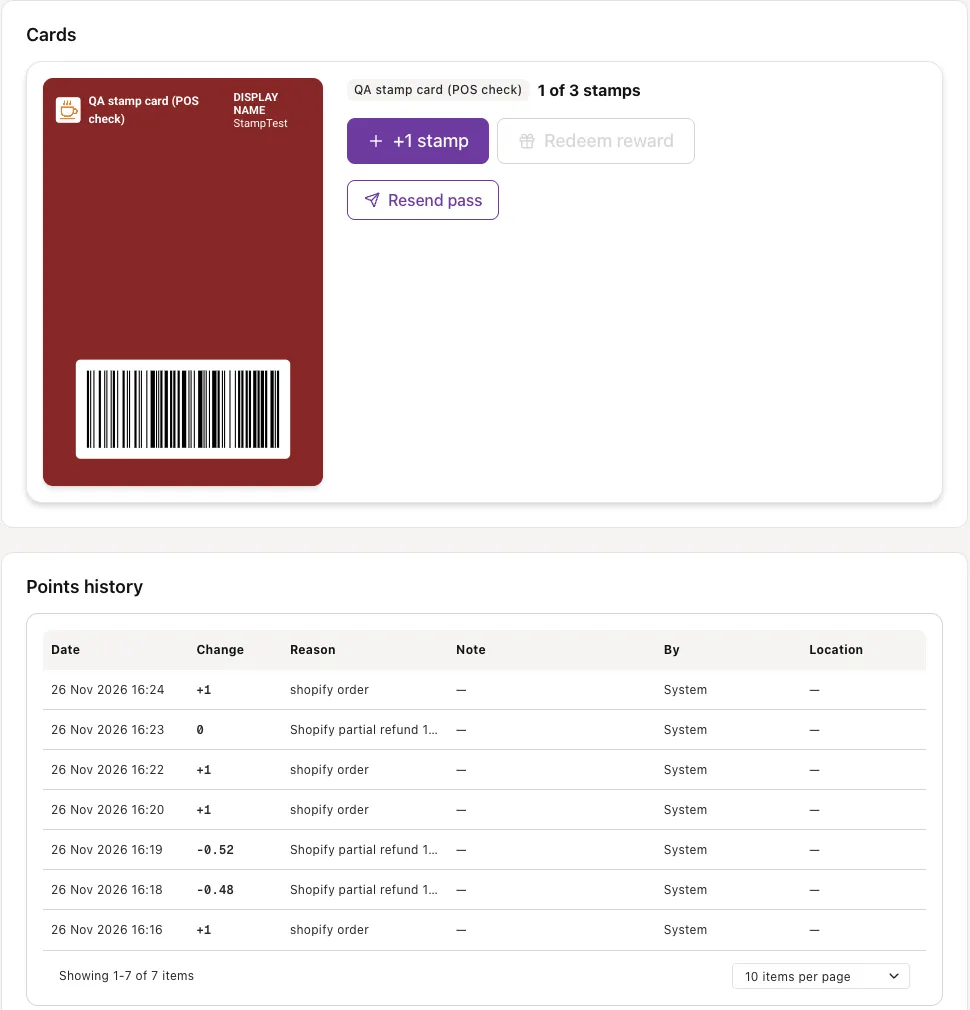
- In Shakewell, open Customers and choose the customer. The card shows the new stamp, and the Points history has a line for the Shopify order.
How the two counting choices differ
- Per visit: one stamp for each order that matches a rule.
- Per qualifying item: one stamp for each matching item on the order.
Good to know
- Products with no code in Shopify are matched by their Shopify version number, so you can still tick them.
- A code typed by hand must match exactly. Leave Variant ID and Source POS blank to match any.
- Stamps are added when the order is paid, the same as points. Stores connected before late November earn when the order is fulfilled; contact us to switch.
- If a refund covers a product with a code, its stamp is taken back.
Next: rewards and discount codes.