
How-to guides / Grow
How to cancel your plan
Stop your plan at the end of the time you have paid for.
Takes about 3 minutes
Before you start
- You are the account owner, or you are allowed to manage billing.
- Your plan is paid by card through Shakewell Wallet. If you pay through Shopify, you change your plan in Shopify instead.
The steps
Step 1. In the left menu, click More.
A short list opens under it.
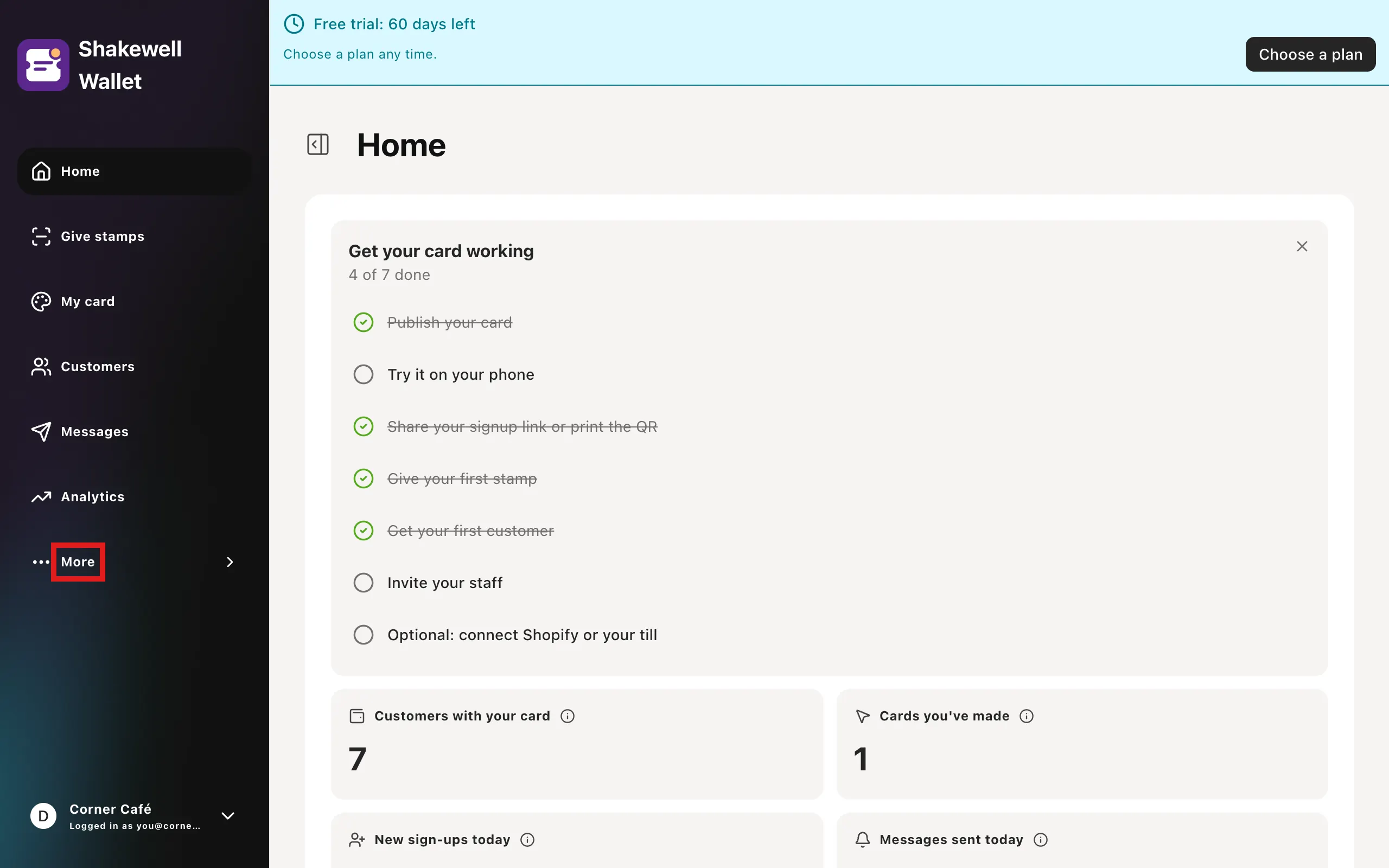
Step 2. Click Settings.
A page called Settings opens.
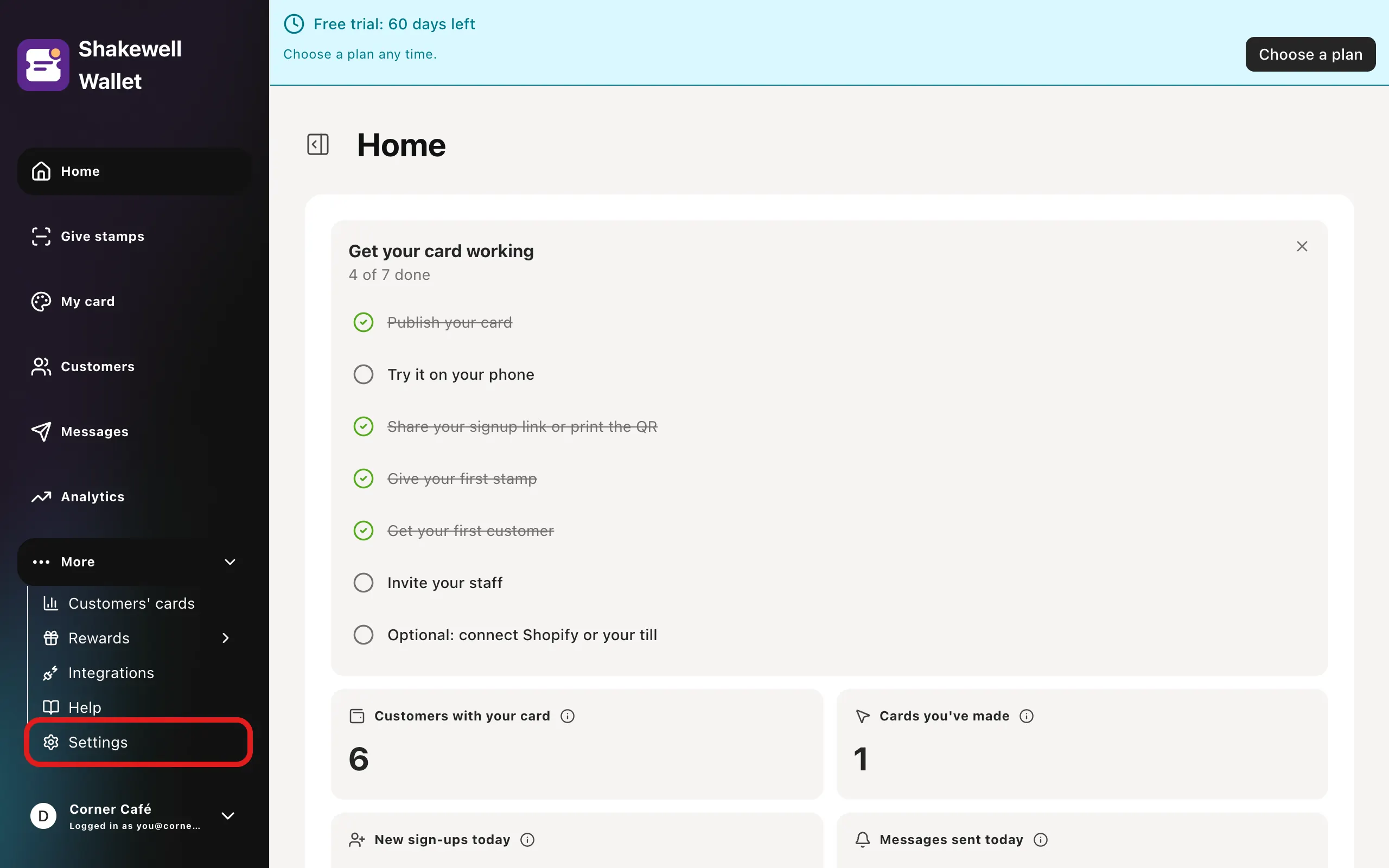
Step 3. Near the top, click Plan & billing.
You see your plan, your trial or payment details, and what your plan includes.
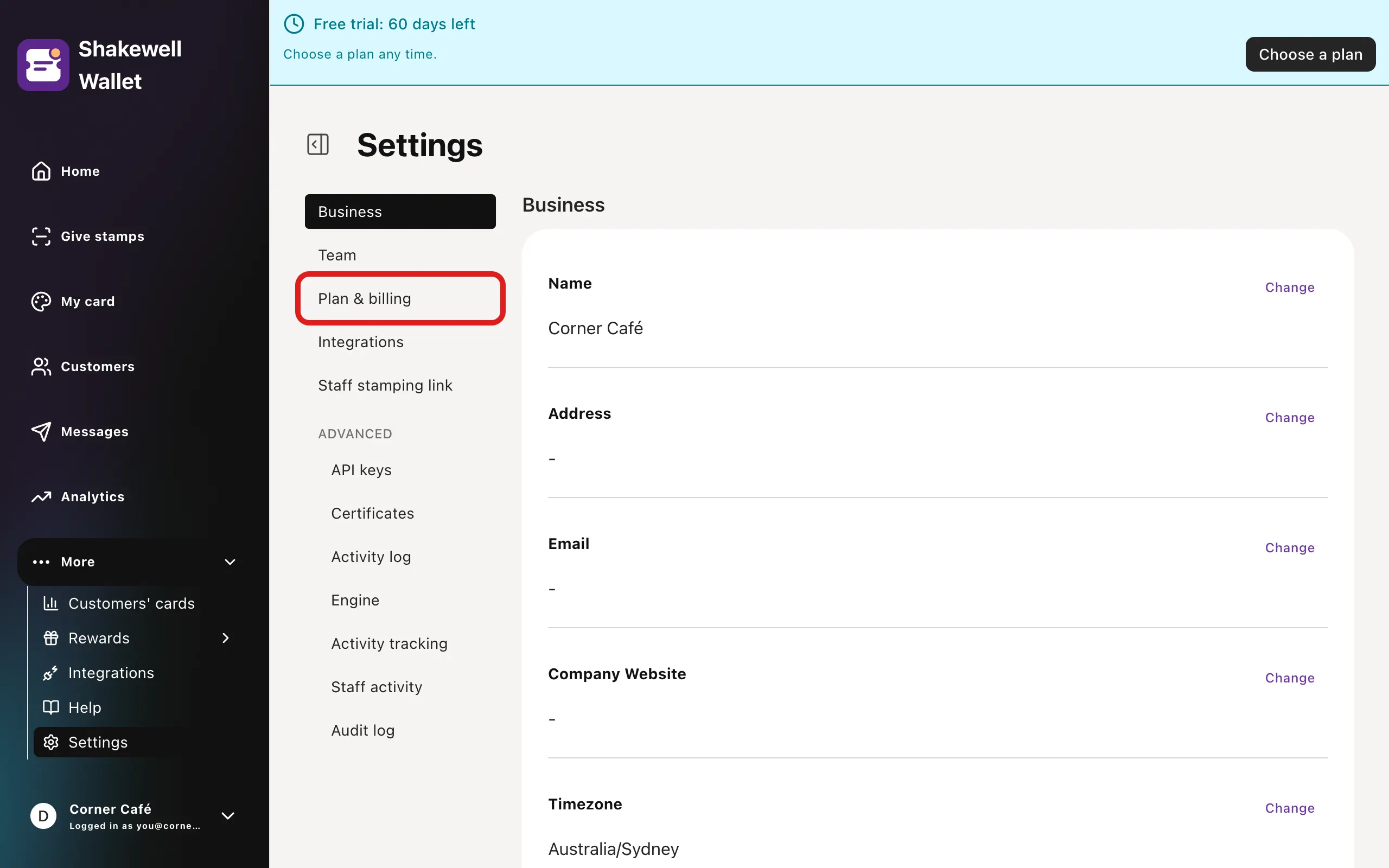
Step 4. Click Manage or cancel subscription.
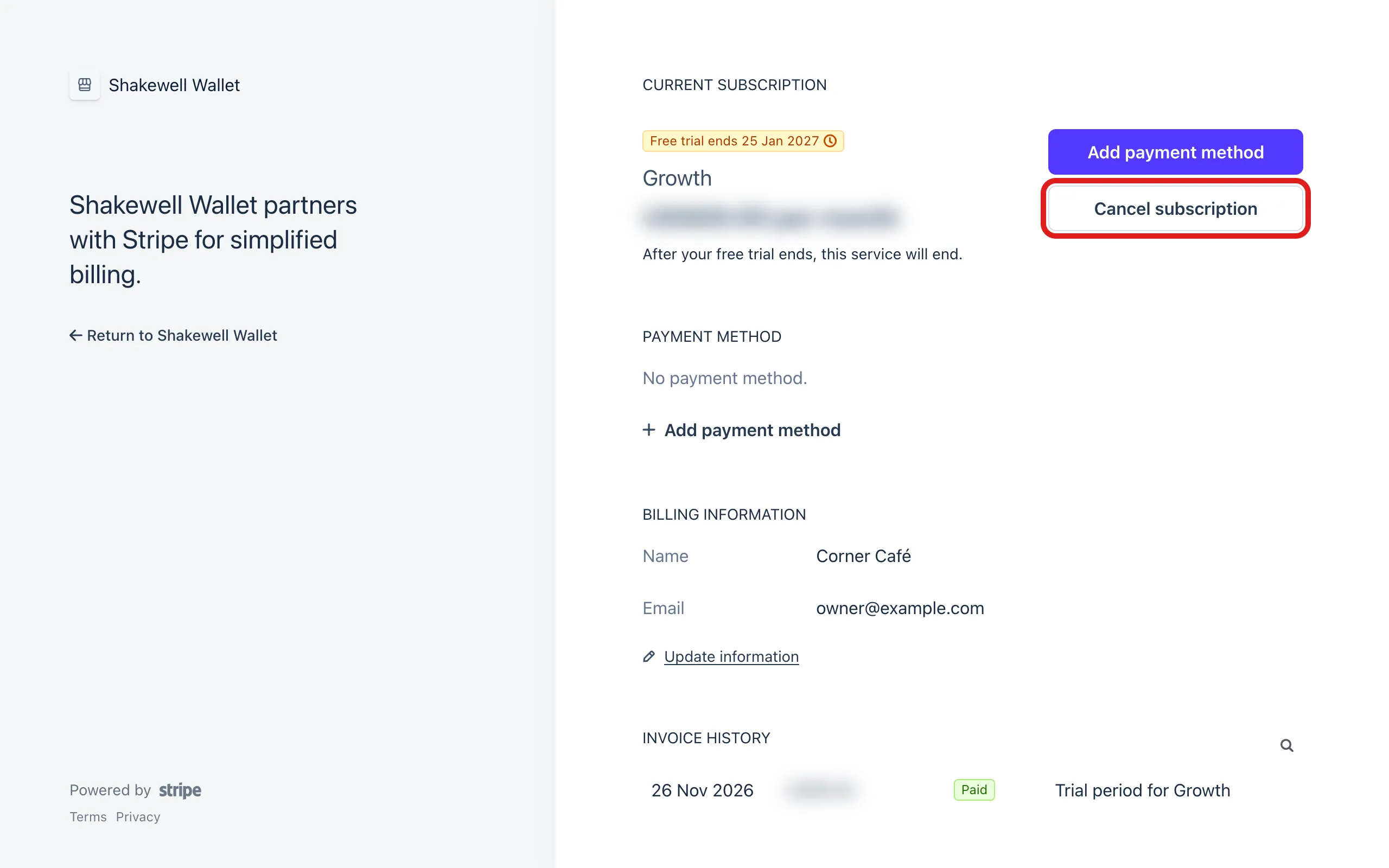
Wait a moment. A page from Stripe opens. (Stripe is the company that takes your payments.) It shows your subscription.
Step 5. On the Stripe page, click Cancel subscription.
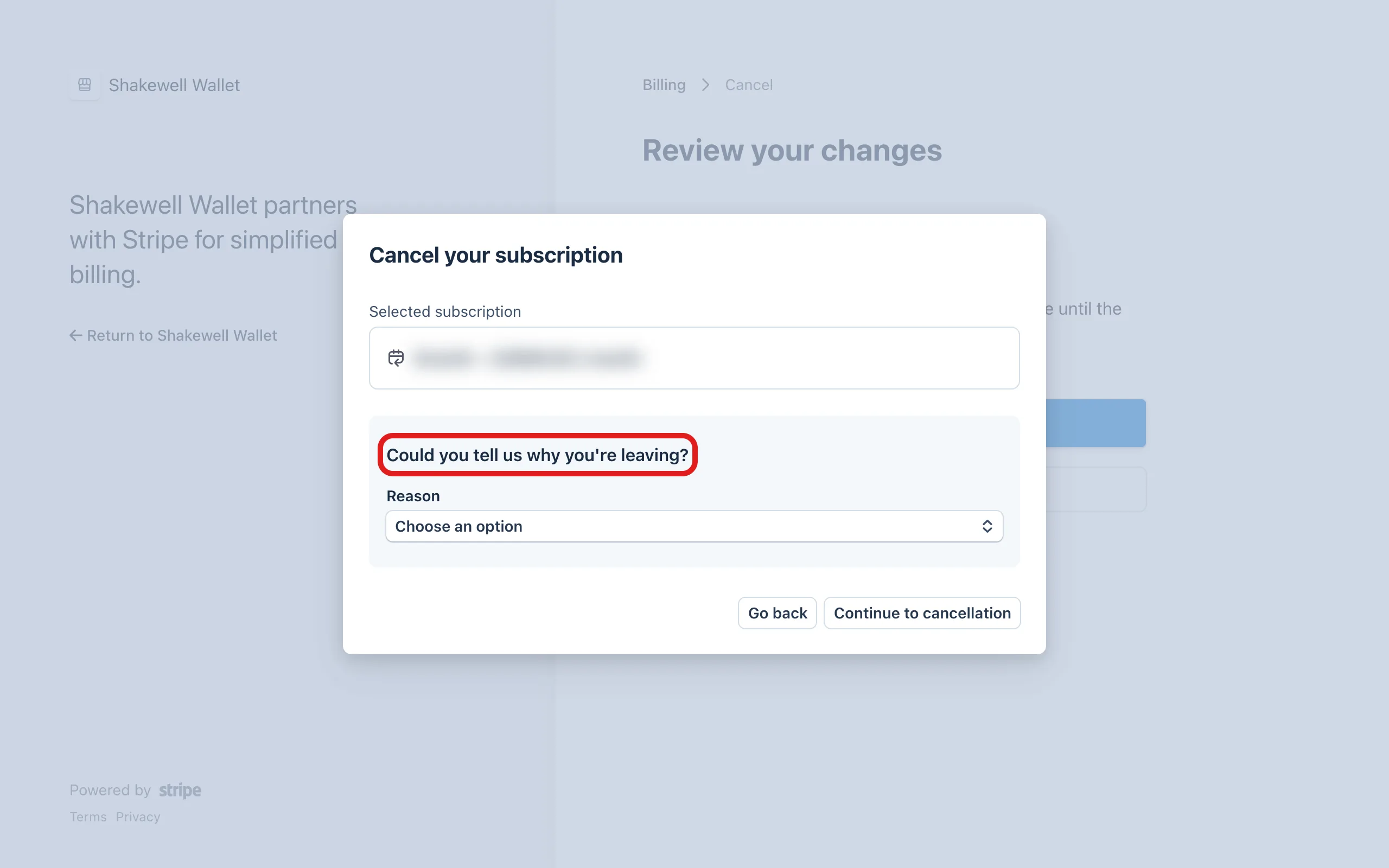
A box called Cancel your subscription opens.
Step 6. Look at the question Could you tell us why you're leaving?
You can answer it or leave it empty. Both are fine.
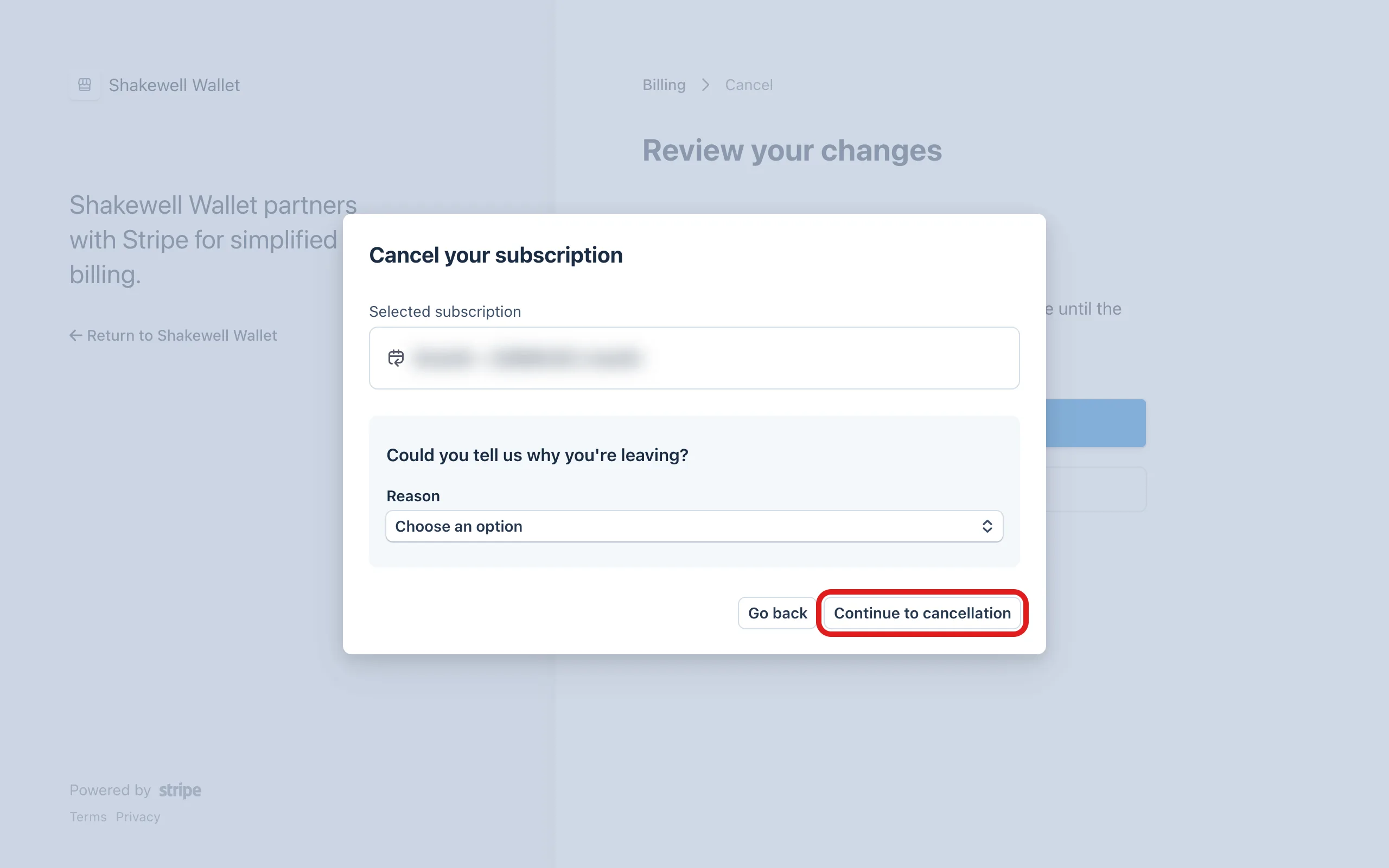
Step 7. Click the Continue to cancellation button.
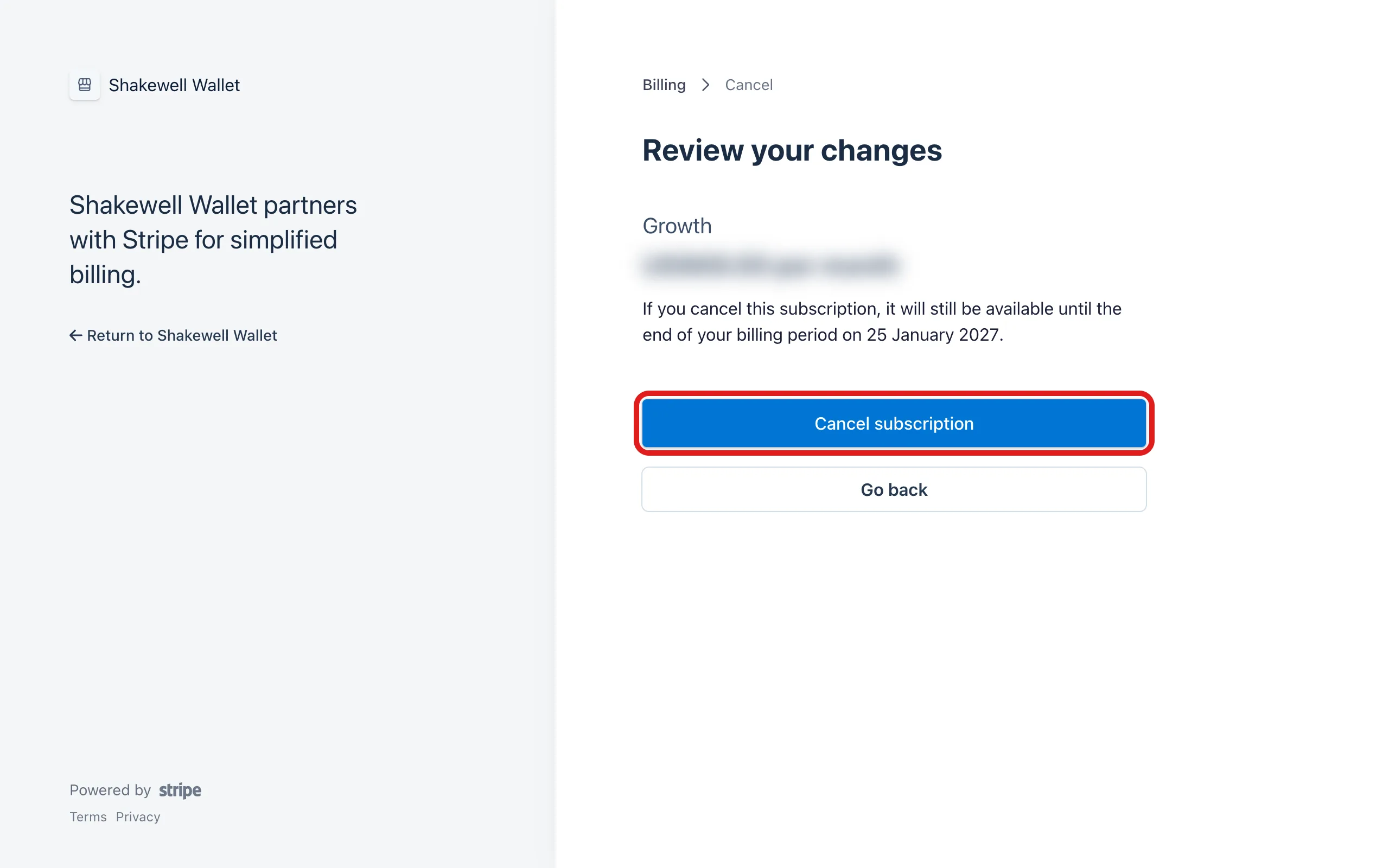
A page called Review your changes opens.
Step 8. Read the line under your plan name. Click the blue Cancel subscription button.
The line says your plan is still available until the end of the time you paid for. Wait a moment.
Step 9. Look at the top of the subscription box on the Stripe page.
It says Cancels and a date. A new button called Don't cancel subscription shows.
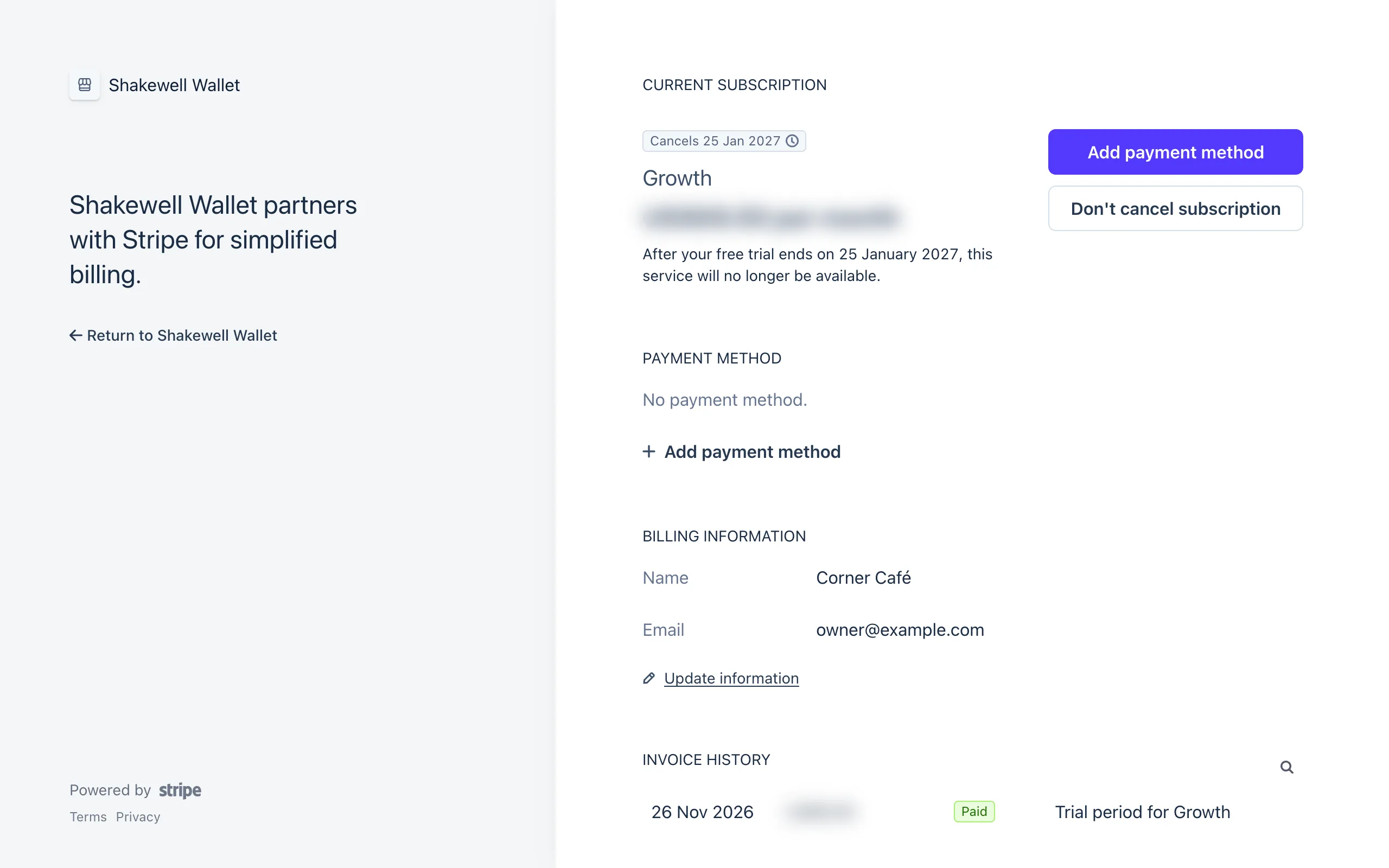
You'll know it worked when
The Stripe page says Cancels with a date, and shows a button called Don't cancel subscription.
Good to know
- Your account stays on until the date shown. After that the service ends.
- Changed your mind? On the same Stripe page, click Don't cancel subscription. Then click Renew subscription.
- Want a different plan instead of leaving? See How to change your plan.
- No Manage or cancel subscription button? Your plan may be paid through Shopify. Change it in Shopify instead.
Stuck?
That is fine. Contact us and we will help you. We reply within one business day.
These guides may help: