
Square
How do I give stamps for Square items?
Last updated 2026-11-26
On your stamp card, open Pass content, add a rule and tick the Square menu items that earn a stamp. Then publish the card.
Before you start
- Square is connected and your menu has copied across. See how to connect Square.
- You have a stamp card, or you are ready to create one. Stamp cards are on every plan.
Steps
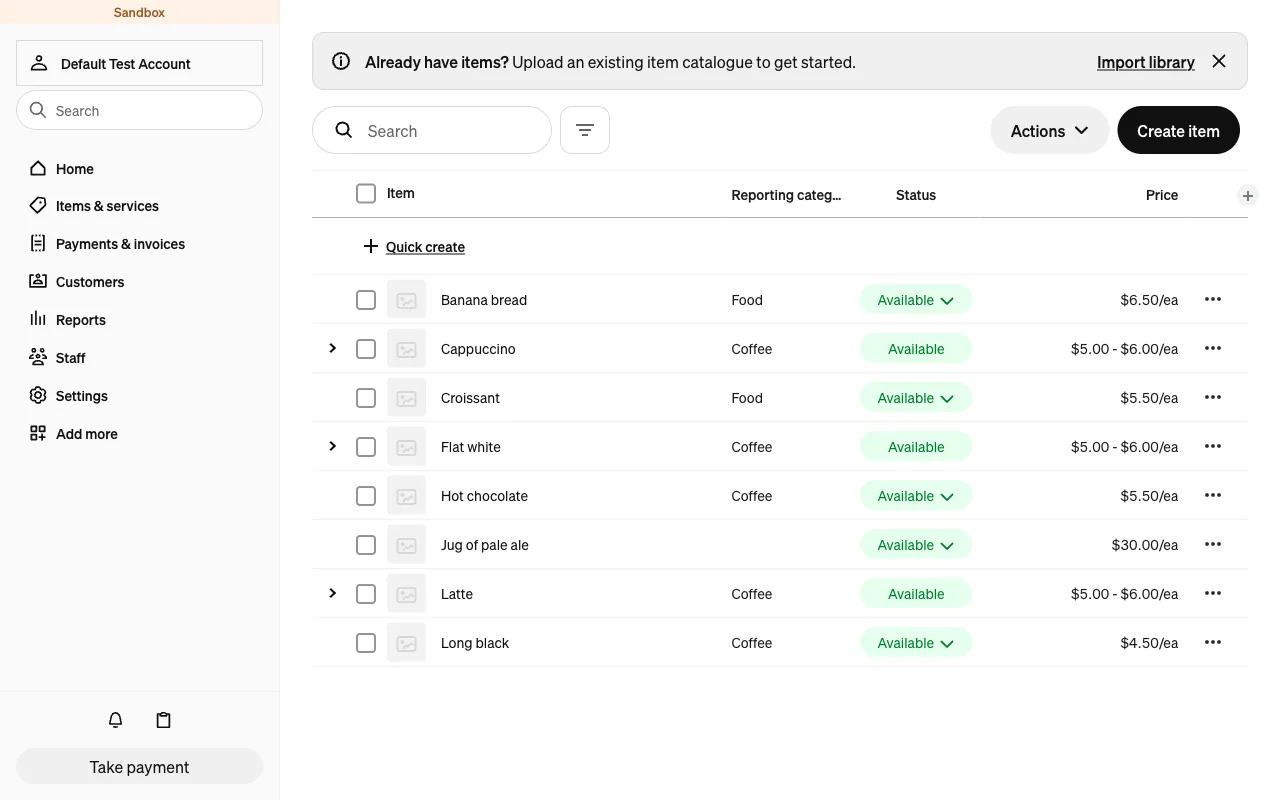
- Connect Square and wait a few minutes. Shakewell copies your Square menu so you can pick from it.
- In the left menu choose My card and open your stamp card, or create one with the type Stamp Card. Go to step 3, Pass content.
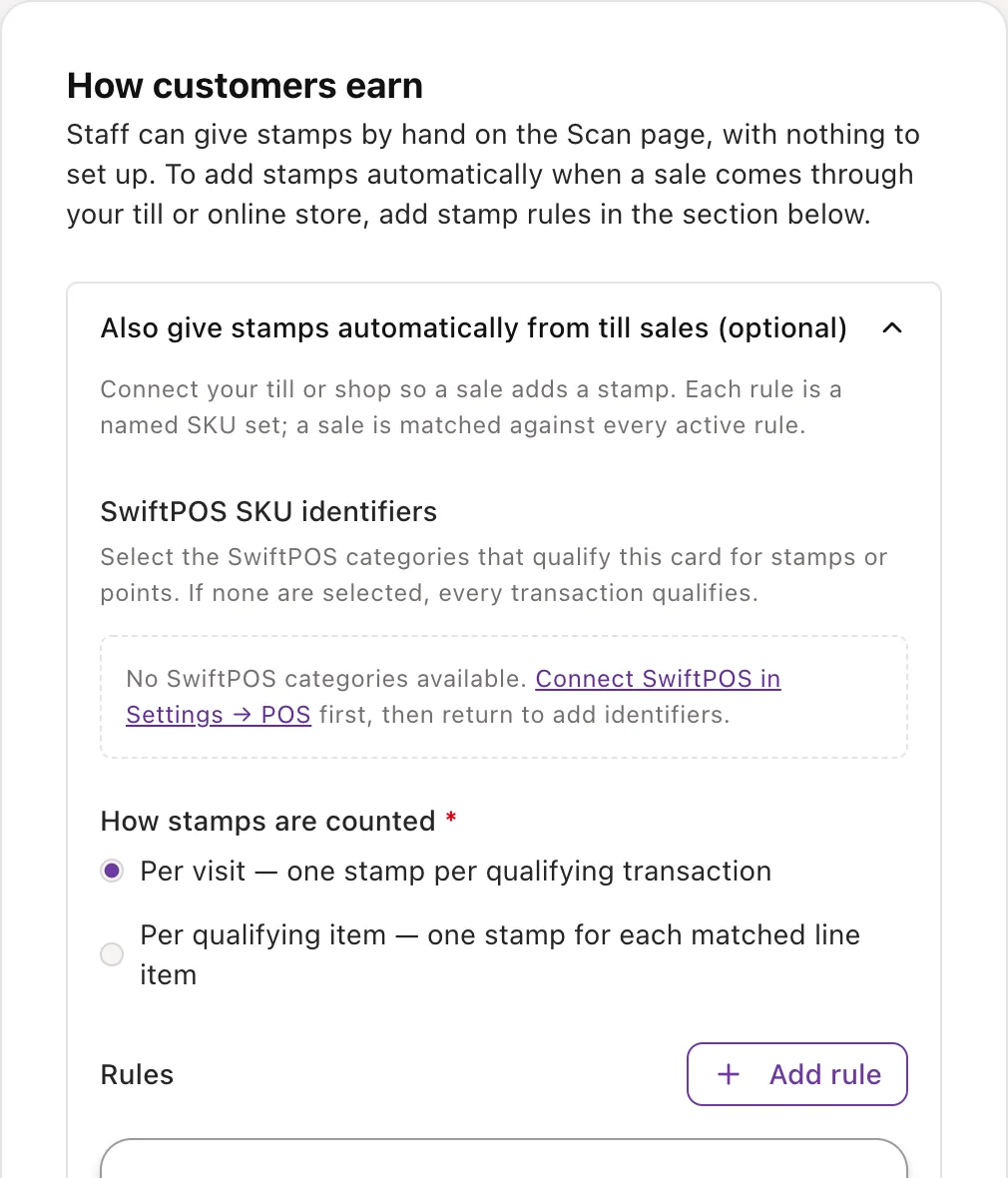
- Under How customers earn, open Also give stamps automatically from till sales (optional).
- Under How stamps are counted, choose Per visit or Per qualifying item.
- Under Rules, choose Add rule if there is no rule yet. Keep the Rule kind on Items sold and give the rule a name.
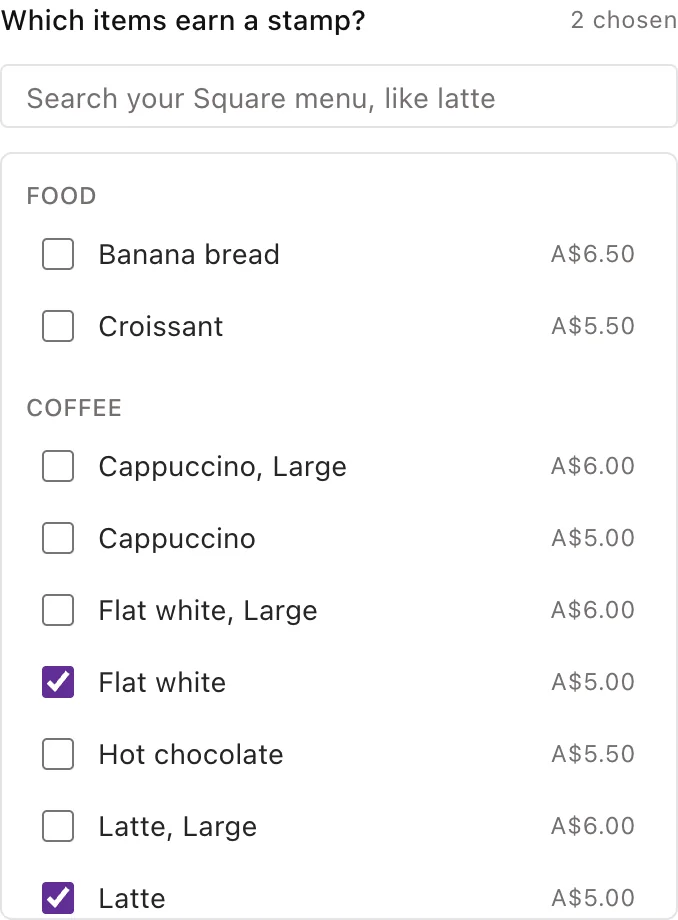
- Under Which items earn a stamp?, search your Square menu and tick each item that should earn. The counter shows how many you have chosen.
- Choose Next, then on the Review step choose Publish card. On a card that is already live, this button reads Edit card.
How stamps are counted
- Per visit: one stamp for each sale that includes a ticked item.
- Per qualifying item: one stamp for each ticked item on the sale.
- Square also adds the card's usual stamp for each completed sale with a customer attached. A card with a bonus time, such as double stamps from 2pm to 4pm, gives the bonus number for sales in that time.
- Search finds items by name. Items with the same name but different sizes are listed separately, so tick each size you want.
Good to know
- You can tick items that have no code (SKU) in Square. Shakewell matches them by their Square item.
- Custom amounts rung up without an item from your menu cannot earn a stamp.
- An item sold by weight counts as one item.
- Item modifiers, such as extra shots, are not part of the list.
- If you delete an item in Square, it drops off the picker. Under Show the codes ticked from your menu you can still see and remove it.
- Your menu copies from Square a few minutes after you connect, then again whenever it changes.
Anything that is not a Square item, such as another till, can still be added by hand under Enter a code by hand.
Next: rewards at the Square till.