
Lightspeed
What happens when my Lightspeed connection pauses?
Last updated 2026-11-26
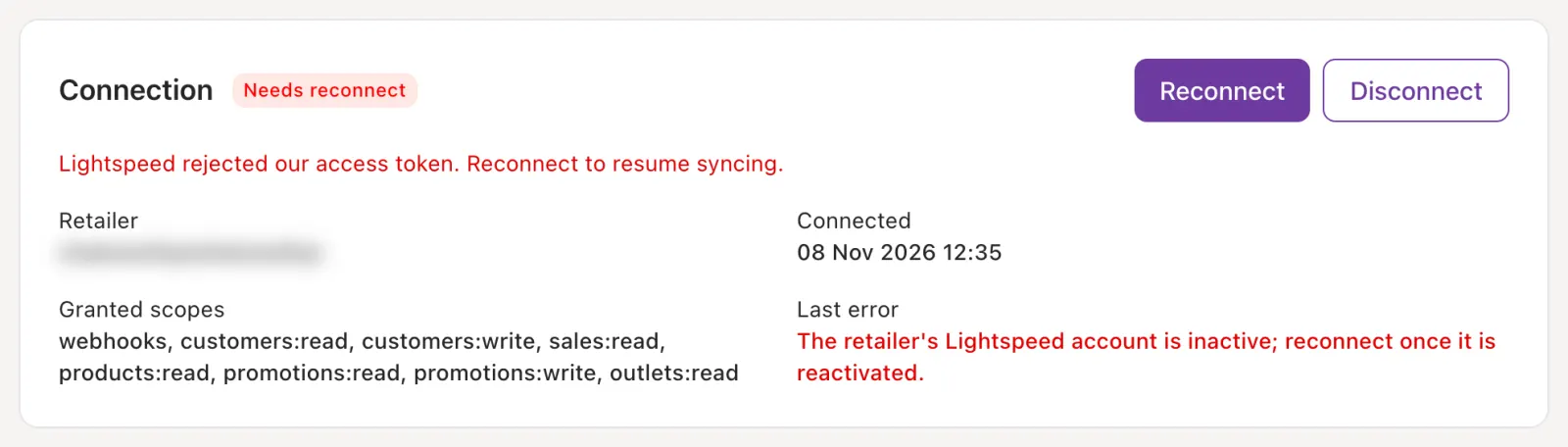
If your Lightspeed account goes inactive, Shakewell pauses the connection and shows Needs reconnect. Reactivate Lightspeed, then choose Reconnect.
Sometimes Lightspeed stops answering Shakewell. The usual reason is that your Lightspeed account is inactive, for example the plan lapsed. Another reason is that Lightspeed no longer accepts the access you approved, for example the app was removed in Lightspeed. Shakewell then pauses the connection and shows Needs reconnect.
What pauses
- Shakewell stops asking Lightspeed for anything. It does not keep trying.
- New sales do not earn points or stamps until you reconnect. The messages that Lightspeed sends in the meantime wait. They are processed after you reconnect.
- Shakewell cannot move customers in or out of reward groups while it is paused.
- The Catalogue box is hidden while the connection needs reconnecting.
What stays the same
- Points, stamps and rewards your customers already have.
- Customer cards in Apple Wallet and Google Wallet.
Steps
Step 1. In Shakewell open More, then Integrations. The Lightspeed X-Series row shows Needs reconnect.

Step 2. Open Lightspeed X-Series and read Last error. It says why the connection paused.
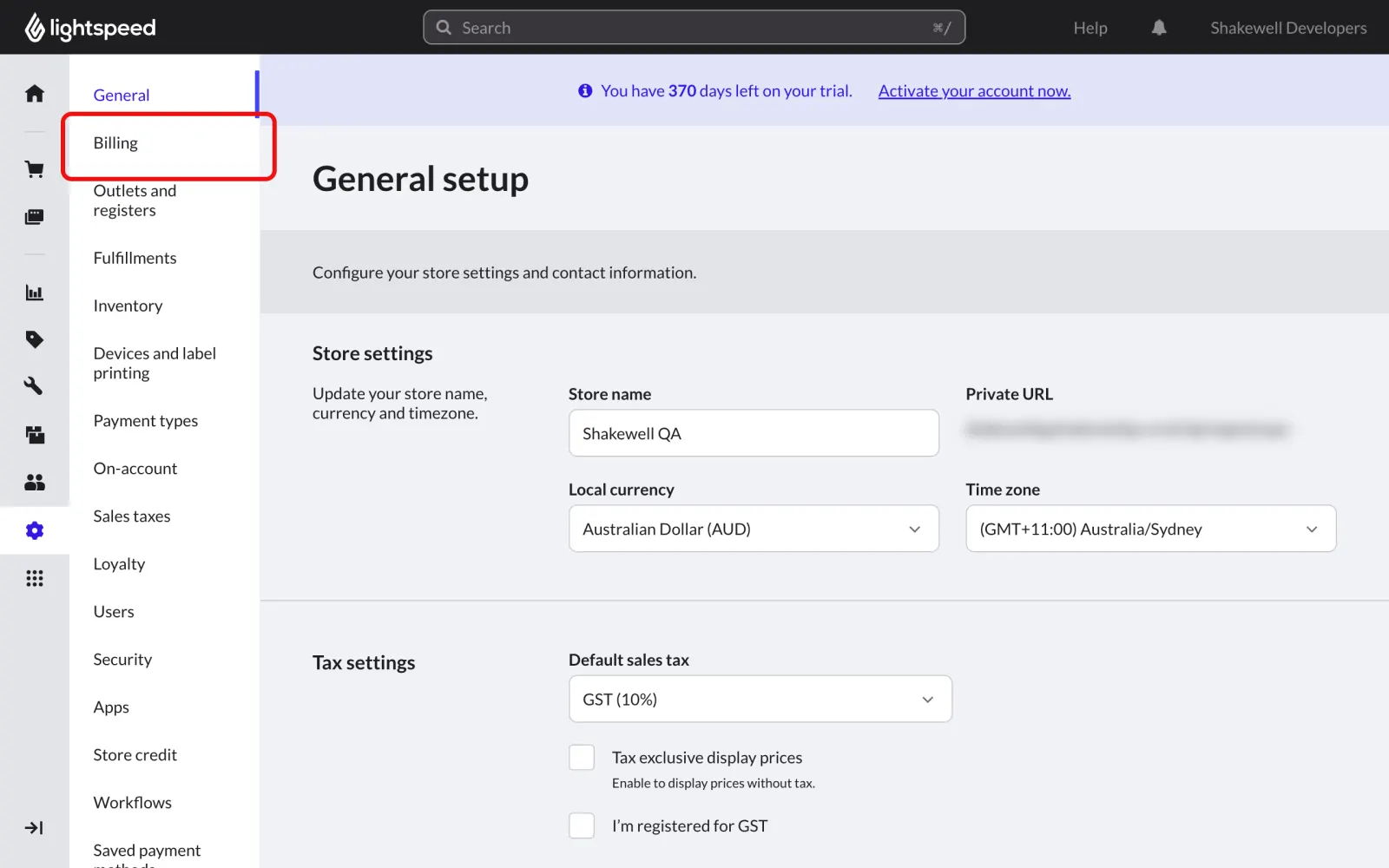
Step 3. In Lightspeed open Setup, then Billing. Check your Lightspeed account is active, or ask Lightspeed to reactivate it.
Step 4. Back in Shakewell, choose Reconnect.
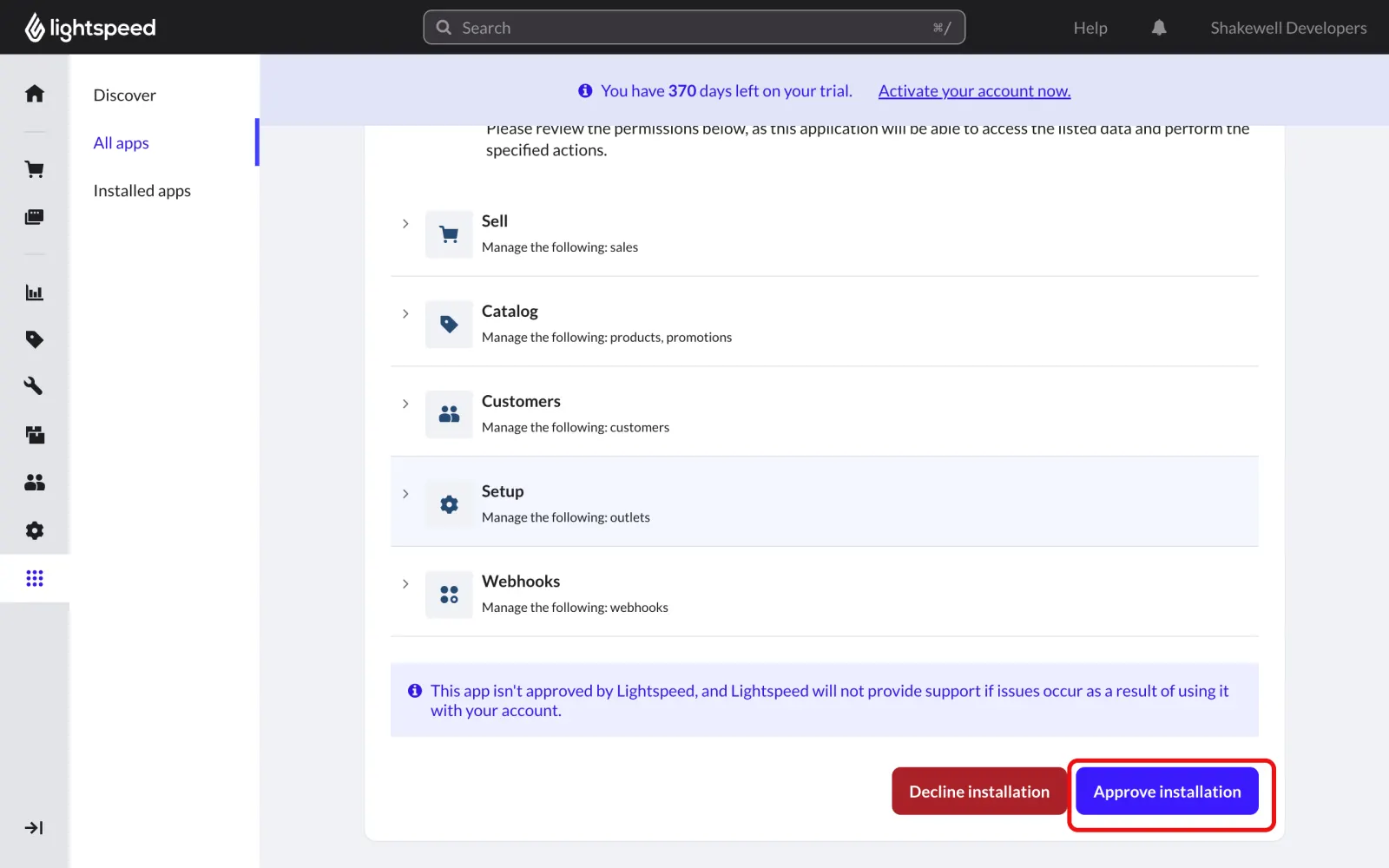
Step 5. In Lightspeed choose Approve installation.
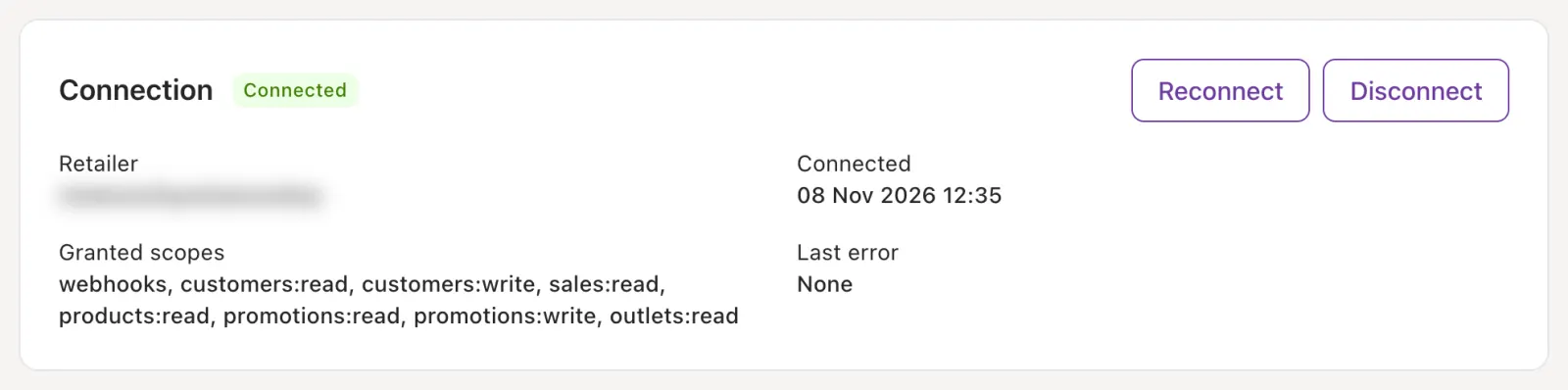
Step 6. Back in Shakewell, check the green Connected badge is back and Last error says None.
Good to know
- Only someone who can manage integrations in Shakewell sees the Reconnect button.
- Reconnecting the same Lightspeed store keeps your cards, customers and settings. Lightspeed gives Shakewell new access.
- Choose Disconnect only if you want to stop using Lightspeed with Shakewell. It archives the reward promotions and removes the webhooks. See connect Lightspeed.
Back to the complete Lightspeed guide, or talk to us if Reconnect does not fix it.
start your free trial. No card is needed.