
Points and rewards
How do I set up loyalty tiers?
Last updated 2026-11-09
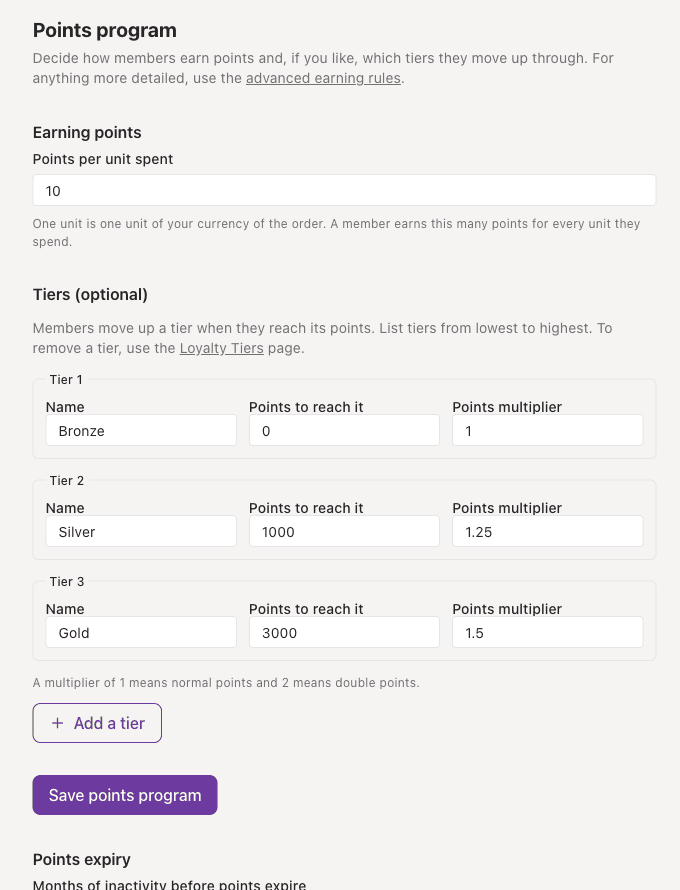
Open Rewards, then Points program, and list your tiers from lowest to highest with the points needed to reach each and a points multiplier. Manage them later under Loyalty Tiers.
What you need first
- Points working first. See the guide on points and earning rules.
- Tiers on your plan. If the Points program page says tiers are not part of your plan, ask us about upgrading.
- An idea of your ladder, for example Bronze at 0 points, Silver at 1,000 and Gold at 3,000, with a multiplier for each.
Steps
- Open Rewards in the left menu, then Points program.
- Under Tiers (optional), fill in Tier 1 with a Name, the Points to reach it and a Points multiplier. List tiers from lowest to highest.
- Choose Add a tier for each further tier. Each tier needs more points than the one before it.
- Choose Save points program.
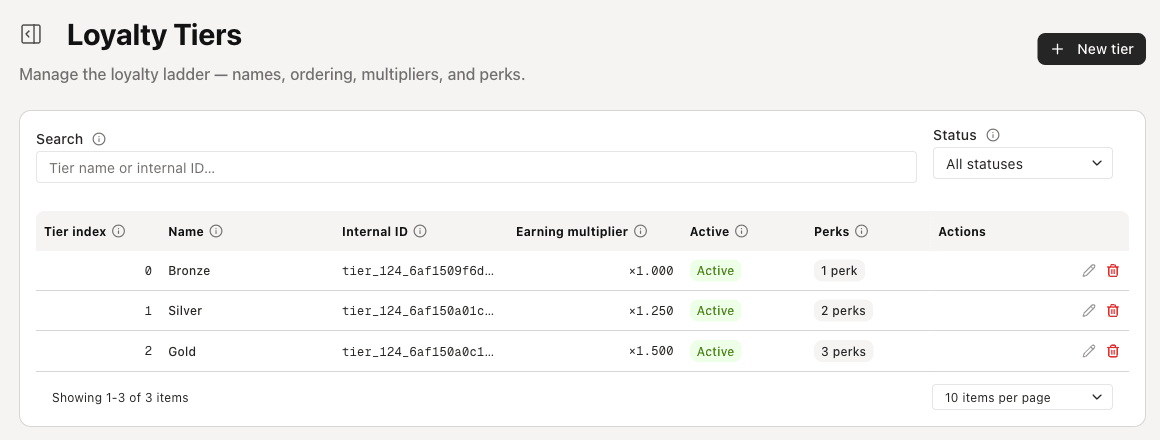
- To rename, switch off or remove a tier, or to look at its perks, open Rewards, then Loyalty Tiers.
What the multiplier does
The multiplier is applied to a member's points while they sit on that tier. 1 means normal points, 1.5 means 50 per cent extra and 2 means double. Each tier's multiplier appears in the Earning Rules list as a rule marked Managed by Loyalty Tiers.
Managing tiers afterwards
Rewards, then Loyalty Tiers, lists every tier with its multiplier, whether it is active and how many perks it has. Deactivating a tier leaves the members on it and stops new members joining it. Rewards, then Tier Transitions, records every move between tiers.
If something goes wrong
- The form says a tier needs more points than the one before it: each tier must sit higher than the one below it.
- Every tier needs a name, and the multiplier must be from 0 to 99.999.
- The page says your tiers use more than one program: manage them on the Loyalty Tiers page instead.
- To remove a tier, use the Loyalty Tiers page. The Points program page only adds and edits.