
Points and rewards
How do I set up a stamp card?
Last updated 2026-11-09
Create a card with the type Stamp Card, set how many stamps fill it and what the reward is, publish it and give stamps with the Scan page or from a connected till.
What you need first
- Your logo and colours, as for any card.
- The number of stamps that fill a card and what the reward is, for example 8 stamps for a free coffee.
- To give stamps by hand: a staff login with permission to change cards. To stamp automatically: a connected till or store.
Steps
- Open Cards and choose Create card.
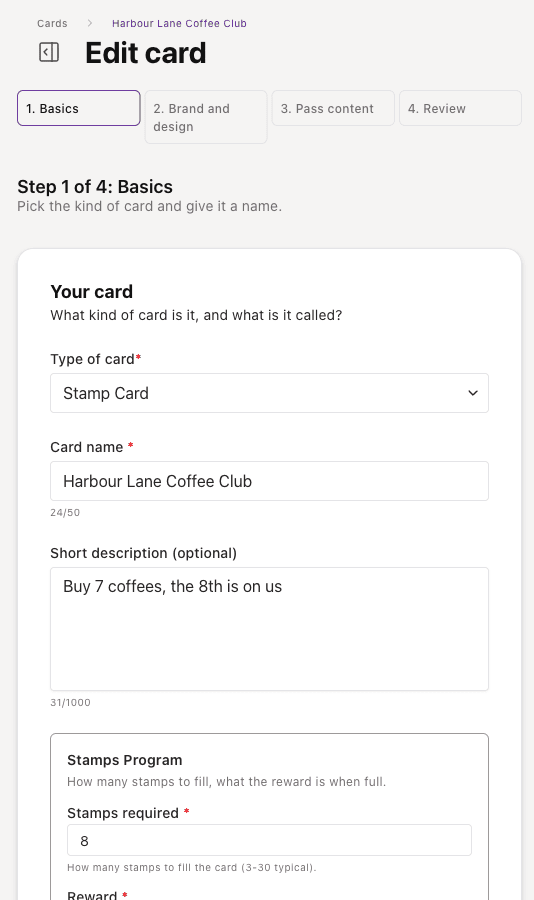
- In Basics, set Type of card to Stamp Card and give the card a name.
- Set Stamps required, the number of stamps a customer collects to fill the card (3 to 30 is typical), and enter the Reward they get when it is full.
- In Brand and design, add your logo, colours and banner. If you like, add one stamp picture for each stamp collected under Stamp pictures (optional).
- In Pass content, choose what the signup form asks. Under How customers earn, staff give stamps by hand and there is nothing to set up. Stamp rules are only for stamping automatically from a till or online store.
- In Review, choose Publish card.
- Share the signup link or QR code. See the guide on signup pages.
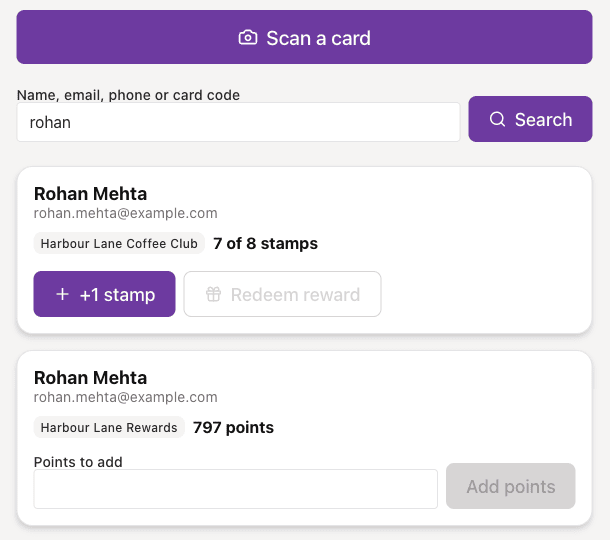
- At the counter, staff open Scan, find the customer and choose +1 stamp.
Stamping automatically
In Pass content, under Also give stamps automatically from till sales (optional), you can add rules so a sale adds a stamp. Choose whether to count one stamp per visit or one for each qualifying item, then add rules by SKU or by event. Rules are optional and you can add them later.
If something goes wrong
- A purchase did not add a stamp: open Rewards, then Stamp Events, and look at the failed events for the reason. Common ones are No stamp rule matched any line item, Customer has no active stamp cards, Card is inactive and Card is full.
- The +1 stamp button is switched off: the card is full. Choose Redeem reward and the card starts again.
- You cannot see the buttons on the Scan page: you need permission to change cards. Ask the account owner to check your role.
- You added a stamp by mistake: choose Undo straight afterwards.