
Points and rewards
How do I scan a customer's card and add stamps or points?
Last updated 2026-11-09
Open Scan, then scan the code on the customer's card or search by name, email, phone or card code. Choose +1 stamp, or enter points and choose Add points.
What you need first
- A staff login with permission to change cards. The account owner can check your role.
- A phone, tablet or computer. The Scan a card button only appears if your browser can scan codes. If you do not see it, use the search box.
- The customer's card in their wallet, or their name, email or phone number.
Steps
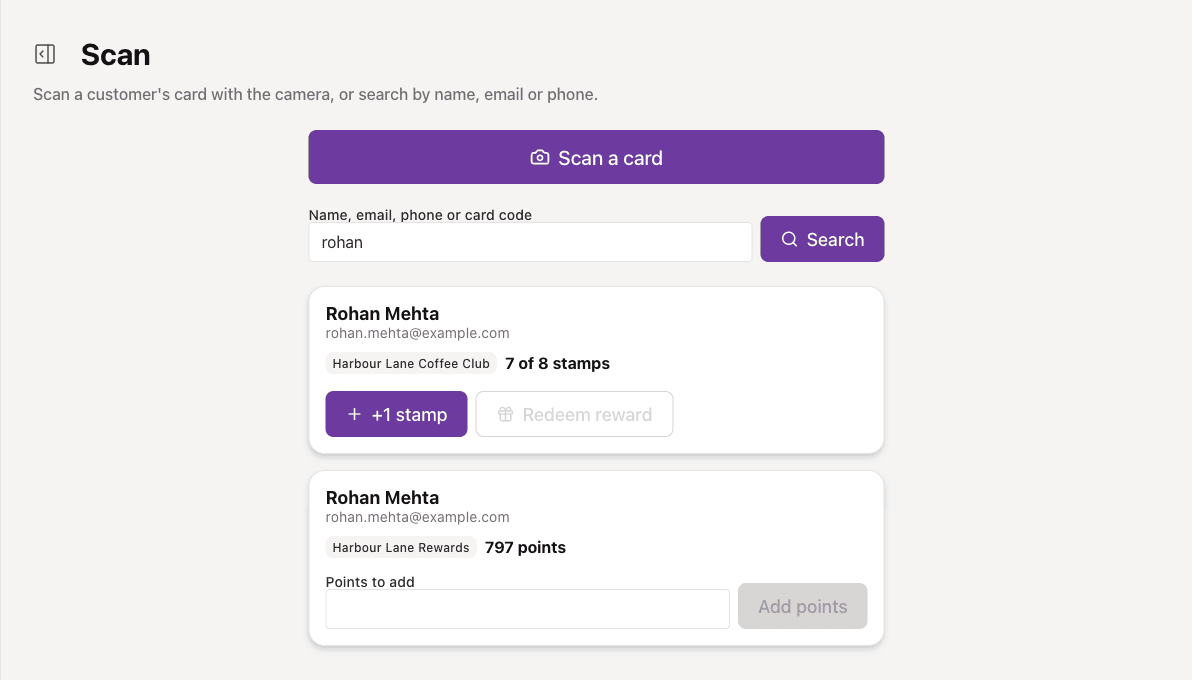
- Open Scan in the left menu.
- Choose Scan a card and point the camera at the code on the customer's card. Or type their name, email, phone number or card code into the box and choose Search. Type at least two characters.
- Their card appears with its progress, for example 7 of 8 stamps.
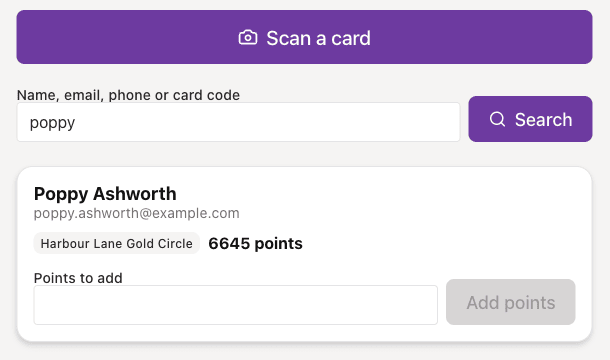
- For a stamp card, choose +1 stamp. For a points card, type the number in Points to add and choose Add points.
- If you add one by mistake, choose Undo straight afterwards.
Redeeming a reward
When a stamp card is full, the page tells you and +1 stamp is turned off. Choose Redeem reward to hand over the reward and start the card again.
If something goes wrong
- No results: type at least two characters, or try their email address or phone number instead.
- No buttons under the card: you need permission to change cards. Some card types cannot be changed from this page, and the card says so.
- Points to add is refused: enter a whole number from 1 to 1,000. For a larger one-off credit, use the API.
- A stamp went on by mistake: choose Undo straight afterwards. It undoes the last change only.